
 Creating a Build VM Template in Oracle Developer Cloud Service
 Before You Begin
This 10-minute tutorial shows how to create a Build VM template in Oracle Developer Cloud Service. Build VM templates define the platform and the software in Build VMs.
Background
Oracle Developer Cloud Build VMs run on Oracle Linux 6 and Oracle Linux 7, and support a variety of software such as Node.js, Docker, and Oracle SOA Suite. The platform and the software in Build VMs are defined by Build VM templates.
In this tutorial, you create a basic Build VM template with the minimum required software to run a build on Oracle Linux 6, and then add the Node.js software to it.
What Do You Need?
- A web browser
- An Oracle Cloud account with an active Oracle Developer Cloud service
- Your Oracle Cloud account credentials
- Oracle Cloud Infrastructure Compute Classic of your identity domain linked with Oracle Developer Cloud. See the Linking Oracle Cloud Infrastructure Compute Classic Service with Oracle Developer Cloud Service OBE.
- The Developer Service Administrator (
DEVELOPER_ADMINISTRATOR) identity domain role assigned to you
 Create a Build VM Template
In this section, you learn how to create a basic Build VM template that includes the minimum required software.
- Log on to Oracle Developer Cloud.
- In the Oracle Developer Cloud Service user interface, click the user name in the top-right corner and select Organization.
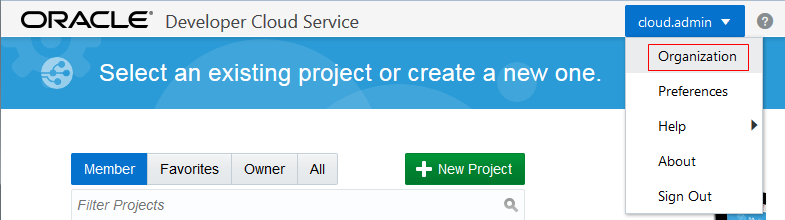
Description of the illustration devcs_user_menu.png - In the Organization Administration page, click VM Templates.
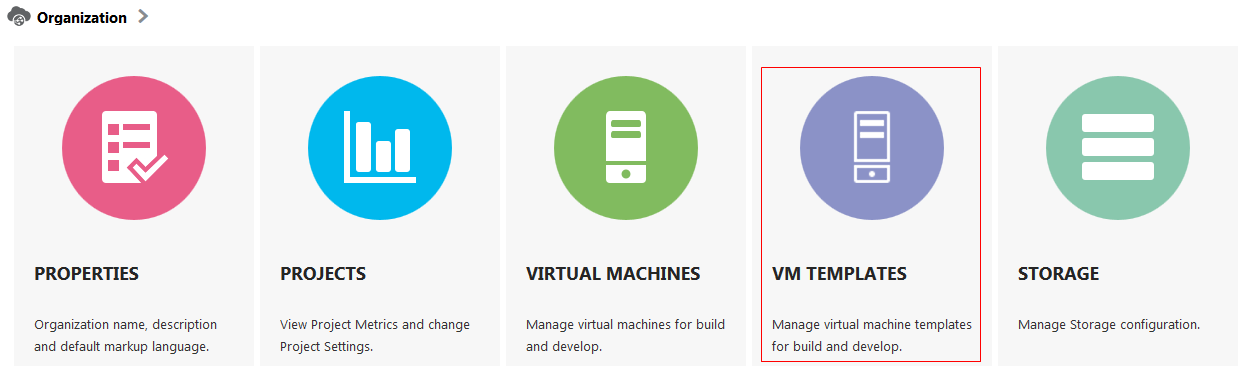
Description of the illustration devcs_org_vmtemplates.png - In the Build VM Templates page, click New Template.
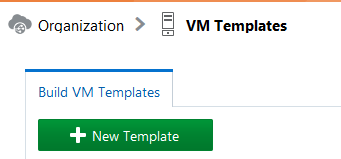
Description of the illustration devcs_org_buildvmtemplates.png - In the New VM Template dialog box, enter the following details and click Create.
- Name:
Basic Build VM Template - Description:
A Build VM template with minimum required software - Platform: Oracle Linux 6
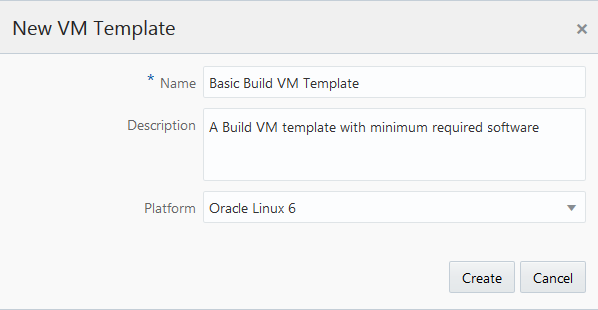
Description of the illustration devcs_newvmtemplate_dialog.png A Build VM template named
Basic Build VM Templateis created. It includes just the required Build VM components. The right side of the page displays the details for this Build VM. - Name:
 Configure the Software of a Build VM Template
When a Build VM Template is created, it contains the minimum software required to run basic builds. You can add additional software to the template, if necessary.
In this section, you add the Node.js software to a Build VM Template.
- In the Build VM Templates tab, select the template named
Basic Build VM Template. - On the right side of the page, click Configure Software.
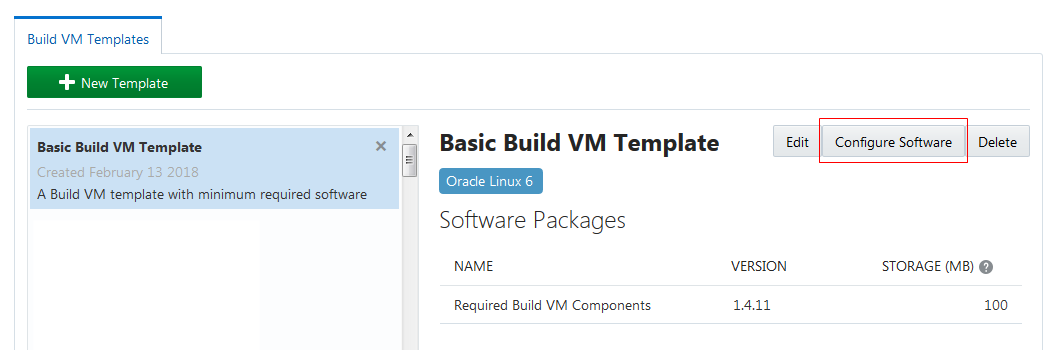
Description of the illustration devcs_buildvmtemplates_config.png - In the Configure Software page, select the Show latest versions only check box, enter
Node.jsin the search box, and press Enter.
Description of the illustration devcs_buildvmtemplates_softwarecatalog.png - In the Search result, click the Add
 icon of the Node.js tile.
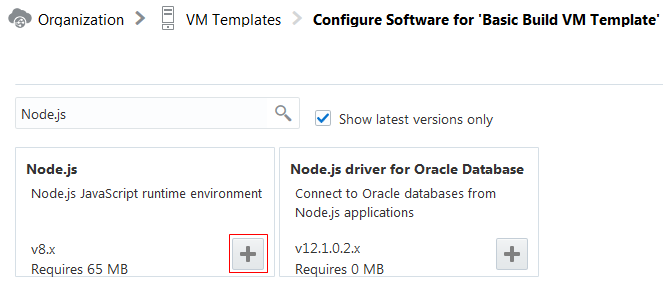
Description of the illustration devcs_buildvmtemplates_add.png The Node.js software gets added to the Selected Software list on the right side of the page.
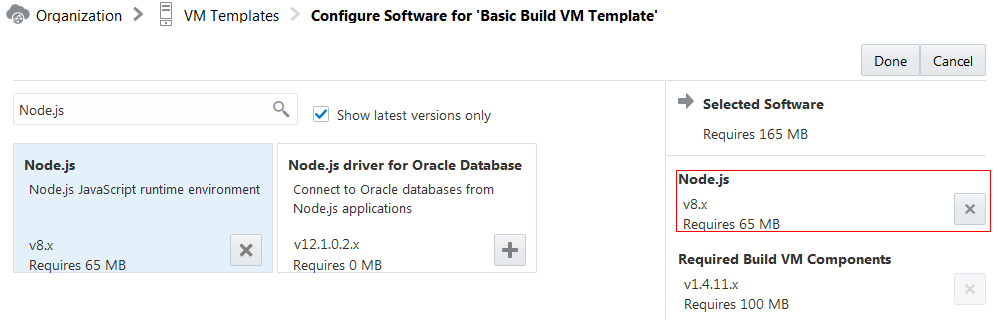
Description of the illustration devcs_buildvmtemplates_software.png - Click Done.
 Edit a Build VM Template
You can edit a Build VM template's name and description, but you can't change the platform.
- In the Build VM Templates tab, select Basic Build VM Template, and click Edit.
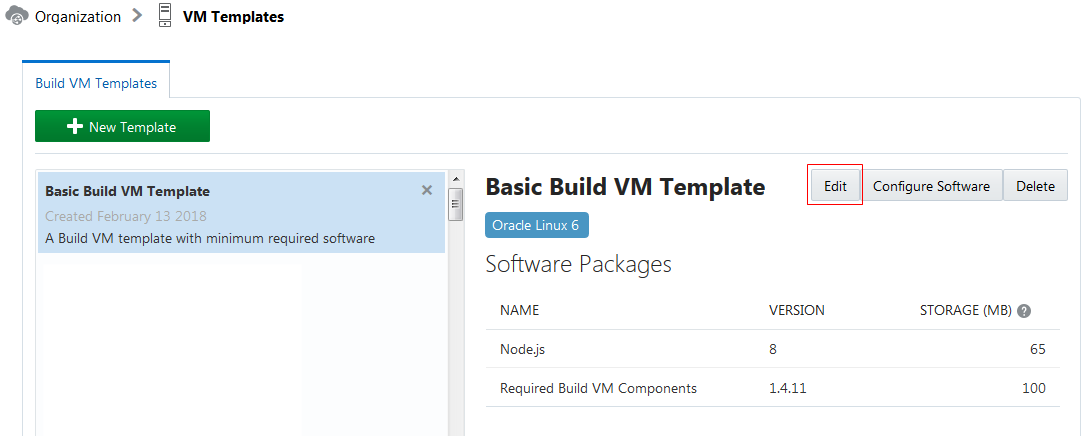
Description of the illustration devcs_buildvmtemplates_edit.png - In the Edit VM Template dialog box, change the values of Name and Description fields.
- Name:
Node.js Build VM Template - Description:
A Build VM template with Node.js software
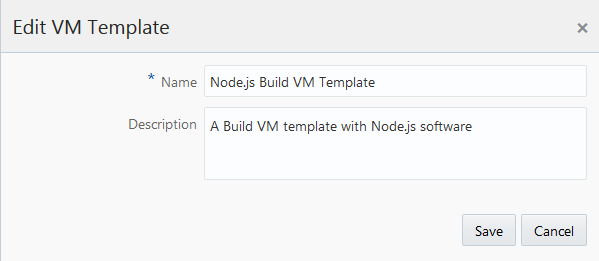
Description of the illustration devcs_editvmtemplate_dialog.png - Name:
- Click Save.
You are returned to the Build VM Templates tab. The Build VM template now has the updated name and description.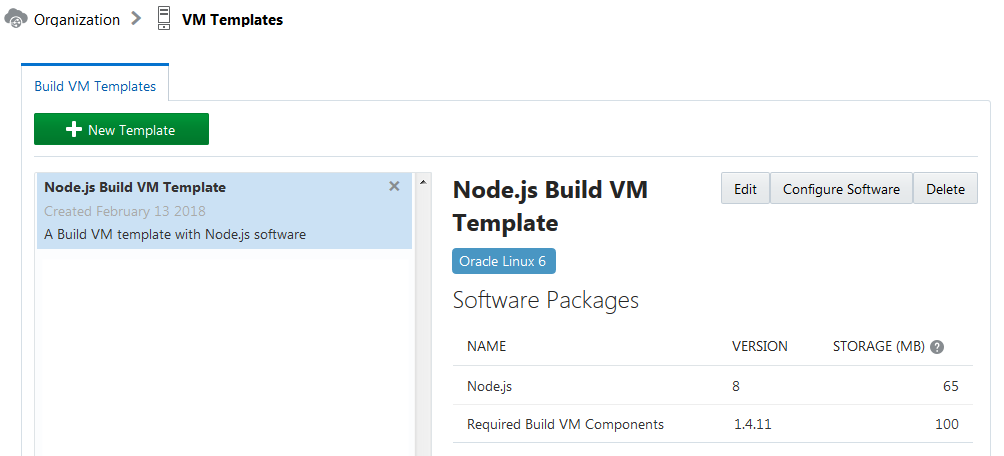
Description of the illustration devcs_buildvmtemplates.png
 Want to Learn More?
- Managing Virtual Machine Templates in Using Oracle Developer Cloud Service
- Oracle Developer Cloud Service product page
- Oracle Developer Cloud Service documentation page in the Oracle Help Center