
 Creating a Build Job in Oracle Developer Cloud Service
 Before You Begin
This 15-minute tutorial shows you how to create and configure a build job to run Apache Maven goals in an Oracle Developer Cloud Service project.
Background
A Job is a configuration that defines the software builds of your software application in the Oracle Developer Cloud project. In this tutorial, you create a job that runs Maven goals and archives the build artifacts.
What Do You Need?
- A web browser
- An Oracle Cloud account with an active Oracle Developer Cloud subscription
- Your Oracle Cloud account credentials
- Basic understanding of Maven, POM file, and Maven goals
- An Oracle Developer Cloud Service project with a Maven application in the project Git repository
See the Create and Populate a Git Repository of Developer Cloud OBE to push an Employee sample application to the project Git repository. Review the contents of the sample application'spom.xmlfile in the Code page before you begin this tutorial. - A Build VM configured to use a Basic Build VM Template template with minimum required software
Ask the Oracle Developer Cloud Organization Administrator to create a Build VM template named as Basic Build VM Template with minimum required software, and then add a Build VM to use it. See Creating Build VM Templates in Oracle Developer Cloud Service and Adding Build VMs in Oracle Developer Cloud Service OBEs to learn how to create a Build VM Template and add a Build VM.
 Create and Configure a Job
You can create and configure a job from the Build page.
- In the navigation bar of your project, click Build.

Description of the illustration devcs_navbar_build.png - On the Build page, in the Jobs tab, click + New Job.

Description of the illustration devcs_jobs_tab.png - In the New Job dialog box, enter the following details, and click Create Job.
- Name:
employee-app-build - Description:
Simple build job to compile the employee webapp, package the jar dependencies, and zip up the manifest.json descriptor. - Software Template: Basic Build VM Template

Description of the illustration devcs_newjob_dialog.png - Name:
- In the Source Control tab of the Job Configuration page, click Add Source Control and select the Git option.
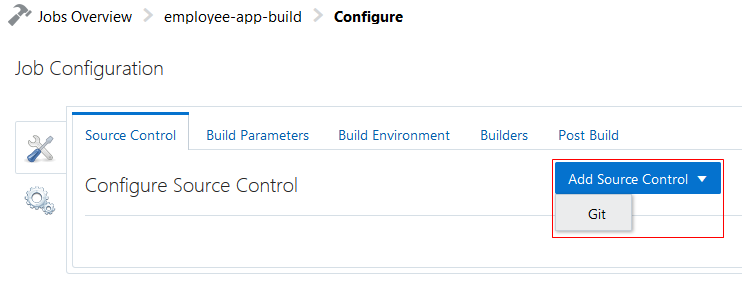
Description of the illustration devcs_jobconfig_sourcecontrol.png - In the in the Repository list of the Git section, select the employee-app.git Git repository.
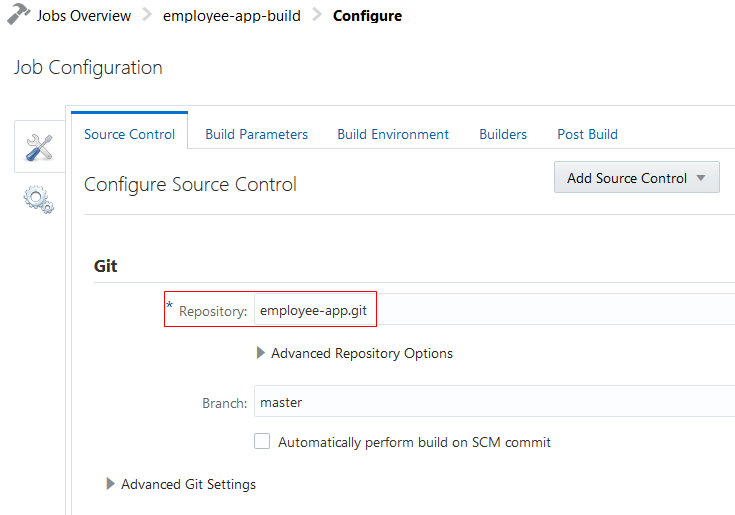
Description of the illustration devcs_jobconfig_sourcecontrol_repo.png - Click the Builders tab, click Add Builder, and then select Maven Builder.

Description of the illustration devcs_jobconfig_builder.png - In the Goals field, enter
clean install packageMaven goals. In the POM File field, enteremployees-app/pom.xmlas the path of the POM file.
Description of the illustration devcs_jobconfig_mavenbuilder.png Tip: You can copy the path of the POM file from the Code page. Browse and open the
pom.xmlfile and click Copy to copy its path.
Description of the illustration devcs_code_filepathcopy.png - Click the Post Build tab, click Add Post Build Action, and select the Artifact Archiver option.

Description of the illustration devcs_jobconfig_postbuild.png - In the Artifacts from files field, enter
employees-app/target/*, and then click Save.
Description of the illustration devcs_jobconfig_postbuild_artifactarchiver.png After saving the job, you return to the job details page.

Description of the illustration devcs_job_jobdetails.png
 Next Tutorial
After creating and configuring a job, you can run its build and generate artifacts. See the Running a Build of a Job in Oracle Developer Cloud Service in the Want to Learn More section.
 Want to Learn More?
- Managing Project Jobs and Builds in Using Oracle Developer Cloud Service
- Running a Build of a Job in Oracle Developer Cloud Service OBE
- Oracle Developer Cloud Service product page
- Oracle Developer Cloud Service documentation page in the Oracle Help Center