Create and Populate a Git Repository of Developer Cloud
Before You Begin
This tutorial shows you how to create a Git repository in an Oracle Developer Cloud Service project and upload sample application files to it. This tutorial takes approximately fifteen minutes to complete.
Background
After you create an Oracle Developer Cloud Service project, you'll want to create a Git repository to upload your application files. To upload your files to the project Git repository, you must create a Git repository in the project, clone the created project Git repository to your local computer, populate it with the application files, add and commit the files to the local Git repository, and then push the commits of the local Git repository to the project Git repository.
In this OBE, you will use Git Bash, a command line interface to run Git commands.
An Oracle Cloud account with an active Oracle Developer Cloud Service subscription
An Oracle Developer Cloud Service project where you are assigned the project Owner role. If you have not created a project, see the Create a Project Using Developer Cloud OBE.
Git Bash CLI
Git Bash is a command line tool to run Git commands on your computer. You can download Git tools from https://git-scm.com/downloads.
Sample application Click here to download the Employee sample application. The application is a Java SE web application that uses Servlets, JSP, Bootstrap and embedded Tomcat.
Create a Git Repository in the Oracle Developer Cloud Service Project
You need the project Owner role to create a Git repository in the project. If you do not have the project Owner role, ask the Owner to create a Git repository in the project.
Log on to Oracle Developer Cloud Service and open the Oracle Developer Cloud Service project.
On the Project page, if necessary, click Repositories on the right.
Enter commands to navigate to the directory on your computer where you want to clone the project Git repository. Example:
$ cd My\ Apps/
Open the Code page of the Oracle Developer Cloud Service project and copy the git clone command from the Set up a new repository using the command line section.
Description of the illustration clone_git_repo_02.png
Paste the git clone command in the Git Bash prompt. Example:
Your command will be different as it will use your service URL, organization name, and project name.
Press Enter. The cloning process starts. Enter your Oracle Developer Cloud Service password, when prompted. Example:
$ git clone https://alex.ora.cloud%40test.com@developer.us2.oraclecloud.com/developer99999-my_id_domain/s/developer99999-my_id_domain_projectname/scm/employee-app.git
Cloning into 'employee-app'...
Checking connectivity... done.
warning: remote HEAD refers to nonexistent ref, unable to checkout.
Ignore the warning as it indicates that the repository is empty. So, don't be alarmed.
Open the Explorer and navigate to the cloned repository directory. Notice the .git directory created in the cloned repository directory. Do not delete or rename the .git directory as it contains necessary Git repository files.
Description of the illustration clone_git_repo_03.png
Add the Sample Application Files to the Cloned Git Repository
In the Git Bash command line, navigate to the cloned repository directory.
$ cd employee-app
This is necessary because after the project Git repository is cloned, you are not automatically navigated to it.
Run the git add . command to add or stage all files of the current directory to the local Git repository index of the default master branch.
$ git add .
The above command adds all files and sub-directories of the current directory to the repository index.
Run the git status command to verify that all files have been added to the index.
$ git status
On branch master

Initial commit

Changes to be committed:
  (use "git rm --cached ..." to unstage)

new file:   employees-app/manifest.json
new file:   employees-app/pom.xml
new file:   employees-app/src/assembly/distribution.xml
new file:   employees-app/src/main/java/com/example/employees/Employee.java
new file:   employees-app/src/main/java/com/example/employees/EmployeeList.java
new file:   employees-app/src/main/java/com/example/employees/EmployeeService.java
new file:   employees-app/src/main/java/com/example/employees/EmployeeServlet.java
new file:   employees-app/src/main/java/com/example/employees/Main.java
new file:   employees-app/src/main/webapp/META-INF/context.xml
new file:   employees-app/src/main/webapp/WEB-INF/web.xml
new file:   employees-app/src/main/webapp/css/bootstrap.min.css
new file:   employees-app/src/main/webapp/fonts/glyphicons-halflings-regular.eot
new file:   employees-app/src/main/webapp/fonts/glyphicons-halflings-regular.svg
new file:   employees-app/src/main/webapp/fonts/glyphicons-halflings-regular.ttf
new file:   employees-app/src/main/webapp/fonts/glyphicons-halflings-regular.woff
new file:   employees-app/src/main/webapp/fonts/glyphicons-halflings-regular.woff2
new file:   employees-app/src/main/webapp/index.jsp
new file:   employees-app/src/main/webapp/js/bootstrap.min.js
new file:   employees-app/src/main/webapp/jsp/list-employees.jsp
new file:   employees-app/src/main/webapp/jsp/new-employee.jsp
Commit and Push the Sample Application Files to the Project Git Repository
In Git Bash, run the git commit -m "Initial commit" command to commit the staged files to the local Git repository and add Initial commit as the commit message.
The above command commits all added files to the default master branch of the local Git repository.
Run the git push -u origin master command to push the commits of the local Git repository master branch to the project Git repository. In the command, origin is the default name assigned to the remote project Git repository. Enter your Oracle Developer Cloud Service password, when prompted.
$ git push -u origin master
Counting objects: 37, done.
Delta compression using up to 4 threads.
Compressing objects: 100% (28/28), done.
Writing objects: 100% (37/37), 145.15 KiB | 0 bytes/s, done.
Total 37 (delta 0), reused 0 (delta 0)
remote: Updating references: 100% (1/1)
To https://alex.ora.cloud%40test.com@developer.us2.oraclecloud.com/developer99999-my_id_domain/s/developer99999-my_id_domain_projectname/scm/employee-app.git
 * [new branch]      master -> master
Branch master set up to track remote branch master from origin.
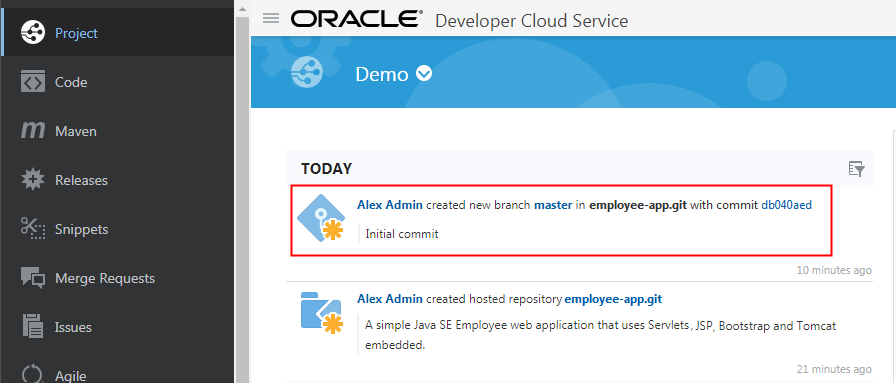
After the command successfully runs, the sample application files are uploaded to the project Git repository on Oracle Developer Cloud Service.
After populating the repository, if not done before, you may want to add your team members to the project. See the Add Users to a Developer Cloud Project OBE in the Want to Learn More section.
You may also want to create a build job that runs builds of the uploaded application in the integrated Oracle Developer Cloud Service build server. See the Create and Configure a Build Job in Developer Cloud OBE in the Want to Learn More section.

 Create and Populate a Git Repository of Developer Cloud
 Before You Begin
 Create a Git Repository in the Oracle Developer Cloud Service Project
 on the right.


 Clone an Oracle Developer Cloud Service Project Git Repository


 Add the Sample Application Files to the Cloned Git Repository
 Commit and Push the Sample Application Files to the Project Git Repository
 Next Tutorial
 Want to Learn More?