This tutorial shows you how to create a project in Oracle Developer Cloud Service. This tutorial takes approximately five minutes to complete.
Background
Oracle Developer Cloud Service is a cloud-based software development Platform as a Service (PaaS) and a hosted environment for your application development infrastructure. It provides an open source standards-based solution to develop, collaborate, and deploy applications within Oracle Cloud.
An Oracle Developer Cloud Service project is a collection of Git repositories, branch merge requests, wikis, issues, deployment configurations, and builds.
An Oracle Cloud account with an active Oracle Developer Cloud Service subscription
Your Oracle Cloud account credentials
Open Oracle Developer Cloud Service Console
You can log on to Oracle Developer Cloud Service from the Oracle Cloud Dashboard page.
In a web browser, go to https://cloud.oracle.com/home, and click Sign In.
From the Cloud Account drop-down menu, select your data center, and click My Services.
Enter your identity domain, and click Go.
Enter your cloud account credentials and click Sign In.
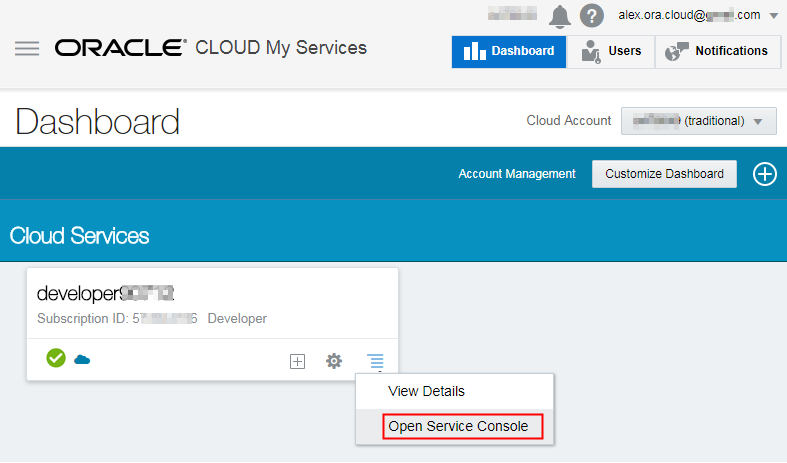
In Oracle Cloud Dashboard, in the developerid tile, click Action Menu and select Open Service Console.Description of the illustration open_console_01.png
If Oracle Developer Cloud Service isn't listed on the dashboard, click Customize Dashboard.
Under Platform, find developerid, select Show, and then close the Customize Dashboard tab.
Create a Project
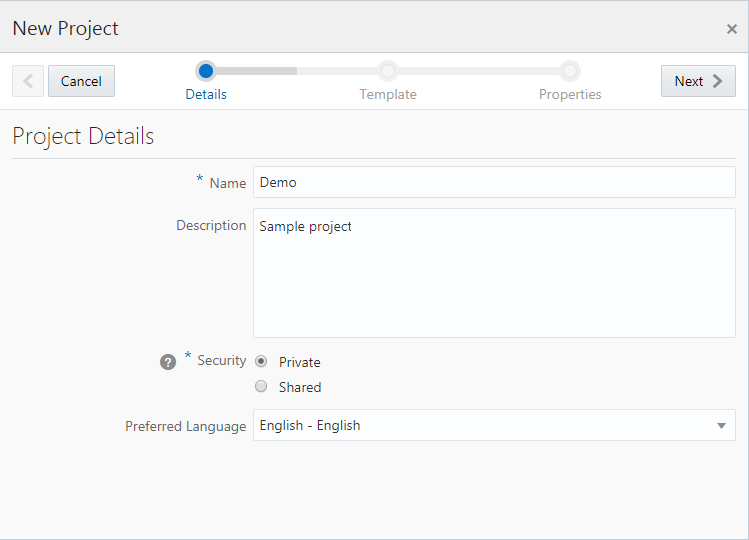
You can create a project from the Oracle Developer Cloud Service Console, also called the Welcome page.
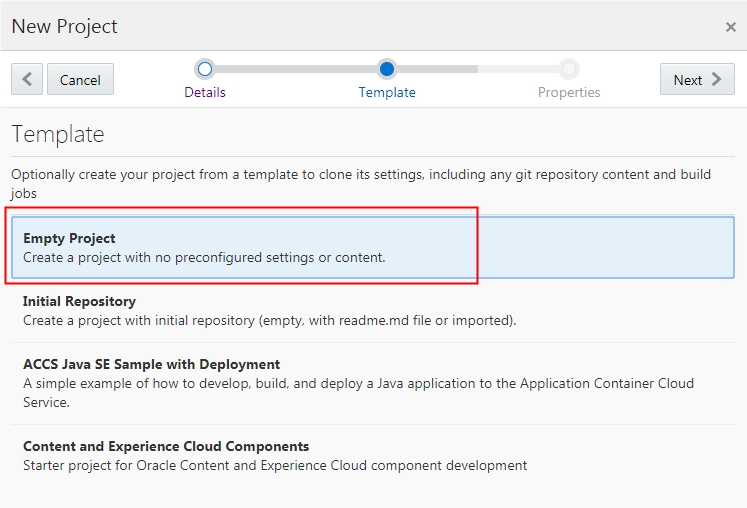
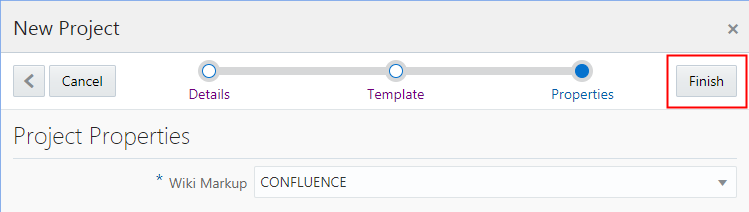
On the Template page, select Empty Project (if not selected by default), and then click Next.Description of the illustration create_project_03.png Your environment may provide templates in addition to the Empty Project and Initial Repository options.
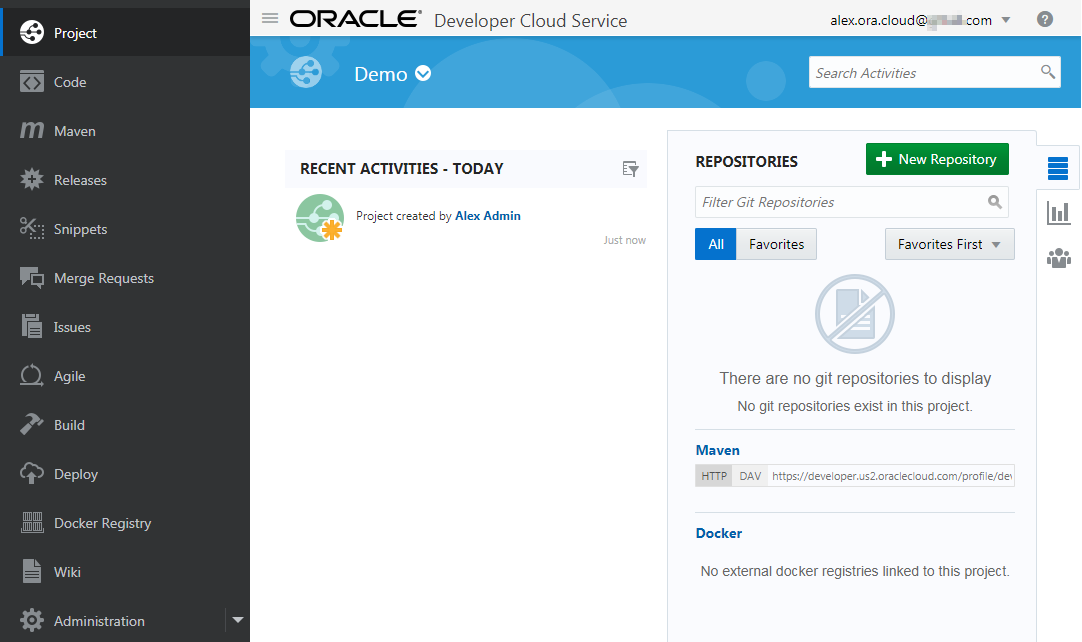
After creating an Oracle Developer Cloud Service project, you can do the following:
Add your team members to the project. See the Add Users to an Developer Cloud Project OBE in the Want to Learn More section.
Clone the project Git repository to your computer, add your application files to it, and then commit and push those files to project Git repository. See Create and Populate a Git Repository of Developer Cloud OBE in the Want to Learn More section.

 Create a Project in Developer Cloud
 Before You Begin
 Open Oracle Developer Cloud Service Console
 and select Open Service Console.
 Create a Project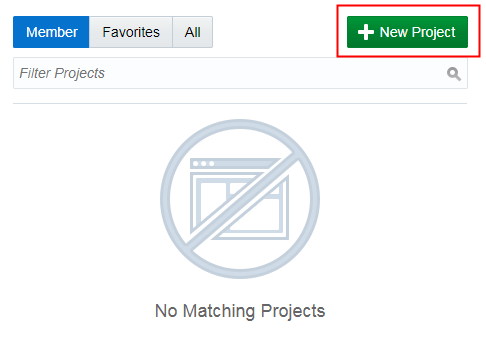

 Next Tutorial
 Want to Learn More?