Deploy an Application to Application Container Cloud from Developer Cloud
Before You Begin
This tutorial shows you how to deploy a build artifact of an Oracle Developer Cloud Service project job to Oracle Application Container Cloud Service from the Oracle Developer Cloud Service web interface. This tutorial takes approximately ten minutes to complete.
Background
After generating artifacts of a job, you can deploy it to Oracle Java Cloud Service, Oracle Java Cloud Service - SaaS Extension, or Oracle Application Container Cloud Service from the Oracle Developer Cloud Service web interface. In this OBE, you learn how to create a deployment configuration to deploy an artifact to Oracle Application Container Cloud Service from the Oracle Developer Cloud Service web interface.
An Oracle Cloud account with an active Oracle Developer Cloud Service subscription
Your Oracle Cloud account credentials
An Oracle Developer Cloud Service project with a successful build of a job that generated some artifacts.
To run a build of a job, see the Run a Build of a Job in Developer Cloud OBE.
Identity domain and Oracle Cloud credentials of a user who has the Admin Role (Java_Administrators) identity domain role of the target Oracle Application Container Cloud Service
Create a Deployment Configuration
To deploy the artifact to Oracle Application Container Cloud Service, you must first create a deployment configuration that defines how and where to deploy the artifact.
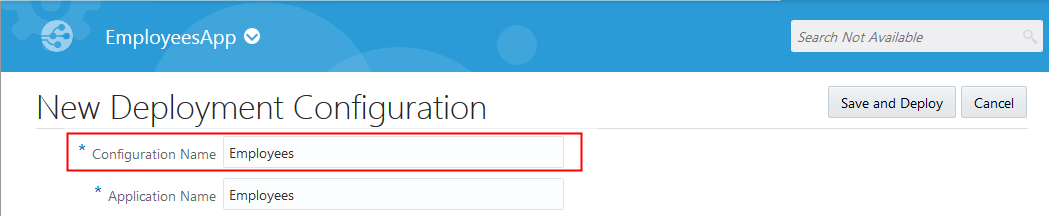
In the New Deployment configuration page, in Configuration Name, enter Employees.
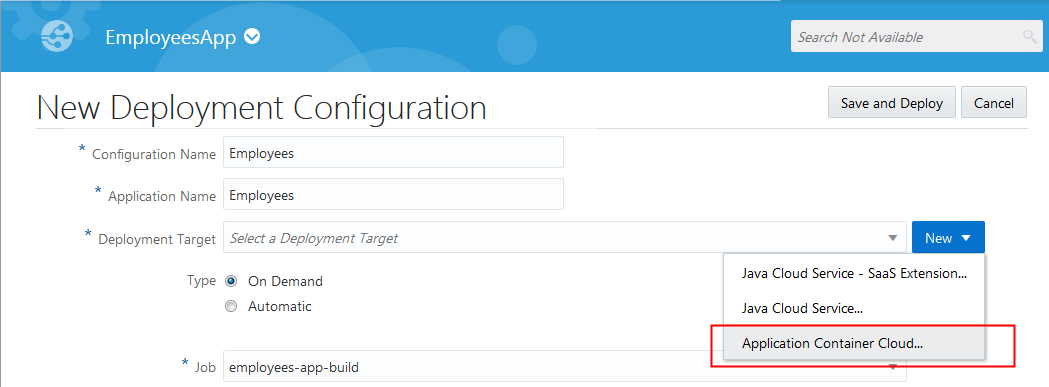
Description of the illustration create_deploy_config_03.png The Application Name field is automatically populated with the same value of Configuration Name.
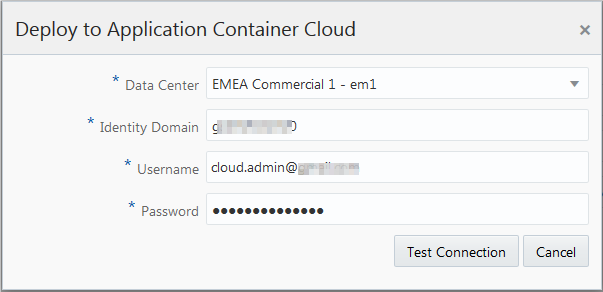
In the Deploy to Application Container Cloud dialog box, enter the details of the user who has the Admin Role (Java_Administrators) identity domain role, and click Test Connection.Description of the illustration create_deploy_config_05.png
In the Artifact list, select employees-app/target/employees-app-1.0-SNAPSHOT-dist.zip.Description of the illustration create_deploy_config_08.pngNote: As there is only one job with one successful build in the current project, the Job and Build fields are automatically populated. If there are multiple jobs and builds in your project, then select the correct value for Job and Build manually.
All required fields of the New Deployment Configuration page are now set. Verify the values and then click Save and Deploy.
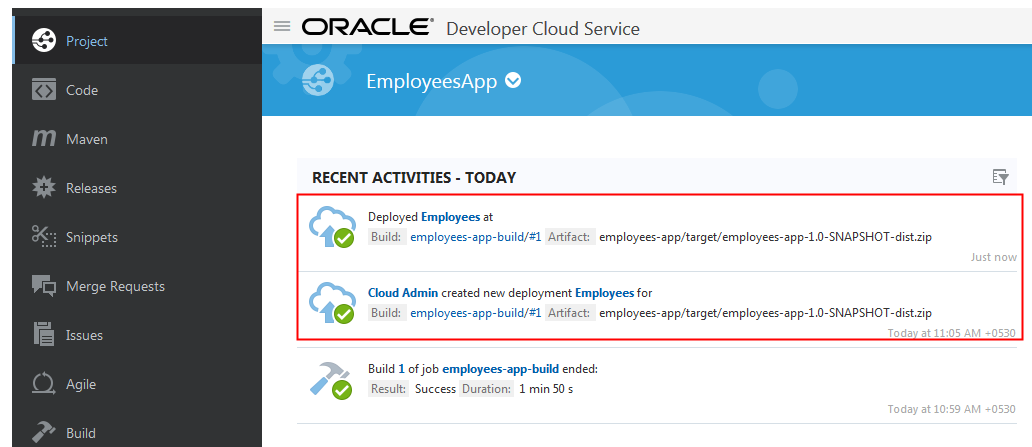
Description of the illustration create_deploy_config_09.png The deployment process starts. Wait for deployment to complete.

 Deploy an Application to Application Container Cloud from Developer Cloud
 Before You Begin
 Create a Deployment Configuration



 Want to Learn More?