Deploying a Node.js Microservice Application in Oracle Developer Cloud Service
Before You Begin
This 10-minute tutorial shows you how to deploy a Node.js microservice application to Oracle Application Container Cloud Service from Oracle Developer Cloud Service.
Background
Oracle Developer Cloud Service can deploy Node.js applications to Oracle Application Container Cloud Service.
Deploy the Node.js Application to Oracle Application Container Cloud Service
In a web browser, log on to the Oracle Developer Cloud Service project.
In the left navigation bar of the project, click Deploy.
In the Deploy page, click New Configuration.
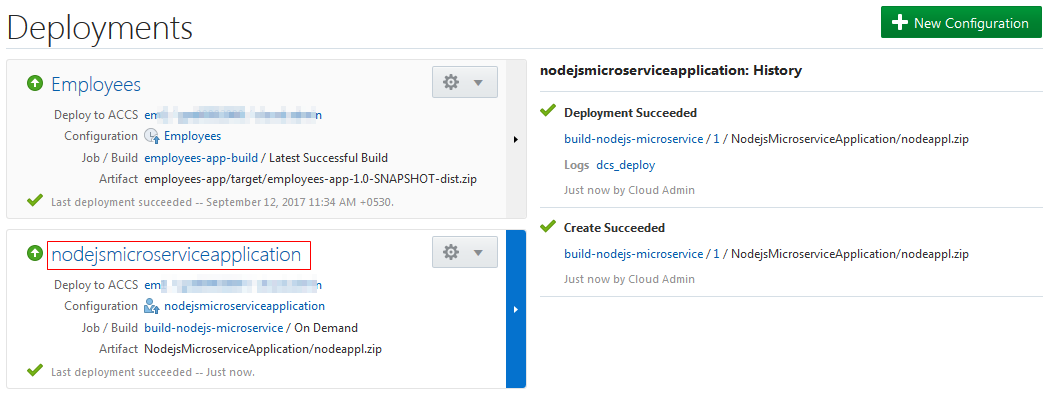
In the New Deployment Configuration page, in Configuration Name, enter nodejsmicroserviceapplication. The Application Name field is automatically populated with the same value.
Description of the illustration devcs_deploy_configname.png
In Deployment Target, select a pre-configured Oracle Application Container Cloud target, or click New and then select Application Container Cloud to create
a deployment target.
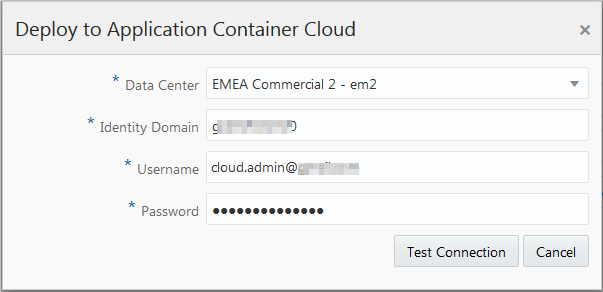
In the Deploy to Application Container Cloud dialog box, verify or enter the details, enter the username and password of the user who has the Admin Role (Java_Administrators) identity domain role, and click Test Connection.Description of the illustration devcs_deploy_deploymenttarget.png
After the connection is successful, click Use Connection.
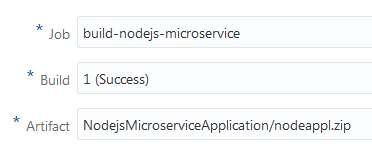
In Job, select build-nodejs-microservice. The values in Build and Artifact lists are automatically selected.
Description of the illustration devcs_deploy_job_build.png If the values are not selected automatically, ensure that the Artifact field shows NodejsMicroserviceApplication/nodeappl.zip of the last successful build.

 Deploying a Node.js Microservice Application in Oracle Developer Cloud Service
 Before You Begin
 Deploy the Node.js Application to Oracle Application Container Cloud Service


 Want to Learn More?