Configuring and Building an ADF Application using Maven in Oracle Developer Cloud Service Classic
Before You Begin
This 15-minute tutorial shows you how to configure and build an Oracle Application Development Framework (Oracle ADF) application with Apache Maven and Oracle Maven Repository by using Oracle JDeveloper and Oracle Developer Cloud Service.
Background
Oracle Developer Cloud Service can build Oracle ADF applications by using Maven, Oracle Maven Repository, JDeveloper, Oracle ADF libraries, and OJMake and OJDeploy utilities.
In this tutorial, you use the Oracle Alta UI Work Better sample application and configure it in JDeveloper to use Maven. You configure the Maven Project Object model (POM) file to access the Oracle Maven Repository to download Oracle ADF libraries, and to access the OJMake and OJDeploy utilities available on the Oracle Developer Cloud Service build system. You then create a job in Oracle Developer Cloud Service that runs a Maven build and generates the artifacts.
The Alta UI Work Better sample application is a demo application that uses the Alta UI to develop the most recent Oracle Cloud products.
What Do You Need?
A web browser
Your Oracle Cloud account credentials
An Oracle Cloud account with an active Oracle Developer Cloud Service instance
Add the Maven POM File to the Oracle ADF Application
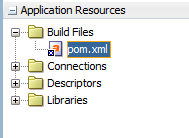
In this section, you add a Maven pom.xml file to an Oracle ADF application in JDeveloper.
In JDeveloper, if you aren't using the Studio Developer role, from the Tools menu, select Switch Roles, and then select Studio Developer (All Features). Save all files and restart JDeveloper.
Open the WorkBetterFaces application from the cloned Git repository of the project.
Configure the POM File to Access Oracle Maven Repository, OJMake, and OJDeploy
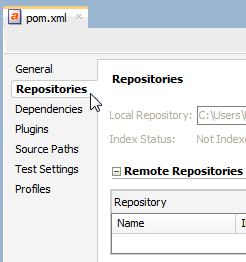
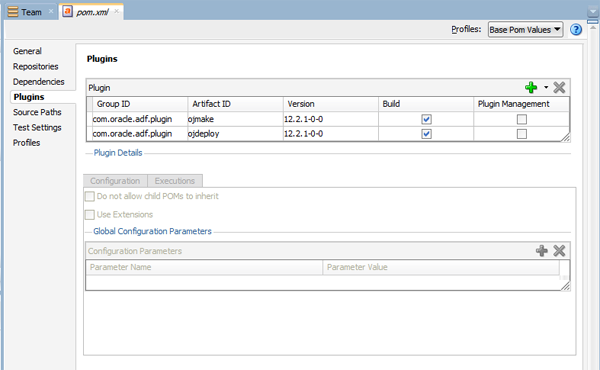
In this section, you configure the POM file to access the Oracle Maven Repository and to use the OJMake and OJDeploy utilities. The OJMake and OJDeploy utilities are available on the build system of Oracle Developer Cloud Service and can be accessed by using Oracle Developer Cloud Service system environment variables.
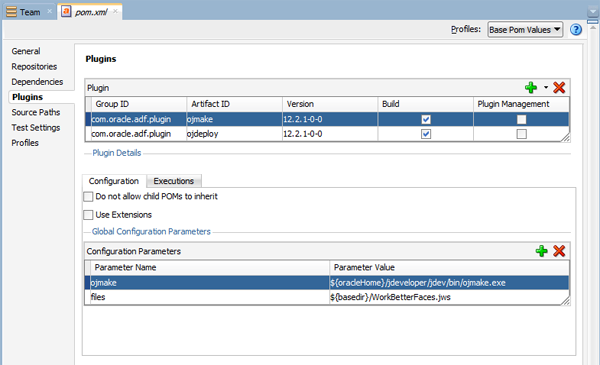
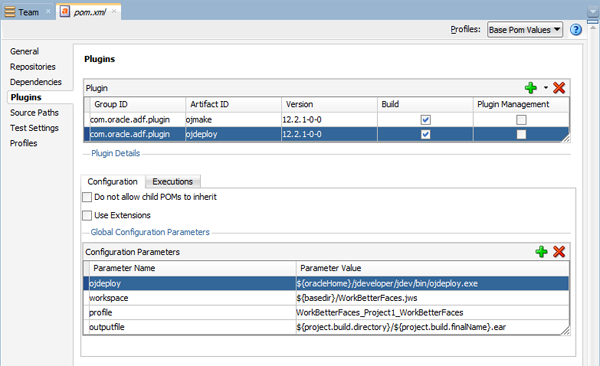
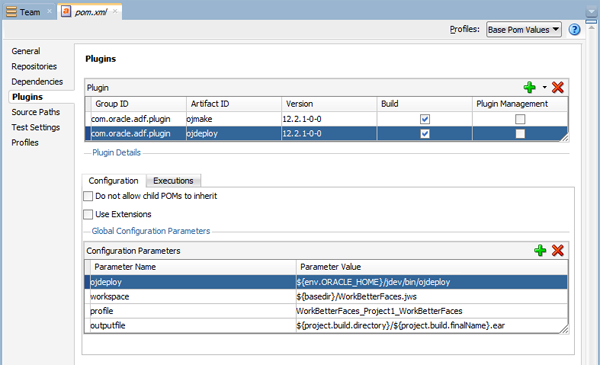
In the Configuration Parameters table, update the parameter value of the ojmake parameter to ${env.ORACLE_HOME_SOA_12_2_1}/jdev/bin/ojmake.
Description of the illustration config_maven_06.png The ORACLE_HOME_SOA_12_2_1 environment variable defines the path of the JDeveloper 12.2.1 directory that's installed on the Oracle Developer Cloud Service build executor.
Using the Team > Git menu options, use the Add option to add the pom.xml file to the Git repository index, use the Commit option to commit it, and the Push coption to push the commit to the project Git repository.
Create and Configure a Build Job in Oracle Developer Cloud Service
In this section, you configure a build job to run Maven and deploy the archived artifacts.
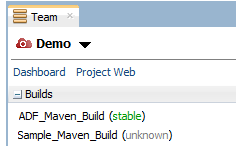
In the Oracle Developer Cloud Service web interface, create a ADF_Maven_Build job and open its configuration page. See the Create and Configure a Build Job in Developer Cloud OBE in the Want to Learn More section to learn about how to create and configure a job in Oracle Developer Cloud Service.
Click the Environment tab, select the Connect Oracle Maven Repository check box, and enter your Oracle Account user name and password. If not done before, accept the Oracle Maven Repository license agreement at https://www.oracle.com/webapps/maven/register/license.html.
Description of the illustration config_build_maven_02.png
After the build is successful, in the Deploy page of Oracle Developer Cloud Service, create a deployment configuration and deploy the ADF application to Oracle Java Cloud Service. See the Deploying an Application from Oracle Developer Cloud Service to Oracle Java Cloud Service OBE in the Want to Learn More section to learn about how to deploy an application to Oracle Java Cloud Service.

 Configuring and Building an ADF Application using Maven in Oracle Developer Cloud Service Classic
 Before You Begin
 Add the Maven POM File to the Oracle ADF Application


 Configure the POM File to Access Oracle Maven Repository, OJMake, and OJDeploy
 .
. 

 Create and Configure a Build Job in Oracle Developer Cloud Service


 Want to Learn More?