
 Integrating Oracle Developer Cloud Service with Oracle JDeveloper
 Before You Begin
This 5-minute tutorial shows you how to integrate Oracle Developer Cloud Service with Oracle JDeveloper.
Background
You can integrate and access Oracle Developer Cloud Service with JDeveloper using the pre-installed Team Server plugin. After configuring the plugin to connect to your Oracle Developer Cloud Service account, you can access your Oracle Developer Cloud Service projects in the JDeveloper IDE.
A Team Server is an extension in JDeveloper that you can use to manage your Oracle Developer Cloud Service projects from the IDE. Using the Team Server, you can clone the project repositories to your local computer, perform Git actions, manage project issues, and view the status of project builds. The Oracle Developer Cloud Service Team Server extension is installed, by default, in JDeveloper.
What Do You Need?
- Your Oracle Cloud account credentials
- An Oracle Cloud account with an active Oracle Developer Cloud Service instance
- Oracle JDeveloper
You can download JDeveloper from here. - An Oracle Developer Cloud Service project
This OBE assumes that you are using a Demo project in your Oracle Developer Cloud Service instance. See Create an empty Oracle Developer Cloud Service Project OBE to learn how to create a project.
 Create a Team Server in JDeveloper
In this section, you learn how to add and use a Team Server in JDeveloper to connect to your Oracle Developer Cloud Service instance.
- Open JDeveloper.
- From the Team menu, click Team Server, and then click Add Team Server.
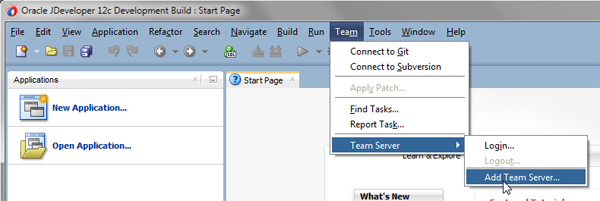
Description of the illustration create_ts_01.png - In the New Team Server dialog box, enter the following values, and click OK.
- Name:
Developer Cloud Team Server - URL: The URL of your organization on the Oracle Developer Cloud Service instance (for example:
https://developer.us2.oraclecloud.com/my-org/)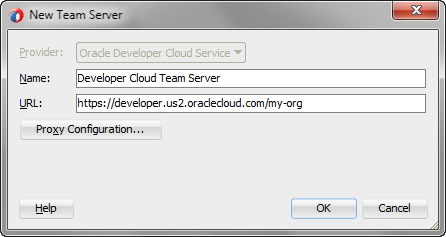
Description of the illustration create_ts_02.png
- Name:
- In the Team tab, select Click here to select project.

Description of the illustration create_ts_03.png - In the Developer Cloud Team Server list, click Login.
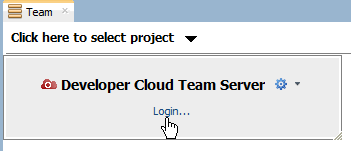
Description of the illustration create_ts_04.png - In the Login to Team Server dialog box, enter the user name and password of your Oracle Developer Cloud Service instance.
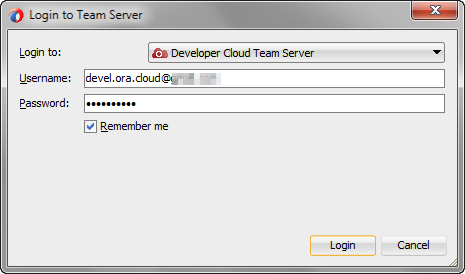
Description of the illustration create_ts_05.png - Click Login.
The Team Server displays all projects that you own or that you're a member of. If you can't log in, configure the proxy settings of JDeveloper.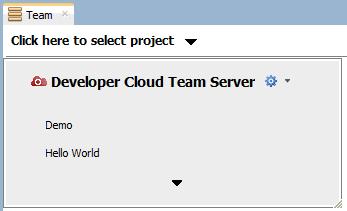
Description of the illustration create_ts_06.png - Click the Demo project to open it.
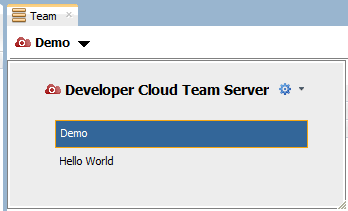
Description of the illustration clone_01.png
The Team tab shows the jobs of the open project in the Builds section, issues in the Tasks section, and Git repositories in the Sources section.

 Want to Learn More?
- Using Oracle JDeveloper with Oracle Developer Cloud Service in Using Developer Cloud Service
- Uploading Application to Oracle Developer Cloud Service Git Repository using JDeveloper OBE
- Oracle Developer Cloud Service product page
- Oracle Developer Cloud Service documentation page in the Oracle Help Center