Before You Begin
Purpose
This tutorial shows you how to create and start a service for Data Integration Cloud Service.
Time to Complete
Approximately 30 minutes, not including wait time for service activations.
Background
Oracle Data Integration Platform Cloud is a platform that unifies various Data Integration components and leverages their core strengths and functionality to offer a seamless set of data integration services in the cloud.
When using the Oracle Data Integration Platform Cloud, you create a Data Integration environment in the cloud. After you complete the instance creation wizard, your environment is provisioned and fully integrated for replication, extract, load and transform, streaming, data preparation, and data governance.
For Data Integration Platform Cloud, you can select one of the following editions:
- Standard Edition: For a bulk copy of your data sources to the cloud, or to extract, load and transform your data.
- Enterprise Edition: For a selective copy or real time replication of your data sources, or to extract, load and transform your data.
- Governance Edition: To extract, load, transform, manage, replicate, and Data Quality.
For this tutorial, we are using Enterprise Edition.
What Do You Need?
- Your Oracle Cloud user name, password, and identity domain, which you should have received by email
- An Oracle Storage Cloud subscription
- An Oracle Database Cloud Instance
Logging in to Oracle Cloud
-
In your web browser, navigate to cloud.oracle.com, then click Sign in.
-
Enter your user name and password, then click Sign In.
Description of this image Click Services or Go to Console to access My Oracle Services.
Creating an Oracle Database Cloud Instance
-
Locate Database in your list of services, then select Open Service Console from the Action menu.

Description of this image -
On the Services page, click Create Service. This launches the Create DBC instance wizard.

Description of this image -
Complete the Service form as follows and then click Next:
-
Service Name:
DBCSABC Description:
ABC Replication Database for Data Integration Platform Cloud-
Notification Email:
<a valid email address to receive provisioning status> Region: No Preference
Software Release: Oracle Database 12c Release 1
Software Edition: Enterprise Edition
Database Type: Single Instance

Description of this image -
-
On the Service Details page, complete the Database Configuration fields as follows:
- DB Name (SID):
ORCL - Pluggable Database (PDB) name:
PDB1 - Administration Password and Confirm Password fields:
Welcome_123#. - Usable Database Storage:
25Based on your entry for Usable Database Storage, the Total Data File Storage (GB) field updates to reflect the amount of storage that will be allocated to your instance, including space for operating system and product binaries, supporting files, database data and configuration files, and so on. After you create the service instance, you can add more data storage as needed.
- Compute Shape: OC3
- Click Edit for SSH Public Key.
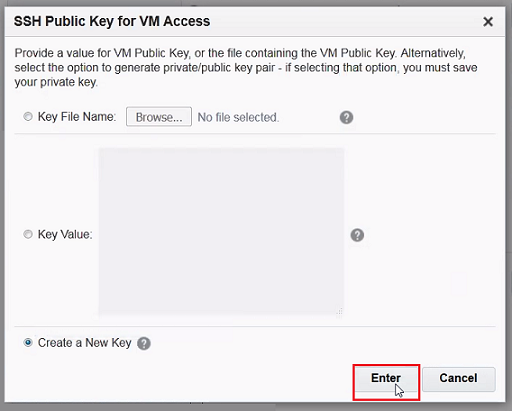
In the SSH Public Key for VM Access dialog, select Create a New Key, then click Enter.
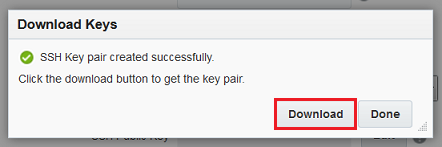
Description of this image Click Download in the Download Keys dialog box.
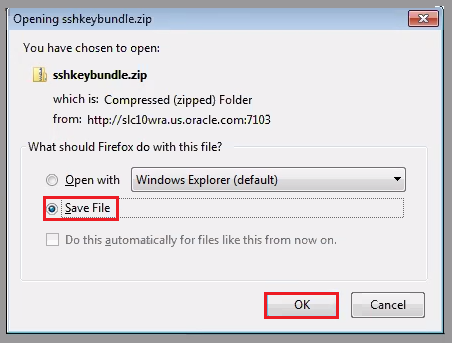
Description of this image Save the sshkeybundle.zip file to your computer.
Description of this image Confirm that the SSH Public Key field now contains a public key value.

Description of this image - DB Name (SID):
-
Expand Advanced Settings, and then complete the fields as follows:
- Listener Port:
1521 - Select your timezone from the Timezone menu.
- Select Enable Oracle GoldenGate.
- Deselect Include "Demos" PDB to save database space.
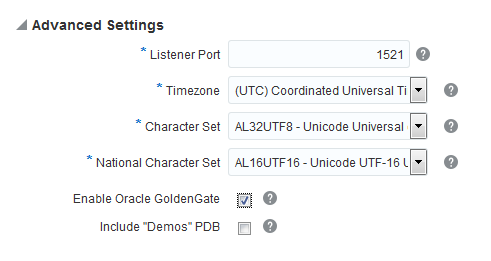
Description of this image - Listener Port:
-
Complete the Backup and Recovery Configuration fields as follows, and then click Next:
- Backup Destination: Both Cloud Storage and Local Storage
- Cloud Storage Container: Enter the name of your storage container in the format,
Storage-<identity domain name>/<container name>. For example, enterStorage-dipc/dipcABC. - Username: Enter your username for Oracle Storage Cloud
- Password: Enter your password for Oracle Storage Cloud
- Select Create Cloud Storage Container to create a new container.
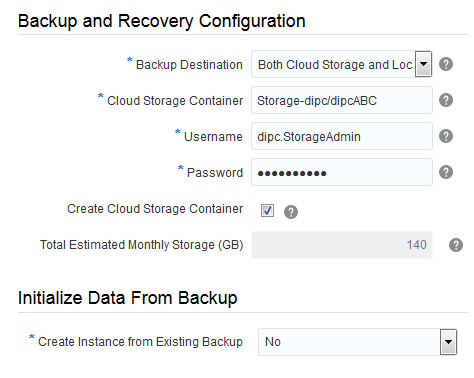
Description of this image -
Review the Service Details for your DBCS instance. If you need to make changes, click Previous or use the navigation train to go back. Otherwise, click Create.
The instance creation process can take some time, you'll see, it starts out in the "In Progress" status. You have to wait until the instance creation before you can move on to the next section.
The creation operation is completed, when the instance is automatically started and is in the "Running" status.
Create an Oracle Data Integration Platform Cloud Instance
In this section, you create an Oracle Data Integration Platform Cloud instance using the instance creation wizard.
-
Locate Data Integration Platform Cloud in your list of services, then select Open Service Console from the Options menu.

Description of this image -
In the Services page, click Create Service.

Description of this image -
Complete the Service fields as follows, and hen click Next:
Service Name:
DIPCABCDescription:
Data Integration Platform Cloud for ABC instanceEmail Address:
<a valid email address to receive provisioning status>Cluster Size:
2Service Edition: Governance Edition

Description of this image -
Complete the Database Configuration fields as follows:
Oracle Database Cloud Service Instance Name: DBCSABC
PDB Name:
PDB1Administration Username:
SYSPassword:
Welcome_123#

Description of this image -
Complete the Backup and Recovery Configuration fields as follows:
Cloud Storage Container:
Storage-dipc/dipcABCCloud Storage User Name: Enter your username for Oracle Storage Cloud
Cloud Storage Password: Enter your password for Oracle Storage Cloud

Description of this image -
Complete the Weblogic fields as follows:
Compute Shape: OC3m - 4.0 OCPU, 60.0GB RAM
SSH Public Key:
Click Edit.
In the SSH Public Key for VM Access dialog, select Create a New Key and then click Enter.
In the Download Keys dialog, click Download and save your SSHkeybundle.zip to your local machine.
Administrator Username:
weblogicAdmin Password: Enter the admin password that you'll use later to login to all the consoles for this service instance, with the correspondent username you have had specified. For example welcome1
Confirm Admin Password: Reenter the admin password

Description of this image -
Click Next and review your Data Integration Platform Cloud instance configuration details. If you need to make any changes, click Previous use the navigation train to go back. Otherwise, click Create.
The instance creation process can take up to 30 minutes. You have to wait until the instance is creation before you can move on to the next section.