


 Print
PrintBefore you begin
This 25-minute hands-on tutorial shows you how to use EPM Automate to export dimension metadata from Enterprise Data Management Cloud, copy it to a Planning environment, and then import the metadata into Planning. The sections build on each other and should be completed sequentially.
Background
Enterprise Data Management Cloud provides solutions for managing changes in your business by ensuring consistency across enterprise data, even across disparate applications.
Enterprise Data Management Cloud offers three ways to manage the integration of your dimension metadata with Planning:
- Manual: You can manually export dimension metadata from Enterprise Data Management Cloud to a flat file that is stored either locally or exported directly to a Planning instance. Then in Planning, you can run an import job to import the metadata.
- EPM Automate: You can download the EPM Automate client and issue commands to export dimension metadata from Enterprise Data Management Cloud, copy it to Planning, and then import it to Planning using a saved import job. This can be done with interactive commands or in a batch script.
- Groovy rules: You can create a Groovy business rule in Planning that calls the Enterprise Data Management REST API to export the dimension metadata, then imports the metadata to Planning using a saved import job.
In this tutorial, you update the Product dimension in Enterprise Data Management Cloud and then synchronize the changes to Planning using EPM Automate.
See the Next tutorials section for links to tutorials on manually exporting and importing, and using Groovy rules.
What do you need?
An EPM Cloud Service instance allows you to deploy and use one of the supported business processes. To deploy another business process, you must request another EPM Enterprise Cloud Service instance or remove the current business process.
- Have Service Administrator access to two instances of EPM Enterprise Cloud Service. The instances should not have business processes created.
- Configure one of your instances for Enterprise Data Management Cloud and configure the other instance for Planning.
- Upload and import this snapshot into your Enterprise Data Management Cloud instance.
- Upload and import this snapshot into your Planning instance.
If you have already set up these instances for one of the tutorials listed in the Next tutorials section, you can continue to use the same environments. Your results may vary from those shown in the screenshots for this tutorial, depending on whether and in which order you have completed the related tutorials.
For more information on uploading and importing migration snapshots, refer to the Administering Migration for Oracle Enterprise Performance Management Cloud documentation.
Adding a product in Enterprise Data Management Cloud
Currently, the Product dimensions in Enterprise Data Management Cloud and Planning are in sync. In this section, you add a new product to the Corporate Planning application in Enterprise Data Management Cloud.
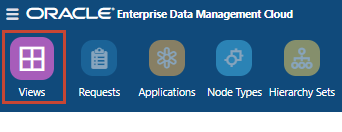
- Click Views (located in the icons along the top of the page).
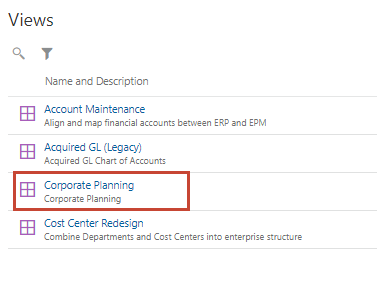
- Click Corporate Planning to open the view.
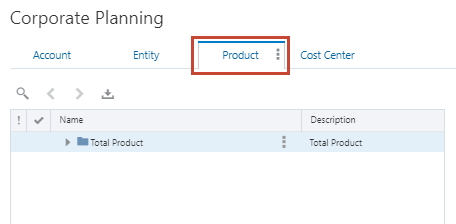
- Select the Product viewpoint.
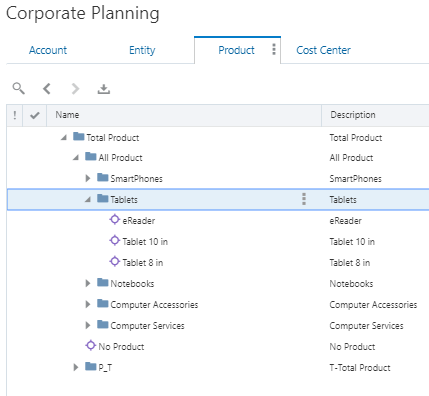
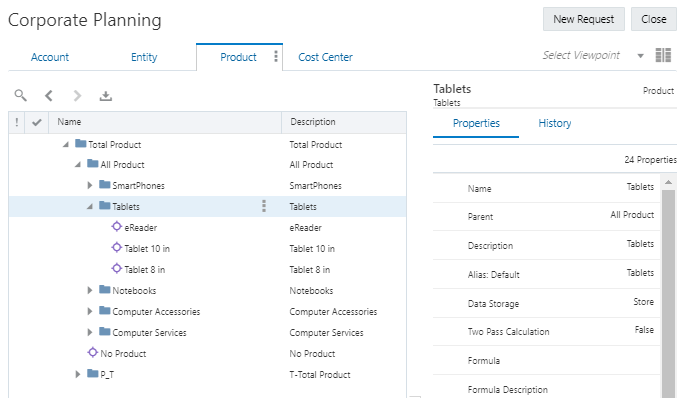
- In the Product hierarchy, expand Total Product, then All Product, and then Tablets.
- Click New Request to start a request to add a product.
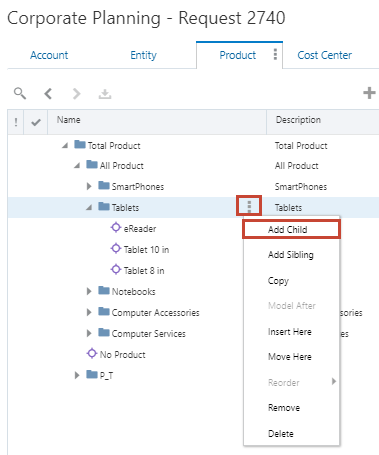
- In the Tablets row, click the Actions icon and select Add Child.
- Enter property values for the new product (for any properties not listed in the table, use the default value):
Property Value Name Tablet 13 in Description Tablet 13 in Hierarchy type Stored 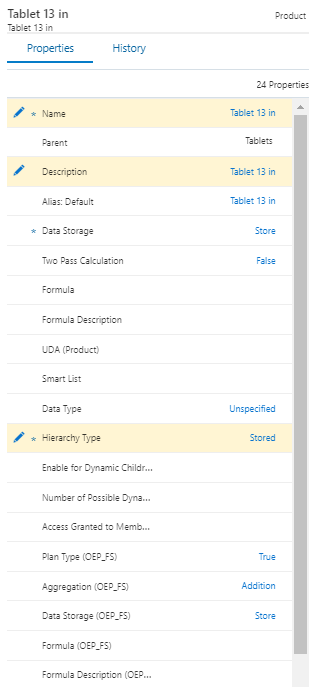
- Click Submit to commit the changes.
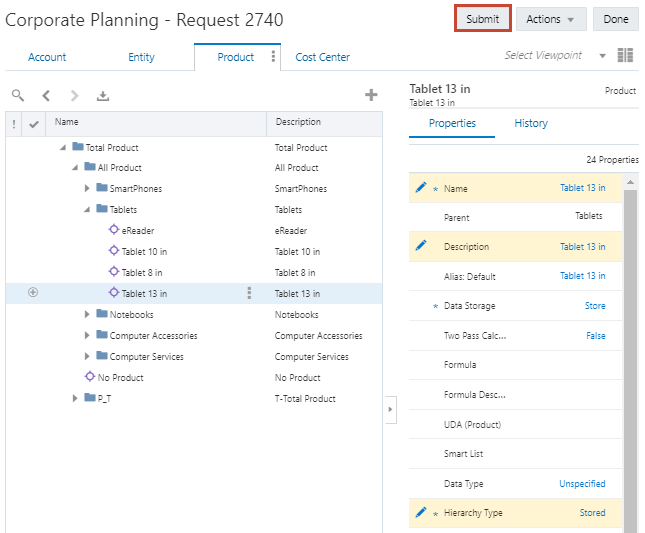
You receive a message that the request was successfully submitted.
Submitting the request validates your changes. If there are no validation issues and there is no approval workflow defined, the changes are immediately commited to the dimension.
- Click Close to close the view, then return to the home page.
Creating an import job in Planning
With EPM Automate, you can import files stored in the Planning Inbox/Outbox by referencing a saved import job. In this section, you create an import job for the edmc-product.csv file, which you will export from Enterprise Data Management Cloud using EPM Automate.
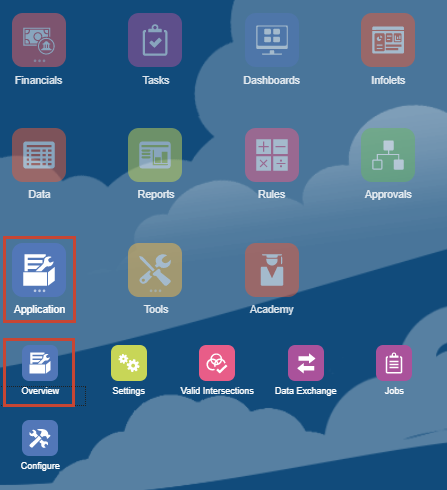
- Open a new browser tab and log in to your Planning instance. From the home page, click Application, and then click Overview.
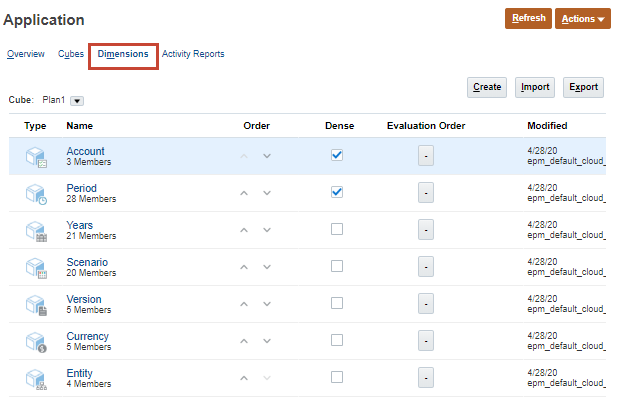
- Select the Dimensions tab.
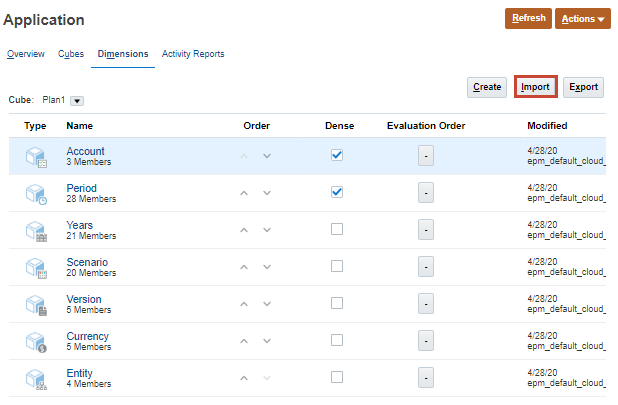
- Click Import to display the Import Metadata dialog box.
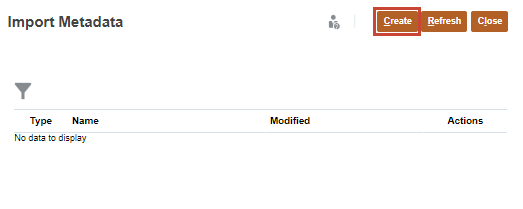
- Click Create.
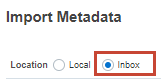
- For Location, select Inbox.
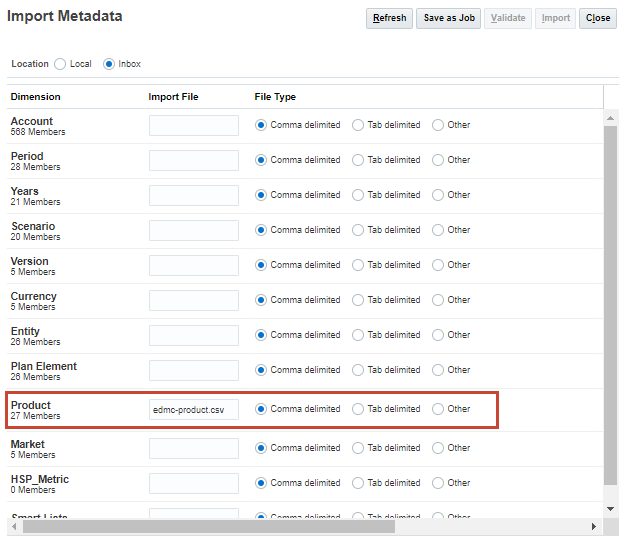
- In the Product dimension row, enter edmc-product.csv, and accept the default (Comma delimited) for the File Type.
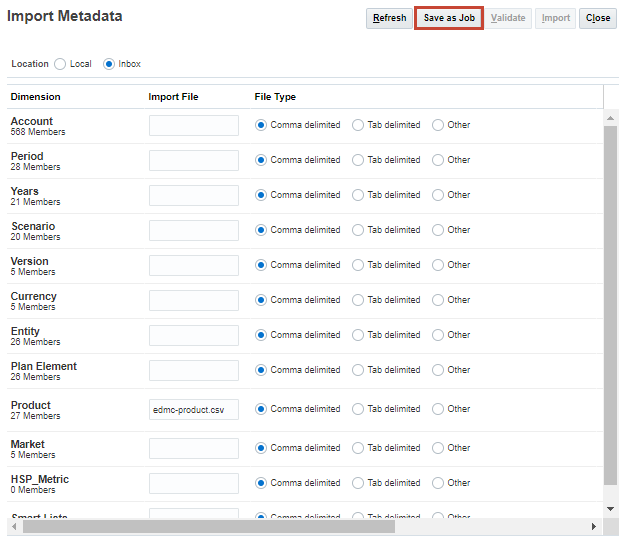
- Click Save as Job.
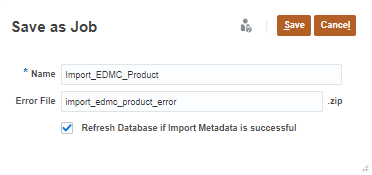
- Configure the job:
- Name: Import_EDMC_Product
- Error File: import_edmc_product_error
- Refresh Database if Import Metadata is successful: Selected
This file provides information about the metadata records that were not imported for each dimension. If you specify an error zip file, a separate error file is created for each dimension, then the error files are zipped together, and the zip file is stored in the Outbox where you can download the file using Inbox/Outbox Explorer.
You must refresh the database after modifying dimensions and members. In a production environment, Oracle recommends that you notify all users, asking them to save their work and close the application, before you refresh the database. For more information on database refreshes, please see Before Refreshing the Database in Administering Planning.
- Click Save, then click OK to close the information message.
- Click Close to close the first Import Metadata dialog box.
- In the second Import Metadata dialog box, click Refresh to view the list of saved import metadata jobs.
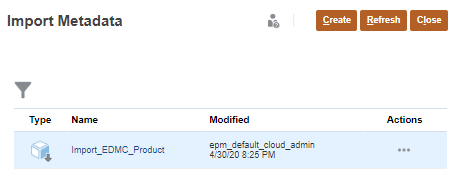
The job you created is displayed in the list.
- Click Close, then return to the Planning home page.
Downloading and installing EPM Automate
In this section, you download and install the EPM Automate client.
These instructions are for installing and working with EPM Automate on Windows. For installation instructions for Mac OS X or Linux, please see Linux/UNIX/Mac OS X in Working with EPM Automate for Oracle Enterprise Performance Management Cloud.
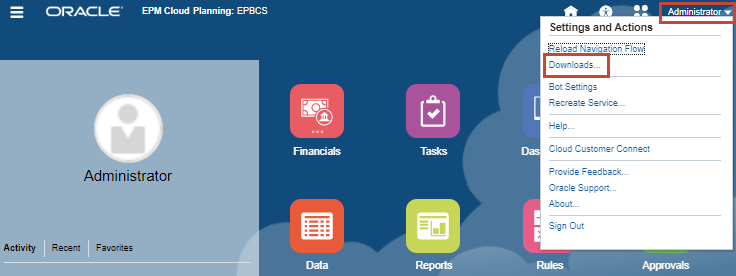
- On the Planning home page, select your user name (in the top right corner), and click Downloads.
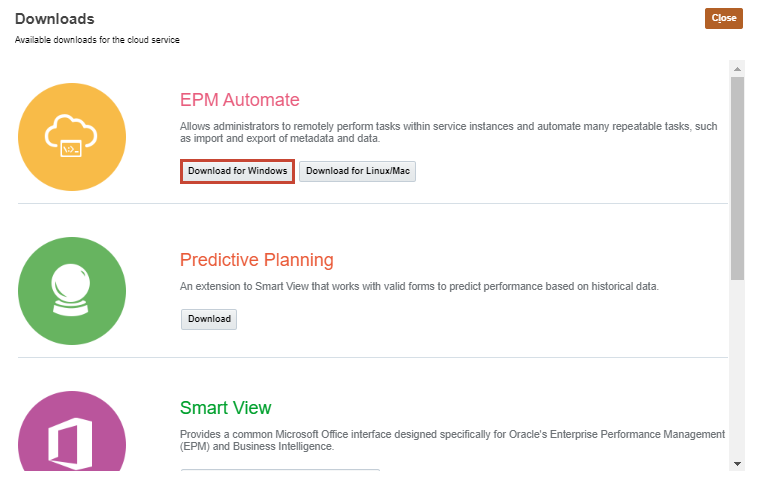
- In the EPM Automate row, click Download for Windows.
- Save EPM Automate.exe to your local drive.
- Open Windows Explorer and browse to the location where you saved EPM Automate.exe
- Double-click EPM Automate.exe to start the installer.
- By default, EPM Automate will be installed to
C:\Oracle\EPM Automate. You can accept the default or click Change to change the destination folder.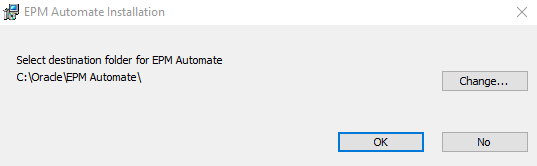
- Click OK to start the installation. The installation may take several minutes to complete.
- At the successful completion message, click OK.
Exporting and importing interactively in EPM Automate
In this section, you enter interactive commands in EPM Automate to export the Product dimension from Enterprise Data Management Cloud, copy the exported file to your Planning instance, and import the dimension into Planning.
- In Windows Explorer, browse to the directory where you installed EPM Automate, and open the bin folder.

- Double-click epmautomate.bat to open a command window.
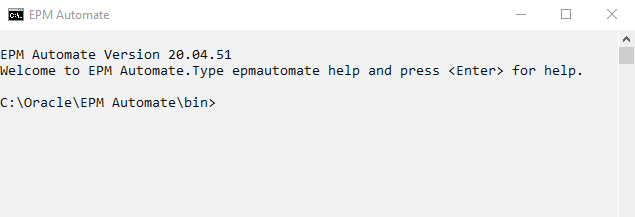
- Log in to Enterprise Data Management Cloud, using the user name, password, URL, and identity domain for your instance:
epmautomate login USER_NAME PASSWORD URL IDENTITY_DOMAINOptional: If you are using a proxy server, also include these parameters at the end of the command:
ProxyServerUserName=User ProxyServerPassword=password ProxyServerDomain=domain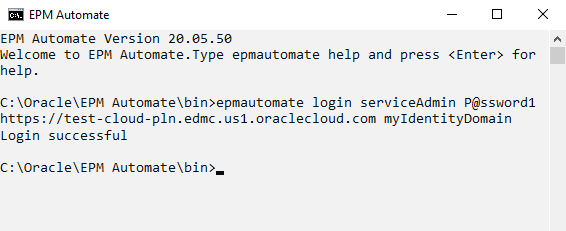
- Optional: If you receive a message that a newer version of EPM Automate is available, upgrade EPM Automate:
epmautomate upgrade - Export the Corporate Planning Product dimension to the edmc-product.csv file in the Enterprise Data Management Cloud outbox:
epmautomate exportdimension "Corporate Planning" Product edmc-product.csv
- Create an encrypted password file called EDMpassword.epw for your Enterprise Data Management password:
epmautomate encrypt PASSWORD myKey FILE_PATH\EDMpassword.epw- Replace
PASSWORDwith your password. - Replace
FILE_PATHwith a path to a folder on your file system to store your encrypted password file (for example,c:\Oracle\secure\)

The encrypt command uses Advanced Encryption Standard (AES) to encrypt an EPM Cloud password, and optionally, the internet proxy server password, and stores it in a password file. Encrypting a password is a onetime process.
An encrypted password file is required to copy your dimension export file from Enterprise Data Management Cloud to your Planning instance. It is also a recommended best practice to avoid using clear passwords in an unsecure file if you are creating batch files for EPM Automate. - Replace
- Log out of Enterprise Data Management Cloud:
epmautomate logout
- Log in to Planning, using the user name, password, URL, and identity domain for your instance:
epmautomate login USER_NAME PASSWORD URL IDENTITY_DOMAINOptional: If you are using a proxy server, also include these parameters at the end of the command:
ProxyServerUserName=User ProxyServerPassword=password ProxyServerDomain=domain
- Copy the exported file from the Enterprise Data Management Cloud environment to the Planning environment:
epmautomate copyfilefrominstance edmc-product.csv EDMC_USER_NAME PASSWORD_FILE EDMC_URL EDMC_IDENTITY_DOMAIN edmc-product.csv- Replace
EDMC_USER_NAMEwith your Enterprise Data Management Cloud user name. - Replace
PASSWORD_FILEwith the name and location of the file containing the encrypted password for your Enterprise Data Management Cloud user (for example,C:\Oracle\secure\EDMpassword.epw). - Replace
EDMC_URLwith the URL for your Enterprise Data Management Cloud instance (for example,https://test-cloud-pln.edmc.us1.oraclecloud.com). - Replace
EDMC_IDENTITY_DOMAINwith the Identity Domain for your Enterprise Data Management Cloud instance (for example,myIdentityDomain.)
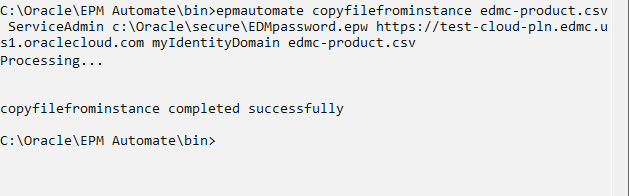
- Replace
-
Import Product metadata to Planning:
epmautomate importmetadata Import_EDMC_ProductThis command calls the saved import job Import_EDMC_Product that you created in an earlier step.

- Log out of Planning:
epmautomate logout
Viewing import results
In this section, you return to Planning an verify that the new product was imported.
- From the Planning home page, click Application, and then click Overview.
- Select the Dimensions tab.
- In the Cube drop-down, select OEP_FS.
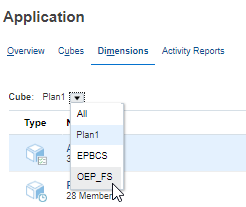
- Click Product to view the Product dimension.
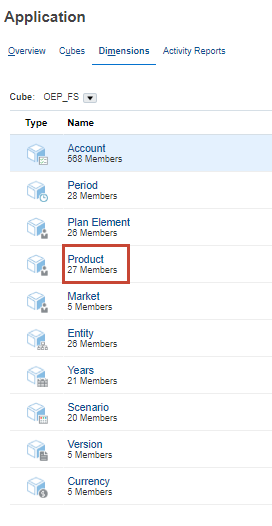
- Expand Total Product, then All Product, and then Tablets.
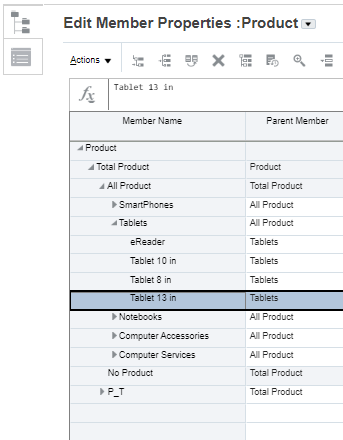
The new product, Tablet 13 in, was added to the dimension.