
 Print
PrintBefore you begin
This 20-minute tutorial shows you how to create a Groovy script to work with Planning metadata, in this case, moving a member from one parent to another. The script includes RTPs to prompt users for input. You'll also learn how to create a right-click action menu with a menu item to call the script, and how to associate the action menu with a data form.
Background
The EPM object model in Groovy gives you tools to design interactive ways for users to work with metadata, such as adding new members, renaming existing members, moving members under new parents, updating other metadata properties, and so on. Including run time prompts, or RTPs, in your Groovy scripts lets you prompt users for relevant values during these operations.
The EPM object model provides utility methods to perform the following tasks:
- Retrieve the object representations for the various types of RTPs such as Member, Members, DateAsNumber, Member Range, and so on
- Validate RTP values and veto the rule execution if the provided values are not valid
What do you need?
An EPM Enterprise Cloud Service instance allows you to deploy and use one of the supported business processes. To deploy another business process, you must request another EPM Enterprise Cloud Service instance or remove the current business process.
- Have Service Administrator access to EPM Enterprise Cloud Service. The instance should not have a business process created.
- If you haven't already, register for a free Oracle Cloud Customer Connect account so you can access the required files. Upload and import this Planning snapshot into your environment. If you've previously uploaded the snapshot for another Groovy tutorial, you can continue using the same snapshot.
For more information on uploading and importing snapshots, refer to the Administering Migration for Oracle Enterprise Performance Management Cloud documentation.
The scripts you need for this tutorial are linked as text files within each section.
Loading Planning calculation variables
In this section, you upload calculation variables from an XML file for use in the Groovy script.
- Right-click the link for HP4_Plan2_Variables.xml, and save the file to your local drive.
- From the Planning Home page, navigate to Rules (under Create and Manage) to open Calculation Manager. In the System View, expand EPM Cloud > HP4. Right-click Plan2 and select Import.
- Under File Import Details, browse to select HP4_Plan2_Variables.xml from your local drive.
- Under Location Details, make the following selections:
- Application Type: EPM Cloud
- Application: HP4
- Cube: Plan2
- Under Import Options, select Override Existing Objects.
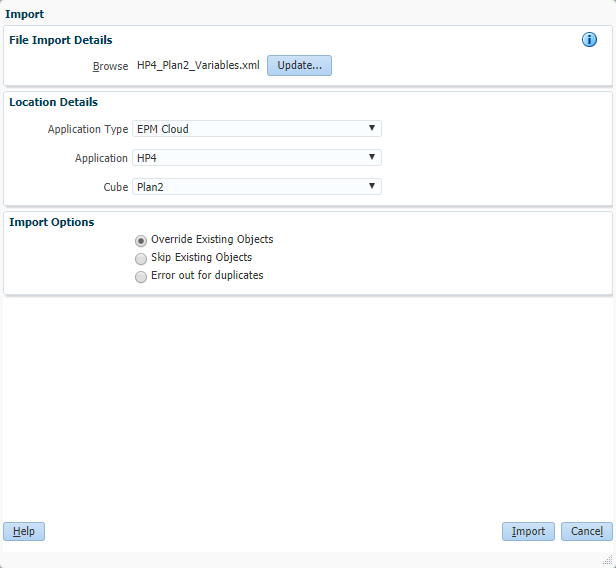
- Click Import. Review the import results (they may say Inserted or Update), and then click OK.

- Click Cancel to close the Import dialog box.
Creating a Groovy script to move dimension members
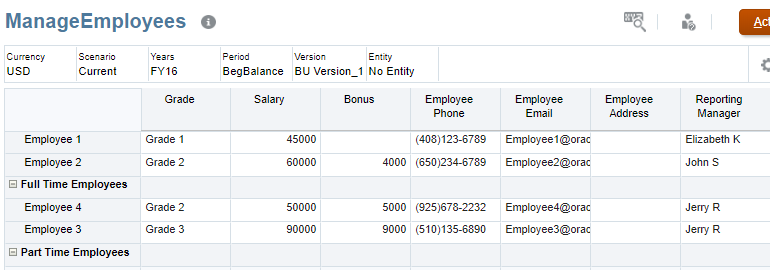
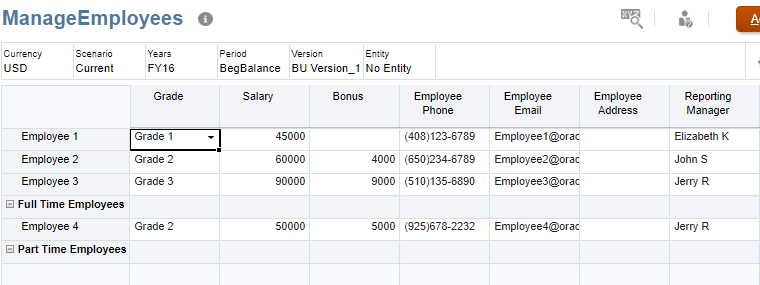
In this section, you implement a Groovy script to move an employee from one parent to another. You'll work with the predefined ManageEmployees form, which has been set up to capture employee information such as their Grade, Salary, Bonus, Phone, Email, Address, and Reporting Manager.
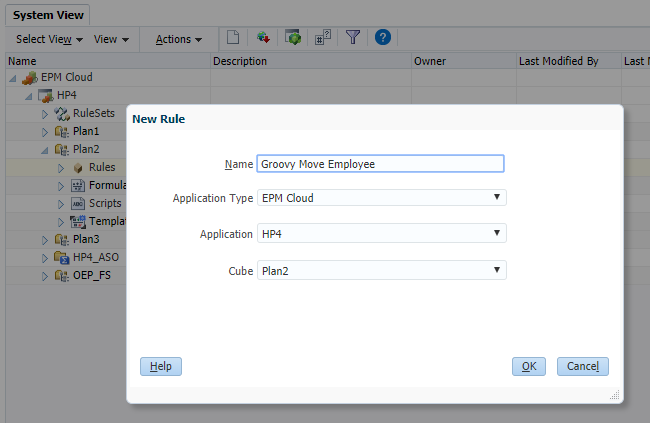
- In Calculation Manager, create a rule named Groovy Move Employee for the Plan2 cube.
- In the Rule Editor, change the Designer option to Edit Script and set the Script Type to Groovy Script.
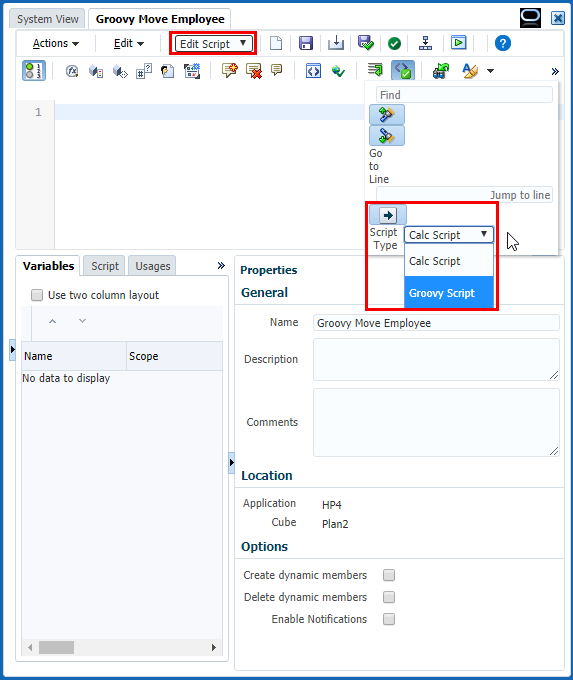
- Copy this script and paste it into the editor:
/*RTPS: {Employee} {NewParent}*/ def employee = rtps.Employee.member
  def newParent = rtps.NewParent.member
  employee.dimension.saveMember(["Member" : employee.name, "Parent" : newParent.name]
as Map‹String, Object›)
employee.dimension.saveMember(["Member" : employee.name, "Parent" : newParent.name]
as Map‹String, Object›)  Define all the run time prompts used by this rule on the first line. Get the Member object for the employee specified by the
 Employeerun time prompt. The codertps.Employeereturns a RtpValue object for the Employee run time prompt, whereasrtps.Employee.memberinstructs the RtpValue object to return a Member object, which is what is required here. Get the Member object for the new parent specified by the NewParentrun time prompt. The codertps.NewParentreturns a RtpValue object for the NewParent run time prompt, whereasrtps.NewParent.memberinstructs the RtpValue object to return a Member object, which is what is required here. Save the employee under the new parent.
The code employee.dimensioninstructs the employee Member to return its Dimension object. So the full statementemployee.dimension.saveMember()instructs the Dimension object to save the member with the specified property values, in this case the new parent.This is a privileged method and will throw an exception if called by a user that does not have administrator privileges.
- On the toolbar, click
 (Save) to save the script.
 - Click
 (Validate and Deploy). Enter RTP values for validation purposes, then click OK:
 - Employee:
"Employee 3" - NewParent:
"Employee 1" - Click OK when prompted, then close Calculation Manager.
During this step, the rule is not executed; however, you must enter valid members for the validation process to succeed.
Creating Planning action menus to run Groovy scripts
In this section, you create an action menu called Manage Employees, with a right-click action menu item that runs the Groovy script.
- From the Planning Home page, navigate to Action Menus (located under Create and Manage) and create an action menu named Manage Employees.
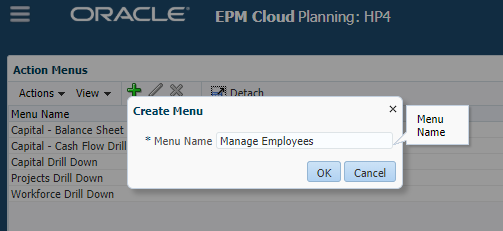
- Edit the Manage Employees action menu and add a child menu item named Move Employee. Enter or select the following options to define the menu item:
Option Field Value to Enter or Select Menu Item Move Employee Label Move Employee Type Business Rule Required Parameters Employee Cube Plan2 Business Rule Groovy Move Employee 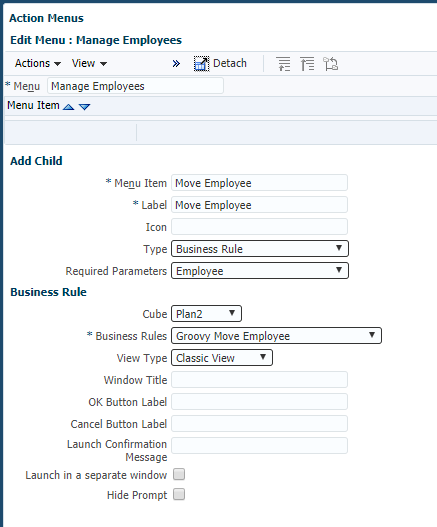
- Click Save, then click OK to save the menu item. Finally, click Save again to save the action menu.
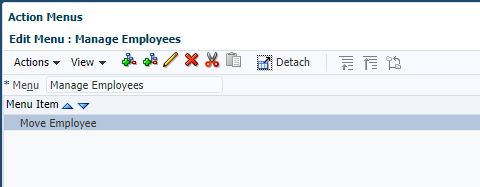
Associating Planning action menus with forms and testing Groovy scripts
In this step, you associate the action menu with the ManageEmployees form and test your script.
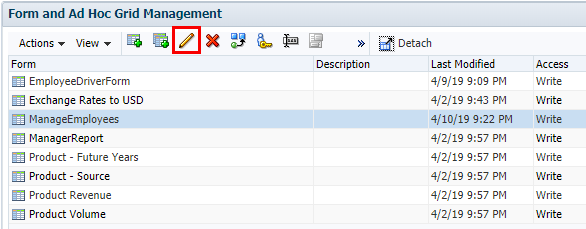
- Navigate to Forms (located under Create and Manage) and edit the ManageEmployees form.
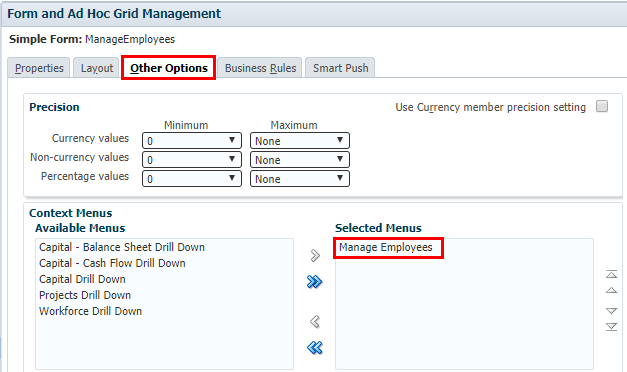
- On the Other Options tab, add the Manage Employees context menu to the Selected Menus list.
- Click Finish to save changes to the form.
- Close the Form Manager and return to the Planning Home page.
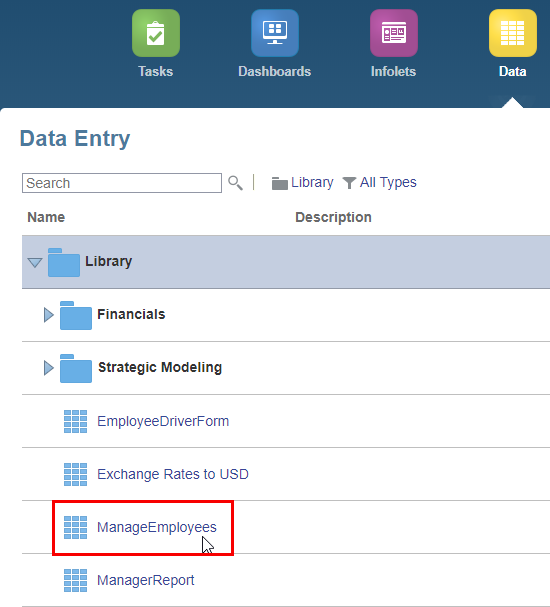
- Click Data to display the list of data entry forms, then click ManageEmployees to open the Manage Employees form.
- To test the Groovy script, move Employee 3 to be a child of Employee 1:
- Right-click Employee 3 to display the context menu, and select Move Employee.
- Verify that
"Employee 3"is selected for the Select Employee prompt. - For the Employee New Parent prompt, enter
"Part Time Employees". - Click Launch.
- Now, reverse the move:
- Right-click Employee 3, and select Move Employee.
- Verify that
"Employee 3"is selected for the Select Employee prompt. - For the Employee New Parent prompt, enter
"Full Time Employees". - Click Launch.
Employee 3 is moved back to the Full Time Employees parent.
After executing this rule, you need to perform a cube refresh so that aggregations properly reflect the new hierarchies.
Upon successful completion, Employee 3 is moved to the Part Time Employees parent.