
 Creating the Planning Business Process
 Before You Begin
This 60-minute tutorial introduces you to the EPM Cloud Services, instances, business processes, and features. You also learn how to create Planning business processes in EPM Cloud Service: Standard and Enterprise subscriptions.
Background
Oracle Enterprise Performance Management Cloud Services provide end-to-end business processes, such as Planning, to meet the requirements of most organizations and ensure a connected and agile experience across multiple business processes.
New customers now purchase one of the following EPM Cloud services:
- EPM Standard Cloud Service
- EPM Enterprise Cloud Service
An EPM Cloud Service instance allows you to deploy and use one of the supported business processes. To deploy another business process, you must request another EPM Cloud Service instance or remove the current business process. The business processes that you deploy share the same identity domain to facilitate user management and assigning of roles. Access to resources belonging to a business process is individually controlled for each business process.
Planning is a budgeting and forecasting solution that integrates financial and operational planning processes and improves forecast accuracy.
What Do You Need?
Before starting this tutorial, you should:
- Have Service Administrator access to Planning in EPM Standard Cloud Service or EPM Enterprise Cloud Service. The instance should not have a business process created.
- Have an OTL file for Free Form Planning.
- Have a valid snapshot of a Custom Planning business process.
 Getting Started
In this section, you learn about Planning in the EPM Cloud Service.
EPM Cloud Services
The business processes and features available to you depend on the specific EPM Cloud service that you purchased. Both EPM Standard Cloud Service and EPM Enterprise Cloud Service are comprised of a suite of business processes. The following table lists what is included in each service:

Modules extend Planning with complete planning and budgeting solutions for Financials, Workforce, Capital, and Projects. These business processes include built-in best practice pre-defined content including forms, calculations, dashboards, drivers, and key performance indicators (KPIs). Forms are designed to integrate with the dashboards and reports that dynamically reflect your data, plans, and forecasts.
Module-based Planning sets up the cubes required for Capital, Financials, Projects, Workforce and Strategic Modeling. Choose this option to create a business process that supports best practices and industry standard functionality. With the exception of Strategic Modeling, Planning Modules are available with pre-seeded configurable content including dimensions, models, forms, rules, dashboards, infolets, and reports. Strategic Modeling is available with standard and industry templates that can be leveraged to create a customized scenario models with flexible blended scenario business cases.
The following business processes and features are available in the EPM Enterprise Cloud Service:
- Custom Planning, which allows a high degree of customization to support business requirements
- Free Form Planning, which enables you to deploy Planning with no dimension requirements and also create business processes using Essbase outline files
- Use of the Groovy scripting language to create or customize business rules
EPM Cloud Service Landing Pages
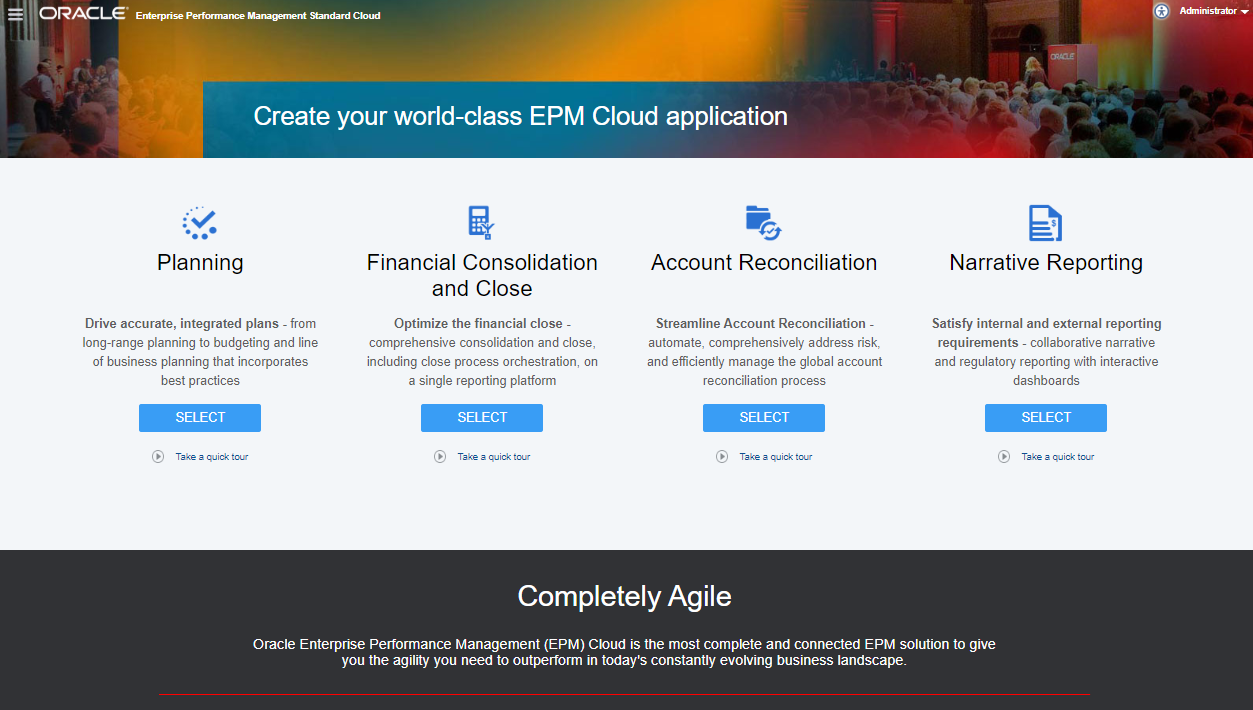
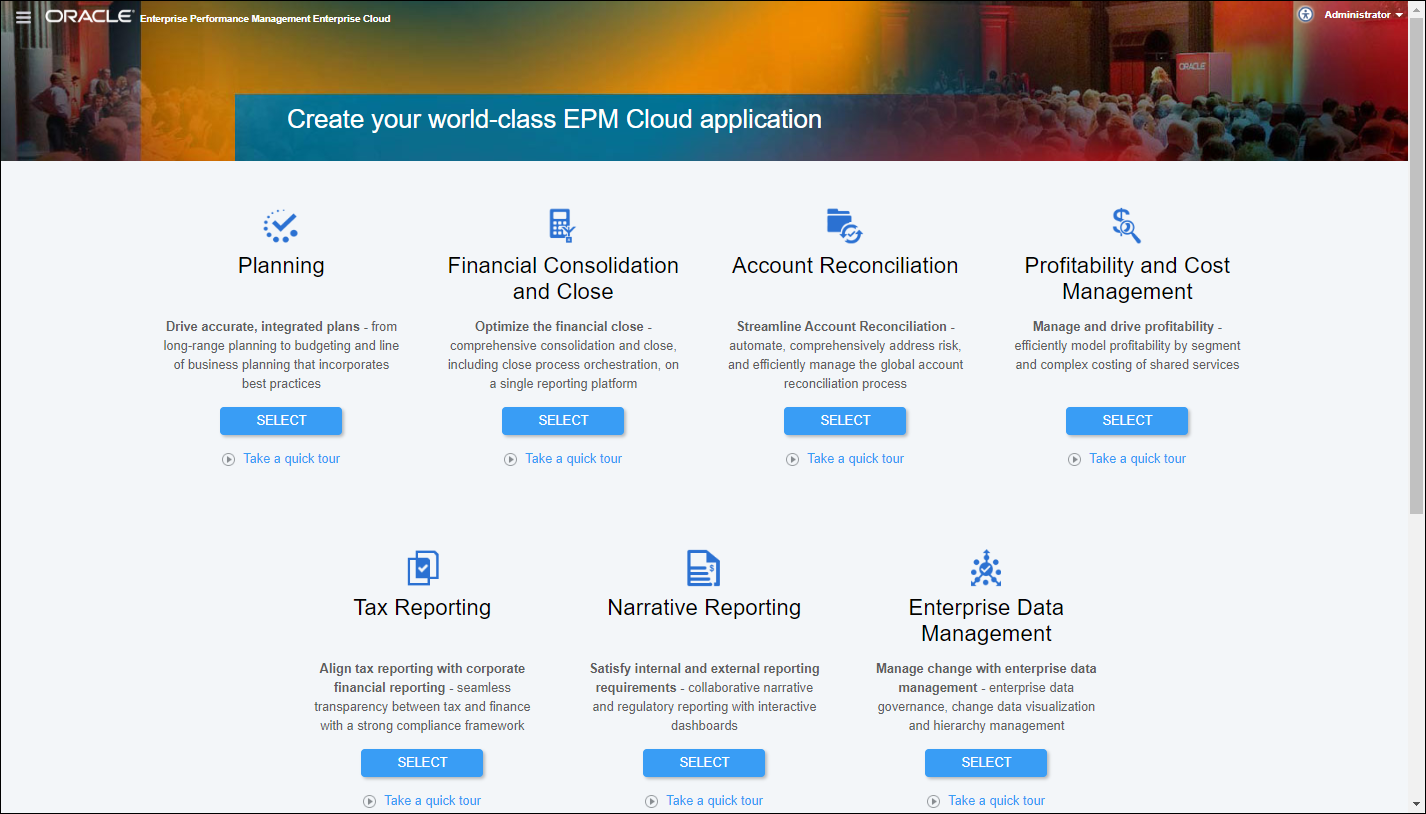
The landing page is your starting point for creating a business process and for viewing video tours to help you get started. The landing page presents the business processes that you can create.
EPM Standard Cloud Service Landing Page
EPM Enterprise Cloud Service Landing Page
Business Process Overview
You develop your operational financial plan with Planning. You set up the Planning business process to include the appropriate structure for your organization's needs. Each Planning business process has a specific framework with the following structure:
- Application name—Specify the name of the business process.
- Calendar structure—Specify your organization’s calendar, such as the first month and first year for your fiscal year.
- Currency—Identify whether multiple currencies are needed and define the default currency.
- Number and names of cubes—Select and name plan types to hold combinations of metadata, forms, and business rules.
After the framework is created, dimensions and members (metadata) are added and assigned to cubes. Security is assigned so that users and groups can access Planning. Access can be further defined to secure metadata, forms, task lists, and business rules.
 Creating the Standard Planning Business Process
Before you create your Planning business process, analyze your current processes and determine your organization’s requirements.
See the Best Practices for Designing Your Application section in the Oracle Cloud Administering Planning documentation on docs.oracle.com.
In this section, you learn how to create the following Planning business processes in EPM Standard Cloud Service:
- Module-based
- Migrated Custom
After you initiate the creation of a business process, you cannot return to the EPM Cloud Service landing page. If wish to return to the landing page to create a different business process, you must first reset your environment to its original state. See the Recreating Service section of this tutorial.
Logging On
- Go to the Planning URL provided by your Service Administrator.
- Enter your user name and password.
- Click Go.
- On the EPM Standard Cloud Service landing page, for Planning click Select.
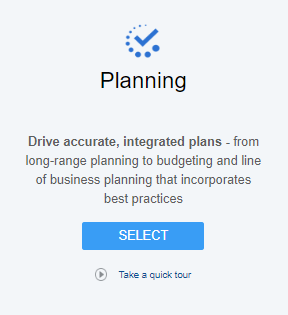
The Planning landing page is displayed.
New Application: Modules
If you have a business process created, remove it first by following the steps in the Removing Applications section of this tutorial.
- On the Planning landing page, for Create a new application, click START.
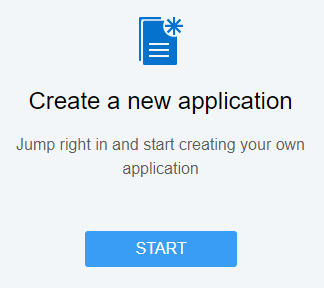
- Complete the required general properties:
- Name your application.
- Enter a description.
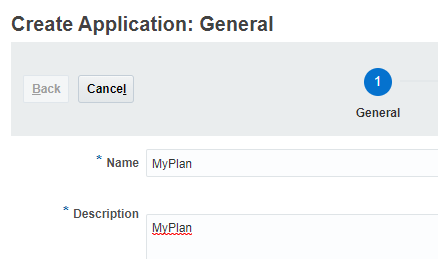
- Click Next.
The Details page is displayed.
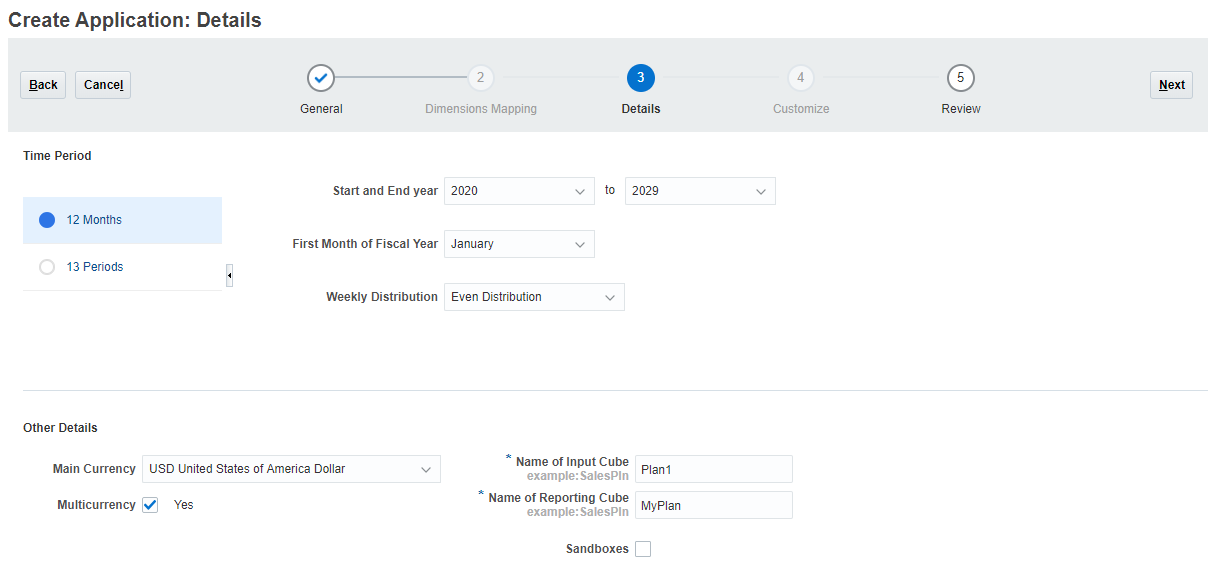
- Select a Time Period.
- Select the Start and End year.
- Select the First Month of the Fiscal Year.
- Select a Weekly Distribution option: Even, 445, 454, or 544.
- Select the Main Currency.
- Select whether to allow for multicurrency.
- Accept or modify the names of the input cube and reporting cube.
- Select whether to enable Sandboxes.
- Click Next.
- Review your selections. If necessary, return to previous pages to make changes.
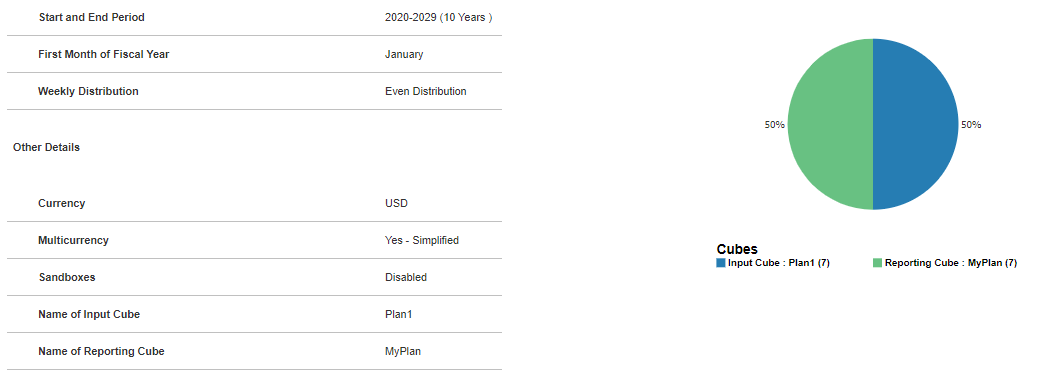
- When ready to proceed, click Create.
The Application Creation Status information message box is displayed.
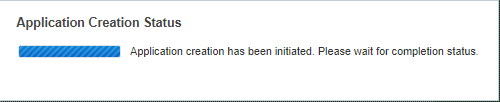
Application creation may take several minutes. When completed, you'll see an Application created successfully message.
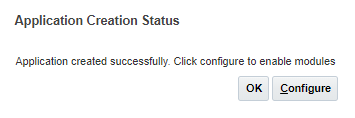
- Select whether to go to the Configure page and enable modules or complete that task later.
If you click OK, the Planning home page is displayed. You can access the Configure page by navigating to Application, then Configure from the home page.
If you click Configure, the Configure page for modules is displayed.
Migrating a Snapshot to Create an Application
Migration allows you to create a custom Planning business process from a snapshot that you upload to the environment.
If you have a business process created, remove it first by following the steps in the Removing Applications section of this tutorial.
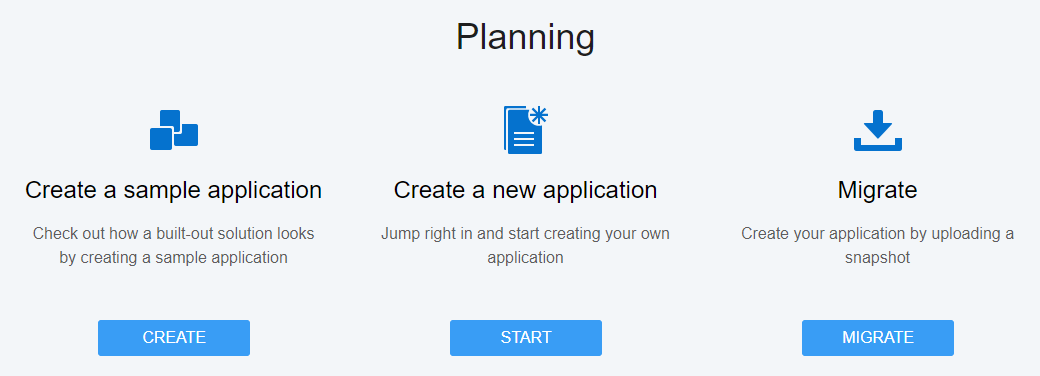
- On the Planning landing page, click MIGRATE.
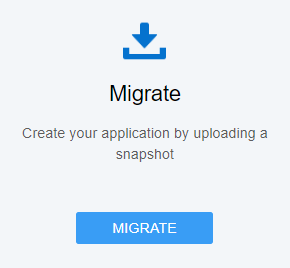
The Migration dialog box is displayed.
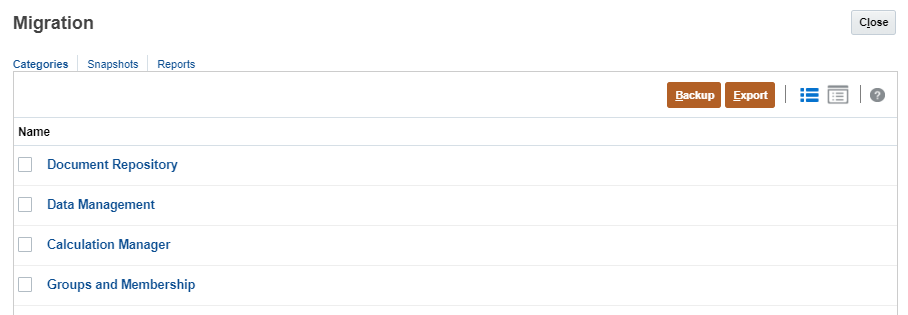
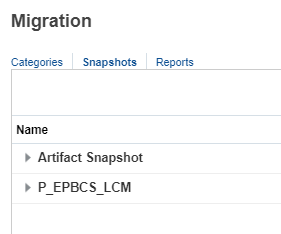
- Click Snapshots.
The Snapshots tab is displayed.
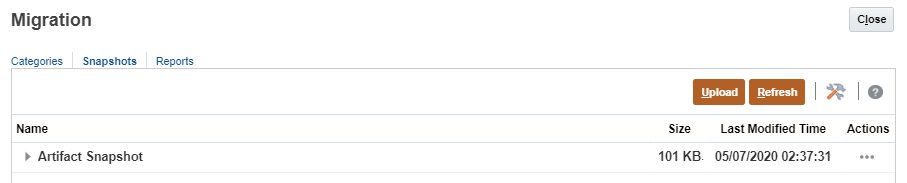
- Click Upload.
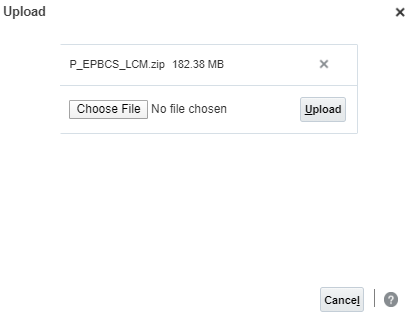
- In the Upload dialog box, click Choose File.
- Locate and select your snapshot.
- Click Open.
- Click Upload.
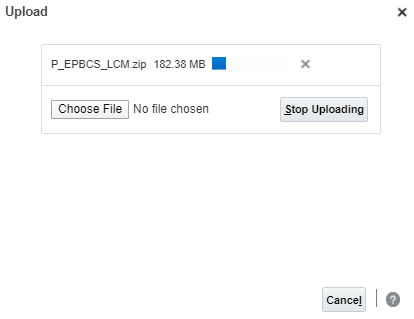
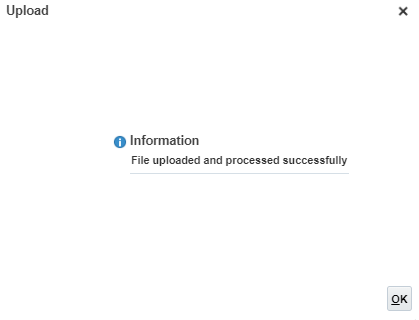
- When a message stating that the File uploaded and processed successfully is displayed, click OK.
The snapshot is now listed on the Snapshots tab.
- For the snapshot you uploaded, click the Actions icon (…).
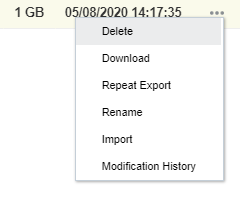
- Select Import.
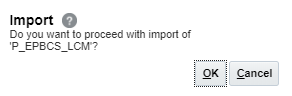
- When prompted to proceed with the import, click OK.
The Migration Status Report is displayed. The migration import process may take several minutes.
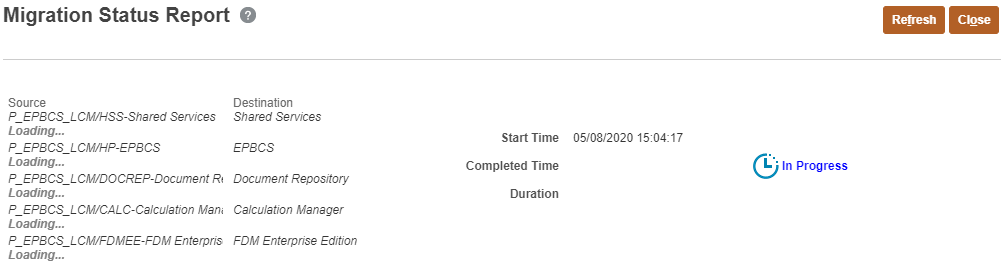
- Click Refresh until the status displays Completed.

- Click Close twice to close both dialog boxes.
- Sign out and log back in to start working with Planning.
 Creating the Enterprise Planning Business Process
Before you create your Planning business process, analyze your current processes and determine your organization’s requirements.
See the Best Practices for Designing Your Application section in the Oracle Cloud Administering Planning documentation on docs.oracle.com.
In this section, you learn how to create the following Planning business processes in EPM Enterprise Cloud Service:
- Sample application
- Module-based
- Custom
- Free Form
- Migrated Custom
After you initiate the creation of a business process, you cannot return to the EPM Cloud Service landing page. If wish to return to the landing page to create a different business process, you must first reset your environment to its original state. See the Recreating Service section of this tutorial.
Logging On
- Go to the Planning URL provided by your Service Administrator.
- Enter your user name and password.
- Click Go.
- On the EPM Enterprise Cloud Service landing page, for Planning click Select.
The Planning landing page is displayed.
Sample Application
Planning provides a sample business process, called Vision, that lets you quickly deploy a business process with artifacts and data. The sample business process is only available in Planning for EPM Enterprise Cloud Service.
If you have a business process created, remove it first by following the steps in the Removing Applications section of this tutorial.
- On the Planning landing page, for Create a sample application, click CREATE.
The Application Creation Status information message box is displayed.
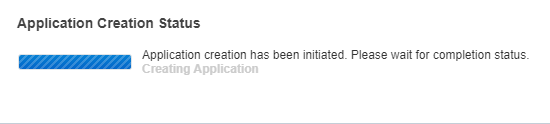
Application creation may take several minutes. When completed, you'll see an Application created successfully message.
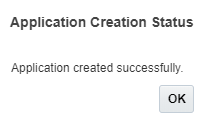
- Click OK.
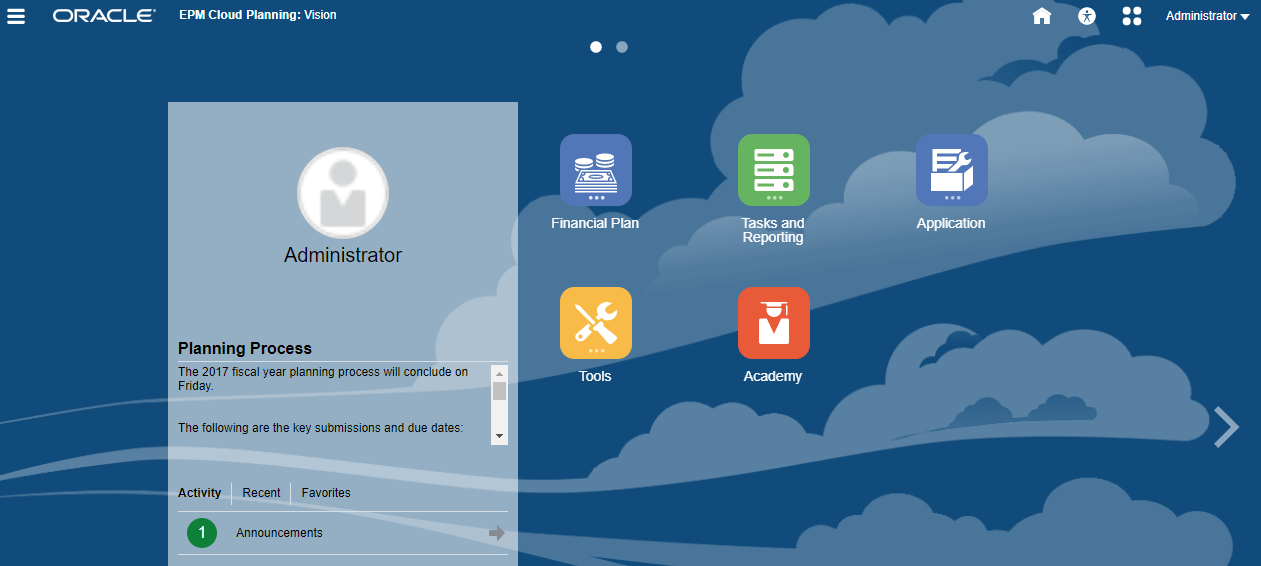
The Planning home page is displayed.
New Application: Modules
If you have a business process created, remove it first by following the steps in the Removing Applications section of this tutorial.
- On the Planning landing page, for Create a new application, click START.
- Complete the required general properties:
- Name your application.
- Enter a description.
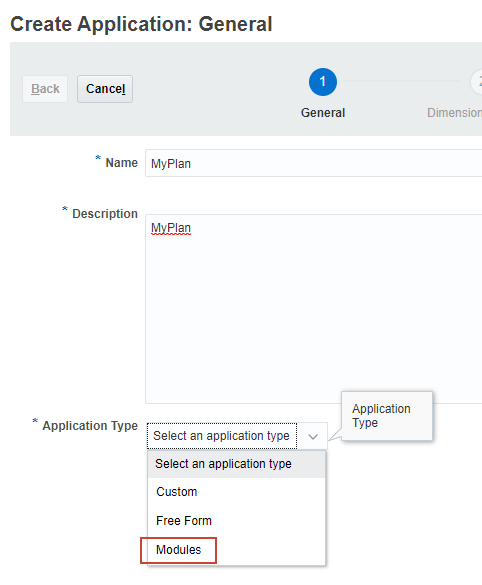
- From the Application Type dropdown list, select Modules.
- Click Next.
The Details page is displayed. The Planning Frequency is set to Monthly.
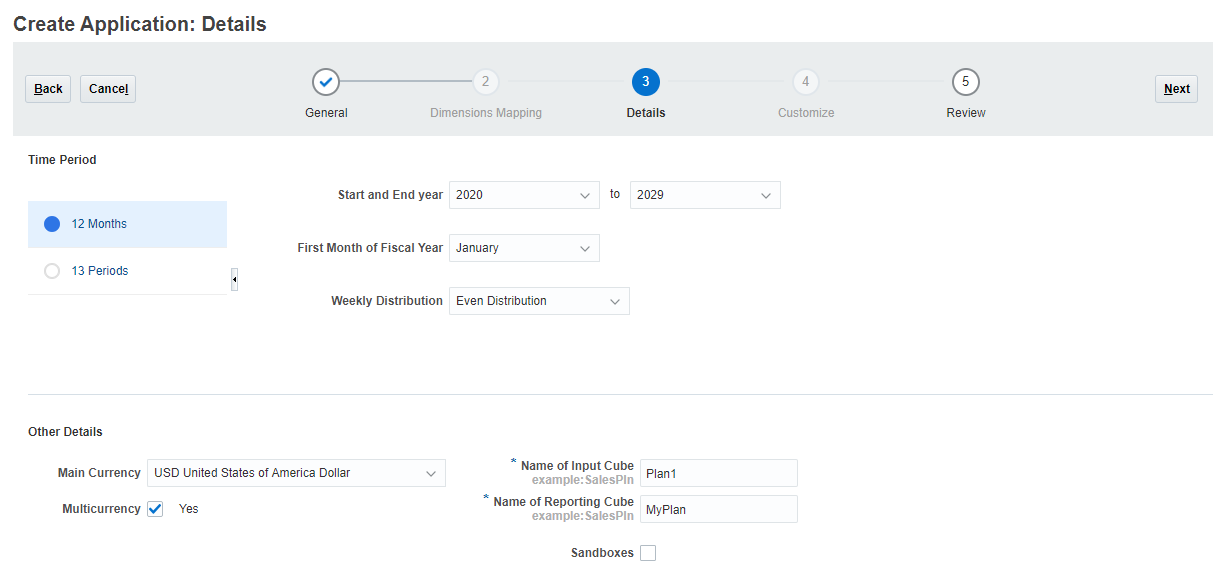
- Select the Start and End year.
- Select a Weekly Distribution option: Even, 445, 454, or 544.
- Select the Main Currency.
- Select whether to allow for multicurrency.
- Accept or modify the names of the input cube and reporting cube.
- Select whether to enable Sandboxes.
- Click Next.
- Review your selections. If necessary, return to previous pages to make changes.
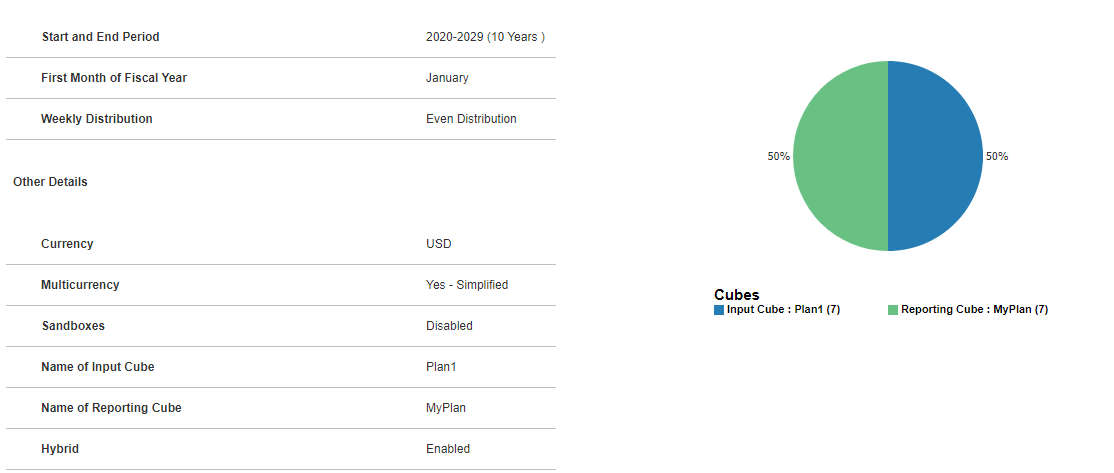
- When ready to proceed, click Create.
The Application Creation Status information message box is displayed.
Application creation may take several minutes. When completed, you'll see an Application created successfully message.
- Select whether to go to the Configure page and enable modules or complete that task later.
If you click OK, the Planning home page is displayed. You can access the Configure page by navigating to Application, then Configure from the home page.
If you click Configure, the Configure page for modules is displayed.
New Application: Custom
Custom applications support most planning and budgeting requirements through Enterprise complex business logic, such as business rules and allocations. Select this option to create a business process if your requirements would necessitate a high degree of application customization.
If you have a business process created, remove it first by following the steps in the Removing Applications section of this tutorial.
- On the Planning landing page, for Create a new application, click START.
- Complete the required general properties:
- Name your application.
- Enter a description.
- From the Application Type dropdown list, select Custom.
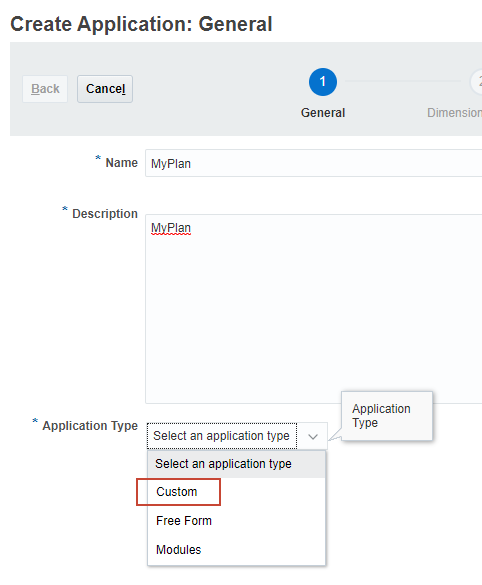
- Click Next.
The Details page is displayed.
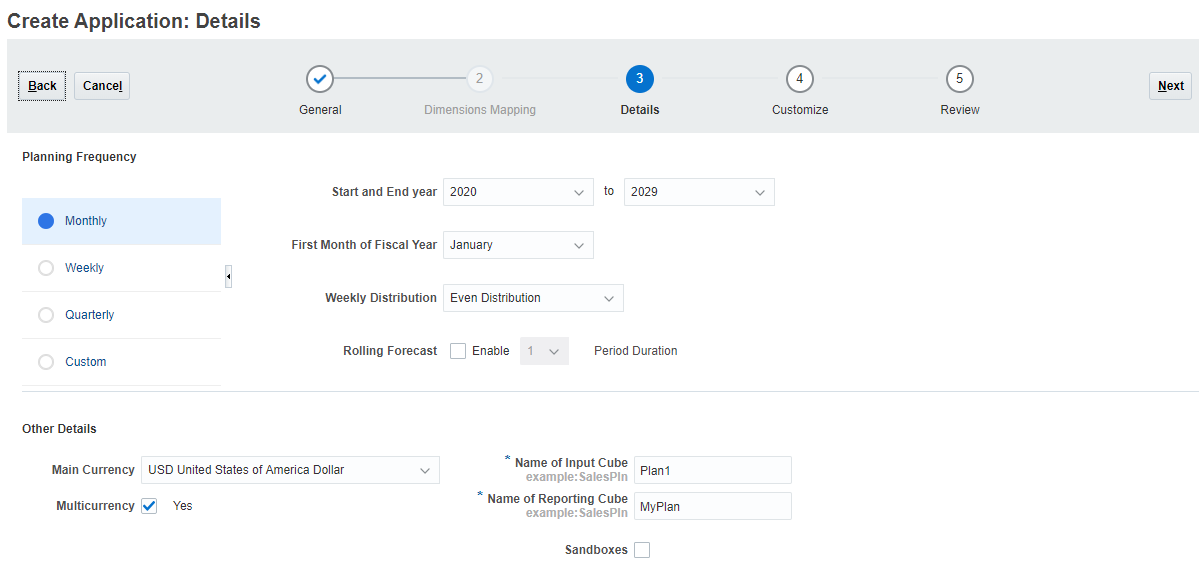
- Select the Start and End year.
- Select a Planning Frequency: Monthly, Weekly, Quarterly, or Custom.
- If you selected Monthly:
- Select the first month of the fiscal year.
- Select a Weekly Distribution option: Even, 445, 454, or 544.
- If you selected Weekly or Quarterly, select the first period start date.
- If you selected Custom:
- Enter the Periods per Year.
- Optional: Specify a prefix.
- Select whether to enable Rolling Forecast and specify the period duration.
- Select the Main Currency.
- Select whether to allow for multicurrency.
- Accept or modify the names of the input cube and reporting cube.
- Select whether to enable Sandboxes.
- Click Next.
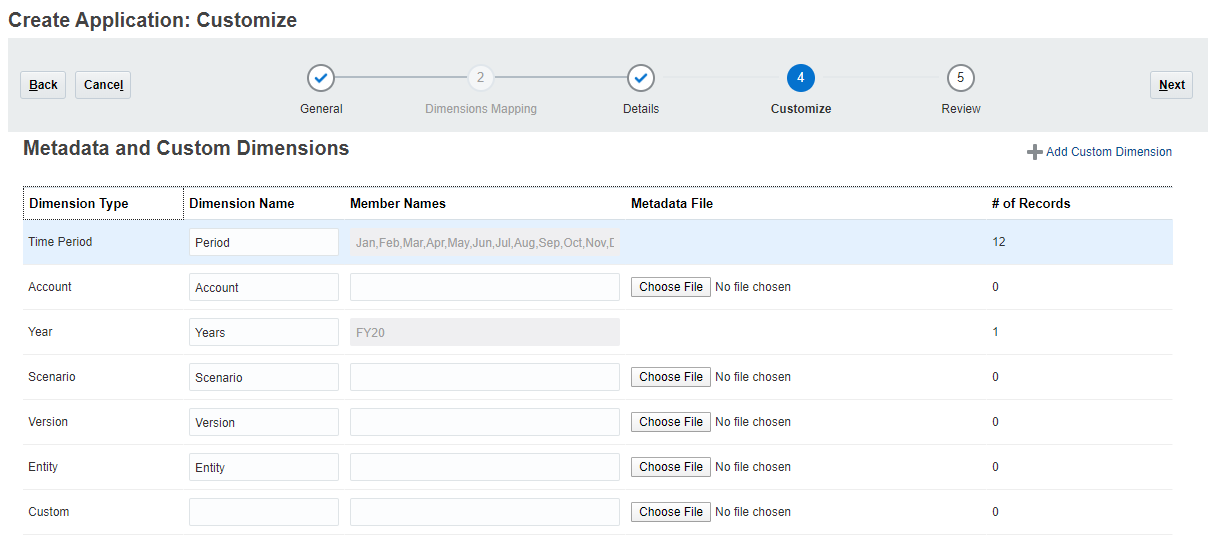
- Customize the required Planning dimensions, if necessary.
- Add members in the Member Names column, separating each name with a comma.
- Optional for Account, Scenario, Version, Entity, and Custom Dimensions: Import metadata using a file.
- To add a custom dimension, for the dimension type listed as Custom, enter a dimension name.
- If you need to add more dimensions, click Add Custom Dimension to add another row.
- Click Next.
- Review your selections. If necessary, return to previous pages to make changes.
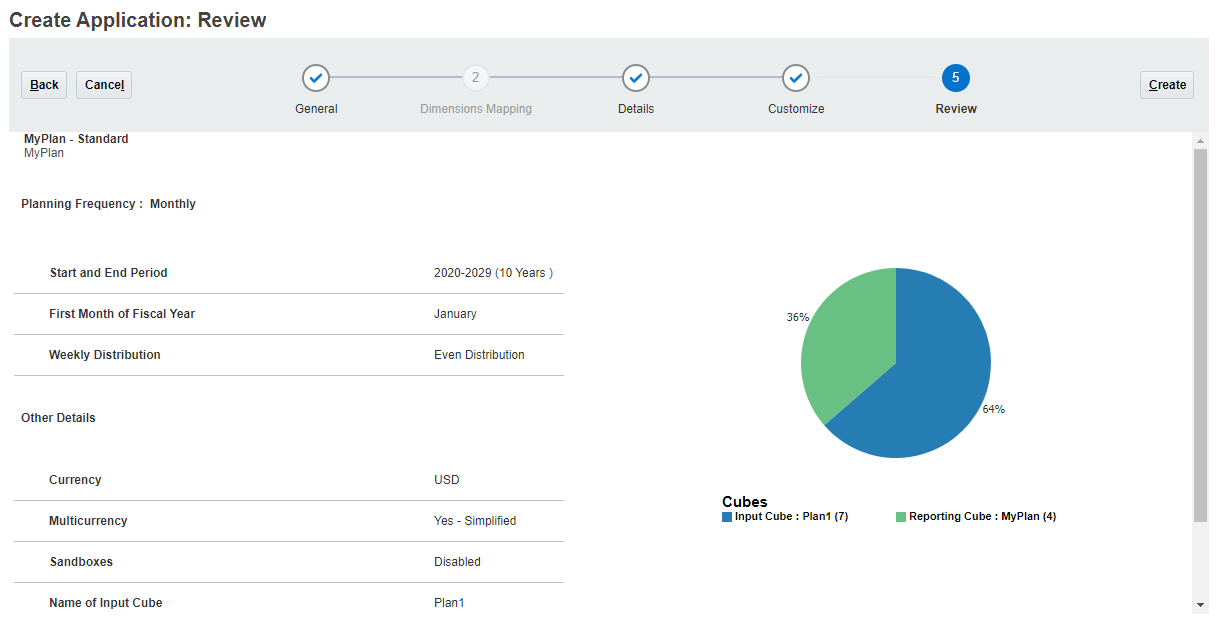
- Click Create.
The Application Creation Status information message box is displayed. Application creation may take several minutes. When completed, you'll see an Application created successfully message.
- Click OK.
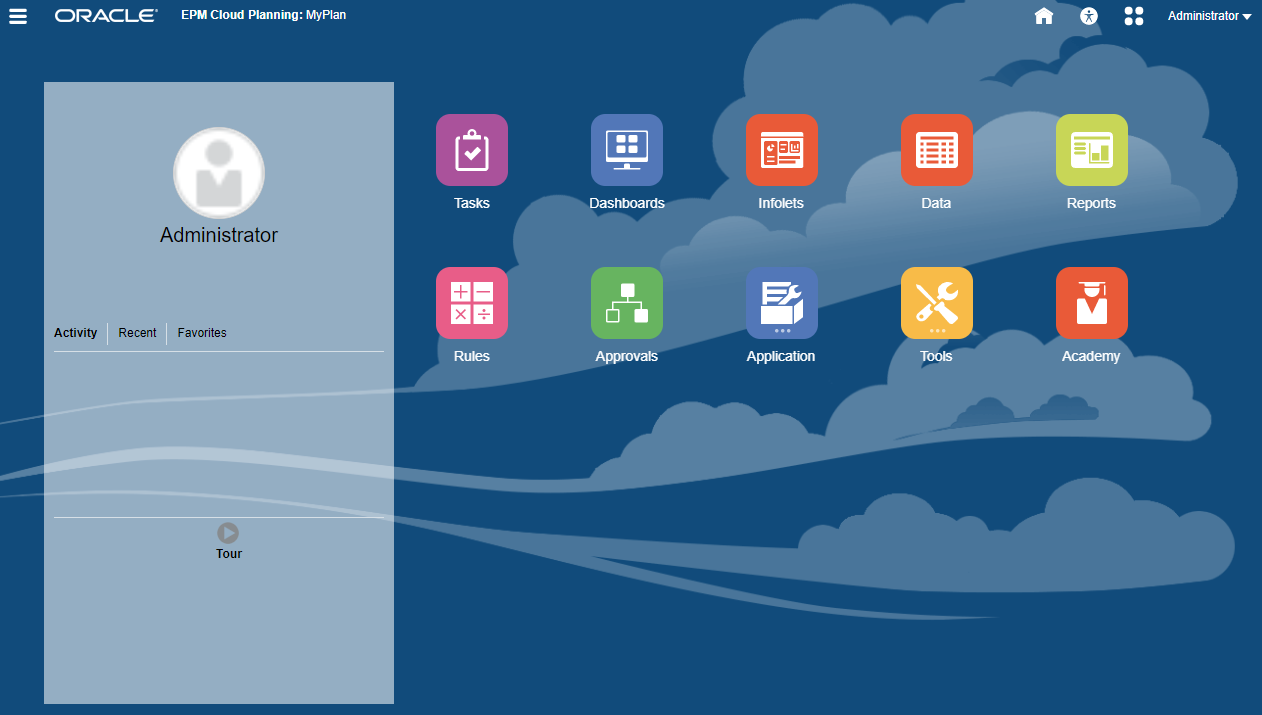
The Planning home page is displayed.
New Application: Free Form (from On-Premises Essbase)
Free Form Planning does not require Currency, Entity, Scenario, and Version dimensions and their member hierarchies. This business process is created using an Essbase outline file (OTL) from an on-premises deployment to import dimensions and members. The outline file name can have a maximum of eight characters because the file name is used to name the cube of the free form business process.
- On the Planning landing page, for Create a new application, click START.
- Complete the required general properties:
- Name your application.
- Enter a description.
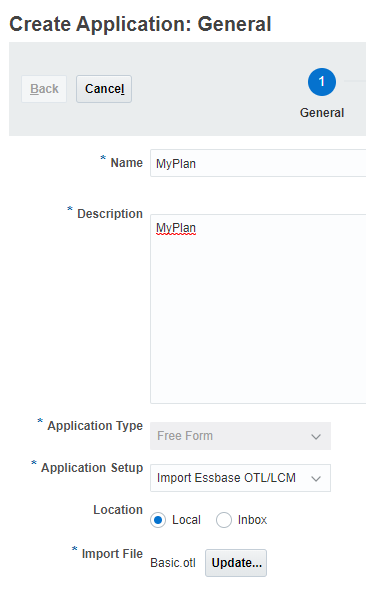
- From the Application Type dropdown list, select Free Form.
- From the Application Setup dropdown list, accept the default value Import Essbase OTL/LCM.
- Select a location:
- Local—if you have the OTL or LCM stored locally.
- If you selected Local, for Import File, click Choose File.
- Locate and select your OTL file.
- Click Open.
- Inbox—if you have the OTL or LCM uploaded to your instance.
- If you selected Inbox, select your OTL or LCM from the Select One dropdown list.
- If you selected Inbox, select your OTL or LCM from the Select One dropdown list.
- Local—if you have the OTL or LCM stored locally.
- Select a location:
- Click Next.
- Review your selections. If necessary, return to previous pages to make changes.
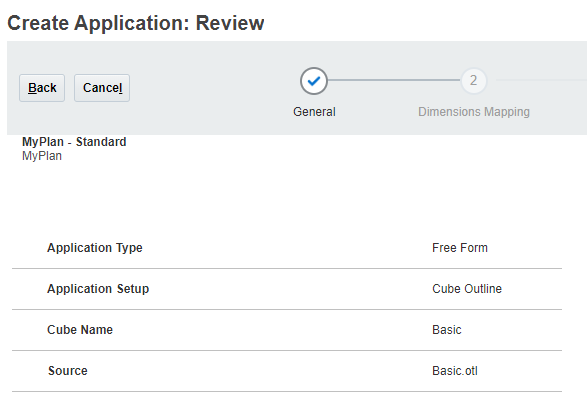
- Click Create.
The Application Creation Status information message box is displayed.
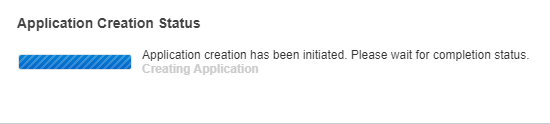
Application creation may take several minutes. When completed, you'll see an Application created successfully message.
- Click OK.
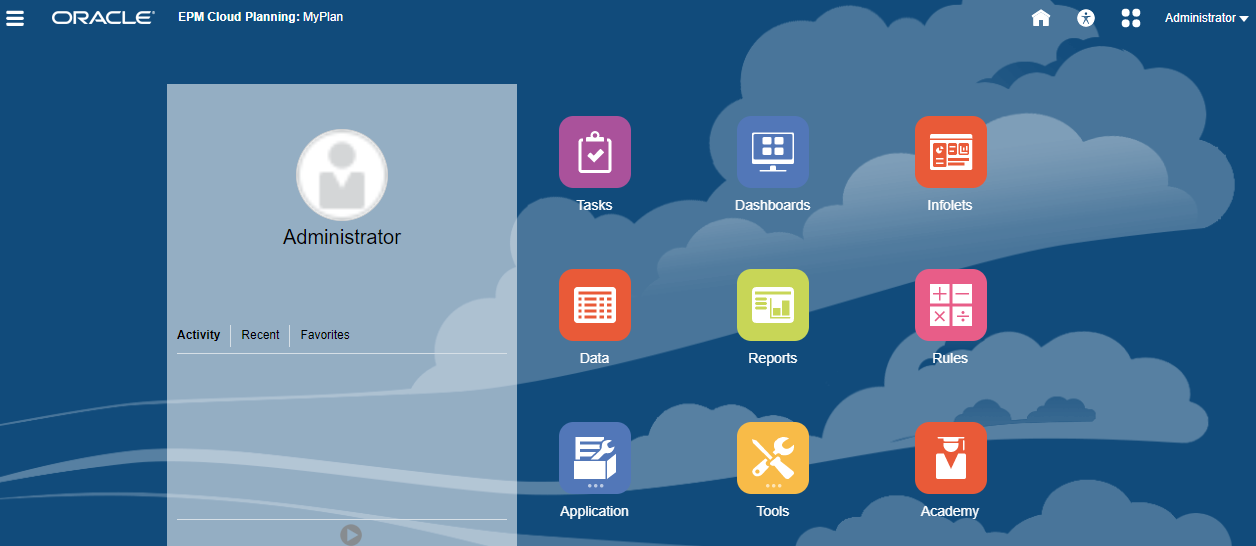
The Planning home page is displayed.
New Application: Free Form (Hybrid BSO or Reporting/ASO Cube)
You can model and build your own Hybrid BSO or ASO cubes while preserving the ability to leverage Planning functionalities.
Hybrid BSO cubes support some aggregate storage capabilities. Parent members of sparse and dense dimensions can have dynamic aggregations for calculations.
Hybrid cubes provide many benefits including:
- Smaller database and application size
- Better cube refresh performance
- Faster import and export of data
- Improved performance of business rules
- Faster daily maintenance of the application
- On the Planning landing page, for Create a new application, click START.
- Complete the required general properties:
- Name your application.
- Enter a description.
- From the Application Type dropdown list, select Free Form.
- From the Application Setup dropdown list, accept the default value Planning (BSO/Hybrid cube) or Reporting (ASO cube).
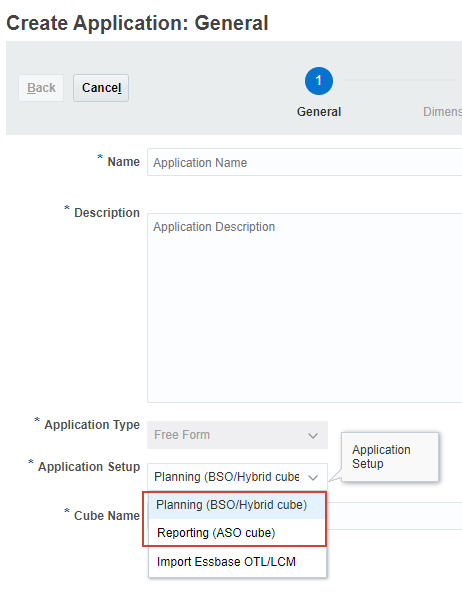
- Enter a cube name.
- Click Next.
- Select whether to enable default dimensions during the application creation process.
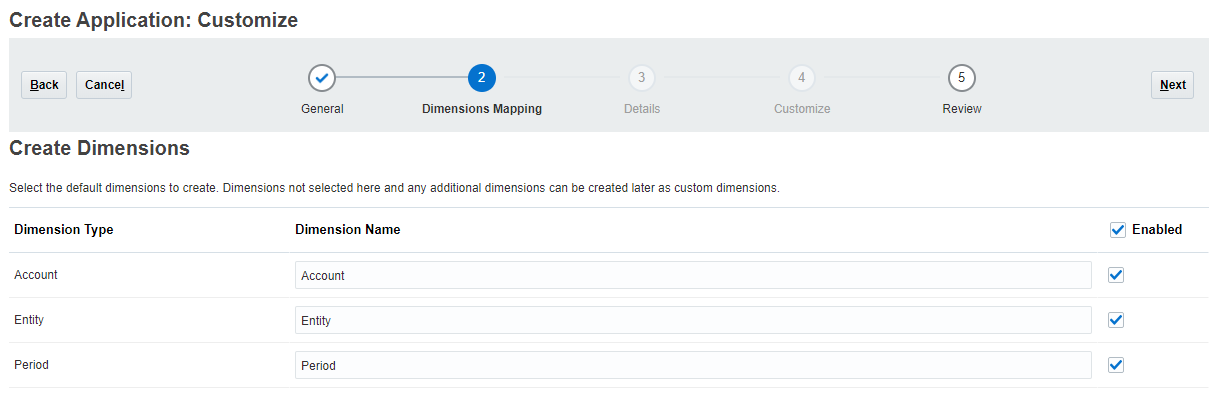
If you select not to enable the default dimensions here, you create them later in Classic Dimension Editor to make sure that you can assign the correct dimension type.
- Review your selections. If necessary, return to previous pages to make changes.
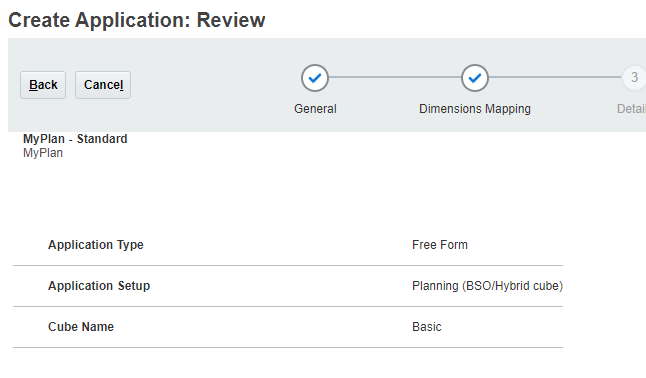
- Click Create.
The Application Creation Status information message box is displayed.
Application creation may take several minutes. When completed, you'll see an Application created successfully message.
- Click OK.
The Planning home page is displayed.
Migrating a Snapshot to Create an Application
Migration allows you to create a custom Planning business process from a snapshot that you upload to the environment.
If you have a business process created, remove it first by following the steps in the Removing Applications section of this tutorial.
- On the Planning landing page, click MIGRATE.
The Migration dialog box is displayed.
- Click Snapshots.
The Snapshots tab is displayed.
- Click Upload.
- In the Upload dialog box, click Choose File.
- Locate and select your snapshot.
- Click Open.
- Click Upload.
- When a message stating that the File uploaded and processed successfully is displayed, click OK.
The snapshot is now listed on the Snapshots tab.
- For the snapshot you uploaded, click the Actions icon (…).
- Select Import.
- When prompted to proceed with the import, click OK.
The Migration Status Report is displayed. The migration import process may take several minutes.
- Click Refresh until the status displays Completed.
- Click Close twice to close both dialog boxes.
- Sign out and log back in to start working with Planning.
 Removing Applications
In this section, you learn how to remove applications from your Planning instance.
- From the Planning home page, click Application, and then Overview.
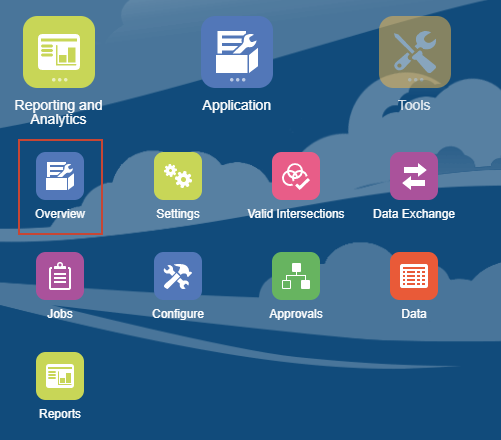
- On the Overview tab, click Actions and select Remove Application.
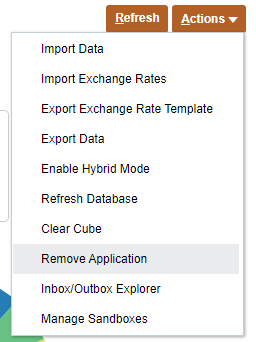
- When prompted to continue to delete the application, click Yes.

The process takes a few minutes to complete. When the application is completely removed, you will be signed out of the instance.
 Recreating Service
The process of recreating your environment deletes the current business process, including all user-defined (custom) artifacts and data from the environment. If you want to preserve the data and artifacts in the current environment, you must perform a complete backup of the business process before you re-create an environment.
The environment is not available for approximately 15 minutes, while the re-create process is in progress.
After re-creating the environment, you can create the same business process or a different one. You can also import a business process from a snapshot using Migration or EPM Automate.
In this section, you learn how to restore the environment into its original state, ready for you to create a new business process.
- From the Planning landing page or home page, access Settings and Actions by clicking your user name at the top right corner of the screen.
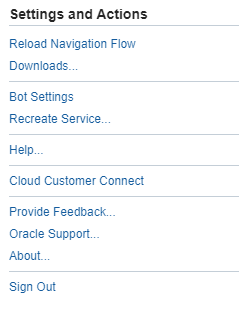
- Select Recreate Service.
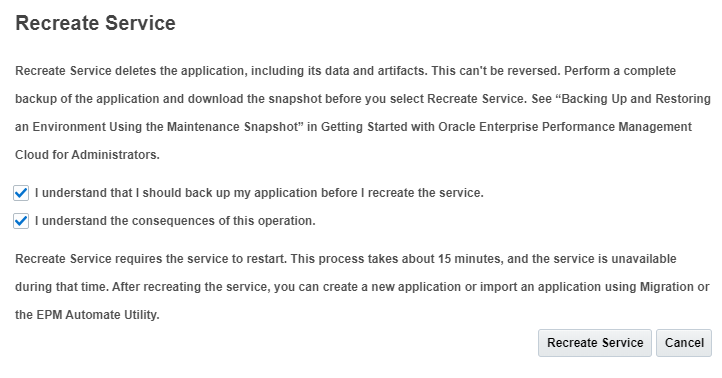
The Recreate Service dialog box is displayed. Carefully read the information. The process deletes the application, including its data and artifacts.
- Select the checkboxes to confirm that you are aware of the consequences of recreating the environment.
- Click Recreate Service.
You are signed out of the instance. The instance will be inaccessible for approximately 15 minutes.
 Want to Learn More?