
 Performing Driver Based Planning
 Before You Begin
This 15-minute tutorial shows you how to specify drivers to calculate revenue and expenses.
Background
To accelerate the planning process, you can set up key drivers to derive revenues and expenses. You can also base future data on past trends. You can leverage from out-of-the box content based on best practices.
Before building a plan or forecast, you can verify and if needed adjust key drivers set up by your administrator.
What Do You Need?
Before starting this tutorial, you should:
- Have Service Administrator access to Planning for EPM Enterprise Cloud Service.
- Upload and import this snapshot into your Planning instance.
- Set the navigation flow to Financial Flow - Admin.
 Drivers Overview
In this section, you learn about drivers. You can specify driver values such as the number of trips, or average salaries. Those drivers can then be used to calculate expenses. For example, travel expense could be based on the number of trips and an average per trip value.
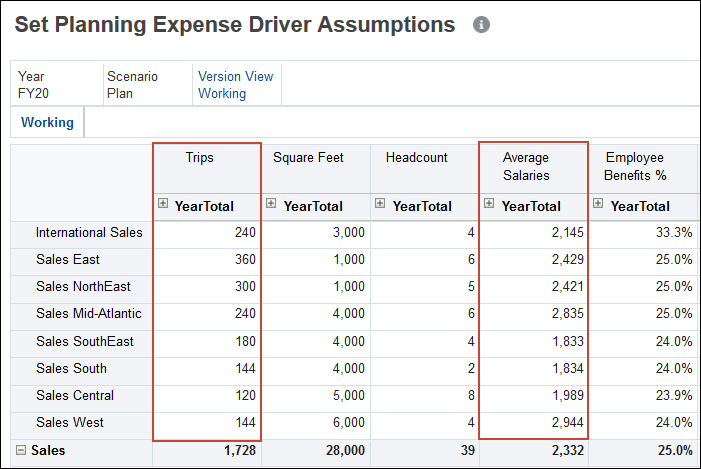
You can reference and adjust current, past, or projected trends such as:
- Prior Year Actual Average
- Forecast Average
- Year Over Year Increase/Decrease to adjust the last business year’s value by percentage
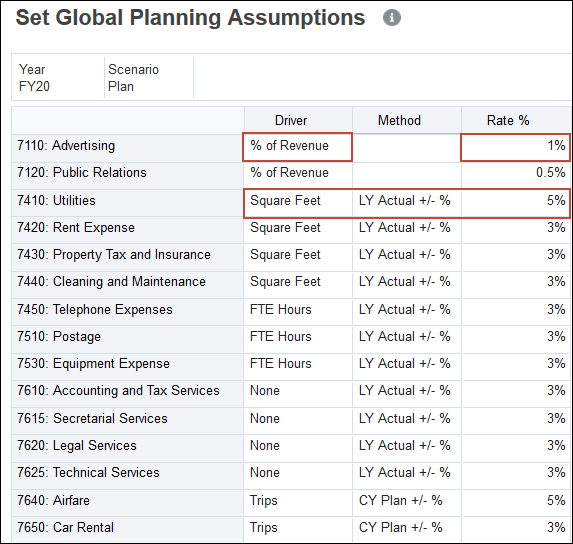
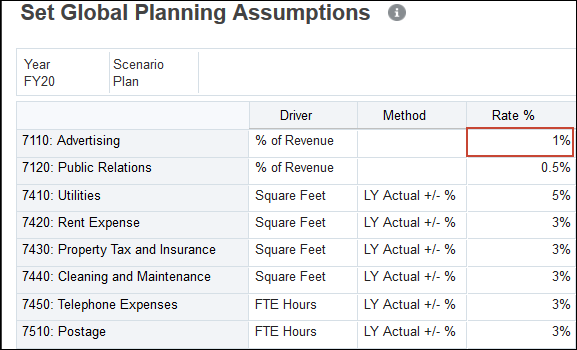
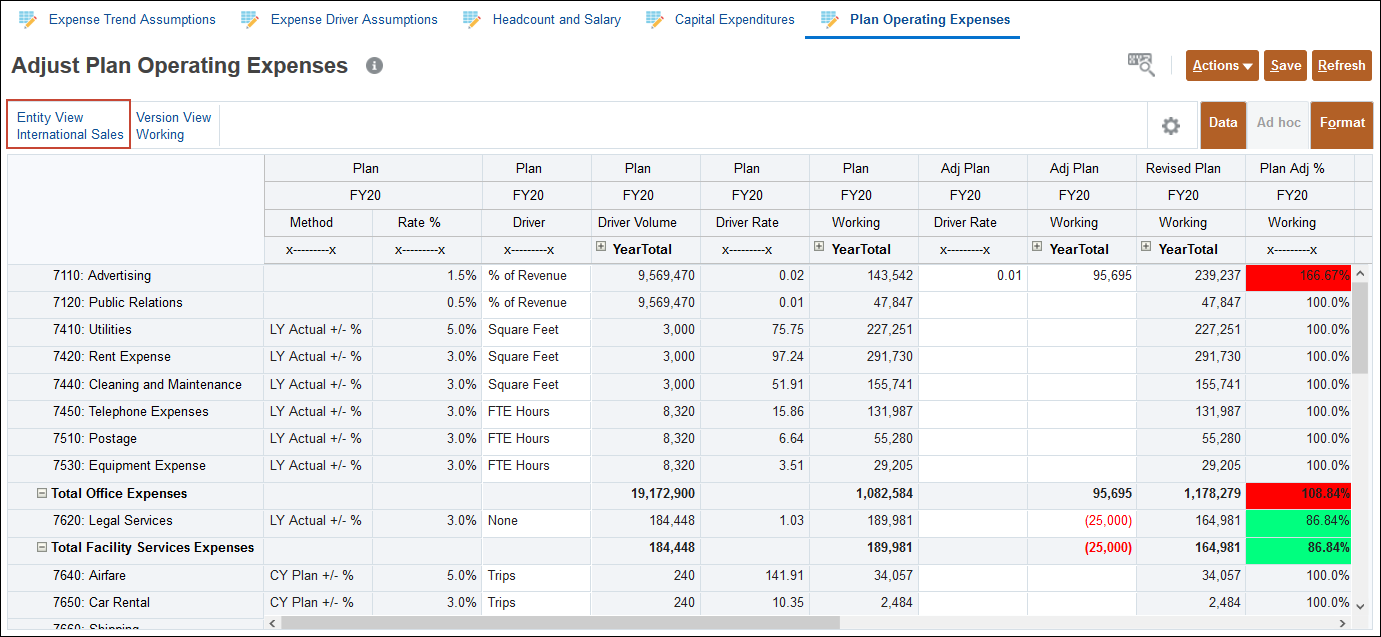
In this example, advertising is calculated using a driver and is based on a percentage of revenue. In this case, advertising is calculated as 1% of revenue. Utilities expense is calculated based on square feet using a method defined as last year’s actual data plus or minus a percentage, in this case plus 5%.
 Specifying Drivers in Planning
In this section, you specify revenue and expense drivers and you base some calculations on other data such as the current year’s plan.
Specifying Revenue Drivers in Planning
You specify drivers to calculate revenue.
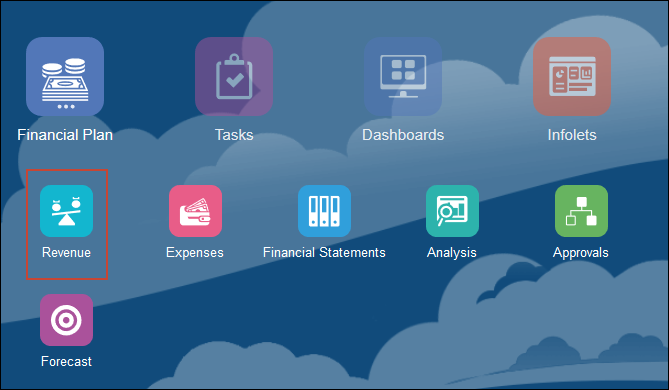
- From the Planning home page, click Financial Plan, then Revenue.
- Click the Services Revenue Plan horizontal tab.
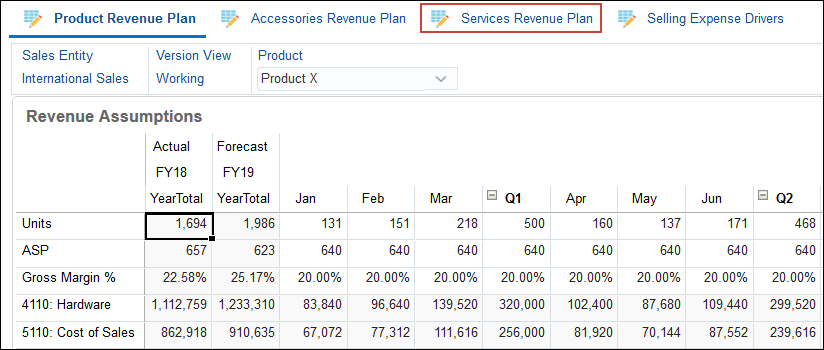
Services revenue has a dependence on another driver. It is derived as a percent of total revenue for computer equipment sales.
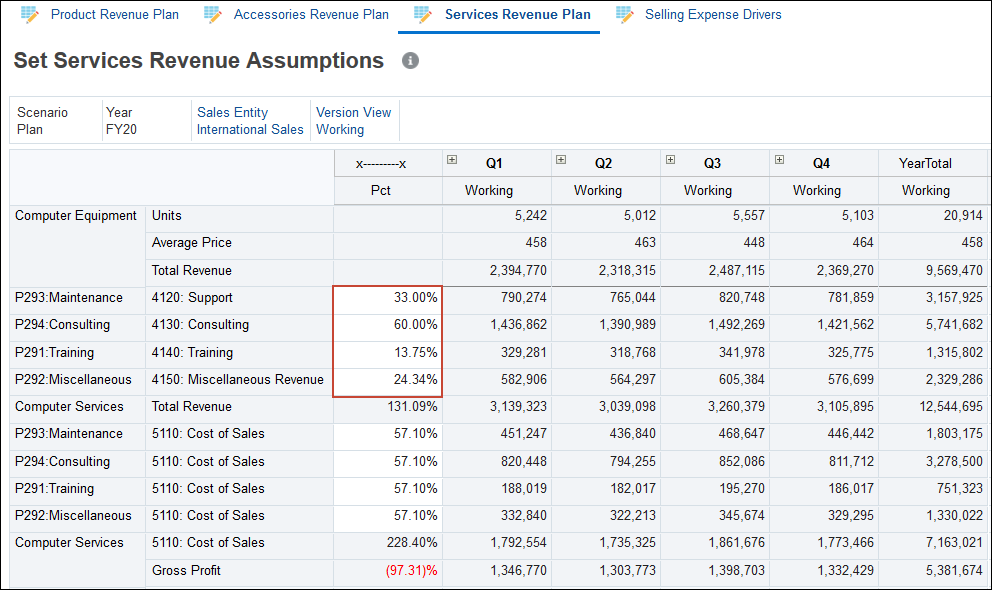
- For 4120 Support, enter 27%.
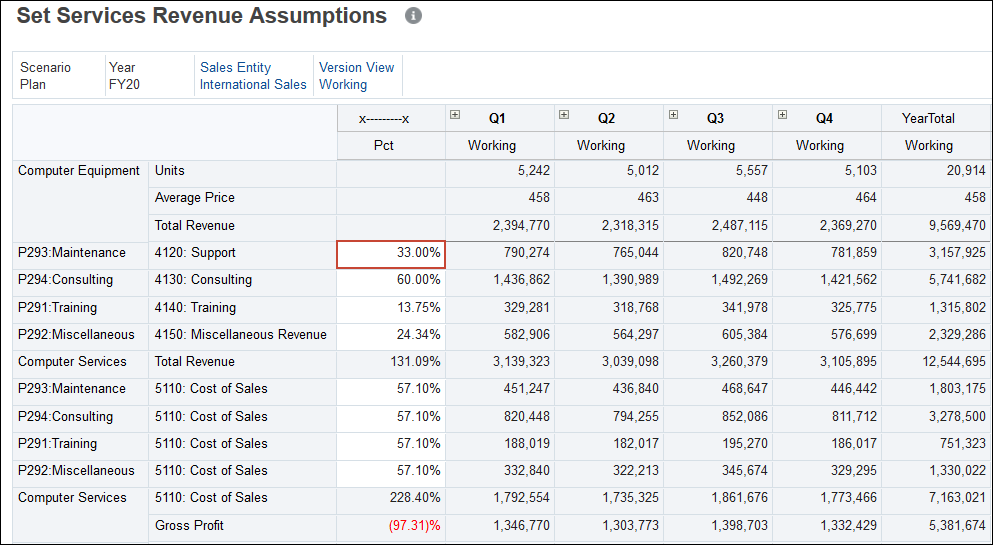
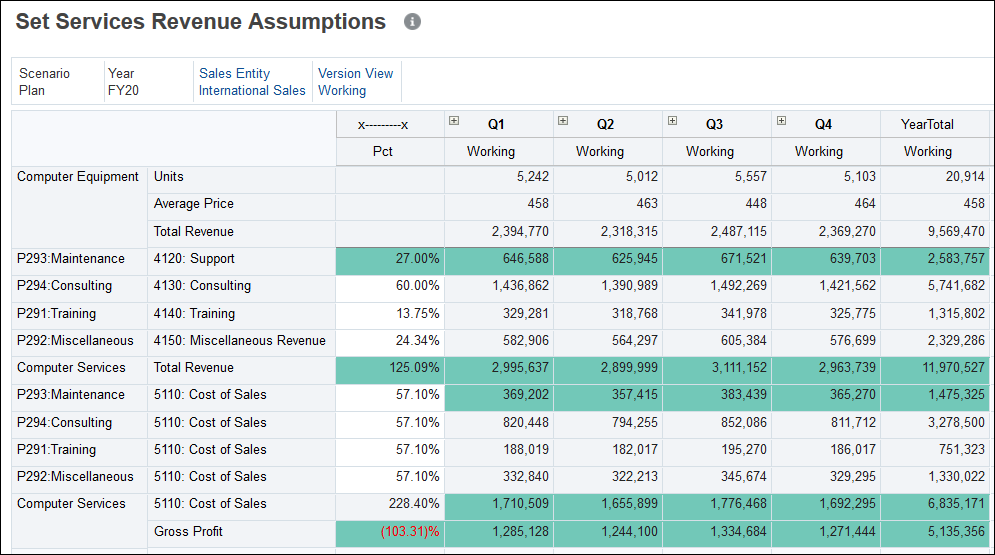
The calculated quarterly values for support are updated. Total revenue, cost of sales, and gross profit are also updated. Green cells indicate that the updated values were automatically saved.
Setting Global Expense Assumptions in Planning
Your administrator can define a global planning methodology used for each account. Individual users can update their assumptions or keep what was already defined by the administrator, thereby minimizing assumption changes to only those that need changing.
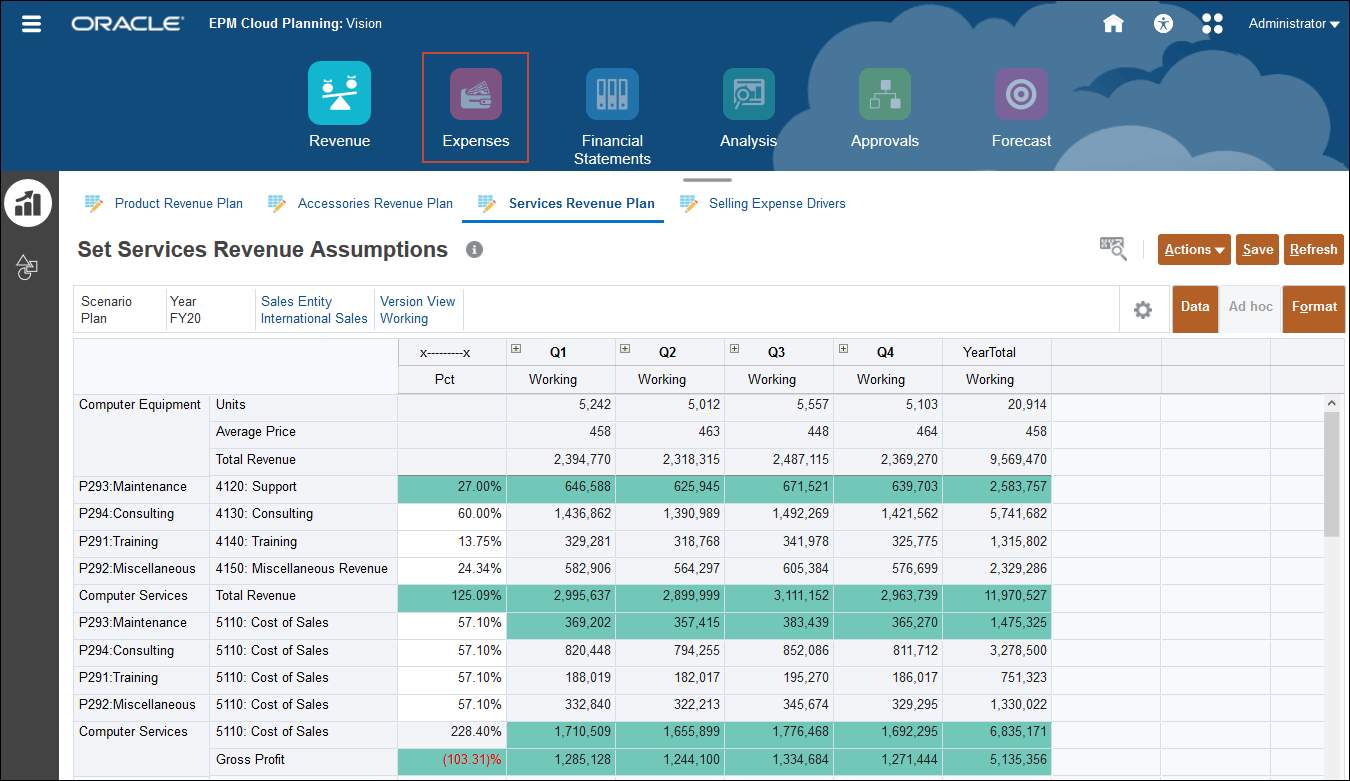
- Click Expenses.
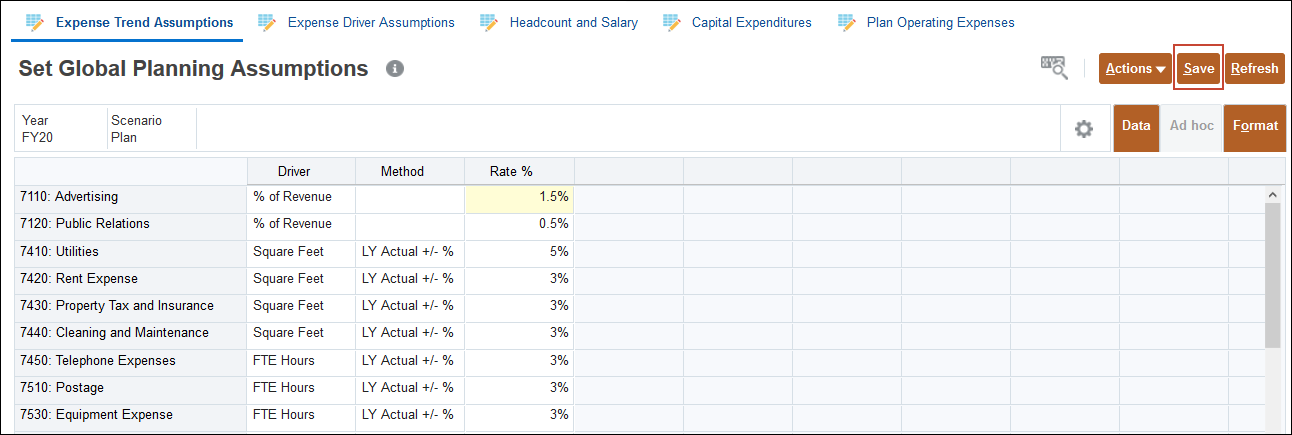
- On the Expense Trend Assumptions tab, for Advertising, for Rate %, enter 1.5%.
- Click Save.
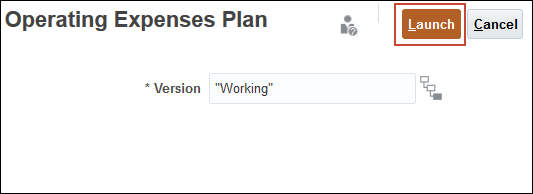
- In the Operating Expenses Plan dialog, for the Working version, click Launch.

Advertising expense is calculated as 1.5% of revenue.

Specifying Expense Driver Assumptions in Planning
Operating Expenses are made up of compensation expenses, capital expenditures, and office expenses. You can define expense drivers to generate operating expenses.
For example, the number of trips planned could be used to derive Travel and Entertainment expenses. When you make changes to these drivers, operating expenses are automatically recalculated. A driver such as Square Feet is used to derive a cost per unit of the driver.
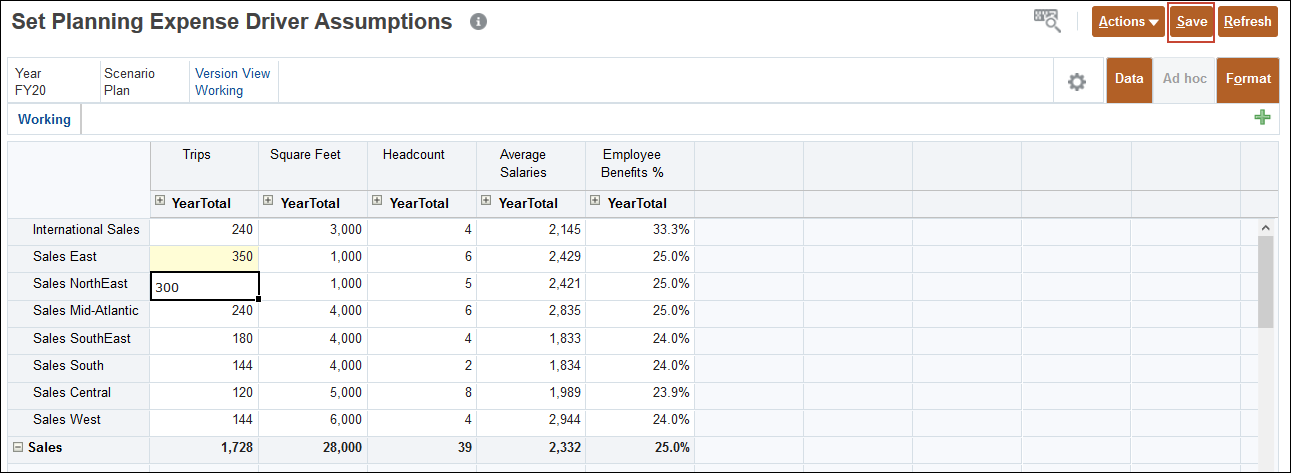
- Click the Expense Driver Assumptions horizontal tab.
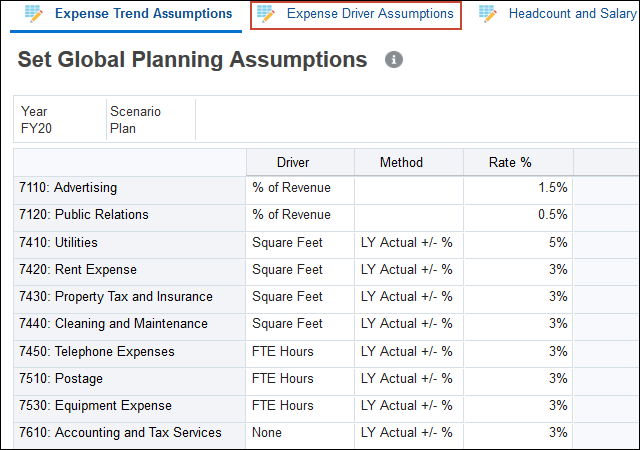
- For Sales East, change the number of trips to 350.
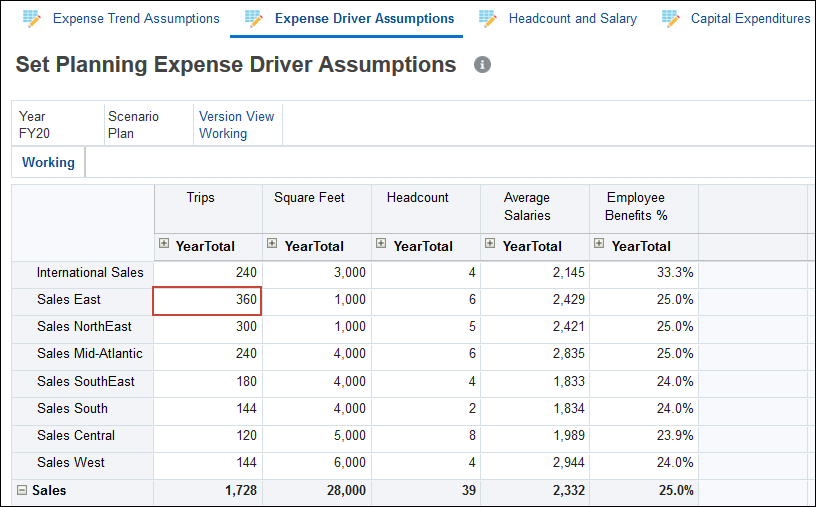
- Click Save.
- In the Operating Expenses Plan dialog, ensure the version is Working and click Launch.
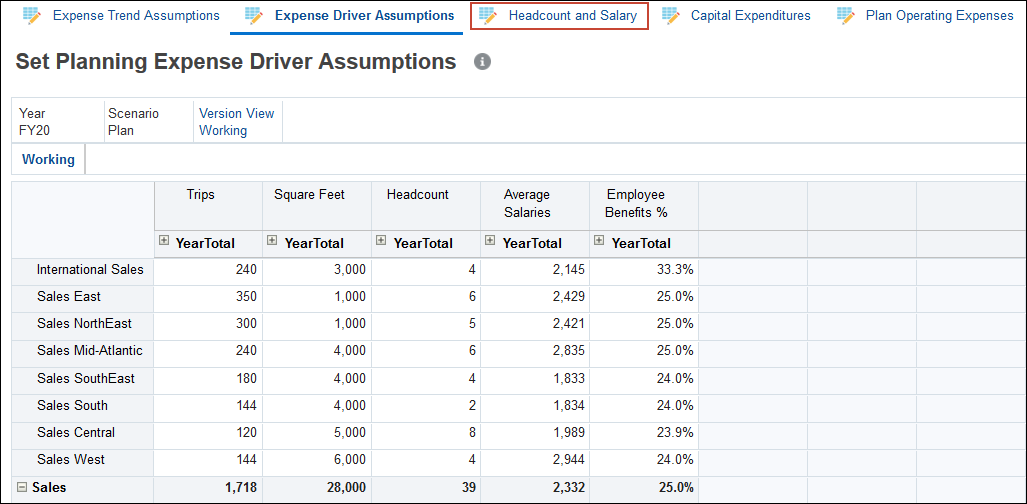
Calculations based on number of trips are recalculated.
Specifying Headcount Expense Driver Assumptions in Planning
Salary and benefit expenses are calculated based on headcount, average salary, and employee benefits % drivers. After you change headcount drivers, salaries and expenses are automatically recalculated.
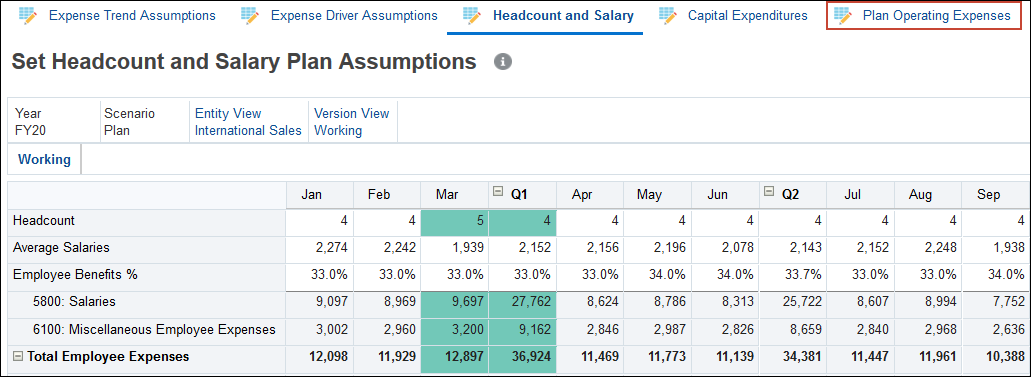
- Click the Headcount and Salary horizontal tab.
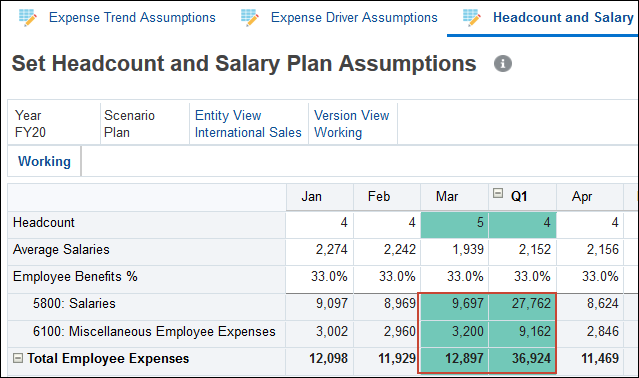
- For International Sales, change the headcount for March to 5.

After you change the headcount driver, the salaries and expenses are automatically recalculated.
Changing Operating Expense Drivers in Planning
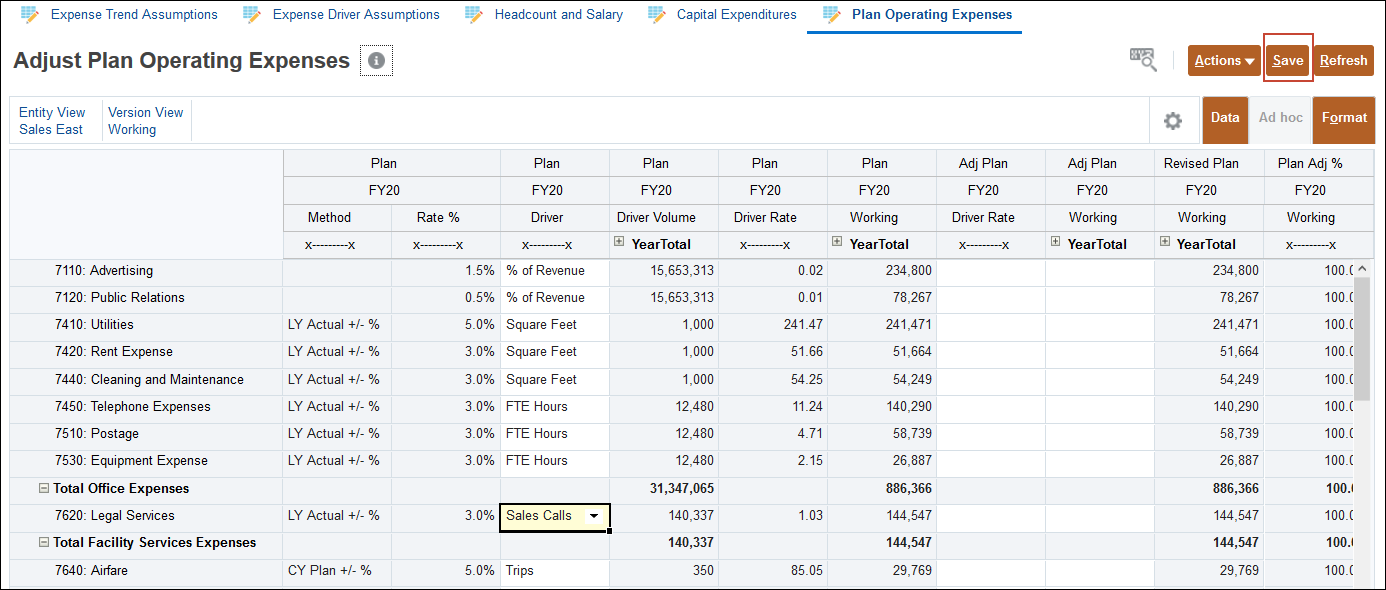
Operating expenses are calculated based on drivers and rates. The method used to calculate the planned value, such as last year actual, current year plan, or current year forecast, and the rate, such as percent of revenue or square feet are set globally. You can change the driver.
- Click the Plan Operating Expenses horizontal tab.
- Click Entity View.
- Select Sales East.
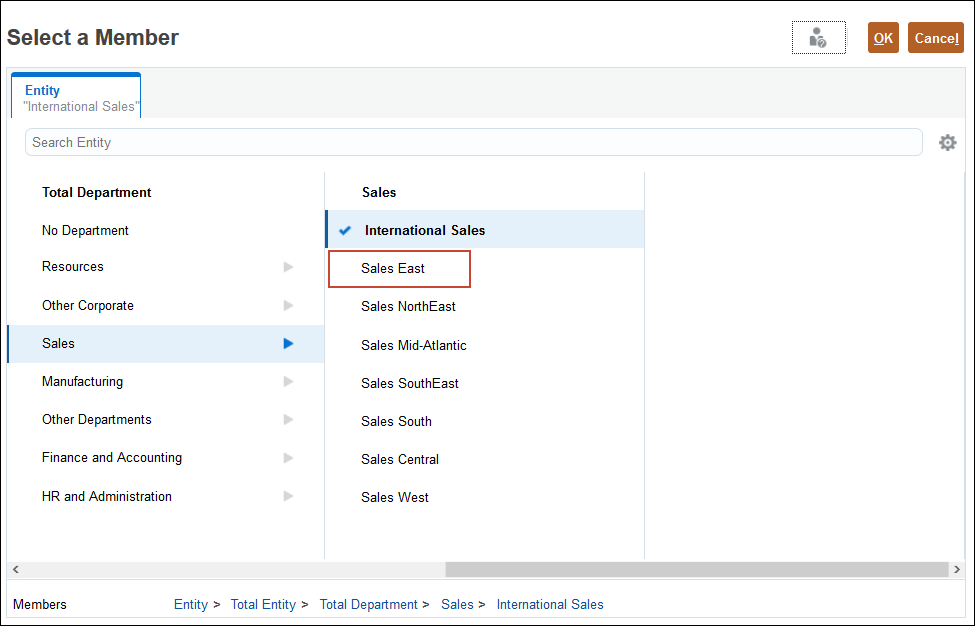
- Click OK.

- For Legal Services, click in the Plan FY20 Driver cell.

- In Legal Services for the Plan FY20 cell, click the down arrow, and from the drop-down list, select Sales Calls.
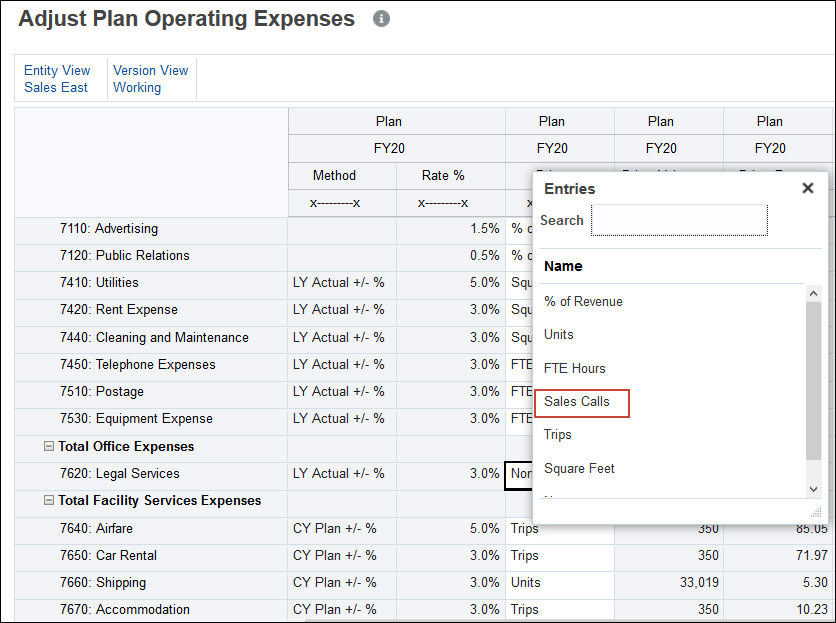
- Click Save.
- In the Calculate Plan Operating Expenses dialog, click Launch.

The Driver Volume, and Driver Rate values are updated and the expense is calculated based on the volume times the rate.

 Want to Learn More?