
 Automatically Translating Data to Reporting Currencies in Planning
 Before You Begin
This 20-minute tutorial shows you how to automatically translate data to reporting currencies in Planning forms.
Background
In a multicurrency environment, you can enter or import exchange rates for all your Planning business process currency members. Exchange rates are converted or translated within Planning by running business rules.
Exchange Rates to Main Currency Form
Enter exchange rate data to the exchange rate form that was automatically created and seeded during application creation. The exchange rate form is called Exchange Rates to Main Currency; for example, Exchange Rates to USD.
Exchange rates are stored in the Account dimension and they contain the ending and average rates used to convert currencies into the main currency. These rates are in FX Rates-Average and FX Rates-Ending, are locked, and can't be deleted. Users with view permissions can view the rates for the currencies on the Exchange Rates to Main Currency form.
To learn more about importing exchange rates, see the Loading Data in Planning tutorial.
Calculate Currencies Rule
The Calculate Currency rule converts the input values from the current currency to the reporting currencies. You can set up your forms to automatically run the Calculate Currency rule when you save data.
You can also manually launch the rule to convert data from one currency to the reporting currencies. After the Calculate Currency rule is run, view the converted values by selecting that currency's member from the Currency dimension.
You can't enter data into a reporting currency. You can enter data only into a local, or input, currency.
What Do You Need?
An EPM Cloud Service instance allows you to deploy and use one of the supported business processes. To deploy another business process, you must request another EPM Enterprise Cloud Service instance or remove the current business process.
- Have Service Adminisrator access to Planning for EPM Enterprise Cloud Service Cloud.
- Create a new Planning business process by uploading and importing this snapshot into your Planning instance. The snapshot includes the Planning forms and data required for this tutorial. For more information on uploading and importing migration snapshots, refer to the Administering Migration for Oracle Enterprise Performance Management Cloud documentation.
 Opening the Exchange Rates to USD Form
In this section, you open the Exchange Rates to USD form.
The Exchange Rates to USD (Main Currency) form is automatically created and seeded during the creation of the Planning business process. You enter exchange rate data in this form. If you imported exchange rates, you can view the imported exchange rates in this form.
You enter exchange rates by period for all input currencies against the main currency. You must enter the values across all dimension intersections for which you want to see the converted data.
- From the Planning home page, click Data.
- Click Exchange Rates to USD.
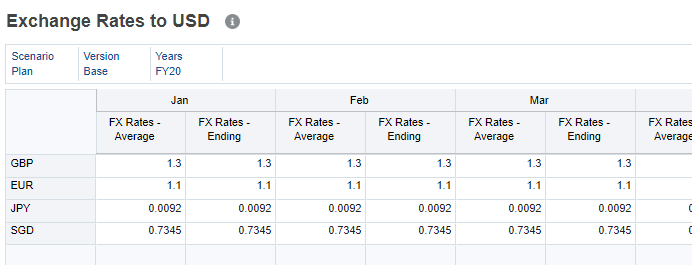
The form displays the currencies and exchange rates used in the Planning business process. The exchange rates are imported into the No Entity member, where all other entities later take it from when the business rule to convert the data is run.
- Click Close.
 Adding Calculate Currencies to Forms
To view reporting currency values on an input form, add the Calculate Currencies business rule. In this section, you modify the Multicurrency - Input and Reporting form to automatically run the rule when data in the form is saved.
Guidelines when designing forms that calculate reporting currency:
- Ensure that any forms created have the same intersection as that of the Exchange Rates to Main Currency form, with respect to Scenario, Version, and Year.
For example, in the previous section, the Scenario, Version, and Year should match the ones in the form used in this section.
- Ensure that both the input and converted forms have the same structure, the only difference between the forms being the currency.
- Click Navigator, and then under Create and Manage, click Forms.
Form and Ad Hoc Grid Management is displayed.
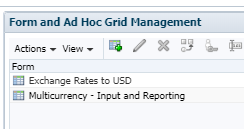
- Select Multicurrency - Input and Reporting and click (
 ) Edit.
 - Click the Layout tab.
- Review the form layout.
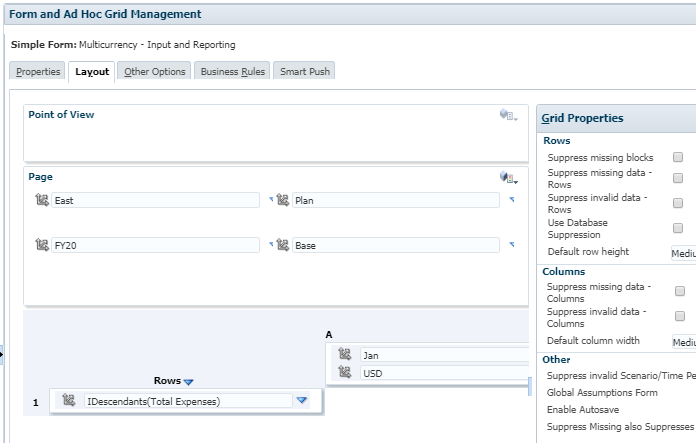
The page includes the following data point-of-view:
- Years: FY20
- Scenario: Plan
- Version: Base
- Entity: East
Period and Currency are in the column axis. Currency members include both input and reporting currencies. Accounts are in the row axis.
- Click the Business Rules tab.
The Selected Business Rules lists the predefined Calculate Currencies and Calculate Form business rules.
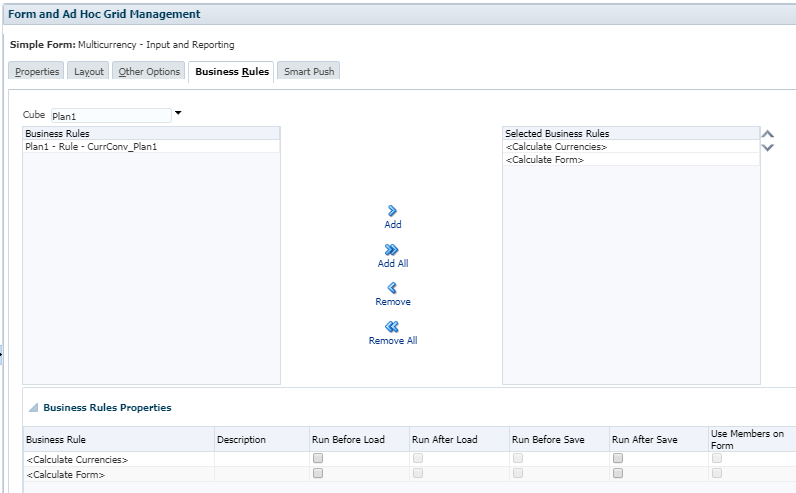
The Calculate Currencies business rule is based on the dimensions and members on the form. It converts data from the local currency to the reporting currency specified on the form, applying the exchange rate conversions. It doesn't calculate subtotals. To subtotal values, run the Calculate Form business rule (or a customized business rule that includes aggregation) after converting currencies.
You can select if you want to run these rules within the form, and when you want to run the rule.
- In the Busines Rules Properties section, select Run After Save for both Calculate Currencies and Calculate Form.

- Click Finish.
- Close Form and Ad Hoc Grid Management. Click ( X ) Close.
 Entering and Converting Currencies
- From the Planning home page, click Data.
- Click Multicurrency - Input and Reporting.
The form is displayed.
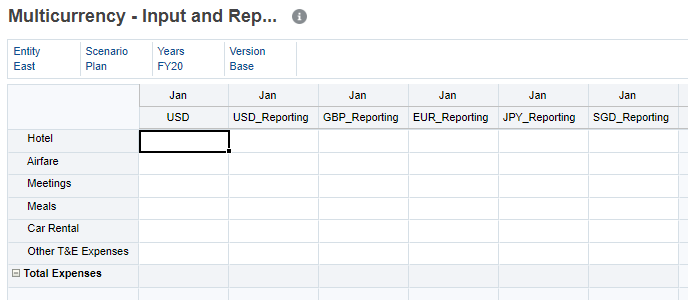
- For Jan - USD, enter the following expense values:
- Hotel: 800
- Airfare: 800
- Meetings: 300
- Meals: 800
- Car Rental: 250
- Other T&E Expenses: 350
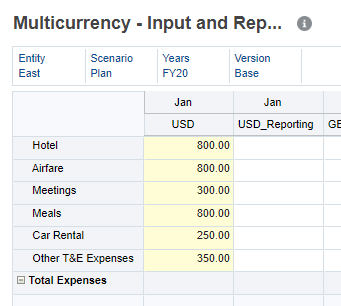
- Click Save.
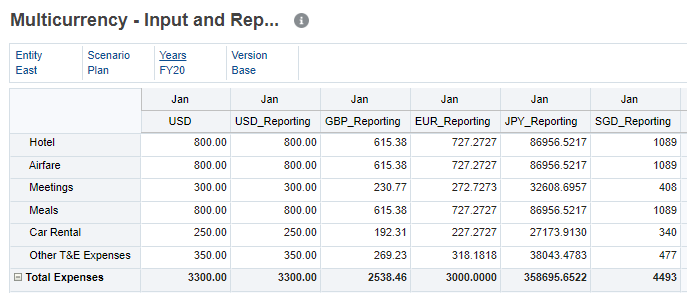
The Calculate Currencies and Calculate Form business rules were ran against the data saved on the form and translated the data to the reporting currencies.
 Want to Learn More?