


 Print
PrintBefore you begin
This 65-minute hands-on tutorial shows you how to create and configure Advanced Sales Forecasting in Oracle Sales Planning Cloud. The sections build on each other and should be completed sequentially.
Background
Oracle Sales Planning Cloud provides an extensible, reliable framework that enables your teams to set and analyze data-driven, intelligent quotas using best practice methodologies. All key participants engage in the sales planning process including sales operations, sales management, and sales reps.
You can enable the following business processes in Sales Planning:
- Quota Planning offers top-down and bottom-up target quota planning by territory, product, account, or other custom dimensions. Use Predictive Planning and what if scenario planning to explore and compare different quota scenarios for informed decision making. Quota Planning builds best practices into its content, including its forms, calculations, dashboards, infolets, drivers, and measures.
- Advanced Sales Forecasting provides a robust platform for the sales forecasting process, allowing multidimensional sales forecasting across territories, products, accounts, channels, or other custom dimensions. It offers sales teams connected sales planning with integration between Quota Planning, compensation planning, and sales forecasts. With Advanced Sales Forecasting, you can plan at the weekly or monthly level, and use a rolling forecast if your business requires it.
Extend Oracle Sales Planning Cloud by adding configurations and personalization into your sales planning application with custom navigation flows, dashboards, and infolets. Use tasks and approvals to manage the quota planning process. Use Groovy rules to customize even further for enhanced calculation and business rules. Integrate Oracle Sales Planning Cloud with Oracle Engagement Cloud – Sales Cloud to push quota targets to incentive compensation or bring in actual attainment.
This tutorial shows you how to create a Sales Planning application, as well as enable and configure Advanced Sales Forecasting.
What do you need?
An Oracle Sales Planning Cloud Service instance allows you to deploy and use one application. To deploy another application, you must request another Oracle Sales Planning Cloud instance or remove the current application.
- Have Service Administrator access to Oracle Sales Planning Cloud. The instance should not have an application created.
- Download this file and extract the contents to a local folder.
Setting up your application
Before you create your application and enabling business processes, analyze your organization's current processes and determine your organization’s requirements.
About themes
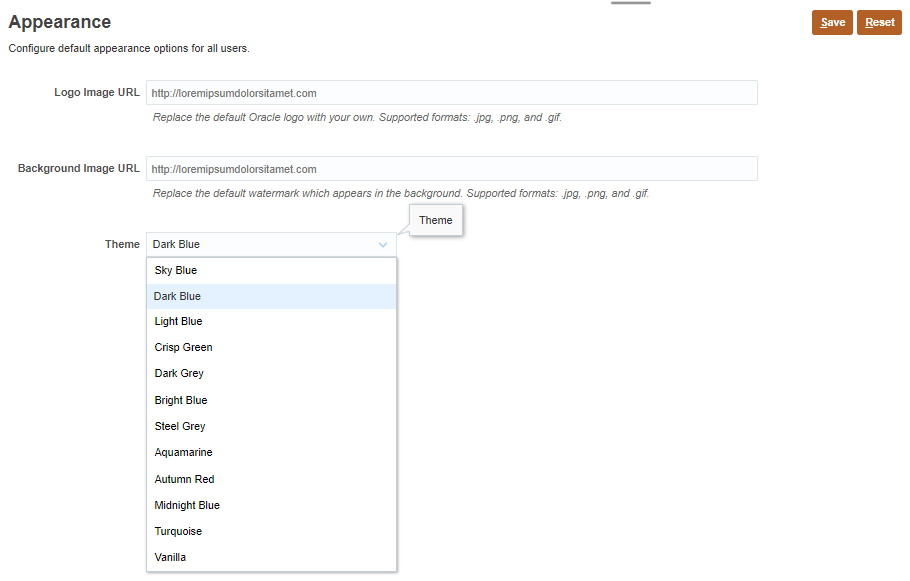
You can change the theme of your display or add your company logo or a background image to the home page.
This tutorial was developed using the Dark Blue theme. You can select a theme by clicking  (Navigator), then under Tools, click Appearance. For Theme, select a color option.
Logging on
- Go to the Oracle Sales Planning Cloud URL provided by your Service Administrator.
- Enter your user name and password.
- Click Go.
The landing page is displayed.
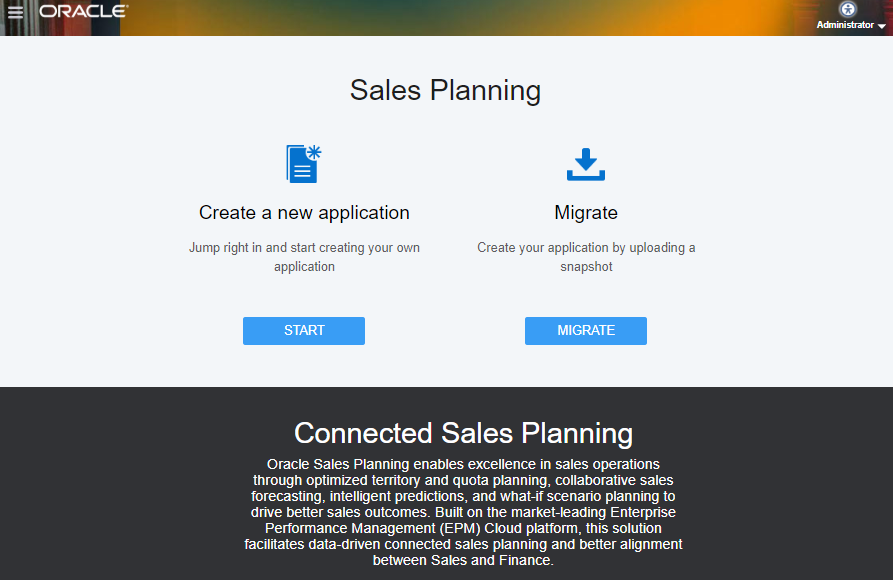
- On the landing page, for Create a new application, click START.
- Complete the required general properties:
- Name: SalesPln
- Description: Sales Planning
- Click Next.
The Details page is displayed.
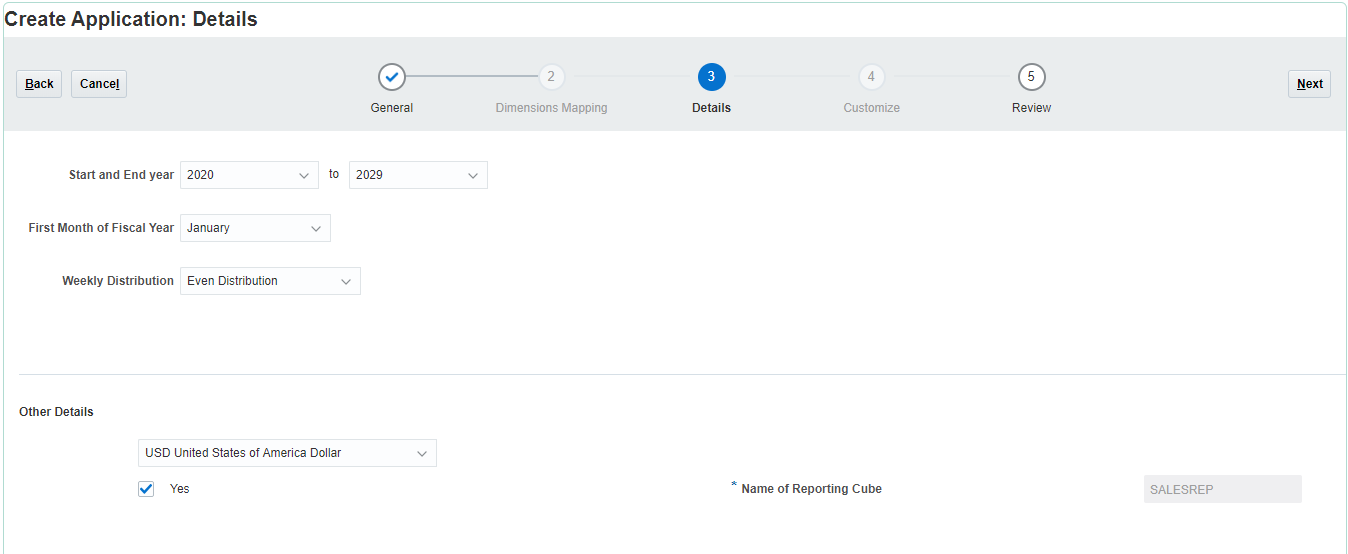
- Set the Start year to 2015 and End year to 2029.
- For First Month of Fiscal Year, accept the default: January.
- For Weekly Distribution, select 4-4-5 Distribution.
- For Main Currency and Multicurrency, accept the default selections.
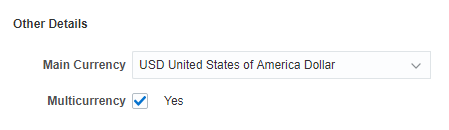
- Review the name of the reporting cube.

- Click Next.
- Review your selections. If necessary, return to previous pages to make changes.
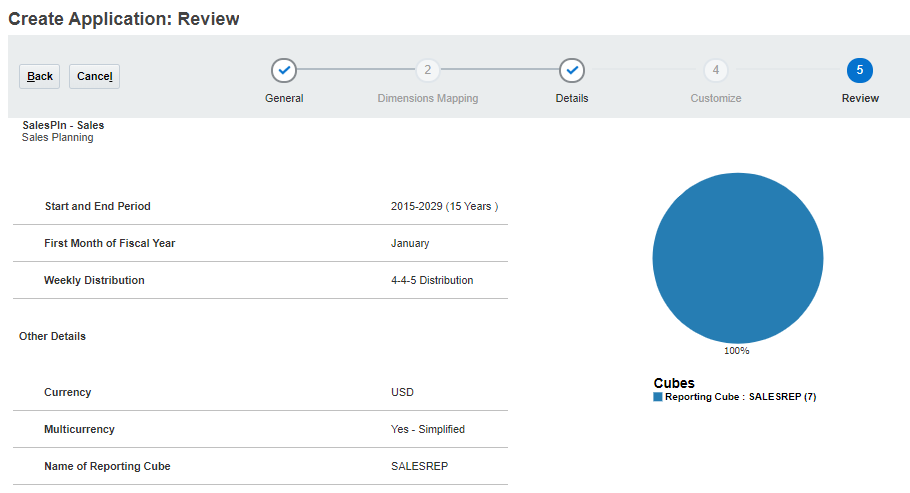
- Click Create.
The Application Creation Status message is displayed.

Application creation may take several minutes. When completed, you'll see an Application created successfully message.
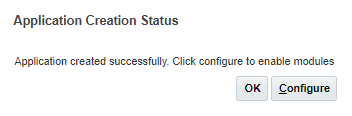
- Click Configure.
Creating a sales application
Enabling Advanced Sales Forecasting
When you enable features, dimensions, drivers, forms, and other artifacts are created based on your selections.
Enabling features
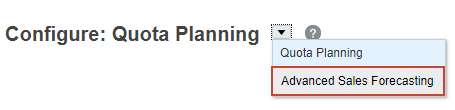
- From the Configure dropdown list, select Advanced Sales Forecasting.

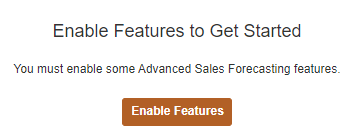
- Click Enable Features.
- In Enable Features, select Planning By, then:
- Accept the default selection, Territory.
- Under Optional Dimensions, select Accounts and Product.
You can plan by territory or resource. The lowest level in each hierarchy represents a sales rep. With Territory, you can integrate with Oracle Engagement Cloud’s Territory Management. With Resource, you can integrate with Oracle Engagement Cloud’s Incentive Compensation Management.
If you have Quota Planning enabled, the planning basis is selected automatically, based on how you configured Quota Planning.
The accounts, product, and geography optional core custom dimensions have predefined functionality and artifacts associated with them. They are specific to Advanced Sales Forecasting and do not have to match selections, if you have Quota Planning enabled.

You must add custom dimensions when you first enable Advanced Sales Forecasting.
- Select Planning Time Granularity, then:
- Select Weekly Planning and Rolling Forecast.
- For Weeks to months mapping, select 4-4-5 Distribution.
When you enable Planning Time Granularity, Monthly is selected by default.
With weekly planning, you can select the week-to-month mapping independently from the selection made during application setup.
You can also enable rolling forecasts. This creates a Rolling Forecast scenario that you can use to continuously forecast over a rolling range of time periods.
The week-to-month conversion lets your users perform their forecasting weekly while providing the flexibility of easily reporting on monthly totals.

- Select Predictive Planning.
Enable Predictive Planning to perform time series statistical analyses on historical data to predict future results. Users can copy these predictions into forecast and what-if scenarios.

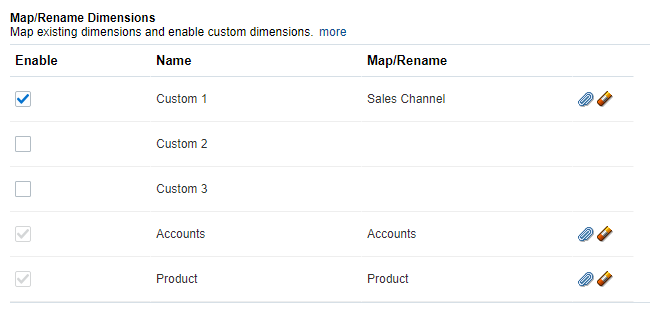
- In Map/Rename Dimensions, enable Custom 1, and click
 (Rename Target Dimension).

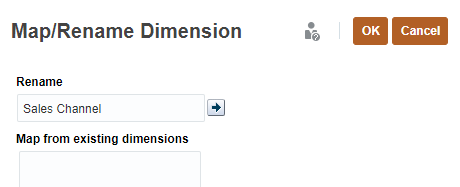
- In Map/Rename Dimension, enter Sales Channel to rename Custom 1 and click OK.
- Verify that Custom 1, Accounts, and Product are selected. For Custom 1, verify that MapRename displays Sales Channel.
- Click Enable.

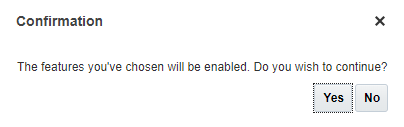
- At the Confirmation message, click Yes.
Enabling features may take a few minutes.

- When an information message displays that features enabled successfully, click OK.

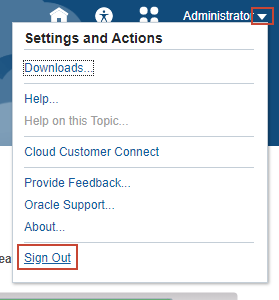
- In the upper right corner, click the arrow next to your username and then click Sign Out.
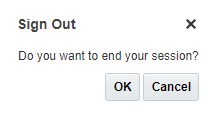
- When prompted to sign out, click OK.
- Log back into Oracle Sales Planning Cloud.
The home page is displayed.
In this tutorial, the application display is set to use the Dark Blue theme. You can select a theme by clicking
(Navigator), then under Tools, click Appearance. For Theme, select a color option.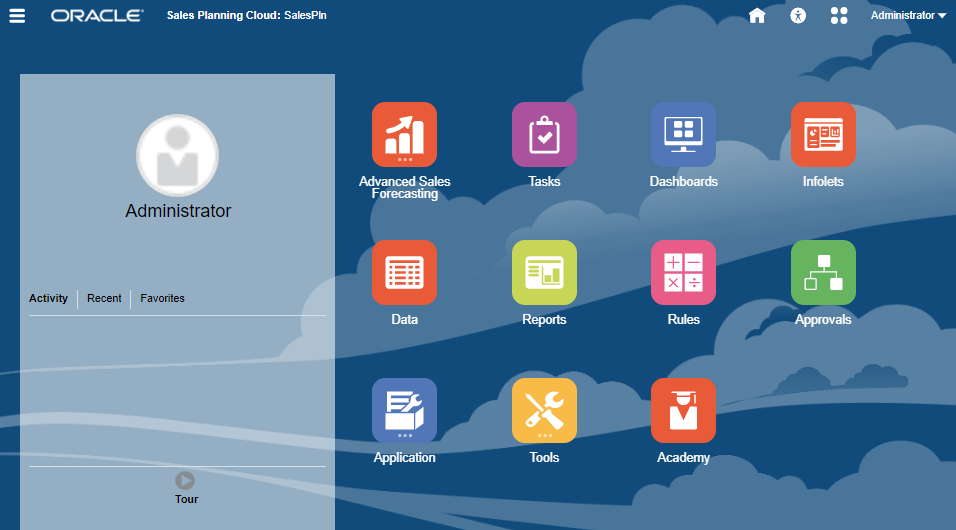
Notice that Advanced Sales Forecasting was added to the home page.
Reviewing enabled features
- On the home page, click Application then Configure.

- From the Configure dropdown list, select Advanced Sales Forecasting.
Configure: Advanced Sales Forecasting is displayed.

Before you can use the predefined forms, you’ll need to configure time periods, import dimension members, load and prepare historical data, set user variable values, and prepare forecast data.
- Click Enable Features.
- Review the enabled features.
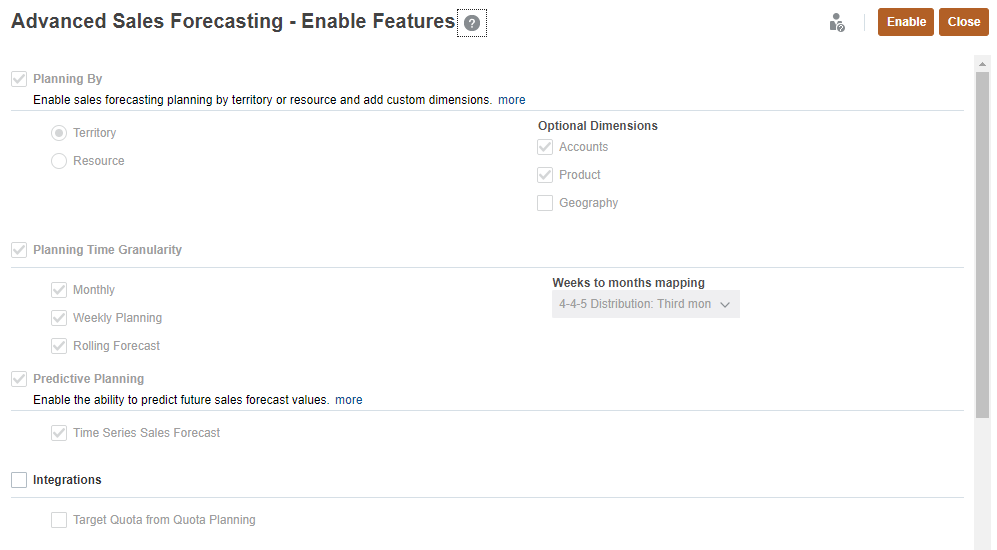

If you are also using Quota Planning, you can enable Integrations to use target quotas in Advanced Sales Forecasting. Selecting this feature creates a data map between Quota Planning and Advanced Sales Forecasting that lets you run integrations to move targets from quota planning into your forecast scenario.
- Click Close.
Reviewing cubes and dimensions
- Click Overview.
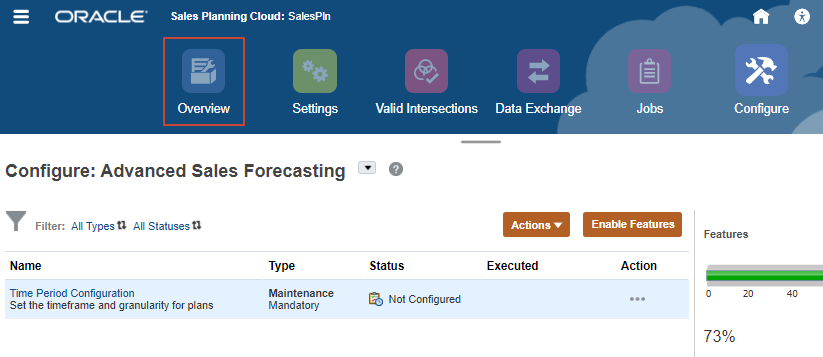
- In Application Overview, review the application properties.
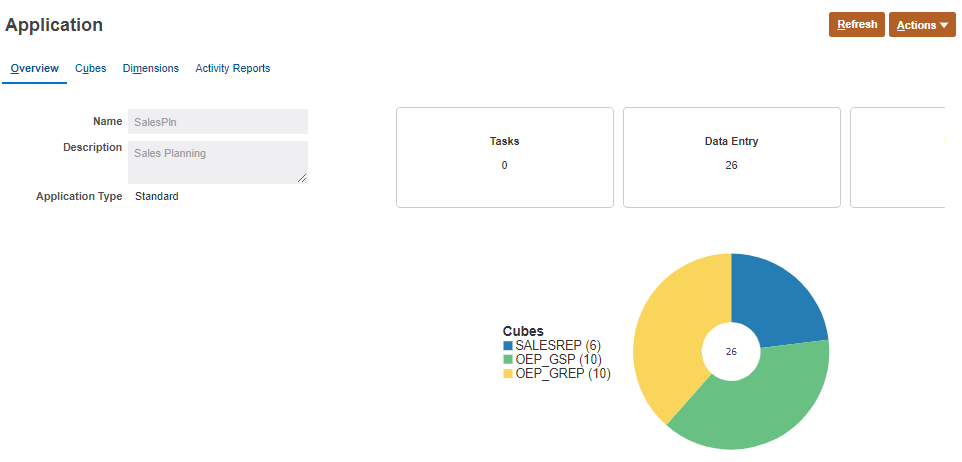
- Click Cubes.

The configuration creates one (1) block storage cube and two (2) aggregate storage cubes.

- Click Dimensions.

Dimensions for each cube are listed. In this example, the dimensions in the SALESREP cube are displayed.

- From the Cube dropdown list, select OEP_GSP.

Dimensions in the OEP_GSP cube are displayed.

- From the Cube dropdown list, select OEP_GREP.

Dimensions in the OEP_GREP cube are displayed.

Performing configuration tasks
In this section, you configure time periods and import metadata into the application.
Configuring time periods
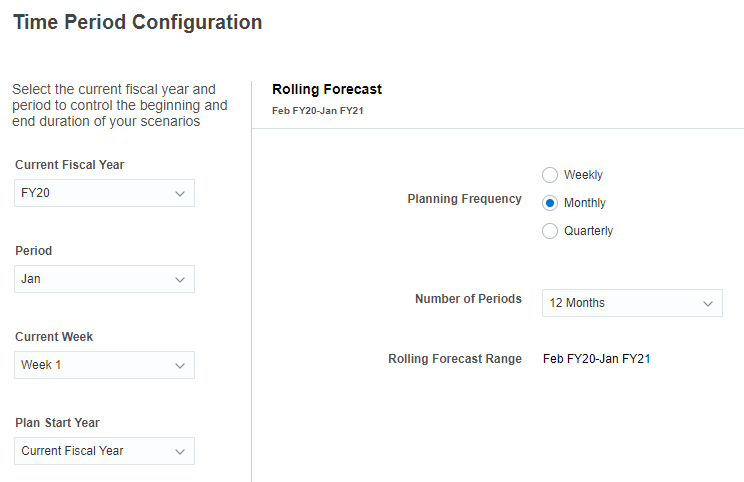
Set the current forecasting year and period. You set the current fiscal year, period, and week, and a plan start year of either current or next year. Updating these settings is part of your regular forecast maintenance, and changes automatically roll your forecast forms and business processes forward.
If you enabled rolling forecasts, you can also select the planning frequency and the number of periods to use. Rolling forecast period options vary by planning frequency.
- Click Configure.

- From the Configure dropdown list, select Advanced Sales Forecasting.
- Click Time Period Configuration.
- In Time Period Configuration, make or verify the following selections:
- Current Fiscal Year: FY20
- Period: Jan
- Current Week: Week 1
- Plan Start Year: Current Fiscal Year
- For Rolling Forecast, verify the following selections:
- Planning Frequency: Monthly
- Number of Periods: 12 Months
With these selections, the rolling forecast range is set to Feb FY20 to Jan FY21.
- Click Save.

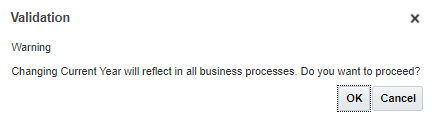
- In the Validation message, click OK.
- Click Close.
Importing metadata
- Return to Dimensions. Click Overview.

- Click Dimensions.
- From the Cube dropdown list, select OEP_GSP.
- On the upper right, click Import.
- In Import Metadata, click Create.
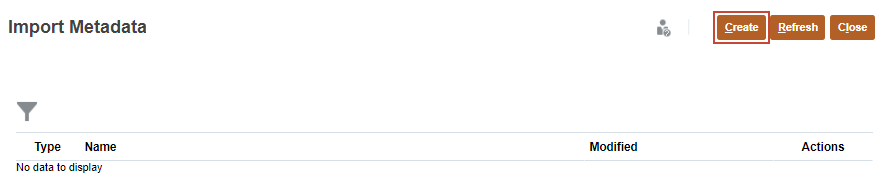
You can import multiple dimensions at the same time.

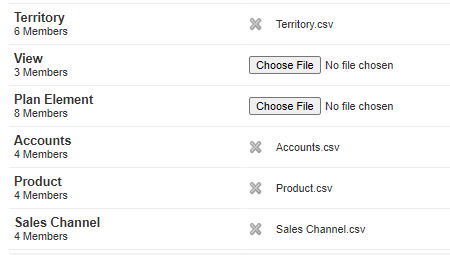
- For each of the following dimensions, click Choose File. Then, locate where you saved the csv files, select it, and then click Open.
- Accounts—Accounts.csv
- Product—Product.csv
- Sales Channel—Sales Channel.csv
- Territory—Territory.csv
Depending on your browser, the button label may display Choose File or Browse.
- On the upper right, click Import.

Best practice is to validate metadata files before importing them. The files included in this tutorial have been validated.
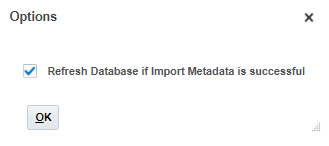
- In Options, select Refresh Database if Import Metadata is successful and click OK.
- In the Information message, click OK.
- On the upper right, click Close.

- In Import Metadata, click Close.

- Click Jobs.

- In Recent activity, verify that the jobs completed successfully.

- Return to Dimensions. Click Overview.
- Click Dimensions.
- From the Cube dropdown list, select OEP_GSP.
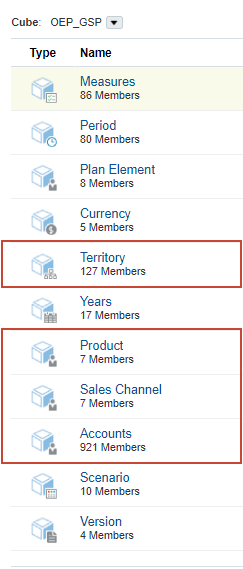
- Scroll down and locate Accounts, Product, Sales Channel, and Territory.
Notice the increase in the number of members for these dimensions.
Setting variables and user preferences
Setting values for substitution variables
- Click (Navigator), and under Tools, click Variables.
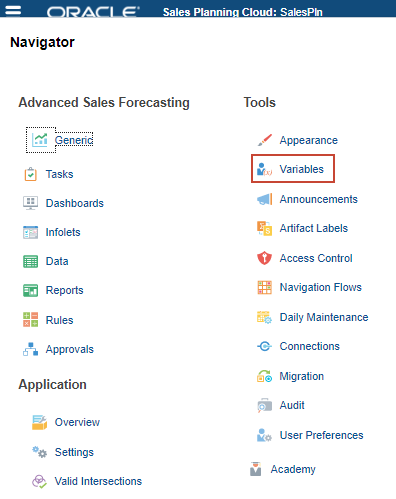
In Variables, you can administer user variables and substitution variables.

- Click Substitution Variables.
Here are the predefined substitution variables in the application.
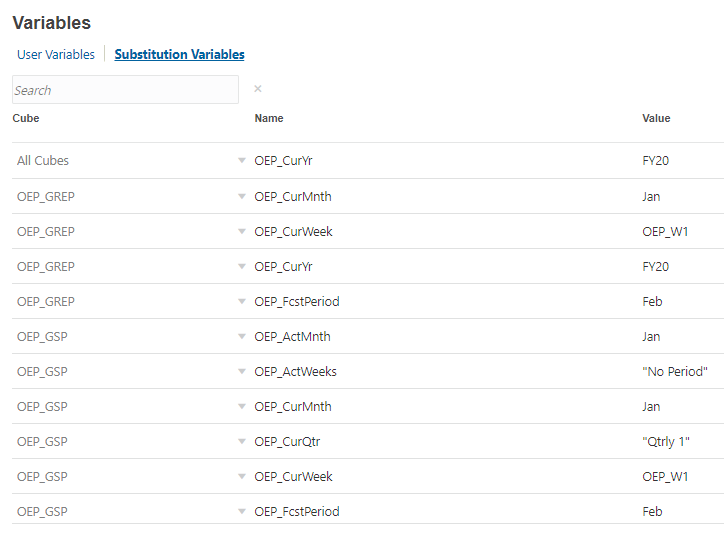
- Verify that the value for OEP_CurYr for all cubes is set to FY20.
Setting user preferences
- Click User Preferences.

- In General, under Approvals, select Display Aliases.

- On the left, under Preferences, click Display.

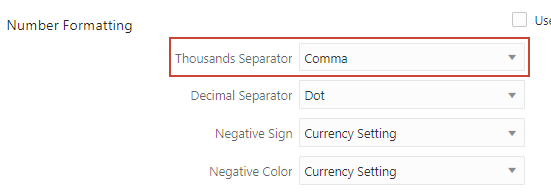
- Under Number Formatting, for Thousands Separator, select Comma.
- On the left, under Preferences, click Ad Hoc Options.

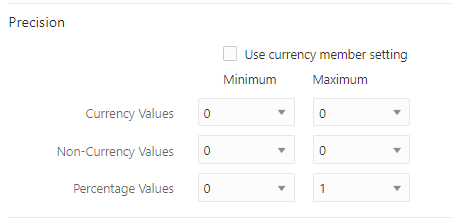
- Set Precision values to:
Minimum Maximum Currency Values 0 0 Non-Currency Values 0 0 Percentage Values 0 1 Precision settings affect just value display, not their stored values.
- On the upper-right, click
 (Save).
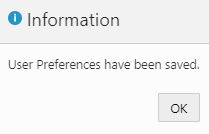
- In the Information message, click OK.
Setting values for user variables
- On the left, under Preferences, click User Variables.
- For each variable, click its
 (Member Selector) to select a member as the variable's value:
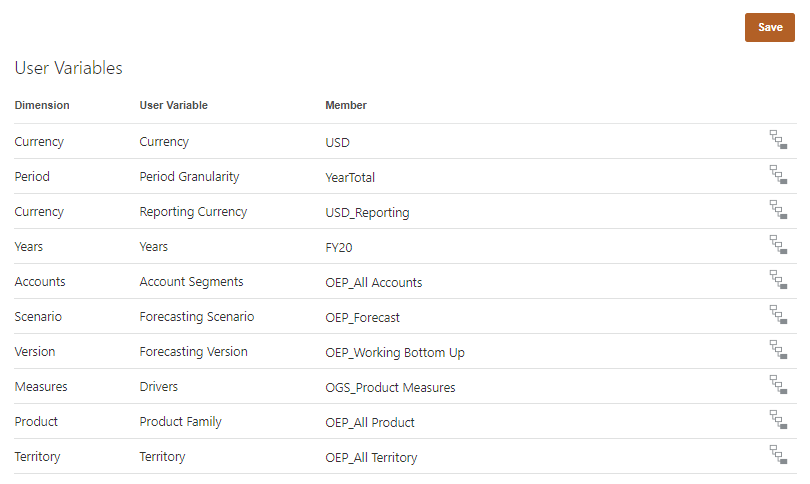
Dimension User Variable Member Currency Currency USD Period Period Granularity YearTotal Currency Reporting Currency USD_Reporting Years Years FY20 Accounts Account Segments OEP_All Accounts Scenario Forecasting Scenario OEP_Forecast Version Forecasting Version OEP_Working Bottom Up Measures Drivers OGS_Product Measures Product Product Family OEP_All Product Territory Territory OEP_All Territory - Verify your selections and click Save.
- In the Information message, click OK.
Loading data
In this section, you load historical and recent actual data.
- Click (Navigator), and under Application, click Overview.
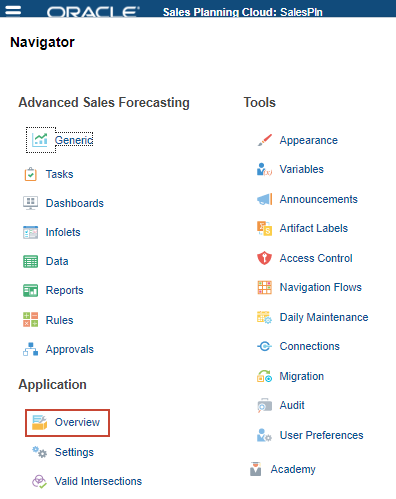
- Click Actions, then select Import Data.

- In Import Data, click Create.

In Import Data, you select import options and select your data file.

- Keep all the default selections, and click Choose File to select a file.
Depending on your browser, the button label may display Choose File or Browse.
- Locate and select Actual CY Bookings.csv, and click Open.
When selected, the file name is displayed next to Source File. If you selected the wrong file, you can update your selection.

- Click Import.

Best practice is to validate data files before importing them. The files included in this tutorial have been validated.
- In the Information message, click OK.
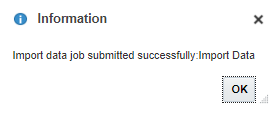
- Click Close.

- Click Close.

- Click Jobs, and verify that the Import Data job completed successfully.

You may need to click Refresh a few times until the job status displays as Completed.
Preparing actual and forecast data
After loading data, you run rules to prepare and calculate the loaded data, and then copy them over to the appropriate measures. In preparation for forecast planning, you run the following rules:
- Prepare Actual
- Forecast Prep
- Reporting Totals to GSP, if you enabled Predictive Planning
Running Prepare Actuals
The Prepare Actuals business rule copies data between measures (from OGS_CY Bookings to OGS_Sales Revenue), and then pushes data to the reporting cube for the selected periods and years.
Run this rule at these times:
- For Current Year—Run any time you import a new period of data for Actuals.
- For Previous years—Run one time when you build the application, if you import historical data. Run for all periods and years for which historical data exists. You don't need to run this rule again unless data changes for historical years.
- Return to the home page. Click
 (Home).
- Click Rules.

Deployed rules are listed on this page.

You can filter the display by rule type and cube.
- For Prepare Actual, click
 (Launch).
 - For each item, click its (Member Selector) to select a member as its value:
- Years: FY16,FY17,FY18,FY19,FY20
- Periods: ILvl0Descendants(YearTotal)

- Click Launch.
Processing data may take a few minutes to complete.
-
In the information message, click OK.
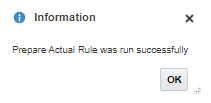
Running Forecast Prep
The Forecast Prep rule copies actuals for selected periods to the Forecast scenario and then pushes data to the reporting cube for the selected Year and Version.
- In Rules, for Forecast Prep, click (Launch).

- For each item, click its (Member Selector) to select a member as its value:
- Periods: ILvl0Descendants(YearTotal)
- Years: FY20
- Scenario: "OEP_Forecast"

- Click Launch.
Processing data may take a few minutes to complete.
-
In the information message, click OK.

Running Reporting Totals to GSP
The Reporting Totals to GSP rule takes the total for enabled custom dimensions, such as Product, Accounts, and Sales Channel, to "Any Member" for Predictive Planning purposes. This allows users to run predictions at the territory level.
- In Rules, for ReportingTotals to GSP, click (Launch).

- For each item, click its (Member Selector) to select a member as its value:
- Periods: ILvl0Descendants(YearTotal)
- Version: "OEP_Working Bottom Up"
- Years: FY16,FY17,FY18,FY19,FY20

- Click Launch.
Processing data may take a few minutes to complete.
-
In the information message, click OK.
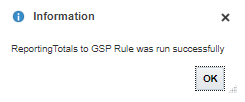
Verifying the configuration
Now that Advanced Sales Forecasting is configured, Sales Managers can begin creating forecast predictions, adjusting forecasts, and analyzing forecast data.
- Return to the home page. Click (Home).
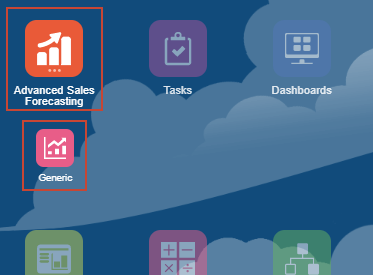
- Click Advanced Sales Forecasting, then Generic.
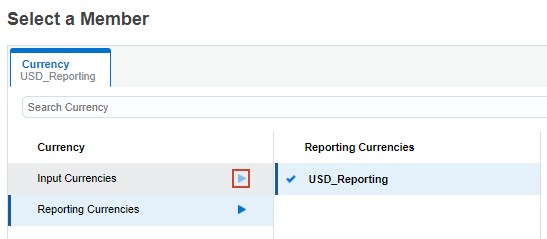
- In the POV, change the member selection for Reporting_Currency to USD. Click USD_Reporting.

- In Member Selector, for Input Currencies, click
 (right arrow).
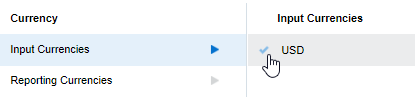
- Hover your cursor over USD, and click
 (Add).
- Click OK.

The Overview dashboard displays an overview of sales performance.
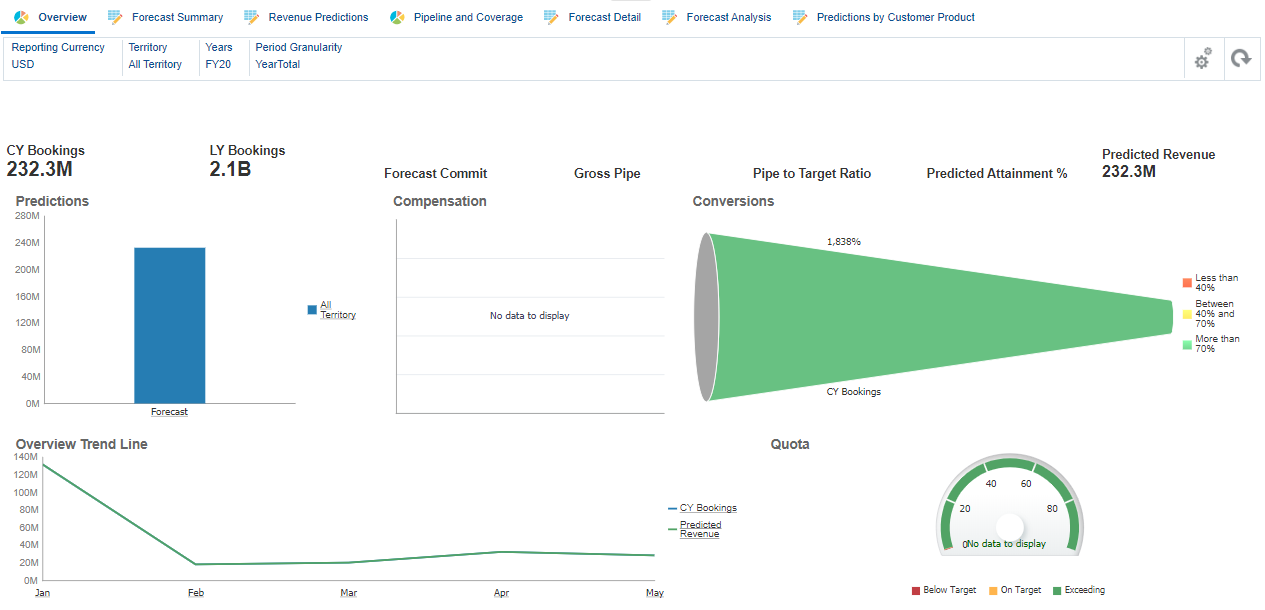
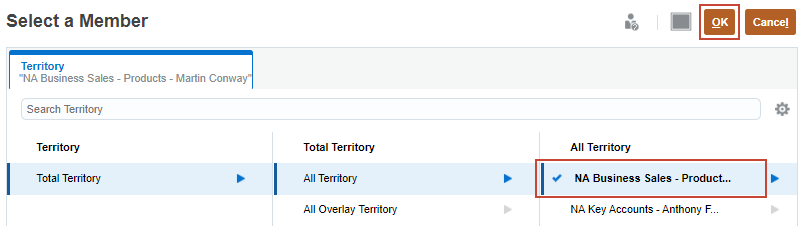
- In the POV, change the Territory member to NA Business Sales - Products - Martin Conway.
- Click All Territory.
- In Member Selector, hover your cursor over NA Business Sales - Products - Martin Conway, and click (Add).
- Click OK.
The Overview dashboard is updated based on your POV selections.

- Click Forecast Summary.

In Forecast Summary, you can review and adjust forecast data at the territory or resource level.
