
 Print
PrintBefore you begin
This 75-minute hands-on tutorial shows you how to set and analyze data-driven, intelligent sales quotas in Oracle Sales Planning Cloud. You set target quotas and specify targets by running predictions. You also evaluate different scenarios with what-if analysis. You perform top down and bottom up quota planning. The sections build on each other and should be completed sequentially.
Background
Oracle Sales Planning Cloud provides an extensible, reliable framework that enables your teams to set and analyze data-driven, intelligent quotas using best practice methodologies, such as top-down, waterfall, and bottom-up. All key participants engage in the sales planning process including sales operations, sales management, and sales reps.
With Quota Planning, you can plan reliable target quotas by engaging all of the participants in the process, for example, the VP of Sales, Sales Operations, Sales Managers, and Sales Reps. Set a target quota for the next year. Then, optimize your results by making adjustments by product, applying padding or seasonality, or performing predictive planning or what-if analysis. When the target is ready, planners perform top-down or waterfall planning to allocate the target quota throughout the hierarchy.
If needed in your organization, you can also perform bottom-up planning to get quota commitments from Sales Reps, allowing a collaborative approach. After the target quotas are pushed up to the next level of the hierarchy and aggregated, you can compare top-down and bottom-up results. With built in dashboards, you can analyze and evaluate quota plans that include quota attainments.
Quota Planning offers top-down and bottom-up target quota planning by territory, product, account, or other custom dimensions. Use Predictive Planning and what if scenario planning to explore and compare different quota scenarios for informed decision making. Quota Planning builds best practices into its content, including its forms, calculations, dashboards, infolets, drivers, and measures.
Enhance the planning process in your organization by adding additional measures, task lists, or approvals. Extend Oracle Sales Planning Cloud by adding configurations and personalization into your sales planning application with custom navigation flows, dashboards, and infolets. Use tasks and approvals to manage the quota planning process. Use Groovy rules to customize even further for enhanced calculation and business rules. Integrate Oracle Sales Planning Cloud with Oracle Engagement Cloud – Sales Cloud to push quota targets to incentive compensation or bring in actual attainment.
You can perform quota planning using best practice methodologies such as top down, waterfall and bottom up:
- Top Down—Allocates the target quota starting at the highest level of the hierarchy down to each level of the dimension hierarchy, throughout the entire hierarchy. Use this method when target setting is centralized.
- Waterfall—Allocates the target quota starting at the highest level of the hierarchy step by step down to each level of the dimension hierarchy. Each level in the hierarchy reviews and makes adjustments before pushing the target quota down to the next level. Use this method when target setting is more decentralized with input from regional or business line sales leaders. One of the benefits of waterfall planning is that the adjustments made by sales managers are not visible to subordinates, who see only the adjusted target quota.
- Bottom Up—A collaborative approach performed in addition to top-down planning. After top-down allocation is complete, each level in the hierarchy, starting with the lowest level, reviews their target quota, enters their quota commitments, and pushes them up to the next level in the hierarchy.
Depending on how your administrator configured the application, you can:
- Perform bottom-up planning in addition to top-down or waterfall planning, and then compare the results.
- Plan by territory or resource.
- Plan overlay target quotas in addition to your primary target quotas.
You can base your target quota on prior year’s sales, and consider last year’s bookings to specify year over year growth for all territories. You can also specify targets by running a prediction and using the statistics based results to plan quota by territory, product, account, or any category that you use.
You can perform what-if analysis to evaluate different scenarios and then compare those scenarios to the base plan.
What do you need?
An Oracle Sales Planning Cloud Service instance allows you to deploy and use one application. To deploy another application, you must request another Oracle Sales Planning Cloud instance or remove the current application.
- Have Service Administrator access to Oracle Sales Planning Cloud. The instance should not have an application created.
- Import the SalesPln application into your Oracle Sales Planning Cloud instance:
- If you haven't already, register for a free Oracle Cloud Customer Connect account so you can access the required files.
- From this Idea page, download and extract the SPC_apps.zip file. The compressed file contains two snapshots.
- Upload and import the SPC_BaseAdv.zip snapshot into your Oracle Sales Planning Cloud instance.
For more information on uploading and importing migration snapshots, refer to the Administering Migration for Oracle Enterprise Performance Management Cloud documentation.
Reviewing Quota Planning configuration
About themes
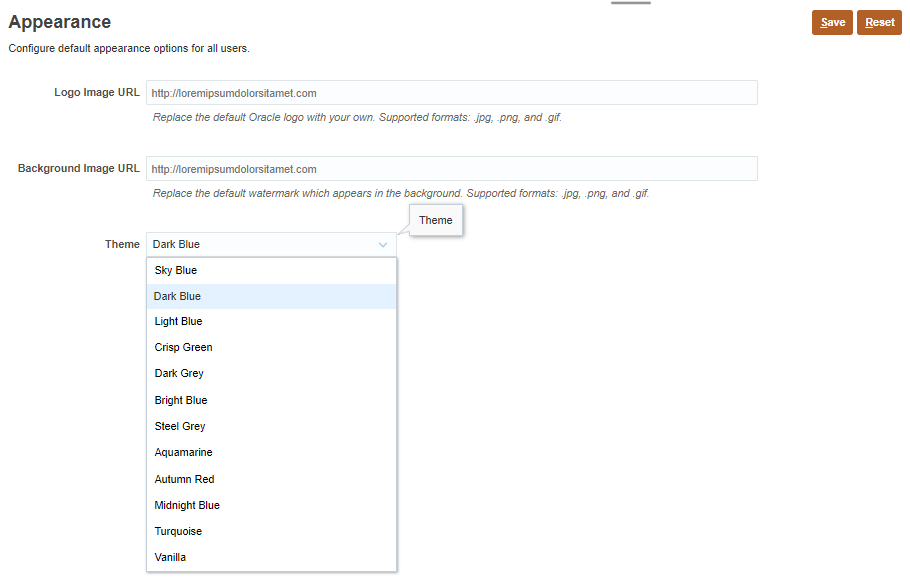
You can change the theme of your display or add your company logo or a background image to the home page.
This tutorial was developed using the Dark Blue theme. You can select a theme by clicking  (Navigator), then under Tools, click Appearance. For Theme, select a color option.
Reviewing configuration and enabled features
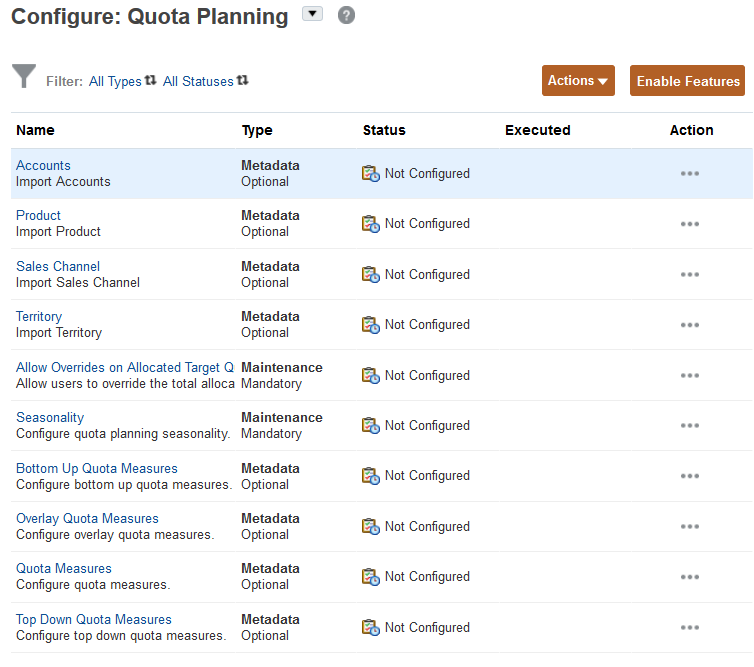
- On the home page, click Application, then Configure.
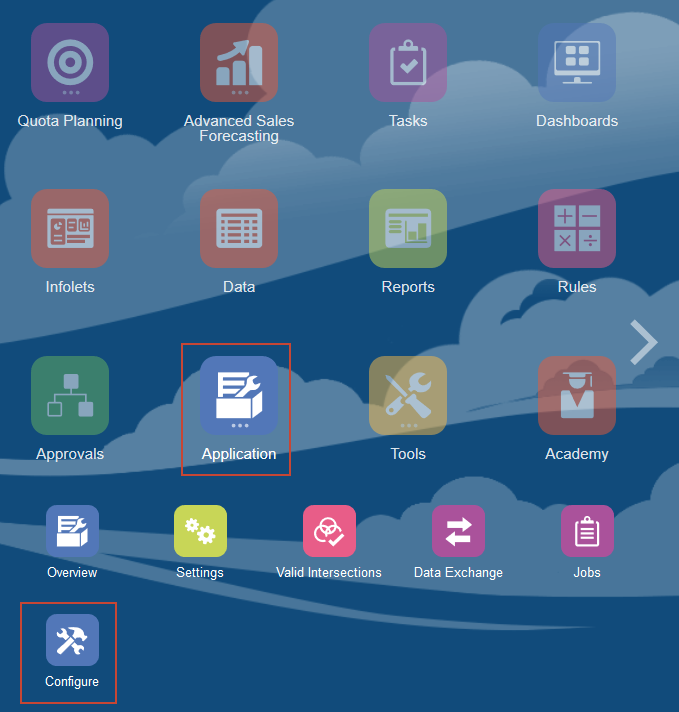
The configuration tasks are displayed.
- Click Enable Features.
- Review the enabled features.
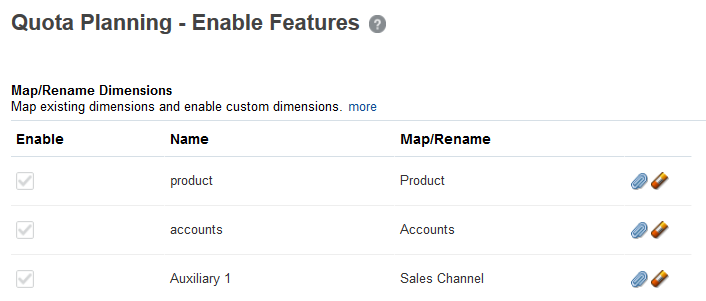
You can plan by territory. The lowest level in each hierarchy represents a sales rep. With Territory, you can integrate with Oracle Engagement Cloud’s Territory Management. The accounts, and product optional core custom dimensions have predefined functionality and artifacts associated with them.
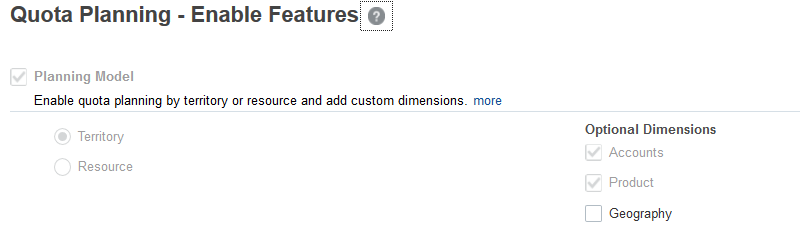
You plan quota by dollars not units.
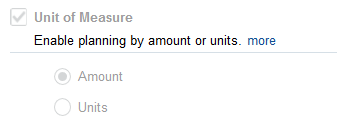
With Overlay Targets, you can plan for the additional sales from a support sales force whose assistance increases revenue. With seasonality selected, you can adjust quota to better reflect the seasonal impact. With padding, management can make top side adjustments of target quotas before the final quotas are rolled out. With What-if analysis, you can compare different business outcomes with the base plan.

With the waterfall method, you can plan target quota at the top of the organization and then allocate it one step below in the hierarchy. With bottom up, sales reps can propose quotas for each account that they collaboratively review and adjust with their managers.

With Predictive Planning enabled, you can perform time series statistical analyses on historical data to predict future results. You can copy these predictions into forecast and what-if scenarios.

- Scroll down.
You can plan with a product and accounts dimension, and the additional dimension named Sales Channel.
- Click Close.
Setting variables and user preferences
In this section, you review the substitution variables that are set up, and you set user preferences so that you can work with forms and dashboards.
Reviewing substitution variable values
- Click (Navigator), and under Tools, click Variables.
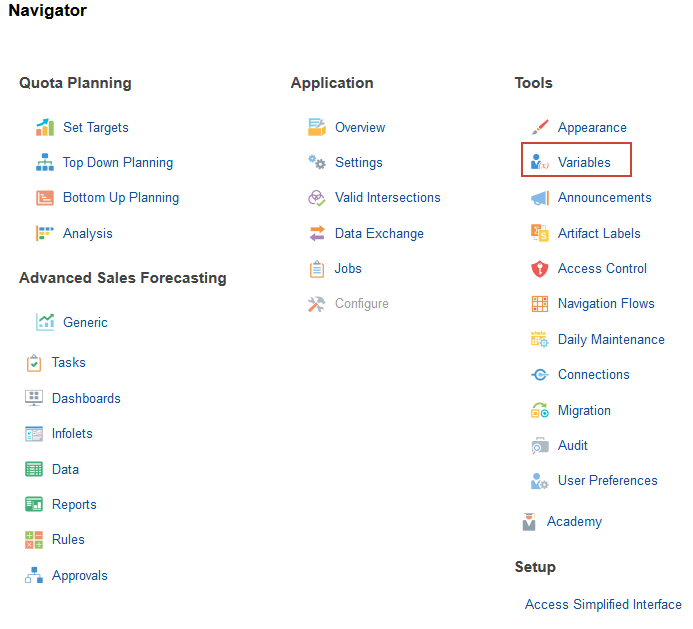
In Variables, you can administer user variables and substitution variables.
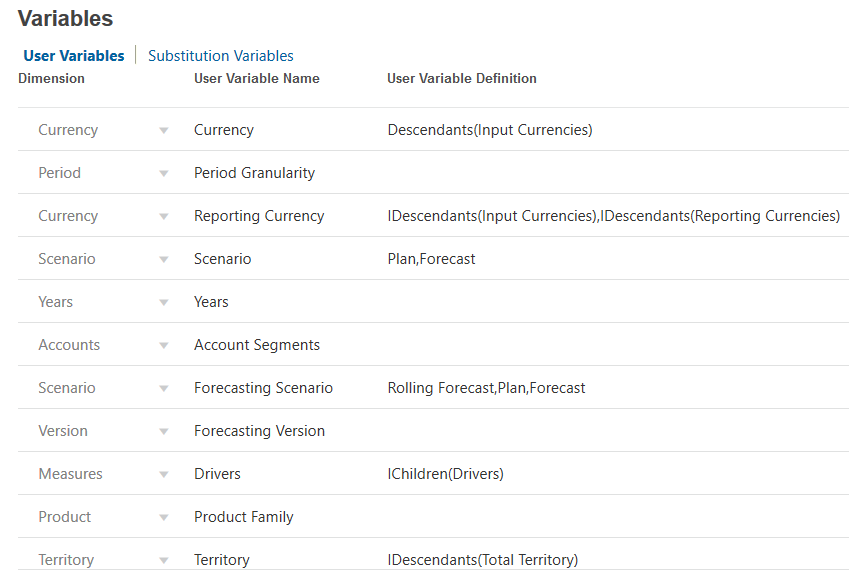
- Click the Substitution Variables tab.
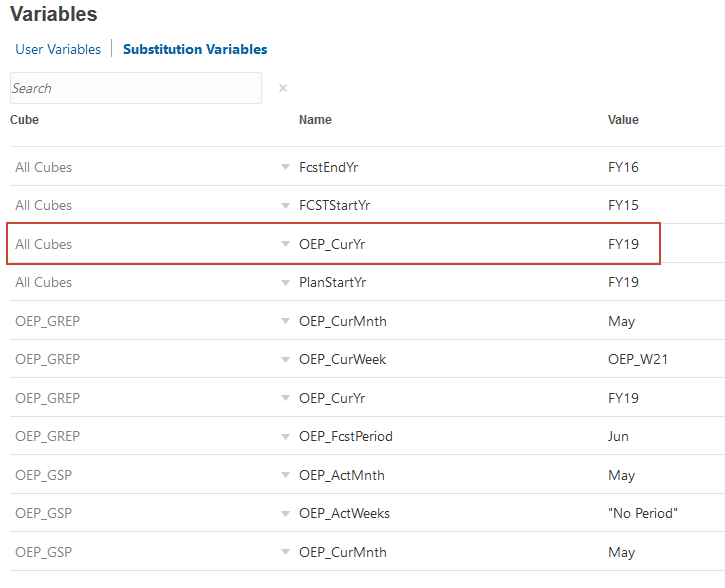
- Review the values for substitution variables.
For all cubes, OEP_CurYr is FY19.
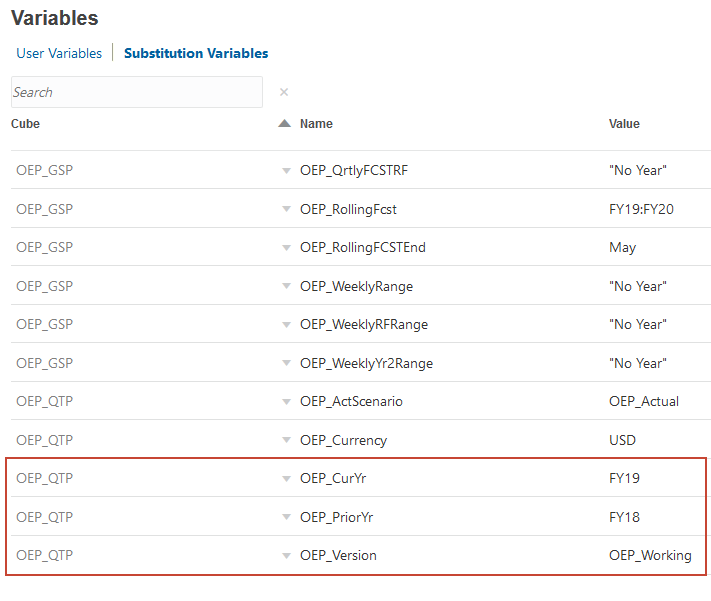
- Scroll down and notice the values for OEP_QTP. The current year is FY19, the prior year is FY18, and the version is the Working version.
Setting user preferences
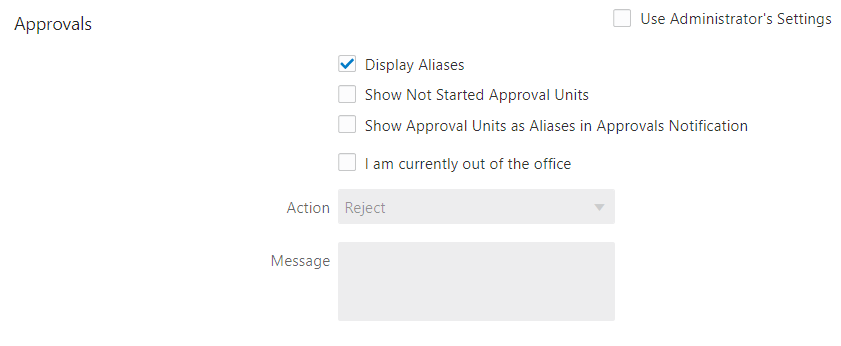
- Click User Preferences.

- In General, under Approvals, select Display Aliases.
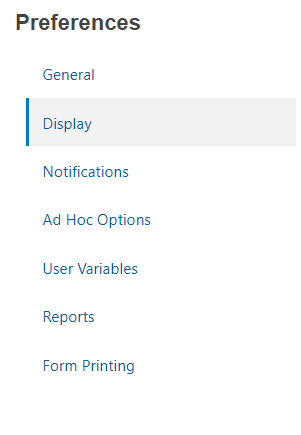
- On the left, under Preferences, click Display.
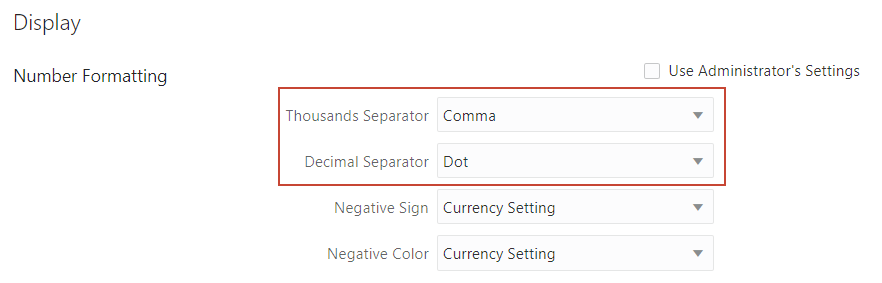
- Under Number Formatting, for Thousands Separator, ensure Comma is selected, and for Decimal Separator, ensure Dot is selected.
- On the left, under Preferences, click Ad Hoc Options.

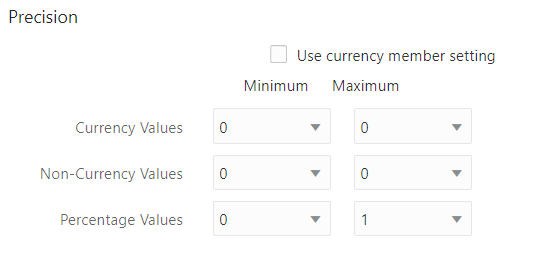
- Ensure the precision is set to:
Minimum Maximum Currency Values 0 0 Non-Currency Values 0 0 Percentage Values 0 1 Precision settings affect the value display only, not their stored values.
Setting values for user variables
- On the left, under Preferences, click User Variables.
- For each variable, click its
 (Select Member) to select a member as the variable's value:
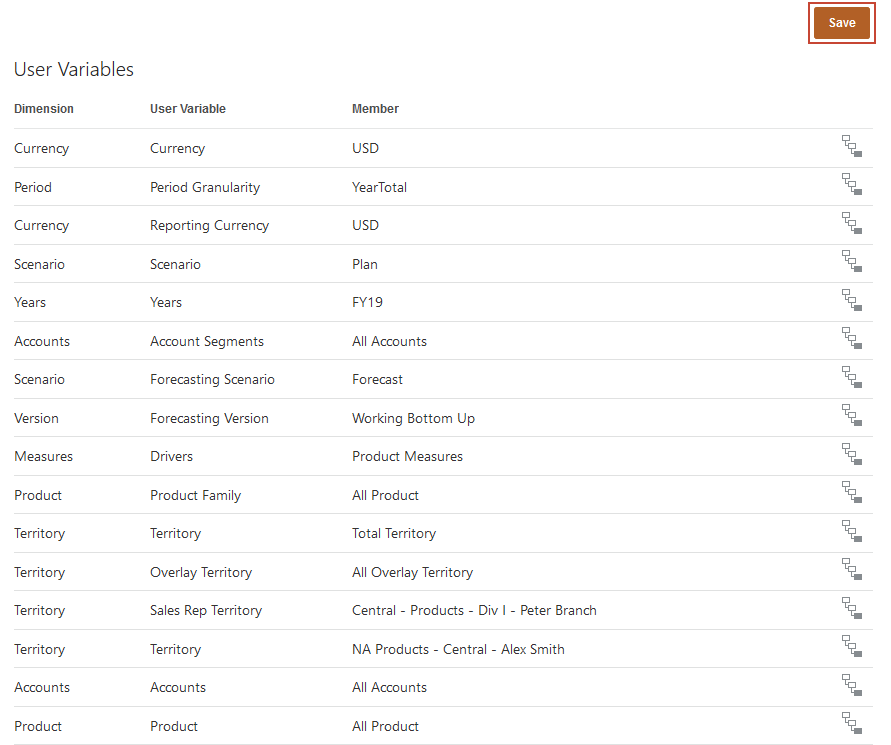
Dimension User Variable Member Currency Currency USD Period Period Granularity YearTotal Currency Reporting Currency USD Scenario Scenario Plan Years Years FY19 Accounts Account Segments All Accounts Scenario Forecasting Scenario Forecast Version Forecasting Version Working Bottom Up Measures Drivers Product Measures Product Product Family All Product Territory Territory Total Territory Territory Overlay Territory All Overlay Territory Territory Sales Rep Territory Central - Products - Div I -Peter Branch Territory Territory NA Products - Central - Alex Smith Accounts Accounts All Accounts Product Product All Product If you selected to show aliases in Member Selector, the value listed in the Member column may vary. For example, for some dimensions, the prefix (OEP_ and OGS_) are not shown. For some territory members, instead of the numeric member name, the full alias name is displayed.
- Verify your selections, and click Save.
- In the Information message, click OK.
Setting quota targets
You set quota targets by basing them on the prior year’s sales, and you consider last year’s bookings to specify year over year growth for all territories.
Activating navigation flows
In this section, you activate navigation flows to help you move through the steps for setting sales quotas.
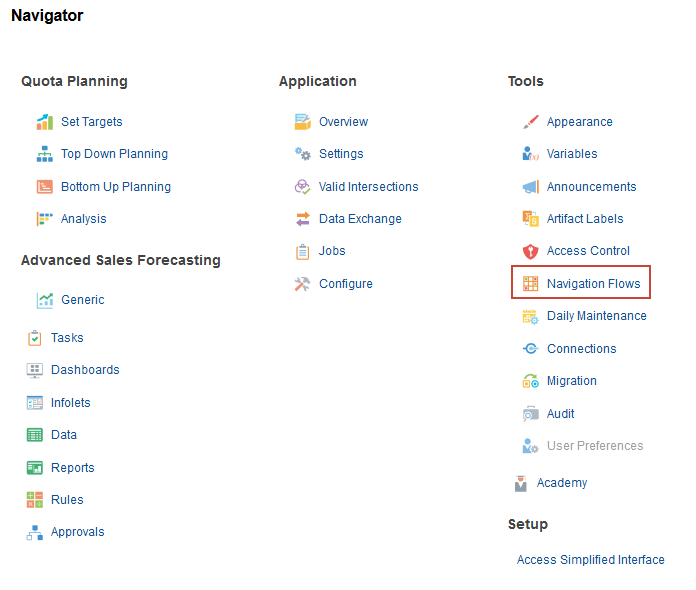
- Click (Navigator), and under Tools, click Navigation Flows.
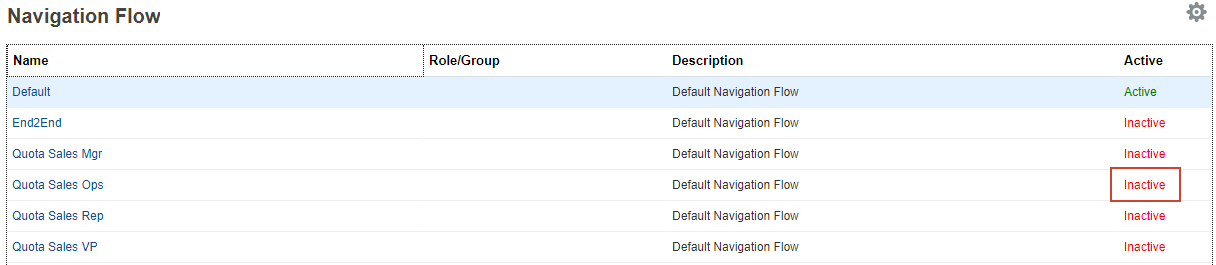
- For the Quota Sales Ops navigation flow, click Inactive to activate the navigation flow:
- Return to the home page. Click
 (Home).
 - In the upper right, to the left of your user name, click
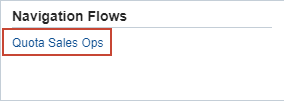
 (Select Navigation Flow) and select Quota Sales Ops.
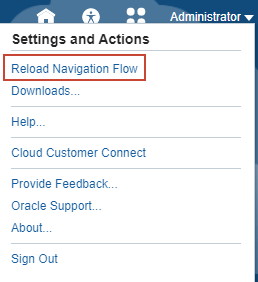
- In the upper right by your user name, click the arrow and select Reload Navigation Flow.
Running predictions with Predictive Planning
Since you have historical revenue data by territory, you can perform a statistical analysis on the data to predict future revenue results. Running Predictive Planning predicts future revenue by territory or resource. Using a predicted result leaves the guesswork out of setting your targets. When you run a prediction, historical data for each member on the form is retrieved and then analyzed using time series forecasting techniques to predict the future performance for these members. The more years of historical data you have, the more accurate the prediction will be.
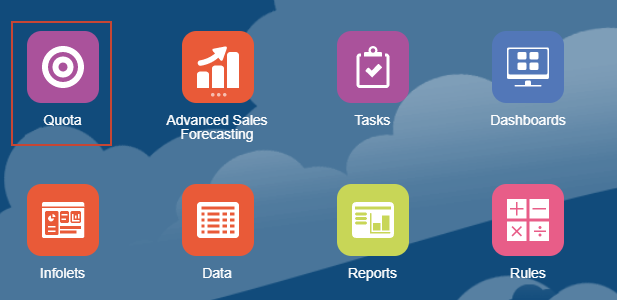
- On the home page, click Quota.
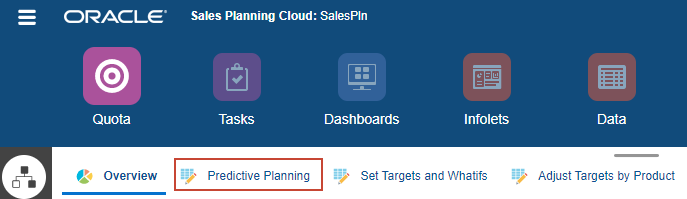
- Click the Predictive Planning horizontal tab.
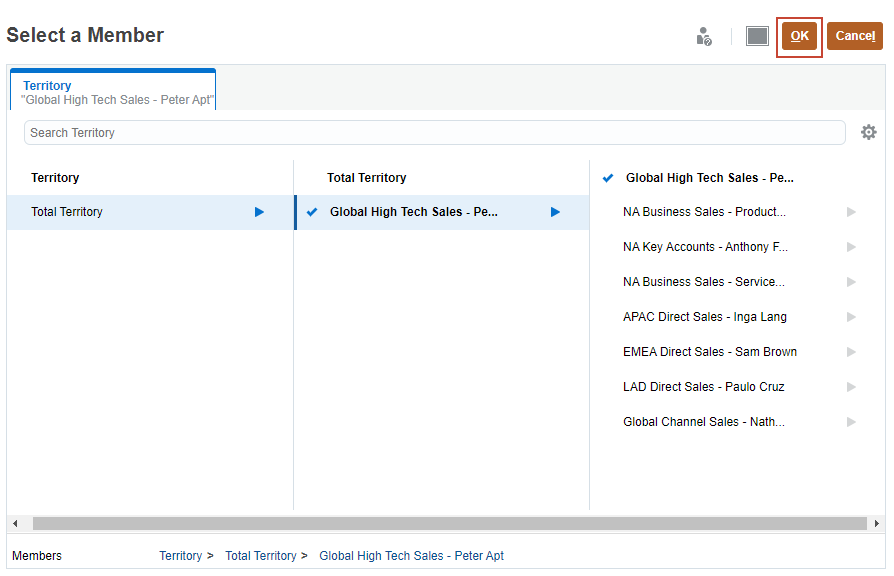
- In the POV, click Territory, select Global High Tech Sales - Peter Apt, and click OK.
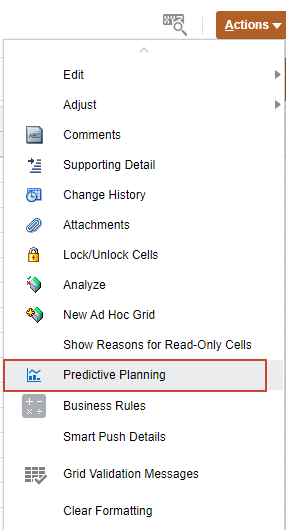
- Click Actions, and select Predictive Planning
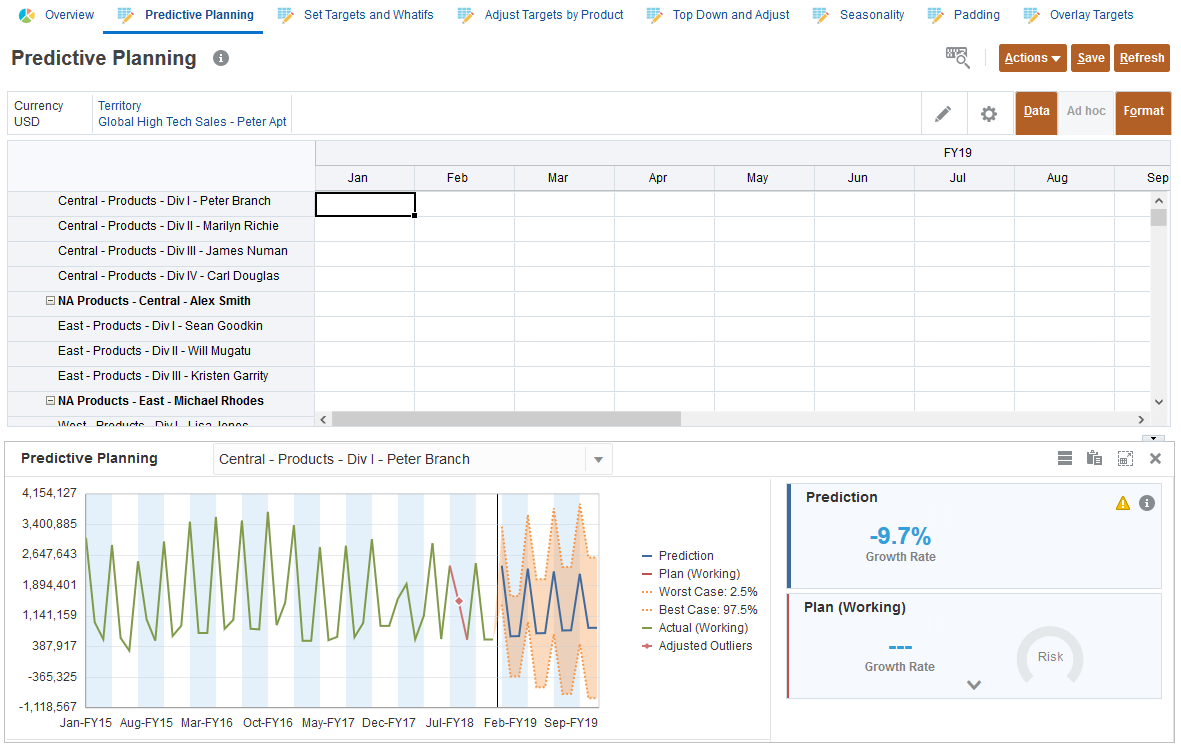
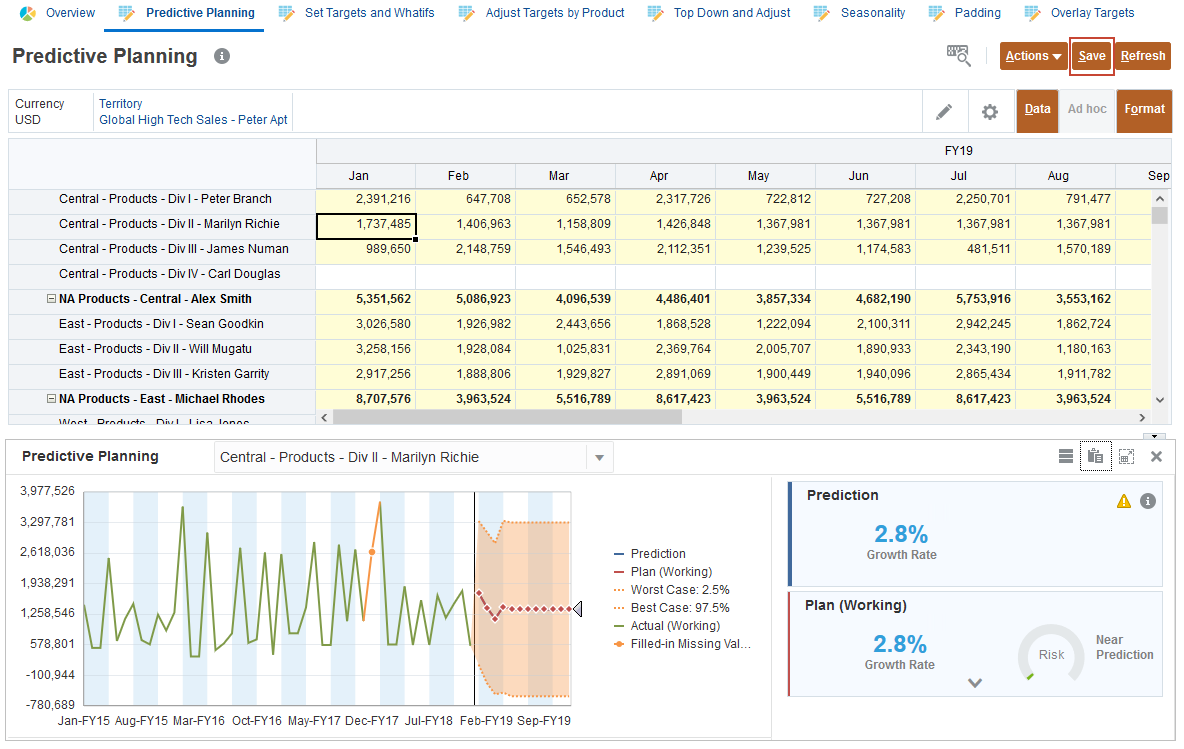
- The prediction runs, and a results area opens below the form with a chart and detailed information about the prediction. Review the results which provide detailed information about the prediction.
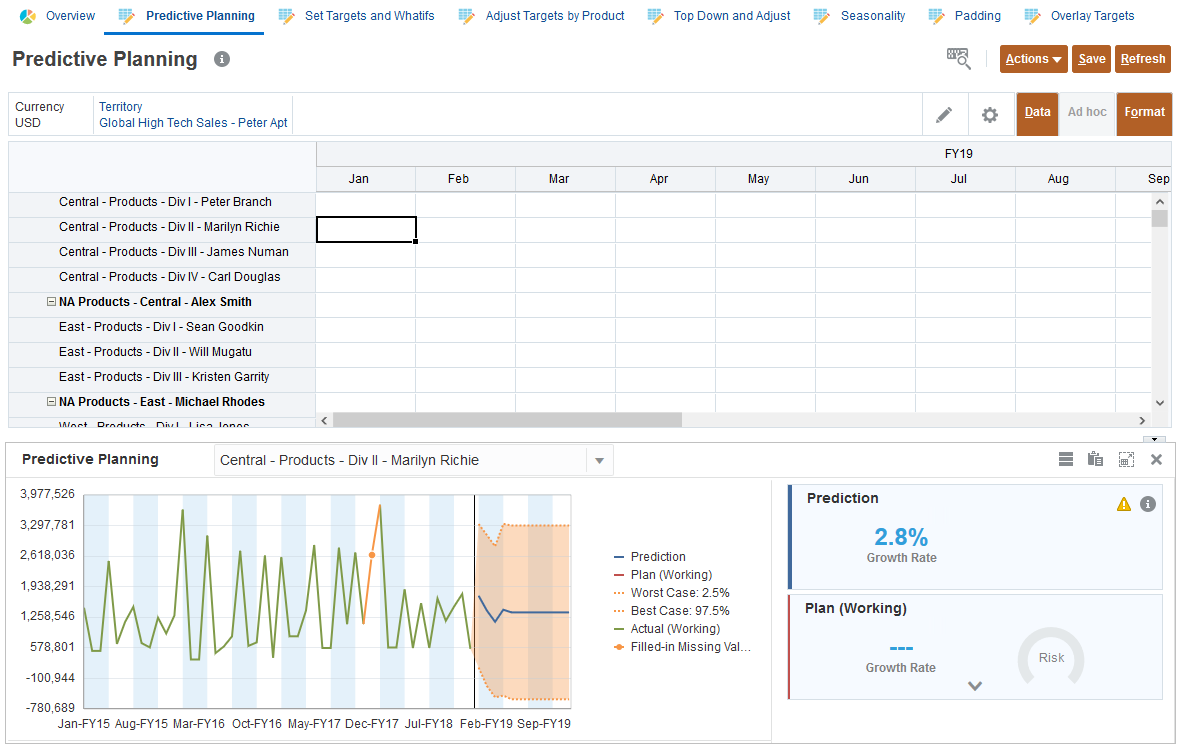
- In the Marilyn Richie row, select the Jan cell.
The results for Marilyn Richie's division are displayed.
- In the Prediction area, click
 (Details).
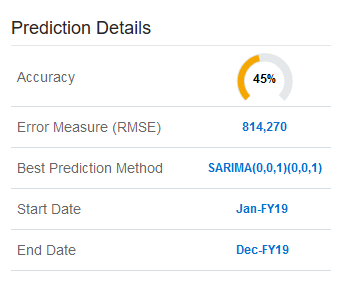
Depending on the data, the system predicts using the method with the greatest accuracy. To determine the prediction method, many factors are evaluated such as what historical data is available, and whether or not the data follows a trend or includes seasonality. Methods are described in the following table:
Method Seasonal Best Use Simple Moving Average No Volatile data with no trend or seasonality Double Moving Average No Data with trend but no seasonality Single Exponential Smoothing No Volatile data with no trend or seasonality Double Exponential Smoothing No Data with a trend but no seasonality Damped Trend Smoothing non-seasonal method No Data with a trend but no seasonality Seasonal Additive Yes Data without trend but with seasonality that does not increase over time Seasonal Multiplicative Yes Data without trend but with seasonality that increases or decreases over time Holt-Winters’ Additive Yes Data with trend and seasonality that does not increase over time Holt-Winters’ Multiplicative Yes Data with trend and with seasonality that increase over time Damped Trend Additive Seasonal Method Yes Data with a trend and with seasonality Damped Trend Multiplicative Seasonal Method Yes Data with a trend and with seasonality Arima No Data with minimum of 40 historical data points, limited number of outliers and no seasonality Sarima Yes Data with minimum of 40 historical data points, limited number of outliers and seasonality - Review the prediction details including the prediction method. The best prediction method is SARIMA.
- Click outside Prediction Details to close it.
- In the lower right corner of the screen, click
 (Paste) to copy the predicted data to the Plan scenario.
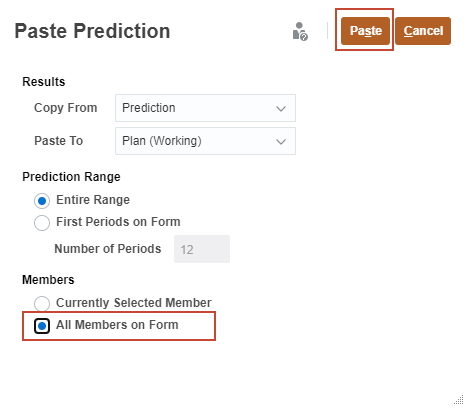
 - In Paste Prediction, select All Members on Form, and click Paste.
- To copy the predicted data to the Plan scenario, for all time periods and all territories, click Save.
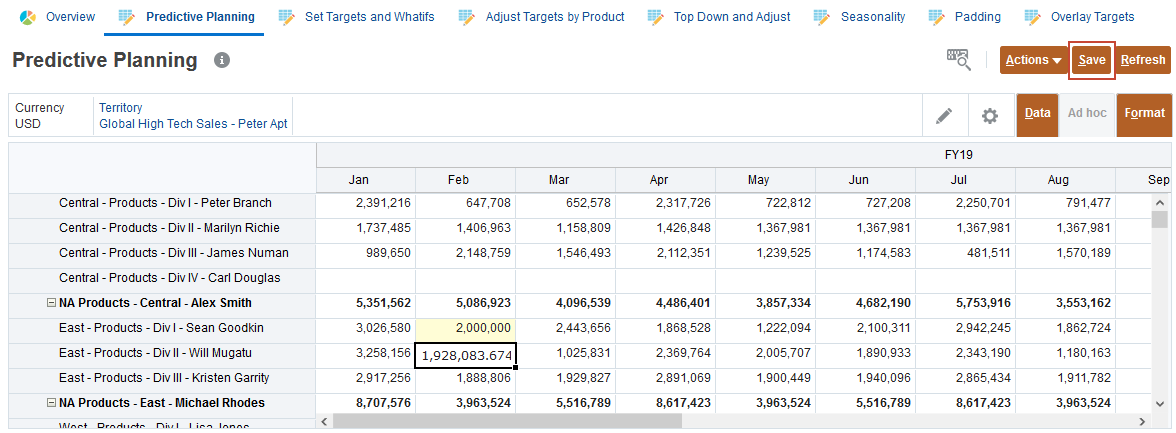
- You can review the data and make changes. For Sean Goodkin, click in the January cell. Then in February enter 2m, and click Save.
Predictions are shown for the selected member.
If your prediction results are not displayed, close the form and then open the form and try again.
Specifying targets
- You can compare the predicted values to your planned targets. Click the Set Targets and Whatifs horizontal tab.
- Review last years bookings with the predicted revenue.
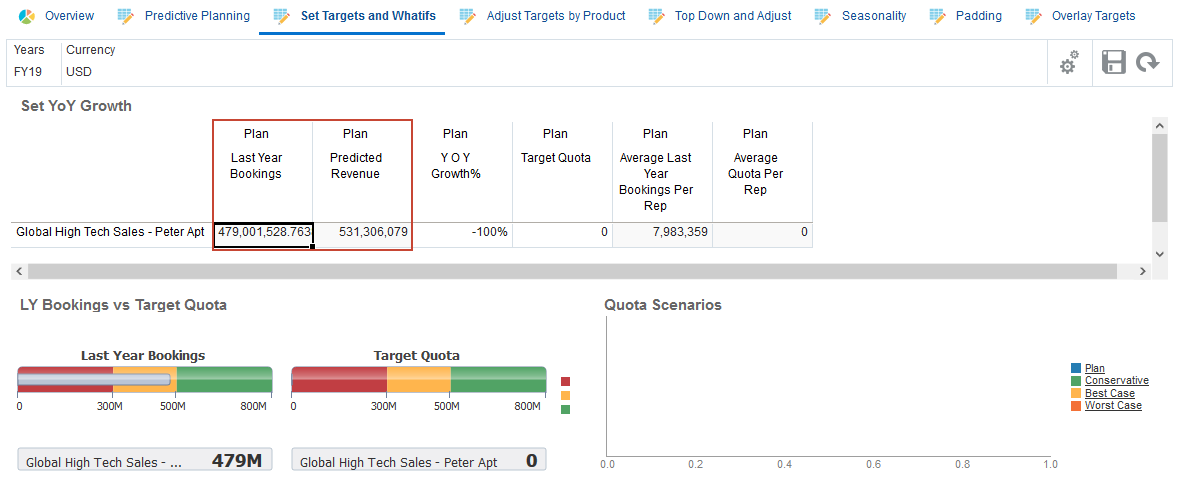
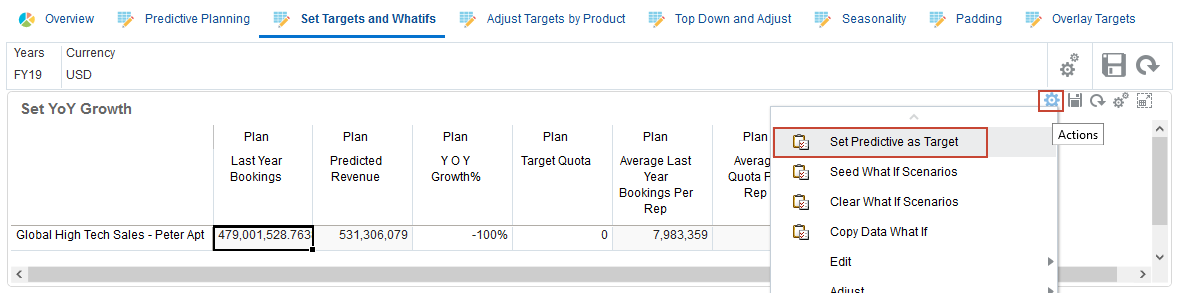
- Set the predicted values as the target. In the upper grid, click
 (Actions), and select Set Predictive as Target.
Move your mouse on the right side of the top grid to view the icons.
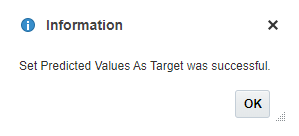
- in the Information message, click OK.
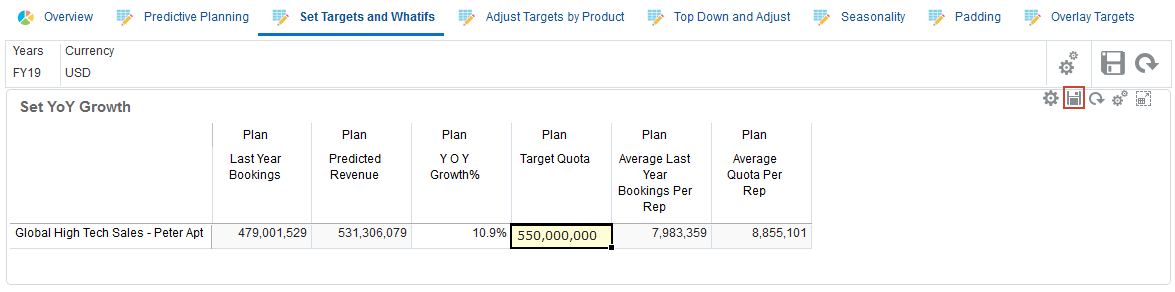
- You can also specify an overall target by entering a specific amount. In the upper grid, for Plan Target Quota, enter 550m, and in the upper grid, click Save.
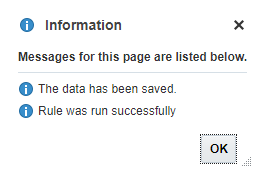
- in the Information message, click OK.
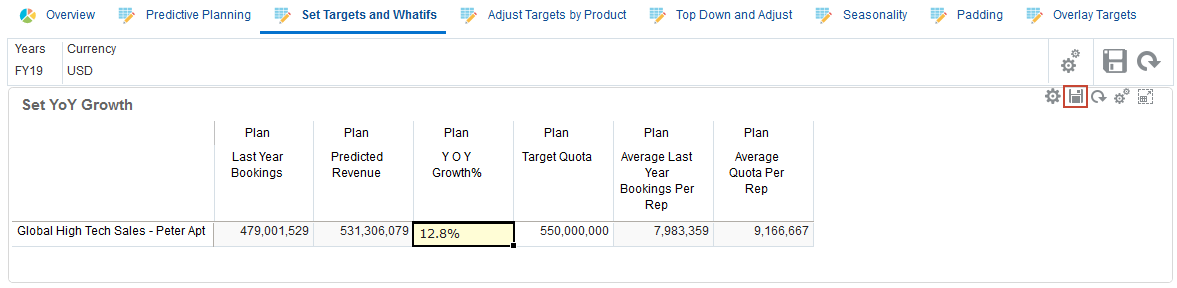
- Set quota based on year over year growth from last year's bookings. In the upper grid, for Plan YOY Growth %, enter 12.8%, and in the upper grid, click
 (Save).
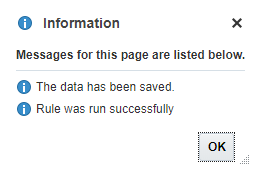
- In the Information message, click OK.
Performing what-if analysis
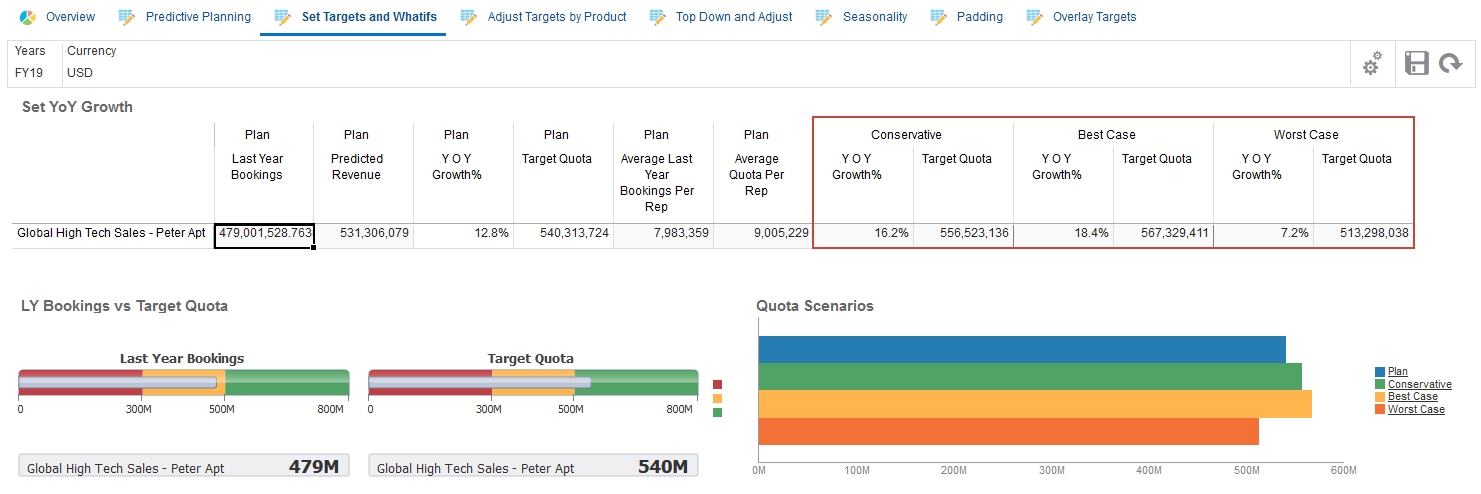
After you set initial target quota, you can perform what-if analysis to evaluate different scenarios. You can then compare those scenarios to the base plan and choose to use them in your plan. You set percentage values for the listed scenarios to calculate quota for each scenario. The values are calculated on the Plan Target Quota so if Best Case is set to 5% then it is 5% more than the Plan Target Quota value.
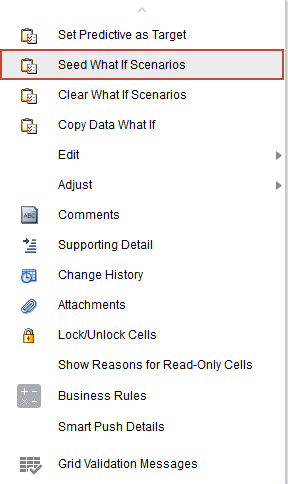
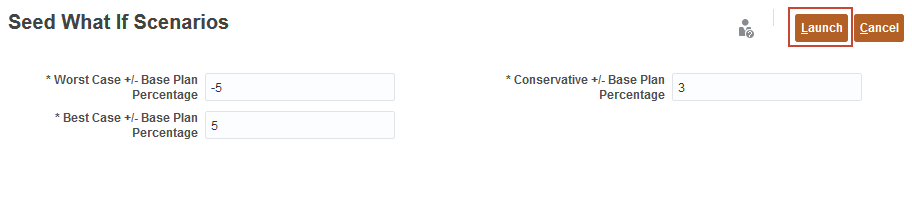
- In the upper right of Set YoY Growth, click (Actions), and select Seed What If Scenarios.
- Accept -5 for Worst Case, 5 for Best Case, and 3 for Conservative, and click Launch.
- In the Information message, click OK.
- Review the results for Conservative, Best Case, and Worst Case.
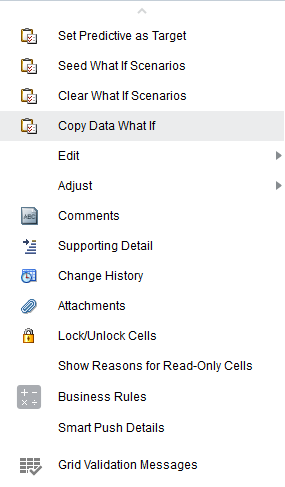
- You can accept the results from one of your what-if scenarios as you Plan Target Quota. In the upper grid, on the right, click (Actions), and notice the Copy Data What If option, but don't select it.
- Click somewhere on the main screen to close the menu.
Adjusting quota by product
You can make quota adjustments by territory or product. Often the growth rate across product lines is different.
- Select the Adjust Targets by Product horizontal tab.

- For NA Business Sales – Products – Martin Conway, in YOY Growth%, enter the following, and in Adjust YoY Growth by Product, click (Save):
- Servers: 9%
- Laptops: 12%
- Software & Services: 14%
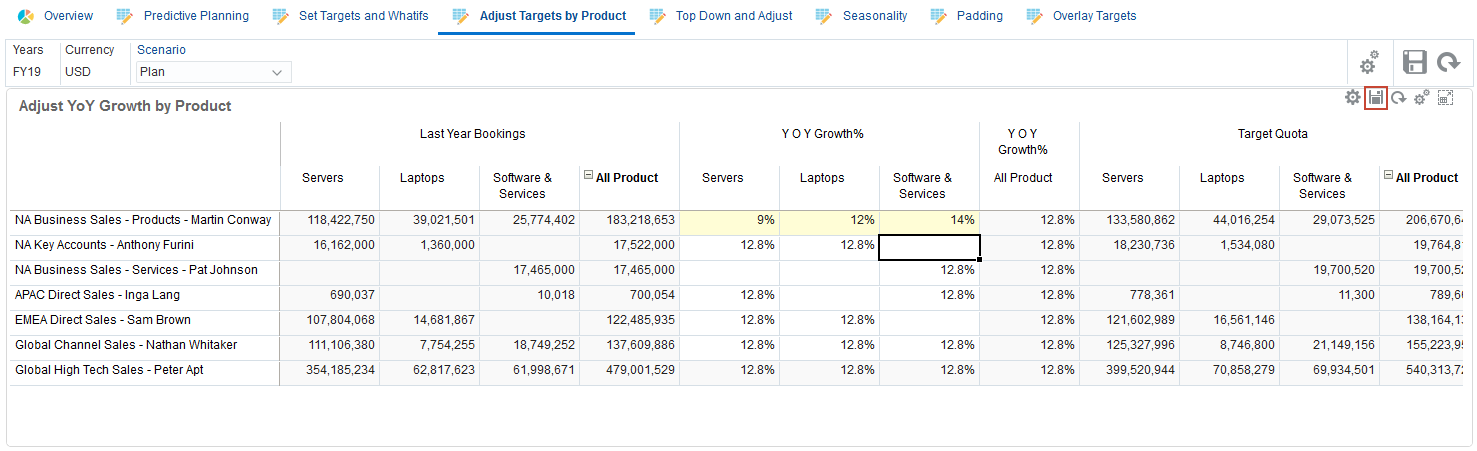
- In the Information message, click OK.
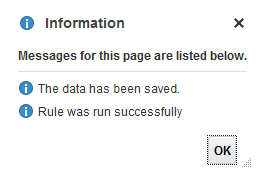
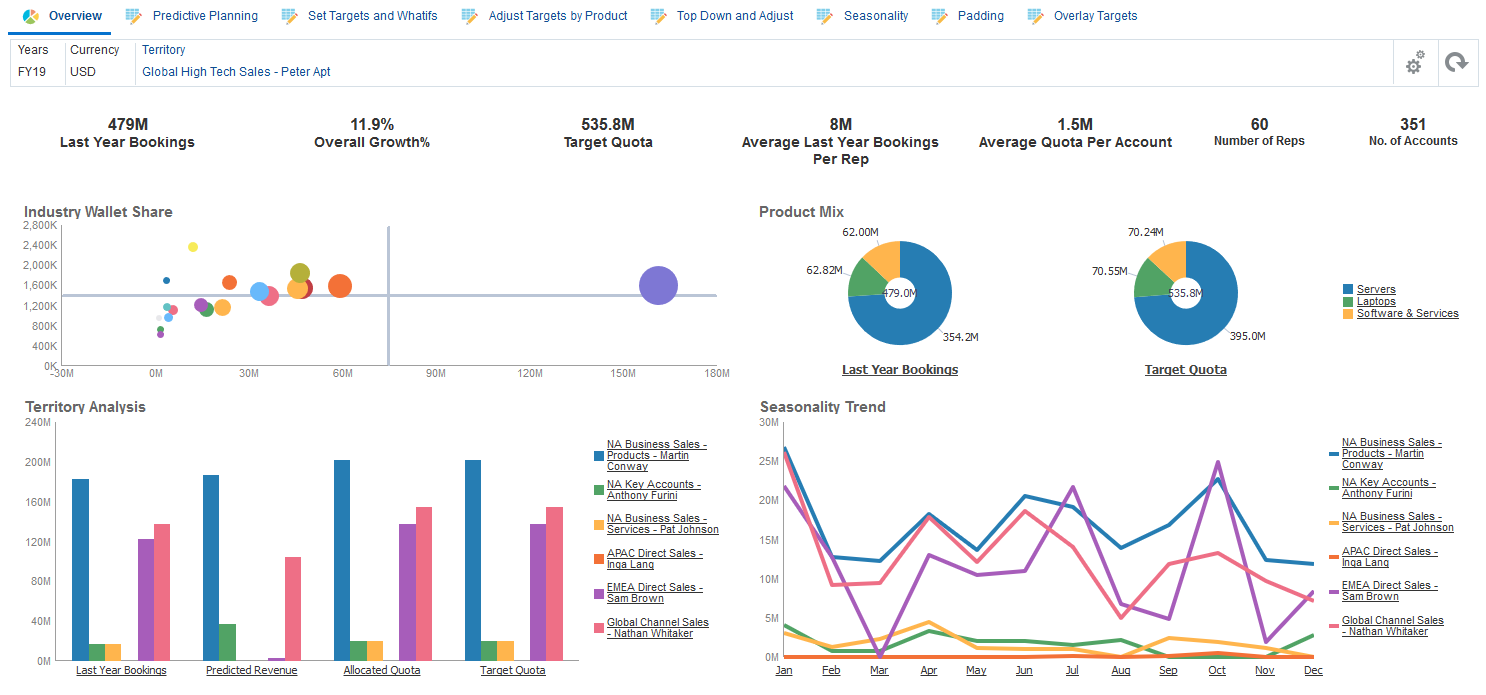
- Click the Overview tab.

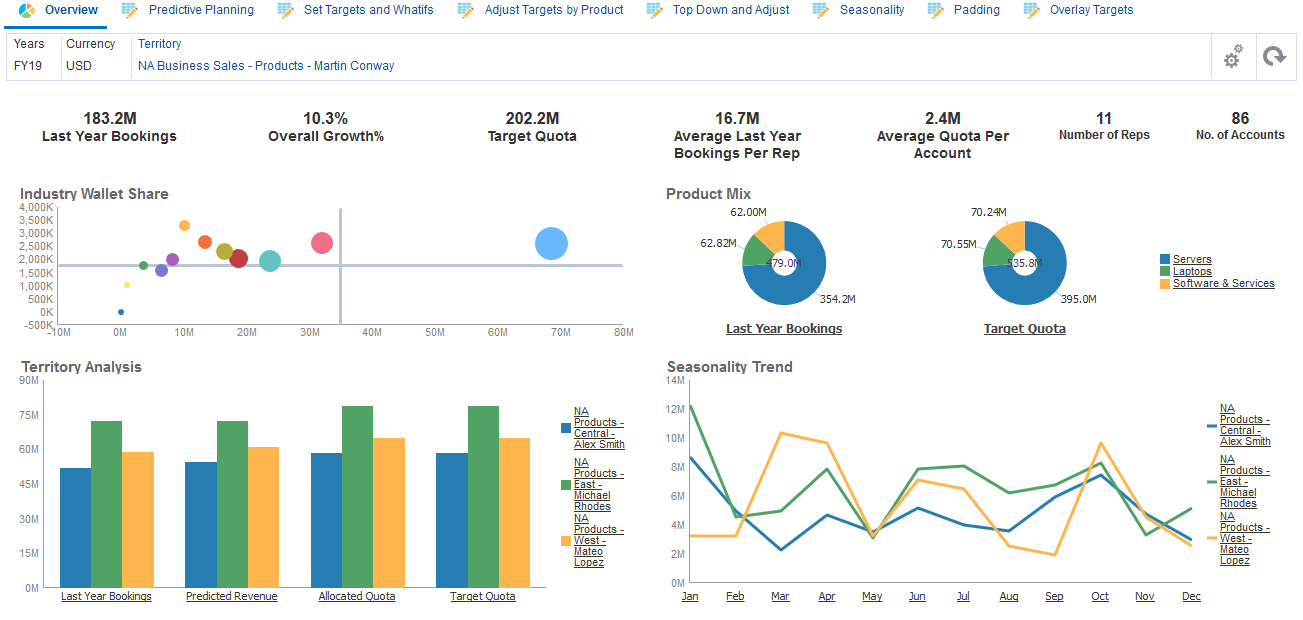
After finalizing target quota, you can discuss the plan with the Chief Revenue Officer. Review the predefined dashboard to provide insight into overall quota planning. And review revenue information and target quota – the high-level quota plan for all territories – along with other important measures. You can review information by industry, territory, product or other categorizations.
Next, you can handoff this plan to the Sales VPs so they can review the plan further before allocating the target quota throughout the organization.
Performing top down planning as the Sales VP
Activating the Sales VP's navigation flow
You activate the navigation flow for the Sales VP so that Martin Conway, the North American Business Sales Vice President can review quotas and make changes.
- Click (Navigator), and under Tools, select Navigation Flows.
- For the Quota Sales VP navigation flow, click Inactive to activate the navigation flow:

- Click (Home).
- In the upper right, to the left of your user name, click (Select Navigation Flow) and select Quota Sales VP.
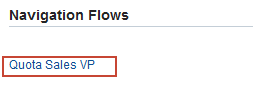
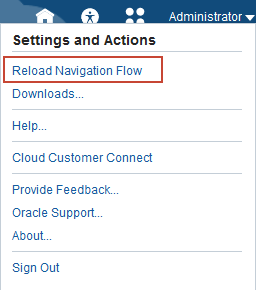
- In the upper right, next to the user name, click
 , and select Reload Navigation Flow.
Allocating quota
In this section, you review the sales quota for the VP, and allocate to the next level in the hierarchy.
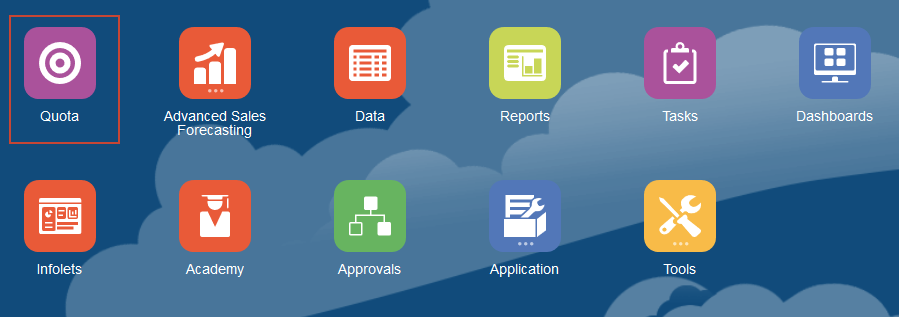
- On the home page, click Quota.
- Click the Top Down and Adjust horizontal tab.

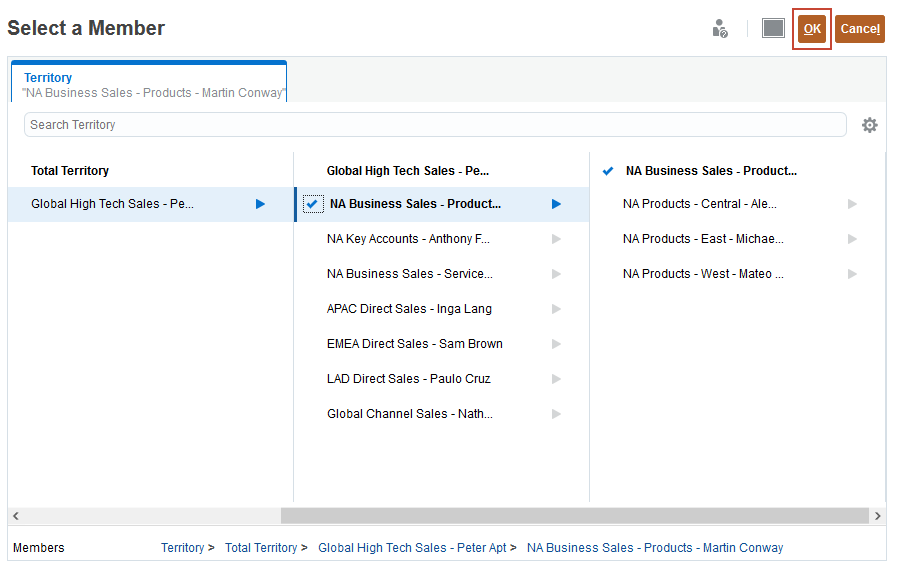
- Click Territory, select NA Business Sales - Products - Martin Conway, and click OK.
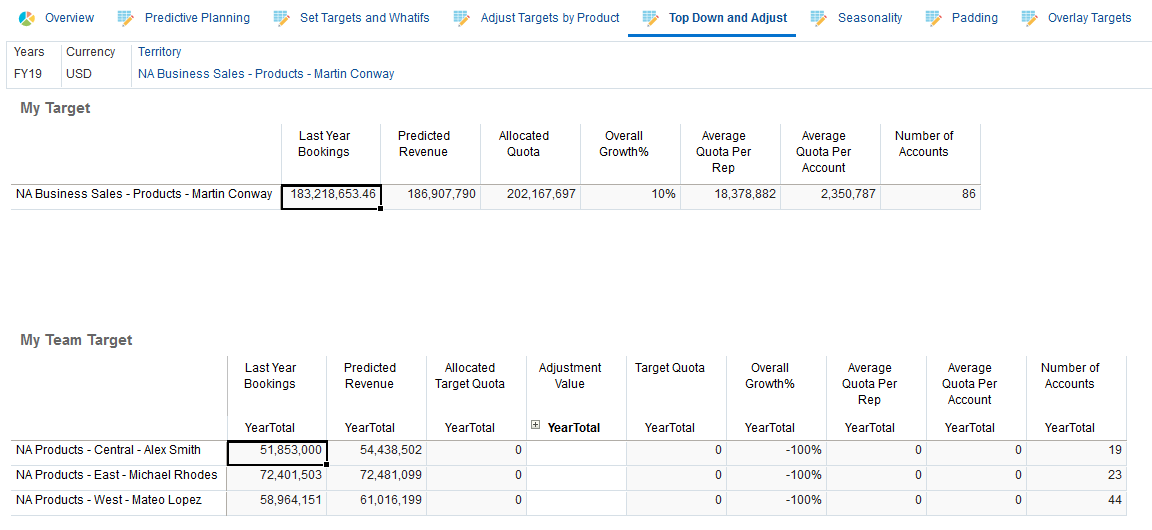
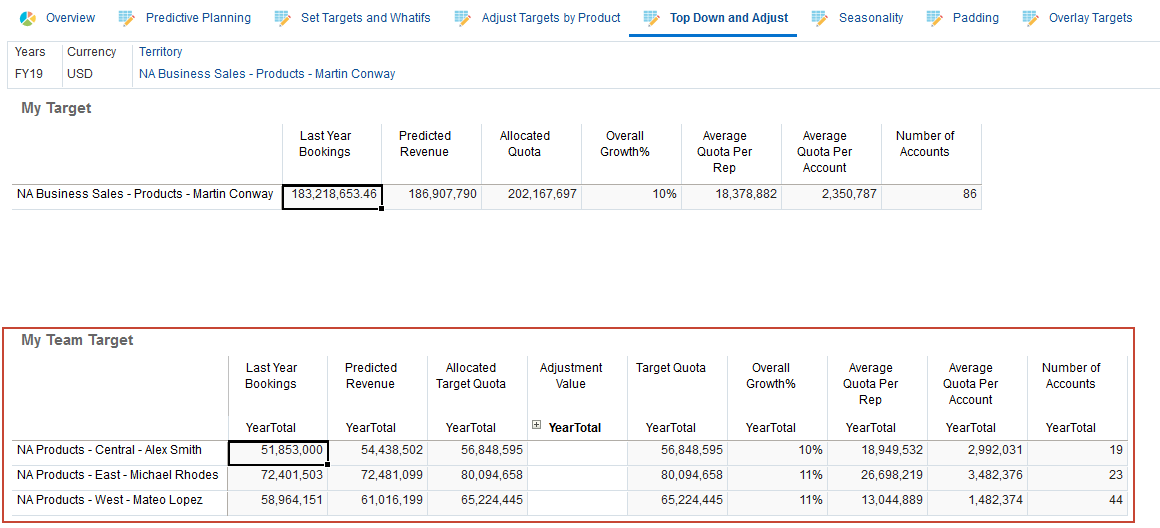
- For the Sales VP, Martin Conway, review the target quota and other key measures such as last year's bookings, predicted revenue, the assigned overall growth, average quota per rep and account, and number of accounts.
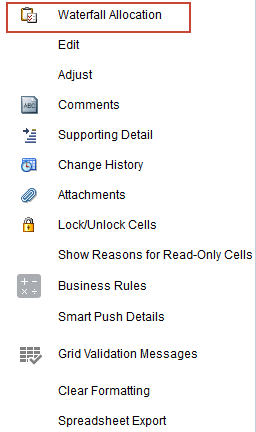
- In the My Target form, click (Actions), and select Waterfall Allocation.
To plan for the VPs team quota, you allocate target quotas to the Regional Sales Managers. Allocate quota using the waterfall method to plan sales quota one step below in the hierarchy to the regions.
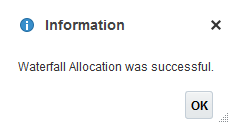
- In the Information message, click OK.
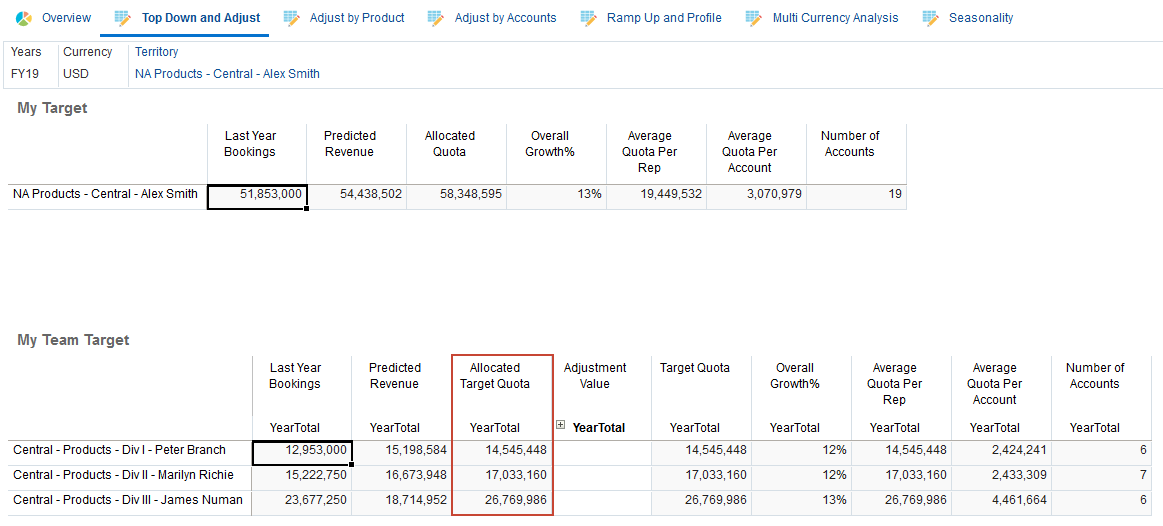
Quota is allocated to sales managers. Key measures are calculated including the overall growth percentage, the average quota per sales rep, and per account, and the number of accounts.
Adjusting allocated quota by region
In this section, you adjust the regional sales quota.
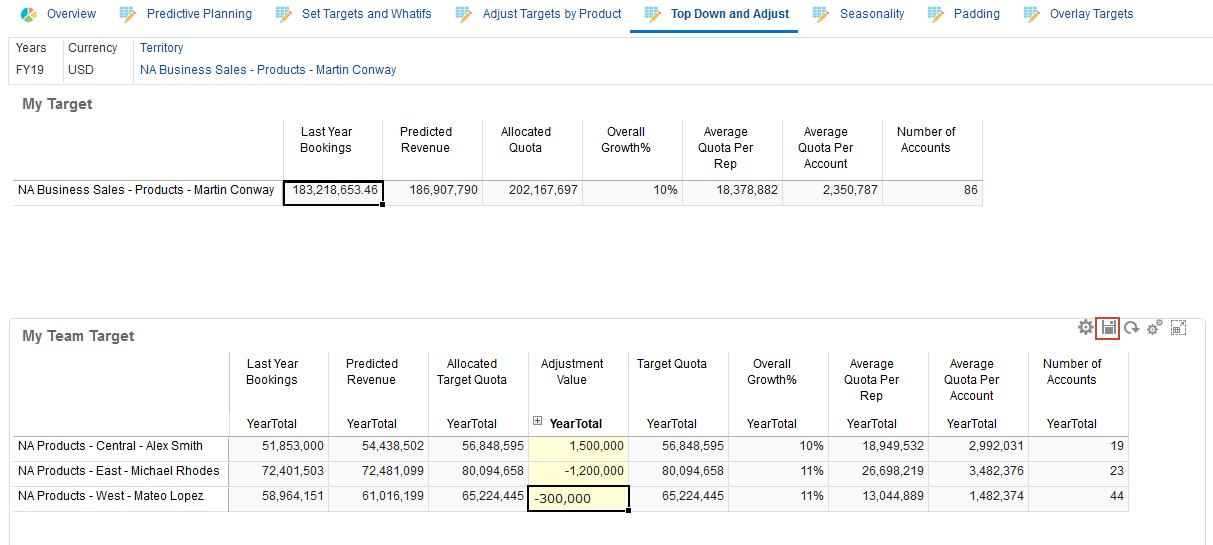
- In My Team Target, in Adjustment Value for YearTotal, enter the following, and click (Save):
- For the Central region for Alex Smith: 1.5m
- For the East region for Michael Rhodes: -1.2m
- For the West region for Mateo Lopez: -300k
- In the Information message, click OK.
Apply seasonality adjustments
By default, quota targets are spread based on historical data, however if needed you can adjust the spreading by season. In this section, you make adjustments for each month for the upcoming planning year, for example to reflect consumer and sales trends or holiday periods. This option overwrites the original spreading with the seasonally adjusted spreading.
- Click the Seasonality horizontal tab.

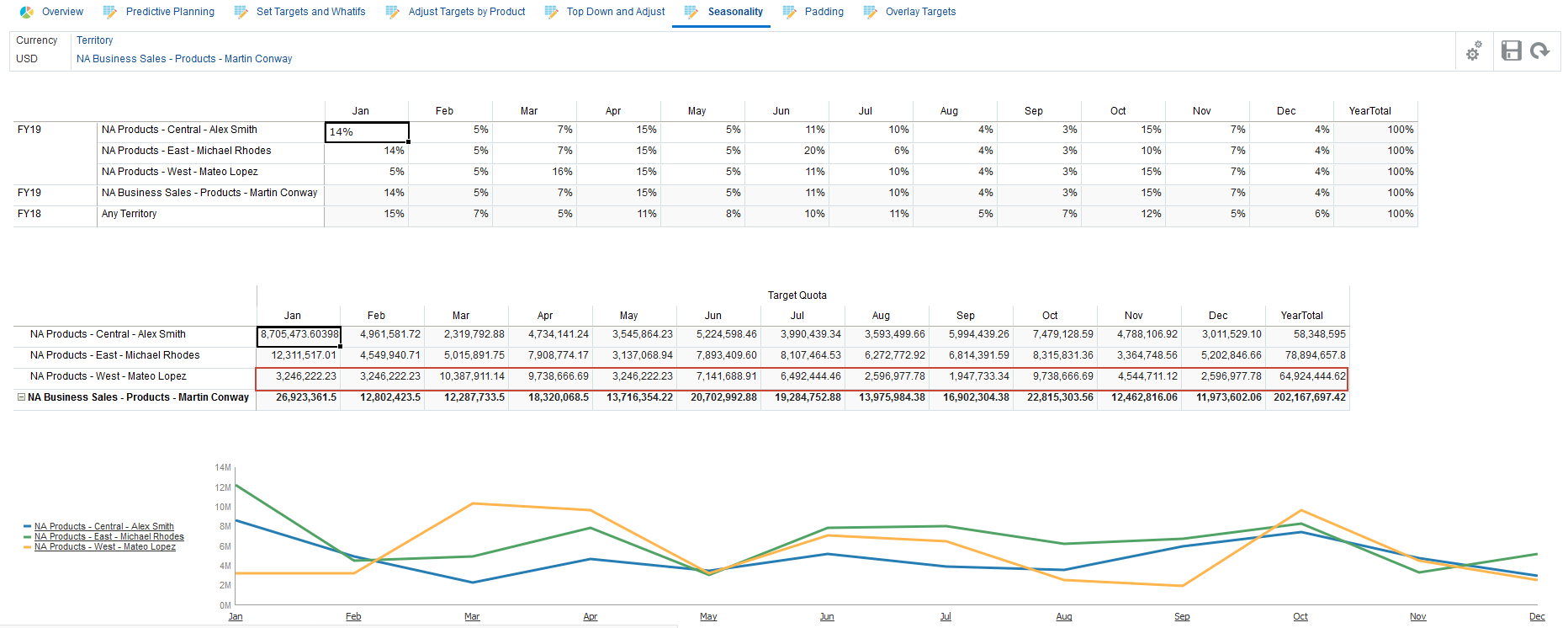
- For the NA Products - West - Mateo Lopez row, in Jan enter 5% and in Mar, enter 16%, and in upper right-hand part of the top form, click (Save):

- In the Information message, click OK.
Seasonality must always total 100%.

- To update target quota based on the updated seasonality percentages, click in the Jan cell for NA Products - West - Mateo Lopez, and in the upper right-hand part of the top form, click (Actions) and select Apply Seasonality.

- In the Information message, click OK.
Seasonality is applied to the selected row.
Adding overlay targets
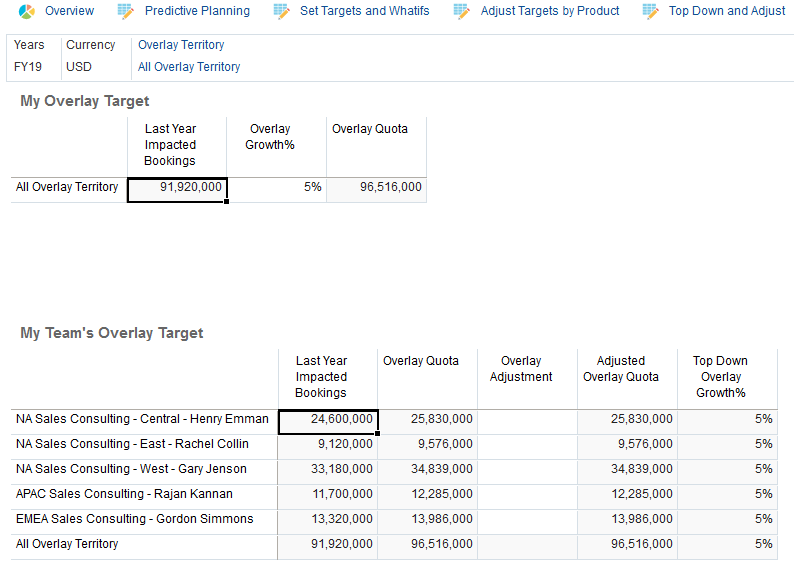
You can include overlay targets to plan for those not directly responsible for the quota but who do support meeting quota targets. Overlay growth percentage is based on a percentage over last year’s impacted bookings.
- Click the Overlay Targets horizontal tab.

- In My Overlay Target, in Overlay Growth%, enter 5%, and in the upper right-hand part of the top form, click (Save).

- In the Information message, click OK.
Overlay quota is included.
- To review the predefined dashboard to gain insight into the overall quota planning, click the Overview horizontal tab.

On the Overview dashboard, you can review information by industry, territory, product or other categorizations.
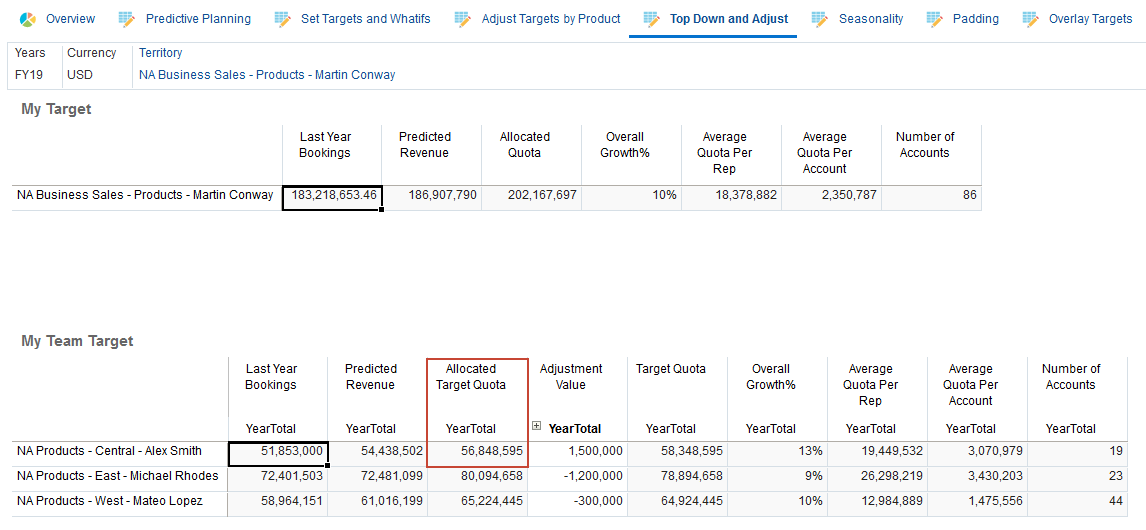
- Click the Top Down and Adjust tab.

- Review the allocated target quota for the regions. Alex Smith's allocated target quota is almost 57 million.
Performing top down planning as the Sales Manager
Activating the Sales Manager's navigation flow
- Click (Navigator), and under Tools, select Navigation Flows.
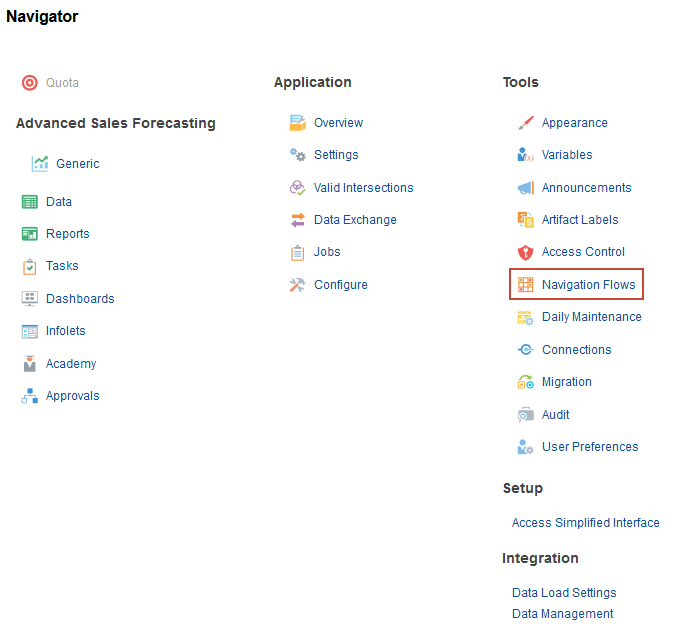
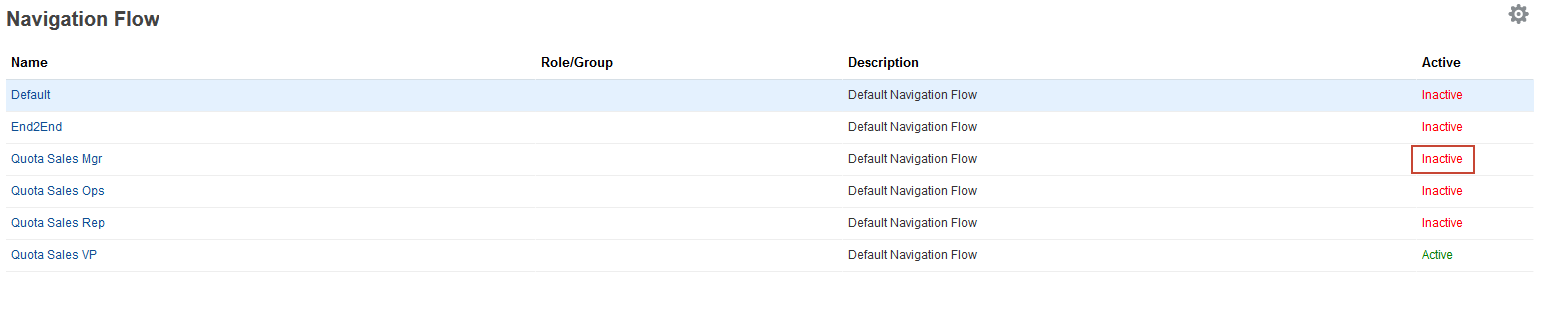
- For the Quota Sales Mgr navigation flow, click Inactive to activate the navigation flow:
- Return to the home page. Click (Home).
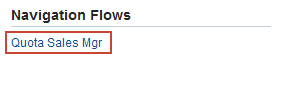
- In the upper right, to the left of your user name, click (Select Navigation Flow) and select Quota Sales Mgr.
- In the upper right by your user name, click the arrow and select Reload Navigation Flow.
Allocating regional targets to Sales Reps
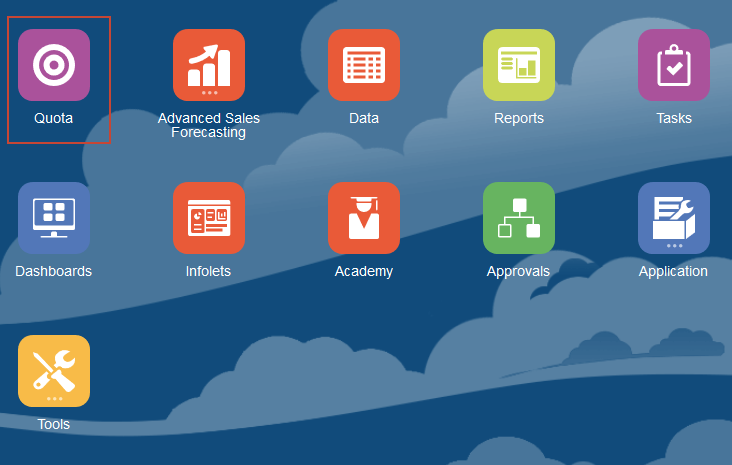
- On the home page, click Quota.
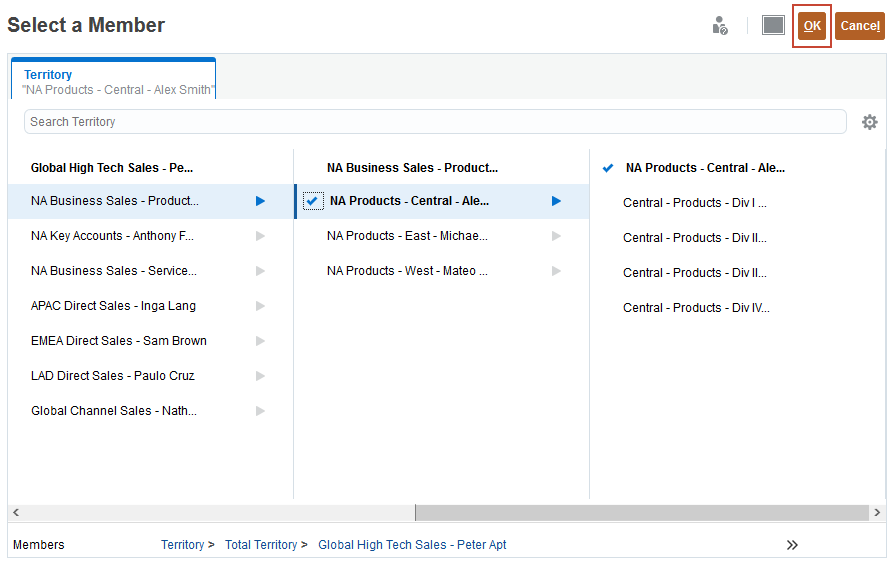
- On the Overview dashboard, click Territory, and select NA Products - Central - Alex Smith, and click OK.
- Click the Top Down and Adjust tab.

- Review the quota for Alex Smith's region.
Data for the Central region is displayed on the top of the page including the allocated quota for the Central region.
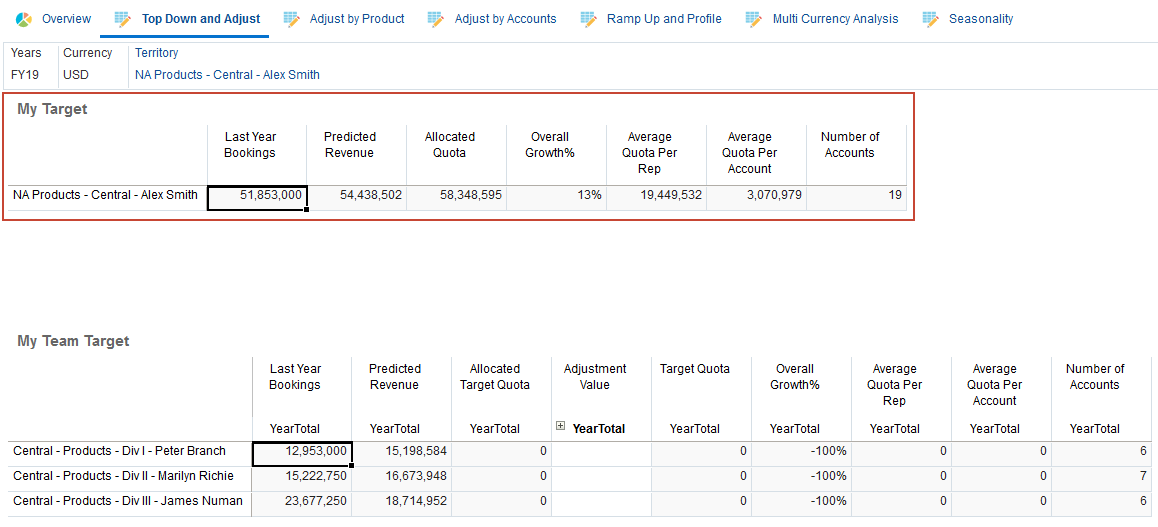
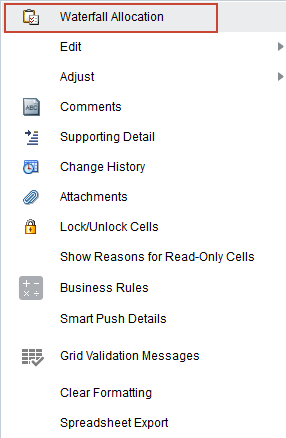
- In the My Target form, click (Actions), and select Waterfall Allocation.
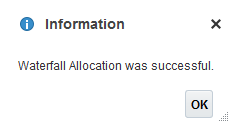
- In the Information message, click OK.
Quota is allocated to the sales reps.
Adjusting allocated quota by account
- Click the Adjust by Accounts horizontal tab.

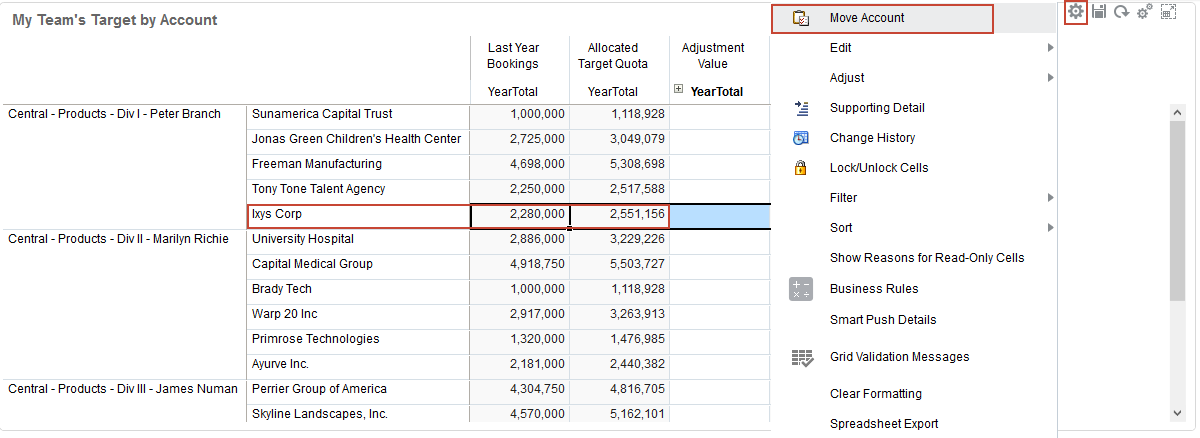
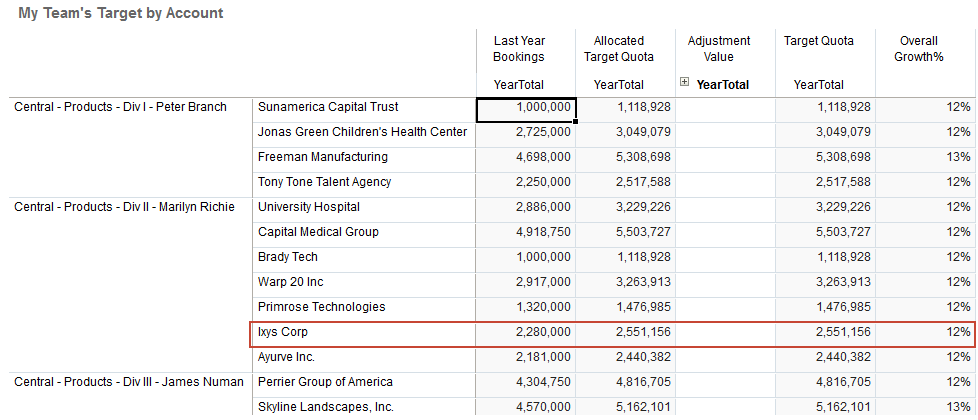
- In My Team’s Target by Account, select Ixys Corp in Div I Peter Branch, click (Actions), and select Move Account.
- For Select territory to transfer account to, click (Select Member).
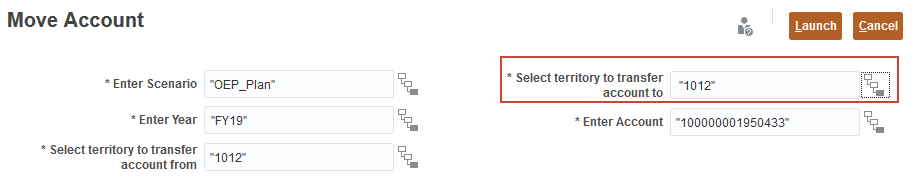
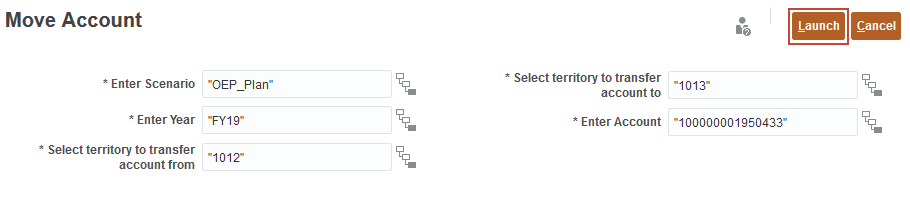
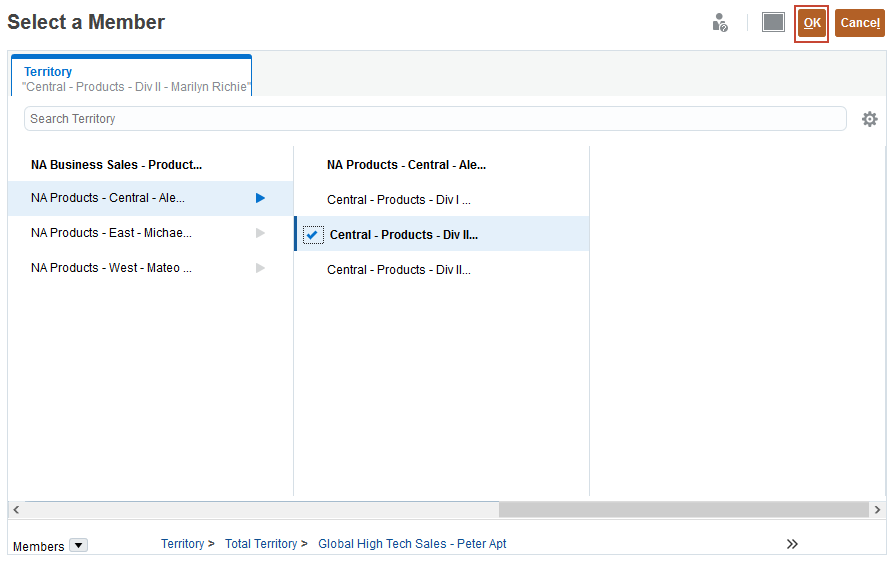
- In Select a Member, select Central Products – Div II - Marilyn Richie, and click OK.
- Click Launch
- In the Information message, click OK.
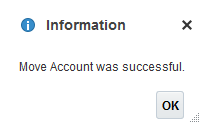
The account is reassigned to a different territory. Also the LY Bookings and Allocated Target Quota with other measures have been moved to the new territory.
Adding a new territory
You plan for a new sales rep for the Central region by adding a new territory and assigning quota to it.
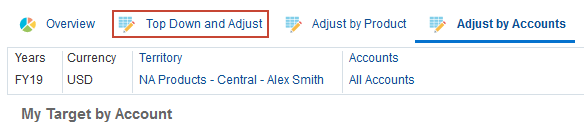
- Click the Top Down and Adjust horizontal tab.
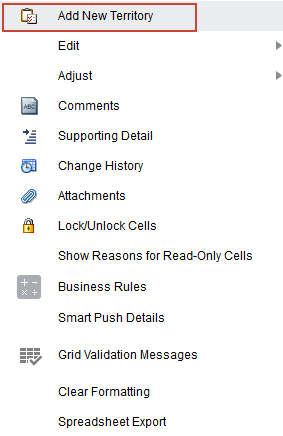
- In My Team Target, click (Actions), and select Add New Territory.
- For each member, click (Select Member), to set the value as specified below, and then click Launch.
- Scenario: "OEP_Plan"
- Territory: "1015" (Central-Products-Div IV - Carl Douglas)
- Version: "OEP_Working"
- Year: FY19

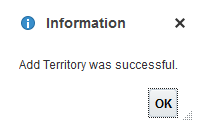
- In the Information message, click OK.
- In My Team Target, expand Adjustment Value YearTotal, and make the following adjustments, and click (Save):
- For the Division 3 row, in Q2, and Q3 enter -1.0M, in Q4, enter -1.5M.
- For the Division 4 row, in Q2, and Q3, enter 1.0M, in Q4, enter 1.5M.

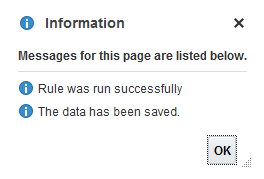
- In the Information message, click OK.
Performing bottom up planning
Bottom-up quota planning complements your top-down planning strategy. After top down targets are set, you can have the lowest level in the hierarchy review their target quota, make any required adjustments, and then submit their expected account plans and quota commitments to the next higher level in the hierarchy for approval.
To perform bottom up planning, each user would log on to review quotas and make adjustments. In this tutorial, to simulate the steps, you switch between navigation flows.
Selecting the Quota Sales Rep navigation flow
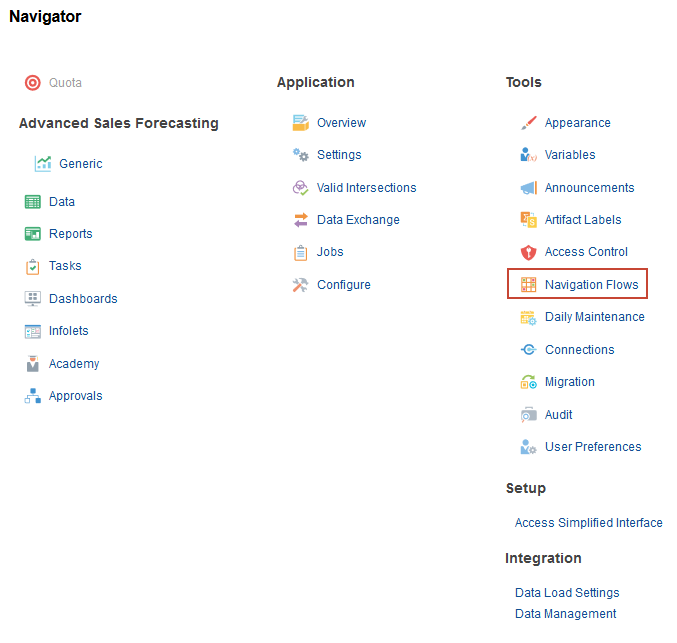
- Click (Navigator), and under Tools, select Navigation Flows.
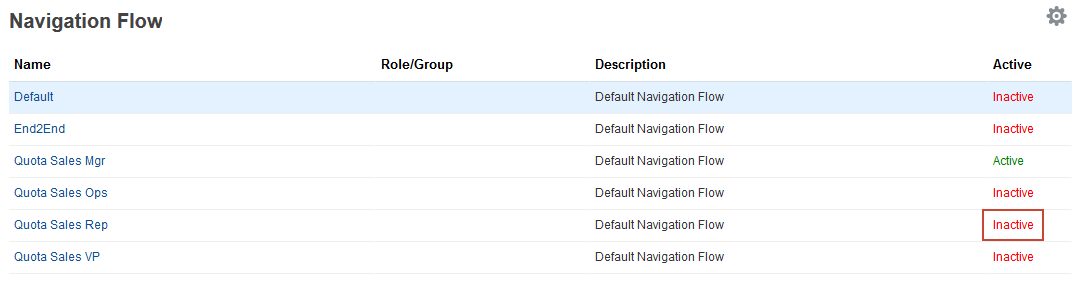
- For the Quota Sales Rep navigation flow, click Inactive to activate the navigation flow:
- Return to the home page. Click (Home).
- In the upper right, to the left of your user name, click (Select Navigation Flow) and select Quota Sales Rep.
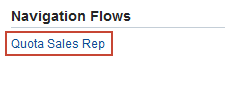
- In the upper right by your user name, click the arrow and select Reload Navigation Flow.
Reviewing top down and bottom up quotas
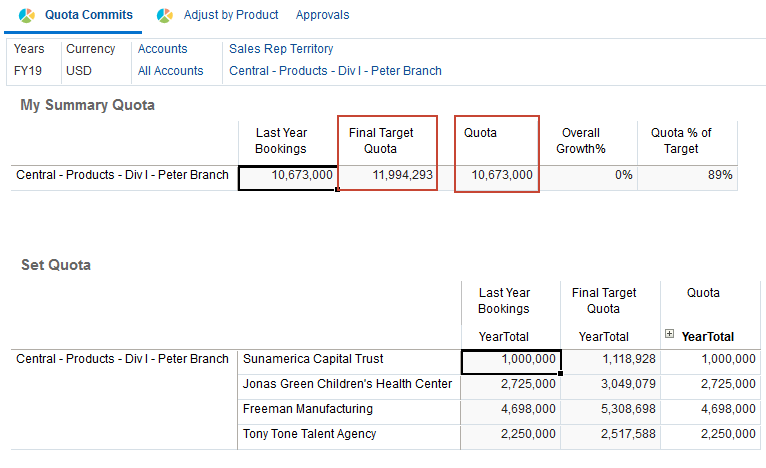
As a sales rep in charge of Central Products in Division 1, you can plan for each of your accounts, and allocate quota based on market knowledge and can factor in future sales opportunities.
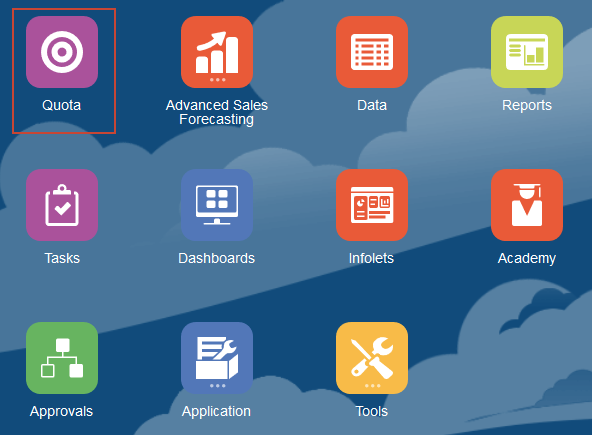
- On the home page, click Quota.
- Review the top down quota allocated by your manager, along with the overall growth percentage. You can compare the top-down quota with the bottom-up quota, as well as the percent of the target.
The top down quota is displayed in the Final Target Quota column and the bottom up quota is displayed in the Quota column.
Adjusting quota for accounts
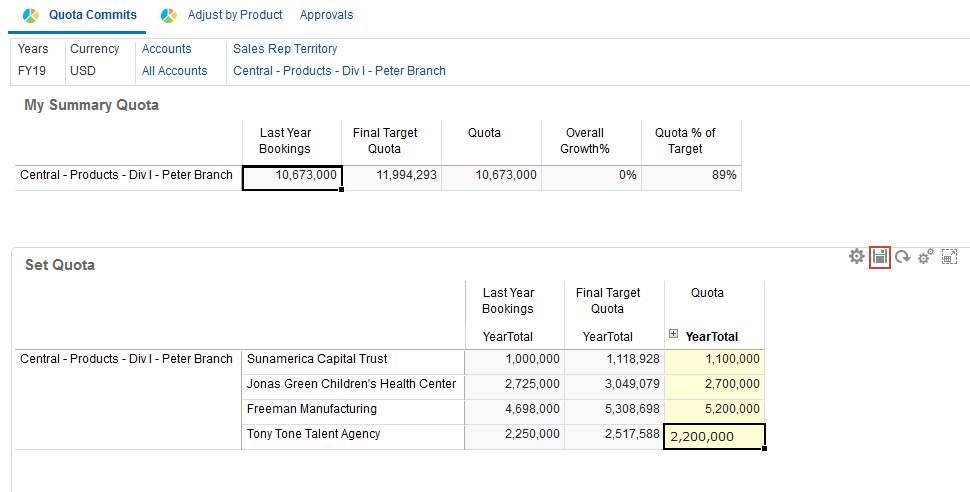
- In Set Quota, change the quota values for each of the following accounts, and click (Save):
- Sunamerica Capital Trust: 1.1m
- Jonas Green Children's Health Center: 2.7m
- Freeman Manufacturing: 5.2m
- Tony Tone Talent Agency 2.2m
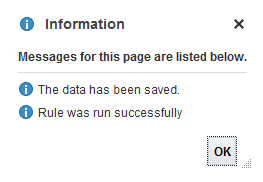
- In the Information message, click OK.
Adding accounts and assigning quota
In this section, you add a new account to help you reach your quota.
- In Set Quota, click (Actions), and select Add Account.
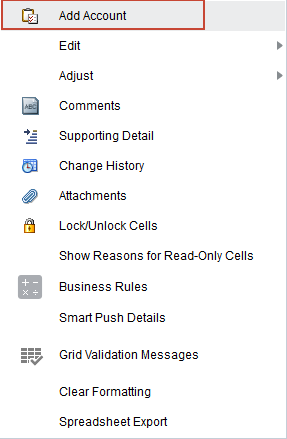
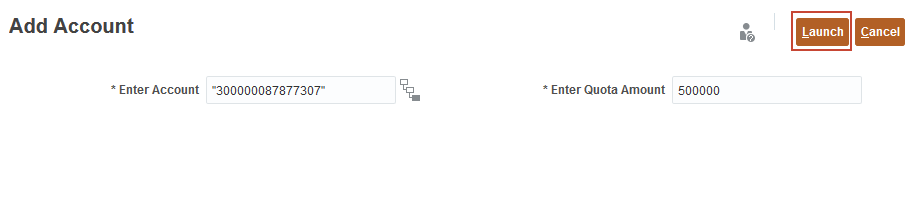
- For Enter Account, click (Select Member), to set the account value to: Wells Fargo Bank, National Association, and click OK.
In Member Selector, click
(Settings) and select Show Alias. To search, enter the first part of the account name such as "wells fargo". - In Enter Quota Amount, enter 500000, and click Launch.
- In the Information message, click OK.
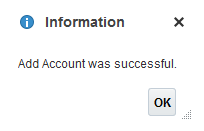
With the added account quota, Peter Branch is closer to achieving his overall target quota.
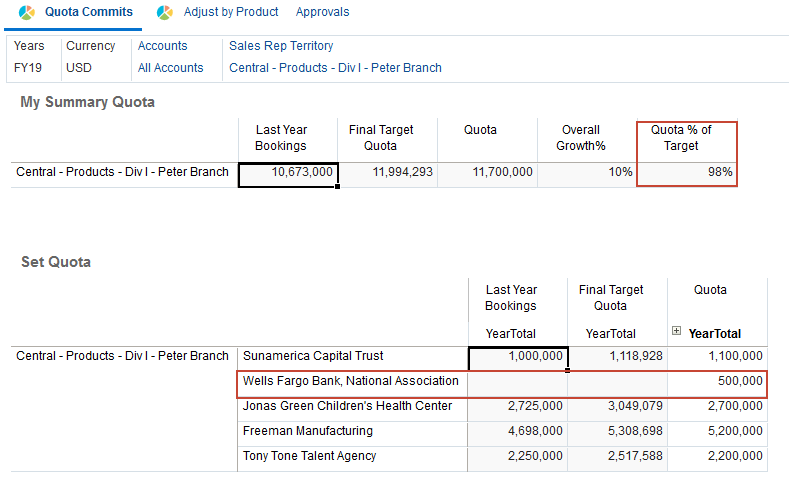
Managers can also assign accounts to Sales Reps.
Reviewing quota by product
You can review and adjust quota allocated per product.
- Click the Adjust by Product horizontal tab.
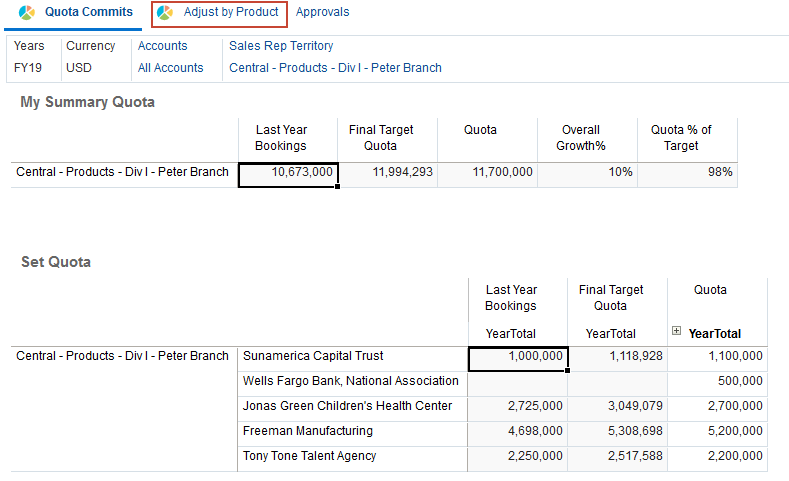
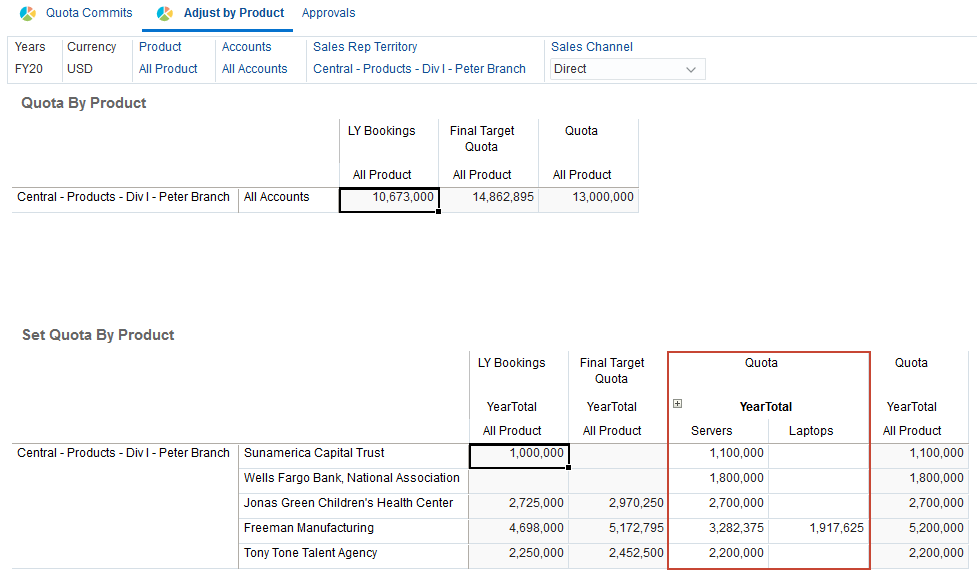
- Review quota assigned to each account for servers and laptops.
- Click the
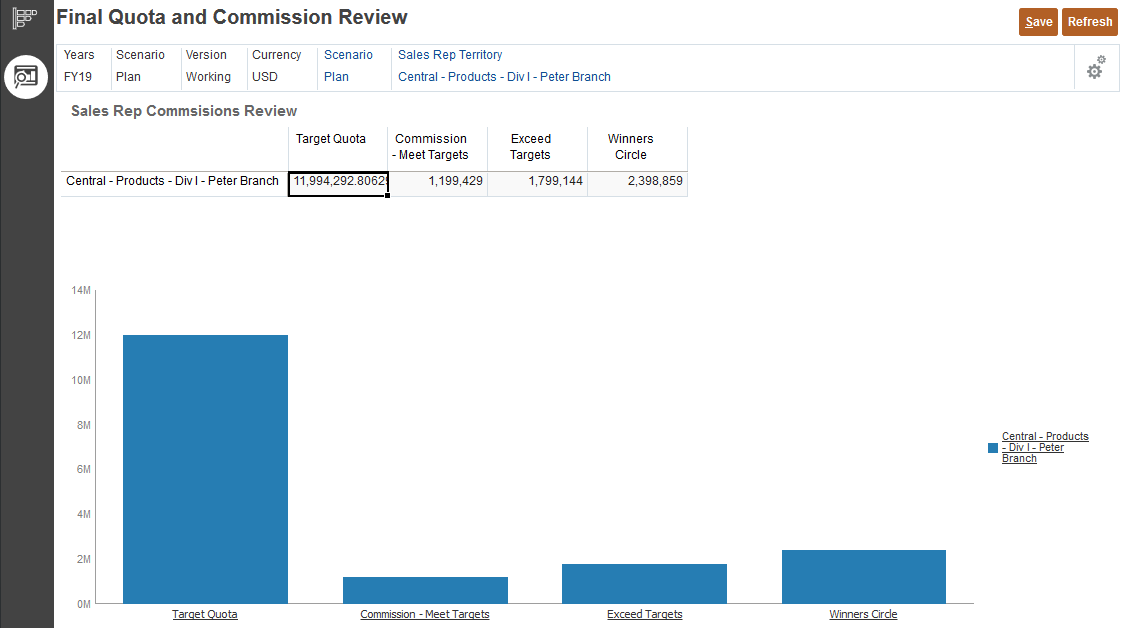
 (Final Quota and Commission Review) vertical tab.
 - Review the potential commissions.
Submitting account and quota plans for approval
After sales representatives review account plans and quota commitments, they submit plans for approval.
In order to submit plans for approval, you would need to log on as the appropriate user in each part of the process. Since this tutorial uses only the administrator log on, approval steps are illustrated below based on the steps each user would take.
Sales Reps finalize quota
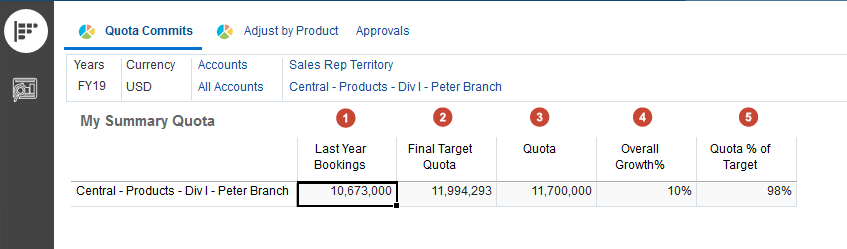
In this example, quota information for Peter Branch, a Sales Rep, is displayed.
You are not expected to perform the approval steps. These are included for illustration purposes only.
- The first column references last year's bookings.
- Top-down quota allocated to the Sales Rep by the Sales Manager is in the second column.
- The Sales rep's proposed quota is in the Quota column.
- The overall growth percentage of quota compared to last year's bookings is in Overall Growth%.
- In Quota % of Target, the percentage that the proposed quota is of the allocated quota is displayed.
Sales Reps submit quota for approval
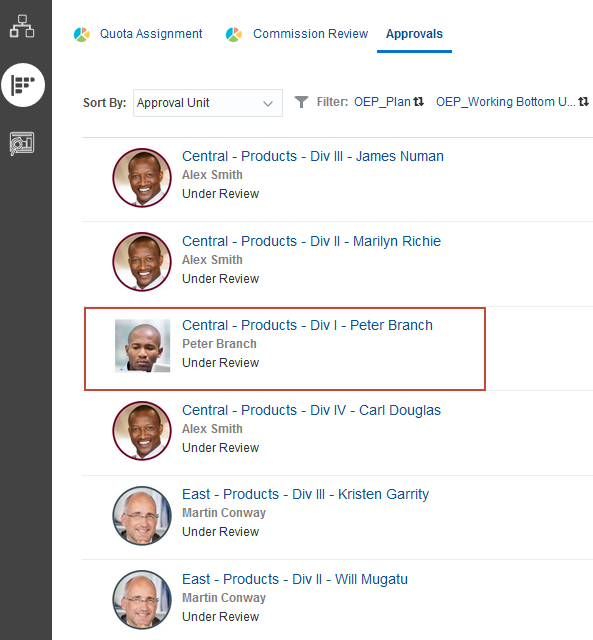
The Sales Rep, Peter Branch, submits the quota for approval. Sales Reps can submit quotas for approval on the Approvals tab.
You are not expected to perform the approval steps. These are included for illustration purposes only.
- You select the territory for which you want to submit quota.
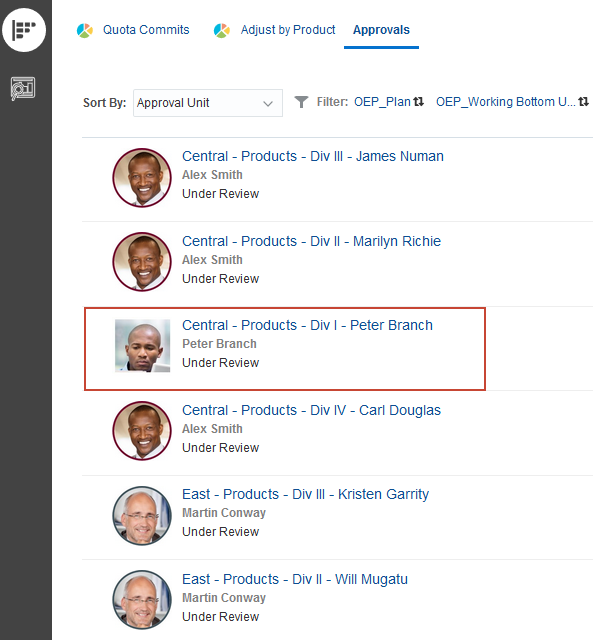
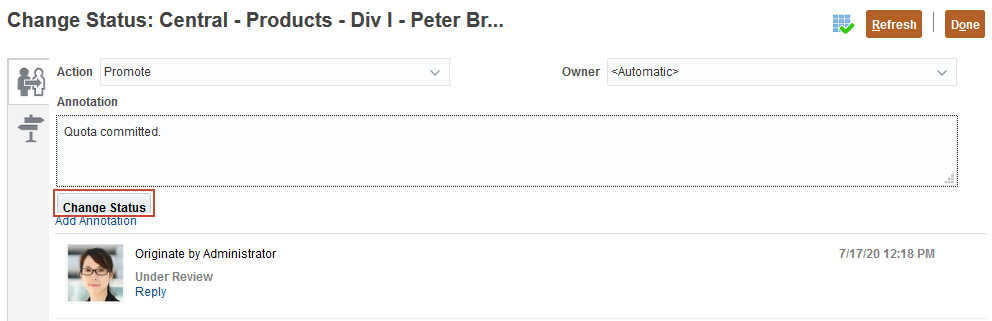
- You can add comments such as "Quota committed" before promoting quota to the next level in the hierarchy for review.
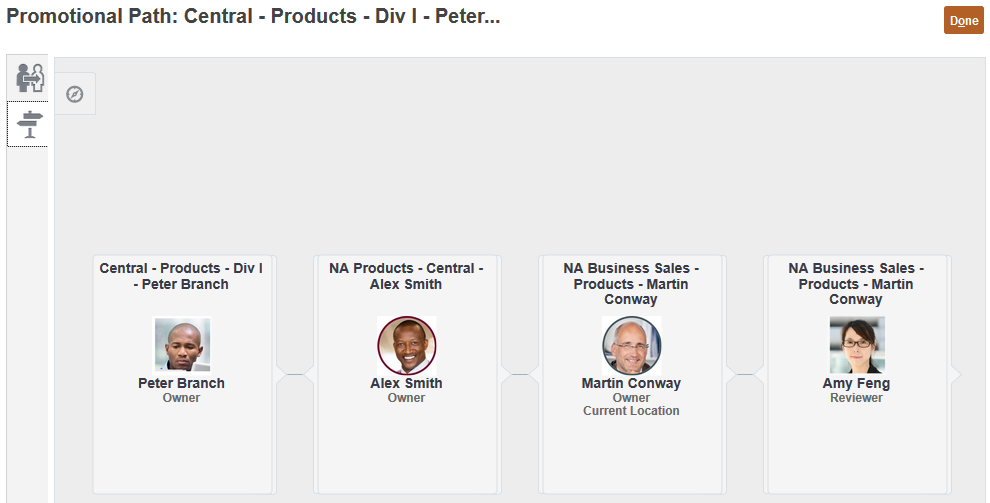
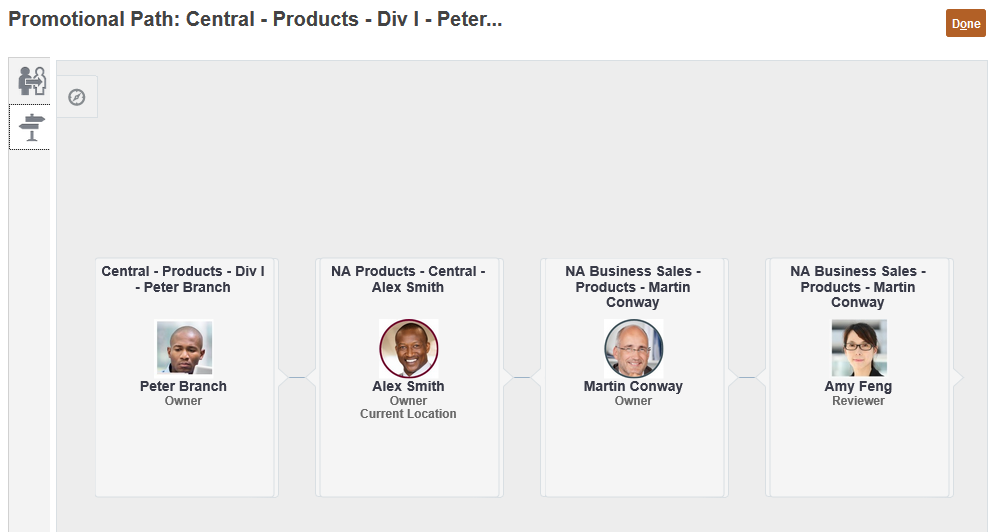
- You can review the promotion hierarchy on the second vertical tab. The promotional path includes Alex Smith the North American Sales Manager for the Central region, Martin Conway the North American Sales VP, and Amy Feng the Sales Ops Director.
Sales Managers review Sales Reps proposed quota
You are not expected to perform the approval steps. These are included for illustration purposes only.
- The Sales Manager makes quota adjustments. For example, he can adjust quota by account for each of the Sales Reps.
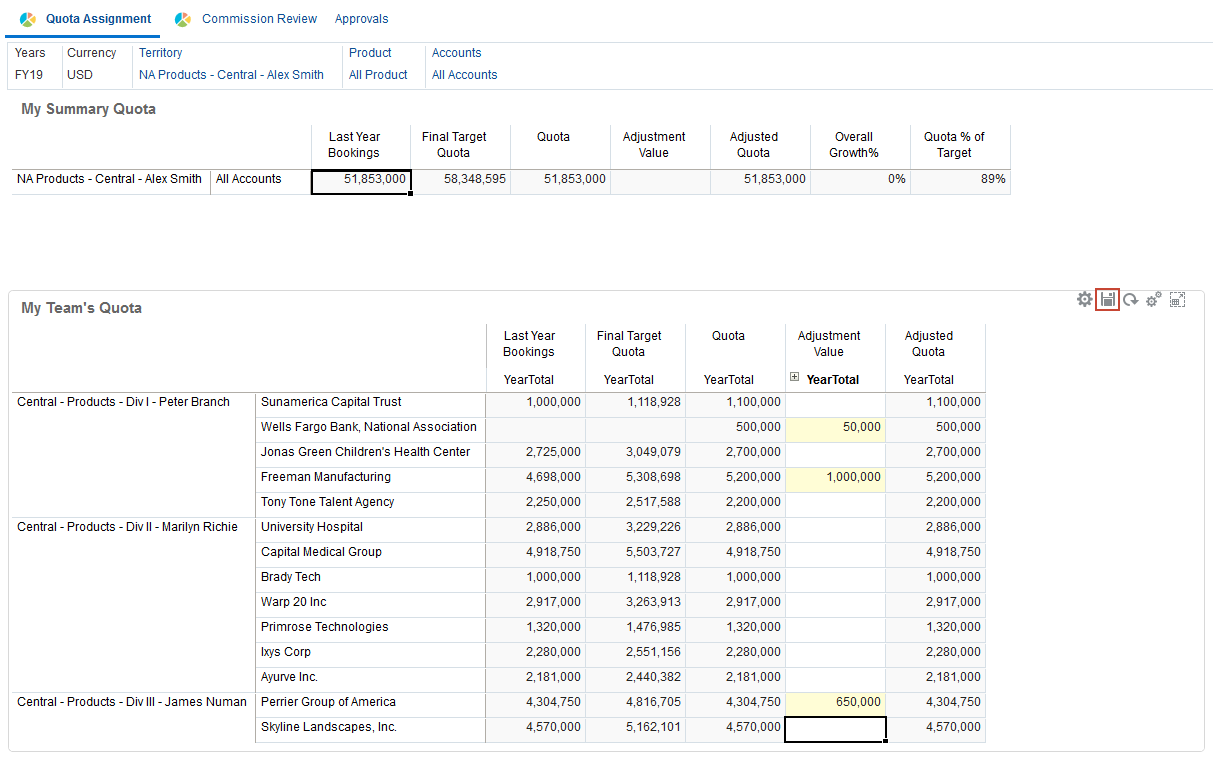
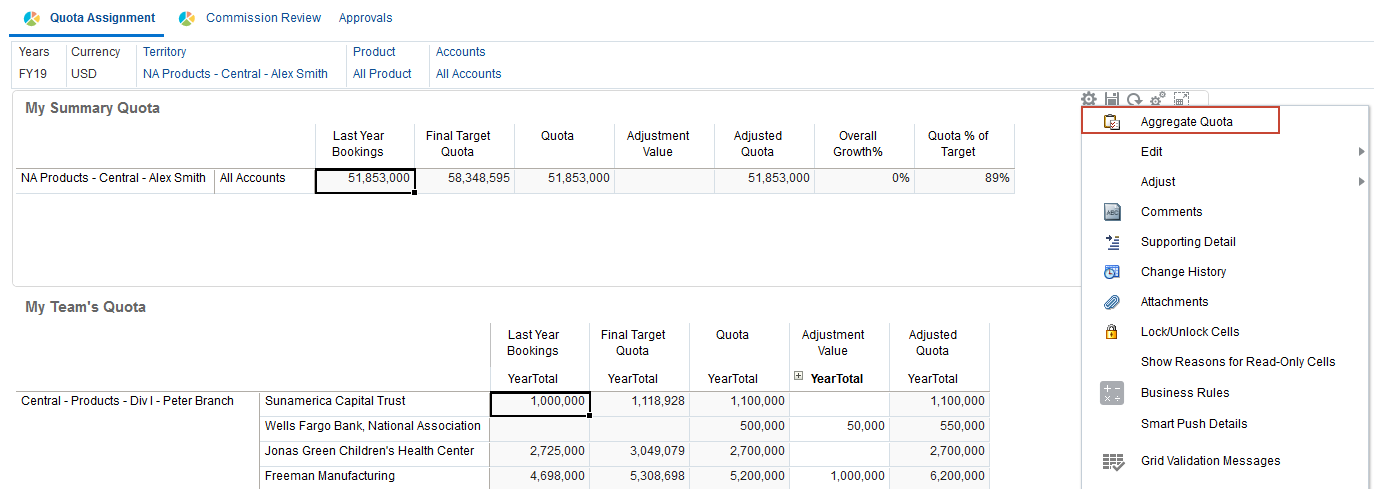
- After making adjustments, to update the quota totals, the Sales Manager aggregates the data.
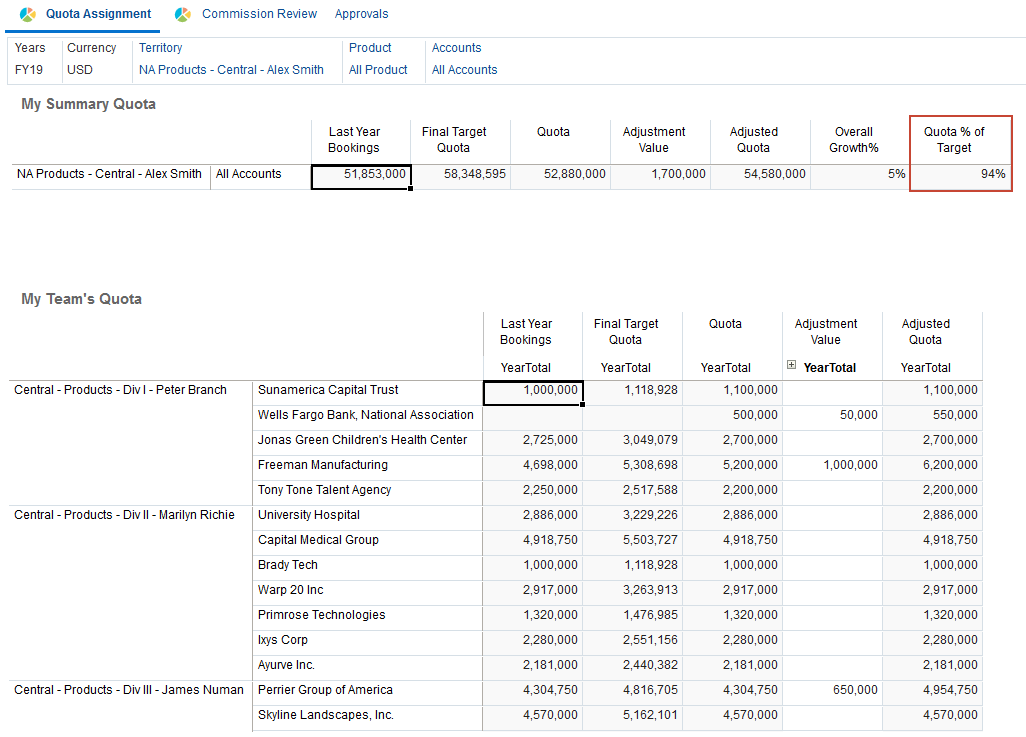
The quota is closer to achieving the target.
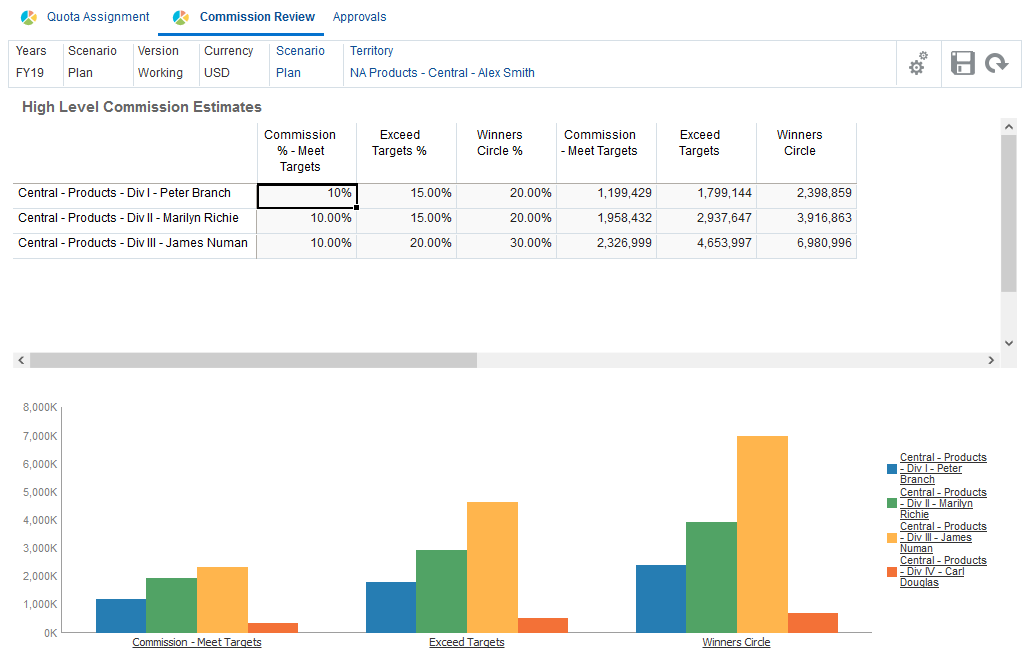
- With the new quota totals, the Sales Manager can review the commission estimates which are based on quota tiers: Meet Targets, Exceed Targets, and Winners’ Circle. Commission estimates may be taken from an Incentive Compensation System, or derived at a high-level using Sales Planning Cloud.
Sales Managers submit quota for approval
The Sales Manager, Alex Smith, submits the quota for approval.
You are not expected to perform the approval steps. These are included for illustration purposes only.
- Sales Managers can submit quotas for approval by selecting the Approvals tab.
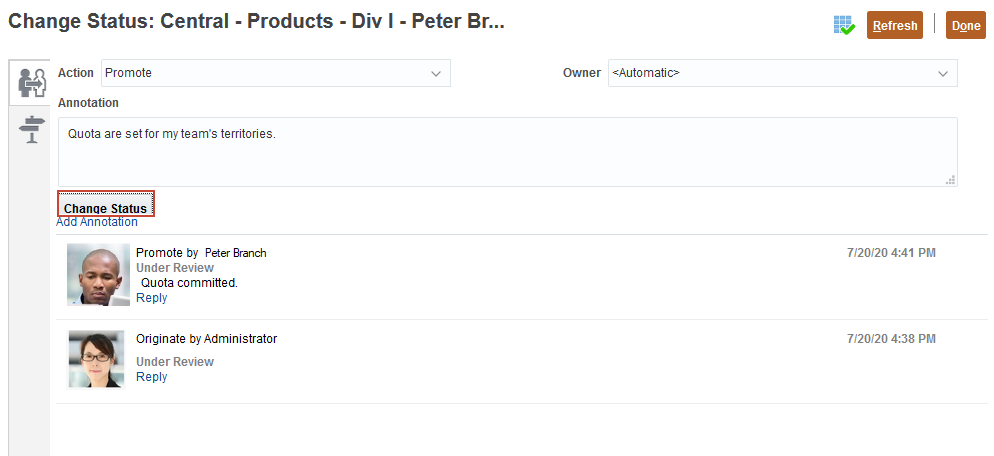
- You select the territory for which you want to submit quota.
- You can add comments such as "Quota are set for my team's territories." before promoting quota to the next level in the hierarchy for review.
Quotas are promoted by Alex Smith.
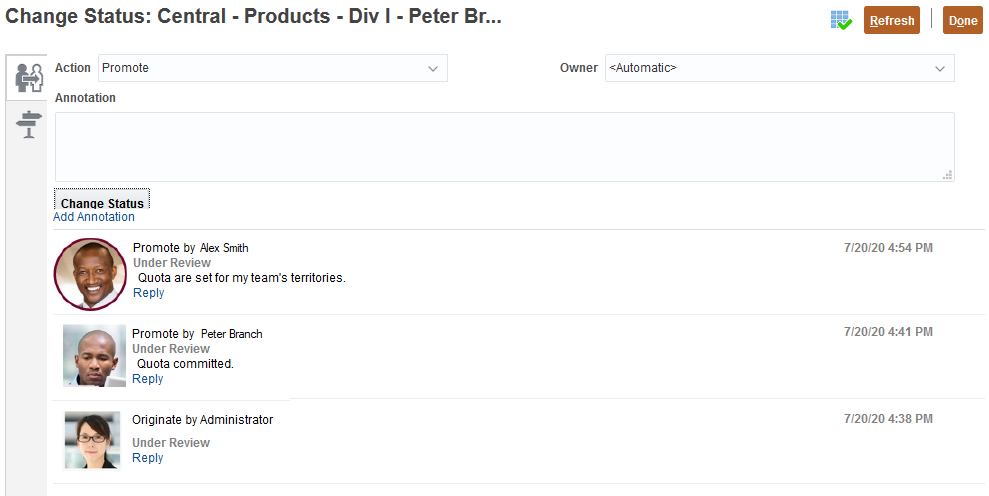
The review process continues until the last person in the review process approves the quota plan.