
Before you begin
This 15-minute hands-on tutorial shows you how to consolidate models in Strategic Modeling, a solution provided by Oracle EPM Enterprise Planning. The sections build on each other and should be completed sequentially.
Background
Strategic Modeling provides on-the-fly scenario analysis and modeling with financial forecast modeling so that your operational plans, long range plans and financial strategy align.
The Strategic Modeling business process is comprised of one or more models. You perform long-term strategic planning within those models. Models contain predefined reporting and modeling standards, and are populated with a hierarchical chart of accounts, a time structure, reports, dataviews, account groups, and all the metadata from the template or the model from which it was created.
In Strategic Modeling you set up consolidation structures to represent the structure of your organization. For example, you can conduct region-specific analysis, by setting up four regions within the Service division.
You can evaluate capital projects for a facility upgrade or a plant expansion by including separate models for them. You can choose to exclude some models from your consolidation. Data from excluded models is not included in the consolidated model.
After you forecast each of your business segments, and potential investments, and consolidate your model, you can review consolidated information for the whole company. Consolidation helps determine how changing business unit conditions affect parent company earnings and values. By reviewing the consolidated model, you can make informed decisions about individual business units.
What do you need?
An EPM Cloud Service instance allows you to deploy and use one of the supported business processes. To deploy another business process, you must request another EPM Enterprise Cloud Service instance or remove the current business process.
- Have Service Administrator access to EPM Enterprise Cloud Service. The instance should not have a business process created.
- If you haven't already, register for a free Oracle Cloud Customer Connect account so you can access the required files. Upload and import this snapshot into your Planning instance.
For more information on uploading and importing migration snapshots, refer to the Administering Migration for Oracle Enterprise Performance Management Cloud documentation.
Reviewing consolidation structures
Navigating to Consolidation View
In this section, you open a consolidation structure.
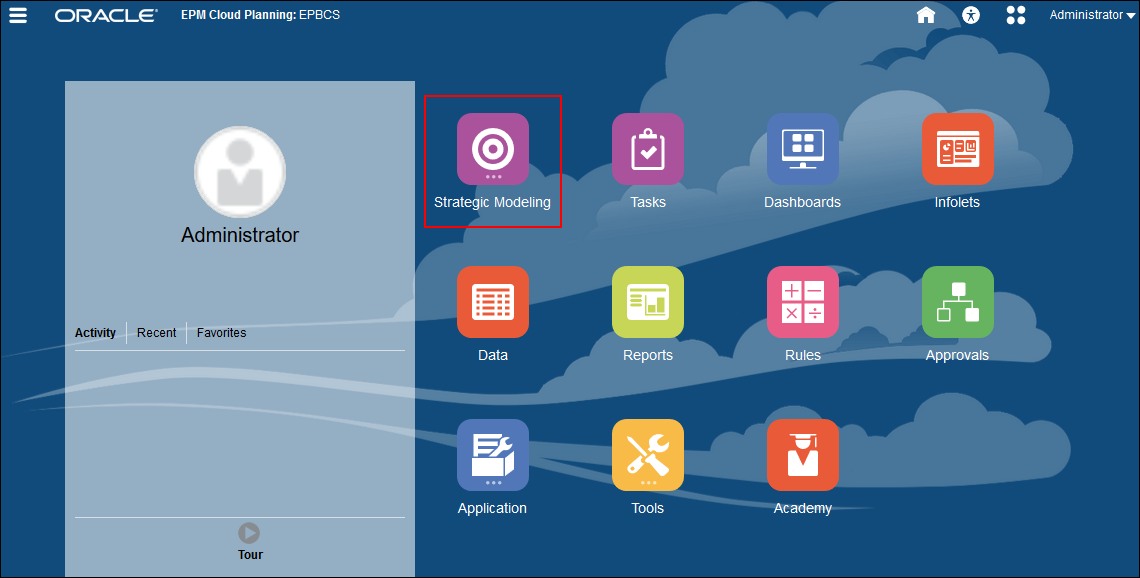
- On the Planning home page, click Strategic Modeling.
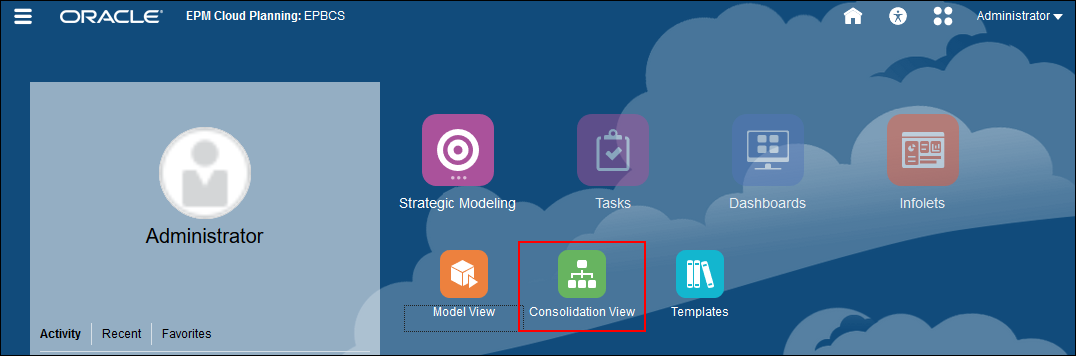
- Click Consolidation View.
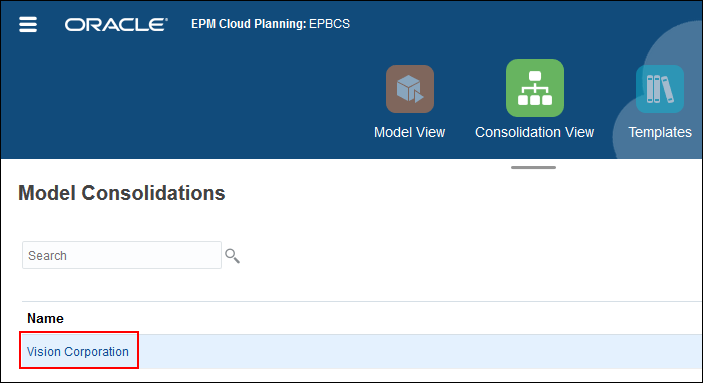
- Click Vision Corporation.
Reviewing the Vision Corporation consolidation structure
In this section, you review a consolidation structure for different business cases.
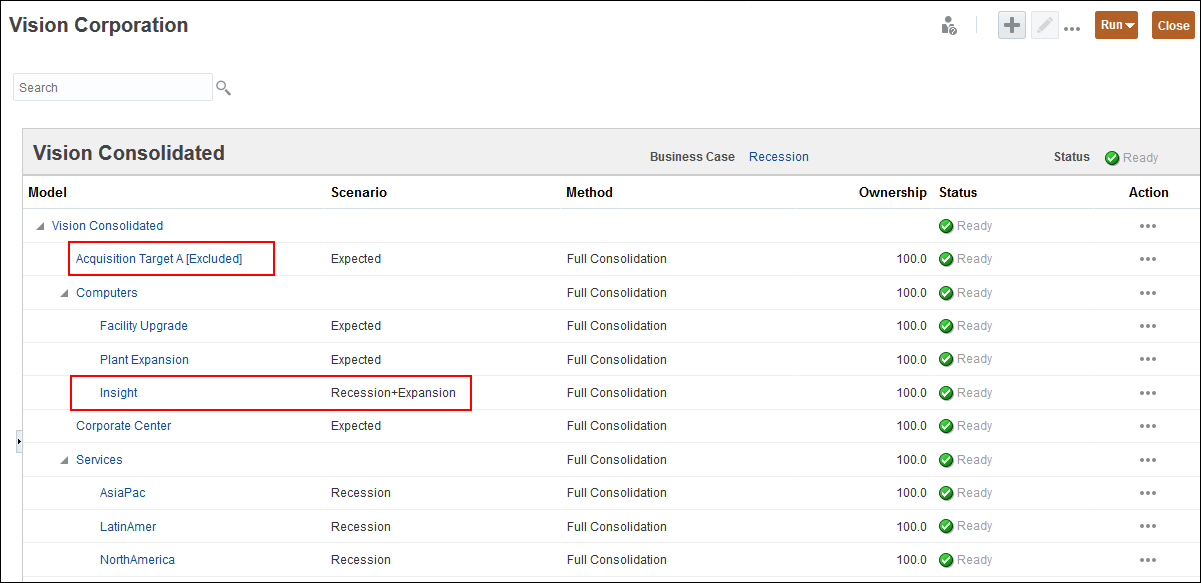
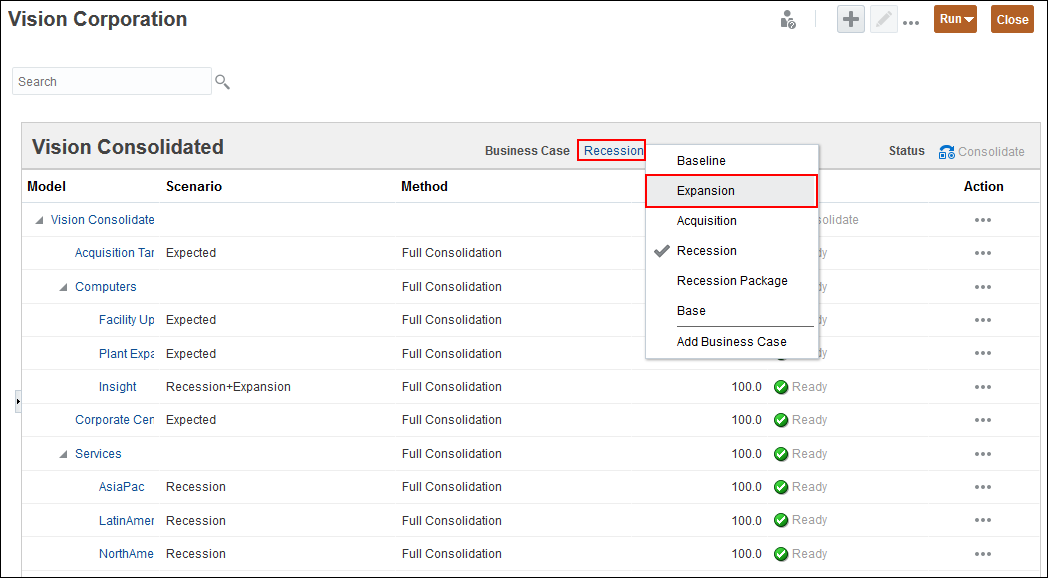
- You set up a consolidation structure for each business case. Notice, that the acquisition model is excluded, and the scenario for Insight is Recession+Expansion.
- Change the business case to see how that impacts the consolidation structure. For Business Case, click Recession and select Expansion.
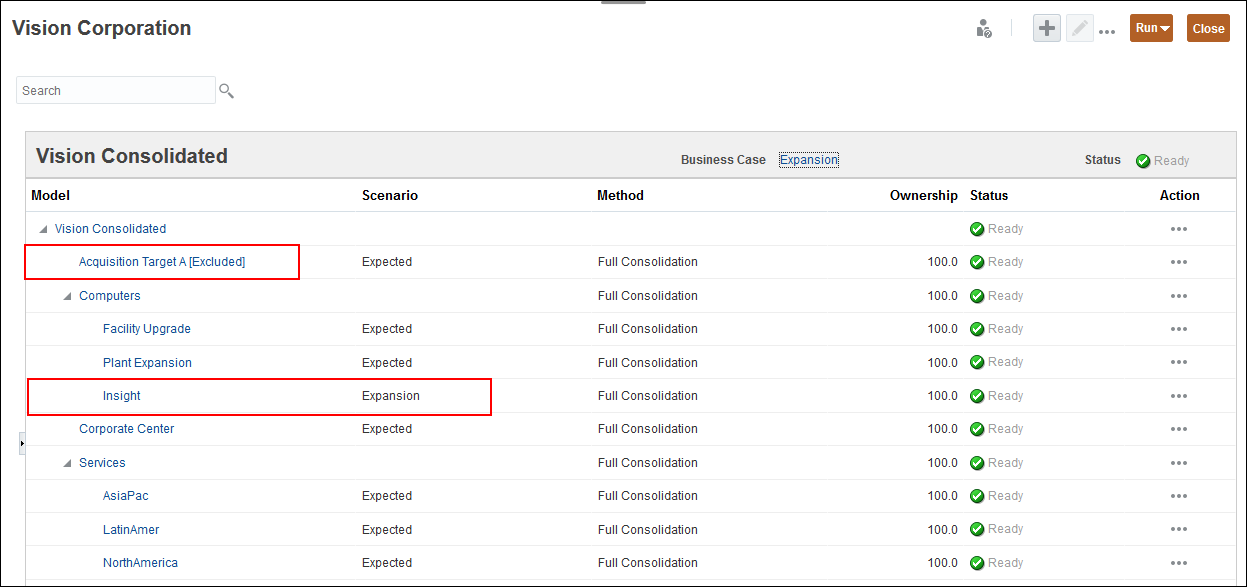
- Notice, that the acquisition model is excluded, and the scenario for Insight is Expansion.
Performing consolidations
In this section, you add a business case, and modify a consolidation structure.
Adding a business case
In this section, you add a business case and indicate which scenario will contribute data for this business case.
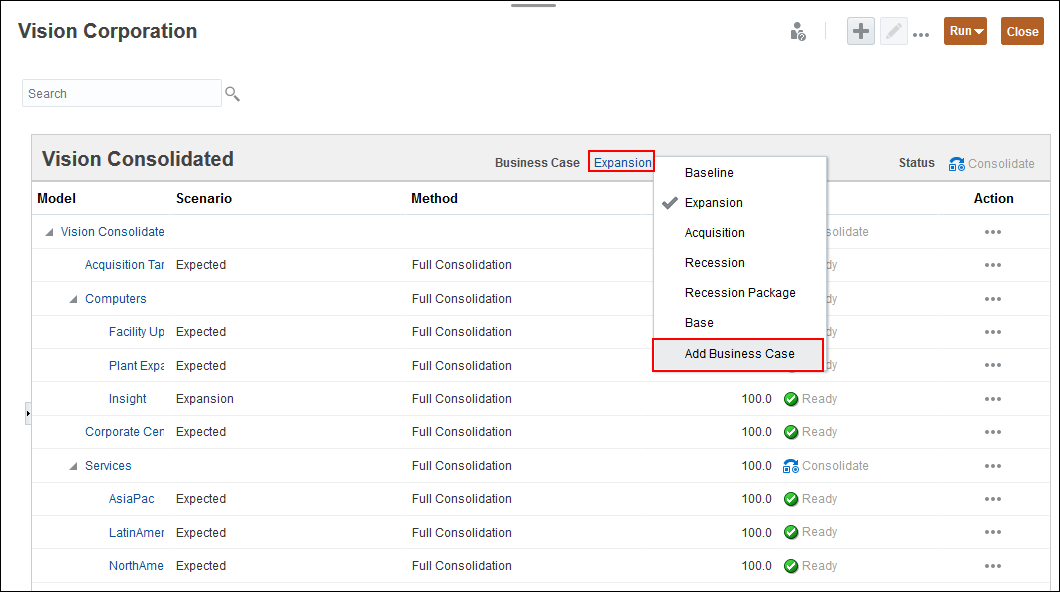
- In Business Case, click Expansion, and select Add Business Case.
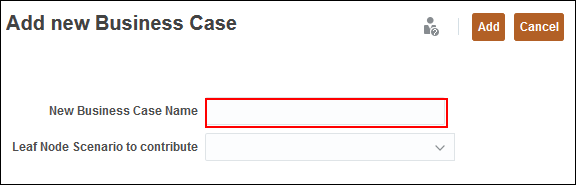
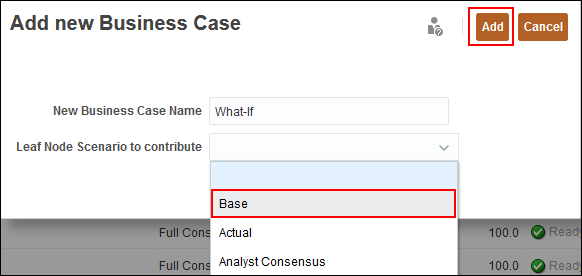
- In Add new Business Case, for New Business Case Name, enter What-If.
- For Leaf Node Scenario to contribute, select Base and click Add.
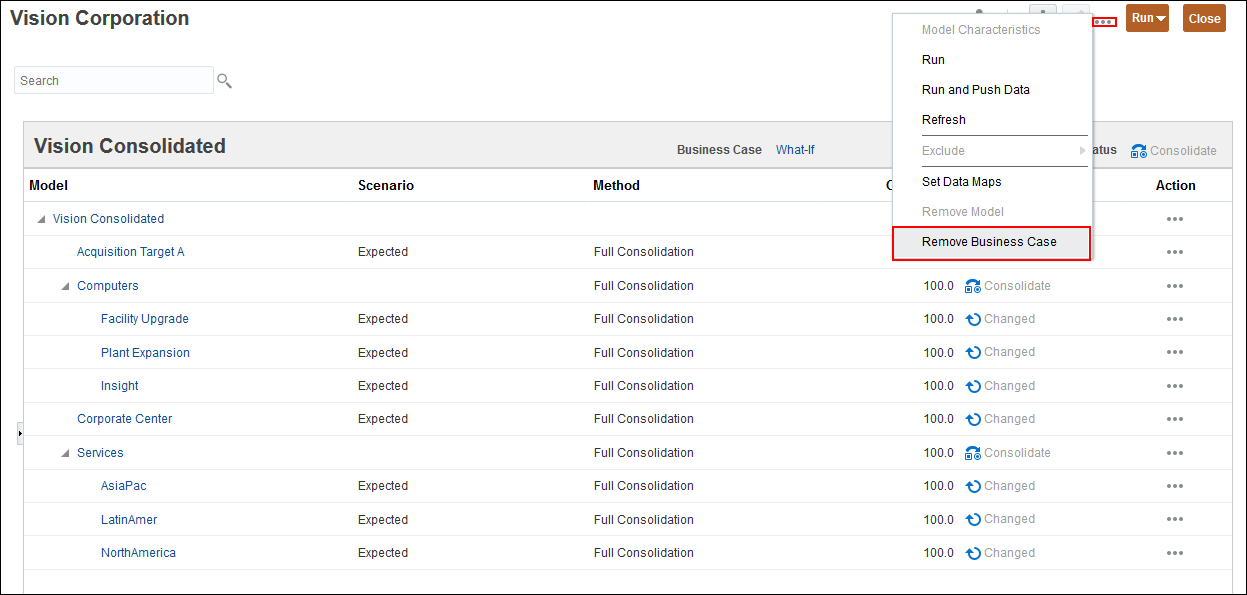
If you have a business case that you no longer need, you can remove it by clicking (...) Action at the top of the screen, and selecting Remove Business Case.
Changing a consolidation structure
In this section, you modify a consolidation structure by removing a model and adding another one.
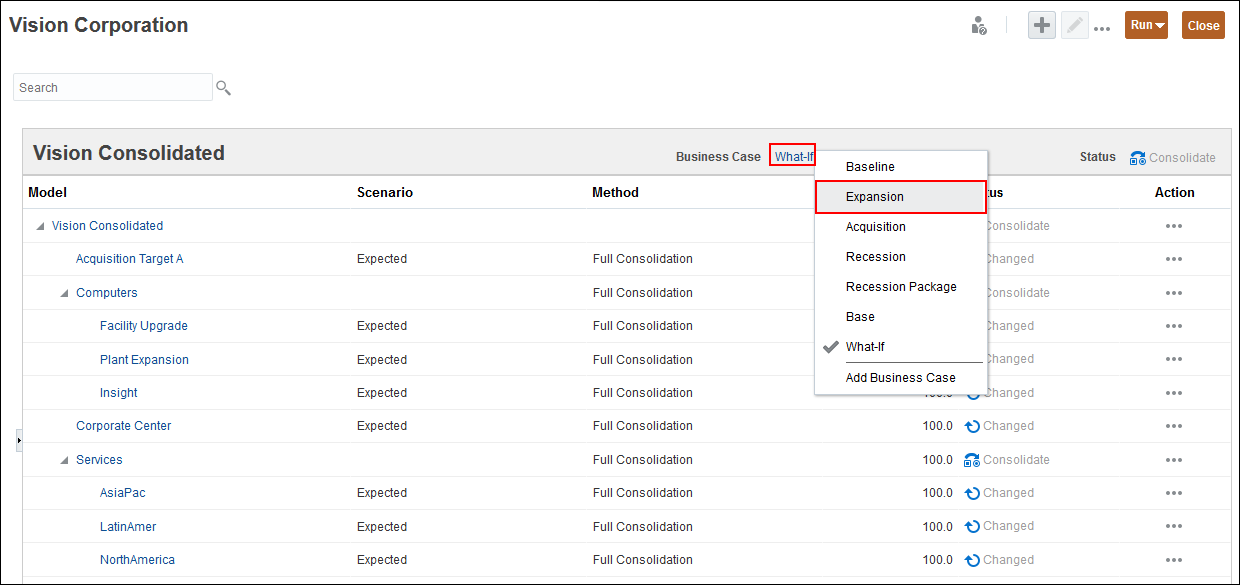
- Click What-If and select Expansion.
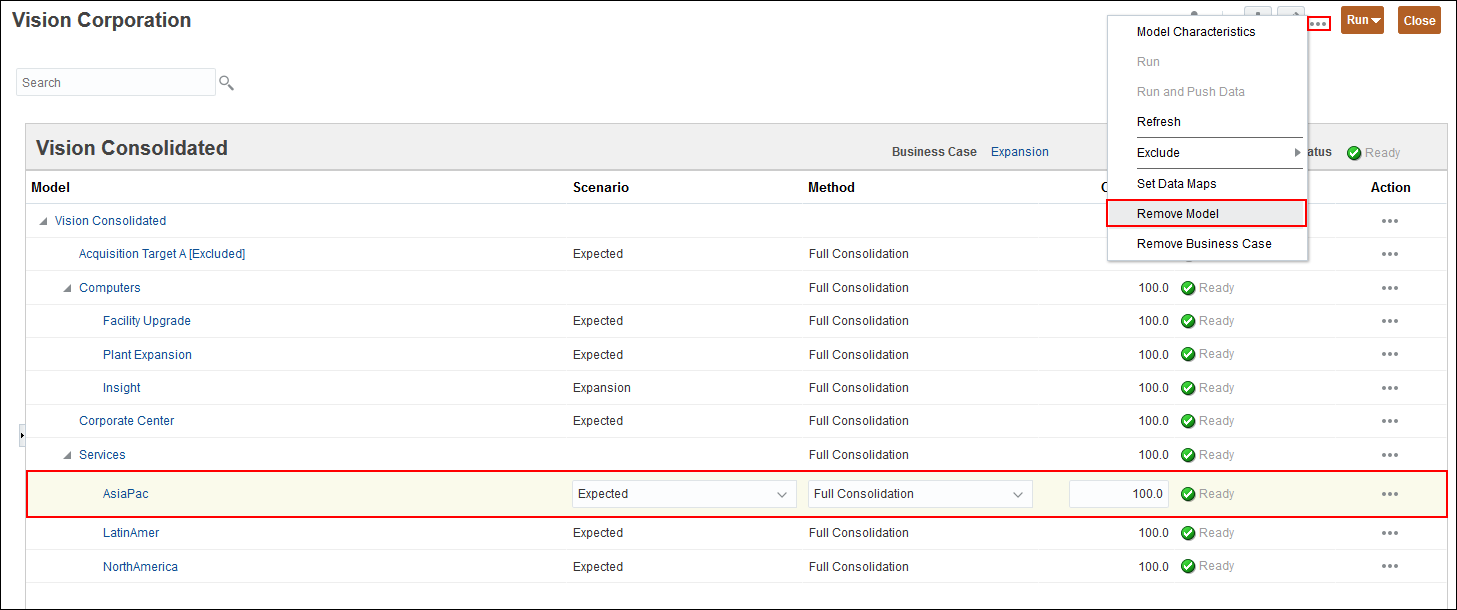
- Select the AsiaPac row. On the upper right, click (...) Action, and select Remove Model.
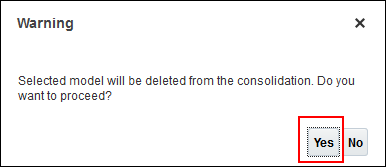
- Click Yes.
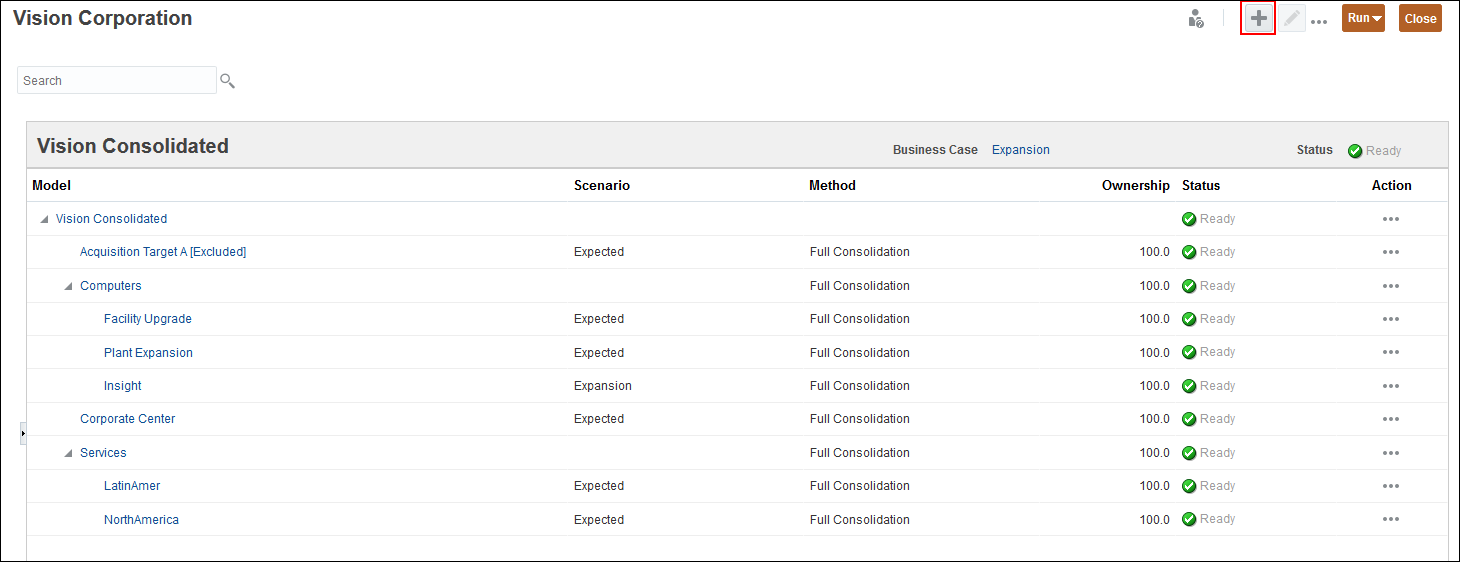
- On the upper right, click
 (Add).
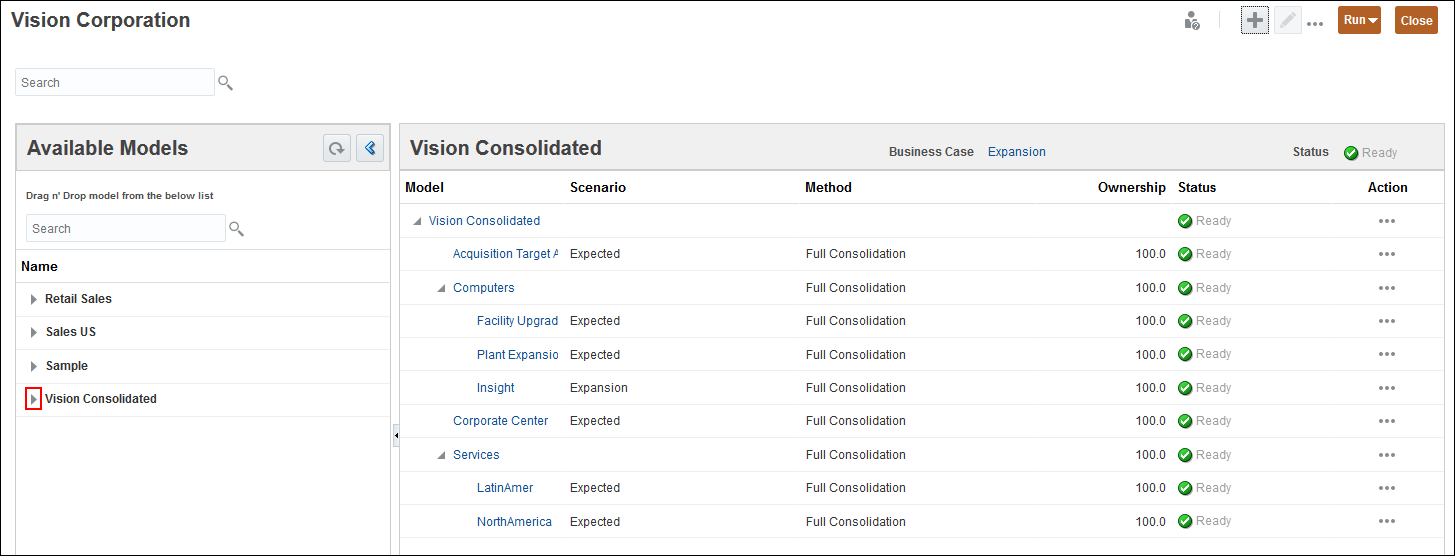
 - On the left, expand Vision Consolidated.
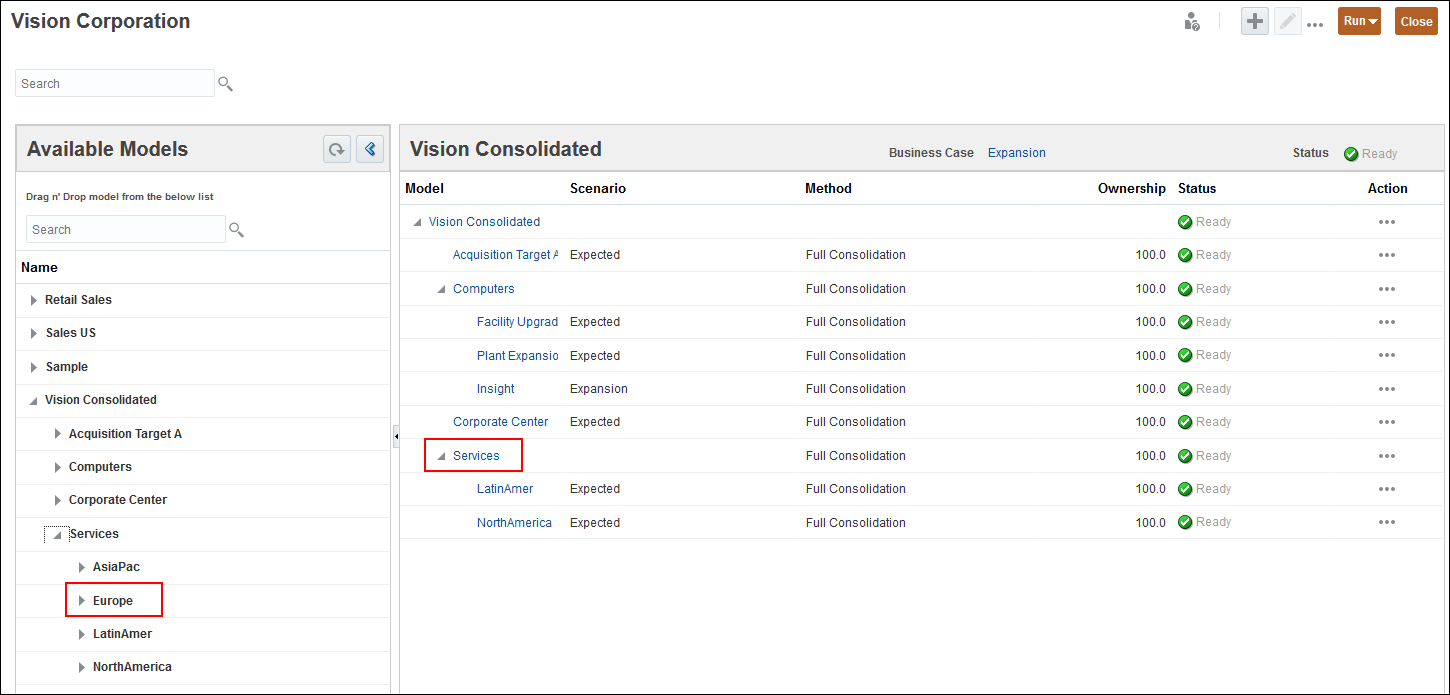
- On the left, expand Services.
- Drag Europe from the left pane to Services in the right pane.
- In the Select Scenario for new Model dialog box, accept the default scenarios of Expected, and click OK.


Selecting scenarios for models
In this section, you select scenarios for models. You can consolidate data across models using different scenarios for each model. This allows you to blend scenarios across models to calculate values for a consolidated model.
Business unit models do not require matching structures. Each can have different scenarios that can include different time periods, forecast methods, subaccount structures etc. Some models have the Expansion scenario selected, while others have the Expected scenario selected.
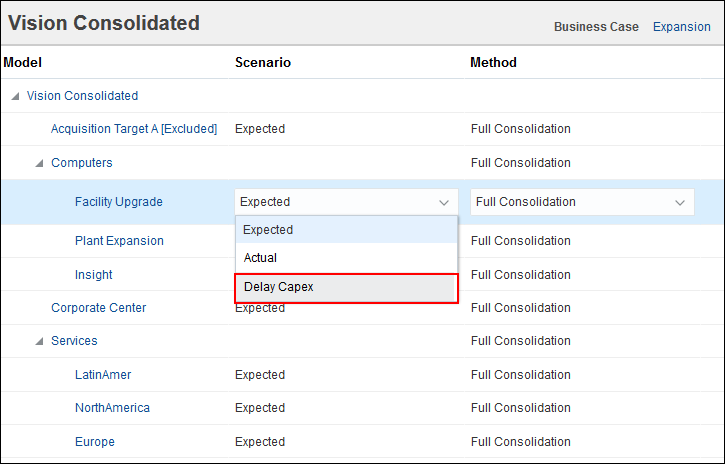
- In the Expansion business case, for Facility Upgrade, change the scenario to Delay Capex.
- For Europe, click the Method drop-down list.
- For Europe, leave the method set to Full Consolidation, and click the Method drop-down list to close it.
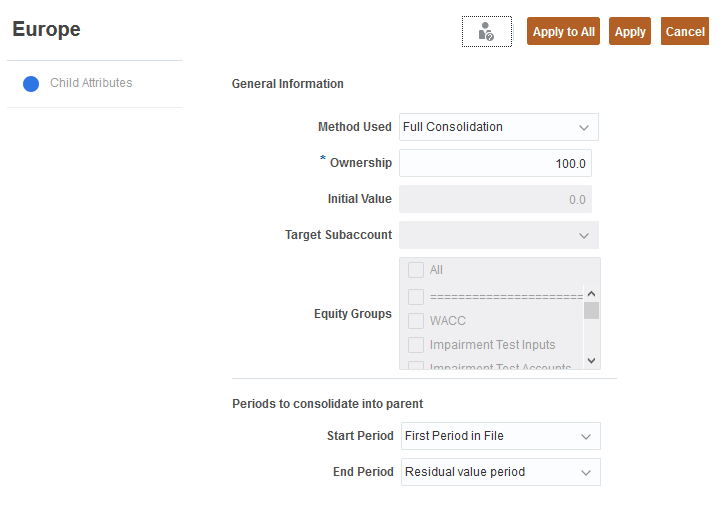
- Click Europe to review the assigned financial accounting rules.
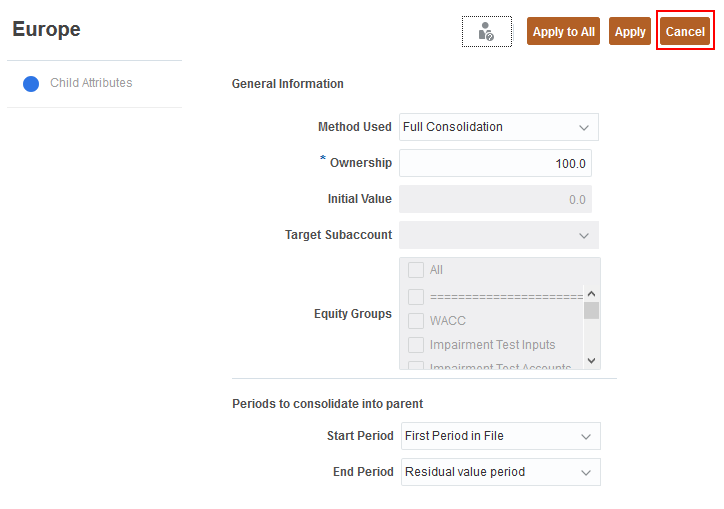
- Click Cancel.
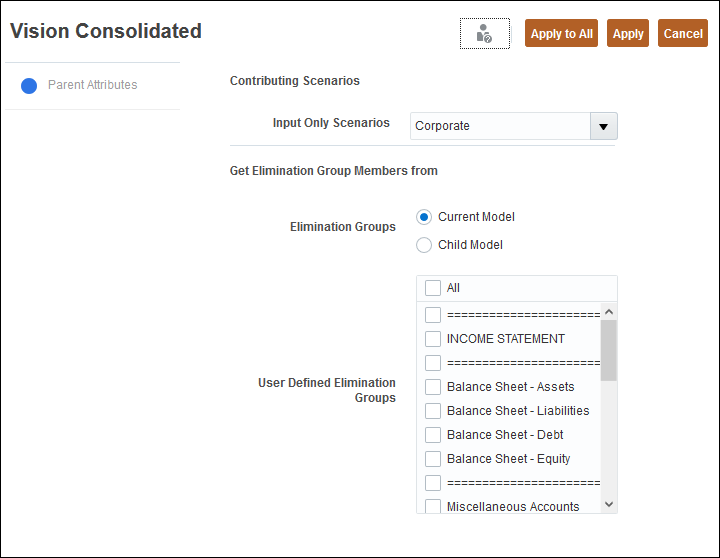
- Click Vision Consolidated.
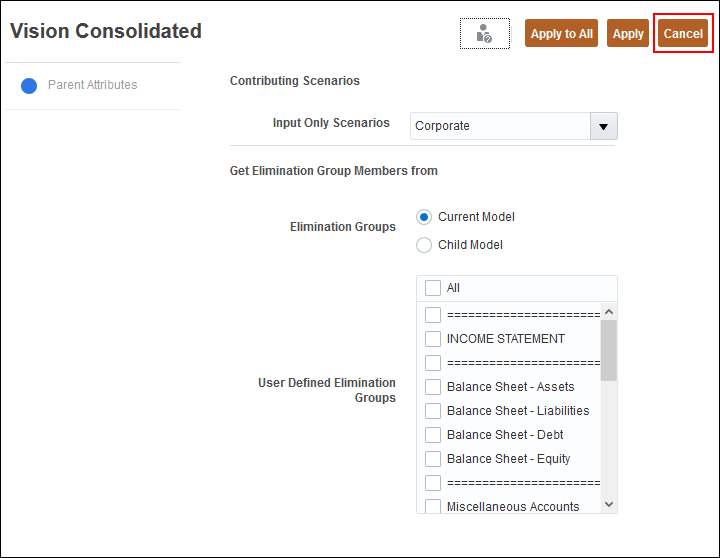
- Click Cancel.
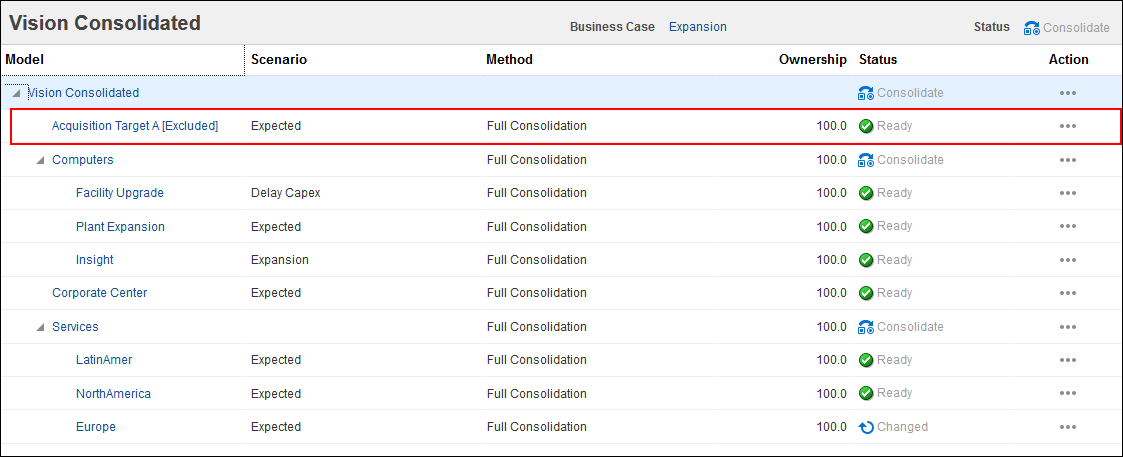
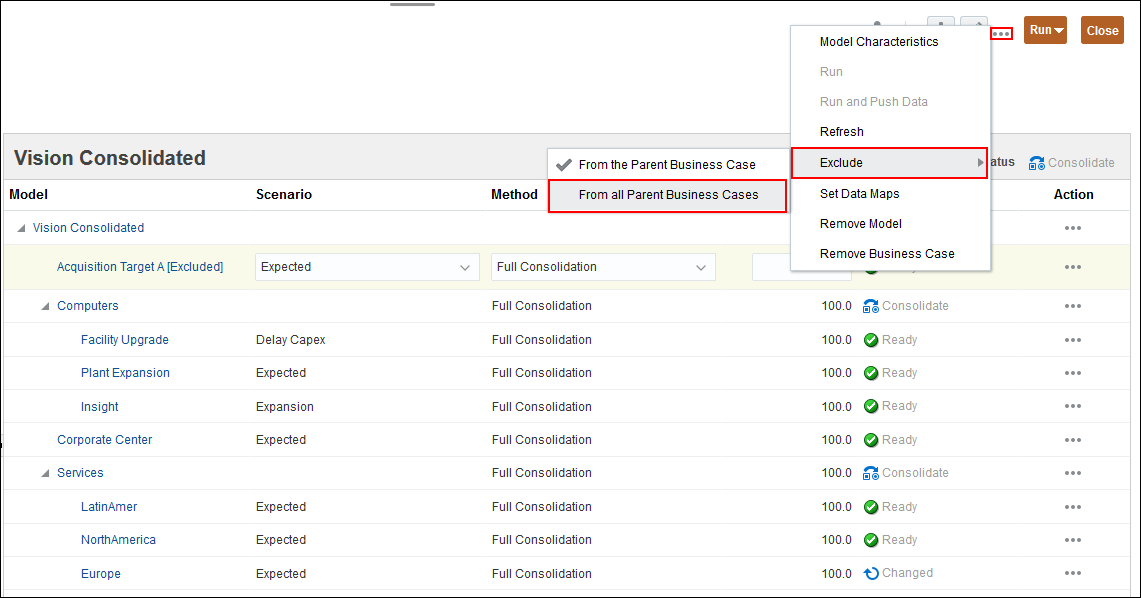
- Before you consolidate your model, you can choose to exclude some child models from the consolidation. Select the Acquisition Target row.
- In the upper right, click (...) Action and select Exclude, and then From all Parent Business Cases.

You can apply financial accounting rules such as the cost or equity method, and account for minority interests, as you perform consolidations.
You can also change the ownership percentage.

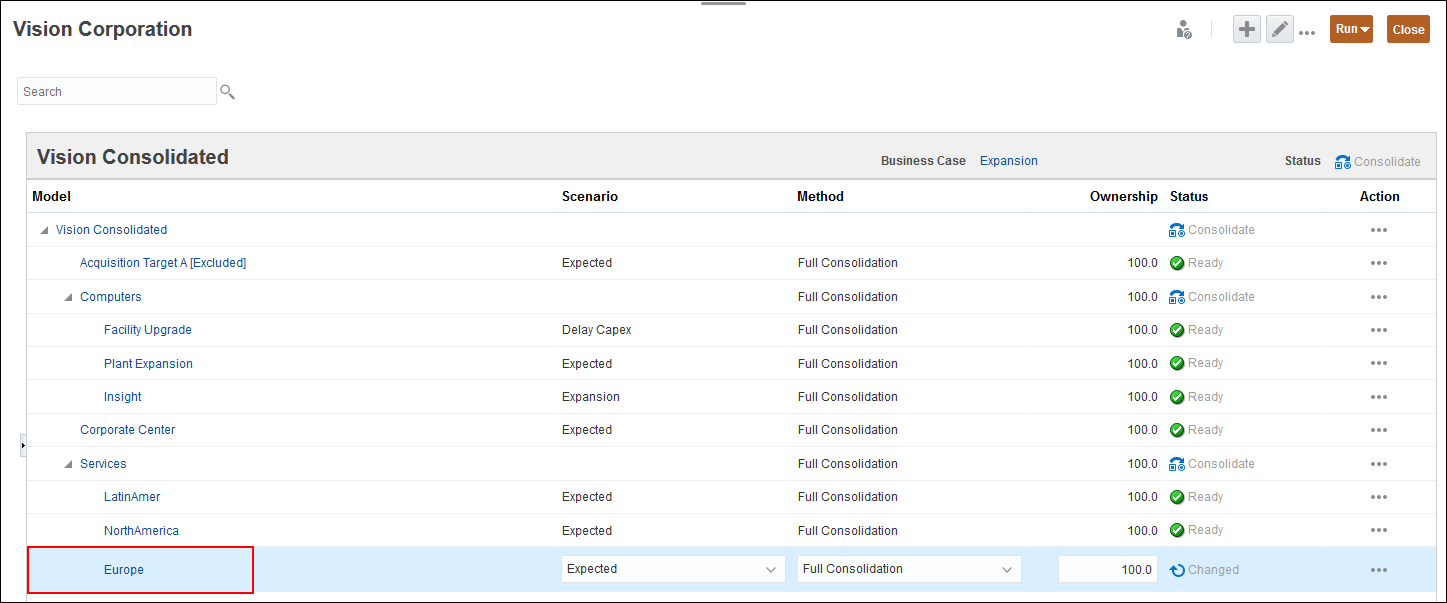
You can select advanced features for your consolidation. You can modify properties for Europe. In addition to adjusting the method and ownership percentage, you can also set other model properties such as the start and end periods.
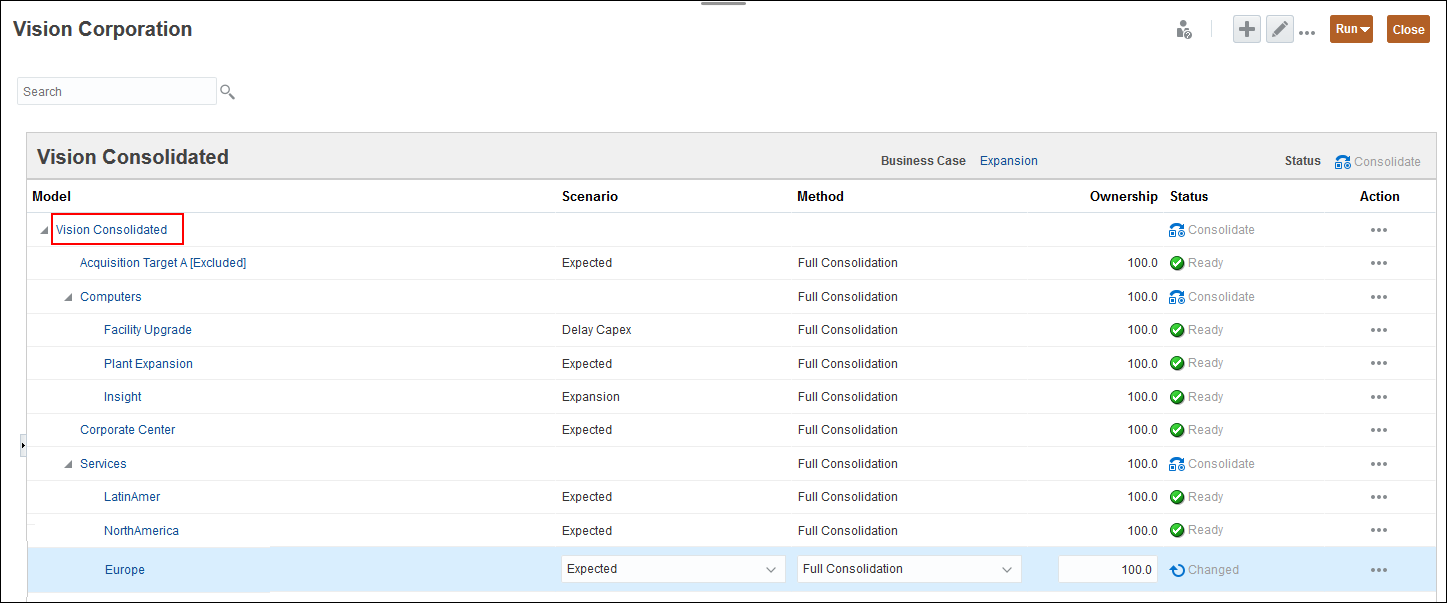
You can modify properties for the consolidated model.
Consolidating a business case
In this section, you run a consolidation for the baseline business case.
- Take a look at the consolidation status for our Baseline business case. In Business Case, click Expansion, and select Baseline.
- Select the Services row. In the upper right, click Run, and then Run again.
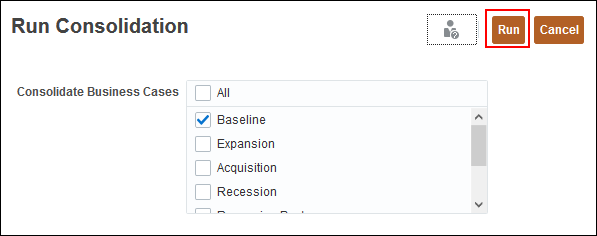
- In the Run Consolidation dialog box, ensure Baseline is selected, and click Run.
- Click OK.
- In the upper right, click (...) Action, and select Refresh.
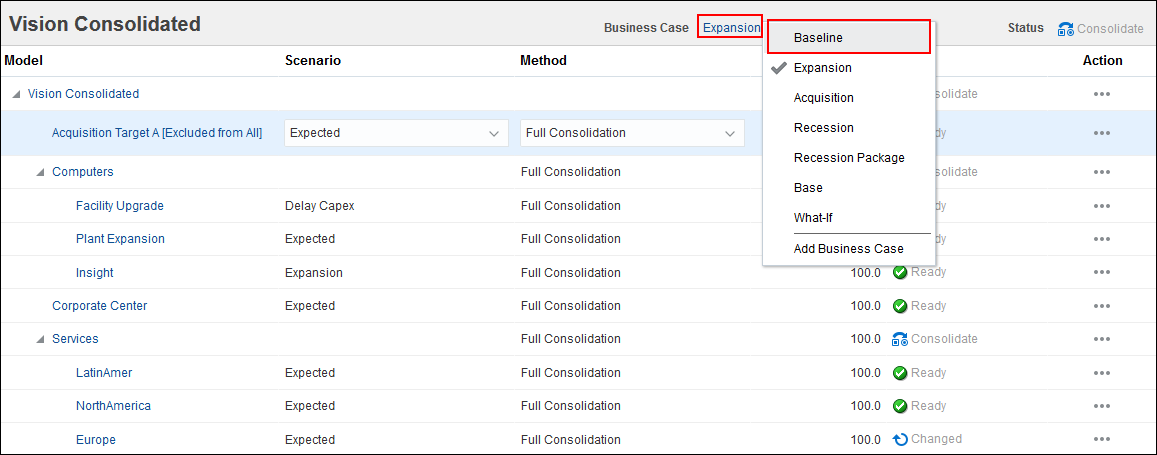
Each model has a consolidation status of Consolidate, Changed, or Ready. Consolidated models display a status of Ready. Models where data has been changed but not yet consolidated, display a Changed status. Models with a Consolidate status, need to be consolidated. In this case, child models have a Changed status while their parent has a Consolidate status.

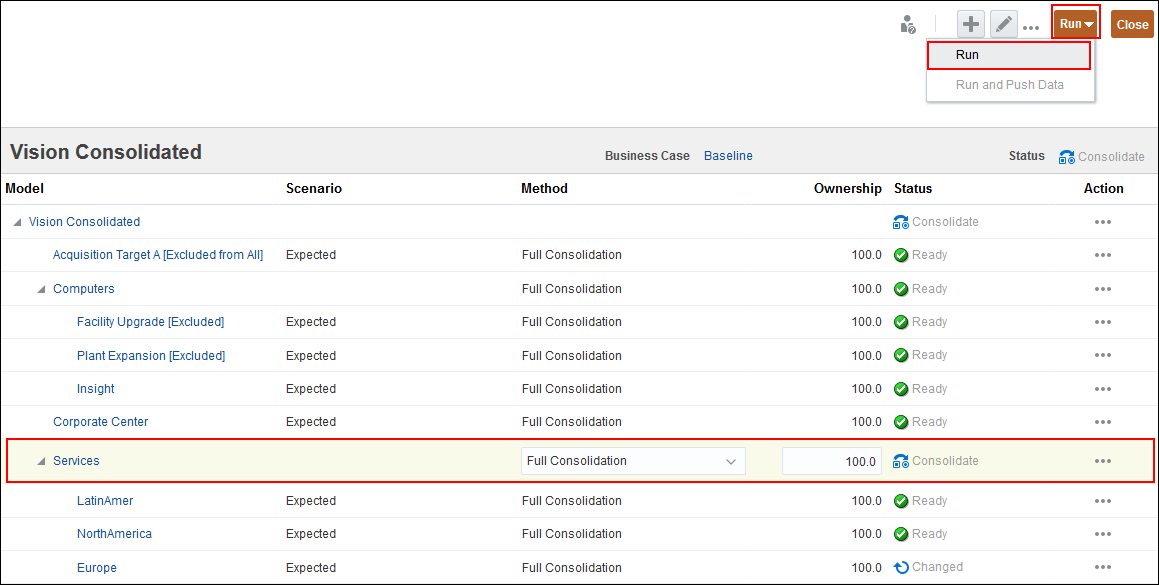
When you consolidate a parent model, the data from its children is rolled up to the parent. This gives you the overall financial picture of your organization.

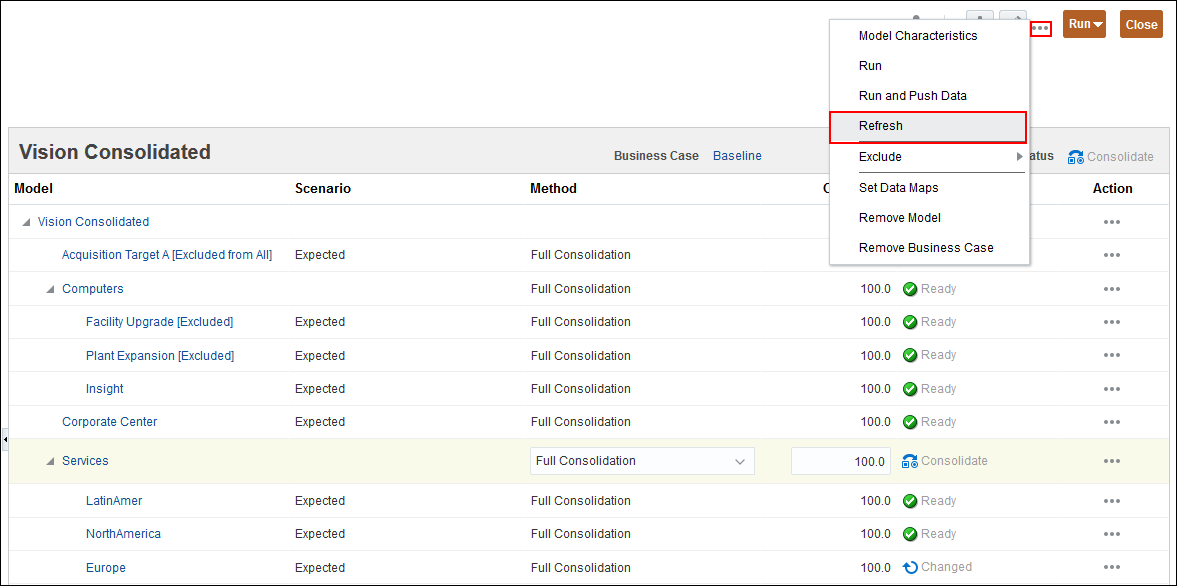
After consolidating, the parent’s status changed from Consolidate to Ready.
