This 20-minute hands-on tutorial shows you how calculate periodic movement from closing balance input.
Background
Your business process may require you to load period-end account balances, rather than current period movements. If you enable the Calculate Movements system rule, you can load period end closing balances to the Closing Balance Input member, and the rule will calculate a specified current period movement. The Calculate Movement rule runs during the consolidation process. The existing Closing Balance plus the current entry for the specified movement are subtracted from Closing Balance Input to calculate the current period movement value. It writes the result to a specified movement member, replacing any existing values. After the Calculate Movements rule executes, the Closing Balance member is recalculated using the default consolidation process, and will match the entered closing balance value.
What do you need?
An EPM Cloud Service instance allows you to deploy and use one of the supported business processes. To deploy another business process, you must request another EPM Enterprise Cloud Service instance or remove the current business process.
Have Service Administrator access to EPM Enterprise Cloud Service. The instance should not have a business process created.
Upload and import this snapshot into your instance.
Save and extract this data file locally. You will be importing data using this data file.
Modifying Member Attributes
From the Home Page, click Application, then Overview, then Dimensions.
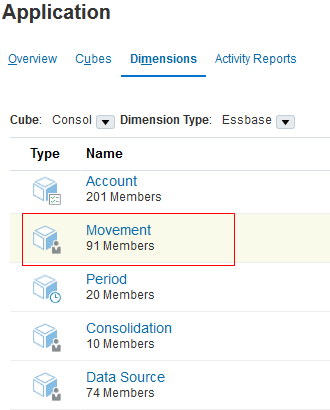
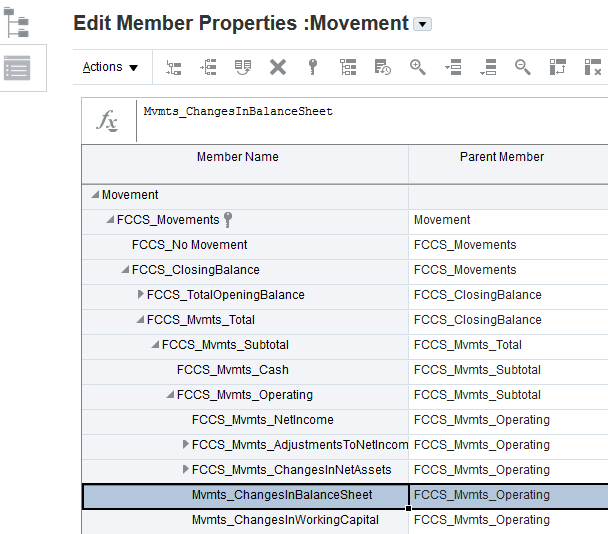
Select the Movement dimension to open it.
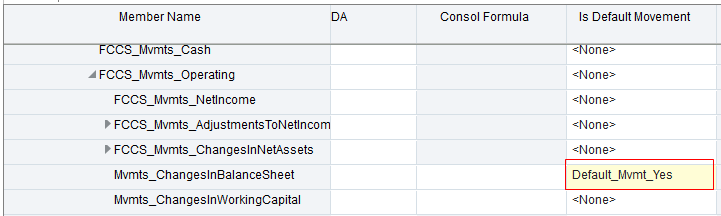
Locate the member Mvmts_ChangesInBalanceSheet.
Optional: Select the Member Name column, then click (Freeze). This keeps the Member Name column on the screen as you scroll to the right to locate the Is Default Movement attribute.
Select Default_Mvmt_Yes for the attribute Is Default Movement.
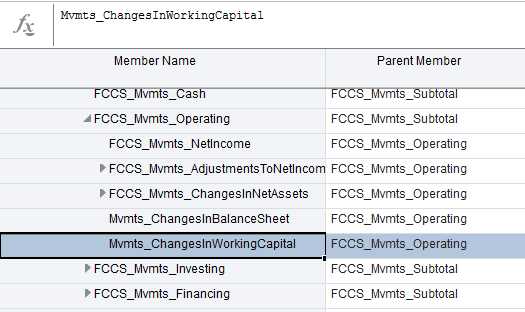
Locate the member Mvmts_ChangesInWorkingCapital.
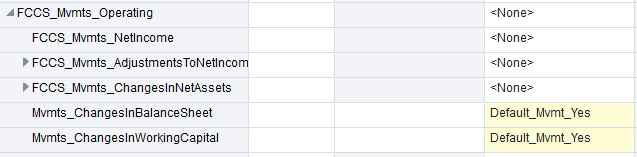
Select Default_Mvmt_Yes for the attribute Is Default Movement.
Click Save, then Cancel.
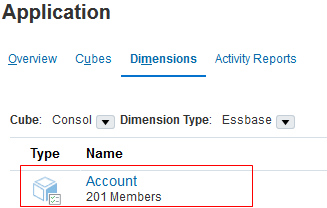
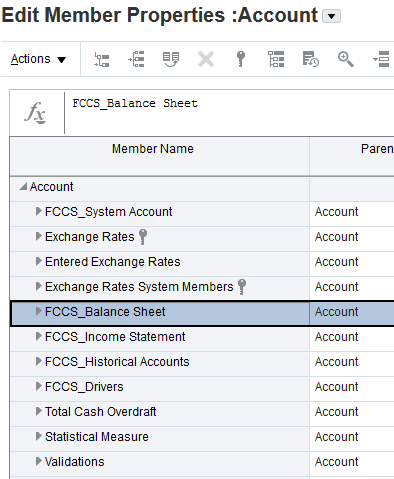
Select the Account dimension to open it.
Locate the member FCCS_Balance Sheet.
Optional: Select the Member Name column, then click (Freeze). This keeps the Member Name column on the screen as you scroll to the right to locate the Default Movement attribute.
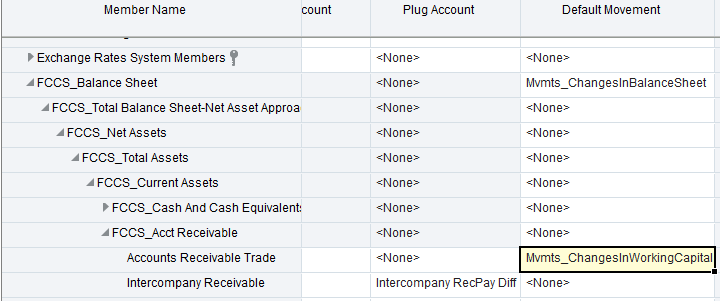
Click the drop-down list for the attribute Default Movement and select Mvmts_ChangesInBalanceSheet. Click Save.
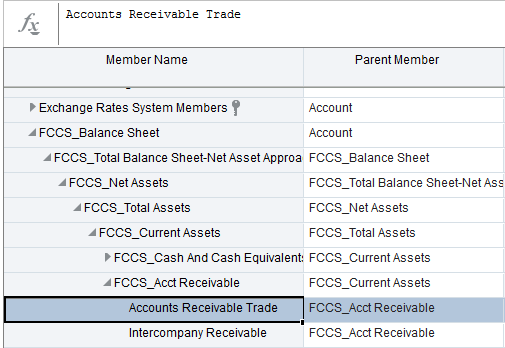
Locate the member Accounts Receivable Trade.
Click the drop-down list for the attribute Default Movement and select Mvmts_ChangesInWorkingCapital.
Click Save.
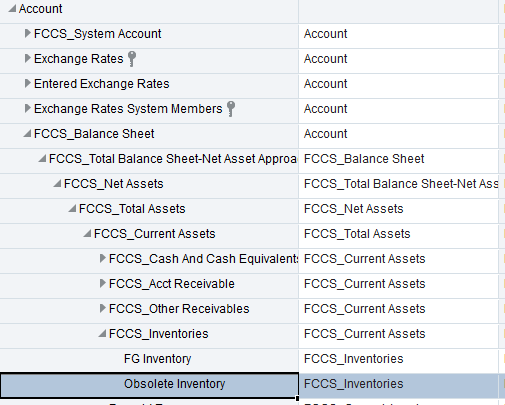
Locate the member Obsolete Inventory.
Click the drop-down list for the attribute Default Movement and select Mvmts_ChangesInWorkingCapital. Click Save, then Cancel.Note: This attribute can be selected only for “FCCS_Balance Sheet” and level 0 accounts.
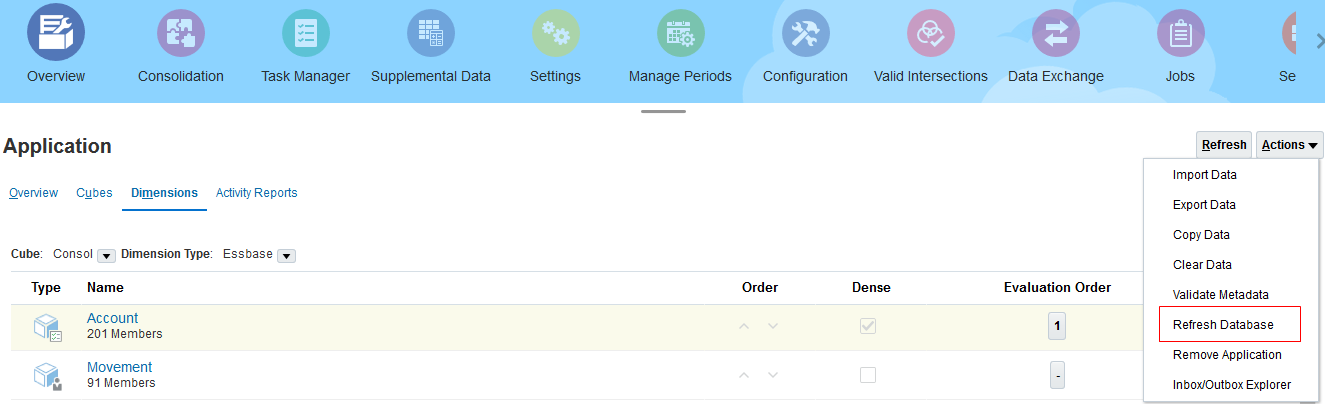
On the Application page, click Actions, then Refresh Database.
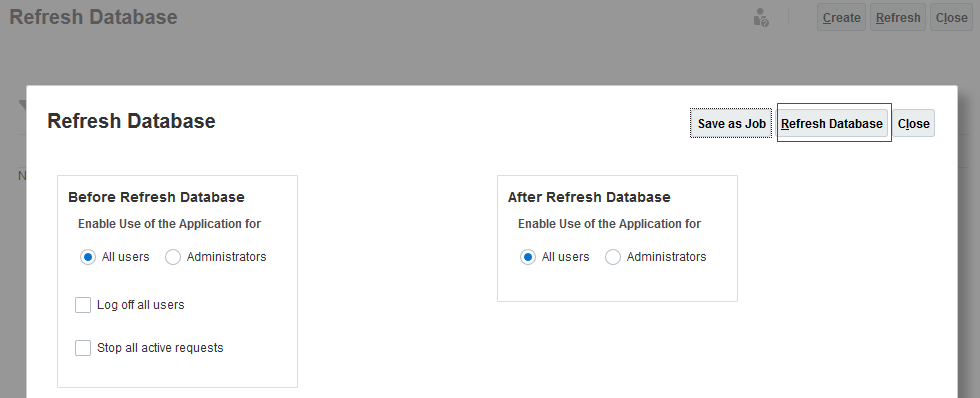
Click Create, then Refresh Database.
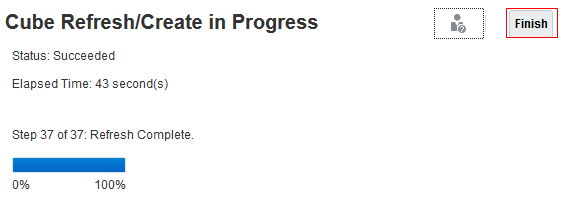
Click Refresh, then Finish.
Click Close twice.
Managing Ownership
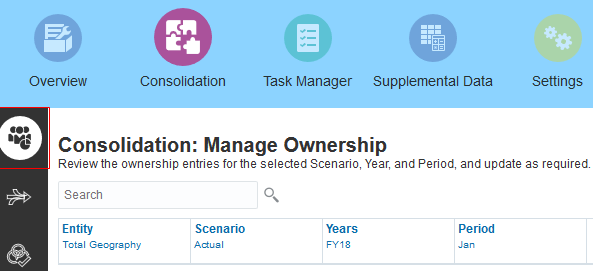
From the Home page, click Application, then Consolidation. Verify the Manage Ownership tab is open.
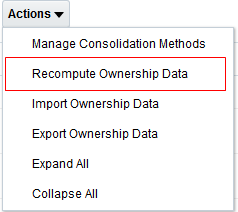
Verify the Point of View is Actual, FY18, Jan. Select Actions, then Recompute Ownership Data.
Verify the POV, then click Recompute.
Importing Data
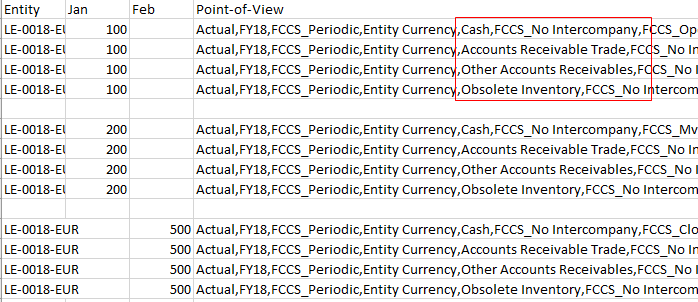
Open the RefApp_MovementsCalc_DataLoadFile_Data.csv file. Note the accounts for which a Closing Balance amount will be loaded in February. They are:
Cash
Accounts Receivable Trade
Other Accounts Receivables
Obsolete Inventory
Navigate to Application, then Overview.
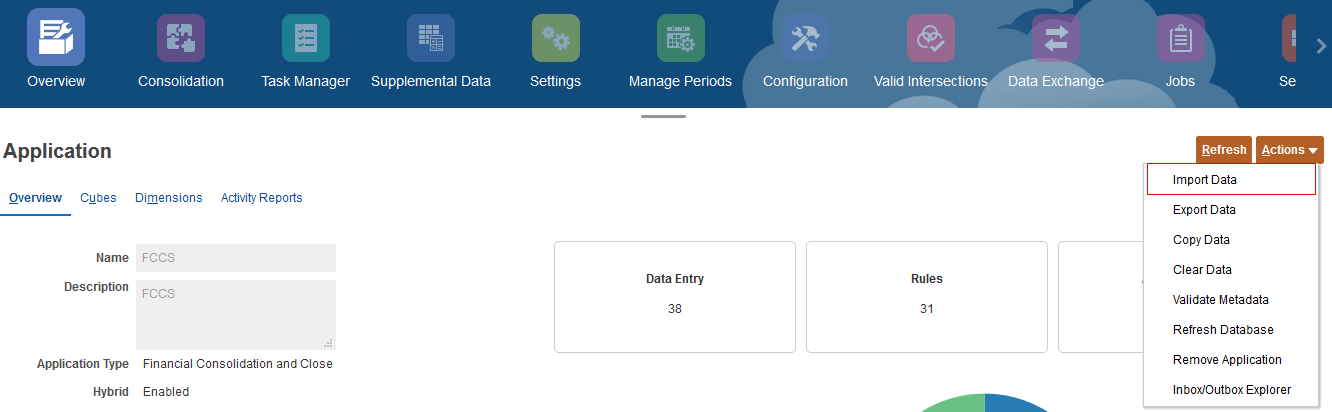
From the Actions Menu, select Import Data.
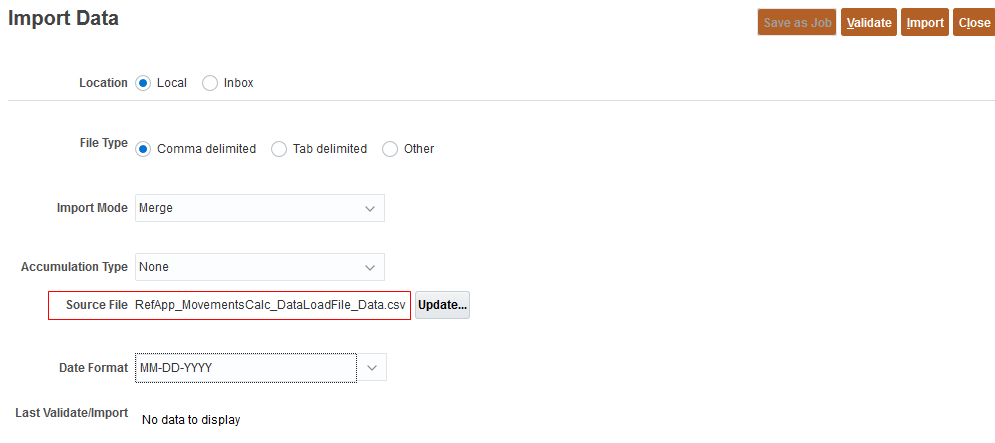
Click Create. For source file, click Browse, and select the file RefApp_MovementsCalc_DataLoadFile_Data.csv.
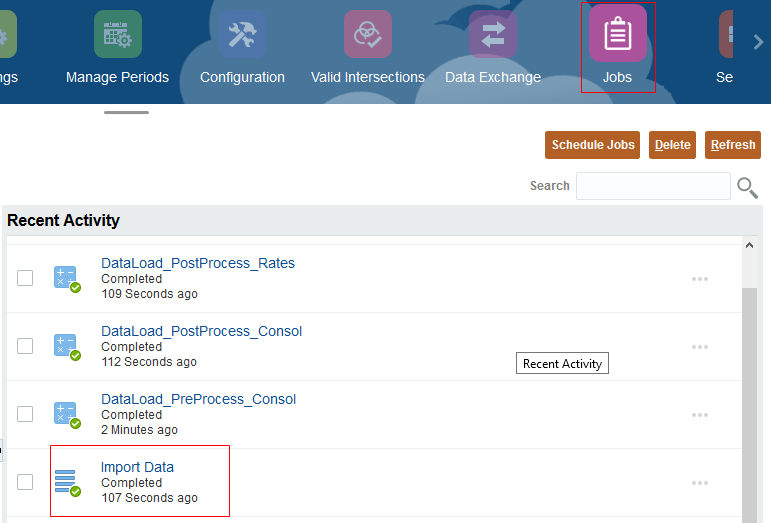
Click Import. Click OK, then click Close twice, and select the Jobs card. Verify the job completed, then click Home.
Consolidating Data
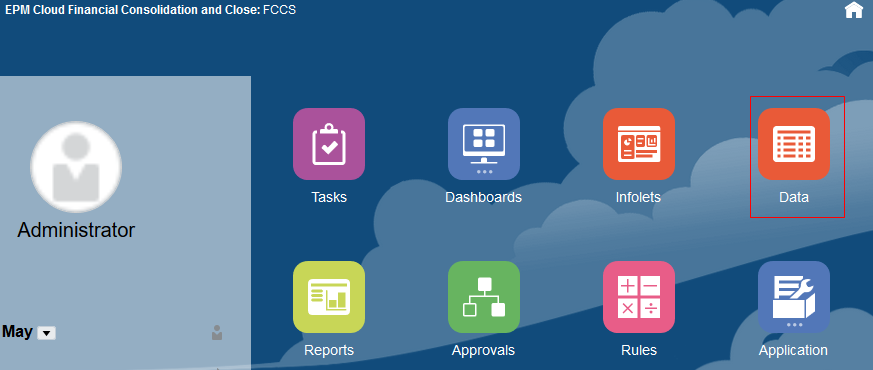
From the Home page, select Data.
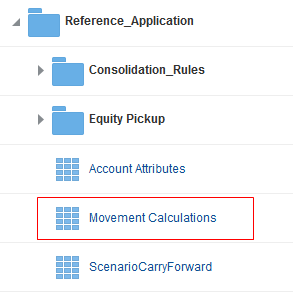
Expand the Reference_Application folder, then select (to open) the Movement Calculations form.
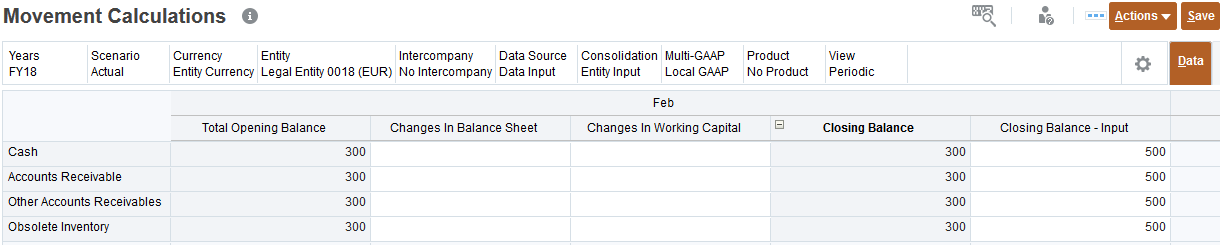
Closing balances have been loaded to the Closing Balance - Input member for February (you may need to scroll the columns to see the February data). Select Actions, then Consolidate.
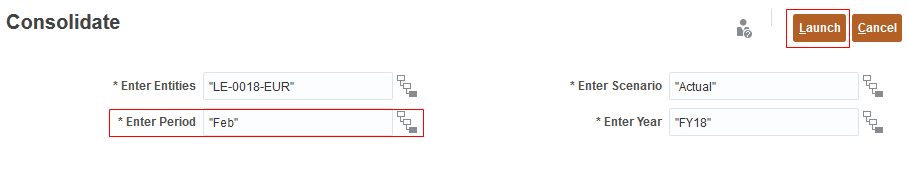
In the Enter Period field, select Feb, then click Launch.
Note that the Feb Closing Balance does not yet reflect the Feb Closing Balance Input entries.
Click Close to close the form, then click Home.
Modifying Calculation Settings
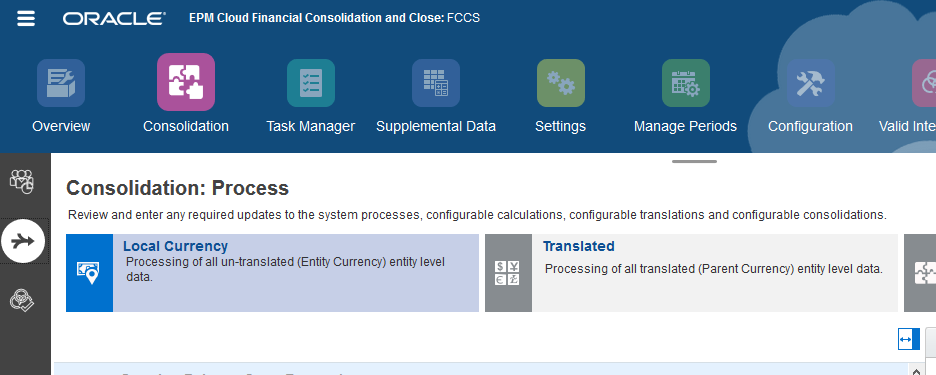
From the Home page, select Application, Consolidation, then Consolidation: Process -> Local Currency.
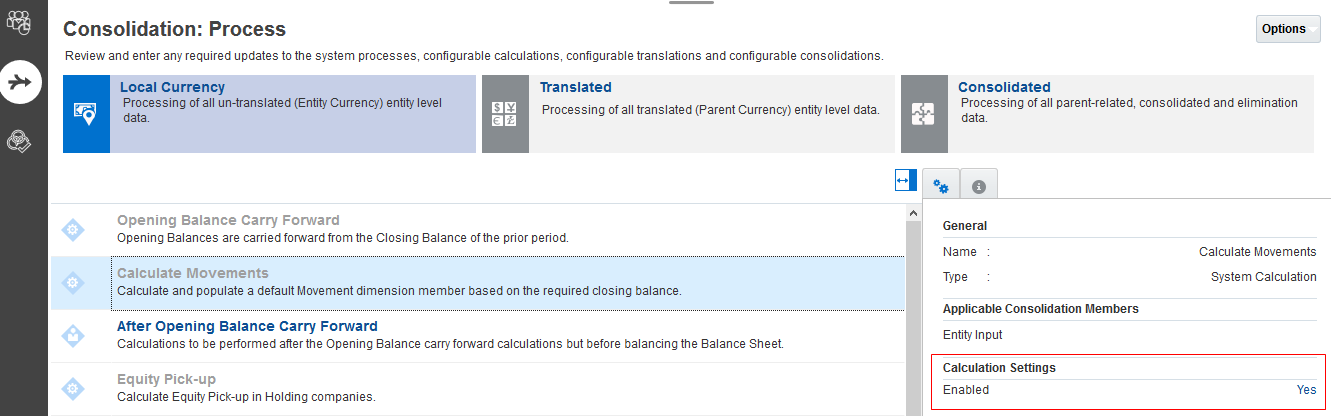
Select the Calculate Movements row, then enable the Calculation Settings by changing the No to Yes.
Reviewing and Reloading Data
Re-open the Movement Calculations data form.
Select Actions, then Consolidate. In the Enter Period field, select Feb, then click Launch.
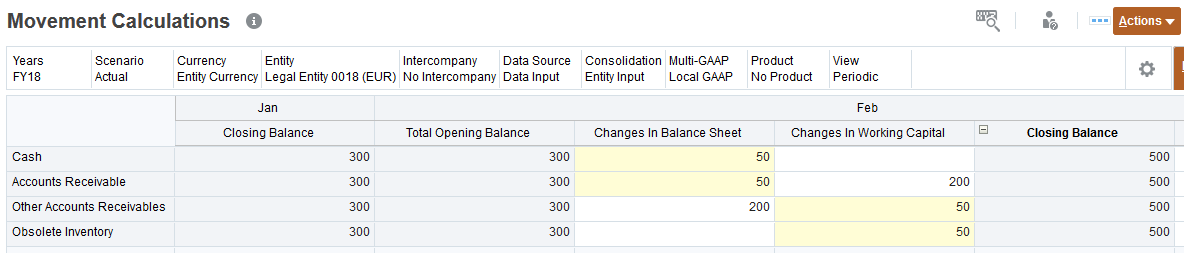
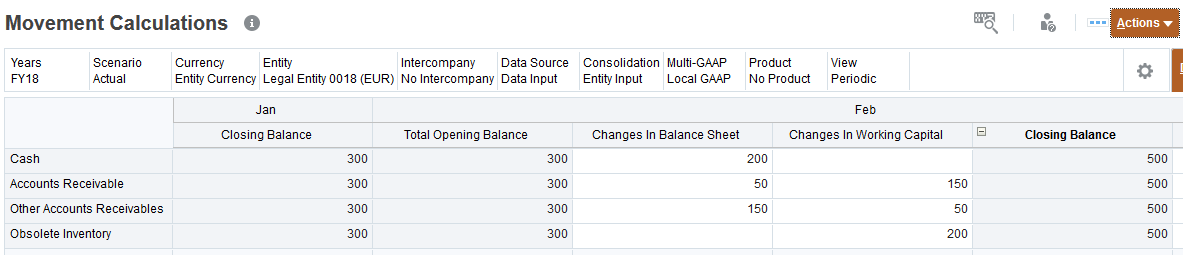
Note that the calculated movements for the two level 0 accounts for which a default movement was entered are posted against “Changes in Working Capital” while for the other two the movements are posted to “Changes in Balance Sheet”.
Manually enter the following data:
Cash -> Changes in Balance Sheet = 50 (replacing the existing entry)
Accounts Receivable -> Changes in Balance Sheet = 50
Other Accounts Receivable -> Changes in Working Capital = 50
Obsolete Inventory -> Changes in Working Capital = 50 (replacing the existing entry)
Click Save.
Select Actions, then Consolidate, and in the Enter Period field, select Feb. Then click Launch.
Note that the default movement amount is replaced but other data entered is not replaced.
Modifying Calculation Settings
From the Home page, select Application, then Consolidation, then Consolidation: Process -> Local Currency. Select the Calculate Movements row.
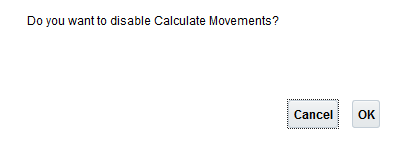
Disable Calculation Settings by changing Yes to No. At the verification screen, click OK.
Reopen the Movement Calculations form.
Enter 400 for Closing Balance Input for all accounts.
Click Save. Select Actions, then Consolidate. In the Enter Period field, select Feb, then click Launch.
Note that the movements data does not change. All movement amounts are treated as if they had been manually entered, and as a result, the derived Closing Balance no longer matches the entered Closing Balance.



 Print
Print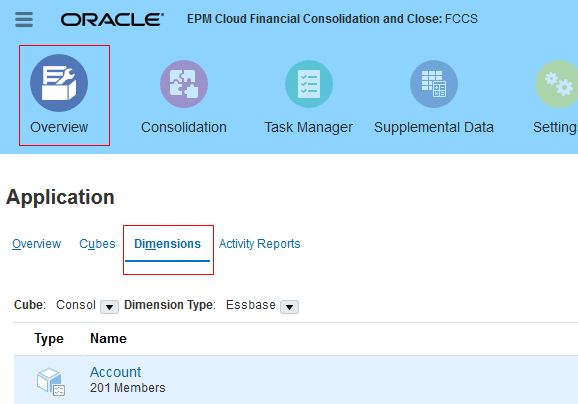
 (Freeze). This keeps the Member Name column on the screen as you scroll to the right to locate the Is Default Movement attribute.