
 Print
PrintBefore you begin
This 20-minute hands-on tutorial shows you how to create and post journals in an input currency rather than the entity currency.
Background
By default, you input journal data to the Journal Input data source member, in the local currency of each entity. Optionally, you can create additional data source members that enable you to enter data in a single input currency for all entities in the journal. The data is then translated to the local currency of each entity during the consolidation process.
What do you need?
An EPM Cloud Service instance allows you to deploy and use one of the supported business processes. To deploy another business process, you must request another EPM Enterprise Cloud Service instance or remove the current business process.
- Have Service Administrator access to EPM Enterprise Cloud Service. The instance should not have a business process created.
- Upload and import this snapshot into your instance.
For more information on uploading and importing migration snapshots, refer to the Administering Migration for Oracle Enterprise Performance Management Cloud documentation.
- Save and extract this data file locally. You will be importing data using these data files.
Creating Data Source members
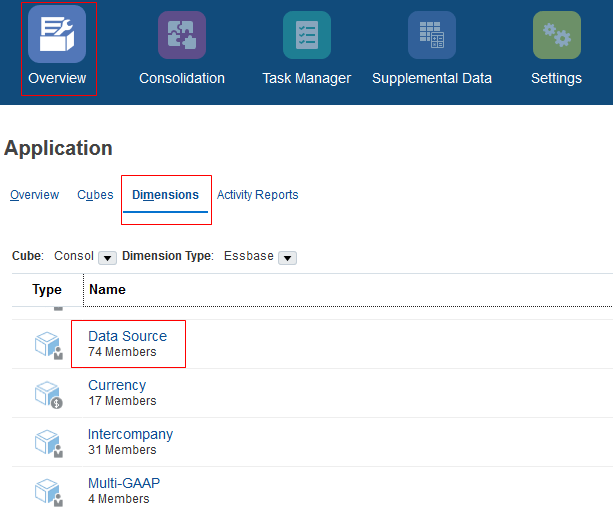
- From the Home Page, click Application, then Overview. Click Dimensions, then Data Source.
- Expand FCCS_Total Data Source, then expand TotalInputAndAdjusted.
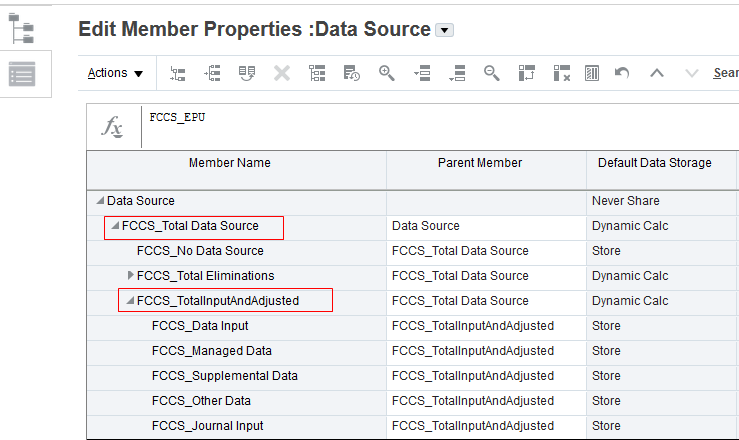
- Click
 (Add Child), then click Apply.
 - Create the following member with these properties:
- Member Name: Total Journals
- Source Currency Type: None
- Source Data Type: None
- Data Storage: Dynamic Calc
- Click Save.
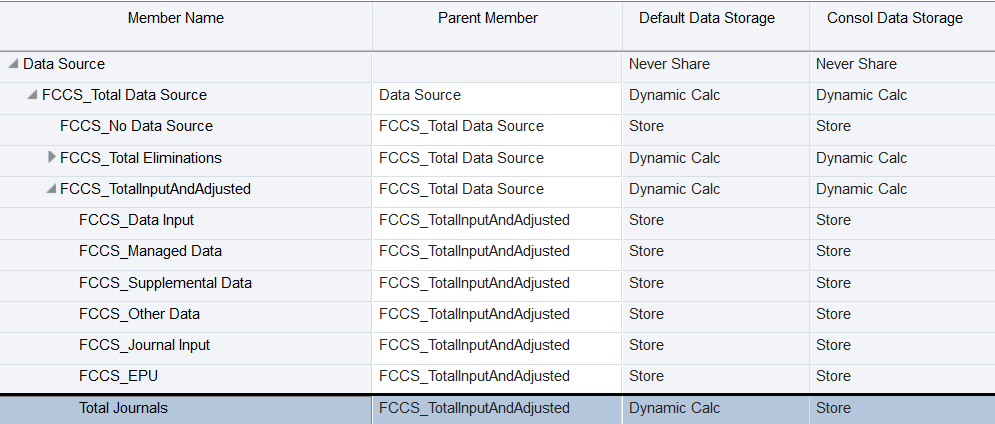
- Move FCCS_Journal Input under Total Journals by changing its Parent Member property from FCCS_TotalInputandAdjusted to Total Journals. Once you've updated the Parent Member, click Save.
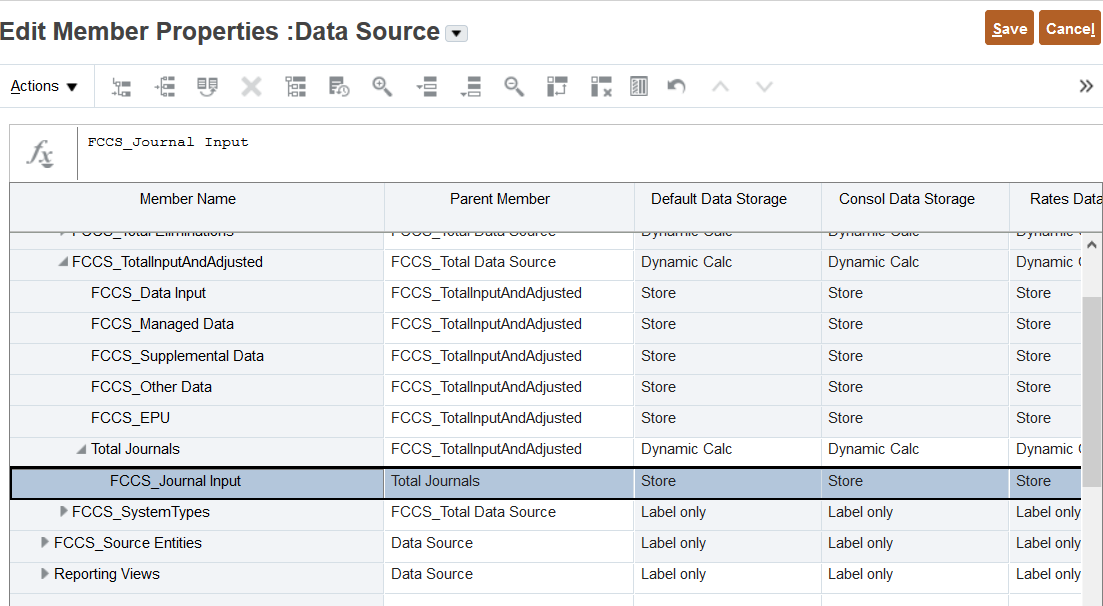
- Place the cursor on Total Journals.
- Click Add Child.
- in the Number of members to add field, enter 3 and click Apply.
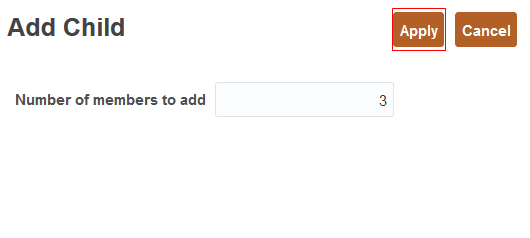
- Add the following three members under Total Journals:
- Click Save.
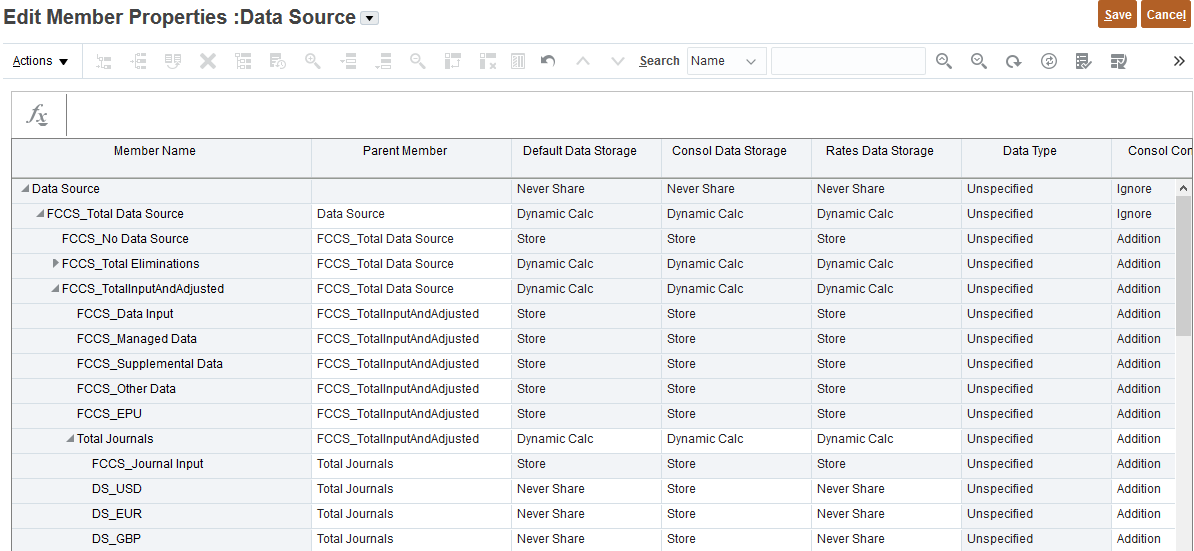
- Click Cancel to close editing of the Data Source dimension.
| Member Name | Source Data type | Source Currency Type | Data Storage |
|---|---|---|---|
| DS_USD | Journal | USD | Never Share |
| DS_EUR | Journal | EUR | Never Share |
| DS_GBP | Journal | GBP | Never Share |
Refreshing the Database
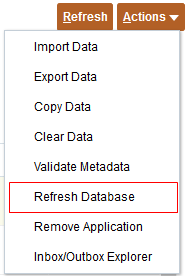
- Select Actions, then Refresh Database.
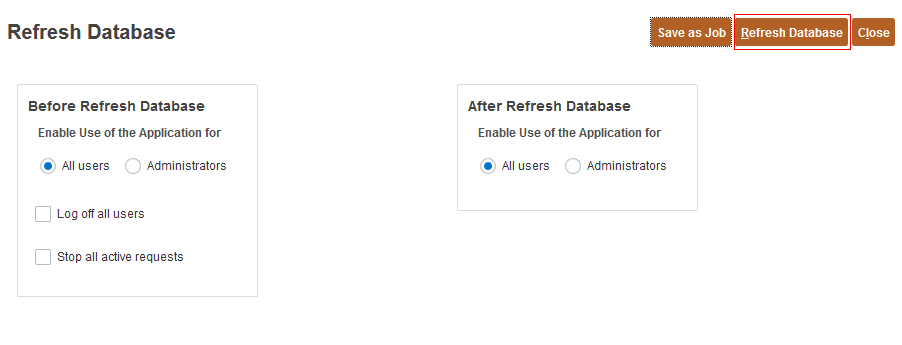
- Select Create, then click Refresh Database.
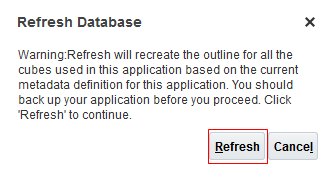
- Click Refresh.
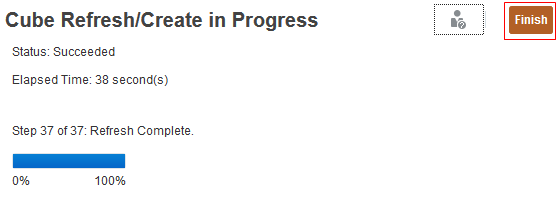
- When completed click Finish.
- Click Close, then click Close again.
Importing ownership data
- From the Home Page, click Application, then Consolidation. Click the Manage Ownership tab if not already opened.
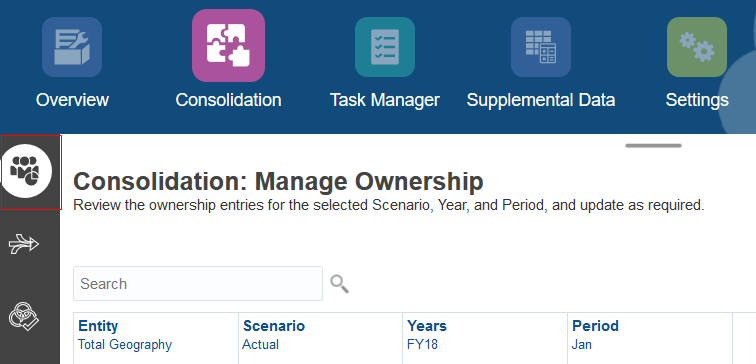
- Verify the Point of View (POV) is set to Total Geography, Actual Journal Entry, FY20, Jan. If not, update the member selections and click
 (Go).
(Go).
- Click Actions, then Import Ownership Data.
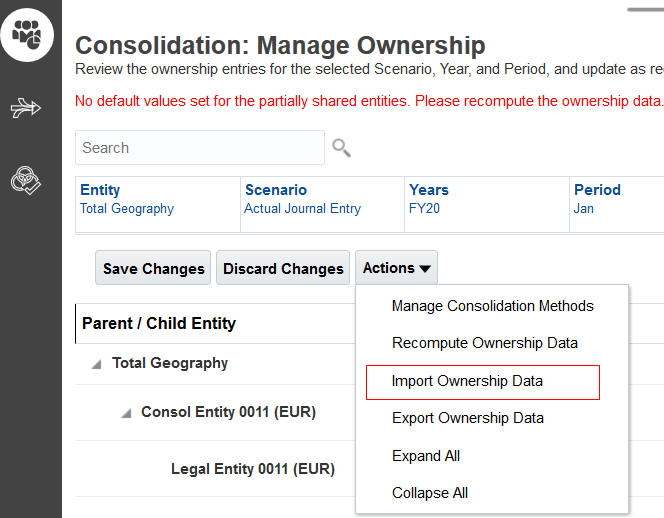
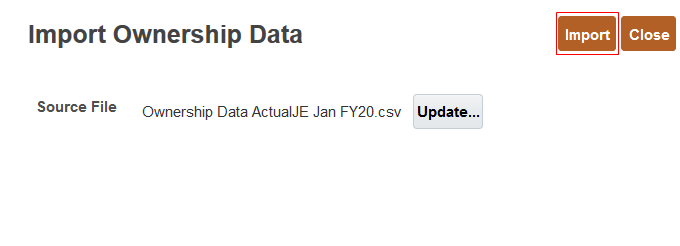
- Click Browse, then select the file Ownership Data ActualJE Jan FY20.csv. Then click Import.
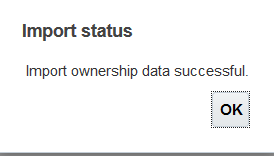
- When complete, click OK, then Close.
Importing translation rates
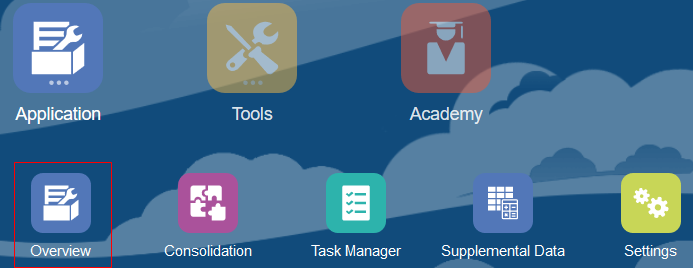
- Navigate to Application, then Overview.
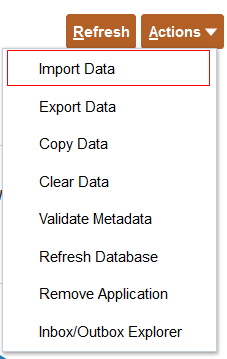
- Click Actions, then Import Data.
- Click Create, then click Browse, and select the file Exchange Rates Jan - Mar FY20 ActualJE.csv.
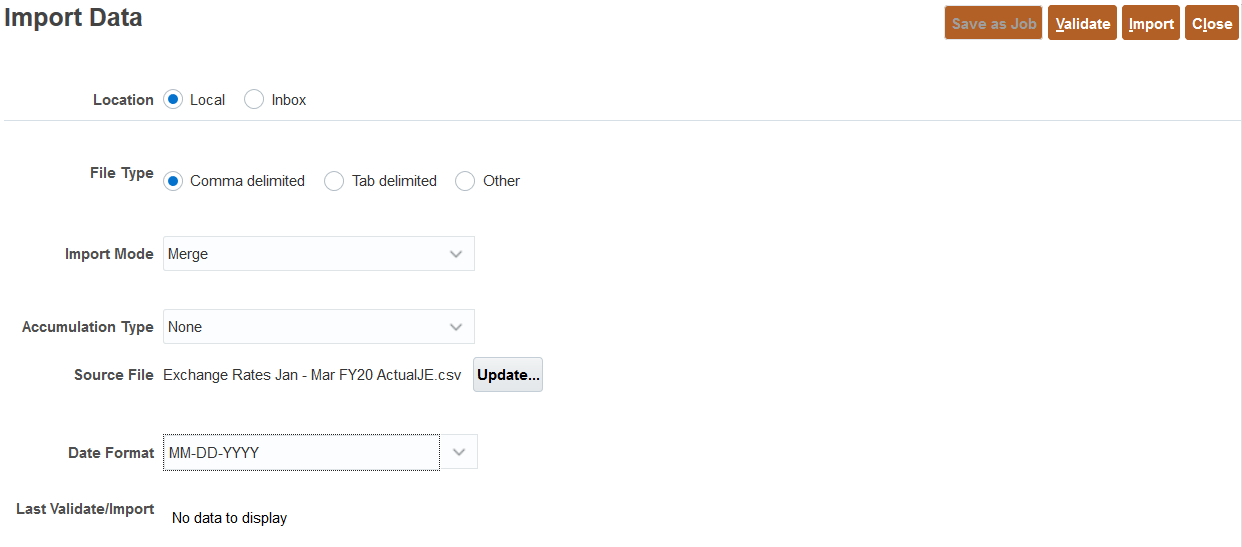
- Click Import. When the Information Message appears click OK. Then click Close, and then Close again.
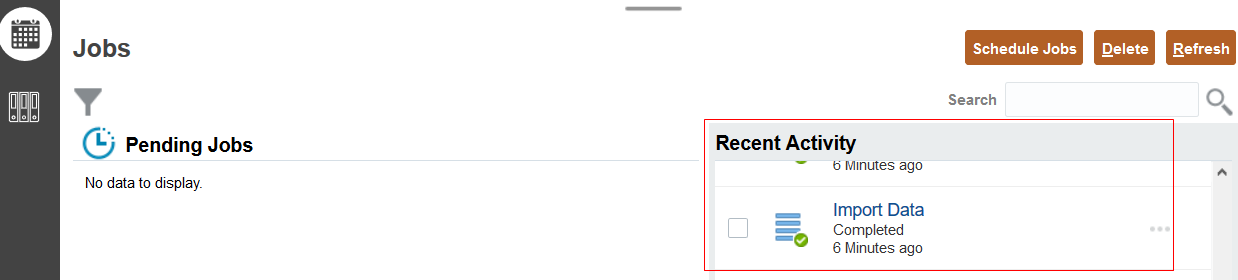
- Navigate to Application, then Jobs.
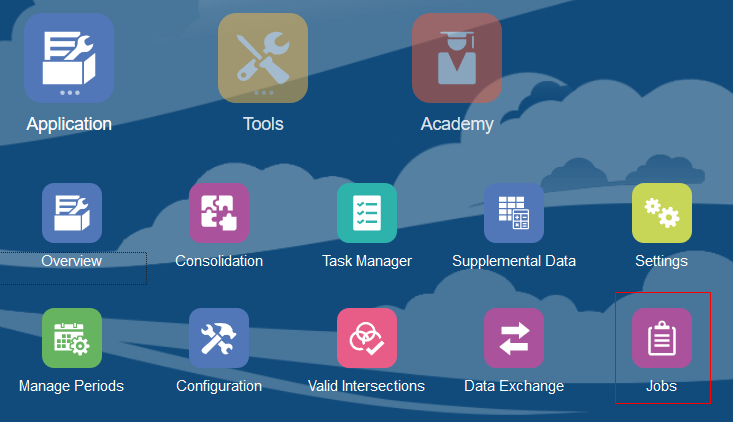
- Confirm that the import completed successfully.
- Click
 (Home).
Managing journals
- Click Application, then Manage Periods.
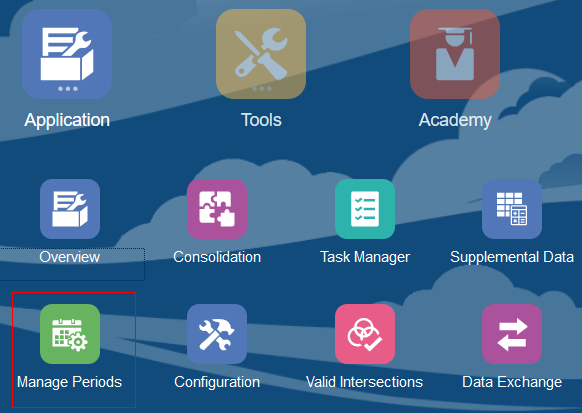
- Confirm the Periods for ActualJE, FY20, Jan, Feb and Mar are open. If not, click the Actions icon to open them.

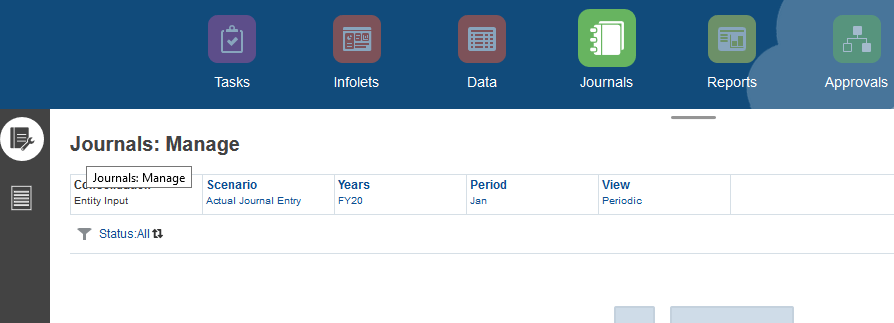
- Click Home, then click Journals. Confirm the Manage Journals tab is open.
Importing a regular Journal Input Journal
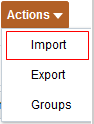
- Click Actions, then Import.
- Click Create.
- Click Browse and select the file JE_EC1 Journal.jlf. Click Import.
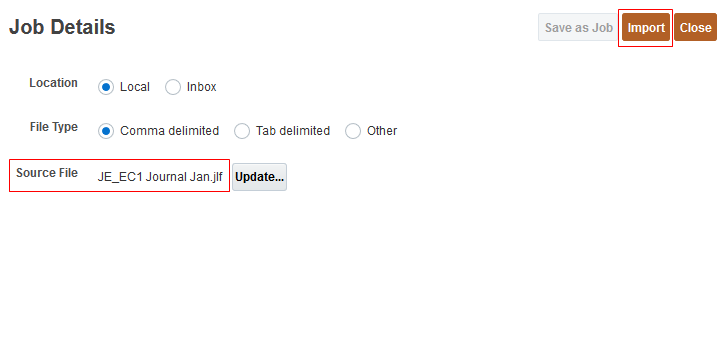
- Click OK, then click Close twice.
- Confirm the Journal was loaded to ActualJE, FY20, Jan.

Creating an Input Currency Adjustment journal
- Verify the Point of View is Actual Journal Entry, FY20, Jan.
- Click Create.

- Enter the following for the journal entry:
- Label: JE_DS_EUR1
- Type: Auto-Reversing
- Data Source: DS_EUR
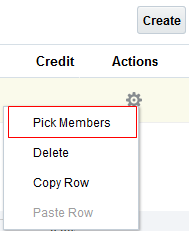
- After you enter the Data Source, click Create twice to create 2 line items. Proceed to the first journal line, click Actions, then Pick Members.
- Use the Member Selector to enter the following:
- POV Line Item 1: LE-0012-USD > Bank1 > FCCS_No Intercompany > FCCS_Mvmts_Cash > FCCS_Local GAAP > No Product
- Line Item 1 Debit Value:100
- On the first line item, click Actions, then Copy Row.
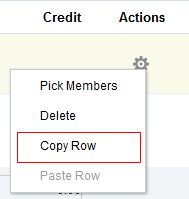
- Place the cursor on the 2nd row, then click Actions, Paste Row.
- Change Bank1 to Bank2, and change the 100 Debit to a 100 Credit.
- Verify the 2nd journal line has the following POV: LE-0012-USD > Bank2 > FCCS_No Intercompany > FCCS_Mvmts_Cash > FCCS_Local GAAP > No Product.
Your journal entry should match the screenshot below: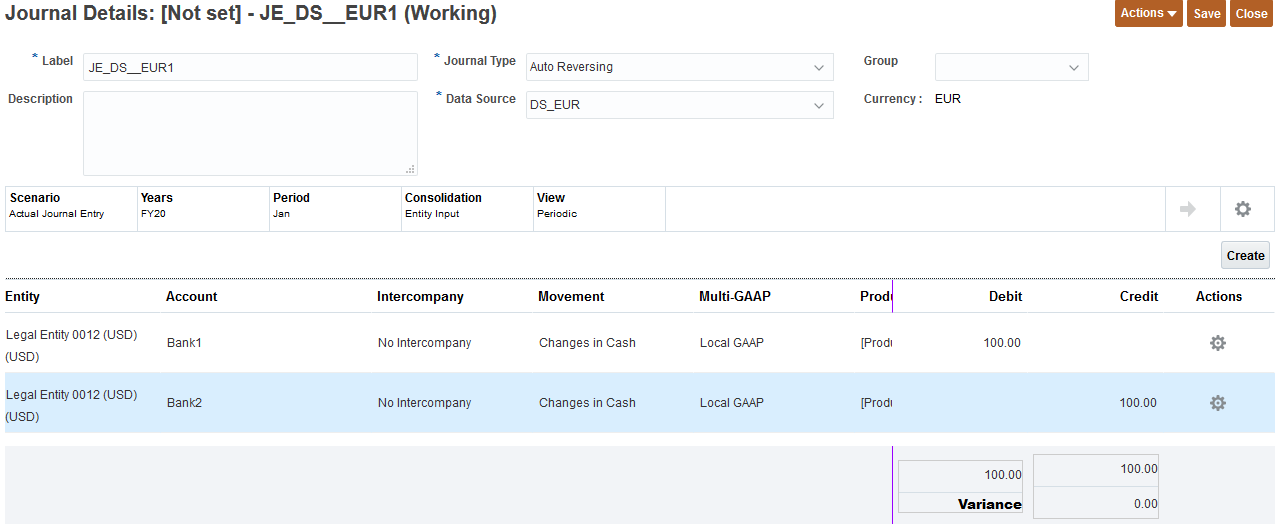
- Click Save.
- Click Actions, then Post, and then Post.
- Select Close. Confirm the Journal Entry Posted status.

Consolidating and translating data
- From the Home page, click Rules.
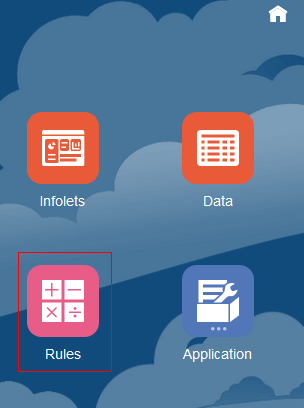
- Locate Consolidate, then click Launch.

- Set the POV to LE-0012-USD, ActualJE, Jan, FY20, then click Launch.

- Click OK in the Information message. From the Rules page, locate Translate, then click Launch.

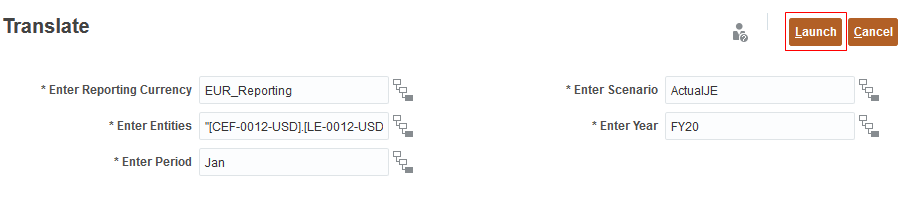
- Set the POV to LE-0012-USD, ActualJE, Jan, FY20, EUR_Reporting, and then click Launch.
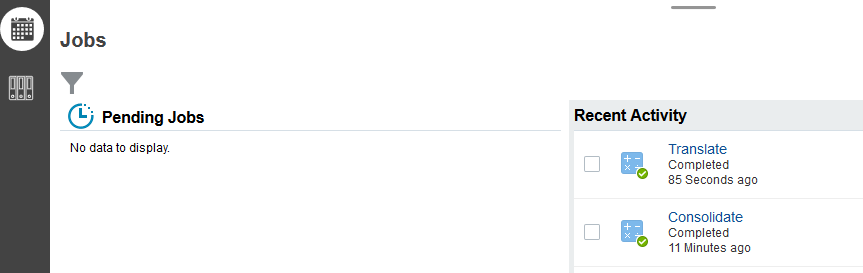
- Optional: From the Home Page, click Application, then Jobs, and confirm jobs completed successfully.
Reviewing translated data
- From the Home page, click Data, then Input Currency Adjustments, then ICA1.
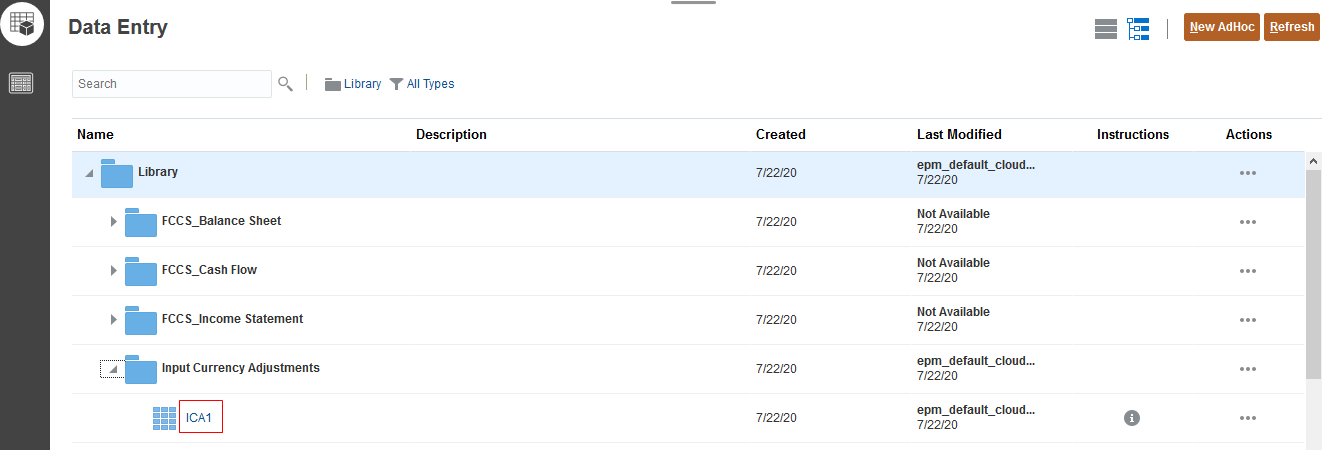
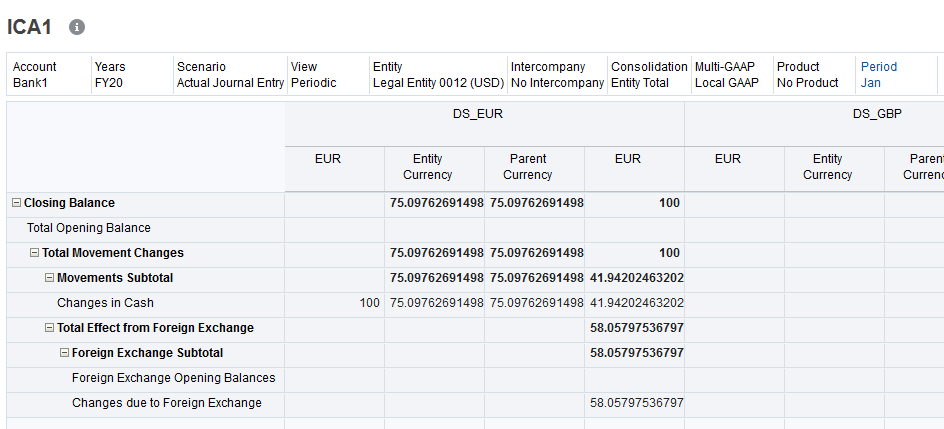
- Verify Jan is selected for the Period dimension. Verify that data has been reverse translated from EUR to Entity Currency within the DS_EUR data source member. The values you should see for DS_EUR are as follows:
NOTE: You may need to scroll to the right to see the data.
- Entity Currency/FCCS_Mvmts_Cash - 75.0976269149895
- EUR_Reporting/FCCS_Mvmts_Cash - 41.9420246320216
- EUR_Reporting/FCCS_Mvmts_Subtotal - 41.9420246320216
- EUR_Reporting/FCCS_Mvmts_FX_Movement - 58.0579753679784
- EUR_Reporting/FCCS_ClosingBalance - 100
- Click Close, and return to the Home page.
Processing a February journal
- Click Journals. Verify that the Manage Journals page is open.
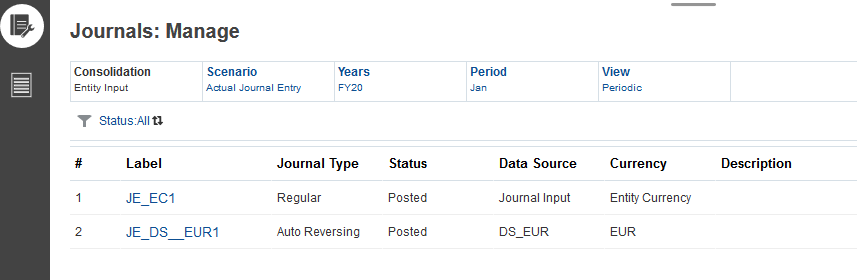
- In the POV, change the Period to Feb, then click Go. Verify the POV is Actual Journal Entry, FY20, Feb.
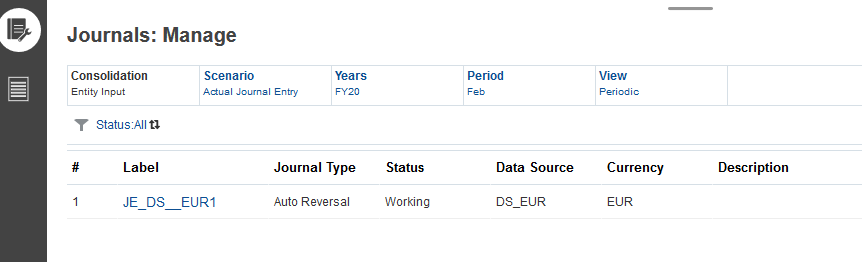
- click Actions for the Journal JE_DS_EUR1 and click Post, then Post.
- From the Home page, click Rules, then click Launch for the Consolidate Business Rule.

- Set the POV to LE-0012-USD, ActualJE, Feb, FY20 and click Launch. At the Information message, click OK.

- Click Launch for the Translate Rule.
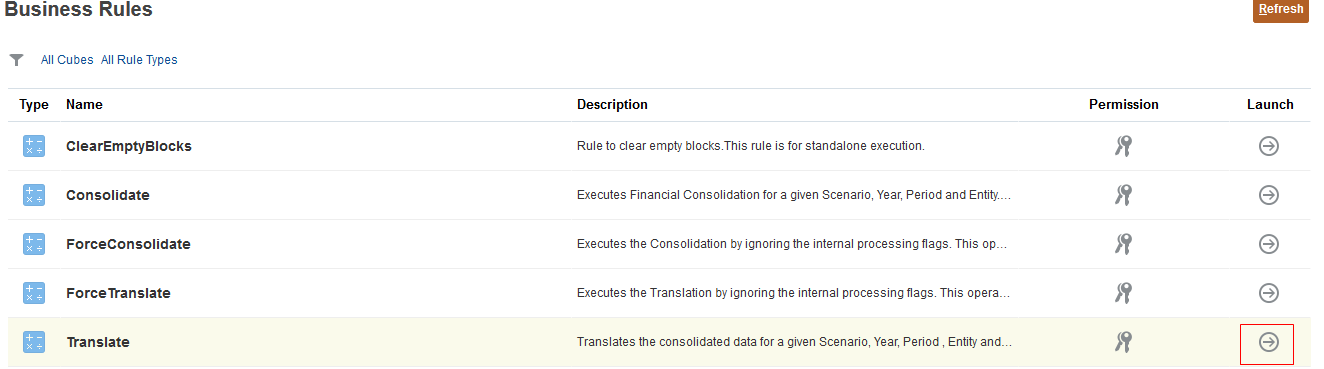
- Set the POV to LE-0012-USD, ActualJE, Feb, FY20, EUR_Reporting and click Launch.
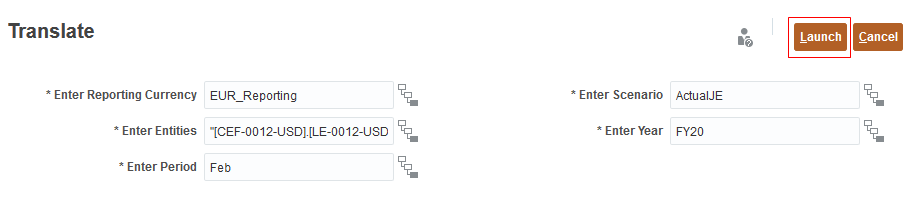
- At the Information message, click OK, then click Home.
- Optional: Click Application, then Jobs to confirm the job has completed successfully.
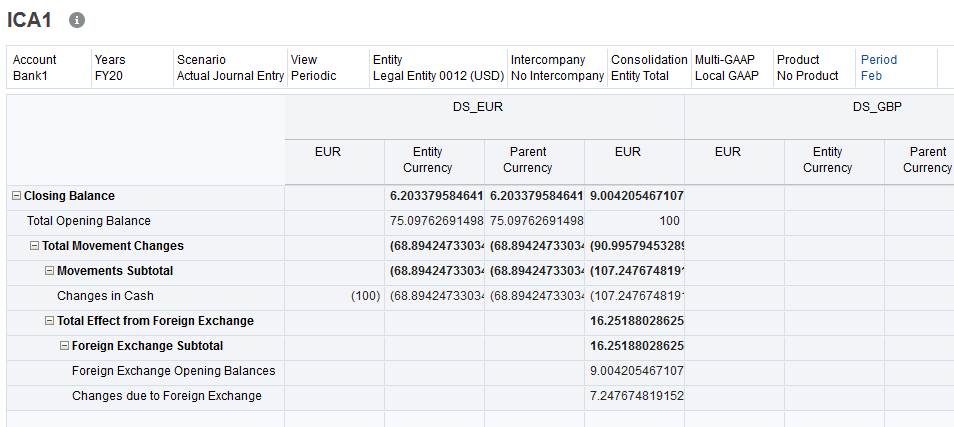
- From the Home page, click Data, then Input Currency Adjustments, then ICA1.
- Verify that Feb is selected for the Period dimension.
- Verify that the data has been reverse translated within the DS_EUR data source member. The values you should see for DS_EUR are as follows. Note that the reversal is only in the Input Currency (EUR) member.
- Entity Currency/FCCS_Mvmts_Cash -68.8942473303479
- EUR_Reporting/ FCCS_TotalOpeningBalance 100
- EUR_Reporting/FCCS_Mvmts_Cash -107.247674819153
- EUR_Reporting/FCCS_Mvmts_Subtotal -107.247674819153
- EUR_Reporting/FCCS_Mvmts_FX_Opening 9.00420546710724
- EUR_Reporting/FCCS_Mvmts_FX_Movement 7.24767481915261
- EUR_Reporting/FCCS_ClosingBalance 9.00420546710725