
 Creating an Oracle Analytics Cloud Essbase Application and Cube
 Before You Begin
This 5-minute tutorial shows you how to import a source file to create an application and cube in Oracle Analytic Cloud - Essbase.
Background
You can create cubes from tabular data. You can use tabular data from any source system such as an ERP or a data warehouse, as long as the data contains facts and dimension information, and is contained in one worksheet in an Excel file.
You can use the application and cube that is created in the Loading Data to an Essbase Target Using Data Sync tutorial.
What Do You Need?
- Access to Oracle Analytics Cloud - Essbase
- Download the sample_basic_dynamic.xslx file
 Create an Application and Cube
- Sign in to Oracle Analytics Cloud - Essbase.
- In the Applications page, click Import
 .
. - In Import Cube - Excel File, click Browse, select the
sample_basic_dynamic.xslxfile, and then click Open. - In the Application field, replace the default application name, and then enter a name such as MyEssbaseApp. In the Cube field, enter a name such as MyCube, and then click Deploy and Close.
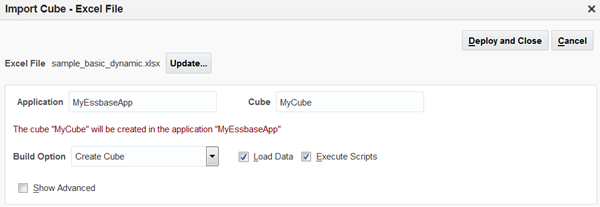
Description of the illustration import_cube.jpg. - Under the message, "Cube created successfully", click OK.
- In Applications, next to your application, click the down arrow
 to expand the application and view the cube.
Description of the illustration essbase_app_cube.jpg.
 Want to Learn More?
- About Using Tabular Data to Create Cubes in Oracle Help Center
- Creating a Cube from Tabular Data in Oracle Help Center
- Uploading Files to a Cube in Oracle Help Center