
 Using
SQL Developer Drag and Drop Utility to Load Data into an Oracle Exadata
Express Cloud Service
Using
SQL Developer Drag and Drop Utility to Load Data into an Oracle Exadata
Express Cloud Service Before You Begin
This tutorial shows how to load data into Exadata Express Cloud Service database instance using Oracle SQL Developer's Drag and Drop option. This tutorial takes approximately 10 minutes to complete.
This is the third tutorial in Using SQL Developer to Load Data into your Oracle Database Exadata Express Cloud Service. Read the tutorials in any order.
- Using SQL Developer Database Copy Utility to Load Data into an Oracle Exadata Express Cloud Service
- Using SQL Developer Cart Utility to Load Data into an Oracle Exadata Express Cloud Service
- Using SQL Developer Drag and Drop to Load Data into an Oracle Exadata Express Cloud Service
Background
The Oracle SQL Developer's Drag and Drop option enables you to drag and drop database objects into your Oracle Database Exadata Express Cloud Service from an on-premise connection or any other cloud connections. Drag and Drop option is perfect for ad-hoc, on-the-fly operations. For example, you can just select a table or view in the connections tree, and drag it over when you need to set up a table or view quickly.
What Do You Need?
- Oracle SQL Developer installed in your system
- Connection to Oracle Database, which is the data source
- Oracle Database Exadata Express Cloud Service account
- Connection to Oracle Database Exadata Express Cloud Service instance, which is the target
 Use
Drag and Drop for Loading Data
Use
Drag and Drop for Loading Data
To drag and drop a database object from another connection into your Exadata Express, you will perform the following tasks:
- Select one or more database objects in the source connection
from Oracle SQL Developer.
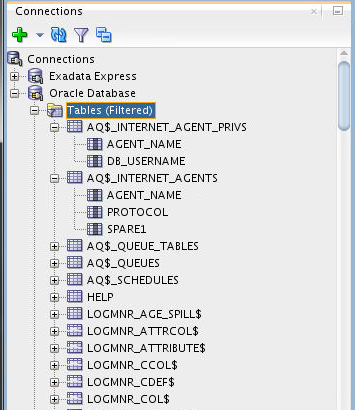
Description of the illustration database_object.png - Drag and drop it to the destination location in the Connections tree of your Exadata Express service. You can also drag an entire node, such as 'tables', and it will drag all the tables and their related objects, such as triggers, indexes, and constraints, to your destination database. The Copy To Oracle dialog box opens.
- Choose Copy DDL or Copy Data,
or both. Under each of these categories, you can choose a
suitable action depending on whether the database object
already exists in your Exadata Express service.
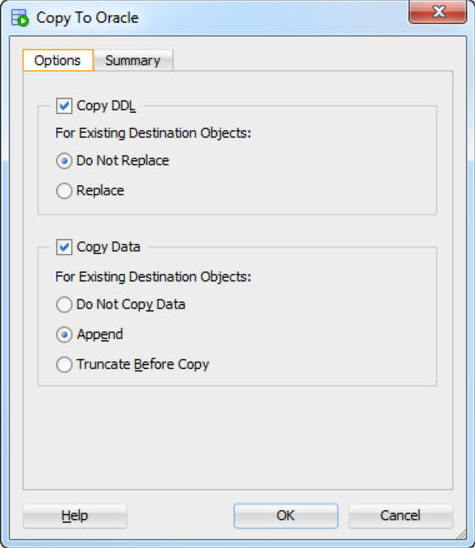
Description of the illustration drag_drop_option.png - Click OK. The Copying
dialog displays. All the database objects specified in the
Database Copy Wizard are copied to your Exadata Express
connection in Oracle SQL Developer.
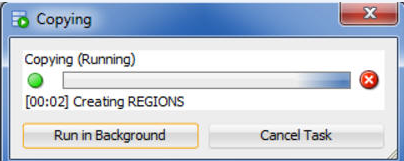
Description of the illustration copying_dialog.png - Browse the Connections tree to verify if
the selected database objects are copied in your Exadata
Express connection. You can also look at the Database
Copy report which is provided at the end of the
copy activity.

Description of the illustration database_copy_report.png
 Want
to Learn More?
Want
to Learn More?