
 Creating a Cloud Account Administrator in My Services
 Before You Begin
This 10-minute tutorial shows you how to create a user and assign a Cloud Account Administrator role to the user in My Services.
Background
Typically, as a buyer, you have administrative privileges in your cloud account so that you can create and manage users, accounts, and subscriptions. Large enterprises require multiple Cloud Account Administrator roles to manage their accounts, subscriptions, services, and users. In that case, you can create other users and make them Cloud Account Administrators.
This diagram illustrates the role and functions of a Cloud Account Administrator.

In this tutorial, you create a Cloud Account Administrator named John Doe for your abccompacct Cloud Account.
What Do You Need?
- Your welcome email with your sign-on credentials for My Services
- Your Cloud Account name and provisioned services in your account
- Cloud Account Administrator or Identity Domain Administrator privileges to create a user
 Sign In to My Services
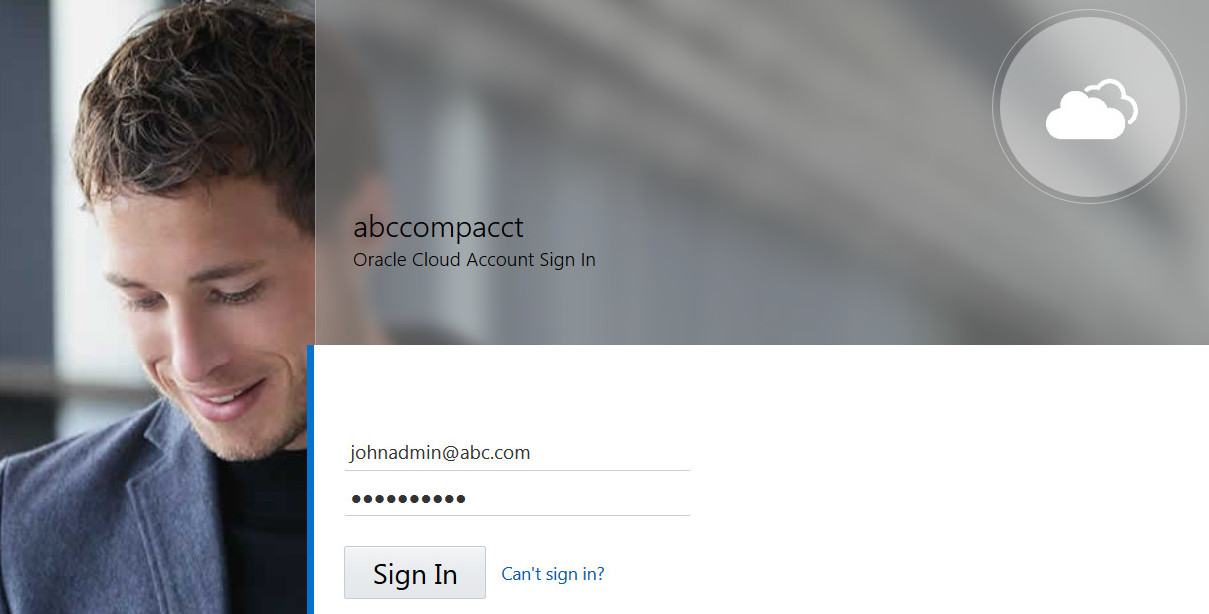
- Click the My Services URL in your welcome email.
- Sign in with your credentials. If you're signing in for the first time, change your temporary password.
 Create a User
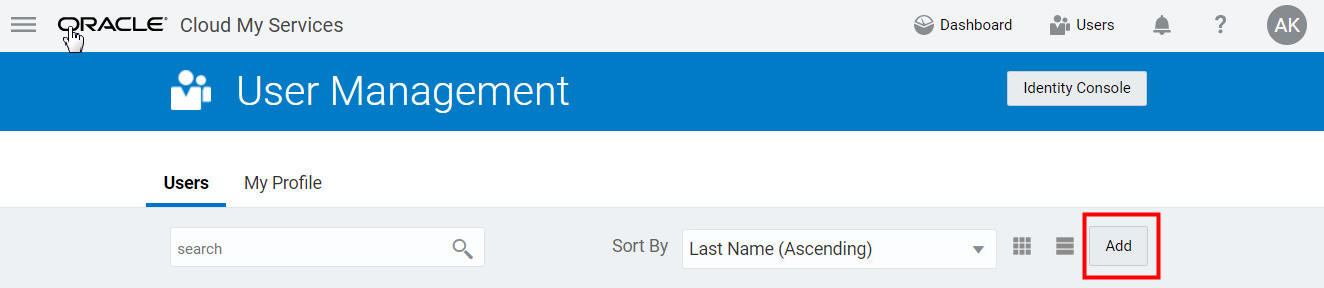
- From the My Services dashboard, click the Users tab.
- On the User Management page, click Add.
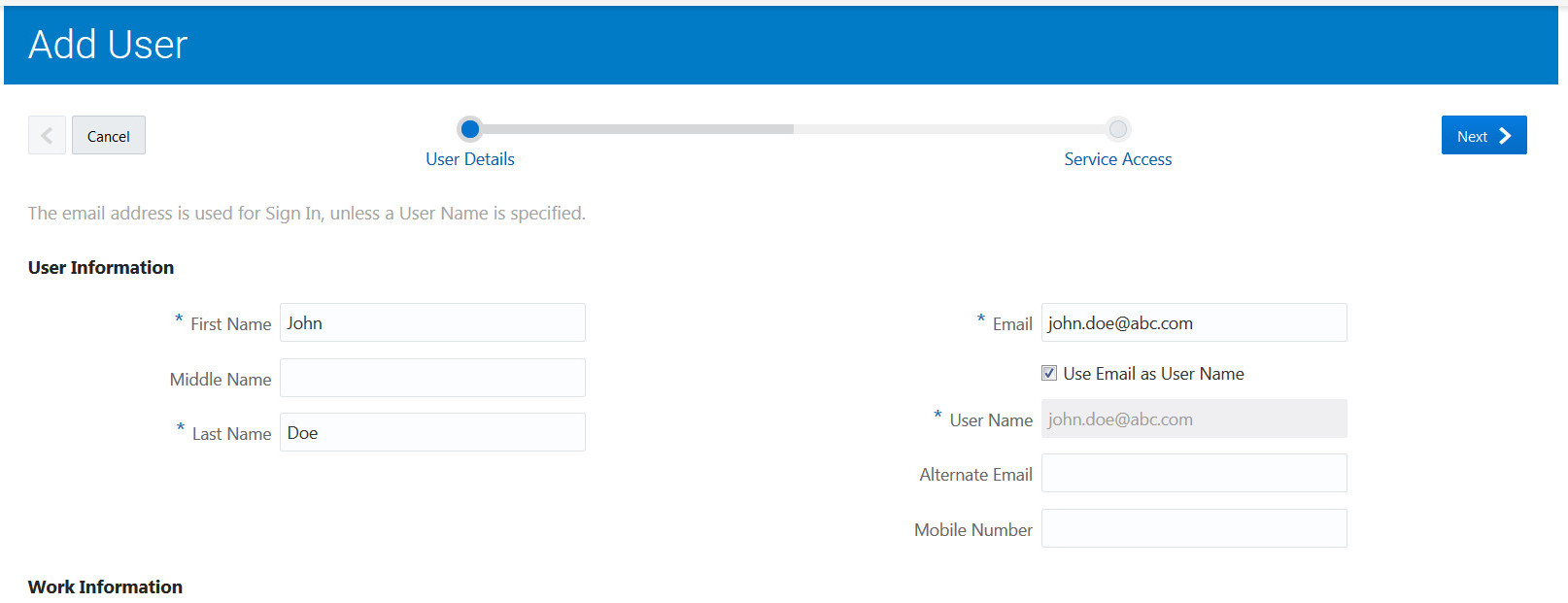
- On the Add User-User Details page, enter the following values and then click Next:
- First Name:
John - Last Name:
Doe - Email:
john.doe@abc.com - Use Email as User Name: Selected
- First Name:

 Assign the Cloud Account Administrator Role
- On the Add User-Service Access page, click Add My Roles.
- Click Finish.
Because you’re the Cloud Account Administrator, assigning your role makes John Doe a Cloud Account Administrator.

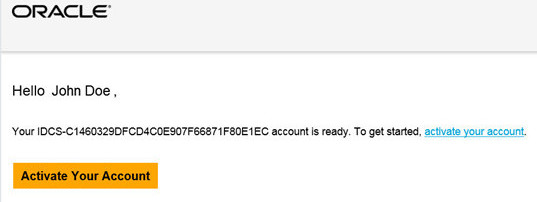
John Doe is added as a user and receives an email to activate his account, which he must do by setting a password. He can then sign in to the abccompacct Cloud Account and create new users or instances as required.
 Want to Learn More?