Before You Begin
This tutorial familiarizes you with Oracle
Integration Cloud and shows how you can use Oracle
Integration Cloud to create an integration between
two SaaS applications. Some of the sections include
demonstration videos that you can watch before you
attempt that section of the tutorial.
Time to Complete
This tutorial should take about 20 minutes to complete.
Introduction
To create an integration using Oracle Integration Cloud, you need to complete two main steps. First, you create connections to the applications you wish to integrate, then you create the required integration between those connections. For each connection you add a contact, configure the connectivity by specifying a WSDL URL, and then secure the connection by adding credentials. To create the integration, you configure the trigger and the invoke, then you map the business objects to each other.
Scenario
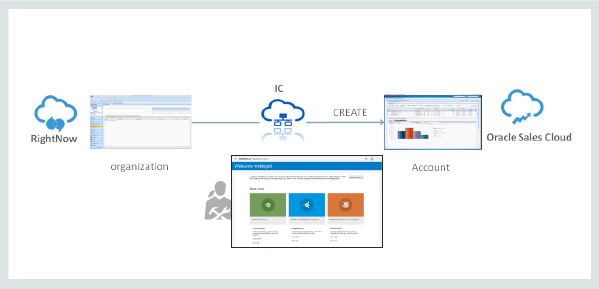
In this tutorial, you will create an integration
flow that synchronizes customer information between
Oracle RightNow and Oracle Sales Cloud in real time
- that is, whenever an Organization is
created in Oracle RightNow, an AccountService
is created in Oracle Sales Cloud in real time.
The tutorial includes the following six major steps:
- Create an Oracle RightNow connection.
- Create an Oracle Sales Cloud connection.
- Create a new integration that links the two connections.
- Configure the connections and map the data so
that when
Organizationdata in the Oracle RightNow application is created or updated, it is pushed to theAccountServiceservice in the Oracle Sales Cloud application.
- Activate the new integration.
- Verify that the integration works correctly.
The following figure illustrates the scenario.
Prerequisites
Before starting this tutorial, you must have the following:
- An Oracle Integration Cloud subscription or trial subscription.
- An Oracle RightNow Cloud Service subscription or trial subscription. Note: In some documentation and user interfaces, the Oracle RightNow Cloud Service is referred to as Oracle Service Cloud.
- An Oracle Sales Cloud subscription or trial subscription.
- Running instances of the Oracle RightNow and Sales Cloud applications. You must know the WSDL URLs and the login credentials (username/password) required to connect to them.
For links to some of these resources, see the "Want to Learn More?" section at the end of this tutorial.
Create Connections
Connections allow Integration Cloud to interact with an application instance. A connection is required for every application instance that participates in an integration. In this tutorial you create two connections – one for an Oracle RightNow application instance and one for an Oracle Sales Cloud application instance.
The WSDL URLs in these steps are used by Integration Cloud to access the Oracle RightNow and Oracle Sales Cloud instances participating in the integration. This WSDL provides operations for inserting, updating, and deleting records in application business objects and services. This WSDL also provides operations to retrieve the metadata, custom attributes, and custom objects. In order to create a connection, these instances must be running in a location you can access and you must know the URL for the WSDL file that defines each instance
Watch "Create Connections in Oracle Integration Cloud" to see it before you do it.
Create the Oracle RightNow Connection
- Start Oracle Integration Cloud.
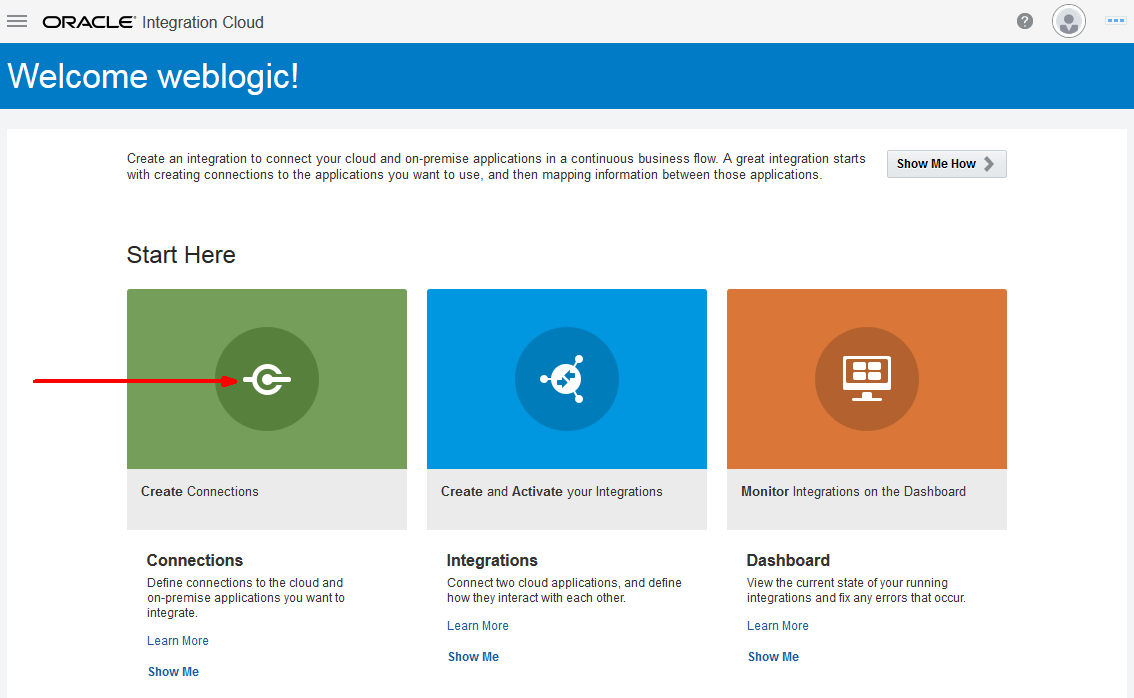
- On the Home page, click Create
Connections.
- Click Create.

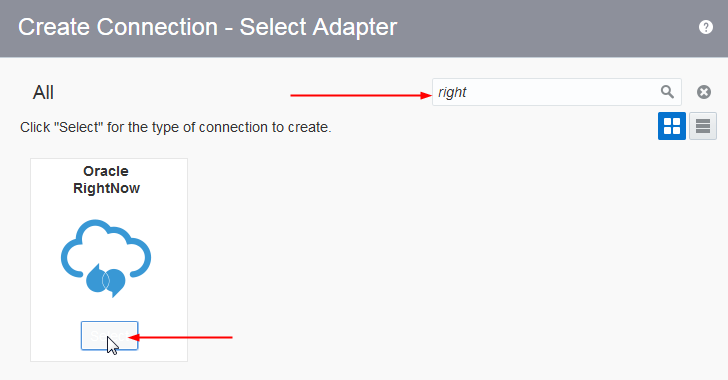
- Type "right" in the Select Adapter Search
field and then select the Oracle
RightNow adapter.
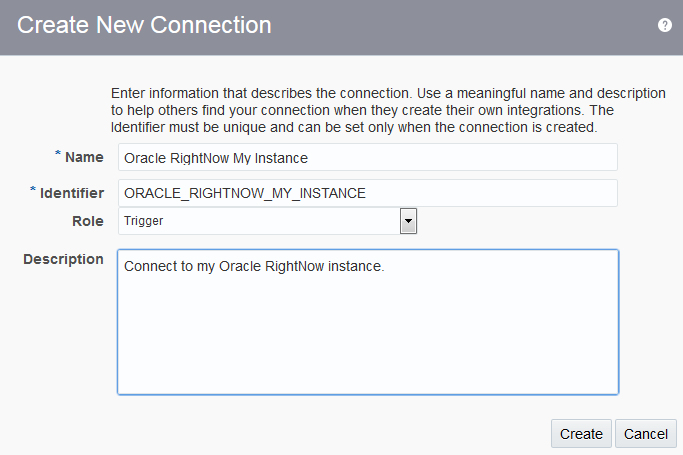
- Enter the following connection information in the New Connection - Information dialog.
| Field | Enter |
| Name | Oracle RightNow My Instance |
| Identifier | ORACLE_RIGHTNOW_MY_INSTANCE (Note: The default value is entered for you automatically.) |
| Role | Trigger |
| Description | Connect to my Oracle RightNow instance. |
- Click Create.
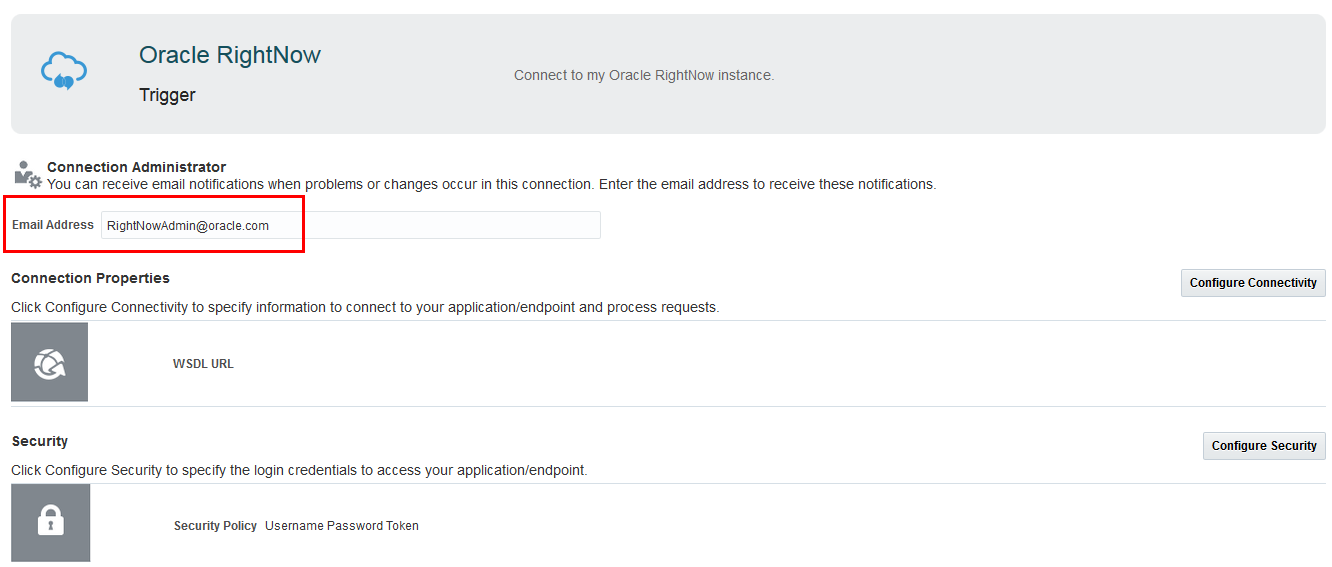
- In the Email Address field
of the Connection Administrator section,
optionally enter your email address.
- Click Configure Connectivity
to configure the WSDL URL. Enter the URL to
your Oracle RightNow WSDL file in the Connection
Properties dialog and click OK.
- Click Configure Security.
Enter the username and password required to
access your Oracle RightNow application and
click OK.
- Click Test to verify the connection.
- Click Save.
- Click Close.

If the test is not successful, verify that the WSDL URL and credentials that you entered are correct.
The new connection is added to the top of the connections list.
Create the Oracle Sales Cloud Connection
Creating an Oracle Sales Cloud connection is very similar to creating the Oracle RightNow connection.
- Click Create.
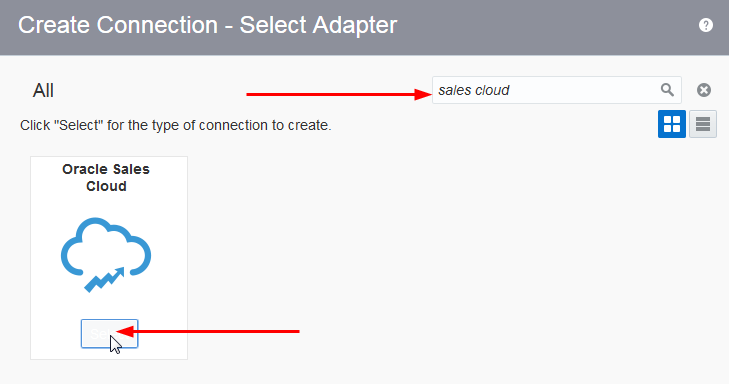
- Type "sales cloud" in the Select Adapter Search
field and then select the Oracle
Sales Cloud adapter.
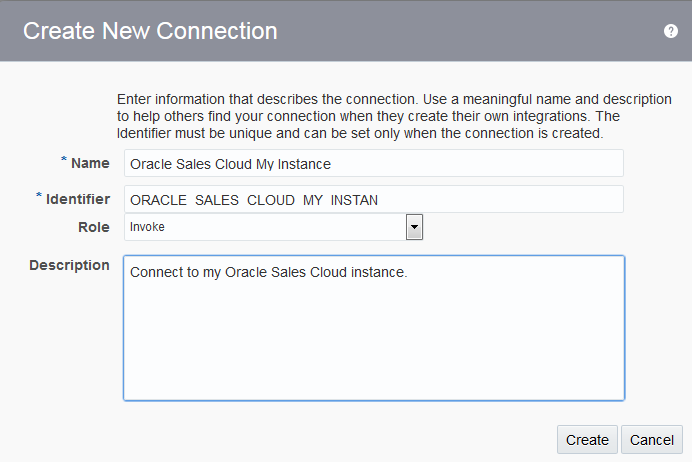
- Enter the following connection information in the New Connection - Information dialog:
| Field | Enter |
| Name | Oracle Sales Cloud My Instance |
| Identifier | ORACLE_SALES_CLOUD_MY_INSTANCE (Note: The default value is entered for you automatically.) |
| Role | Invoke |
| Description | Connect to my Oracle Sales Cloud instance. |
- Click Create.
- In the Email Address field
of the Connection Administrator section,
optionally enter your email address.
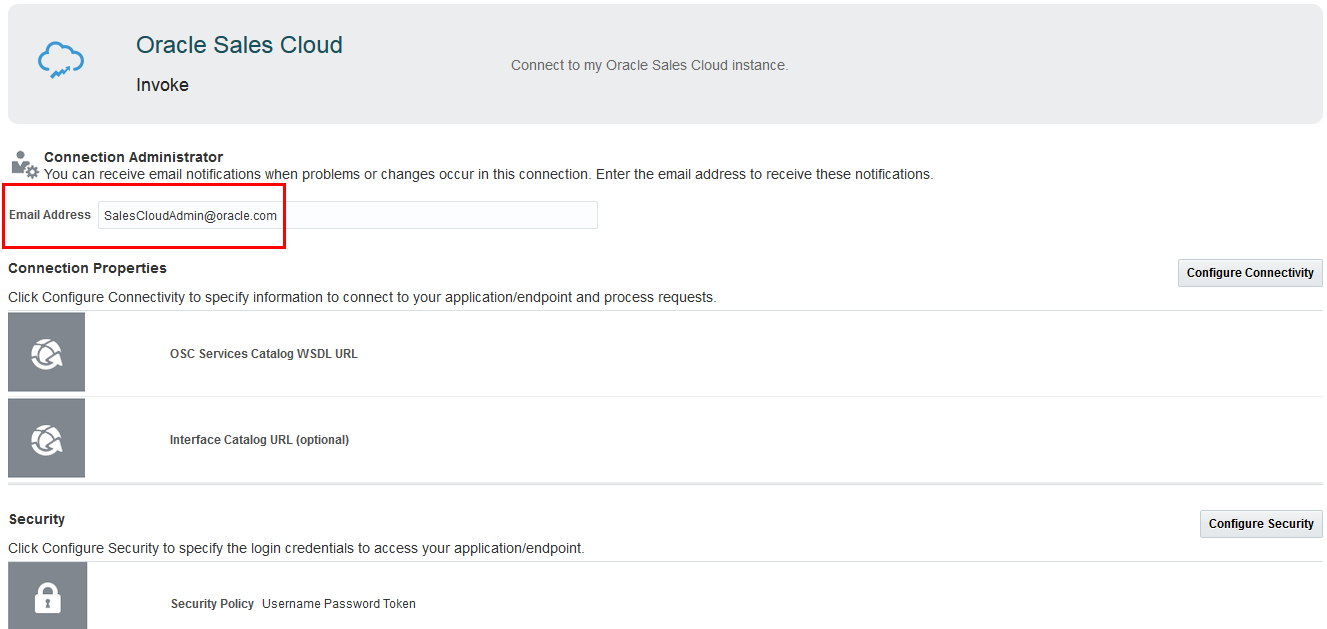
- Click Configure Connectivity to configure the WSDL URL. Enter the URL to your Oracle Sales Cloud WSDL file in the OSC Services Catalog WSDL URL field.
- Click Configure Security. Enter the username and password required to access the Oracle Sales Cloud application. Note that the Username Password Token option is automatically selected in the Security Policy list. This is the only selection available.
- Save the connection.
- Click Test to verity the connection.
- Click Save.
- Click Close.

If the test is not successful, verify that the WSDL URL and credentials that you entered are correct.
The new connection is added to the top of the connections list.
Create a New Integration
Now that you've created connections, you need to integrate the connections so that data can flow from one (the trigger) to the other (the invoke). In this tutorial the Oracle RightNow application is the trigger and the Oracle Sales Cloud application is the invoke.
Watch "Create Integrations in Integration Cloud" to see it before you do it.
Create the Integration
To create a new integration, perform the following steps:
-
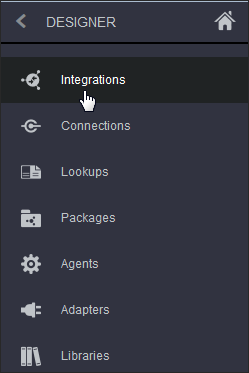
In the Designer pane on the left of the Integration Cloud page, select Integrations.
-
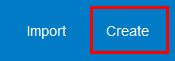
Click Create.
- In the Create Integration - Select a Style/Pattern dialog, select Map Data.
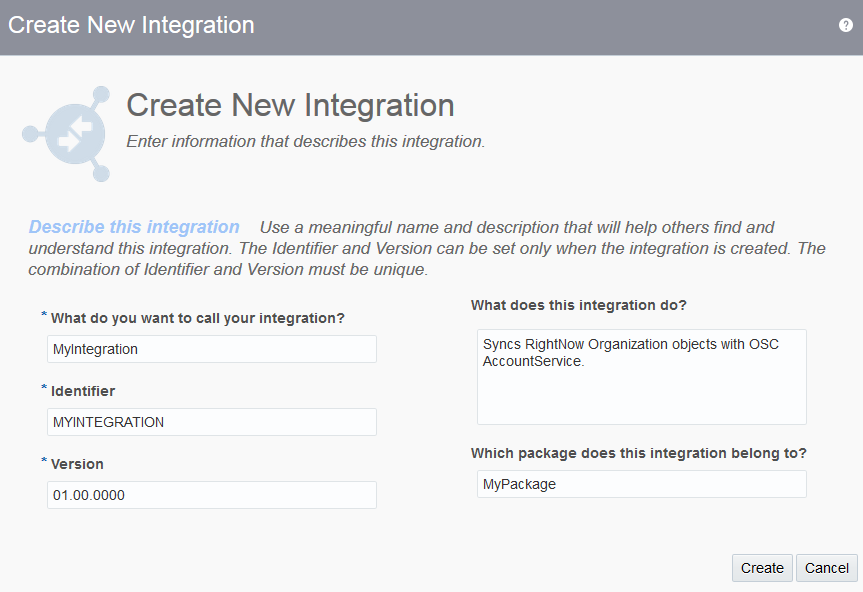
- Enter the following integration information in the Create New Integration dialog:
| Field | Enter |
| What do you want to call your integration? | MyIntegration |
| Identifier | MYINTEGRATION (Note: The default value is entered for you automatically.) |
| Version | Nothing to enter. Use the default value of 01.00.0000. |
| What does this integration do? | Syncs RightNow Organization objects with OSC AccountService. |
| Which package does this integration belong to? | MyPackage (Note: Packages enable you to group integrations into a single structure that makes them easy to import and export.) |
- Click Create.
Configure the RightNow Connection (Trigger)
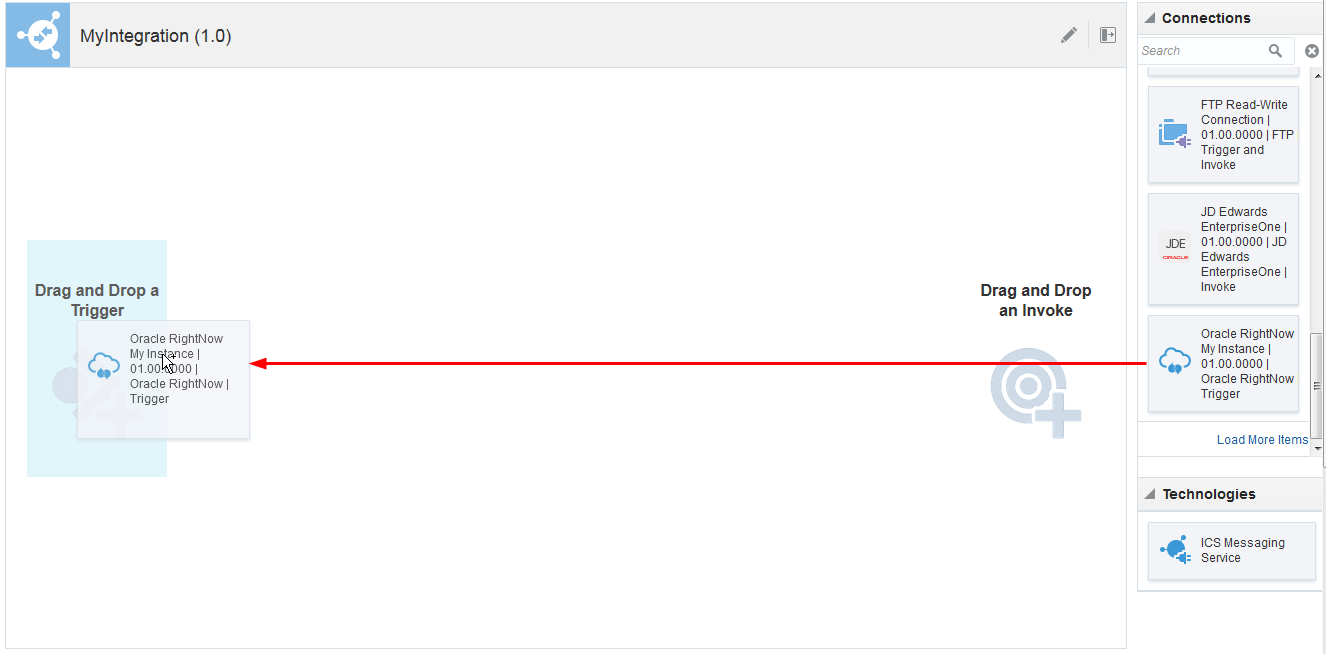
- Drag your Oracle RightNow connection to the
Trigger area. This invokes the configuration
wizard.
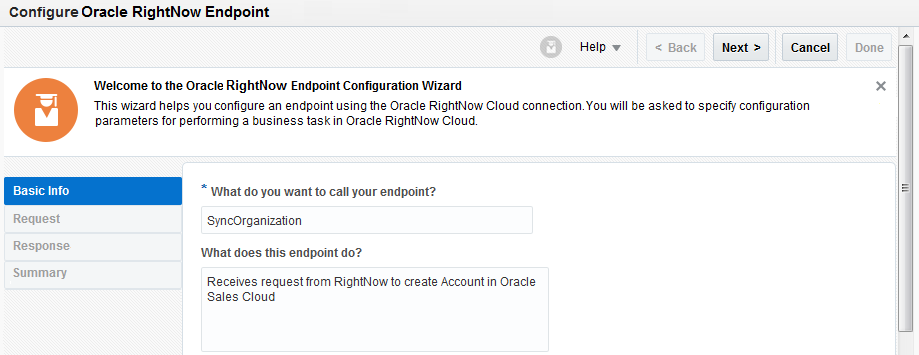
- Fill in the wizard Basic Info page with the
following information:
| Field | Enter |
| What do you want to call your endpoint? | SyncOrganization |
| What does this endpoint do? | Receives request from RightNow to create Account in Oracle Sales Cloud |
- Click Next to advance to the Request page.
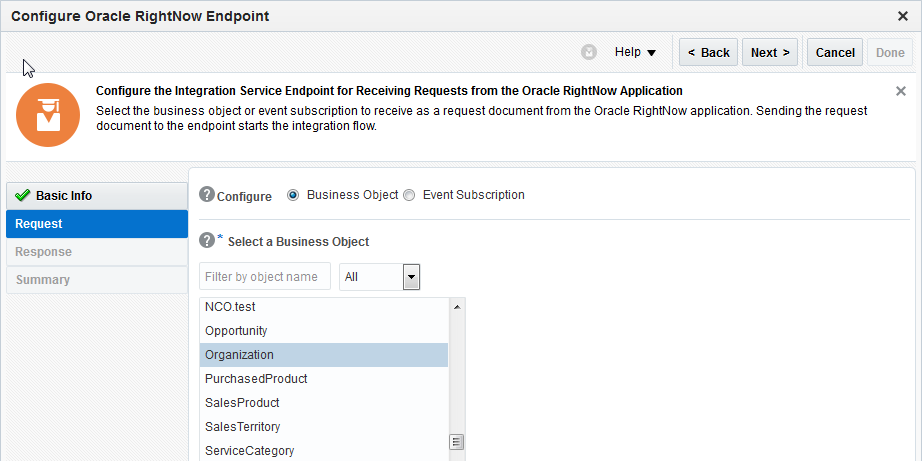
- Scroll down the list of business objects and
select
Organizationfrom the list.
- Click Next to advance to the Response page.
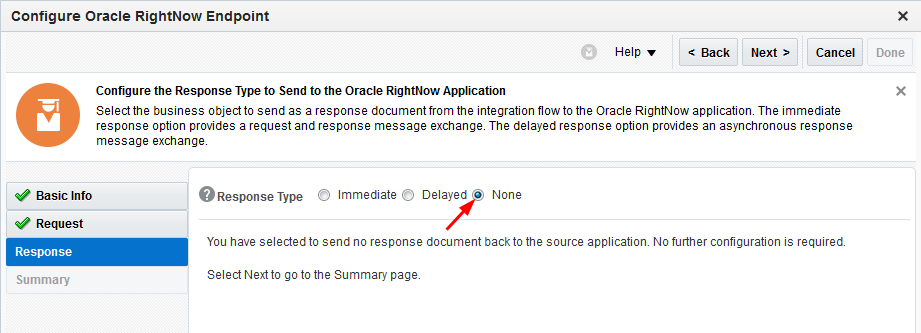
- Because this is a one-way process, there is
no response. Select the None
response type.
- Click Next.
- Click Done.
- Click Save on the main
canvas to save your work.
Configure Oracle Sales Cloud Connection (Invoke)
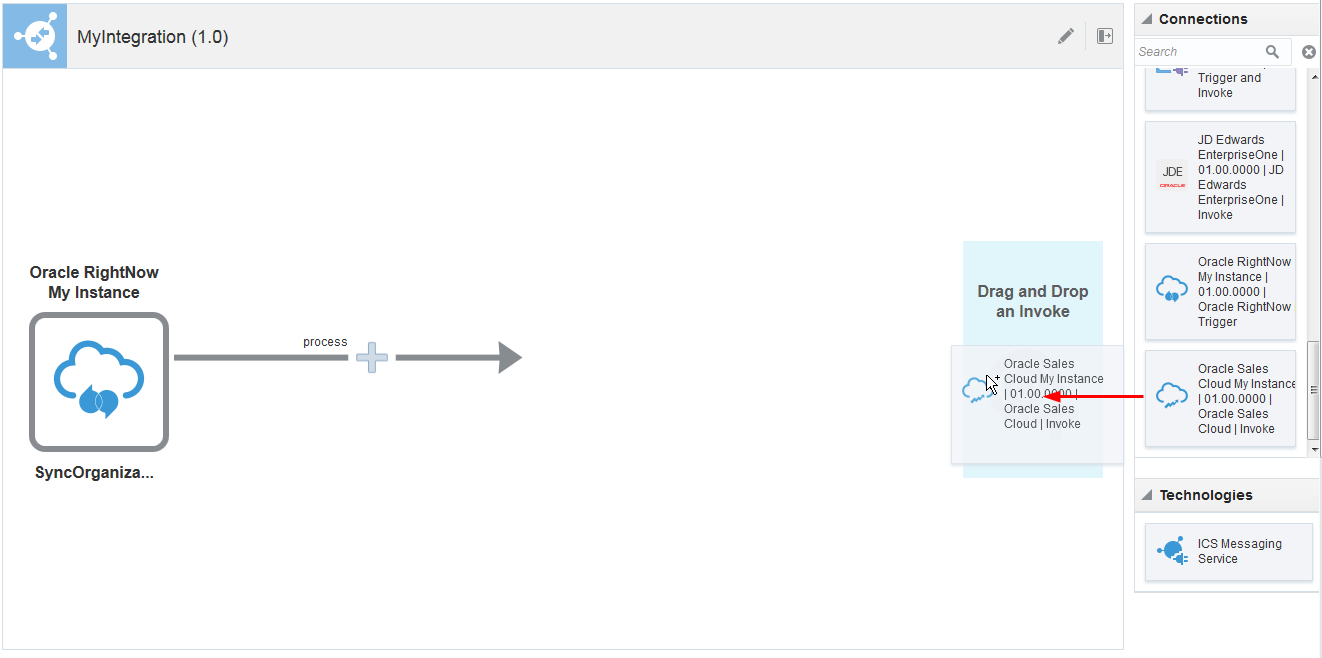
- Drag your Oracle Sales Cloud connection to
the Invoke area. This invokes the
configuration wizard.
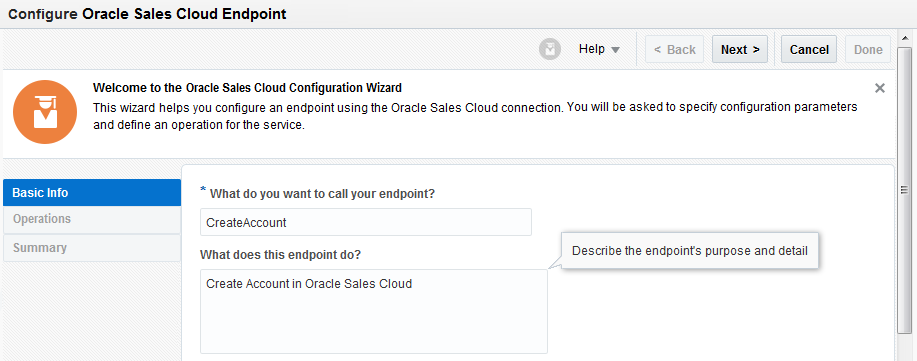
- Fill in the wizard Basic Info page with the following information:
| Field | Enter |
| What do you want to call your endpoint? | CreateAccount |
| What does this endpoint do? | Create Account in Oracle Sales Cloud |
- Click Next to advance to the Operations page.
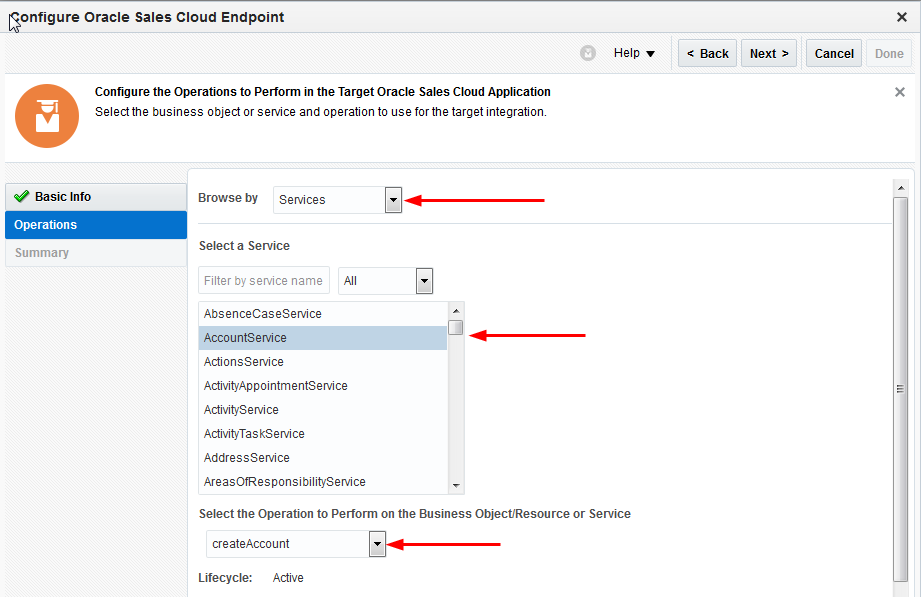
- Select Services from the Browse by drop-down menu.
- Select AccountService from the scrolling list of business services.
- Select createAccount from
the drop-down menu beneath the scrolling list.
- Click Next.
- Click Done.
- Click Save on the main
canvas to save your work.
Map the Data
One of the key tasks in creating an integration
is defining how data is transferred, or mapped,
between two applications. In this tutorial, you
map the fields of the Oracle RightNow Organization
object (trigger) to the fields of the Oracle
Sales Cloud AccountService
(invoke). The Oracle Integration Cloud visual
mapper enables you to map fields between
applications by dragging trigger fields onto
invoke fields. When you open the mapper for a
request or response message in an integration,
the data structures are automatically populated
with the information pulled from the trigger and
invoke connections.
Watch "Map Data in Oracle Integration Cloud" to see it before you do it.
To map data for this integration, perform the following steps:
- Click the mapping icon between the trigger
and the invoke icons.
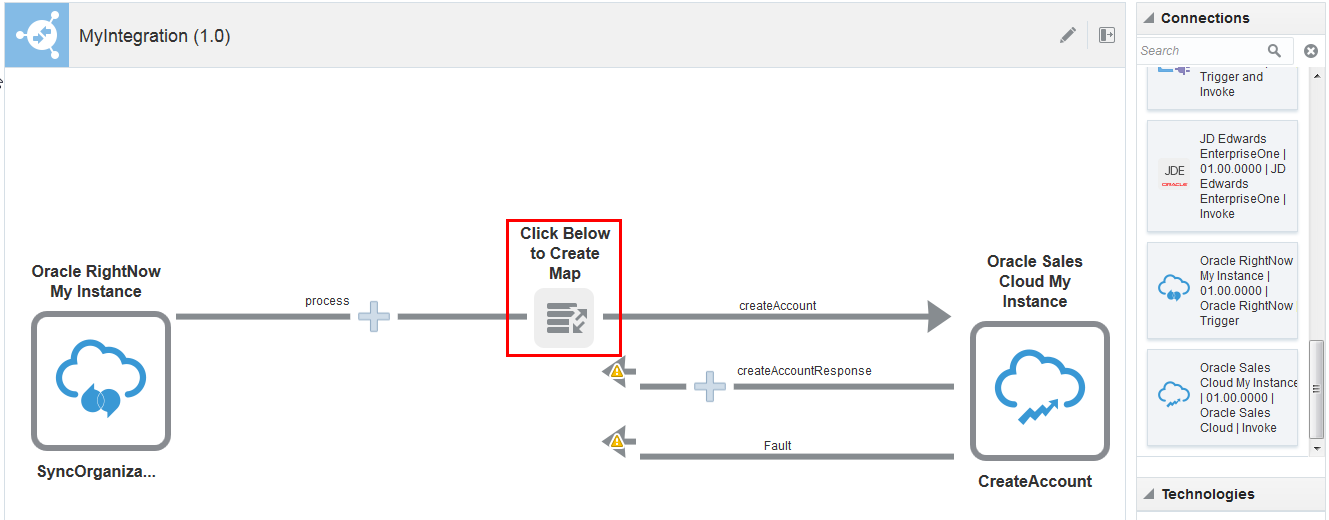
- Click the Create icon when
prompted.
This opens the mapper.
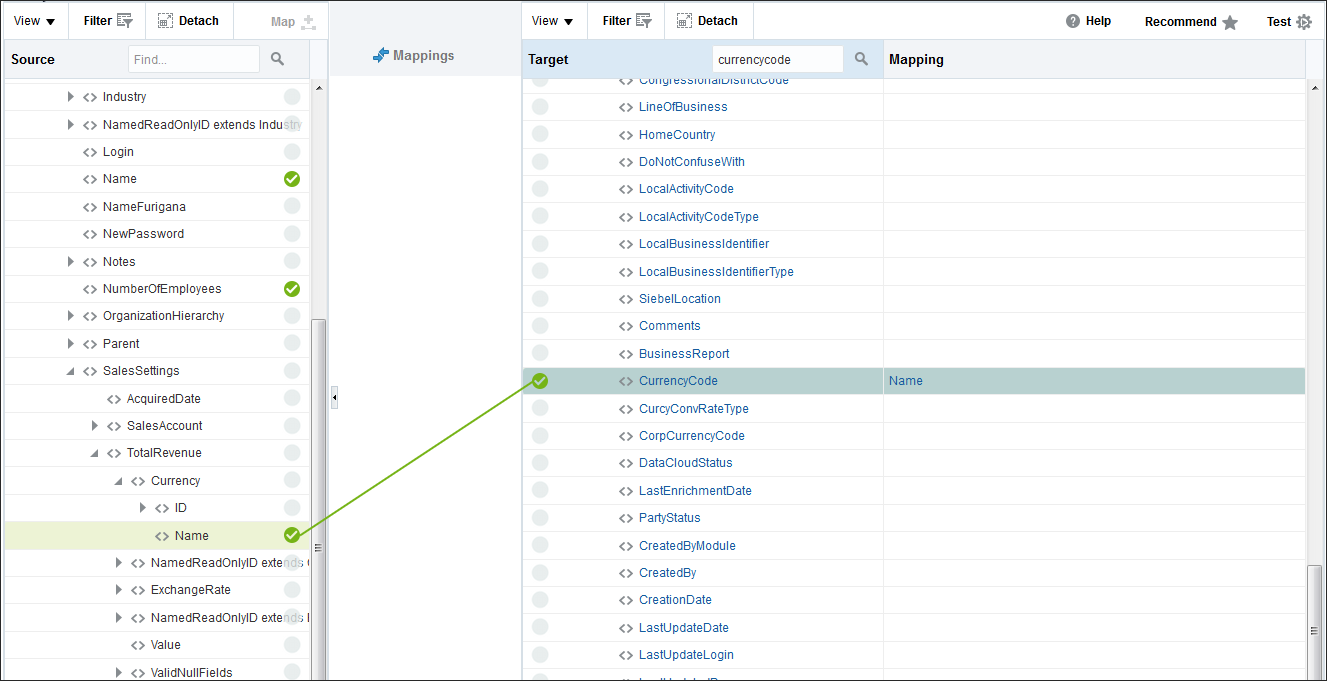
- Drag the source to the target, as listed in
the table. Drop the source in the empty field
next to the target. As shown in the image
above, the green checkmark icon and the line
connecting them indicate that these fields
have been mapped.
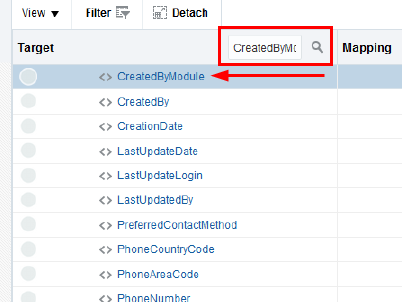
- After you have mapped the three items in the
table, on the target side, search for the CreatedByModule
field and then click it to invoke
the Build Mappings page.
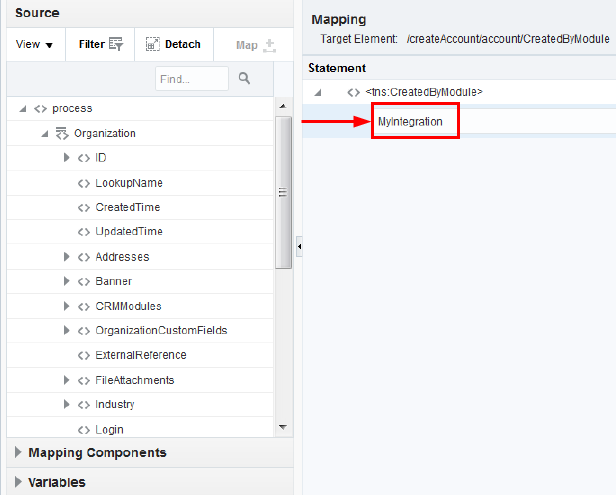
- In the Drag and Drop or Type here
text box, enter the identifier that was
associated with this integration when it was
created. Type
MyIntegration.
- Click Validate to validate
the mapping, then click Close.

The source data structure is on the left of the mapper and the target data structure is on the right. Collapse the top-level nodes to make it easier to see the fields with which you want to work.
| Source | Target |
| process / Organization / Name | createAccount / account / OrganizationName |
| process / Organization / NumberOfEmployees | createAccount / account / EmployeesTotal |
| process / Organization / SalesSettings / TotalRevenue / Currency / Name | createAccount / account / CurrencyCode |
Add Business Identifiers for Tracking
Perform the following steps to enable the
tracking of payload fields.
- Click MyIntegration in the
Integrations list.

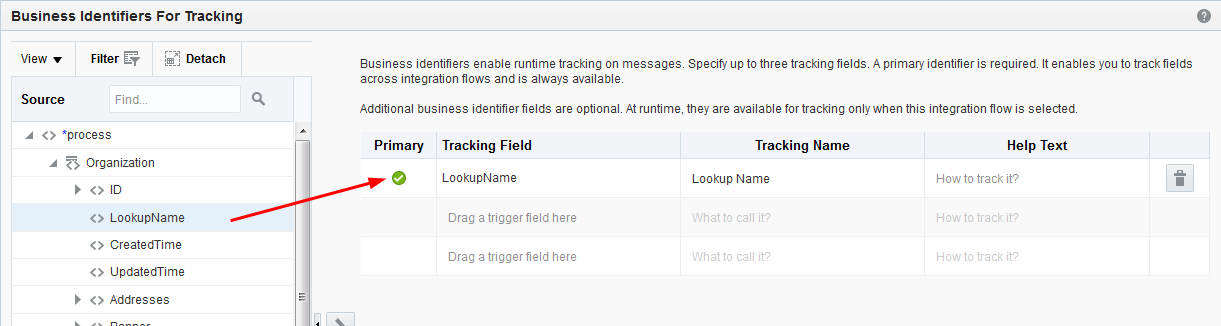
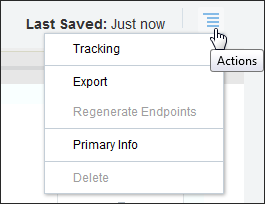
- Click Actions, then select Tracking from the Actions menu.
- Drag the
LookupNamefield from the Source section into the Tracking Field column. This lets you track the status of that payload field during runtime.
- Click Save, then click Close.
- Note that the mapping icon turns green and
the Flow Progress Indicator
shows that the integration is 100% complete.

- Click Save.
- Click Close to exit the canvas.
Activate the Integration
To activate your integration, perform the following steps:
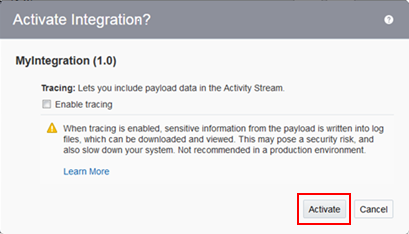
- Find MyIntegration in the Integrations list and click the Activate slider.
- Click Activate when prompted to confirm. Note: Do not select Enable tracing.
- Verify that the integration is Active.

 .
.Verify That Your Integration Works
The final step to determine if your integration is
working properly is to pass data through your
integration from Oracle RightNow to Oracle Sales
Cloud. The verification process requires you to
create a PHP script that runs in the Oracle RightNow
console and initiates contact with Oracle
Integration Cloud and facilitates the transfer of
business objects to the Oracle Sales Cloud
connection.
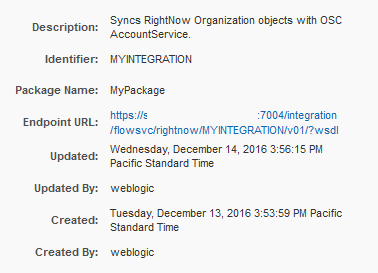
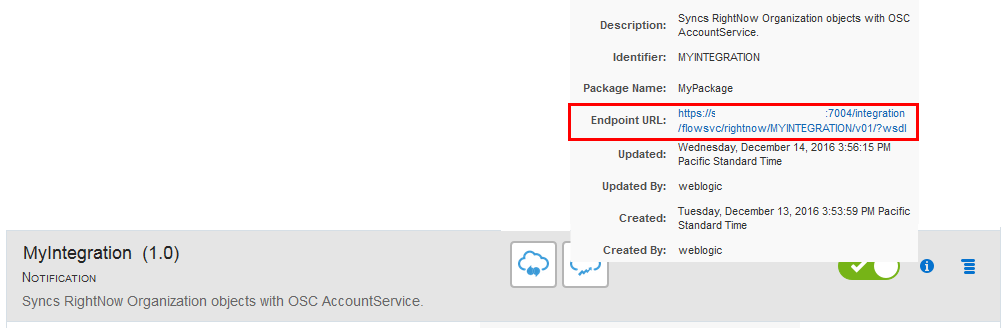
Note: Use the integration's
endpoint URL to connect to Integration Cloud from
your PHP script. To get the integration endpoint
URL, find MyIntegration in the
integration list, and click the integration's
information icon.
Run Your Script to Test the Integration
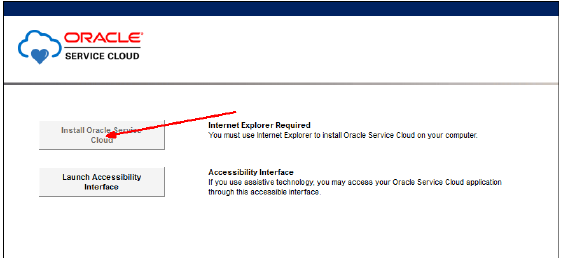
- Launch the Oracle RightNow console. Note: The RightNow console only runs in the Internet Explorer web browser.
- Click the Install Oracle Service
Cloud button.
- Log in to the console using the credentials
you specified when you created the Oracle
RightNow connection.
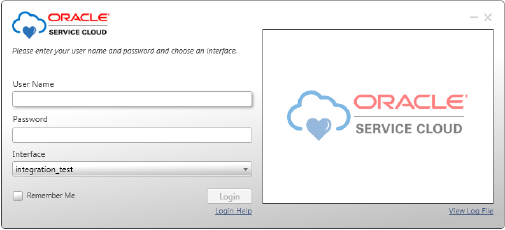
- The console user interface appears.
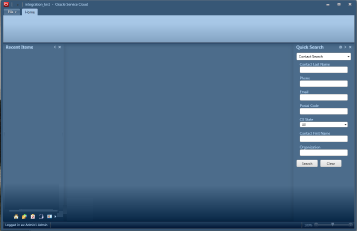
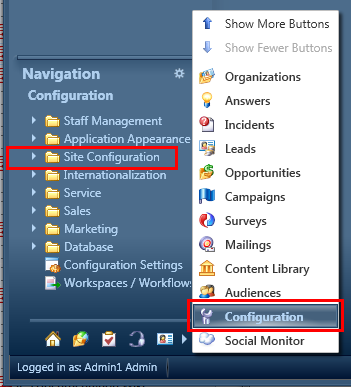
- Click the arrow at the bottom left of the
console window.

- Select Configuration and
then expand the Site Configuration item.
- Double-click Process Designer.
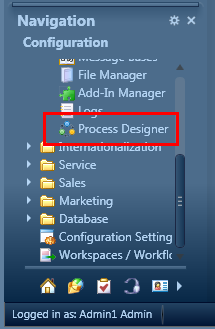
- After the process designer opens, select New.
The new object event handler window appears.
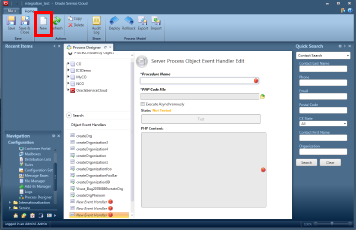
- Click the Browse icon and
select the file that contains your PHP script.

- Select Execute Asynchronously.
- Click Save.
- Click Test.

The Good URL dialog confirms that the connection is made. If the connection fails, check the URLs in your PHP script.
Deploy the Event Handler
- Select Deploy.
- Add the email address used when you set up your connection in Integration Cloud.
- Select Organization in
the tree.
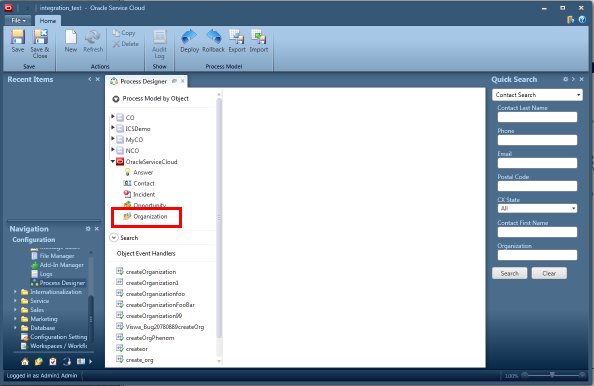
- Select createOrganization.
- Select Can Suppress.
- Click Save.
- Click Deploy.
- Click OK.
Verify the New Account in Oracle Sales Cloud
- Launch Oracle Sales Cloud.
- Click the Accounts icon.
- Verify your account appears in the list.
Summary
In this tutorial, you learned to:
- Create Oracle RightNow and Oracle Sales Cloud connections
- Create a new integration using the connections
- Configure the connections
- Activate your integration
- Verify that your integration works correctly
Credits
Want to Learn More?
Prerequisites
Use the following links to find more information about the prerequisites mentioned in the "Prerequisites" section of this tutorial:
- Get an Oracle Integration Cloud subscription or trial subscription.
- Get an Oracle RightNow Cloud Service subscription or trial subscription. Note: In some documentation and user interfaces, the Oracle RightNow Cloud Service is referred to as Oracle Service Cloud.
- Get an Oracle Sales Cloud subscription or trial subscription.
Resources
The following resources complement this tutorial: