
 Creating
Connections in Oracle Integration
Creating
Connections in Oracle Integration Before You Begin
This 15-minute tutorial shows how to create two connections using Oracle Integration - One for an Oracle Service Cloud (RightNow) application instance (Trigger) and one for an Oracle Sales Cloud application instance (Invoke).
Some of the sections include demonstration videos that you can watch before you attempt that section of the tutorial
In this series, you learn how to create an integration using Oracle Integration. This is the first tutorial in the Creating an End-to-End Integration series. Read the tutorials sequentially.
- Creating Connections
- Creating a New Integration in Oracle Integration
- Verifying Your Integration
Scenario
In this series of tutorials, you will create an integration
flow that synchronizes customer information between Oracle
Service Cloud (RightNow) and Oracle Sales Cloud in real time -
that is, whenever an Organization is created in
Oracle Service Cloud (RightNow), an AccountService
is created in Oracle Sales Cloud in real time.
The following figure illustrates the scenario.

Background
Connections allow Oracle Integration to interact with an application instance. A connection is required for every application instance that participates in an integration.
The WSDL URLs in these steps are used by Oracle Integration to access the Oracle Service Cloud (RightNow) and Oracle Sales Cloud instances participating in the integration. This WSDL provides operations for inserting, updating, and deleting records in application business objects and services. This WSDL also provides operations to retrieve the metadata, custom attributes, and custom objects. In order to create a connection, these instances must be running in a location you can access and you must know the URL for the WSDL file that defines each instance. Here is the sample URL for the WSDL file: https://example.com/fndAppCoreServices/ServiceCatalogService?wsdl
Watch "Create Connections in Oracle Integration" to see it before you do it.
What Do You Need?
- An Oracle Integration subscription or trial subscription.
- An Oracle Service Cloud (RightNow) subscription or trial subscription. User account details received during subscription.
- An Oracle Sales Cloud subscription or trial subscription. User account details received during subscription.
- Running instances of the Oracle Service Cloud (RightNow) and Oracle Sales Cloud applications. You must know the WSDL URLs and the login credentials (username/password) required to connect to them.
 Create
the Oracle Service Cloud (RightNow) Connection
Create
the Oracle Service Cloud (RightNow) Connection
- Sign in to your Oracle Integration.
- On the Home page, scroll down to locate Integrations and
click Create Connections.
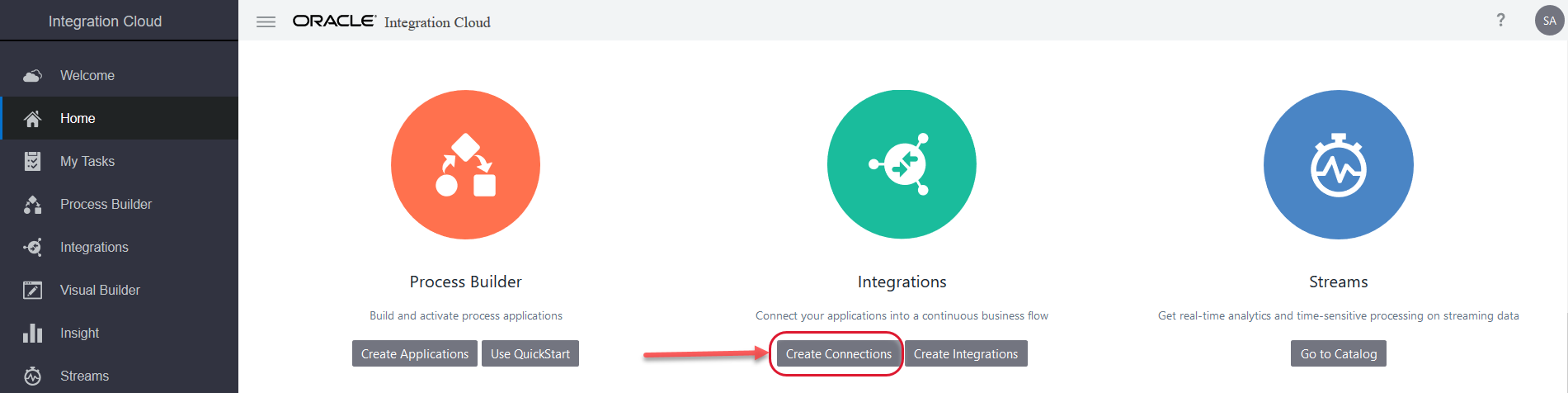
Description of the illustration home_screen - On the Connections page,
click Create.

Description of the illustration create_new_connection - Type "right" in the Select Adapter Search field
and then select the Oracle Service Cloud (RightNow) adapter.
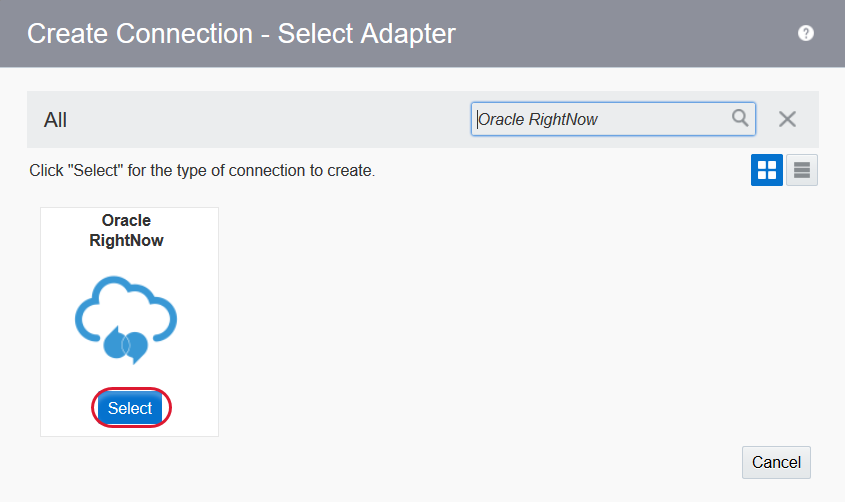
Description of the illustration select_rightnow - Enter the following connection information in the New
Connection - Information dialog.
Field Enter Name Oracle Service Cloud My Instance Identifier ORACLE_Service Cloud_MY_INSTANCE
(Note: The default value is entered for you automatically.)Role Trigger (Select Trigger for inbound connections.) Description Connect to my Oracle Service Cloud instance. 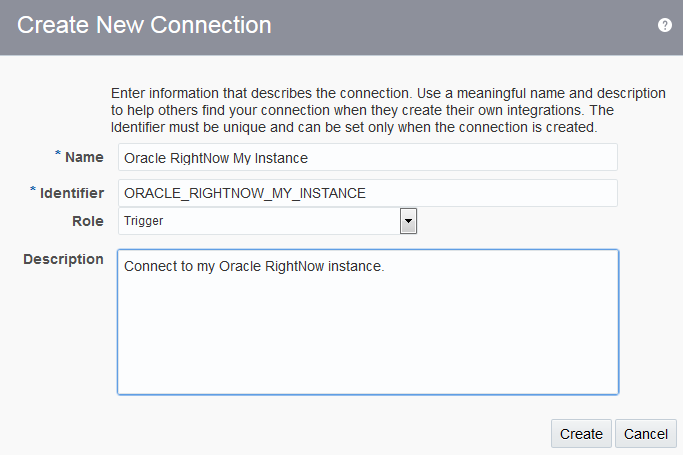
Description of the illustration new_rightnow - Click Create.
- In the Email Address field of the Connection
Administrator section, optionally enter your email
address to receive email notifications when problems or
changes occur in this connection.
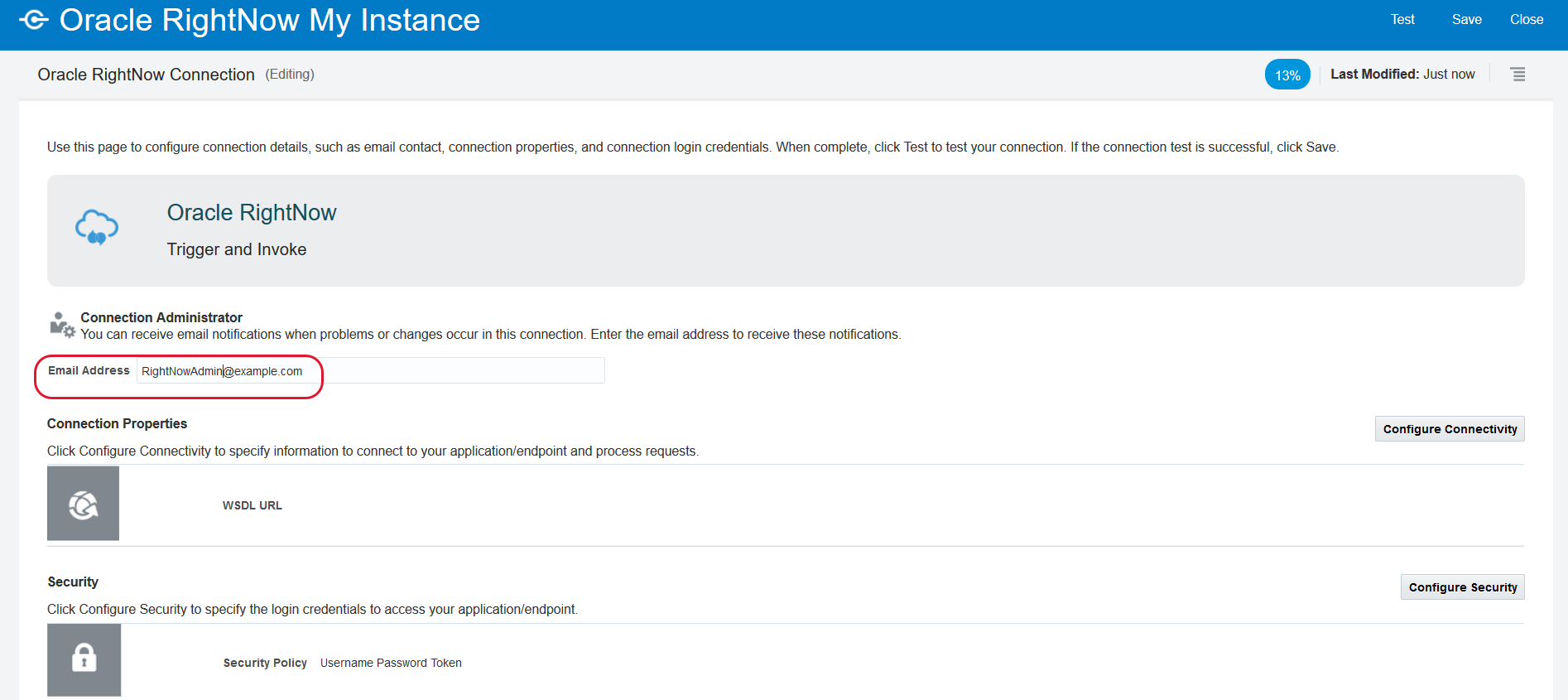
Description of the illustration rightnow_email - Click Configure
Connectivity to configure the WSDL URL. Enter the URL
to your Oracle Service Cloud (RightNow) WSDL file in the Connection
Properties dialog and click OK.
For example, https://example.com/fndAppCoreServices/ServiceCatalogService?wsdl
- Click Configure Security. Enter the
username and password that you received during Oracle Service
Cloud (RightNow) application subscription and click
OK.
Note: This user credentials will be used to access the Oracle Service Cloud (RightNow) application.
- Click Test to verify the connection.

Description of the illustration test_rigntnow If the test is not successful, verify that the WSDL URL and credentials that you entered are correct. Download diagnostic logs to perform further diagnosis.
- Click Save and then Close.
The new connection is added to the top of the connections list.
 Create
the Oracle Sales Cloud Connection
Create
the Oracle Sales Cloud Connection
Creating an Oracle Sales Cloud connection is very similar to creating the Oracle Service Cloud (RightNow) connection.
- On the Connections page, click Create.
- Type "sales cloud" in the Select Adapter Search field
and then select the Oracle Sales Cloud adapter.
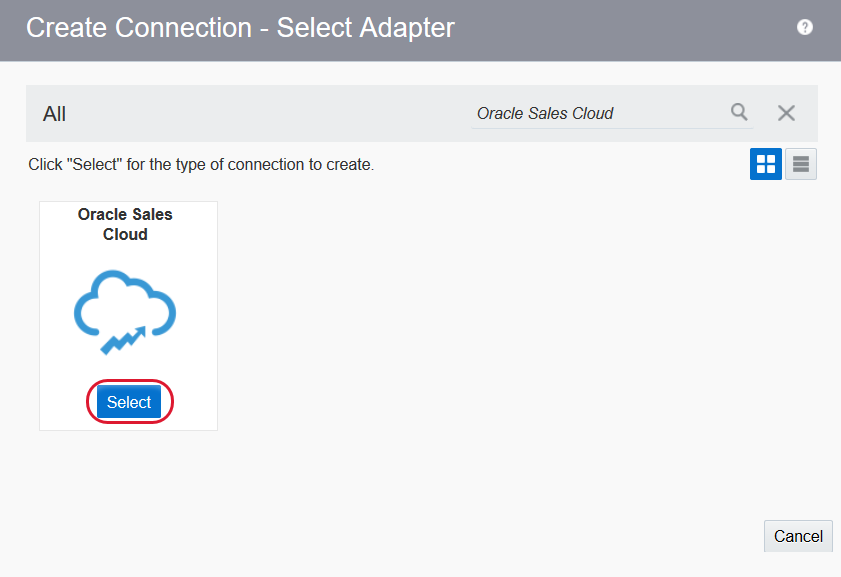
Description of the illustration create_new_salescloud - Enter the following connection information in the New
Connection - Information dialog:
Field Enter Name Oracle Sales Cloud My Instance Identifier ORACLE_SALES_CLOUD_MY_INSTANCE
(Note: The default value is entered for you automatically.Role Invoke (Select Invoke for outbound connections.) Description Connect to my Oracle Sales Cloud instance. 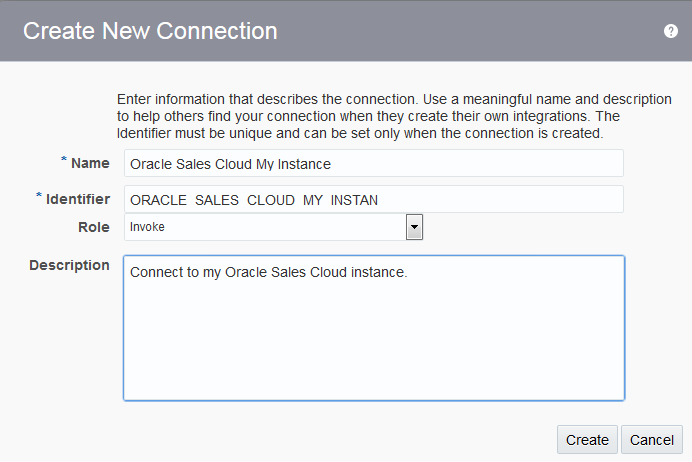
Description of the illustration new_salescloud - Click Create.
- In the Email Address field of the Connection
Administrator section, optionally enter your email
address to receive email notifications when problems or
changes occur in this connection.
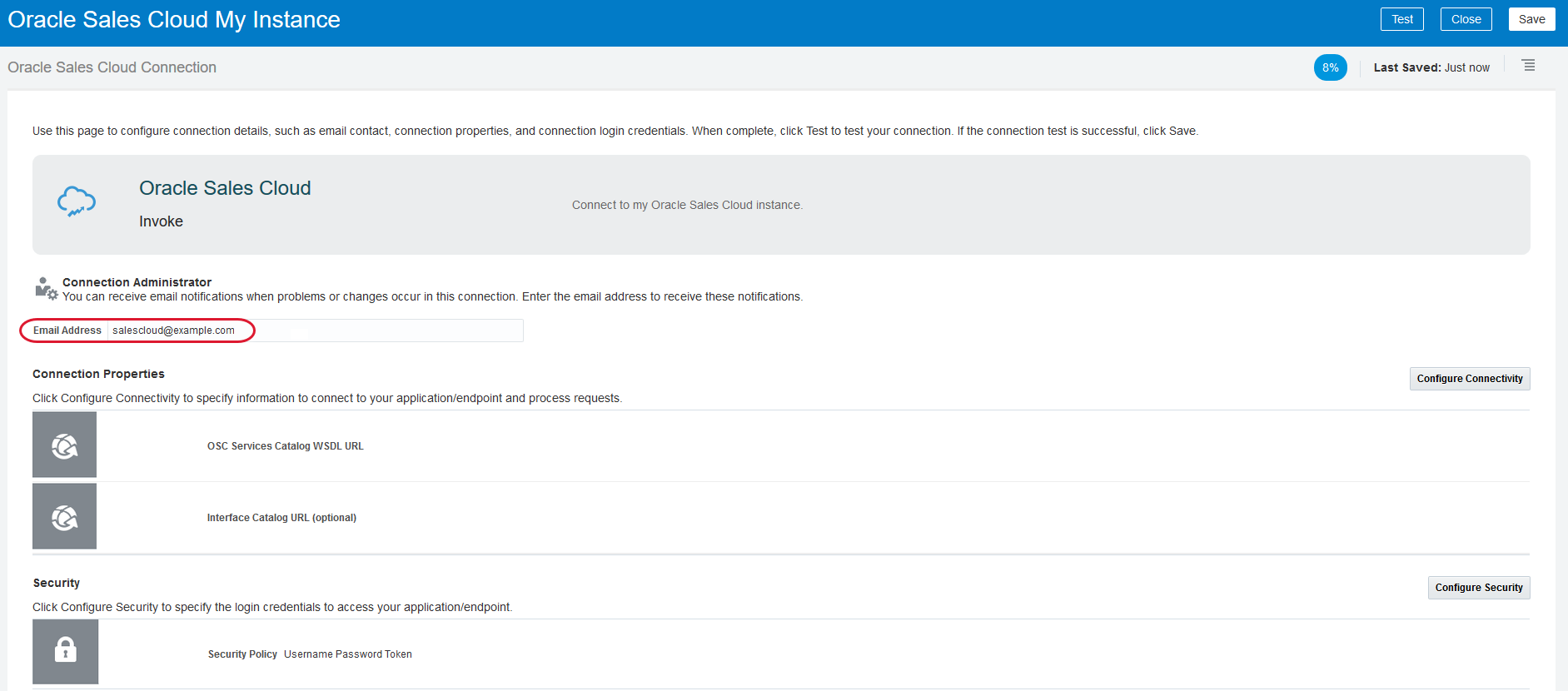
Description of the illustration salescloud_email.png - Click Configure Connectivity to configure
the WSDL URL. Enter the URL to your Oracle Sales Cloud WSDL
file in the OSC Services Catalog WSDL URL
field.
For example, https://example.com/fndAppCoreServices/ServiceCatalogService?wsdl
- Click Configure Security. Enter the
username and password that you received during Oracle Sales
Cloud application subscription.
Note that the Username Password Token option is automatically selected in the Security Policy list. This is the only selection available.
- Save the connection.
- Click Test to verity the connection.

Description of the illustration test_salescloud.png If the test is not successful, verify that the WSDL URL and credentials that you entered are correct.
- Click Save.
- Click Close.
The new connection is added to the top of the connections list.
 Next
Tutorial
Next
Tutorial