
 Getting
Started with Oracle Stream Analytics
Getting
Started with Oracle Stream Analytics Before You Begin
This 15-minute tutorial shows you how to push sample data to the Stream Analytics pipeline and create supporting artifacts.
Background
Stream Analytics is a feature of Oracle Integration Cloud. It's an intuitive, web-based interface, powered by Spark Streaming and Kafka Messaging runtime, and the interface enables you to explore, analyze, and manipulate streaming data sources in real time.
What Do You Need?
- Provisioned instance of Stream Analytics
- Downloaded and installed cURL command-line utility
- REST proxy enabled on Oracle Event Hub Cloud Service
- At least one Apache Kafka topic available in Oracle Event
Hub Cloud Service (In this tutorial,
myfirstdayis used as the topic name.) - Zookeeper URL
- REST proxy details (URL, user name, and password)
- REST proxy endpoint URL that maps to an existing Kafka topic
in Oracle Event Hub Cloud Service (for example,
https://host:port/restproxy/topics/myfirstday)
 Push Sample Data to the REST Endpoint
- In the cURL console, push events.
- Verify the response. If your response is similar to the
following, then the data was pushed successfully.
{"offsets":[{"partition":0,"offset":0,"error_code":null,"error":null}],
"key_schema_id":null,"value_schema_id":null}
curl -X POST -k -H "Content-Type: application/vnd.kafka.json.v1+json" -d
"{ \"records\":[{\"key\": \"input\", \"value\":{\"text\":\"My First Day\"}}]}"
-u user:password $REST_PROXY_URL Create a Connection
- In the left navigation tree, click Catalog.
- In the Create New Item menu, select Connection.
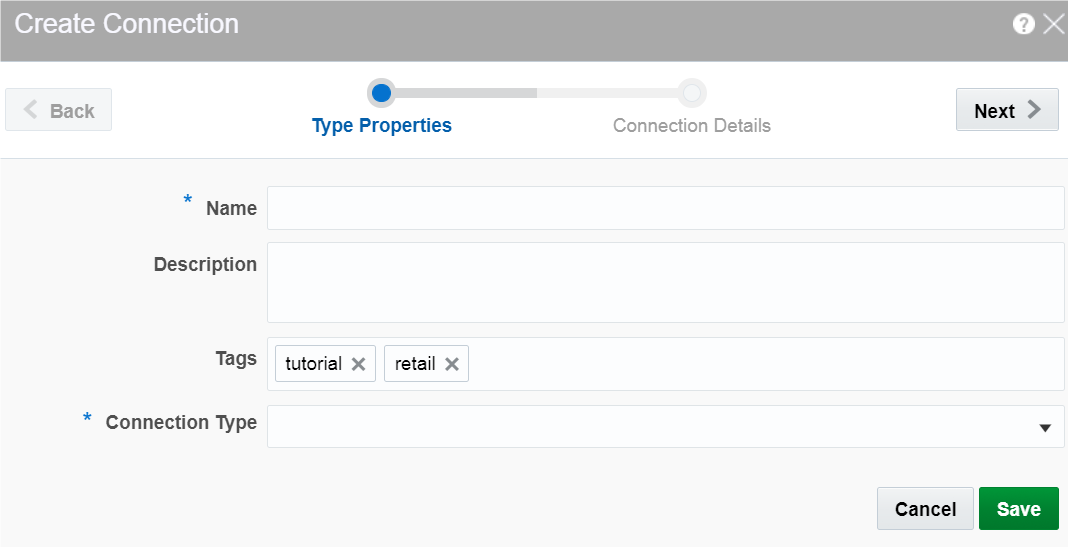
- In the Create Connection dialog box, on the Type Properties tab, enter or select the following values and click Next:
- Name:
MyFirstConnection - Connection Type: Kafka
- On the Type Properties tab, enter the Zookeepers URL that you recorded when you provisioned Oracle Integration Cloud and then click Test Connection.
- After the “successful” message appears, click Save.
 Create
a Stream
Create
a Stream
- In the left navigation tree, click Catalog.
- In the Create New Item menu, select Stream.
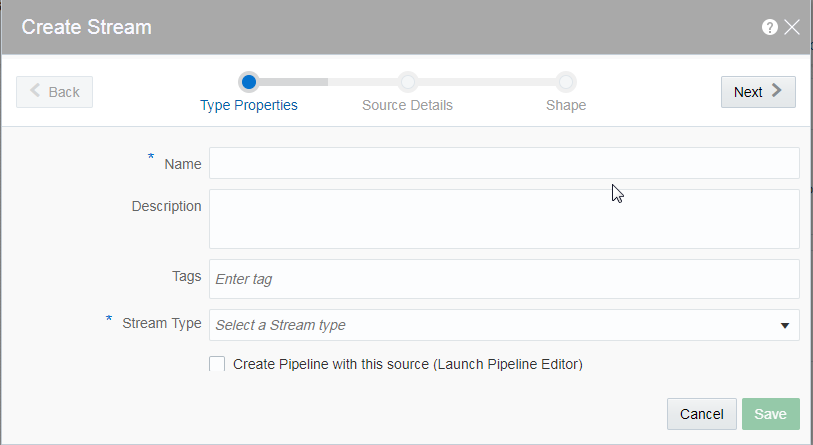
- In the Create Stream dialog box, on the Type Properties tab, enter or select the following values and click Next:
- Name:
MyFirstStream - Stream Type: Kafka
- On the Source Details tab , select the following values and click Next:
- Connection: MyFirstConnection
- Topic name: myfirstday
- On the Shape tab, click Detect Shape and simultaneously push several events into Apache Kafka. The shape detection works only with live data in the stream, and the fields are auto populated.
- Click Save.
 Create a Pipeline
- In the left navigation tree, click Catalog.
- In the Create New Item menu, select Pipeline.
- In the Create New Pipeline dialog box,
enter or select the following values and click Save:
- Name:
MyFirstPipeline - Description:
My first pipeline - Stream: MyFirstStream
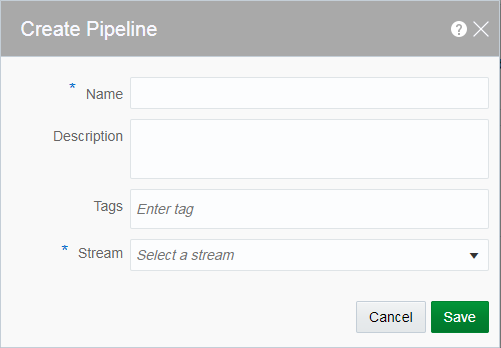
Description of the illustration create_pipeline.png - Name:
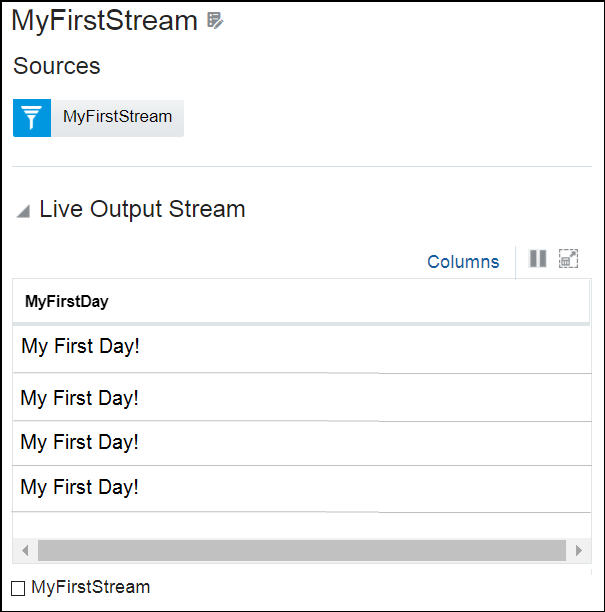
- In the pipeline editor, wait for the Listening to events message to appear in the Live Output Stream table.
- Push several events and watch the events stream into the application.
 Want
to Learn More?
Want
to Learn More?