In this tutorial you learn to integrate Oracle
Identity Cloud Service with Microsoft Active
Directory Federation Services as an identity
provider (IdP).
Time to Complete
120 minutes.
Background
Oracle Identity Cloud Service provides integration
with SAML 2.0 identity providers (IdPs). This
integration:
Works with federated Single Sign-On (SSO)
solutions that are compatible with SAML 2.0 as an
IdP. This includes Microsoft Active Directory
Federation Services (AD FS), Shibboleth Identity
Provider, and Oracle Access Management (OAM).
Allows users to log into Oracle Identity Cloud
Service using the credentials from their own
identity provider.
Can force the IdP authentication for all users
or offer the IdP authentication as an option
(Login Chooser option).
The identity provider integration provides the
following benefits:
Single Sign-On across cloud and
on-premises solutions: Oracle Identity
Cloud Service provides Single Sign-On for cloud
applications while the IdP provides Single Sign-On
for on-premises applications. Users log in only
once, using their IdP credentials.
Support multiple Single
Sign-On scenarios in parallel: By
combining the Login Chooser with an IdP, you offer
different Single Sign-On scenarios per user. This
option can be used for the following scenarios :
Employees authenticate using their
enterprise IdP credentials.
Contractors authenticate directly in Oracle
Identity Cloud Service
Enable defense In depth strategies in
the Cloud: The IdP integration - when
wisely planned and coupled with other security
controls - can enable a hybrid cloud defense in
depth (apply your on-premises security controls on
cloud solutions). For example, if you implement
IdP authentication as the only option for your
employees and your IdP is accessible only through
the Intranet or VPN, you ensure that Oracle
Identity Cloud Service is accessed only when your
employees are in your network-safe environment.
In this tutorial, you learn to integrate Oracle
Identity Cloud Service with Microsoft Active
Directory Federation Services (AD FS) as an identity
provider (IdP).
What Do You Need?
Access to Oracle Identity Cloud Service with
authorization to manage identity providers
(Identity Domain Administrator or Security
Administrator)
An on-premises Microsoft Active Directory
Federation Server installation. Tip: In this tutorial, we are using the
Microsoft Active Directory Federation Server
software provided with Microsoft Windows Server
2012 R2.
Users synchronized between the Federation
Service's Microsoft Active Directory domain and
Oracle Identity Cloud Service Tip: You can synchronize users between
Microsoft Active Directory and Oracle Identity
Cloud Service manually, using REST APIs, Oracle
Identity Manager connectors or bridges.
The tutorial Integrating with Microsoft
Active Directory Using Directory Integrations
explains how you can do that.
As a recommendation, you should be familiar with
Microsoft Active Directory Domain Services,
Microsoft Active Directory Federation Services,
and SAML 2.0 concepts, such as Identity Providers,
Relying Parties, and Claims.
Validate Prerequisites
In this task, you validate the prerequisites before
integrating the identity provider.
Confirm that a User with the Same Email Address
Exists in both systems.
The identity provider integration requires
that the user entry with the same email exists
on both Federation Service's MIcrosoft Active
Directory Domain and Oracle Identity Cloud
Service. In this task, you find a user that
exists on both systems. If required, you
manually create a user to fulfill this
requirement.
Tips:
Oracle Identity Cloud Service offers the Microsoft
Active Directory Integration Agent
that continuously and automatically
synchronizes users and groups in Microsoft
Active Directory with Oracle Identity Cloud
Service. To learn how to configure this agent,
visit the Integrating with MIcrosoft
Active Directory Using Directory
Integrations tutorial.
Oracle Identity Cloud Service also supports
other synchronization mechanisms such as REST APIs, CSV files, and Oracle Identity Manager
(OIM) connectors
in case you don't have Microsoft Active
Directory or you don't want to use the
identity bridge for synchronizing users.
Launch the Microsoft Active Directory Users
and Computers utility (in Windows 2012 Server,
click Server Manager, click
Tools, and then click Active
Directory Users and Computers).
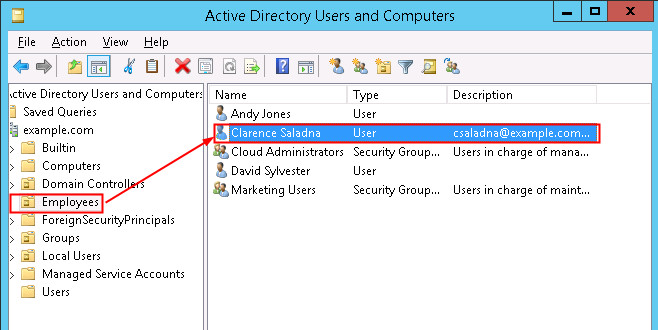
The Employees folder,
double-click the user you want to use for
tests and record the user's email address (in
the example, csaladna@example.com).
Description
of this imageNotes:
The user email address is used to link
the user logged in to Microsoft Active
Directory Federation Services with the
user entry in Oracle Identity Cloud
Service.
In case you don't have a user for tests,
you can create one in Microsoft Active
Directory.
Access the Oracle Identity Cloud Service
console and click Users.
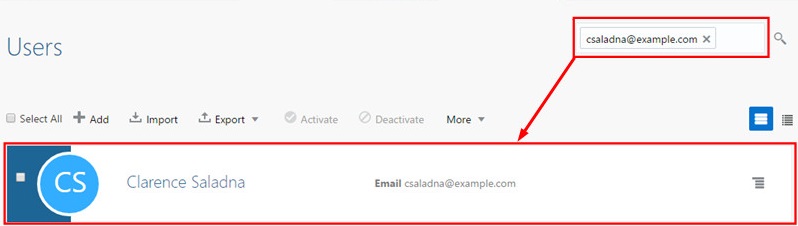
In the Search Users field, enter the user
e-mail address you recorded from Microsoft
Active Directory (in the example: csaladna@example.com).
Under the search results, confirm that a
user with the Microsoft Active Directory's
email address exists.
Description
of this imageTip: If the user doesn't
exist in Oracle Identity Cloud Service, click
Add and create the user using
the same email address you recorded from
Microsoft Active Directory.
Verify that Microsoft Active Directory
Federation Service is Working
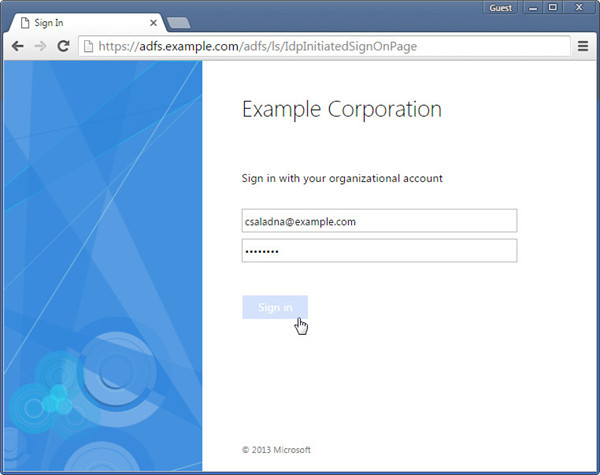
Access the Microsoft Active Directory
Federation Service Sign In page: https://adfs.example.com/adfs/ls/IdpInitiatedSignOnPage
(replace adfs.example.com with
your Microsoft Active Directory Federation
Service hostname)
If required, select Sign in to this
site and click Sign In.
Enter the Microsoft Active Directory
credentials for a user that exists on both
Microsoft Active Directory Federation Service
and Oracle Identity Cloud Service (in this
example, csaladna@example.com)
and click Sign In.
Description
of this image
You are ready to integrate Microsoft Active
Directory Federation Service and Oracle Identity
Cloud Service.
Register Microsoft Active Directory Federation
Service as Identity Provider
Access the Microsoft Active Directory Federation
Service metadata file: https://adfs.example.com/FederationMetadata/2007-06/FederationMetadata.xml
(replace adfs.example.com with your
Microsoft Active Directory Federation Service
hostname)
Save the FederationMetadata.xml
file. Tip: You will use this file to
register Microsoft Active Directory Federation
Service with Oracle Identity Cloud Service.
In the Identity Cloud Service console, expand
the Navigation Drawer ,
click Security, and then click Identity
Providers.
Click Add or Add SAML
IDP.
Enter a Name and Description
for the identity provider and click Next Tip: Use a Name and
Description that can be easily
identified by the users that will be using the
identity provider authentication. This helps
identifying the identity provider in the login
page.
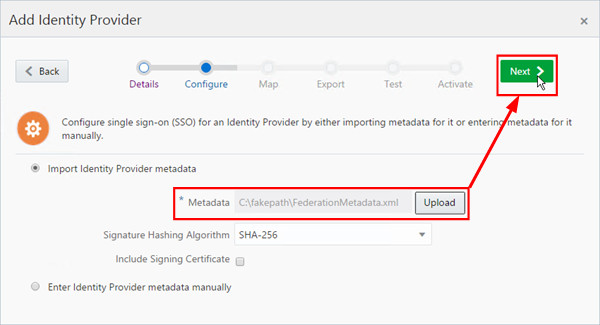
Select Import Identity Provider
metadata, and then click Upload.
Select the FederationMetadata.xml
file, click Open, and then click
Next.
Description
of this image
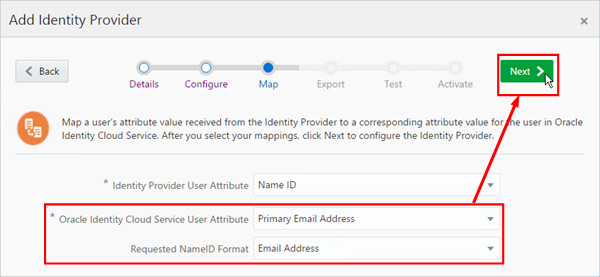
Select Primary Email Address
as Oracle Identity Cloud Service User
Attribute and Email Address
as Requested NameID Format, and
then click Next.
Description
of this image
Click Finish.
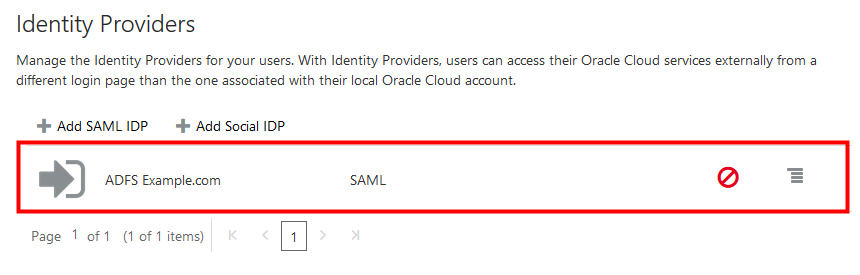
In the Identity Providers page,
confirm the creation of the new identity provider.
Description
of this image
In the Identity
Cloud Service console, expand theNavigation
Drawer, clickSettings,
and then clickDefault
Settings.
Turn on the Access Signing Certificate
option to allow clients to access the tenant
signing certificate and the SAML metadata without
logging in to Oracle Identity Cloud Service.
Obtain the SAML metadata.To learn about the
options to access metadata, see Access
SAML Metadata.
Save the file in your local desktop as Metadata.xml
Note: Don't copy the content
that appear in the web browser. Save the file
instead.
Transfer the Metadata.xml file to
the Windows Server where Microsoft Active
Directory Federation Service is managed.
At this point, Microsoft Active Directory
Federation Service is registered as identity
provider in Oracle Identity Cloud Service.
In the next steps, you register Oracle Identity
Cloud Service as a trusted relying party in
Microsoft Active Directory Federation Service.
Register Oracle Identity Cloud Service as a Trusted
Relying Party
Register the Relying Party
Launch the Microsoft Active Directory
Federation Service Management utility (in
Windows 2012 Server Manager utility, click Tools,
and then click AD FS Management).
Click Action, and then
click Add Relying Party Trust....
In the Add Relying Party Trust
Wizard window, click Start.
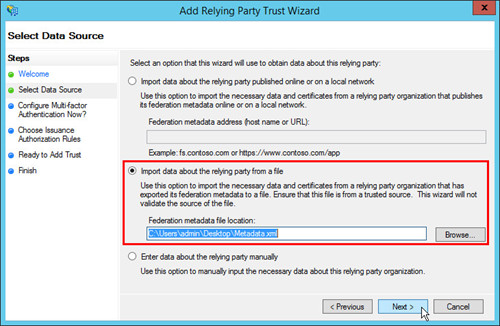
Select Import data about the
relying party from a file, and then
click Browse.
Select the Metadata.xml
(previously downloaded from Oracle Identity
Cloud Service), and then click Next.
Description
of this image
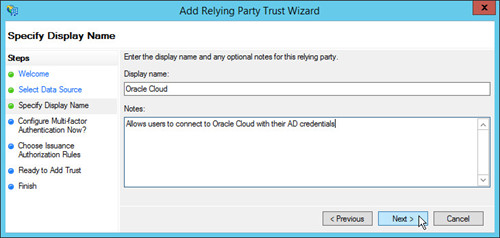
Enter a display name, provide a description
under Notes, and then click
Next.
Description
of this image
Proceed with the default options until you
reach the Finish step, and
then click Close. The Edit
Claim Rules window opens.
Description
of this imageTip: The claim rules define
what information from a logged user will be
sent from Microsoft Active Directory
Federation Service to Oracle Identity Cloud
Service after a successful authentication.
Configure Claim Rules
In this step, you configure two claim rules for
Oracle Identity Cloud Service as a relying
party:
Email: This rule defines
that the email address from users logged in
are sent to Oracle Identity Cloud Service.
Name ID: This rule defines
that the email address are presented as Name
ID to Oracle Identity Cloud Service.
In the Edit Claim Rules window,
click Add Rule.
Select Send LDAP Attributes as
Claims as claim rule template, and
then click Next.
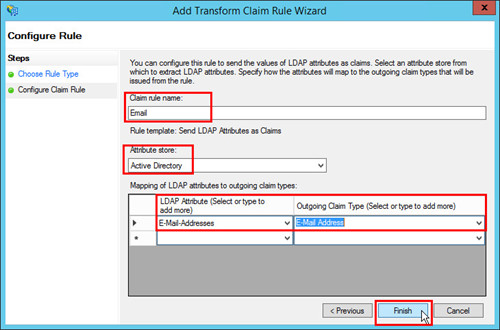
Provide the information as follows, and then
click Finish.
Email Claim Rule - attributes
Attribute
Value
Claim rule name
Email
Attribute store
Active Directory
Mapping of LDAP attributes
to outgoing claim types
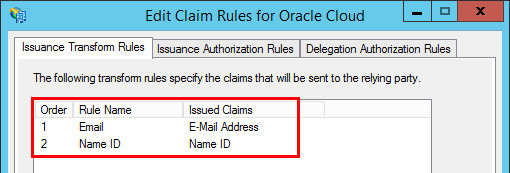
In the Edit Claim Rules for Oracle
Cloud window, confirm that both
the Email and the Name
ID rules are created.
Description
of this image
Click OK.
At this moment, both Microsoft Active
Directory Federation Service and Oracle Identity
Cloud Service have enough information to
establish Single Sign-On.
In the next steps, you test the Single Sign-On
integration.
Test and Enable the Identity Provider Connection
In this task, you test the authentication between
Oracle Identity Cloud Service and Microsoft Active
Directory Federation Service.
If the authentication is successful, you enable the
identity provider for end-users.
Test the Connection
Restart your browser and access the Identity
Cloud Service console.
After logging in, expand the Navigation
Drawer ,
click Security, and then
click Identity Providers.
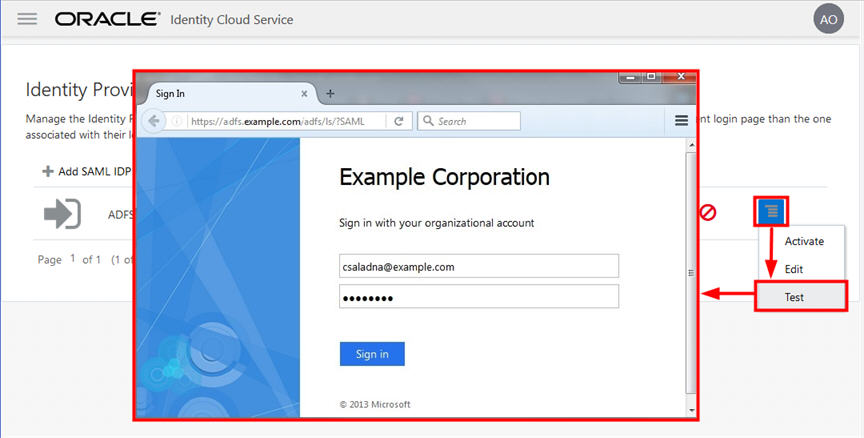
Under the identity provider entry you
previously created, click the right side drop
down menu, and then click Test.
The Microsoft Active Directory Federation
Service Login form appears in a new window or
tab.
Description
of this image
Sign in with a user that exists on Microsoft
Active Directory Federation Service and Oracle
Identity Cloud Service.
In case you don't have a successful connection,
try the following:
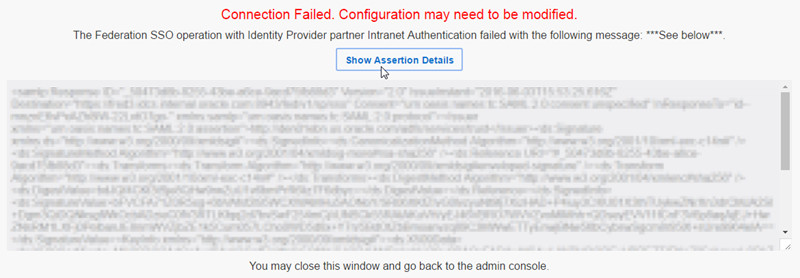
If the "Connection Failed" error message is
displayed, click Show Assertion
Details, and check the SAML error
message (xml format).
Description
of this image
Look for the messages under the <samlp:Status>
and </samlp:Status> tags.
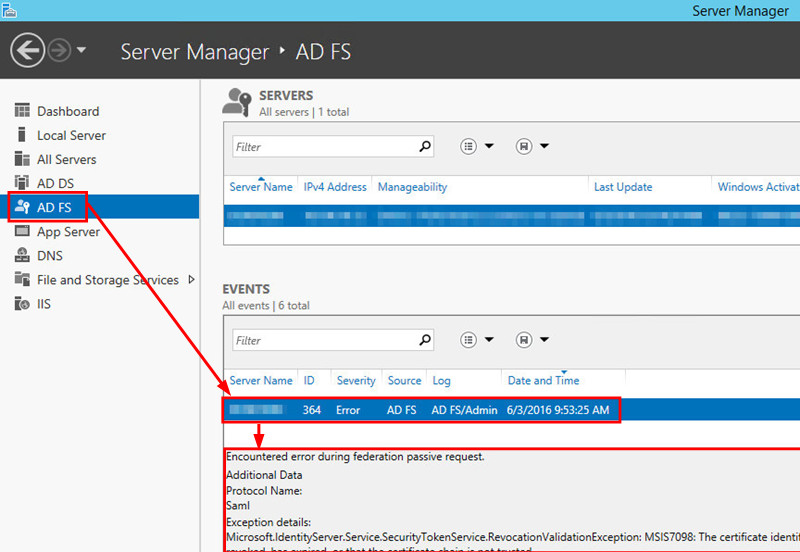
Check the Microsoft Active Directory
Federation Service logs in Windows 2012 R2
Server, click Server Manager,
and then click AD FS and
check the Events table.
Description
of this image
Check your configuration.
Repeat the test, using a network tracing
tool such as the Google developer's tool, the
SAML Tracer for Firefox, or Wireshark.
Enable the Connection
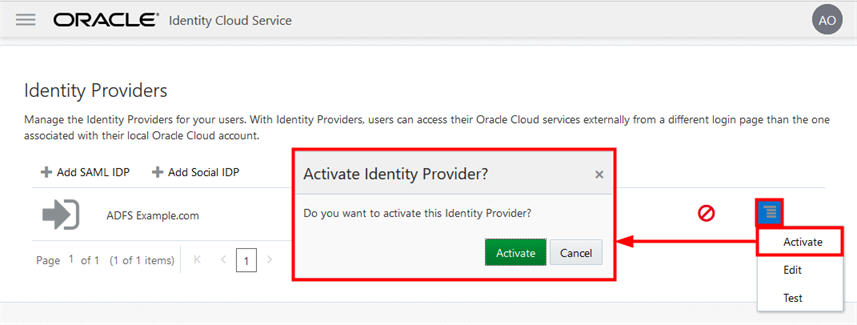
Return to Identity Cloud Service console's
Identity Providers page.
Click on the right side drop down menu of
your Identity provider, click Activate
and then click Activate in
the popup window.
Description
of this image
The Microsoft Active Directory Federation
Service identity provider integration is
enabled.
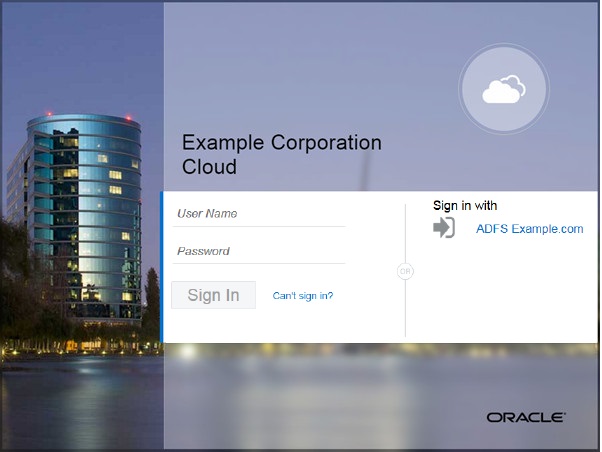
Show the Identity Provider on the Login Page
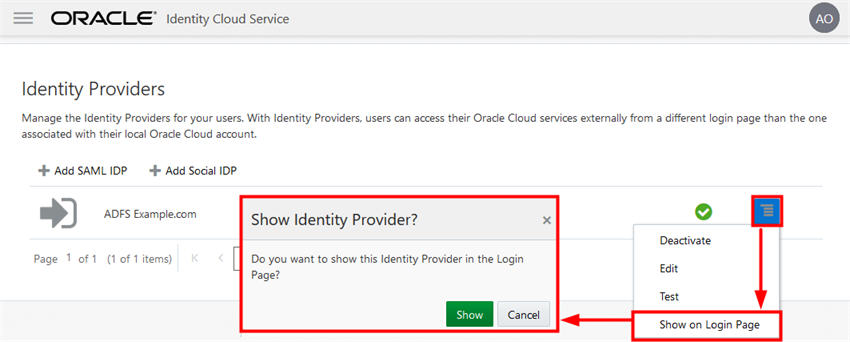
In the Oracle Identity Cloud Service's Identity
Providers page, click on the right
side drop down menu of your Identity provider,
select Show on Login Page,
and then click Show in the
popup window.
A confirmation message will appear confirming
that the identity provider will be shown in the
login age, and an eye icon appear to the
Identity Provider in the list.
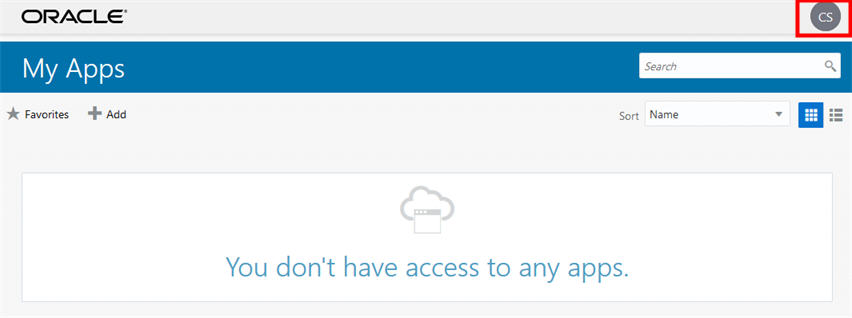
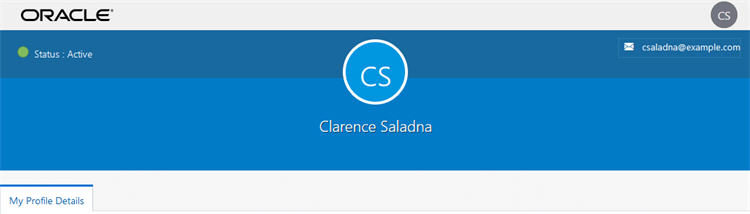
On the top-right corner, click the circle
that contains the user initials, and then
click My Profile to see more
information about the user.
The Microsoft Active Directory Federation
Service Identity Provider integration is enabled
and fully functional.
What's Next? Enforce Federated
Access for Specific Users
After enabling the Microsoft Active Directory
Federation Server authentication as identity provider,
the user logged using Microsoft Active Directory
Federation Service credentials can still:
Log in to Oracle Identity Cloud Service using
the login form within the page instead of using
only the Microsoft Active Directory Federation
Service authentication.
Access Oracle Identity Cloud Service using the Can't
sign in? link provided within the login
page.
Change the user password in Oracle Identity
Cloud Service by accessing the Change My
Password page.
Break the link between Microsoft Active
Directory Federation Service and Oracle Identity
Cloud Service emails by accessing the Set
Email Options page.
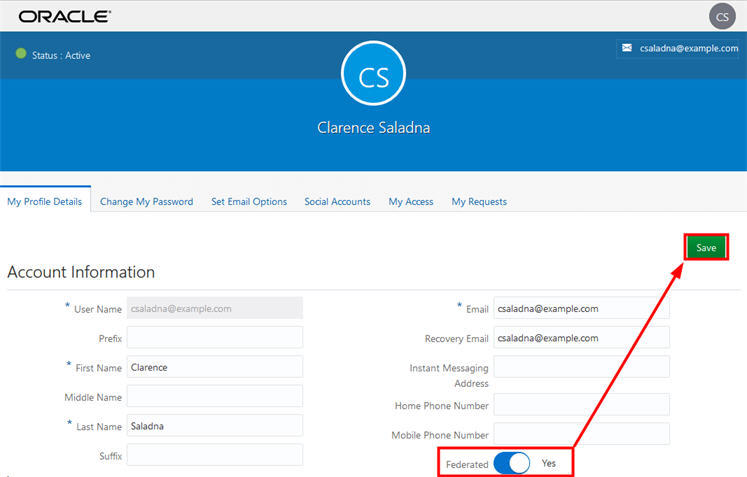
To prevent users from performing these actions, you
must mark the user as a federated entity.
Important: Ignore this section
in case you have an bridge already configured that
uses the option Users can login to cloud
applications using AD Password option.
In case you have Microsoft Active Directory as
identity provider in Oracle Access Manager plus
an bridge, you can perform the following steps
to mark your Active Directory users as
federated.
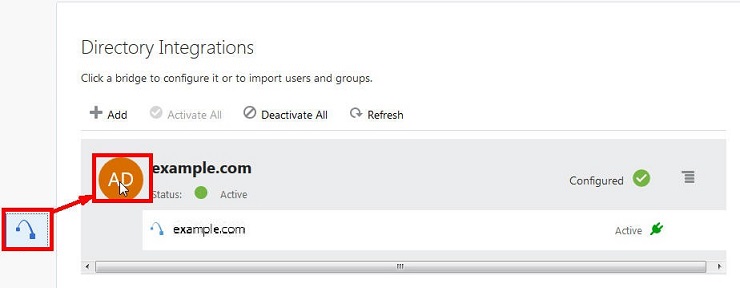
In the Identity Cloud Service console, click
Settings, and then click Directory
Integrations.
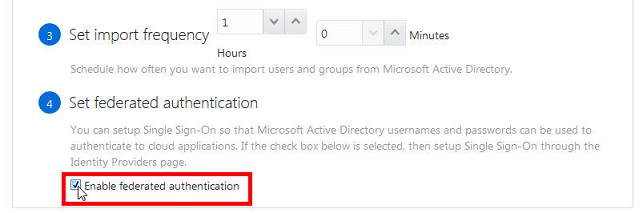
Click Enable federated
authentication, save your changes
and then sign out the Oracle Identity Cloud
Service console.
Description
of this image
Verify the User Access
Restart your browser and access the Identity
Cloud Service console.
Sign in with the federated user. Oracle
Identity Cloud Service returns the message Invalid
user.
This happens because a federated user cannot
log in directly in Oracle Identity Cloud
Service.
Return to the login page, sign in with your
identity provider credentials.
After logging in, visit your profile and
observe that the options Change My
Password and Set Email
Options are not available.
Description
of this image
This confirms that the federated user cannot
circumvent the Microsoft Active Directory
Federation Service authentication.
What's Next? Multiple Identity
Providers
You can configure and activate multiple identity
providers by following the same procedure described in
this tutorial for the Microsoft Active Directory
Federation Services.
You also can mark all the activated identity providers
to shows up on the login page as a login option for
the users.
Want to Learn More?
To learn about the options to access metadata, see
Access
SAML Metadata.
To learn more about how to configure the Active
Directory Identity Bridge (for user synchronization)
and how to manage the bridge integrated to the
Microsoft Active Directory Federation Service
integration, visit:

 ,
click Security, and then click Identity
Providers.
,
click Security, and then click Identity
Providers.