
 Using Oracle Identity Cloud Service's Mobile Software Development Kit (SDK) for Authentication in Android Applications
 Before You Begin
This tutorial shows you how to use Oracle Identity Cloud Service's Software Development Kit (SDK) for the Android platform to enable a sample mobile application to authenticate with Oracle Identity Cloud Service.
This tutorial also contains a section that explains the sample application code which is not mandatory.
This tutorial takes approximately 20 minutes to complete.
Series
This is a tutorial in the Use Oracle Identity Cloud Service's Mobile Software Development Kit (SDK) series. Read them in any order:
- Use Oracle Identity Cloud Service's Mobile Software Development Kit (SDK) for Authentication in Android Applications.
- Use Oracle Identity Cloud Service's Mobile Software Development Kit (SDK) for Authentication in iOS Applications.
Background
Oracle Identity Cloud Service provides a Mobile Software Development Kit (SDK) that you can use to integrate Android applications with Oracle Identity Cloud Service.
The SDK for Android Applications is available as an Android Archive Library (AAR) (IDCS-SDK-for-Android.aar) file, which must be loaded
appropriately as a library in the Android application.
To help you understand how to use the SDK, this tutorial uses a sample mobile Android application as a reference.
Important: Don't publish the sample application to production. The sample application doesn't adhere to the Android-specific best practices, such as data handling, patterns, security, and so on. The sole purpose of this sample application is to address the recommended approach to integrate Oracle Identity Cloud Service with a custom application by using the SDK.
What Do You Need?
- Familiarity with the Java programming language to understand the code logic presented in this tutorial.
- Android Studio installed, with at least API Level 24 and at least SDK Build-Tools 25.0.2.
- The Android sample application zip file downloaded and extracted to a folder on your local desktop.
- The sample application is built with Gradle that automatically downloads the appropriate libraries and builds the application. Below is the list of libraries that the SDK needs:
- slf4j-api 1.7.25
- nimbus-jose-jwt 4.26
- json-smart 2.3
- okhttp 3.8.0
- Access to an instance of Oracle Identity Cloud Service, and privileges to download the SDK from the console and to register a confidential application.
 Download the SDK in the Sample Mobile Application
- In the Identity Cloud Service console, expand the Navigation Drawer
 , click Settings, and then click Downloads. The list of files to download appears.
 - Click Download (
 ) for the SDK for Android Applications, and save the zip file on your local desktop.
 - Open the SDK for Android Applications zip file, locate the
IDCS-SDK-for-Android.aarfile, and then extract this file into the sample application library folder ([SAMPLE_APP_FOLDER]\app\libs). The source code structure of the sample application must be similar to the one below.[SAMPLE_APP_FOLDER]\... app\ build\
libs\
IDCS-SDK-for-Android.aar
src\ gradle\Note: The names of the SDK zip file and the aar file may vary.
 Register a Mobile Application in Oracle Identity Cloud Service
The sample Android application needs the client ID from a mobile application to establish communication with Oracle Identity Cloud Service. You also need to configure API permissions that must be granted to the mobile application. This section explains how to register a mobile application in Oracle Identity Cloud Service.
- On the Identity Cloud Service console, expand the Navigation Drawer , and then click Applications.
- On the Applications pane, click Add.
- In the Add Application dialog box, click Mobile Application.
- Enter the information in the Details section as shown below, and then click Next.
- Name:
SDK Mobile Application - Description:
SDK Mobile Application
- Name:
- On the Client pane, select Configure this application as a client now, and then select the field values as shown below:
- Allowed Grant Types: Select Authorization Code and then deselect Implicit.
- Allow non-HTTPS URLs: Select the check box. The sample application works in non-HTTPS mode.
- Redirect URL:
idcsmobileapp://nodata - Post Logout Redirect URL:
idcsmobileapp://nodata
- Scroll down to the bottom of the page and click Add below Grant the client access to Identity Cloud Service Admin APIs.

Description of this image - In the Add App Role dialog box, select Me from the list, and then click Add.
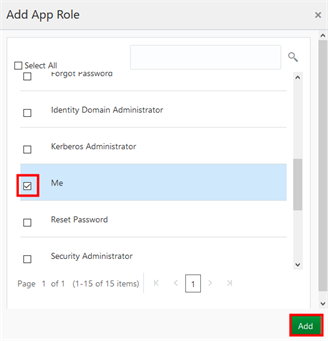
Description of this image - On the Client pane, click Next until you reach the last pane, and then click Finish.
- From the Application Added dialog box, copy the Client ID value, paste it into a text file such as Notepad, and then click Close.
- To activate the application, click Activate.
- In the Activate Application? dialog box, click Activate Application. A success message appears.
- On the Identity Cloud Service console, click the user name in the upper-right corner of the page, and click Sign Out.
 Update the Sample Mobile Application
In this section, you update the sample application code to make it use Oracle Identity Cloud Service's SDK for Android Applications.
- Start Android Studio.
- Click Open an existing Android Studio project, select the sample application folder, and then click OK.
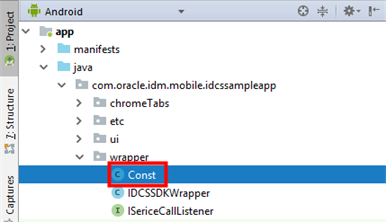
- In the Project pane, expand app, expand java, expand com.oracle.idm.mobile.idcssampleapp, and then wrapper. Follow the screenshot in the next step.
- Double-click the Constant class.
- On the
Const.javatab, update the following entries: - OPEN_ID_DISCOVERY_URL: Enter the configuration URL of your Oracle Identity Cloud Service. Follow the reference example below.
- OPEN_ID_CLIENT_ID: Replace
SDK_MOBILE_APP_CLIENT_IDwith the value of the client ID of the application that you registered in the previous section. - OAUTH_AUTHZ_CODE_RESOURCE_URL: Enter the domain name URL of your Oracle Identity Cloud Service. Follow the reference example below.
- Select the app application on the Project pane, select Build from the top menu, and then click Rebuild Project. Android Studio downloads all of the necessary components and libraries to build the application.
Note: To ensure that your Android Studio installation has the Android API Level 24 installed, click Configure, and then click SDK Manager. The Default Settings window appears. The SDK Platforms tab lists the Android API Levels available for installation and the SDK Tools tab shows the version of the SDK Build-Tools installed.
public static final String OPEN_ID_DISCOVERY_URL = "https://MYTENANT.identity.oraclecloud.com/.well-known/idcs-configuration";
public static final String OPEND_ID_REDIRECT_EP = "idcsmobileapp://nodata";
public static final String OPEN_ID_CLIENT_ID = "SDK_MOBILE_APP_CLIENT_ID";
public static final String OAUTH_AUTHZ_CODE_RESOURCE_URL = "https://MYTENANT.identity.oraclecloud.com/";
Note: Replace MYTENANT with the name of your Oracle Identity Cloud Service tenant. See Find Your Oracle Identity Cloud Service Tenant Name.
Note: If you're behind a proxy, then set up the HTTP Proxy using the Settings menu. Access the Settings menu from the File menu.
 Run the Sample Mobile Application
In this section, you run and test the sample Android application. This application runs on a connected Android device or on a virtual device that you need to create.
- In Android Studio, select Run from the top menu, and then click Run 'app'.
- In the Select Deployment Target window, select an available device to run the sample application.
- On the Android virtual device home screen, click My ID app, if the device doesn't launch the app automatically.
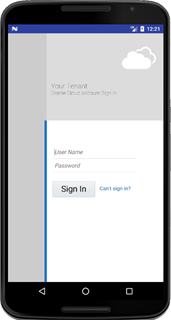
- Enter a valid User Name and Password, and then click Sign In.
- After Oracle Identity Cloud Service successfully authenticates the user, the sample Android application presents the app home page and the list of Oracle Identity Cloud Service registered applications that the user is assigned to.
- Optionally, click My Groups and the sample application displays the list of groups that the user is assigned to.
Note: If you don't have any connected or available devices, you can create one by clicking Create New Virtual Device. See Create and manage virtual devices.
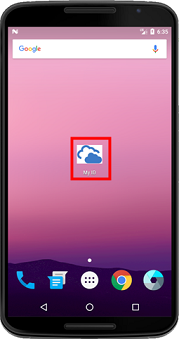
Note: Depending on the type of virtual device that you created, the screen that you see may vary.
The Oracle Identity Cloud Service sign-in page appears.
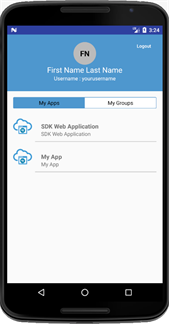
Note: Make sure the user is assigned to applications and groups in Oracle Identity Cloud Service. See Assigning Groups to the User Account and Assigning Applications to the User Account.
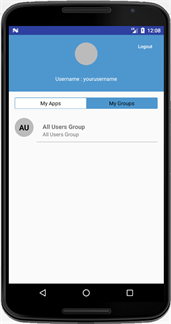
You have successfully completed this tutorial. The following section is not mandatory and is used as reference to understand the sample application code.
 (Optional) Understanding How the Mobile Sample Application Works
This sample application demonstrates how to use the SDK for Android Applications to integrate with Oracle Identity Cloud Service for authentication purposes. The sample application uses OpenID Connect as the authentication method.
The Wrapper Class
The sample application uses the com.oracle.idm.mobile.idcssampleapp.wrapper.IDCSSDKWrapper.java class to interact with the Oracle Identity Cloud Service Mobile SDK for most of the use cases. The following provides more details about this class:
- The
getConfigMap()method creates a map of initialization parameters to be used by the SDK. See Initialization Parameters.
private Map<String, Object> getConfigMap() {
   scopes = new HashSet<>();
   Map<String, Object> map = new HashMap<>();
   map.put(OMMobileSecurityService.OM_PROP_AUTHSERVER_TYPE, OMMobileSecurityService.AuthServerType.OpenIDConnect10);
   map.put(OMMobileSecurityService.OM_PROP_OPENID_CONNECT_CONFIGURATION_URL, Const.OPEN_ID_DISCOVERY_URL);
   map.put(OMMobileSecurityService.OM_PROP_OAUTH_AUTHORIZATION_GRANT_TYPE, OAuthAuthorizationGrantType.AUTHORIZATION_CODE);
   map.put(OMMobileSecurityService.OM_PROP_BROWSER_MODE, mode);
   map.put(OMMobileSecurityService.OM_PROP_OAUTH_ENABLE_PKCE, true);
   map.put(OMMobileSecurityService.OM_PROP_OAUTH_REDIRECT_ENDPOINT, OPEND_ID_REDIRECT_EP);
   map.put(OMMobileSecurityService.OM_PROP_OAUTH_CLIENT_ID, OPEN_ID_CLIENT_ID);
   scopes.add("openid");
   scopes.add("urn:opc:idm:t.user.me");
   map.put(OMMobileSecurityService.OM_PROP_OAUTH_SCOPE, scopes);
   map.put(OMMobileSecurityService.OM_PROP_APPNAME, "OpenIDSampleApp");
   return map;
}IDCSSDKWrapper.java class implements the singleton pattern (one instance of the java object), so that the sample application can interact with only one Oracle Identity Cloud Service instance. The initialize() method instantiates the instance of the OMMobileSecurityService class to be used by the sample application.public static void initialize(Context ctx, OMMobileSecurityConfiguration.BrowserMode mode, Const.AppBrowserMode browserType) {
mInstance = new IDCSSDKWrapper();
...
mInstance.mContext = ctx.getApplicationContext();
mInstance.mode = mode;
mInstance.appBrowserMode = browserType;
try {
Map<String, Object> map = mInstance.getConfigMap();
if (map != null) {
mInstance.mHeadlessMSS = new OMMobileSecurityService(mInstance.mContext, map, mInstance.new OMMobileSecurityServiceCallbackImp());
}
}catch (OMMobileSecurityException e) {
Log.e(TAG, "initialization failed", e);
throw new IllegalArgumentException(e);
}
} OMMobileSecurityServiceCallbackImp that implements the OMMobileSecurityServiceCallback interface. An instance of this inner class is registered in the initialization of the the OMMobileSecurityService class object above.This inner class contanis callback methods for each action the SDK performs.
onSetupCompleted(): Called on the event of setup completion which is triggered as a result ofOMMobileSecurityService.setup().onAuthenticationChallenge(): Called on the event of challenge for authentication which is triggered as a result ofOMMobileSecurityService.authenticate().onAuthenticationCompleted(): Called on the event of a authentication completion triggered as a result of credential validation and redirection.onLogoutChallenge(): Called on the event of challenge for authentication which is triggered as a result ofOMAuthenticationContext.logout().onLogoutCompleted(): Called on the event of a logout completion triggered as a result of logout validation and redirection.
private class OMMobileSecurityServiceCallbackImp implements OMMobileSecurityServiceCallback {
...
   public void onSetupCompleted(OMMobileSecurityService mss, OMMobileSecurityConfiguration config, OMMobileSecurityException mse) {
   ...
   }

   public void onAuthenticationChallenge(OMMobileSecurityService mss, OMAuthenticationChallenge challenge, OMAuthenticationCompletionHandler completionHandler) {
   ...
   }

   public void onAuthenticationCompleted(OMMobileSecurityService mss, OMAuthenticationContext authContext, OMMobileSecurityException mse) {
   ...
   }

   public void onLogoutChallenge(OMMobileSecurityService mss, OMAuthenticationChallenge challenge, OMLogoutCompletionHandler completionHandler) {
   ...
   }

   public void onLogoutCompleted(OMMobileSecurityService mss, OMMobileSecurityException mse) {
   ...
   }
...
} Note: See the sample application source code to get details of the implementation of each of these methods.
Constants Class
The com.oracle.idm.mobile.idcssampleapp.wrapper.Const.java class file contains Oracle Identity Cloud Service information, such as the base URL and the Client ID generated for the mobile applications that you previously registered in this tutorial.
Browser Interaction
The com.oracle.idm.mobile.idcssampleapp.ui.WebActivity.java represents the sample application Sign In page.
The initializeSDK() method is executed during the onCreate event. The method sets how the sample application interacts with the device browser. The following provides more details about this interaction:
- In the sample code, there are two variables that control the browser behavior:
browserModeandtype. - If the device supports Chrome Tab, a new layout-customizable Chrome browser window opens to present the Oracle Identity Cloud Service sign-in page. If Chrome Tab isn't supported, then an external browser opens.
 private void initializeSDK() {
	OMMobileSecurityConfiguration.BrowserMode browserMode = EMBEDDED;
	Const.AppBrowserMode type = Const.AppBrowserMode.EMBEDDED;
	if ((browserMode == EXTERNAL) && (null == CustomTabsHelper.getPackageNameToUse(WebActivity.this))) {
		type = Const.AppBrowserMode.EXTERNAL;
	}
	IDCSSDKWrapper.initialize(getApplicationContext(), browserMode, type);
}
By default, the sample application is configure to use EMBEDDED browser mode. The following table shows screenshots of the sample application interacting with both CHROMETAB and EXTERNAL browser type:
browserMode=EXTERNAL and type=CHROMETAB |
browserMode=EXTERNAL and type=EXTERNAL |
|---|---|
|
Sample application calling Chrome Tab externally 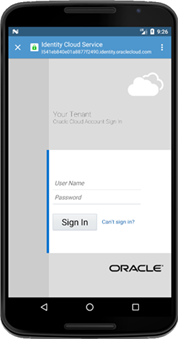 |
Sample application calling external browser chooser dialog 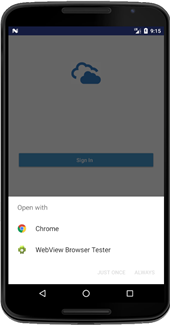 Sample application calling Chrome as selected external browser 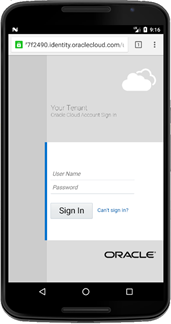 |
Retrieving Oracle Identity Cloud Service Information
After successful login, the sample application presents the home page.
The HomeActivity class represents the home page. It uses the instance of the OMMobileSecurityService class to request Oracle Identity Cloud Service information such as:
getMyApps(): Get the list of applications the user is assigned to.
private void getMyApps() throws MalformedURLException {
   if(appsList == null) {
      showProgress("getting apps...");
      OMAuthorizationService authZService = new OMAuthorizationService(IDCSSDKWrapper.getInstance().getOMMSService());
      OMHTTPRequest request = new OMHTTPRequest(new URL(Const.URL_MY_APPS), OMHTTPRequest.Method.GET);
      authZService.executeRequest(request, new MyAppsResponseListener(), IDCSSDKWrapper.getInstance().getScopes());
   } else {
      if (mFragment instanceof ItemsFragment) {
         mFragment.onDataSerChanged(appsList, true);
      }
   }
} getMyGroups():Get the list of groups the user is assigned to.private void getMyGroups() throws MalformedURLException {
if (groupList == null) {
showProgress("getting groups...");
OMAuthorizationService authZService = new OMAuthorizationService(IDCSSDKWrapper.getInstance().getOMMSService());
OMHTTPRequest request = new OMHTTPRequest(new URL(Const.URL_MY_GROUPS), OMHTTPRequest.Method.GET);
authZService.executeRequest(request, new MyGroupsResponseListener(), IDCSSDKWrapper.getInstance().getScopes());
} else {
if (mFragment instanceof ItemsFragment) {
mFragment.onDataSerChanged(groupList, true);
}
}
} Two private inner classes named MyAppsResponseListener and MyGroupsResponseListener are registered to process the HTTP response.
The JSON response is then parsed and presented in the home page. See Run the Sample Mobile Application in this tutorial.
Logout
On the top right corner of the application page, click Logout to log the user out from Oracle Identity Cloud Service, and consequently invalidate the access token previously issued. The com.oracle.idm.mobile.idcssampleapp.ui.WebActivity.java implements the onLogoutChallenge method.
- This method calls the Oracle Identity Cloud Service logout URL using the browser type defined previously.
public void onLogoutChallenge(OMAuthenticationChallenge challenge, OMLogoutCompletionHandler completionHandler) {
  if (challenge.getChallengeType() == OMAuthenticationChallengeType.EXTERNAL_BROWSER_INVOCATION_REQUIRED) {
     String logoutURL = (String) challenge.getChallengeFields().get(OMSecurityConstants.Challenge.EXTERNAL_BROWSER_LOAD_URL);
     if (IDCSSDKWrapper.getInstance().getAppBrowserMode() == Const.AppBrowserMode.EXTERNAL) {
        if (!TextUtils.isEmpty(logoutURL)) {
           invokeExternalBrowser(logoutURL);
        } else {
           Toast.makeText(this, "SDK ERROR!!!!!!!", Toast.LENGTH_LONG).show();
        }
     } else if (IDCSSDKWrapper.getInstance().getAppBrowserMode() == CHROMETAB) {
        ...
     }
  } else {
     ...
     //Handles other type of browser modes
  }
} Note: See the sample application source code to get details of the implementation of this method.
Once logout is completed by loading the logout URL in the browser, Oracle Identity Cloud Service redirects the control back to Post Logout Redirect URL you have specified during the application registration. See Register a Mobile Application in Oracle Identity Cloud Service.
The Post Logout Redirect URL value is the same specified in one of the intent-filter of the WebActivity in the AndroidManifest.xml file.
<application android:allowBackup="true" android:icon="@drawable/icon_cloud" android:label="@string/app_name" android:supportsRtl="true" android:theme="@style/AppTheme">
<activity android:name=".ui.HomeActivity" />
<activity android:name=".ui.WebActivity" android:launchMode="singleInstance" android:screenOrientation="portrait">
...
<intent-filter>
<data android:host="nodata" android:scheme="idcsmobileapp" />
<action android:name="android.intent.action.VIEW" />
<category android:name="android.intent.category.BROWSABLE" />
<category android:name="android.intent.category.DEFAULT" />
</intent-filter>
</activity>
</application> Want to Learn More?