Before You Begin
Purpose
In this tutorial you learn to bulk load users and groups in Oracle Identity Cloud Service using comma-separated value (CSV) files.
Time to Complete
30 minutes.
Background
Oracle Identity Cloud Service provides four different methods for managing entities (users, groups, and applications) and configurations in bulk:
| Method | CSV files (this tutorial) |
Identity Bridge | REST API | OIM connector |
|---|---|---|---|---|
| Description |
Identity Domain Administrators or User Administrators manually download, edit, and upload a CSV file containing users or groups for bulk-loading in Oracle Identity Cloud Service. |
An Oracle Identity Cloud Service agent installed in your environment automatically and continuously synchronizes users and groups from your Microsoft Active Directory to Oracle Identity Cloud Service |
The Oracle Identity Cloud Service REST APIs are used by your custom application for managing users and groups |
An Oracle Identity Manager (OIM) connector is used to automatically and continuously provision and reconcile users and groups from Oracle Identity Cloud Service |
| Characteristics |
|
|
|
|
In this tutorial, you learn to bulk load users using CSV files.
What Do You Need?
- Access to Oracle Identity Cloud Service with authorization to manage users and groups (Identity Domain Administrator or User Administrator).
- A spreadsheet editor, such as Microsoft Excel or Google Sheets.
- A file extractor utility, such as WinZip, WinRAR, or 7-Zip.
Downloading the CSV Templates
In this task, you download the templates available for importing users and groups to Oracle Identity Cloud Service.
- In the Identity Cloud Service console, expand the Navigation Drawer
 , and then click Users.
 - Click Import.
- Click Download sample file.
Note: The sample files can be used as a template (or boilerplate) for creating your own user's CSV file for import.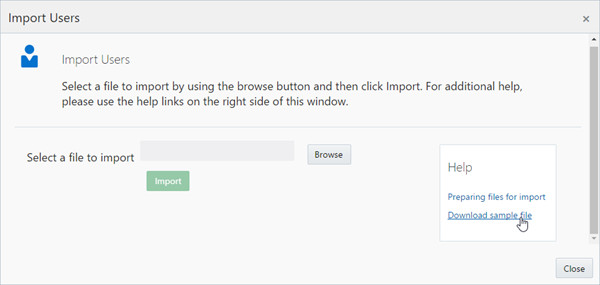
Description of this image - Save the
bulkImportSampleFilesCSV.zipfile to your local disk and minimize your browser. - Extract the
bulkImportSampleFilesCSV.zipfile contents.
Note: ThebulkImportSampleFilesCSV.zipfile contains CSV templates for importing users (Users.csv) and groups (Groups.csv) to Oracle Identity Cloud Service.
Bulk Loading Users
In this task, you learn to import users to Oracle Identity Cloud Service using CSV files.
Modifying the User CSV File
- Open the
bulkImportSampleFilesCSV/Users.csvfile in a spreadsheet editor. (In this tutorial, we are using Microsoft Excel).
Description of this image - Review the users file.
- The
Users.csvfile contains several columns where you provide information about the user(s) you may want to load in Oracle Identity Cloud Service. - The file also contains a few user entries you can use as an example to better understand how the user information can be provided.
- For loading your users, you are not required to fulfill all columns. The only columns required are User ID, First Name, Last Name, and Work Email.
- To understand more about what each column represents in Oracle Identity Cloud Service, check the Oracle Identity Cloud Service User Details page.
Description of this image
- The
- Replace the sample entries with your own users.
Tip: You can use the following data as sample.Sample table containing users for bulk load in Identity Cloud Service User ID Last Name First Name Work Email Password ajefferson@example.com Jefferson Anika ajefferson@example.com Awelcome123 qterrell@example.com Terrell Quincy qterrell@example.com Qwelcome123 mhoover@example.com Hoover Maxwell mhoover@example.com Mwelcome123 gmaddox@example.com Maddox Gregory gmaddox@example.com Gwelcome123 hleon@example.com Leon Holmes hleon@example.com Hwelcome123 dmorin@example.com Morin Dahlia dmorin@example.com Dmorin123 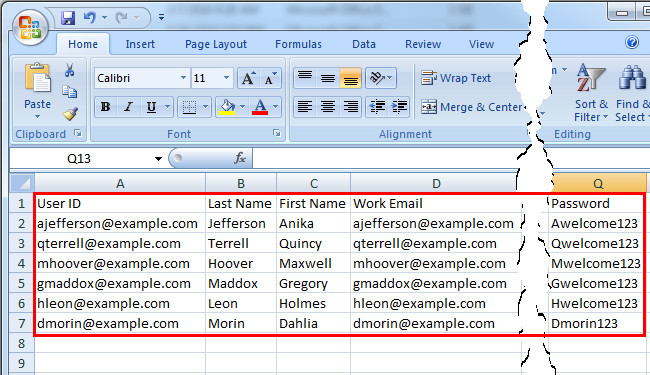
Description of this image - Save and close your file.
Tip: When you save a CSV file using Microsoft Excel, a few warning messages will appear suggesting you to save the file in a different format (XLS or XLSX). Ignore these messages.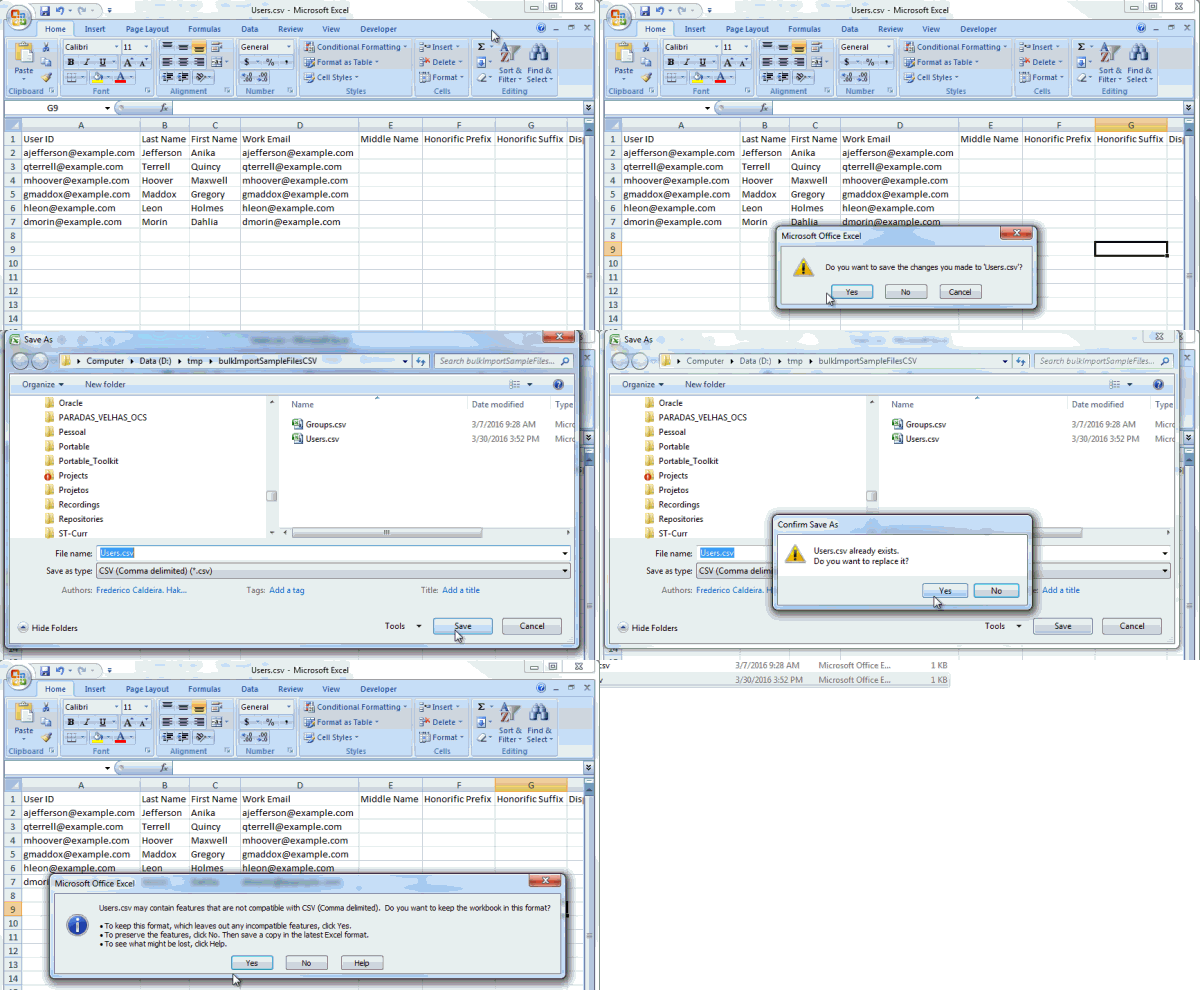
Description of this image
Importing Users
- Back in the Import Users dialog box, click Browse.

Description of this image - Select the CSV file containing your users for import.
- Click Import.
- Review the job results.
If the job can be processed immediately, a dialog box appears with the Job ID link for your import job, click the link.
If the job cannot be processed immediately, a message appears with a Schedule ID in it. Copy that Schedule ID, click Jobs, and search for the respective job id. - Verify the Job ID report for your user import.
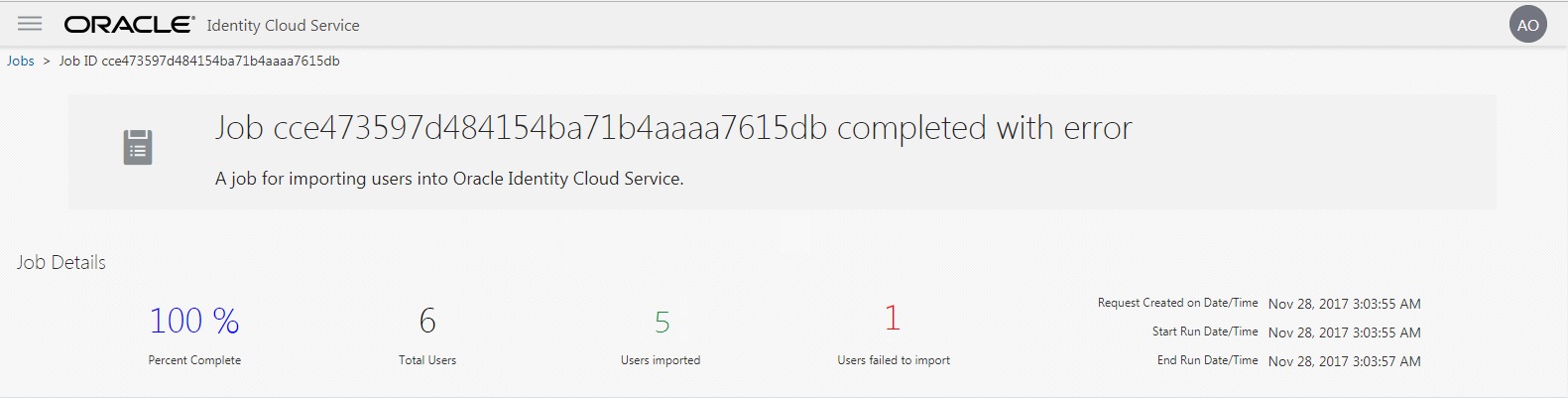
Description of this image - If you used the sample data provided with this tutorial, you will see that the job was able to import all users except Dahlia Morin. Because of this, the job result is completed with error.
Tip: We did this on purpose to show you how Oracle Identity Cloud Service handles user errors individually during the import. - In the Dahlia Morin row, click Creation Failed.
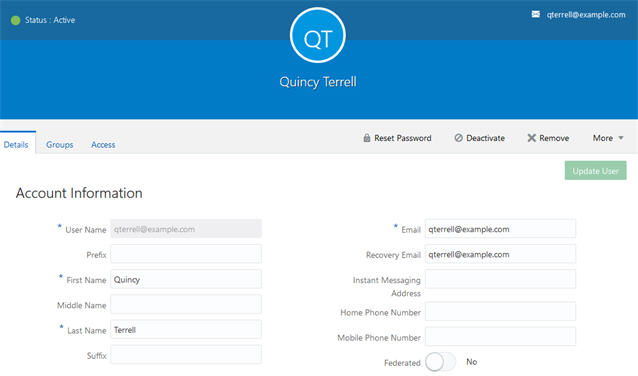
- Observe that the import error message describes that Dahlia's password does not meet the Oracle Identity Cloud Service password policy.
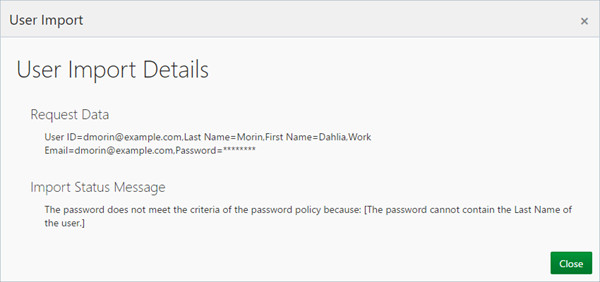
Description of this image - Click Close.
Bulk Loading Groups
In this task, you learn how to import groups to Oracle Identity Cloud Service using CSV files.
During the tasks, you will notice that the procedure for manipulating and importing groups is similar to the user import.
Modifying the Groups CSV File
- Open the
bulkImportSampleFilesCSV/Groups.csvfile in a spreadsheet editor. - Review the groups file.
- The
Groups.csvfile contains the following columns (the only column required is Display Name): - Display Name: Contains the name of the group.
- Description: Provides descriptive information about the group.
- User Members: List users who are assigned to the group, separated by semicolons (;).
- The file also contains a few group entries that you can use as an example to understand how the group information can be provided.
- The
- Replace the sample entries with your own groups.
Tip: You can use the following data as sample.Sample table containing groups for bulk load in Identity Cloud Service Display Name Description User Members Reviewer Group This group has all the reviewers ajefferson@example.com;qterrell@example.com Approver Group This group has all the approvers mhoover@example.com;gmaddox@example.com Audit Group This group has all the auditors hleon@example.com;dmorin@example.com 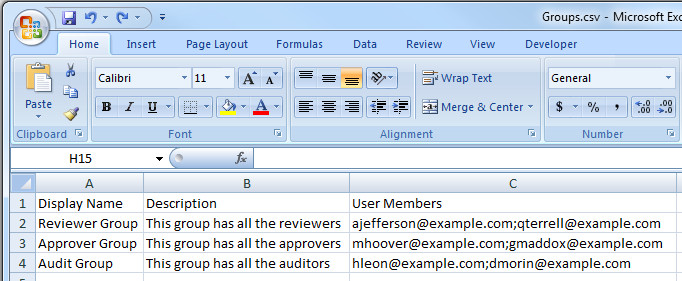
Description of this image - Save and close your file.
Importing Groups
- In the Oracle Identity Cloud Service console, expand the Navigation Drawer , and then click Groups.
- Click Import.
- Click Browse.
- Select the CSV file with your groups for import.
- Click Import.
After uploading the file, Oracle Identity Cloud Service displays a Job ID for import processing - Review the job results.
If the job can be processed immediately, a dialog box appears with the Job ID link for your import job, click the link.
If the job cannot be processed immediately, a message appears with a Schedule ID in it. Copy that Schedule ID, click Jobs, and search for the respective job id. - Oracle Identity Cloud Service displays the report for your group import.
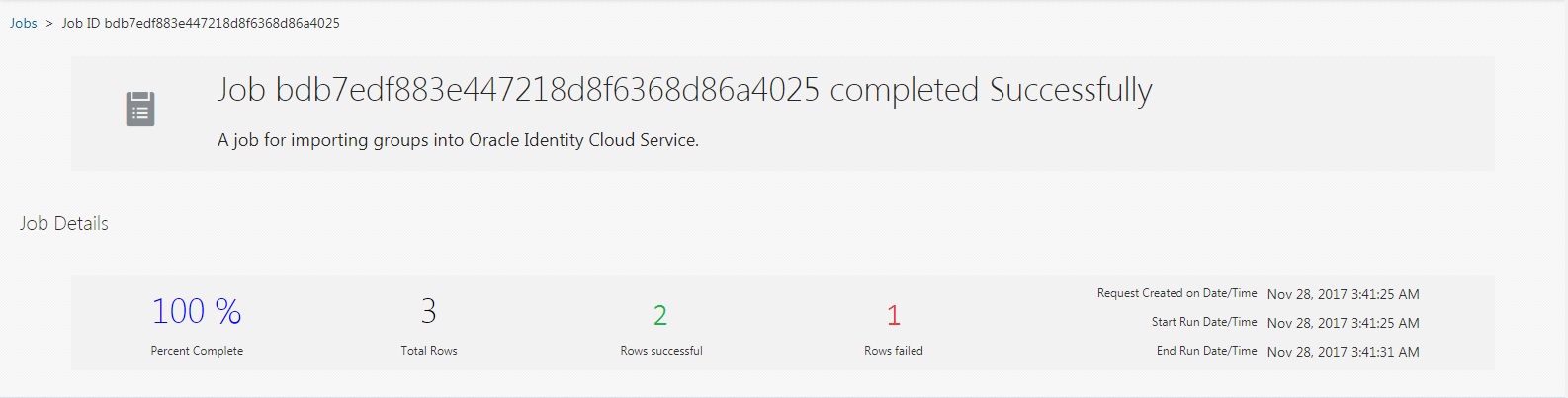
Description of this image - If you used the sample data provided with this tutorial, you will see that the job was able to import all groups except the Audit Group. Because of this, the job result is completed with error.
Tip: We did this on purpose to show you how Oracle Identity Cloud Service handles group import errors individually. - In the Audit Group row, click View Details.
- Click Creation Failed.
- The import error message identifies that dmorin@example.com user does not exist in Oracle Identity Cloud Service.

Description of this image - Click Close.
Want to Learn More?
Credits
- Developer(s): Frederico Hakamine.