
 Setting Up Federation Between Okta and Oracle Identity Cloud Service
 Before You Begin
Purpose
This 15 minute tutorial shows you how to integrate Oracle Identity Cloud Service, acting as a Service Provider (SP), with Okta, acting as an Identity Provider (IdP). By setting up federation between Okta and Oracle Identity Cloud Service, you enable users’ access to applications in Oracle Identity Cloud Service using user credentials that are authenticated by Okta.
Background
Oracle Identity Cloud Service provides integration with IdPs that support the SAML protocol. This integration:
- Works with federated Single Sign-On (SSO) solutions that are compatible with Okta as an IdP.
- Allows users to log in to Oracle Identity Cloud Service using the credentials from their own Okta.
- Can force IdP authentication for all users or offer IdP authentication as an option (Login Chooser option).
The IdP integration provides the following benefits:
- SSO across cloud and on-premises solutions: Oracle Identity Cloud Service provides SSO for cloud applications and on-premises applications while the IdP provides the authentication. Users log in only once, using their IdP credentials.
- Support multiple SSO scenarios
in parallel: By combining the Login Chooser with an
IdP, you offer different SSO scenarios per user. This option
can be used for the following scenarios:
- Employees authenticate using their enterprise IdP credentials.
- Contractors authenticate directly in Oracle Identity Cloud Service.
- Enable defense in-depth strategies in the Cloud: The IdP integration, when wisely planned and coupled with other security controls, can enable a hybrid cloud defense-in-depth (apply your on-premises security controls on cloud solutions). For example, if you implement IdP authentication as the only option for your employees, and your IdP is accessible only through the Intranet or VPN, you ensure that Oracle Identity Cloud Service is accessed only when your employees are in your network-safe environment.
What Do You Need?
- Access to Oracle Identity Cloud Service with authorization to manage IdPs (Identity Domain Administrator or Security Administrator).
- Access to an Okta instance.
- Users synchronized between an Okta domain and Oracle Identity Cloud Service.
Note: You must have an Oracle Cloud Account with Identity Cloud Service.
 Configure
Okta as the IdP
Configure
Okta as the IdP
In this section, you can configure Okta to act as an IdP for Oracle Identity Cloud Service.
- Log in to the Okta administrator console, and then navigate to the Applications tab to create a new application.
- Click Add Application and then Create New App.
- In the Create a New Application Integration window:
- Select Web as the Platform.
- Select SAML 2.0 as the Sign on method.
- Click Create to continue.
- On the General Settings page, enter a name
for the application in the App name field,
and click Next.
Note: On the Configure SAML page in SAML Settings, you need to provide values for Single sign on URL which is the assertion consumer URL and Audience URI (SP Entity ID) which is the service provider entity ID. Federation will work only if the Audience URI (SP Entity ID) is correct.
- To find out the exact Single sign on URL and SP Entity ID URL for your tenant, log into Oracle Identity Cloud Service.
- In the Oracle Identity Cloud Service URL, add /.well-known/idcs-configuration
after oraclecloud.com and press Enter.
https://MYTENANT.identity.oraclecloud.com/.well-known/idcs-configuration - On this page, scroll down to SAML configuration, copy the
value of saml_sp_sso_endpoint, and paste this URL in
the Single sign on URL field. The sample
format, but not necessarily the correct URL for your tenant,
is as follows:
https://MYTENTANT.identity.oraclecloud.com/fed/v1/sp/sso - On the same page, find metadata_endpoint under
SAML configuration. , copy the URL, and paste it in a new
browser. In this new page, search for entityID, copy
the URL, and paste it in the Audience URI (SP Entity
ID) field. The sample format, but not necessarily
the correct URL for your tenant, is as follows:
https://MYTENTANT.identity-test.oraclecloud.com/fed - On the Configure SAML page in SAML Settings, enter values for the following fields, and click Next:
- Name ID format: Identifies the SAML processing rules and constraints for the assertion's subject statement. Select EmailAddress.
- Application username: Determines the default value for an user’s application user name. The application user name is used as the assertion's subject statement. Select Email.
- On the Help Okta Support understand how you configured this application section, select I'm an Okta customer adding an Internal app, and then click Finish.
- Click Application tab, navigate to the new app, and then select the Sign On tab.
- Click Identity Provider metadata link and open it in a new tab.
- Save the metadata with
.xmlextension. - If you are using Firefox browser, navigate to File
menu, select Save Page As, and then save
the metadata with
.xmlextension. - If you are using Chrome browser, right-click on the page,
select Save As, and then save the metadata
with
.xmlextension. - To assign users, select the Assignments tab in the Application page.
- From Assign drop-down, select Assign to People.
- In the page that opens, select Assign for each of the users that you want to assign to the application. Once assigned, click Done.

Note: In the Single sign on URL and the Audience URI, replace MYTENANT with your Oracle Identity Cloud Service domain.
To learn about the other options that can be
used to access SAML metadata, see Access
SAML Metadata

In order to successfully test the federation between Okta and Oracle Identity Cloud Service, you need to assign the application to the user account in Okta.
The user is now assigned to the application. Use the same user to test the federation between Okta and Oracle Identity Cloud Service.
 Configure
Oracle Identity Cloud Service as a Service Provider
Configure
Oracle Identity Cloud Service as a Service Provider
In this section, you can configure Oracle Identity Cloud Service to federate Okta as an IdP.
- In the Identity Cloud Service administrator console, expand
the Navigation Drawer
 , and then click Security.
 - Navigate to Identity Providers, and then click Add SAML IDP.
- On the Add Identity Provider page, enter the name and description for the SAML 2.0 IdP, and then click Next.
- On the Configure page, import the IdP metadata file that you saved from the application Sign-On tab in Okta. To import, click Upload, browse and select the metadata file, and then click Next.
- On the Map page, map a user's attribute value from the IdP to a corresponding user attribute in Oracle Identity Cloud Service in the following ways, and click Next:
- Identity Provider User Attribute: Select Name ID (or a SAML attribute for a custom configuration).
- Oracle Identity Cloud Service User Attribute: Select Primary Email Address (or a corresponding value in Oracle Identity Cloud Service).
- Requested NameID Format: Select Email Address.
- On the Export page, click Next.
- On the Test page, click Next to
activate the federation.
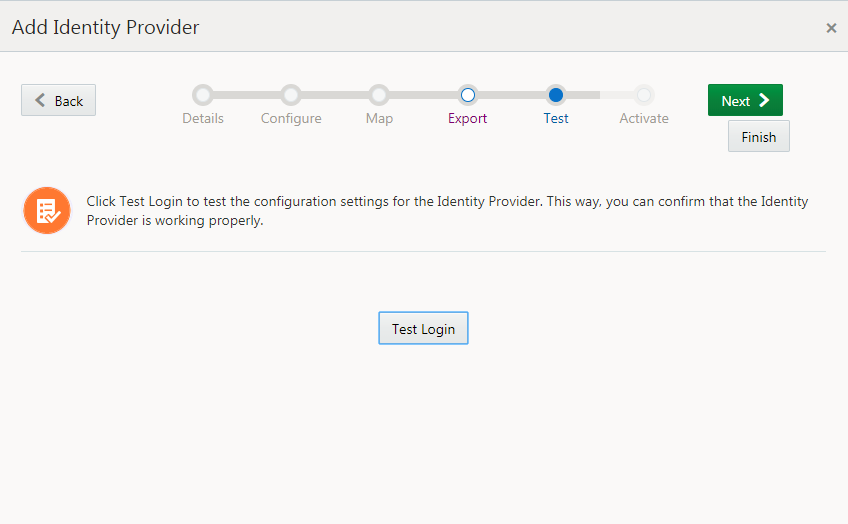
Description of the illustration [idcs_testlogin] Note: To test, use a user name account that exists in the IdP (Okta) and the Service Provider (Oracle Identity Cloud Service). Otherwise, the assertion fails.
- On the Activate page, click Activate. The IdP is now activated.
- Click Finish.
- To add the IdP to the Login page, click the action menu for
the IdP, and then select Show on Login Page.
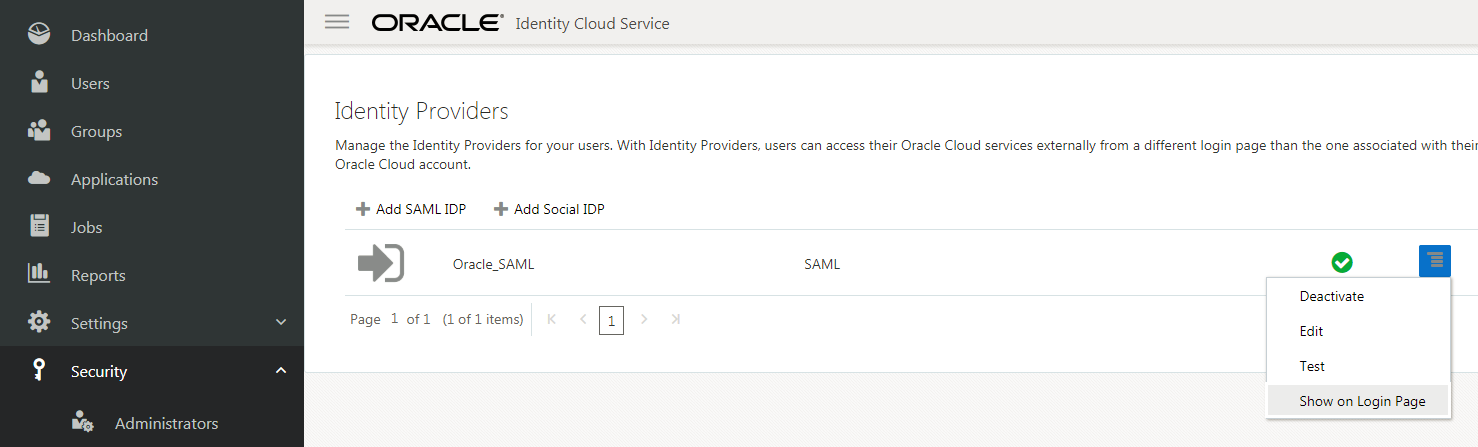
Description of the illustration [idcs_showonlogin] - On the Show Identity Provider? dialog box, select Show.

The IdP is now available on the Identity Providers page.
The IdP is now available to be used in the IDP Policies configuration.
 Assign
the Okta IdP to an IdP Policy
Assign
the Okta IdP to an IdP Policy
In this section, you can assign the IdP to an IdP policy to enable an alternate sign-in through the IdP.
- On the Identity Cloud Service administrator console, expand
the Navigation Drawer ,
and then click Security.
- Click IDP Policies.
- On the Identity Provider Policies page, do one of the following:
- To assign the IdP to the default IdP policy, click Default Identity Provider Policy to assign the IdP.
- To create a new IdP policy and assign the IdP, click Add.
- On the Identity Providers tab, click Assign to add the IdP.
- On the Assign Identity Providers page, select the check box of the Okta IdP, and then click OK.
The assigned IdP appears on the Default Identity Provider Policy page.
 Test
the Federation
Test
the Federation
In this section, you can test the federation to ensure that it works correctly before enabling the IdP.
- On the Identity Cloud Service administrator console, select the user, and then select Sign Out to test the federation.
- On the Oracle Identity Cloud Service Login page, click the IdP link to login using Okta credentials.

Okta authenticates the user and the user is signed into Oracle Identity Cloud Service.
 Want
to Learn More?
Want
to Learn More?