
 Setting up Federation between OneLogin and Oracle Identity Cloud Service
 Before You Begin
Purpose
In this tutorial you learn to integrate Oracle Identity Cloud Service with OneLogin Single Sign-on as an Identity Provider (IdP). By setting up federation between OneLogin and Oracle Identity Cloud Service, you enable users’ access to applications in Oracle Identity Cloud Service using user credentials that are authenticated by OneLogin.
Time to Complete
15 minutes.
Background
Oracle Identity Cloud Service provides integration with OneLogin Single Sign-on as an IdP. This integration:
- Works with federated Single Sign-On (SSO) solutions that are compatible with OneLogin as an IdP.
- Allows users to log into Oracle Identity Cloud Service using the credentials from their own identity provider.
- Can force the IdP authentication for all users or offer the IdP authentication as an option (Login Chooser option).
The identity provider integration provides the following benefits:
- Single Sign-On across cloud and on-premises solutions: Oracle Identity Cloud Service provides Single Sign-On for cloud applications while the IdP provides Single Sign-On for on-premises applications. Users log in only once, using their IdP credentials.
- Support multiple Single Sign-On scenarios in parallel: By combining the Login Chooser with an IdP, you offer different Single Sign-On scenarios per user. This option can be used for the following scenarios :
- Employees authenticate using their enterprise IdP credentials.
- Contractors authenticate directly in Oracle Identity Cloud Service.
- Enable defense In depth strategies in the Cloud: The IdP integration - when wisely planned and coupled with other security controls - can enable a hybrid cloud defense in depth (apply your on-premises security controls on cloud solutions). For example, if you implement IdP authentication as the only option for your employees and your IdP is accessible only through the Intranet or VPN, you ensure that Oracle Identity Cloud Service is accessed only when your employees are in your network-safe environment.
What Do You Need?
- Access to Oracle Identity Cloud Service with authorization to manage identity providers (Identity Domain Administrator or Security Administrator).
- Access to OneLogin instance.
- Users synchronized between OneLogin domain and Oracle Identity Cloud Service.
 Configure OneLogin as the Identity Provider
- Login to OneLogin as an administrator. In the right-top corner, click Administration.
- Click Apps and then Add Apps.
- In the Find Applications screen, search and click Oracle Identity Cloud Service. The initial Configuration screen appears.
- Enter a Display Name to easily identify this application. You can choose to retain the default Display Name.
- Ensure that Visible in portal is selected and denoted by green color.
- Select an image to associate with this application to visually identify. You can choose to retain the default image.
- Click Save and the confirmation message appears.
- In the Parameters tab, select Configured by admin, ensure that the Oracle Identity Cloud Service field NameID is set to Email, and then click Save.
- In the SSO tab, perform the following in the same order:
- Under X.509 Certifiate box, click View Details.
- Set SHA fingerprint value to SHA256.
- Click Save.
- Under Apps using this certificate, click the name of the app that you created in the previous step.
- Under X.509 Certifiate box, click View Details.
- Click DOWNLOAD.
- In the Access tab, assign the role that should have access to Oracle Identity Cloud Service and then click Save.
- Click Setup and ensure that the app you just created adheres to the conditions mentioned here.
- Keep the OneLogin application open and proceed to the next section.
 Configure Oracle Identity Cloud Service as Service Provider
- In the Identity Cloud Service administrator console, expand the Navigation Drawer
 , and then click Security.
 - Click Identity Providers, and then click Add SAML IDP.
- In the Add Identity Provider tab, enter the name and description for the SAML 2.0 Identity Provider, and then click Next.
- In the Configure page, select Enter Identity Provider metadata manually and enter the following values:
- Issuer ID: Copy the Issuer URL from the OneLogin SSO tab and paste into the Issuer ID field.
- Signing Certificate: Click Upload, browse and select the X.509 Certificate that you downloaded in the SSO tab in OneLogin.
- SSO Service URL: Copy the SAML 2.0 Endpoint (HTTP) URL from the OneLogin SSO tab and paste into this field.
- SSO Service Binding: Change the SSO Service Binding from Redirect to POST.
- Logout Request URL: Copy the SLO Endpoint (HTTP) from the SSO tab in OneLogin and paste into this field.
- Logout Response URL: Copy the SLO Endpoint (HTTP) from the SSO tab in OneLogin and paste into this field.
- Logout Binding: Select Redirect from the list.
- Click Next.
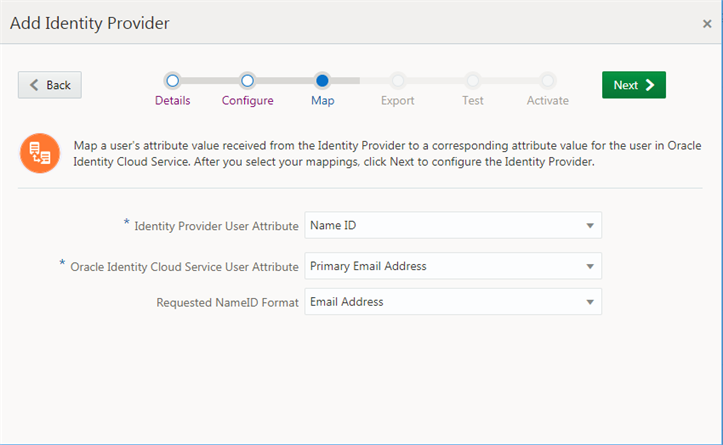
- In the Map page, map the user's attribute value from the Identity Provider to a corresponding user attribute in Oracle Identity Cloud Service in the with the following values:
- Identity Provider User Attribute: Select Name ID as the value.
- Oracle Identity Cloud Service User Attribute: Select Primary Email Address as the value.
- Requested NameID Format: Select Email Address as the value.
- Click Next.
- In the Export page, perform the following:
- Copy and save the below details into a notepad, as you require these information to configure OneLogin:
- Service Provider Metadata file: Copy the Provider ID URL and paste into the corresponding field of the same name in the Configuration tab in OneLogin.
- Service Provider Signing Certificate: Copy the Assertion Consumer Service URL and paste into the corresponding field of the same name in the Configuration tab in OneLogin.
- Service Provider Encryption Certificate: Copy the Logout Service Endpoint URL and paste into the corresponding field of the same name in the Configuration tab in OneLogin.
- Click Next, and then click Finish to complete the steps for adding the Identity Provider.
Note: Ensure that when you are copying the URL or any text, the extra space is not pasted in any of the following fields.
Tip: Alternatively, you can keep the Export page open and move on to the next section to configure Oracle Identity Cloud Service as Identity Provider in OneLogin.
Note: Do not click Test now because Oracle Identity Cloud Service has not yet been configured as an idenity provider in OneLogin.
 Configure Oracle Identity Cloud Service as Identity provider in OneLogin
- In OneLogin, click Company Apps, and then click the application that you created previously.
- Click Configuration and perform the following:
- Service Provider Metadata file: Copy the Provider ID URL and paste into the corresponding field of the same name in the Configuration tab in OneLogin.
- Service Provider Signing Certificate: Copy the Assertion Consumer Service URL and paste into the corresponding field of the same name in the Configuration tab in OneLogin.
- Service Provider Encryption Certificate: Copy the Logout Service Endpoint URL and paste into the corresponding field of the same name in the Configuration tab in OneLogin.
- Click SAVE.
 Test the Federation
Test the federation to ensure that it works correctly before enabling the Identity Provider.
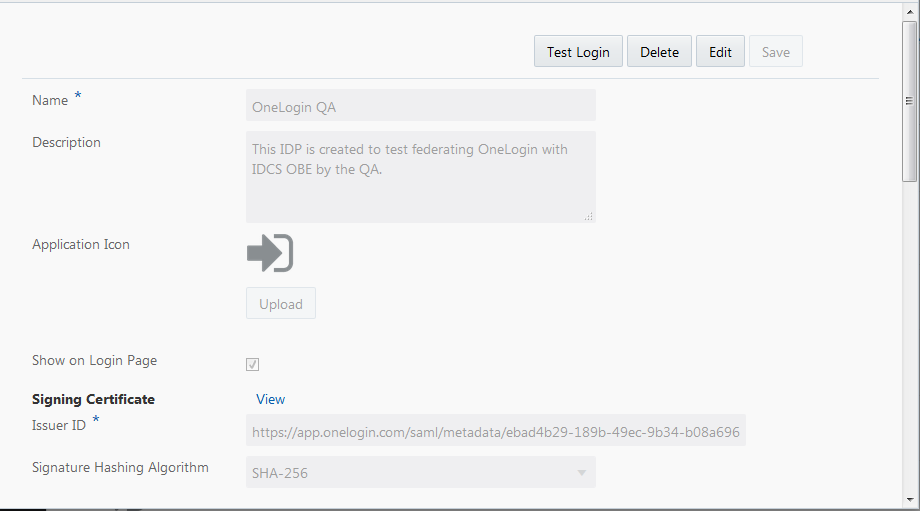
Note: Previously if you had clicked Finish while creating the Identity Provider, click the Identity Provider name, click Edit and then click Test Login.
- In the Test page, click Test Login.
Note: To test, use a username account that exists in Identity Provider and Service Provider. Otherwise, the assertion will fail. In order for the test to be successful, you also need to assign the application to the user account in the Identity Provider.
Description of the illustration - The test successful confirmation message is displayed.
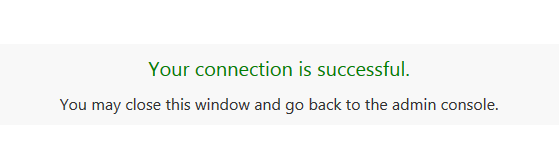
- From the Identity Providers list, click the menu option of the Identity Provider name, and then click Activate.

Description of the illustration
 Enable OneLogin IDP to Appear in the Sign-in Page
You need to assign the Identity Provider to an Identity Provider policy in order to enable alternate sign-in through the Identity Provider.
- In the Identity Cloud Service administrator console, expand the Navigation Drawer , and then click Security.
- Click IDP Policies.
- In the Identity Provider Policies page, click Default Identity Provider Policy to assign the Identity Provider.
- In the Identity Providers tab, click Assign to add the Identity Provider.
- In the Assign Identity Providers page, select the check box of the Identity Provider that you want to assign, and then click OK.
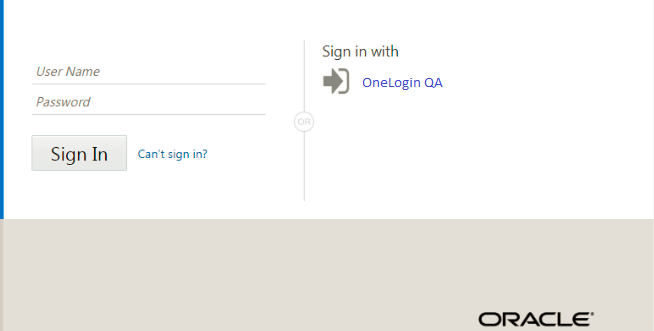
- To enable the Identity Provider to appear on the Login Page, click the action menu for the Identity Provider, and then select Show on Login Page option.
Description of the illustration
Note: You can also assign Identity Provider to policies other than the default. Click Add to create a new Identity Provider Policy and assign the Identity Provider.
The assigned Identity Provider is displayed in the Default Identity Provider Policy page and will appear along with the Service Provider Login.
 Test the Federation
In this section, you can test the federation to ensure that it works correctly before enabling the IdP.
- On the Identity Cloud Service administrator console, select the user, and then select Sign Out.
- On the Oracle Identity Cloud Service Login page, click the IdP link to login using OneLogin credentials.
- When the OneLogin login page appears, provide your OneLogin credentials, and then verify that you are redirected to Oracle Identity Cloud Service My Console page.
Note: Make sure the user exists in both OneLogin and Oracle Identity Cloud Service.
 Want to Learn More?