Signing Up for a Java Cloud Service
Overview
Purpose
This tutorial covers signing up for a trial Java Cloud Service.
Time to Complete
Approximately 1 hour
Introduction
Oracle customers interested in the Oracle Cloud can work through this tutorial which shows how to start a free trial for a Java Cloud Service. A Java Cloud Service is designed to have Java Enterprise Edition applications deployed to it. Along with the Java Cloud Service, there is also a Database Cloud Service provisioned, giving applications deployed to the Java Cloud Service a database they can access. This tutorial also shows how to access the Java Cloud Services Control console, which allows you to monitor the Java Cloud Service.
Scenario
This tutorial assumes that you are an Oracle customer interested in using the Oracle Cloud for Java Enterprise Edition applications.
Prerequisites
Before starting this tutorial, you should have an Oracle.com account.
Accessing the Oracle Cloud and Provisioning a Java Cloud Service
- Email Address (already filled in)
- First Name
- Last Name
- Company
- Country
- Address (street address in two lines)
- City
- State
- Zip/Postal Code
- Credit Card Type
- Name on Card
- Number
- Expiration Month
- Expiration Year
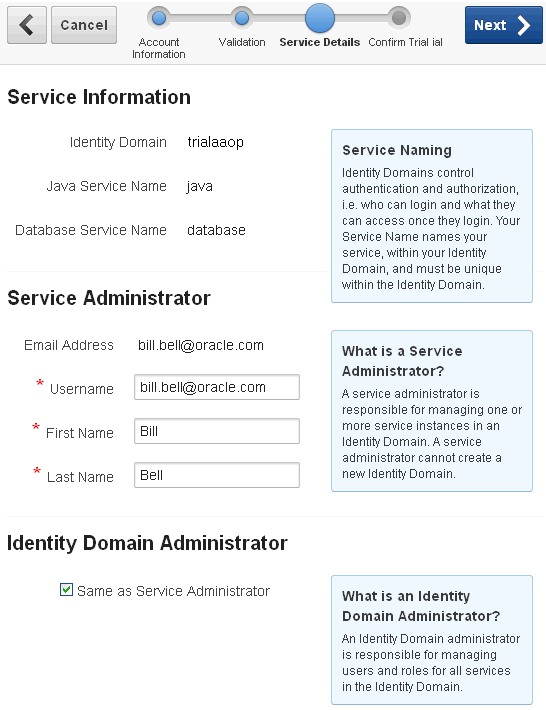
- Service Information
- Identity Domain: In this tutorial, the name assigned is trialaaop.
Note: The Identity Domain name must be unique, and so it is assigned to you. - Java Service Name: In this tutorial, the name assigned is java.
Note: The Java Service name must be unique within the Identity Domain. - Database Service Name: In this tutorial, the name assigned is database.
Note: The Database Service name must be unique within the Identity Domain and cannot be the same as the Java Service name. - Service Administrator: (this is who will work with the cloud services)
- Email Address: This is already entered and is your email address (the email address of the user currently logged in to the Oracle Cloud).
- Username: The email address is already entered as the username.
- First Name: The first name is already entered.
- Last Name:The last name is already entered.
- Identity Domain Administrator: (this is who will work with usernames and passwords)
Note that if you select Same as Service Administrator, the fields disappear. That is what was done in this tutorial. - Email Address: The email address of the Identity Domain Administrator.
- Username: You can enter the user's email address.
- First Name
- Last Name
To access the Oracle Cloud and sign up for a trial Java Cloud Service, perform the following steps:
Open a web browser and enter the following URL (or click the link below):
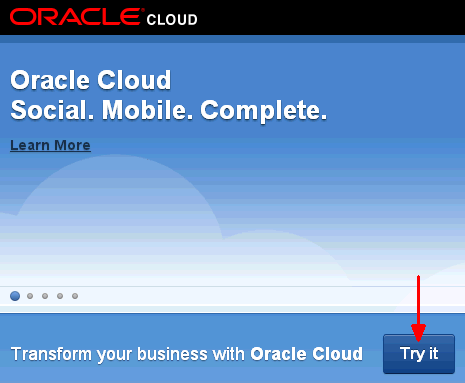
On the Oracle Cloud screen, click the Try it button.
On the Service Preview Page, under Java, click the Try it button.

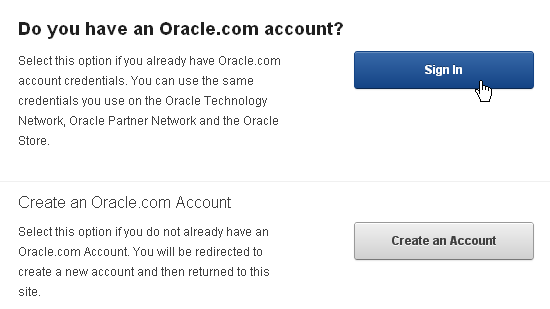
On the next screen, if you have an Oracle.com account, click the Sign In button.
Note: If you do not have an account, you can click the Create an Account button and follow the steps to create a new Oracle.com account.
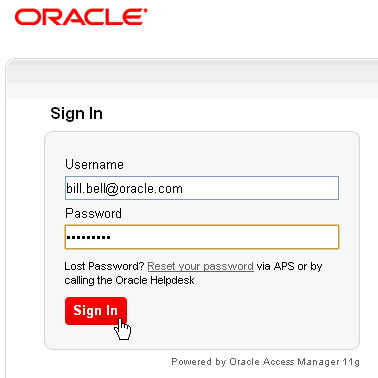
On the Sign In screen, enter your Oracle.com Username and Password, and click Sign In.
On the Account Information screen, select or enter the following, and then click the Next button:

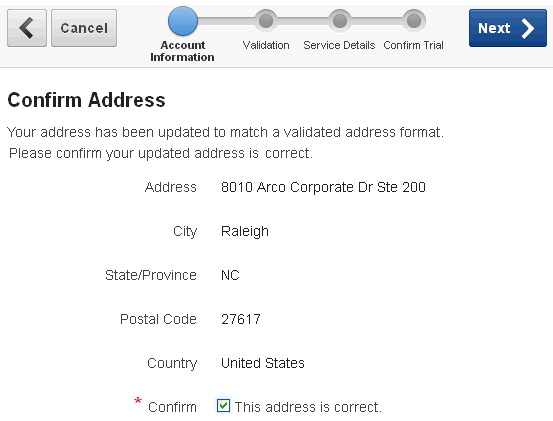
Depending upon your address, you might be taken to the Confirm Address screen. If you are, ensure your address is correct, and select the This address is correct check box. If there are any problems with the address, use the back arrow button to return to the previous screen and correct the errors.
Then click the Next button.
On the Validation screen, select or enter the following, and then click the Next button:
Note that for a free trial, your credit card is not billed.

On the Service Details screen, make note of the Service Information. Enter information for the Service Administrator. Then enter Identity Domain Administrator information, or select Same as Service Administrator. When finished on this screen, click the Next button.
Notice that when you sign up for a Java Cloud Service, you also get a Database Cloud Service which is associated with it.
On the Confirm Trial screen, read the User Agreement, and at the bottom of the screen, select the acceptance check box.

Then click the Submit Request button.

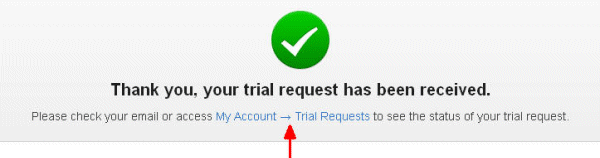
A confirmation screen displays indicating that the request has been received. Notice that the screen says that you can check the status of the request by waiting for an email, or by clicking the MyAccount ->Trial Requests link.
In this tutorial, clicking that link is demonstrated.
Click the MyAccount ->Trial Requests link on the confirmation screen.
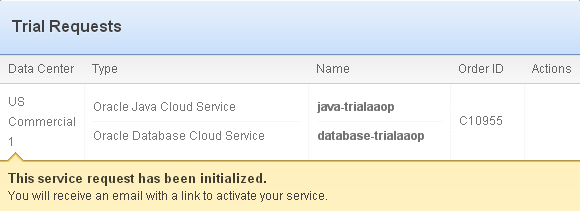
When you first visit the Trial Requests tab of the My Account page, you may see that the service request has been initialized, but is not yet ready for activation. Revisit this page later when the service request is ready to be activated. You will know the service request is ready when the welcome email arrives.
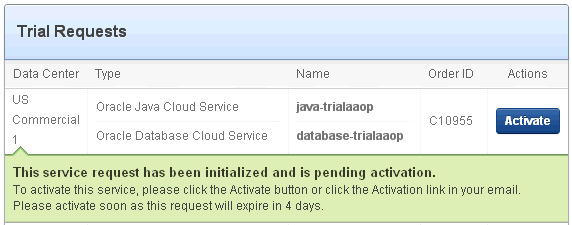
When the service request is ready to be activated, there will be an Activate button in the Actions column. Click that button.
On the next screen, click the Activate Service button.
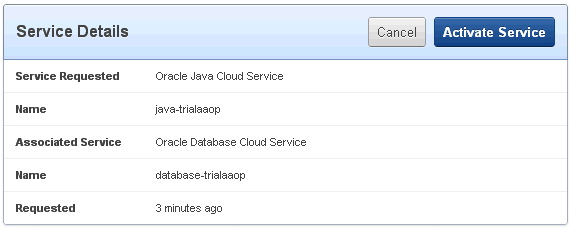
You will then see that your service has been submitted for activation.

Click the Services tab on the left.
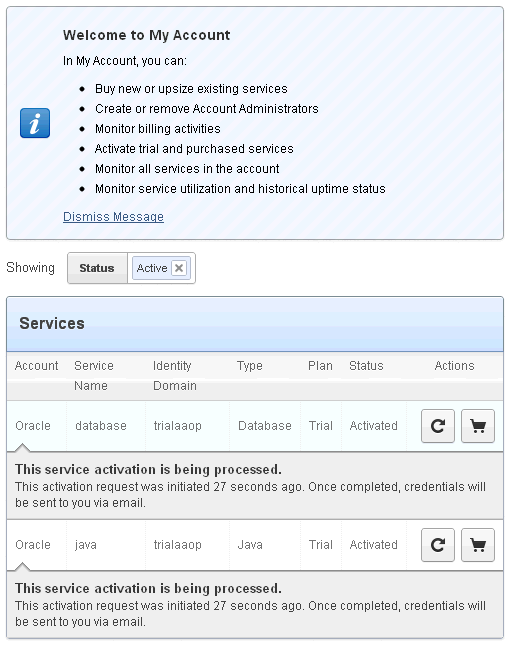
On the right, you will see that your service activations are being processed.
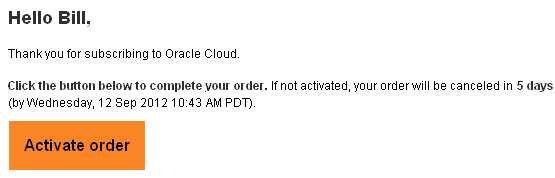
The other way to activate the service is through a link in an email. Within a few minutes of submitting the request for a Java Cloud Service, you will receive an email that indicates your trial request has been received. Sometime after this email, you will receive another that welcomes you to the Oracle Cloud. In this email, there is a link that says Activate order. You can click this link to start the activation task.
Note: Clicking the link in the email is unnecessary if you clicked the MyAccount -> Trial Requests link on the confirmation screen, as demonstrated in this tutorial.
After your activation is processed (usually within a few minutes), you will receive another email. The email will have the subject "Welcome to Oracle Cloud." In this email, you are given URLs for the Java Service Console, the Database Service Home, the Account Administration screen, and the Identity Management Console.
Keep this email so you will have these URLs that you will need.
Note: URLs and other details are blurred in screen shots since they will be different in your email.

Under the "Identity Domain Details" section of the email, you are given the Identity Management Console URL. Keep the email open to use this link to change the Identity Domain Administrator's password.

Under the "Account Details" section of the email you are given a temporary password. Make note of this password for the Identity Domain Administrator.
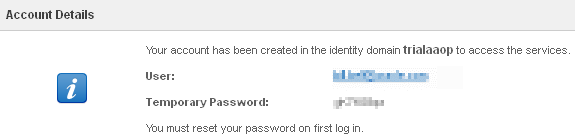
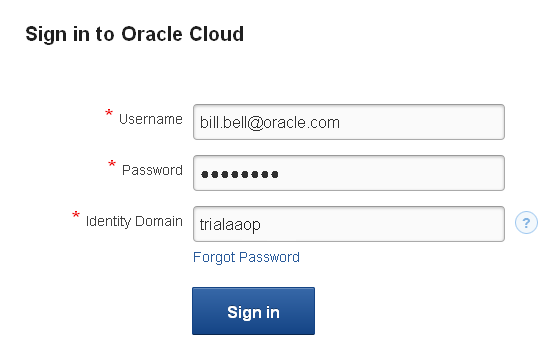
To change the temporary password of the Identity Domain Administrator, click the Identity Management Console URL in the email. The sign in screen displays.
For Username, enter the Identity Domain Administrator User from the email.
For Password, enter the temporary password from the email.
For Identity Domain, enter the Identity Domain from the email.
In this tutorial, the Identity Domain name is trialaaop. (Yours will be something else.)
Click the Sign In button.
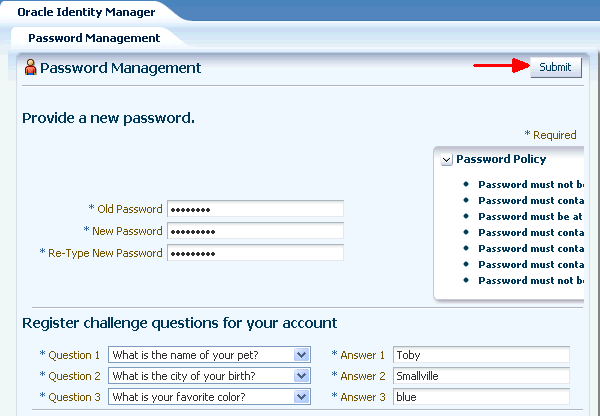
You will be taken to the Password Management area to create a new password to replace the temporary one. Enter the temporary password in the Old Password field. Then enter a new password in the New Password and Re-Type New Password fields. Note the Password Policy rules as you are choosing a new password.
Also select challenge questions and enter their answers, in case you forget your password.
After you have entered the password and challenge question information, click the Submit button.
Close the web browser window. If you are using a web browser that has one session for all windows and tabs, close all web browser windows.
Monitoring the Status of the Java Cloud Service
- Its availability under Performance Summary
- Information on Servlets and JSPs
- JDBC Usage
- A Data Sources table
- A Response and Load graph
- A list of Java Cloud Service Jobs
- A list of deployed Applications
- Two charts on Resource Usage
Once a Java Cloud Service has been provisioned, you can monitor it by accessing the Java Cloud Services Control console. To monitor the Java Cloud Service, perform the following steps:
Go to the welcome email and click the link for the Java Service Console.
Log in using the Service Administrator's credentials, which in this tutorial is the same as the Identity Domain Administrator's credentials.
In this tutorial, the Username is bill.bell@oracle.com.
The Password is the new value just set.
The Identity Domain is trialaaop. (Yours will be something else.)
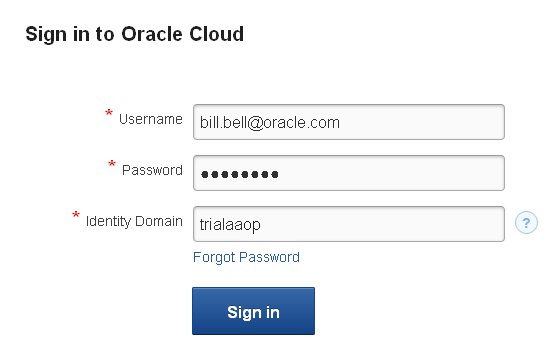
After logging in, you will see the Java Cloud Services Control console for your Java Cloud Service. In this tutorial, the Java Cloud Service name is java.
If you have used Enterprise Manager Fusion Middleware Control or Enterprise Manager Cloud Control before, some of the elements of this console will be familiar to you. Displayed here is a lot of information about the Java Cloud Service, including:

When you have finished looking at the console, log out by clicking Log Out at the top-right of the screen.

Summary
- Access the Oracle Cloud
- Provision a Java Cloud Service
- Access the Java Cloud Services Control console to be able to monitor the Java Cloud Service
- Oracle Java Cloud Service
- Oracle Cloud Tools
- Using the Oracle Java Cloud Service
- To learn more about the Oracle Cloud or the Java Cloud Service, refer to additional OBEs in the OLL website.
- Lead Curriculum Developer: Bill Bell
- Other Contributors: Reza Shafii
In this tutorial, you have learned how to:
Resources
Credits
To help navigate this Oracle by Example, note the following:
- Hiding Header Buttons:
- Click the Title to hide the buttons in the header. To show the buttons again, simply click the Title again.
- Topic List Button:
- A list of all the topics. Click one of the topics to navigate to that section.
- Expand/Collapse All Topics:
- To show/hide all the detail for all the sections. By default, all topics are collapsed
- Show/Hide All Images:
- To show/hide all the screenshots. By default, all images are displayed.
- Print:
- To print the content. The content currently displayed or hidden will be printed.
To navigate to a particular section in this tutorial, select the topic from the list.