Deploying an Application to a Java Cloud Service
Overview
- An Oracle.com account
- Already completed the Oracle by Example tutorial titled Signing Up for a Java Cloud Service
- Downloaded the sample Java web application archive file visitors.war. Download the file here: visitors.war.
Note for Internet Explorer Users: IE may download visitors.war as visitors.zip. It is the same file, just rename it to visitors.war.
Purpose
This tutorial covers preparing an application for deployment and deploying it to a Java Cloud Service.
Time to Complete
Approximately 30 minutes
Introduction
This tutorial shows how to check a sample Java web application with the Whitelist tool. This Java utility ensures that no features unsupported by the Java Cloud Service are being used by an application. The tutorial then shows how to edit one of the application's deployment descriptors to ensure that the web application uses the previously provisioned Database Cloud Service. Finally, the tutorial shows how to deploy the application to a Java Cloud Service by using the Java Cloud Services Control console.
Scenario
This tutorial assumes that you are an Oracle customer. It also assumes that you have completed the Oracle by Example tutorial titled Signing Up for a Java Cloud Service.
Prerequisites
Before starting this tutorial, you should have:
Downloading and Unzipping the Java Cloud SDK
To download and unzip the Java Cloud SDK (which contains the Whitelist tool), perform the following steps:
You need to download the Java Cloud Software Development Kit (SDK).
To download it, open a web browser to the Oracle Cloud home page:
https://cloud.oracle.com.
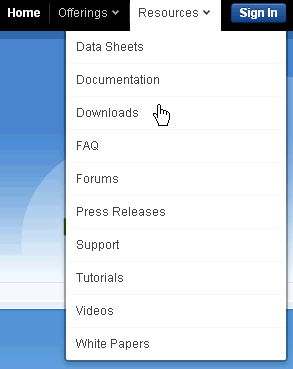
Once there, from the Resources drop-down list, select Downloads.
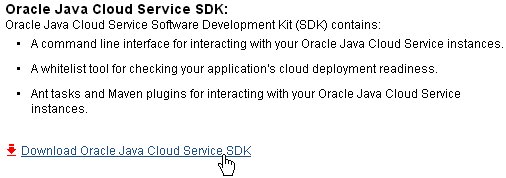
Under Oracle Cloud Downloads and Java Cloud Service, click the link for Oracle Java Cloud Service SDK.

This jumps down to the Oracle Java Cloud Service SDK area. Click the link Download Oracle Java Cloud Service SDK.
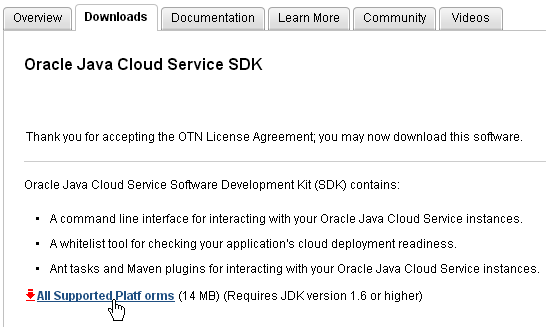
Next, select Accept License Agreement.

Click the link to download the Oracle Java Cloud SDK to your local machine.
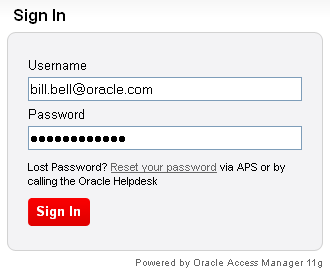
When the Sign In screen displays, log in with your Oracle.com Username and Password and click the Sign In button.
Once the file has downloaded, unzip it on your local machine. The directory to which you unzip this file will be referred to as <SDK_HOME> in the remainder of this tutorial.
Note: The <SDK_HOME> directory chosen in this tutorial is C:\oracle-javacloud-sdk.
Testing an Application with the Whitelist Tool
There are a few Java packages, for example, java.rmi, that applications that are deployed to a Java Cloud Service are not allowed to use. The Whitelist tool is a Java utility that checks an application for disallowed packages and informs you whether the application can be deployed or not.
To test an application with the Whitelist tool, perform the following steps:
Open a command prompt and navigate to the lib directory under the <SDK_HOME> directory.

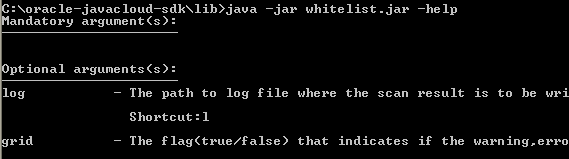
Run the following command to see help information on the Whitelist tool:
java -jar whitelist.jar -help
Now run the following command to check the sample web application archive file,
visitors.war:
java -jar whitelist.jar -l whitelist.log <APP_LOCATION>/visitors.war
Note: In this tutorial, the <APP_LOCATION> of the archive file visitors.war is the applications directory.

Notice this part of the command: -l whitelist.log. The file name given after the -l option ("l" stands for "log") will contain the output of the Whitelist utility.
Examine the log file in the current directory. This file will list any usage violations that need to be corrected. In general, you can ignore warnings. If there are no violations, you should see a message that the validation completed with 0 errors.
This message indicates that the application can be deployed to a Java Cloud Service.

Ensuring That the Application Uses the Database Cloud Service
The sample web application, found in the visitors.war archive file, uses the database to store information about visitors to a fictitious aquarium. Before deploying the web application, you need to edit one of the its deployment descriptors to ensure that it uses the Database Cloud Service that was provisioned when you signed up for a Java Cloud Service. To edit the web application's persistence deployment descriptor, perform the following steps:
Make a copy of the visitors.war file and rename it visitors.zip. Unzip the visitors.zip file into a directory called visitors. In the new visitors directory, expand WEB-INF, then classes, and then META-INF, until you find the persistence.xml file.
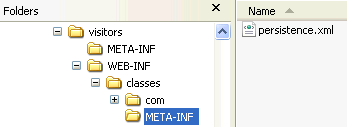
Edit the persistence.xml file in a text editor.
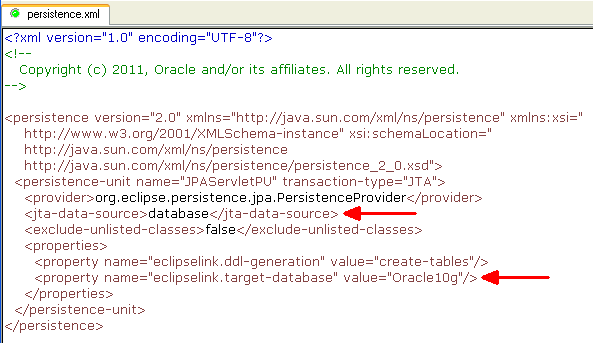
Look for this line:
<jta-data-source><Database Cloud Service data source Name></jta-data-source>
Change the generic value inside the <jta-data-source> tag to the name of the Database Cloud Service that was provisioned along with your Java Cloud Service. In this tutorial, the Database Service name is database.
With database inserted as the value of the
<jta-data-source> tag, the XML becomes:
<jta-data-source>database</jta-data-source>
You also need to add a new <property> within the
<properties> tag.
Insert the following property:
<property name="eclipselink.target-database" value="Oracle10g" />
Save the file after editing it. It should look like this:
Zip the contents of the visitors directory into a new visitors.zip file. Include all subdirectories, but not their full path. Also, do not include the visitors directory itself.
For example, if after you created the zip file you examined it in WinZip, the path of the fish.jpg file would be blank rather than visitors.
If you are zipping from the command line, first cd into the visitors directory. Then zip with the options -r -p (for recursion but not full path). Include all the files by using *.*. The command is:
wzzip -r -p visitors.zip *.*
Note: You may need to add the WinZip folder to the PATH
to use the command-line version of WinZip:
set PATH="C:\Program Files\WinZip";%PATH%
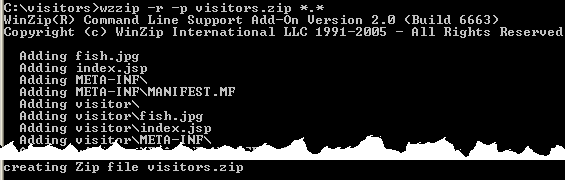
After the new zip file has been created, rename it visitors.war. This is the web application archive file that you will deploy.
IMPORTANT NOTE FOR MAC USERS: If you are using a Mac, you cannot use the default Finder utility for zipping up the new archive file. You must instead download and use WinZip Mac Edition. If you use the default Mac utility, it places extra files in the archive which will cause a 403 error when you try to access the application after it is deployed.
Deploying the Application to the Java Cloud Service and Testing It
To deploy the application to the Java Cloud Service and then test it, perform the following steps:
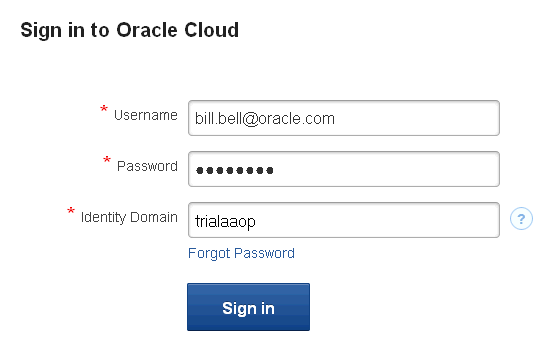
In a web browser, enter the URL for the Java Cloud Services Control console. You can find a link to this URL in the welcome email you received when signing up for a Java Cloud Service. It will be titled Java Service Console.
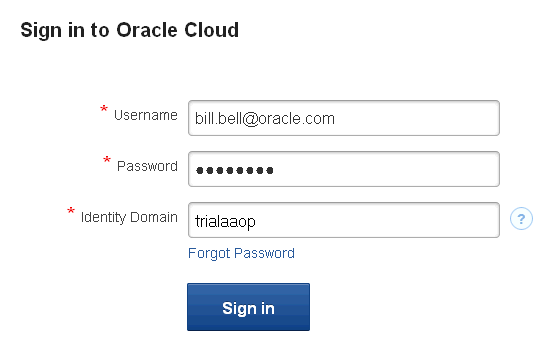
Sign in using the Service Administrator's credentials.
Enter the Service Administrator's username in the Username field.
In this tutorial it is bill.bell@oracle.com.
Enter the Service Administrator's password in the Password field.
Enter the Identity Domain name in the Identity Domain field. The Identity Domain
name can also be found in the welcome email.
In this tutorial it is trialaaop. (Yours will be different.)
Then click the Sign In button.
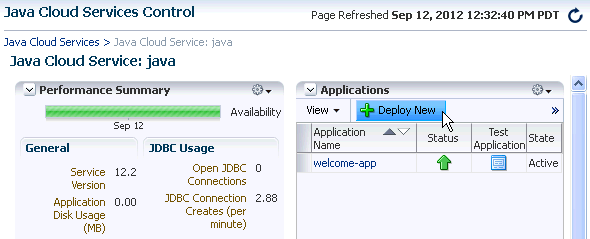
After signing in, you should see the Java Cloud Services Control console for your Java Cloud Service. To deploy an application, below the Applications heading, click the Deploy New button.
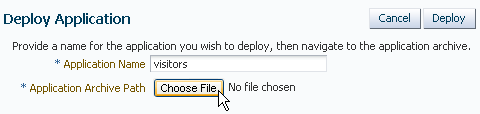
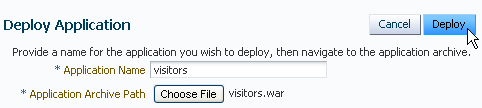
On the Deploy Application screen, enter visitors in the Application Name field, and click the Choose File button to browse the file system for the application archive file.
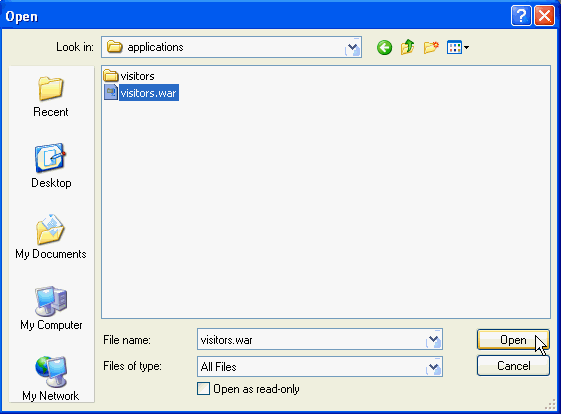
Browse to the location of the new visitors.war file that you just created. This is the one that has the updated deployment descriptor. Select this file and click Open.
Back on the Deploy Application screen, click the Deploy button.
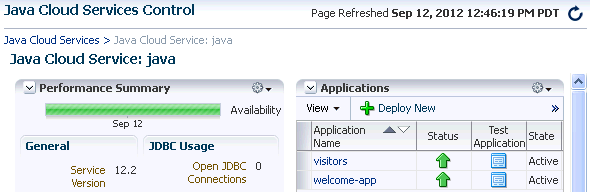
After the file is uploaded, you are returned to the Java Cloud Service screen. Notice the message that the application is uploaded and will be deployed.

After a while, refresh the page. You can refresh the page by clicking the curved arrow at the top-right of the screen next to the date and time. You will eventually see an entry for the visitors application in the Applications table. You can tell that the deployment was successful by the green arrow in the Status column and the indication of "Active" in the State column.
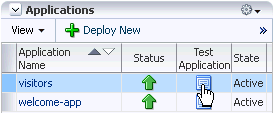
To access the deployed application, click the icon under the Test Application column in the Applications table.
In the Application URLs pop-up window, click the URL for the application. The application will come up in another browser window or tab.
Go to the new browser window or tab for the application. To use this application you must log in. Log in using your Service Administrator's credentials and Identity Domain name.
Note: If you are not asked to log in, it is because you are already logged in to the Java Cloud Services Control console and your web browser uses one session ID for all open windows and tabs. If you are already logged in, proceed to the next step.
In this tutorial:
The Username that is used to log in is: bill.bell@oracle.com.
(Use your Service Administrator username instead.)
The Identity Domain is: trialaaop. (Yours will be different.)
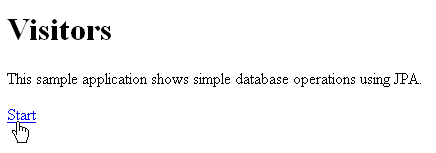
On the first page of the sample application, click the Start link.
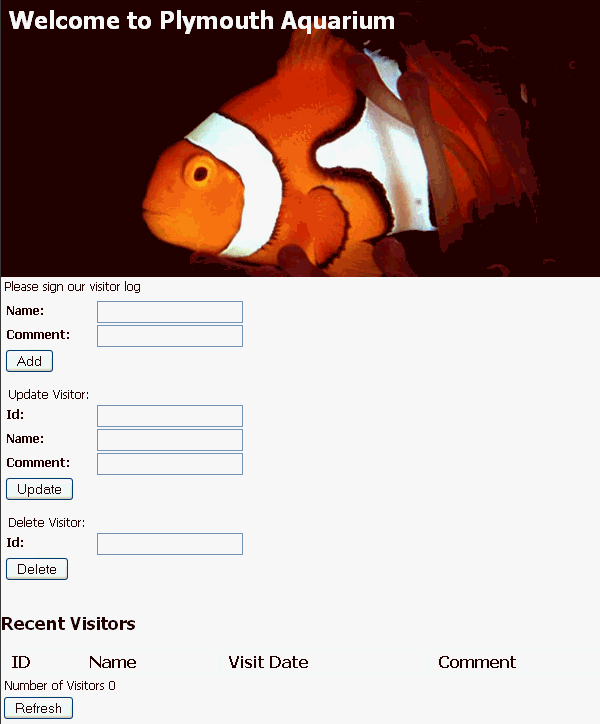
Here's the screen that appears after clicking Start on the application's home page. This sample application allows you to add a name and comment about a fictitious aquarium. You can also update or delete visitor comments. The information entered is stored in the Database Cloud Service.
Summary
- Use the Whitelist Java utility to check a sample application before deploying it
- Modify the persistence.xml deployment descriptor of a sample application so that it uses a Database Cloud Service
- Deploy an application to a Java Cloud Service by using the Java Cloud Services Control console
- Oracle Java Cloud Service
- Oracle Cloud Tools
- Using the Oracle Java Cloud Service
- To learn more about the Oracle Cloud or the Java Cloud Service, refer to additional OBEs in the OLL website.
- Lead Curriculum Developer: Bill Bell
- Other Contributors: Reza Shafii
In this tutorial, you have learned how to:
Resources
Credits
To help navigate this Oracle by Example, note the following:
- Hiding Header Buttons:
- Click the Title to hide the buttons in the header. To show the buttons again, simply click the Title again.
- Topic List Button:
- A list of all the topics. Click one of the topics to navigate to that section.
- Expand/Collapse All Topics:
- To show/hide all the detail for all the sections. By default, all topics are collapsed
- Show/Hide All Images:
- To show/hide all the screenshots. By default, all images are displayed.
- Print:
- To print the content. The content currently displayed or hidden will be printed.
To navigate to a particular section in this tutorial, select the topic from the list.