Before You Begin
Purpose
This tutorial shows you how to distribute HTTP requests to a pool of Web servers.
Time to Complete
Approximately 1 hourBackground
One of the typical use cases for a load balancer is to distribute HTTP requests to a pool of Web servers. The load balancer not only balances the load on the Web servers, but also provides high availability, by routing requests to the remaining Web servers if one or more of the servers is not available.
What Do You Need?
This use case tutorial assumes you have already performed the following tasks:
-
You have subscribed to the Compute service.
-
You have two existing compute instances (WEBHOST1 and WEBHOST2), each running a Web server, such as the open-source Apache Web server or Oracle HTTP Server..
-
You have a custom domain name, defined and managed by a DNS provider. For example:
http://www.myCompany.example.comThis URL will be used to access the services Web sites and applications that are running on the Web servers.
-
On each Web server host, the main page of your Web site or application is available at the following URL:
host:7777/Before you begin, it is important that you are able to successfully connect to this URL on each origin server in the server pool. This step confirms that you have configured the required security list, security rules, and security applications to allow HTTP access to the Compute instances over port 7777. For more information about configuring access to a Compute instance, see Configuring the Shared Network in Using Oracle Compute Cloud Service (IaaS).
Note: In this use case you are not configuring the load balancer for HTTPS connections or SSL/TLS. This means you have no requirement for secure communications between the load balancer and the clients who are submitting the requests.
Similarly, this use case assumes you are not configuring security for the connections between the load balancer and the origin servers that you are load balancing.
Creating the Load Balancer
-
Log in to the Compute console.
-
On the Network page, expand Load Balancers in the left navigation pane and select Load Balancers.
-
Click Create Load Balancer.
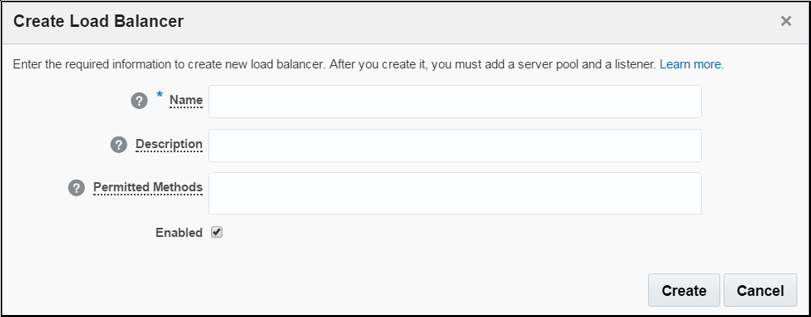
The Create Load Balancer dialog box appears.
-
In the Name field, enter
myLoadBalancer1, and accept the default values for the other fields.The name you enter here is used to identify the load balancer in the Compute console.
-
Click Create.
Creating the Server Pool for the Load Balancer
-
Click the update icon
 next to the load balancer you just created, and select Update.
The Overview page of the load balancer appears.
-
Click Server Pools in the left pane, and then click Create Server Pool.
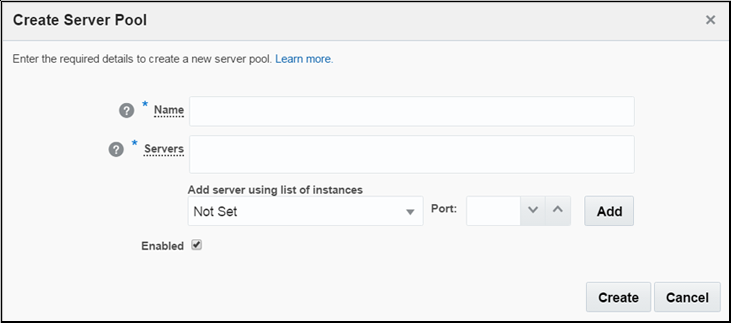
The Create Server Pool dialog box appears.
-
In the Name field, enter
ServerPool1.This name is used to identify the server pool in the Compute console.
-
From the Add server using list of instances drop-down menu, select the first compute instance (WEBHOST1), and enter
7777in the Port field. -
Click Add to add
WEBHOST1:7777to the Servers field. -
Use the same procedure to add
WEBHOST2:7777to the Servers field. -
Verify that the Enabled check box is selected, and click Create to create the server pool.
Creating a Listener for the Load Balancer
-
Click Listeners in the left navigation pane, and click Create Listener.
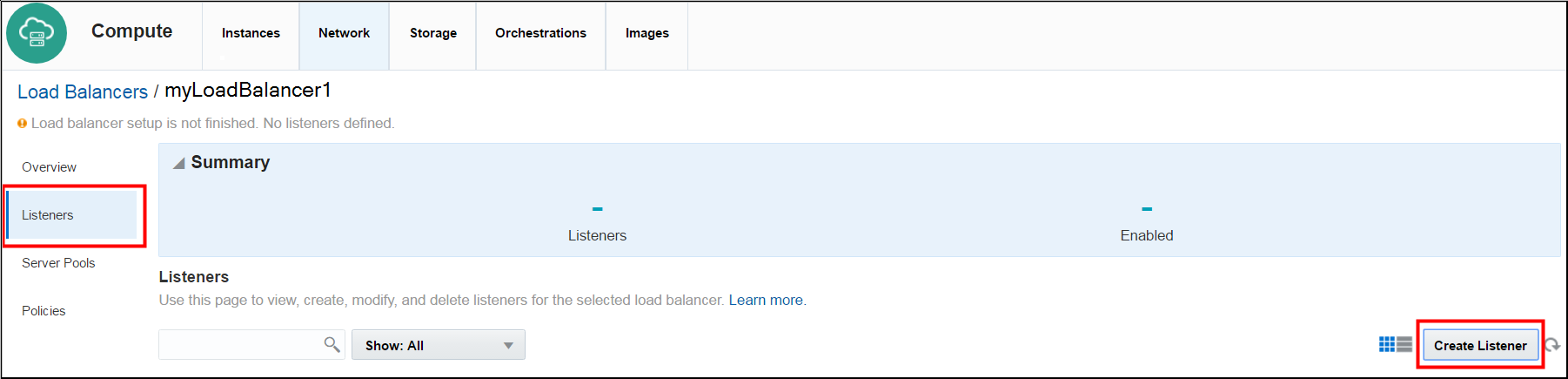
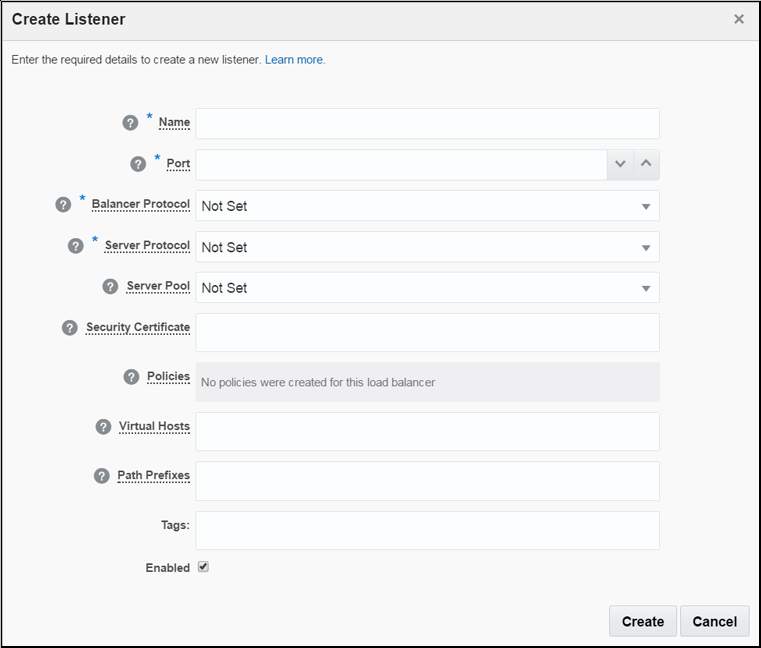
The Create Listener dialog box appears.
-
For the following fields in the Create Listener dialog box, do the following:
-
Name: Enter
myListener1 -
Port: Enter
80 -
Balancer Protocol: Select HTTP
-
Server Protocol: Select HTTP
-
Server Pool: Select serverPool1
-
Virtual Hosts: Enter the canonical host name of the server.
-
Enabled: Select this check box
-
-
Click Create to create the listener.
Adding IP Addresses of the Load Balancer to the Security IP List
Add the IP addresses of the load balancer to the Security IP list you created for the Compute instances in the server pool.
The security IP list identifies the IP addresses that can access the Compute instances. You should have already configured your IP network so HTTP requests can be received by the Compute instances, but this step ensures the load balancer IP is recognized by the Compute instances. See Managing Security IP Lists in Using Oracle Compute Cloud Service (IaaS)
Verifying the Load Balancer
-
Click Overview and locate the Canonical Host Name field in the Information section of the page.
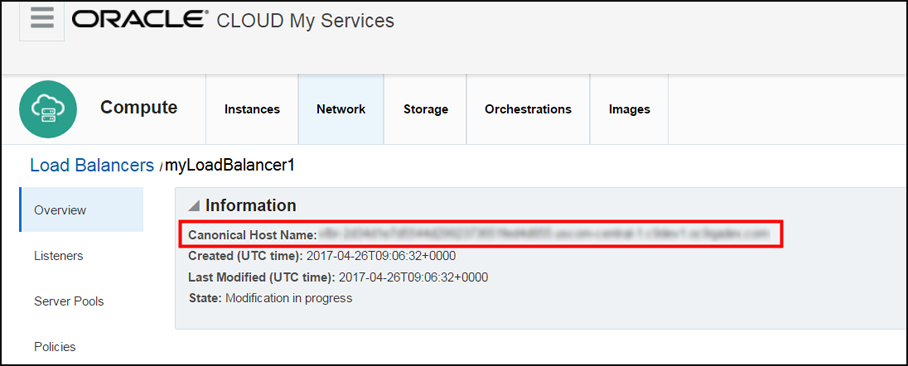
Use the value in the
Canonical Host Namefield to determine the URL you can use to access the load balancer. The URL is in the following form:http://canonical_host_name/ -
Open a new browser window, and enter the URL of the load balancer.
Verify that the URL resolves successfully. If the URL resolves successfully, you have verified that the load balancer is up and running and sending requests to at least one server in the server pool.
To verify that the load balancer is accessing both servers in the server pool, do the following:
Log into the first Compute Instance (WEBHOST1) and modify the
index.htmlfile of the Web server. Enter some text or other indicator at the top of the file that identifies that the HTML file is being served from WEBHOST1.Save your changes and restart the Web server.
Repeat step 2 and refresh the browser multiple times. You should eventually see the text you added to the first Web server appear when the load balancer accesses WEBHOST1 and then disappear when it accesses WEBHOST2.
Mapping Domain Name to Canonical Host Name
Work with your DNS or domain provider to create a C record, which will map your custom domain name to the canonical host name of the load balancer.
After you map your custom domain name to the canonical host name, modify the appropriate listener to include your custom domain name in the list of virtual hosts associated with the listener.
Verifying Request Redirection
When the service provider completes the above task, verify that your custom domain name URL redirects to the load balancer, which in turn directs requests to your Web servers in the server pool.
When the registrar completes the request, you can then use the following URL to access the load balancer:
http://www.myCompany.example.com
Want to Learn More?
For more information, see:
-
Get Started with Oracle Cloud Infrastructure Load Balancing Classic in the Oracle Help Center
-
Oracle Cloud Infrastructure Load Balancing Classic tutorials in the Oracle Help Center
Credits
-
Curriculum Developer: Peter LaQuerre
-
Contributor: Nisha Singh