
 Loading Data from Oracle RightNow Analytics Cloud Service by Using Data Sync
 Before You Begin
This 15-minute tutorial shows you how to load data from an Oracle RightNow Analytics Cloud Service instance to an Oracle Database instance by using Oracle Analytics Cloud Data Sync.
Background
With Oracle Analytics Cloud Data Sync, you can migrate, transform, and update data from a variety of sources. You can use Data Sync to upload data based on a unique identifier or time period, and then regularly update that data by using specified attributes. For example, you can load data with incremental updates to preserve data beyond a specific data storage period.
This is the second tutorial in Loading Data from Oracle RightNow Analytics Cloud Service to an Oracle Database. Read the tutorials in the order listed.
- Importing XML Files to Create Reports in Oracle RightNow Analytics Cloud Service
- Loading Data from Oracle RightNow Analytics Cloud Service by Using Data Sync
What Do You Need?
- Access to Oracle RightNow Analytics Cloud Service with RightNow reports, including user name, password, and URL
- Access to an Oracle Database instance, including user name, password, URL, and Java Database Connectivity (JDBC) driver
- Java Development Kit (JDK) V1.8
- Oracle Analytics Cloud Data Sync with your connection and access verified
 Create Your Project
- From the directory where you installed Data Sync, run
datasync.batordatasync.sh. - In Enter Password, enter your password, click Remember password, and then click Login.
- Click Create a New Project, enter
RightNowDemo,and then click OK.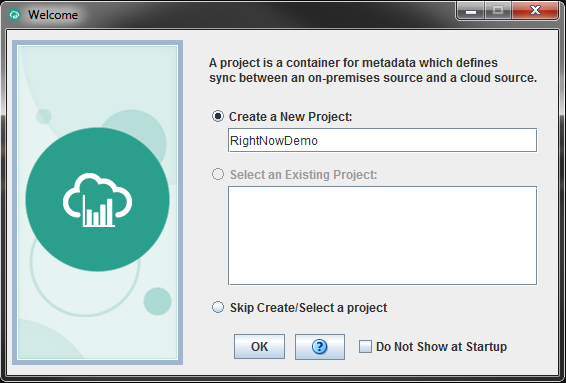
Description of the illustration newprojectdialog.png
 Create Your Oracle RightNow Analytics Cloud Service Connection
In the Importing XML Files As Oracle RightNow Analytics Cloud Service Reports tutorial, you imported two Extensible Markup Language (XML) files into Oracle RightNow Analytics Cloud Service to create reports. In this section, you connect Data Sync to your Oracle RightNow Analytics Cloud Service instance so that you can access those reports.
- Click Connections, and then click New.
- In New Connection, in Name, enter
RightNow.From the Type list, select Oracle Service Cloud (RightNow), and then click OK.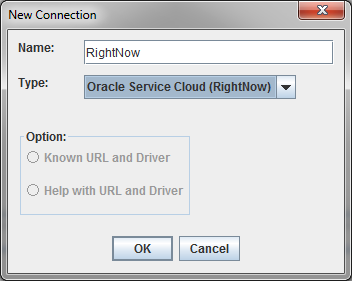
Description of the illustration rightnowconnection.png - On the Edit tab, enter the user name and password for your Oracle RightNow Analytics Cloud Service instance.
- In URL, click
 , enter the URL for your Oracle RightNow Analytics Cloud Service instance (for example,
 http://myRightNow.com:9000/), and then click OK. - On the Edit tab, click Test Connection, and then click OK. In the Connection Successful dialog box, click OK.
 Create Your Oracle Database Connection
- Click Connections, and from the Sources/Targets list, select the TARGET connection.
- On the Edit tab, select Oracle (Thin) from the Connection Type list.
- In the Connection Values dialog box, click Cancel.
- On the Edit tab, enter the user name and password for your Oracle Database instance.
- In URL, click , enter the URL for your Oracle Database instance (for example,
jdbc:oracle:thin:@HOST_NAME:1521/SERVICE_NAME), and then click OK. - In JDBC Driver, click . In the JDBC Driver dialog box, enter the JDBC driver address for your Oracle Database instance (for example,
oracle.jdbc.driver.OracleDriver), and then click OK.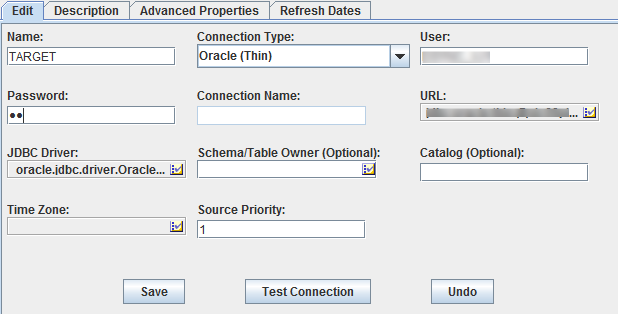
Description of the illustration oraclethinconnection.png - On the Edit tab, click Test Connection, and then click OK. In the Connection Successful dialog box, click OK.
 Create Your Numeric ID Project
- Click Project, then Source Data, and then select Manual Entry.
- From the Select Source list, select RightNow, and then click OK.
- In Manual Entry, enter
RightNowNumericSourcein Logical Name. - In Target, click Create new, and then enter
RightNowNumericData. - From the Choose output format list, select Relational, and then click OK.
- In Message, select Analytics Reports from the Data from list, and then click OK.
- In Properties, click in the Value field for the following properties, click , enter the following values, and then click OK in each value dialog box:
- Analytics Report ID: Incidents Data Report ID number (for example,
100886) - Helper Analytics Report ID: Incidents Help Report ID number (for example,
100887) - Numeric Column:
id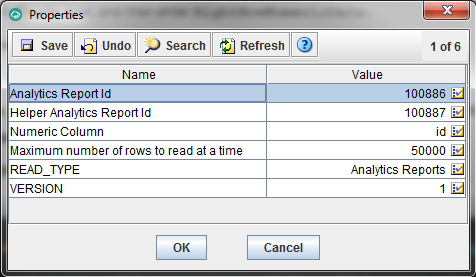
Description of the illustration numericsourcedata.png
- Analytics Report ID: Incidents Data Report ID number (for example,
- In Properties, click OK.
 Create Your Time Project
- Click Project, then Source Data, and then Manual Entry.
- From the Select Source list, select RightNow, and then click OK.
- In Logical Name, enter
RightNowTimeSource. - In the Target area, click Create new, and then enter
RightNowTimeData. - From the Choose output format list, select Relational, and then click OK.
- In Message, from the Data from list, select Simple read partition based on time period for analytic reports, and then click OK.
- In Properties, click in the Value field for the following properties, click , enter the following values, and then click OK in each value dialog box:
- Analytics Report ID: Clickstream Analysis Report ID number (for example
100884) - Helper Analytics Report ID: Clickstream Help Analytics Report ID number (for example
100885) - Partition Read (Number of minutes):
43200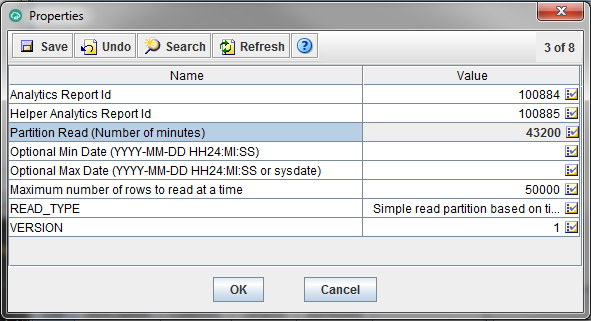
Description of the illustration timesourcedata.png
- Analytics Report ID: Clickstream Analysis Report ID number (for example
- In Properties, click OK.
 Run the Job
- Click Jobs, and then click New.
- In the New Job dialog box, enter
01in Job Name, and then click Next. - Click Finish.
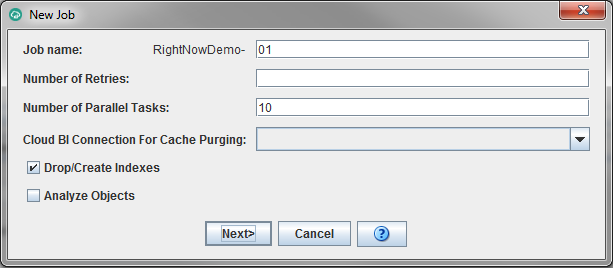
Description of the illustration newjobdialog.png - In the Configure execution instance dialog box, click OK.
- In the Configure Initial Extract dialog box, click Leave As-Is.
- Click Run Job, and then click OK in Run Job.
The Runs tab displays the status of the run.

Description of the illustration runstab.png
 Want to Learn More?