Oracle Cloud Infrastructure Object Storage Classic: Restricting Read and Write Access to Containers Using the REST API
Overview
Purpose
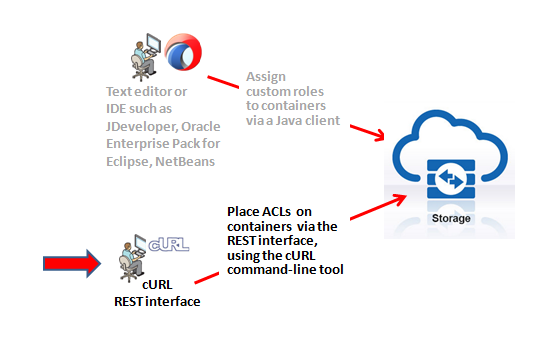
This tutorial shows you how to place access control lists (ACLs) on containers via the REST interface using the cURL command-line tool.
Time to Complete
Approximately 1 hour
Introduction
Oracle Cloud Infrastructure Object Storage Classic enables businesses to store and manage digital content in the cloud. Stored objects can be retrieved directly by external clients or by applications running within Oracle Cloud Infrastructure Object Storage Classic instances.
Oracle Cloud Infrastructure Object Storage Classic enables service administrators to place ACLs on containers. By doing so, a service administrator can control which users have read and write access to different containers.
You can access Oracle Cloud Infrastructure Object Storage Classic through a REST API or through an official Java library. This tutorial shows how to assign custom roles to containers by using the REST API by using the cURL command-line tool.

Scenario
This tutorial shows how to assign custom roles to containers in Oracle Cloud Infrastructure Object Storage Classic via the REST API. First, if you don't already have curl, you need to install it. Next, you create two users, two user roles, and two containers. You give both users read access to one container, and you give one user write access to that container. Later, you give only one user read and write access to another container.
Software Requirements
- A tool to access the REST interface (This tutorial uses cURL, which is free, open software that runs under various operating systems.)
- One of the supported browsers listed in the following table:
| Browser | Version |
| Internet Explorer | 10 (Desktop), 9, 8 |
| Firefox | Latest two production releases |
| Chrome | Current and previous Chrome versions at time of certification |
| Safari | 6 or later |
| Safari Mobile | IOS 6 native Safari, certified on iPad 3 |
| Android browser | 4.0 or later |
Prerequisites
Before starting this tutorial, you should:
- Have access to Oracle Cloud Infrastructure Object Storage Classic.
- Have the Oracle Cloud Service Administrator role so that you can access the Oracle Cloud My Services application and create users and roles.
- Have installed the cURL command-line tool. If you are using
Windows, use Windows 64-bit operating system that is enabled for
the secure sockets layer (SSL; the authentication aspects of the
Oracle Cloud Infrastructure Object Storage Classic require an SSL-enabled environment). Click
here
if you have not installed cURL.
Alternatively, click here to install cURL on Cygwin on Windows. - Have experience or familiarity with the REST interface.
- Have familiarity with Oracle Cloud services.
Scope of This Tutorial
Before starting this tutorial, consider a typical workflow for Oracle Cloud Infrastructure Object Storage Classic. The focus of this tutorial is on the fourth step.
- Define users.
- Define roles.
- Create containers.
- Assign users specific access privileges to specific containers by using ACLs.
- Access storage operations from applications that are running on Oracle Java Cloud Service.
- Store and manage objects in containers.
This tutorial is one of two initial tutorials about Oracle Cloud Infrastructure Object Storage Classic. Another tutorial, Oracle Cloud Infrastructure Object Storage Classic: Restricting Read and Write Access to Containers Using the Java Library, shows how to perform the same tasks by using the Java library that comes with the Oracle Cloud Infrastructure Object Storage Classic Java SDK.
Creating Users and Roles
In this section, you create users and roles and assign the roles on the Security tab of the Oracle Cloud My Services application.
-
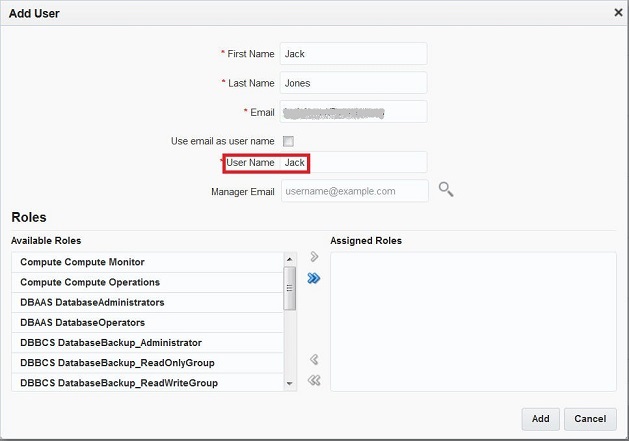
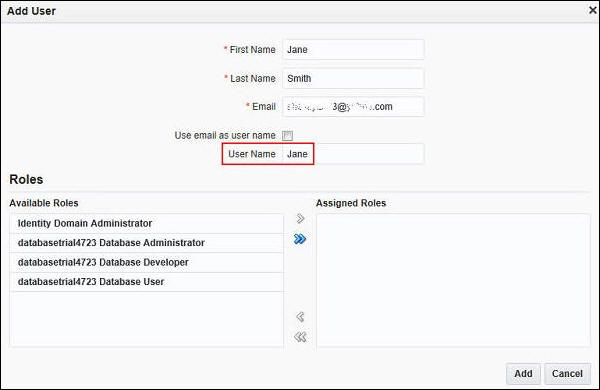
Create two users: Jack and Jane.
-
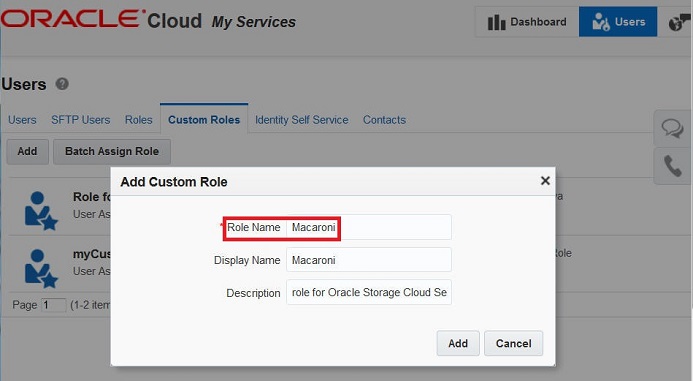
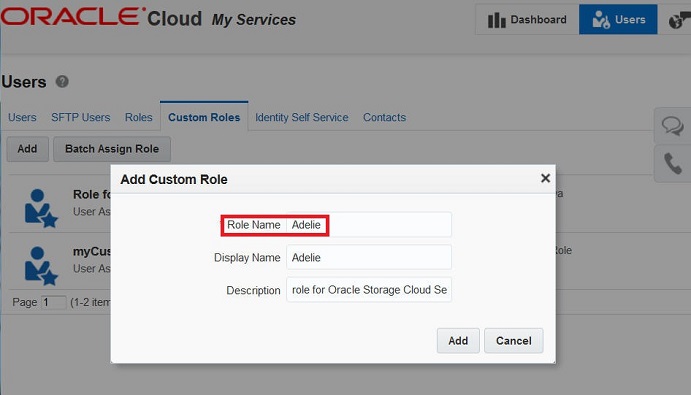
Create two roles: Macaroni and Adelie.
-
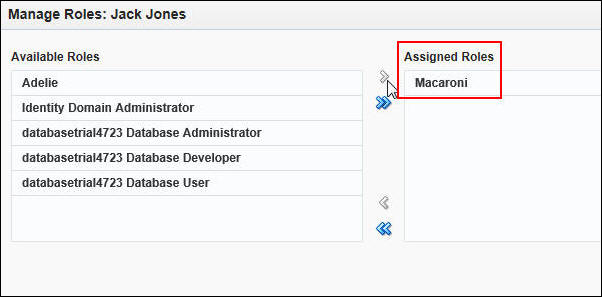
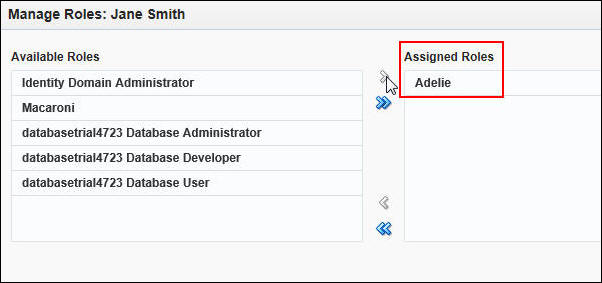
Assign each user one of the roles: Assign Jack the Macaroni user role and assign Jane the Adelie user role.
Requesting an Authentication Token for Each User
Oracle Cloud Infrastructure Object Storage Classic requires authentication when executing operations against your service instance. Authentication is provided to the service instance in the form of an authentication token. Authentication tokens are requested from the service by authenticating your user credentials with the service. All provisioned authentication tokens are temporary and expire in 30 minutes. You must include your current authentication token with every operation against your service instance.
Request an authentication for a Service Admin user, the 'Jack' user, and the 'Jane' user.
-
Send the following command to request an authentication token for admin:
+ curl -v -s -X GET -H "X-Storage-User:
                    myService-myIdentityDomain:john.doe@oracle.com" -H
                    "X-Storage-Pass: xUs8M8rw"
                    https://storage.us2.oraclecloud.com/auth/v1.0


                  * About to connect() to storage.us2.oraclecloud.com
                  port 80 (#0)

                  * Trying 10.244.230.28... connected

                  * Connected to storage.us2.oraclecloud.com (10.244.230.28)
                  port 80 (#0)

                  > GET /auth/v1.0 HTTP/1.1

                  > User-Agent: curl/7.21.4 (universal-apple-darwin11.0)
                  libcurl/7.21.4 OpenSSL/0.9.8y zlib/1.2.5

                  > Host: storage.us2.oraclecloud.com:80

                  > Accept: */*

                  > X-Storage-User:
                  myService-myIdentityDomain:john.doe@oracle.com

                  > X-Storage-Pass: xUs8M8rw

                  >

                  < HTTP/1.1 200 OK

                  < Date: Tue, 07 Jan 2014 02:39:07 GMT

                  < X-Storage-Url:
                  https://storage.us2.oraclecloud.com/v1/myService-myIdentityDomain

                  < X-Storage-Token: AUTH_tk87f51a085e0faf17d76fbfab5f0ce2f8

                  < X-Auth-Token: AUTH_tk87f51a085e0faf17d76fbfab5f0ce2f8

                  < X-Trans-Id: tx3085fdd41b16485384010adb59a19903

                  < Content-Length: 0

                  < Cache-Control: no-cache>

                  < Pragma: no-cache < Content-Type: text/plain

                  < Content-Language: en

                  <

                  * Connection #0 to host storage.us2.oraclecloud.com left
                  intact>

                  * Closing connection #0
- Send the following command to to request an authentication
token for Jack:
                  + curl -v -s -X GET -H
                    "X-Storage-User: myService-myIdentityDomain:Jack" -H
                    "X-Storage-Pass: Welcome1"
                    https://storage.us2.oraclecloud.com/auth/v1.0


                  * About to connect() to storage.us2.oraclecloud.com port 80
                  (#0)

                  * Trying 10.244.230.28... connected

                  * Connected to storage.us2.oraclecloud.com (10.244.230.28)
                  port 80 (#0)

                  > GET /auth/v1.0 HTTP/1.1

                  > User-Agent: curl/7.21.4 (universal-apple-darwin11.0)
                  libcurl/7.21.4 OpenSSL/0.9.8y zlib/1.2.5

                  > Host: storage.us2.oraclecloud.com:80

                  > Accept: */*

                  > X-Storage-User: myService-myIdentityDomain:Jack

                  > X-Storage-Pass: Welcome1

                  >

                  < HTTP/1.1 200 OK

                  < Date: Tue, 07 Jan 2014 02:50:51 GMT

                  < X-Storage-Url:
                  https://storage.us2.oraclecloud.com/v1/myService-myIdentityDomain

                  < X-Storage-Token: AUTH_tk85f5831a159bdfdccef56f31fc4c722d

                  < X-Auth-Token: AUTH_tk85f5831a159bdfdccef56f31fc4c722d

                  < X-Trans-Id: txa1a96990135d4710b13393faa95d3c65

                  < Content-Length: 0

                  < Cache-Control: no-cache

                  < Pragma: no-cache

                  < Content-Type: text/plain

                  < Content-Language: en

                  <

                  * Connection #0 to host storage.us2.oraclecloud.com left
                  intact

                  * Closing connection #0
- Send the following command to request an authentication token
for Jane:
                  + curl -v -s -X GET -H "X-Storage-User:
                    myService-myIdentityDomain:Jane" -H "X-Storage-Pass:
                    Welcome1" https://storage.us2.oraclecloud.com/auth/v1.0


                  * About to connect() to storage.us2.oraclecloud.com
                  port 80 (#0)

                  * Trying 10.244.230.28... connected

                  * Connected to storage.us2.oraclecloud.com (10.244.230.28)
                  port 80 (#0)

                  > GET /auth/v1.0 HTTP/1.1

                  > User-Agent: curl/7.21.4
                  (universal-apple-darwin11.0)libcurl/7.21.4 OpenSSL/0.9.8y
                  zlib/1.2.5

                  > Host: storage.us2.oraclecloud.com:80

                  > Accept: */*

                  > X-Storage-User: myService-myIdentityDomain:Jane

                  > X-Storage-Pass: Welcome1

                  >

                  < HTTP/1.1 200 OK

                  < Date: Tue, 07 Jan 2014 02:51:19 GMT

                  < X-Storage-Url:
                  https://storage.us2.oraclecloud.com/v1/myService-myIdentityDomain

                  < X-Storage-Token: AUTH_tk6698ad36f300b2517d1d9a7c346c24a3

                  < X-Auth-Token: AUTH_tk6698ad36f300b2517d1d9a7c346c24a3

                  < X-Trans-Id: tx076071183775452c801c975d5f35b3af

                  < Content-Length: 0

                  < Cache-Control: no-cache

                  < Pragma: no-cache

                  < Content-Type: text/plain

                  < Content-Language: en

                  <

                  * Connection #0 to host storage.us2.oraclecloud.com left
                  intact

                  * Closing connection #0
Creating Two Containers: Hello and World
In this section, you create two containers, one named Hello and
the other named World, to which the two users will be assigned
different levels of access.
Note: We need to use the "admin" authentication
token for this step.
Note: The following code examples use generalized
locations and credentials such as "myService-myIdentityDomain". If
you wish to try using these examples, please swap in your own
locations and credentials.
-
Send the following command to create the Hello container:
+ curl -v -s -X PUT -H "X-Auth-Token:
                    AUTH_tk87f51a085e0faf17d76fbfab5f0ce2f8"
                    https://storage.us2.oraclecloud.com/v1/myService-myIdentityDomain/Hello


                  * About to connect() to storage.us2.oraclecloud.com
                  port 80 (#0)

                  *   Trying 10.244.230.28... connected

                  * Connected to storage.us2.oraclecloud.com (10.244.230.28)
                  port 80 (#0)

                  > PUT /v1/myService-myIdentityDomain/Hello HTTP/1.1

                  > User-Agent: curl/7.21.4 (universal-apple-darwin11.0)
                  libcurl/7.21.4 OpenSSL/0.9.8y zlib/1.2.5

                  > Host: storage.us2.oraclecloud.com:80

                  > Accept: */*

                  > X-Auth-Token: AUTH_tk87f51a085e0faf17d76fbfab5f0ce2f8

                  >

                  < HTTP/1.1 201 Created

                  < Date: Tue, 07 Jan 2014 02:43:08 GMT

                  < Content-Length: 0

                  < Content-Type: text/html; charset=UTF-8

                  < X-Trans-Id: tx699d1b1bd4b54761807fa43ea30664c8

                  < Cache-Control: no-cache

                  < Pragma: no-cache

                  < Content-Language: en

                  <

                  * Connection #0 to host storage.us2.oraclecloud.com left
                  intact

                  * Closing connection #0
-
Send the following command to create the World container:
+ curl -v -s -X PUT -H "X-Auth-Token:
                    AUTH_tk87f51a085e0faf17d76fbfab5f0ce2f8"
                    https://storage.us2.oraclecloud.com/v1/myService-myIdentityDomain/World
* About to connect() to storage.us2.oraclecloud.com port 80 (#0)
*   Trying 10.244.230.28... connected
* Connected to storage.us2.oraclecloud.com (10.244.230.28) port 80 (#0)
> PUT /v1/myService-myIdentityDomain/World HTTP/1.1
> User-Agent: curl/7.21.4 (universal-apple-darwin11.0) libcurl/7.21.4 OpenSSL/0.9.8y zlib/1.2.5
> Host: storage.us2.oraclecloud.com:80
> Accept: */*
> X-Auth-Token: AUTH_tk87f51a085e0faf17d76fbfab5f0ce2f8
>
< HTTP/1.1 201 Created
< Date: Tue, 07 Jan 2014 02:43:08 GMT
< Content-Length: 0
< Content-Type: text/html; charset=UTF-8
< X-Trans-Id: tx699d1b1bd4b54761807fa43ea30664c8
< Cache-Control: no-cache
< Pragma: no-cache
< Content-Language: en
<
* Connection #0 to host storage.us2.oraclecloud.com left intact
* Closing connection #0
Assigning Read and Write Access Privileges
To add a custom role to a container's read ACL, update the container's X-Container-Read metadata property with the preferred custom role. Using the REST API, send the specific container an HTTP POST Request with an HTTP Header named X-Container-Read and the custom role as the value. The custom role should follow the format [Identity Domain].[Role Name]. To add multiple roles, separate each with a comma.
Note: These steps need to be done with the 'admin' authentication token.
In this example you add two user roles to an existing container.
-
Send the following command to give the Adelie and Macaroni custom roles read access to the Hello container:
+ curl -v -s -X POST -H "X-Auth-Token:
                    AUTH_tk87f51a085e0faf17d76fbfab5f0ce2f8" -H
                    "X-Container-Read: myIdentityDomain.Adelie,
                    myIdentityDomain.Macaroni"
                    https://storage.us2.oraclecloud.com/v1/myService-myIdentityDomain/Hello
* About to connect() to storage.us2.oraclecloud.com port 80 (#0) * Trying 10.244.230.28... connected * Connected to storage.us2.oraclecloud.com (10.244.230.28) port 80 (#0) > POST /v1/myService-myIdentityDomain/Hello HTTP/1.1 > User-Agent: curl/7.21.4 (universal-apple-darwin11.0) libcurl/7.21.4 OpenSSL/0.9.8y zlib/1.2.5 > Host: storage.us2.oraclecloud.com:80 > Accept: */* > X-Auth-Token: AUTH_tk87f51a085e0faf17d76fbfab5f0ce2f8 > X-Container-Read: myIdentityDomain.Adelie, myIdentityDomain.Macaroni > < HTTP/1.1 204 No Content < Date: Tue, 07 Jan 2014 02:43:51 GMT < Content-Length: 0 < Content-Type: text/html; charset=UTF-8 < X-Trans-Id: tx15f0a4df0cd64ca39c514562e14a680d < Cache-Control: no-cache < Pragma: no-cache < Content-Language: en < * Connection #0 to host storage.us2.oraclecloud.com left intact * Closing connection #0 -
Send the following command to give only the Adelie custom role write access to the Hello container:
+ curl -v -s -X POST -H "X-Auth-Token:
                    AUTH_tk87f51a085e0faf17d76fbfab5f0ce2f8" -H
                    "X-Container-Write: myIdentityDomain.Adelie"
                    https://storage.us2.oraclecloud.com/v1/myService-myIdentityDomain/Hello
* About to connect() to storage.us2.oraclecloud.com port 80 (#0) * Trying 10.244.230.28... connected * Connected to storage.us2.oraclecloud.com (10.244.230.28) port 80 (#0) > POST /v1/myService-myIdentityDomain/Hello HTTP/1.1 > User-Agent: curl/7.21.4 (universal-apple-darwin11.0) libcurl/7.21.4 OpenSSL/0.9.8y zlib/1.2.5 > Host: storage.us2.oraclecloud.com:80 > Accept: */* > X-Auth-Token: AUTH_tk87f51a085e0faf17d76fbfab5f0ce2f8 > X-Container-Write: myIdentityDomain.Adelie > < HTTP/1.1 204 No Content < Date: Tue, 07 Jan 2014 02:44:11 GMT < Content-Length: 0 < Content-Type: text/html; charset=UTF-8 < X-Trans-Id: tx39b6dc9d89af4cc4870059c1261432df < Cache-Control: no-cache < Pragma: no-cache < Content-Language: en < * Connection #0 to host storage.us2.oraclecloud.com left intact * Closing connection #0 -
Send the following command to give only the Macaroni custom role read access to the World container:
+ curl -v -s -X POST -H "X-Auth-Token:
                    AUTH_tk87f51a085e0faf17d76fbfab5f0ce2f8" -H
                    "X-Container-Read: myIdentityDomain.Macaroni"
                    https://storage.us2.oraclecloud.com/v1/myService-myIdentityDomain/World
* About to connect() to storage.us2.oraclecloud.com port 80 (#0) * Trying 10.244.230.28... connected * Connected to storage.us2.oraclecloud.com (10.244.230.28) port 80 (#0) > POST /v1/myService-myIdentityDomain/World HTTP/1.1 > User-Agent: curl/7.21.4 (universal-apple-darwin11.0) libcurl/7.21.4 OpenSSL/0.9.8y zlib/1.2.5 > Host: storage.us2.oraclecloud.com:80 > Accept: */* > X-Auth-Token: AUTH_tk87f51a085e0faf17d76fbfab5f0ce2f8 > X-Container-Read: myIdentityDomain.Macaroni > < HTTP/1.1 204 No Content < Date: Tue, 07 Jan 2014 02:44:28 GMT < Content-Length: 0 < Content-Type: text/html; charset=UTF-8 < X-Trans-Id: txf12c1a454cf3469cae585a1e8b5701c7 < Cache-Control: no-cache < Pragma: no-cache < Content-Language: en < * Connection #0 to host storage.us2.oraclecloud.com left intact * Closing connection #0 -
Send the following command to give only the Macaroni custom role write access to the World container:
+ curl -v -s -X POST -H "X-Auth-Token:
                    AUTH_tk87f51a085e0faf17d76fbfab5f0ce2f8" -H
                    "X-Container-Write: myIdentityDomain.Macaroni"
                    https://storage.us2.oraclecloud.com/v1/myService-myIdentityDomain/World
* About to connect() to storage.us2.oraclecloud.com port 80 (#0)
*   Trying 10.244.230.28... connected
* Connected to storage.us2.oraclecloud.com (10.244.230.28) port 80 (#0)
> POST /v1/myService-myIdentityDomain/World HTTP/1.1
> User-Agent: curl/7.21.4 (universal-apple-darwin11.0) libcurl/7.21.4 OpenSSL/0.9.8y zlib/1.2.5
> Host: storage.us2.oraclecloud.com:80
> Accept: */*
> X-Auth-Token: AUTH_tk87f51a085e0faf17d76fbfab5f0ce2f8
> X-Container-Write: myIdentityDomain.Macaroni
>
< HTTP/1.1 204 No Content
< Date: Tue, 07 Jan 2014 02:44:46 GMT
< Content-Length: 0
< Content-Type: text/html; charset=UTF-8
< X-Trans-Id: tx11e53014feb6499cbb39bccb3306f04f
< Cache-Control: no-cache
< Pragma: no-cache
< Content-Language: en
<
* Connection #0 to host storage.us2.oraclecloud.com left intact
* Closing connection #0
Confirming Read and Write Access to the Hello Container
In this section, you confirm that both Jack and Jane can read from the Hello container, but only Jane can write to it.
Note: We need to use Jack's authentication token.
-
Send the following command to have Jack read the Hello container:
+ curl -k -s -v -X GET -H "X-Auth-Token:
                    AUTH_tk85f5831a159bdfdccef56f31fc4c722d" -H "Accept:
                    application/xml"
                    https://storage.us2.oraclecloud.com/v1/myService-myIdentityDomain/Hello
* About to connect() to storage.us2.oraclecloud.com port 80 (#0) * Trying 10.244.230.28... connected * Connected to storage.us2.oraclecloud.com (10.244.230.28) port 80 (#0) > GET /v1/myService-myIdentityDomain/Hello HTTP/1.1 > User-Agent: curl/7.21.4 (universal-apple-darwin11.0) libcurl/7.21.4 OpenSSL/0.9.8y zlib/1.2.5 > Host: storage.us2.oraclecloud.com:80 > X-Auth-Token: AUTH_tk85f5831a159bdfdccef56f31fc4c722d > Accept: application/xml > < HTTP/1.1 200 OK < Date: Tue, 07 Jan 2014 02:52:40 GMT < Content-Length: 287 < X-Container-Object-Count: 1 < Accept-Ranges: bytes < X-Timestamp: 1387252178.70485 < X-Container-Bytes-Used: 0 < Content-Type: application/xml; charset=utf-8 < X-Trans-Id: txc2c9a758414549a6ab105ec64077191a < Cache-Control: no-cache < Pragma: no-cache < Content-Language: en < { [data not shown] * Connection #0 to host storage.us2.oraclecloud.com left intact * Closing connection #0 <?xml version="1.0" encoding="UTF-8"?> <container name="Hello"><object><name>test_object</name><hash>d41d8cd98f00b204e9800998ecf8427e</hash><bytes>0</bytes><content_type>application/octet-stream</content_type><last_modified>2014-01-07T02:45:57.803300</last_modified></object></container> -
Send the following command to have Jane read the Hello container:
Note: We need to use Jane's authentication token.+ curl -v -s -X GET -H "X-Auth-Token: AUTH_tk6698ad36f300b2517d1d9a7c346c24a3" -H "Accept: application/xml" https://storage.us2.oraclecloud.com/v1/myService-myIdentityDomain/Hello
* About to connect() to storage.us2.oraclecloud.com port 80 (#0) * Trying 10.244.230.28... connected * Connected to storage.us2.oraclecloud.com (10.244.230.28) port 80 (#0) > GET /v1/myService-myIdentityDomain/Hello HTTP/1.1 > User-Agent: curl/7.21.4 (universal-apple-darwin11.0) libcurl/7.21.4 OpenSSL/0.9.8y zlib/1.2.5 > Host: storage.us2.oraclecloud.com:80 > X-Auth-Token: AUTH_tk6698ad36f300b2517d1d9a7c346c24a3 > Accept: application/xml > < HTTP/1.1 200 OK < Date: Tue, 07 Jan 2014 02:59:33 GMT < Content-Length: 287 < X-Container-Object-Count: 1 < Accept-Ranges: bytes < X-Timestamp: 1387252178.72281 < X-Container-Bytes-Used: 0 < Content-Type: application/xml; charset=utf-8 < X-Trans-Id: tx70466c099c7c41cdb970c276c22a4905 < Cache-Control: no-cache < Pragma: no-cache < Content-Language: en < { [data not shown] * Connection #0 to host storage.us2.oraclecloud.com left intact * Closing connection #0 <?xml version="1.0" encoding="UTF-8"?> <container name="Hello"><object><name>test_object</name><hash>d41d8cd98f00b204e9800998ecf8427e</hash><bytes>0</bytes><content_type>application/octet-stream</content_type><last_modified>2014-01-07T02:53:48.852160</last_modified></object></container> -
Send the following command to have Jane write an object to the Hello container:
+ curl -v -s -X PUT -H "X-Auth-Token:
                    AUTH_tk6698ad36f300b2517d1d9a7c346c24a3" -H "Content-Length:
                    0"
https://storage.us2.oraclecloud.com/v1/myService-myIdentityDomain/Hello/test_object
* About to connect() to storage.us2.oraclecloud.com port 80 (#0) * Trying 10.244.230.28... connected * Connected to storage.us2.oraclecloud.com (10.244.230.28) port 80 (#0) > PUT /v1/myService-myIdentityDomain/Hello/test_object HTTP/1.1 > User-Agent: curl/7.21.4 (universal-apple-darwin11.0) libcurl/7.21.4 OpenSSL/0.9.8y zlib/1.2.5 > Host: storage.us2.oraclecloud.com:80 > Accept: */* > X-Auth-Token: AUTH_tk6698ad36f300b2517d1d9a7c346c24a3 > Content-Length: 0 > < HTTP/1.1 201 Created < Date: Tue, 07 Jan 2014 02:53:49 GMT < Last-Modified: Tue, 07 Jan 2014 02:53:48 GMT < Content-Length: 0 < Etag: d41d8cd98f00b204e9800998ecf8427e < Content-Type: text/html; charset=UTF-8 < X-Trans-Id: txf533d865bca540b5b201c46c8175ebab < Cache-Control: no-cache < Pragma: no-cache < Content-Language: en < * Connection #0 to host storage.us2.oraclecloud.com left intact * Closing connection #0 -
Send the following command to have Jack write an object to the Hello container. This attempt should produce an error.
+ curl -v -s -X PUT -H "X-Auth-Token:
                    AUTH_tk85f5831a159bdfdccef56f31fc4c722d" -H "Content-Length:
                    0"
https://storage.us2.oraclecloud.com/v1/myService-myIdentityDomain/Hello/test_object
* About to connect() to storage.us2.oraclecloud.com port 80 (#0)
* Trying 10.244.230.28... connected
* Connected to storage.us2.oraclecloud.com (10.244.230.28) port 80 (#0)
> PUT /v1/myService-myIdentityDomain/Hello/test_object HTTP/1.1
> User-Agent: curl/7.21.4 (universal-apple-darwin11.0) libcurl/7.21.4 OpenSSL/0.9.8y zlib/1.2.5
> Host: storage.us2.oraclecloud.com:80
> Accept: */*
> X-Auth-Token: AUTH_tk85f5831a159bdfdccef56f31fc4c722d
> Content-Length: 0
>
< HTTP/1.1 403 Forbidden
< Date: Tue, 07 Jan 2014 02:54:12 GMT
< Content-Length: 73
< Content-Type: text/html; charset=UTF-8
< X-Trans-Id: tx9d8dcb2f50544ee393406b46615bf7cb
< Cache-Control: no-cache
< Pragma: no-cache
< Content-Language: en
<
{ [data not shown]
* Connection #0 to host storage.us2.oraclecloud.com left intact
* Closing connection #0
<html><h1>Forbidden</h1><p>Access was denied to this resource.</p></html>
Confirming Read and Write Access to the World Container
In this section, you confirm that Jack can read and write to the World container, but Jane cannot.
-
Send the following command to have Jack read the World container:
+ curl -v -s -X GET -H "X-Auth-Token:
                    AUTH_tk85f5831a159bdfdccef56f31fc4c722d" -H "Accept:
                    application/xml"
                    https://storage.us2.oraclecloud.com/v1/myService-myIdentityDomain/World
* About to connect() to storage.us2.oraclecloud.com port 80 (#0) * Trying 10.244.230.28... connected * Connected to storage.us2.oraclecloud.com (10.244.230.28) port 80 (#0) * Server auth using Basic with user 'Jack' > GET /v1/myService-myIdentityDomain/World HTTP/1.1 > Authorization: Basic SmFjazpXZWxjb21lMQ== > User-Agent: curl/7.21.4 (universal-apple-darwin11.0) libcurl/7.21.4 OpenSSL/0.9.8y zlib/1.2.5 > Host: storage.us2.oraclecloud.com:80 > X-Auth-Token: AUTH_tk85f5831a159bdfdccef56f31fc4c722d > Accept: application/xml > < HTTP/1.1 200 OK < Date: Tue, 07 Jan 2014 02:55:25 GMT < Content-Length: 75 < X-Container-Object-Count: 0 < Accept-Ranges: bytes < X-Timestamp: 1388691455.31871 < X-Container-Bytes-Used: 0 < Content-Type: application/xml; charset=utf-8 < X-Trans-Id: txab2d5756db6a4a49ba1447c017509898 < Cache-Control: no-cache < Pragma: no-cache < Content-Language: en < { [data not shown] * Connection #0 to host storage.us2.oraclecloud.com left intact * Closing connection #0 <?xml version="1.0" encoding="UTF-8"?> <container name="World"></container> -
Send the following command to have Jane read the World container. This attempt should produce an error.
+ curl -v -s -X GET -H "X-Auth-Token:
                    AUTH_tk6698ad36f300b2517d1d9a7c346c24a3" -H "Accept:
                    application/xml"
                    https://storage.us2.oraclecloud.com/v1/myService-myIdentityDomain/World
* About to connect() to storage.us2.oraclecloud.com port 80 (#0) * Trying 10.244.230.28... connected * Connected to storage.us2.oraclecloud.com (10.244.230.28) port 80 (#0) > GET /v1/myService-myIdentityDomain/World HTTP/1.1 > User-Agent: curl/7.21.4 (universal-apple-darwin11.0) libcurl/7.21.4 OpenSSL/0.9.8y zlib/1.2.5 > Host: storage.us2.oraclecloud.com:80 > X-Auth-Token: AUTH_tk6698ad36f300b2517d1d9a7c346c24a3 > Accept: application/xml > < HTTP/1.1 403 Forbidden < Date: Tue, 07 Jan 2014 02:55:41 GMT < Content-Length: 73 < Content-Type: text/html; charset=UTF-8 < X-Trans-Id: tx8de96e2ffc9a49aa82b60a9dfdb6c1b5 < Cache-Control: no-cache < Pragma: no-cache < Content-Language: en < { [data not shown] * Connection #0 to host storage.us2.oraclecloud.com left intact * Closing connection #0 <html><h1>Forbidden</h1><p>Access was denied to this resource.</p></html> -
Send the following command to have Jack write an object to the World container:
+ curl -v -s -X PUT -H "X-Auth-Token:
                    AUTH_tk85f5831a159bdfdccef56f31fc4c722d" -H "Content-Length:
                    0"
https://storage.us2.oraclecloud.com/v1/myService-myIdentityDomain/World/test_object
* About to connect() to storage.us2.oraclecloud.com port 80 (#0) * Trying 10.244.230.28... connected * Connected to storage.us2.oraclecloud.com (10.244.230.28) port 80 (#0) > PUT /v1/myService-myIdentityDomain/World/test_object HTTP/1.1 > User-Agent: curl/7.21.4 (universal-apple-darwin11.0) libcurl/7.21.4 OpenSSL/0.9.8y zlib/1.2.5 > Host: storage.us2.oraclecloud.com:80 > Accept: */* > X-Auth-Token: AUTH_tk85f5831a159bdfdccef56f31fc4c722d > Content-Length: 0 > < HTTP/1.1 201 Created < Date: Tue, 07 Jan 2014 02:56:16 GMT < Last-Modified: Tue, 07 Jan 2014 02:56:02 GMT < Content-Length: 0 < Etag: d41d8cd98f00b204e9800998ecf8427e < Content-Type: text/html; charset=UTF-8 < X-Trans-Id: txd9fb34f74d0440b9912b72efd793f8d0 < Cache-Control: no-cache < Pragma: no-cache < Content-Language: en < * Connection #0 to host storage.us2.oraclecloud.com left intact * Closing connection #0 -
Send the following command to have Jane write an object to the World container. This attempt should produce an error.
+ curl -v -s -X PUT -H "X-Auth-Token:
                    AUTH_tk6698ad36f300b2517d1d9a7c346c24a3" -H "Content-Length:
                    0"
https://storage.us2.oraclecloud.com/v1/myService-myIdentityDomain/World/test_object
* About to connect() to storage.us2.oraclecloud.com port 80 (#0)
* Trying 10.244.230.28... connected
* Connected to storage.us2.oraclecloud.com (10.244.230.28) port 80 (#0)
> PUT /v1/myService-myIdentityDomain/World/test_object HTTP/1.1
> User-Agent: curl/7.21.4 (universal-apple-darwin11.0) libcurl/7.21.4 OpenSSL/0.9.8y zlib/1.2.5
> Host: storage.us2.oraclecloud.com:80
> Accept: */*
> X-Auth-Token: AUTH_tk6698ad36f300b2517d1d9a7c346c24a3
> Content-Length: 0
>
< HTTP/1.1 403 Forbidden
< Date: Tue, 07 Jan 2014 02:56:41 GMT
< Content-Length: 73
< Content-Type: text/html; charset=UTF-8
< X-Trans-Id: tx8cc2866c4f0749f098b7fd84fcf88952
< Cache-Control: no-cache
< Pragma: no-cache
< Content-Language: en
<
{ [data not shown]
* Connection #0 to host storage.us2.oraclecloud.com left intact
* Closing connection #0
<html><h1>Forbidden</h1><p>Access was denied to this resource.</p></html>
Summary
In this tutorial, you learned to:
- Download and install the cURL command-line tool
- Create two users
- Create two roles
- Assign roles to the users
- Create two containers
- Add user roles to a container's read ACL
- Add user roles to another container's write ACL
Credits
- Lead Curriculum Developer: Richard Green
- Key Contributor: Rehan Iftikhar
To navigate this Oracle by Example tutorial, note the following:
- Topic List:
- Click a topic to navigate to that section.
- Expand All Topics:
- Click the button to show or hide the details for the sections. By default, all topics are collapsed.
- Hide All Images:
- Click the button to show or hide the screenshots. By default, all images are displayed.
- Print:
- Click the button to print the content. The content that is currently displayed or hidden is printed.
To navigate to a particular section in this tutorial, select the topic from the list.