Performing Functional Setup of OTBI Enterprise for HCM Cloud Service
Overview
Purpose
In this tutorial you learn how to perform functional configuration of an offering in OTBI Enterprise for HCM Cloud Service 11.1.1.8.1. You enable an offering and its functional areas for implementation, create an implementation project, and set up, assign, and set the status for, functional configuration tasks.
Time to Complete
Approximately 1 hour
Introduction
Accurate and successful movement of data from a source database to OTBI Enterprise for HCM Cloud Service requires that you perform functional setup of an OTBI Enterprise for HCM Cloud Service offering. An offering is a product that you have purchased. The offering you need to configure for OTBI Enterprise for HCM Cloud Service 11.1.1.8.1 is Oracle Human Resources Analytics. The functional setup of an offering, based either on business requirements or on transactional source system settings or configurations, directs the manner in which relevant data is moved and transformed from a source to the target. Additionally, some functional setup of OTBI Enterprise for HCM Cloud Service controls the manner in which data is displayed. Functional setup is also referred to as functional configuration. You can learn more about completing configuration tasks in the companion tutorial "Performing Configuration Tasks for OTBI Enterprise for HCM Cloud Service."
Scenario
The goal of the tutorials in this series is to enable users with an implementer role to configure and deploy Oracle Transactional Business Intelligence Enterprise for Human Capital Management Cloud Service. An implementer is responsible for performing the initial setup and configuration of Oracle Transactional Business Intelligence Enterprise for Human Capital Management Cloud Service. The implementer role may be performed by the customer or by an implementation partner.
Prerequisites
Before starting this tutorial, it is assumed that the following have been completed:
- You have submitted an SR to provision the Fusion Apps Cloud Adapter, and subsequently that the Cloud Adapter has been enabled on the Fusion HCM Cloud POD
- You have submitted an SR to register the source system and grant user access to Configuration Manager and Functional Setup Manager, and subsequently the Fusion HCM Cloud source has been registered in OTBI Enterprise
- Oracle Cloud Ops has provided the URL to access Configuration Manager and Functional Setup Manager in an OTBI Enterprise for HCM Cloud Service environment along with the proper credentials to sign in.
You have completed the steps in the companion OBEs in this series:
Exploring Getting Started Options in Functional Setup Manager
Open Functional Setup Manager and explore the Getting Started options.
-
Open a browser and enter the URL provided by Oracle Cloud Ops to open Configuration Manager. For example, https://hostname/biacm.
-
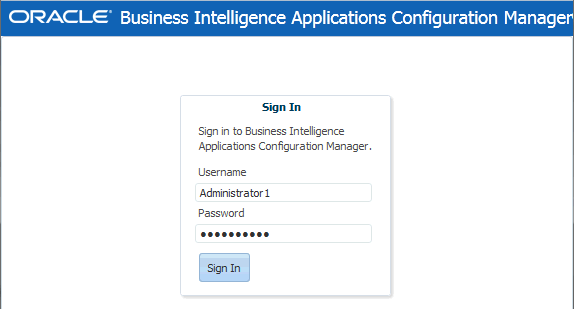
Sign in with the credentials provided by Oracle Cloud Ops to open Configuration Manager.
-
From the Tasks bar in Configuration Manager, select the Perform Functional Configurations link to launch Functional Setup Manager in a new tab.

-
If you are prompted to sign in, sign in to Functional Setup Manager with the credentials provided by Oracle Cloud Ops. These are the same credentials you used to sign in to Configuration Manager.
-
When Functional Setup Manager opens the Overview page should be displayed by default in the right pane.

-
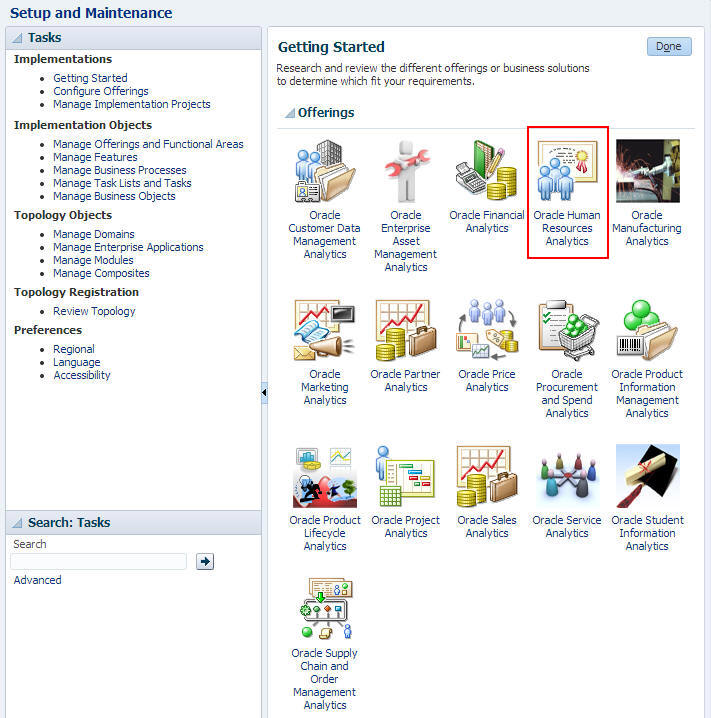
In the Tasks bar, under Implementations, select Getting Started to display the prebuilt offerings in the right pane.

-
Select the Oracle Human Resources Analytics offering to navigate to the Documents page for the offering.
-
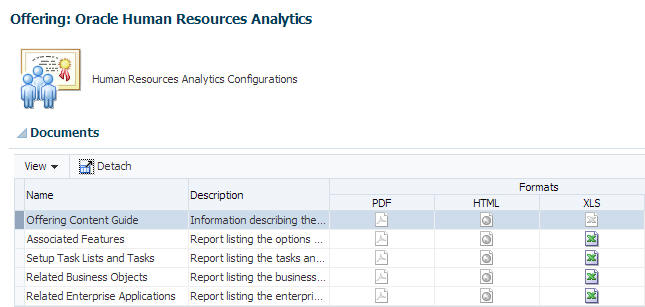
On the Documents page you can access documentation related to the selected offering.
-
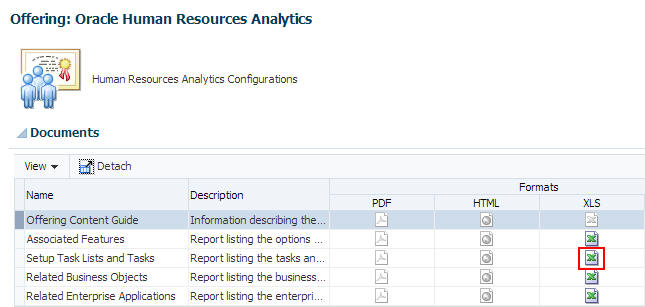
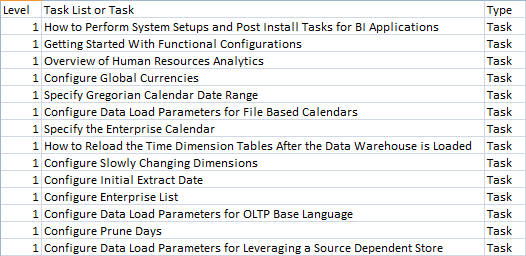
Click the XLS link for "Setup Task Lists and Tasks" to open the spreadsheet.
-
This spreadsheet provides a list of all of the setup tasks for an offering, with a description of each task. Please note: Although it is not listed under Documents, the main reference for Setup Task Lists and Tasks should be the OTBI Enterprise Customer Configuration Workbook. For release 11.1.1.8.1, the OTBI Enterprise Customer Configuration Workbook is a modified version of this task spreadsheet embedded in the product. It contains only the specific list of tasks for OTBI Enterprise for HCM Cloud Service and should be your only reference to complete these tasks. If you do not know where to locate the OTBI Enterprise Customer Configuration Workbook, please contact the person in Oracle BI Product Management who has been assigned to assist you with your implementation
-
Open and explore the other getting started documents.
-
Click Done to return to the Getting Started page.
Enabling an Offering and Functional Areas for Implementation
At the start of a deployment project, you must enable your offering and its functional areas for implementation.
-
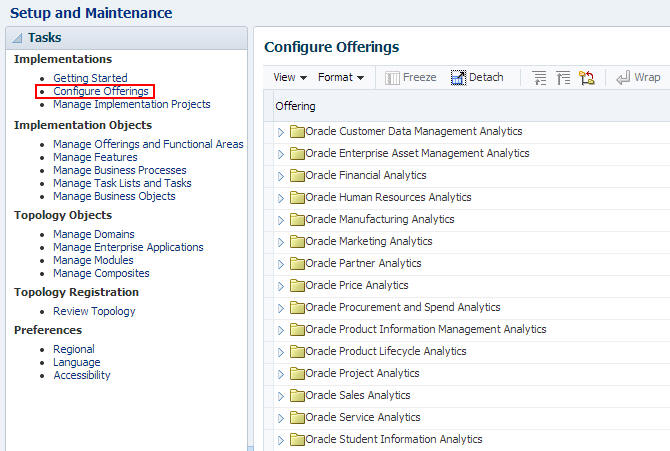
In the Tasks bar, under Implementations, select the Configure Offerings link to display the Configure Offerings page in the right pane.
-
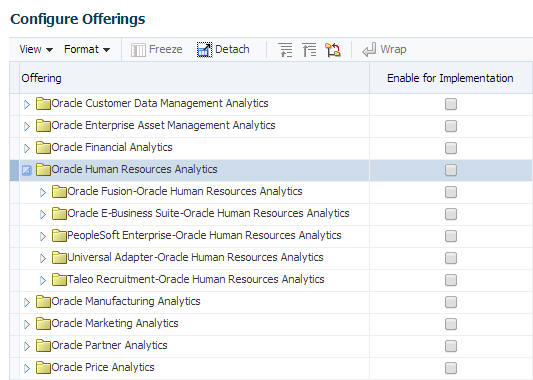
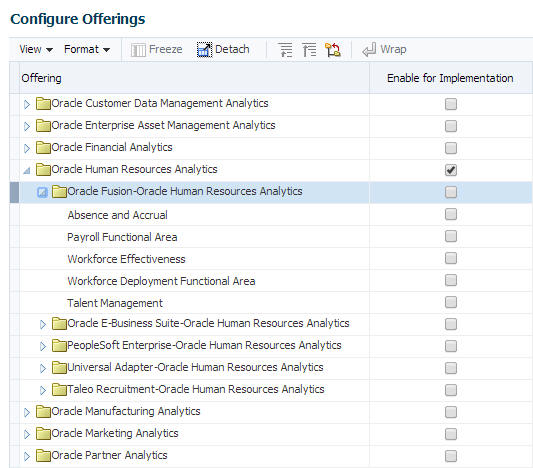
Expand "Oracle Human Resources Analytics". Please note that although your customer purchased a product named OTBI Enterprise for HCM Cloud Service, the offering (product) you need to select for release 11.1.1.8.1 is Oracle Human Resources Analytics.
-
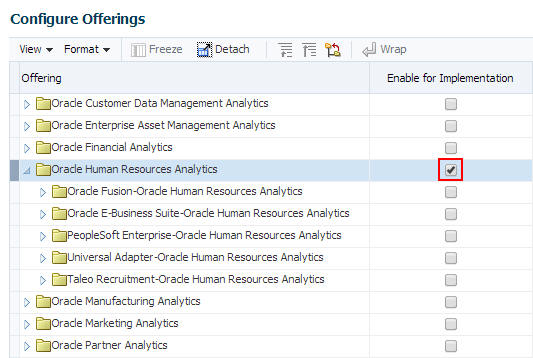
Select the “Enable for Implementation” check box next to "Oracle Human Resources Analytics".
-
Click Yes when you receive the following warning: "The offering is not provisioned. Offering implementations cannot be completed until the offering is provisioned. Do you want to continue?

-
Expand "Oracle Fusion-Oracle Human Resources Analytics".
-
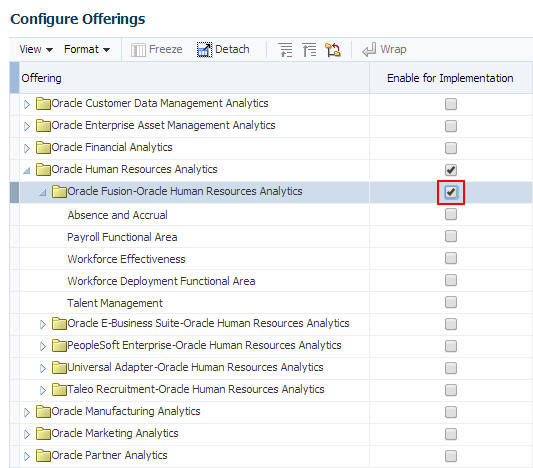
Select the “Enable for Implementation” check box next to "Oracle Fusion-Oracle Human Resources Analytics".
-
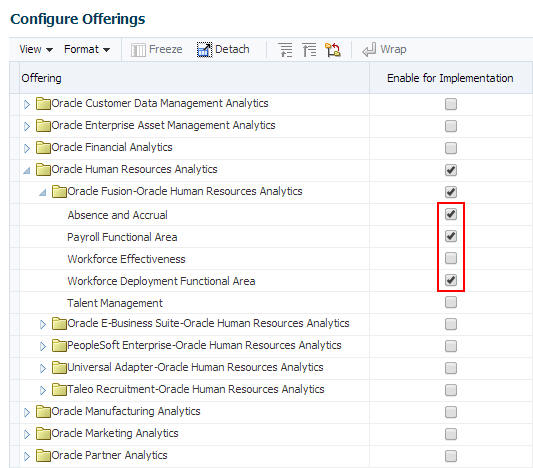
Select the “Enable for Implementation” check box for the functional areas under Oracle Fusion-Oracle Human Resources Analytics. For OTBI Enterprise for HCM Cloud Service release 11.1.1.8.1, only the following three functional areas should be enabled:
- Absence and Accrual
- Payroll Functional Area
- Workforce Deployment Functional Area
-
Save your changes.
Creating an Implementation Project
You use Functional Setup Manager to create an Implementation Project to configure an offering and the modules that you want to deploy. In this example, you create an implementation project to configure Oracle Human Resources Analytics. Again, please note that although your customer purchased a product named OTBI Enterprise for HCM Cloud Service, the offering (product) you need to select for release 11.1.1.8.1 is Oracle Human Resources Analytics.
-
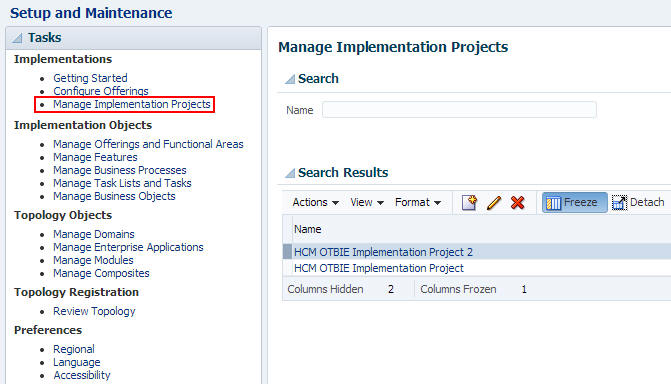
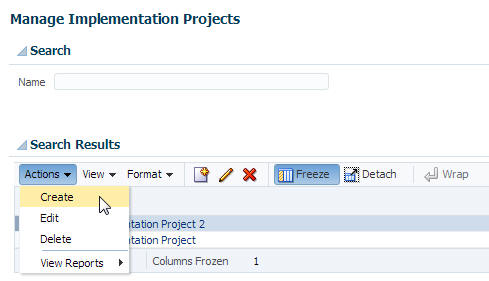
In the Tasks pane, select Implementations > Manage Implementation Projects to display the Manage Implementation Projects page
-
Select Actions > Create to display the Enter Basic Information page.
-
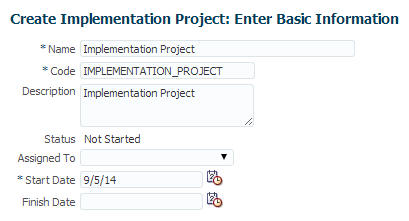
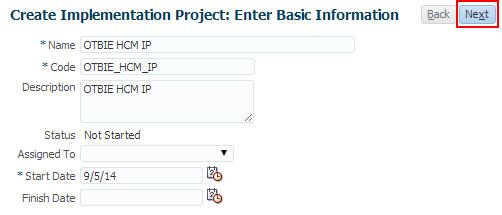
The Enter Basic Information page is displayed.
-
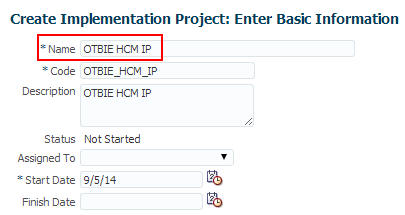
Enter a name in the Name field. The name is arbitrary, but should be something meaningful. In this example the name is OTBIE HCM IP.
-
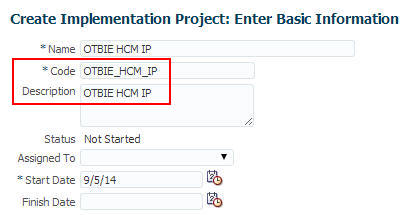
Notice that when you press Enter or step off the Name field, a code and description are generated automatically.
-
Accept the defaults for Assigned To and Start Date, assign the project if desired, and click Next to display the “Select Offerings to Implement” page. Do not click “Save and Open Project.” Selecting “Save and Open Project” will create an incomplete implementation project.
-
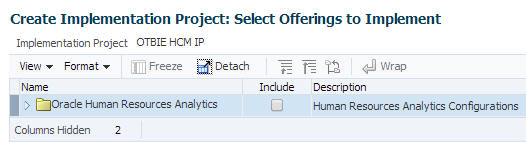
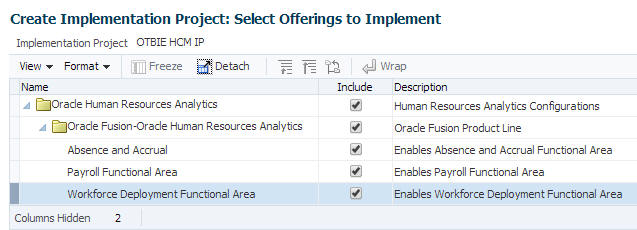
The “Select Offerings to Implement” page is displayed.
-
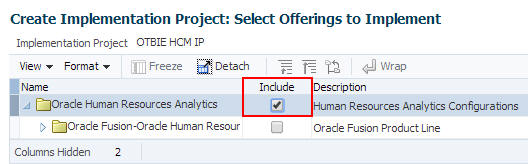
On the “Select Offerings to Implement” page select Include for Oracle Human Resources Analytics.
-
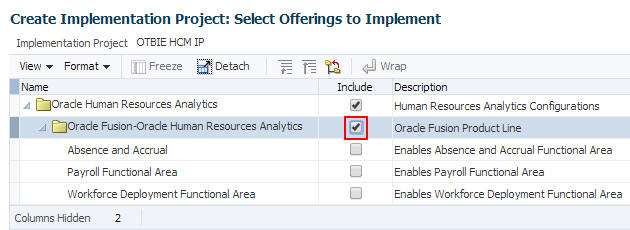
Select Include for Oracle Fusion-Oracle Human Resources Analytics.
-
Select Include next to Absence and Accrual, Payroll Functional Area, and Workforce Deployment Functional Area to include these functional areas in the project.
-
Click “Save and Open Project" to open the project page.

-
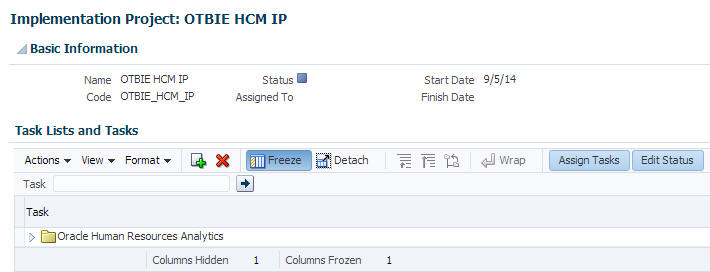
The project page is displayed.
-
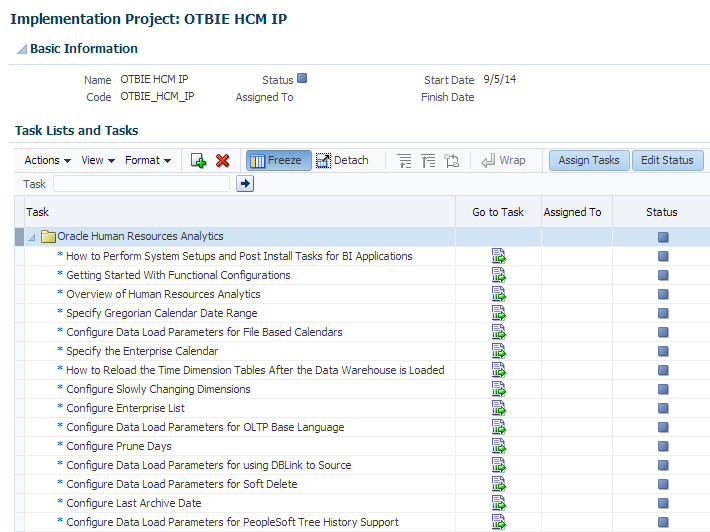
In the “Task Lists and Tasks” section, expand Oracle Human Resources Analytics to view the list of tasks required to configure the selected Offering and Functional Areas. Once you create an implementation project, FSM generates the tasks required to configure the specified offering.
Setting Up Functional Configuration Tasks
By default, functional configuration tasks are assigned to the user who is logged in with Administrator Duty privileges. You can assign tasks to functional developers so that functional developers can configure offerings. When functional developers log in and display the Assigned Implementation Tasks tab, they would see only those tasks that have been assigned to them. When Administrators log in and display the Implementation Projects tab, they see all tasks. In a small deployment project, a single person with Administrator privileges might perform all of the setup and functional configuration tasks.
-
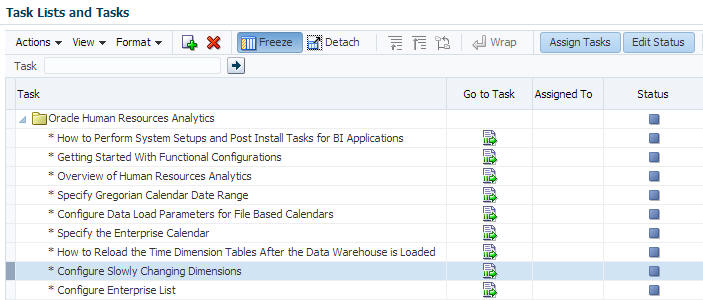
In the “Task Lists and Tasks” pane, select the "Configure Slowly Changing Dimensions" task.
-
Click the “Go to Task” icon
 to display the configuration screen that enables you to complete the task.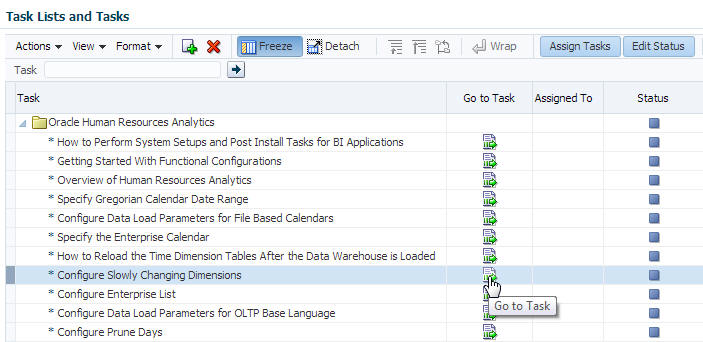
-
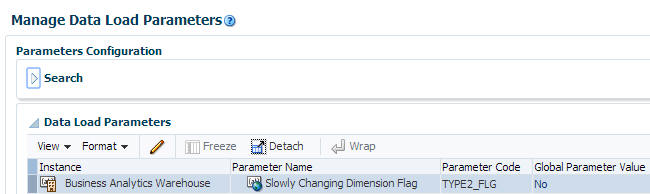
The configuration screen that enables you to complete the task is displayed.
-
Leave the parameter value set as-is for now. You can learn more about editing parameters in the tutorial "Performing Configuration Tasks for OTBI Enterprise for HCM Cloud Service."
-
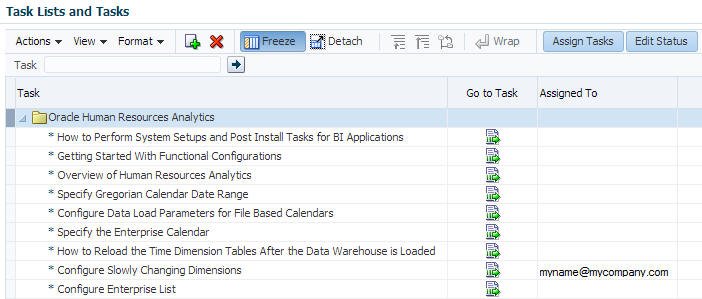
Click Done to return to the “Task Lists and Tasks” pane. Notice that the task is now assigned to the user you are logged in as. In a small deployment project, a single person with Administrator Duty privileges might perform all of the setup and functional configuration tasks. When you log into FSM with Administrator Duty privileges, you see all Tasks that are included in an Implementation Project.
-
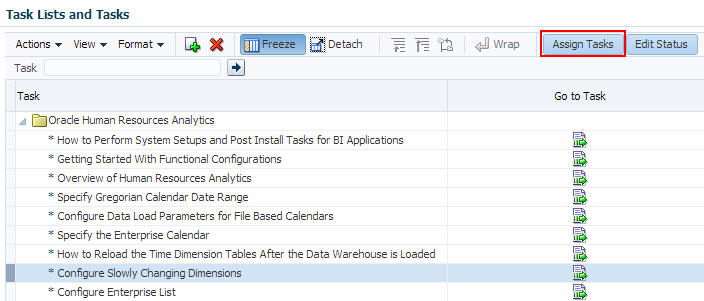
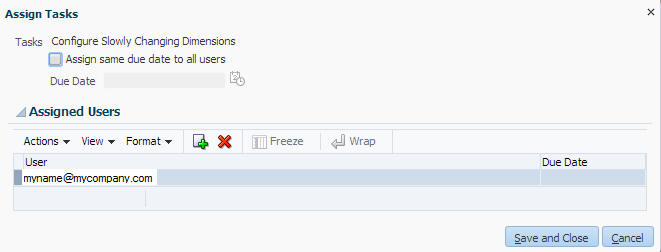
With the task selected, click Assign Tasks to display the Assign Tasks dialog box.
-
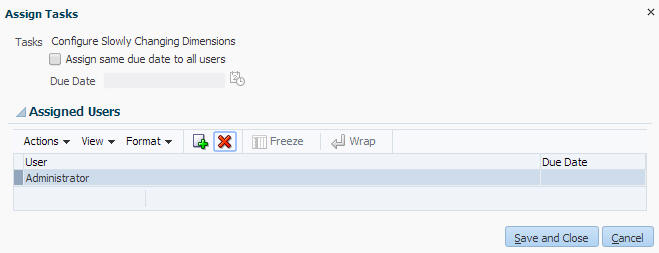
In the Assign Tasks dialog box, notice that the user you are logged in as, is the assigned user. Notice also that you could assign a due date for this task.
-
Click the “Select and Add” button
 to open the “Select and Add: Users”dialog box.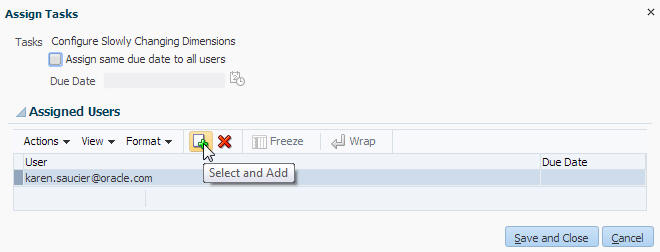
-
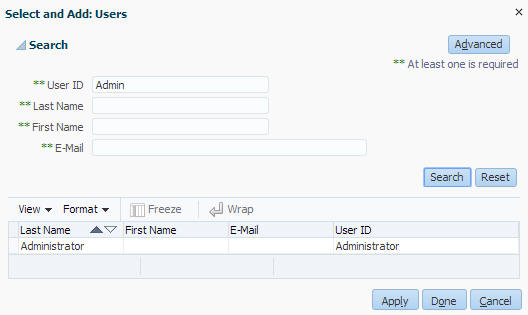
In the“Select and Add: Users”dialog box, you can search for and select appropriate functional developers, and then assign the task to another user to configure BI Application offerings. When functional developers log in and display the Assigned Implementation Tasks tab, they would only see the tasks that have been assigned to them. In this example, you search for "Admin" in the User Id field, and the "Administrator" user is returned.
-
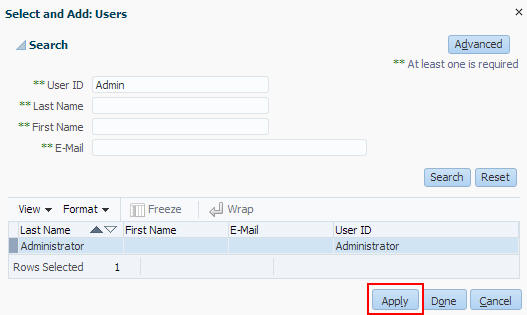
Select the user name and click Apply to assign the task to the new user.
-
Click Done to close the “Select and Add: Users”dialog box. The user is assigned to the task in the Assign Tasks dialog box.
-
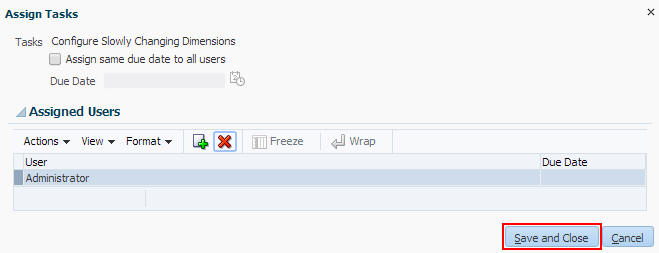
Click "Save and Close" to close the Assign Tasks dialog box.
-
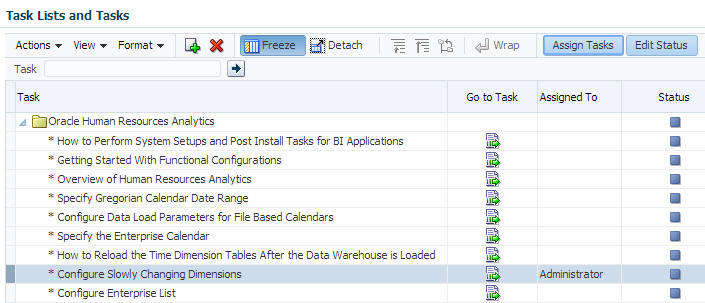
The user is assigned to the task in the task list..
-
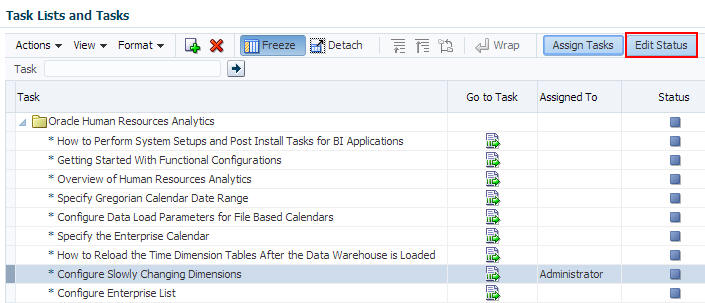
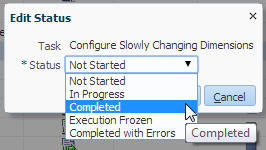
With the task selected, click Edit Status to display the Edit Status dialog box.
-
In the Edit Status dialog box you can change task status for the task.
-
Click Cancel to close the Edit Status dialog box without making any changes.
Managing Offerings and Functional Areas
-
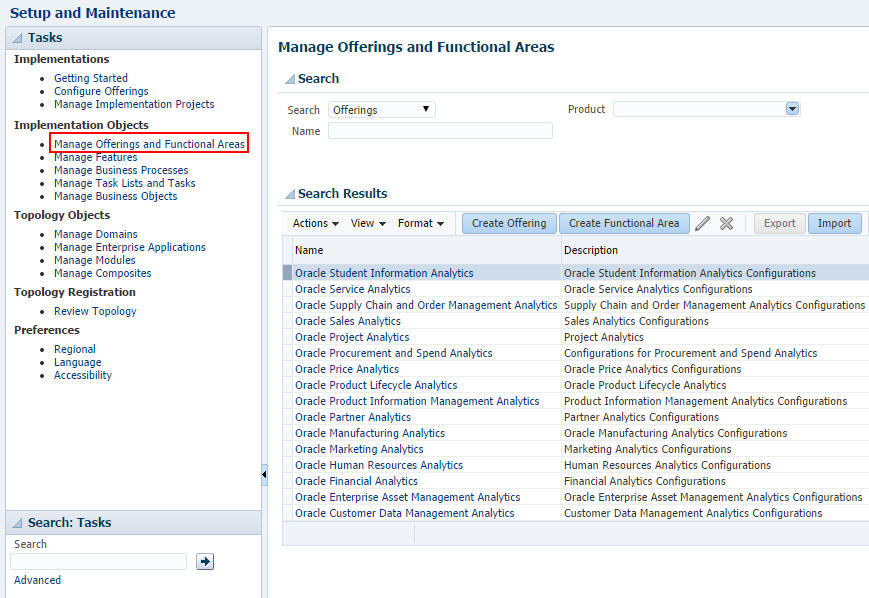
In the Tasks pane, select Implementation Objects > “Manage Offerings and Functional Areas" to open the "Manage Offerings and Functional Areas" page.
-
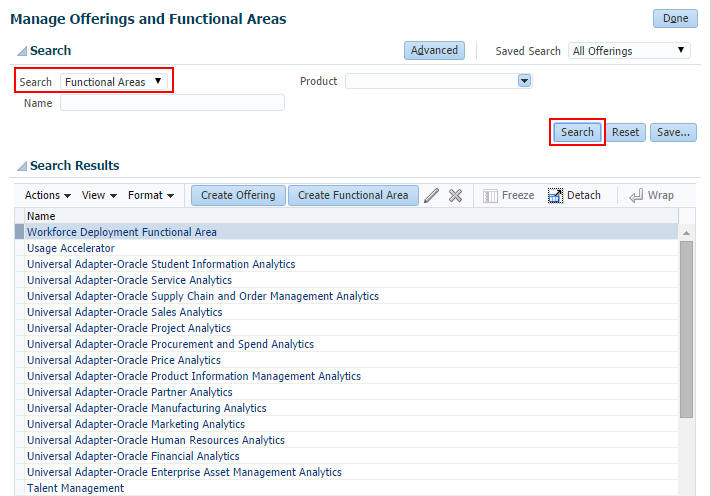
Select Functional Areas in the Search field and click Search to display all of the prebuilt functional areas.
-
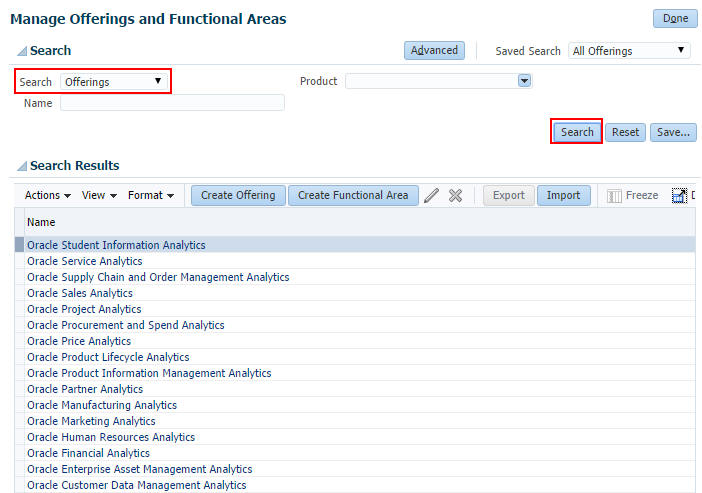
Select Offerings in the Search field and click Search to display all of the prebuilt offerings.
-
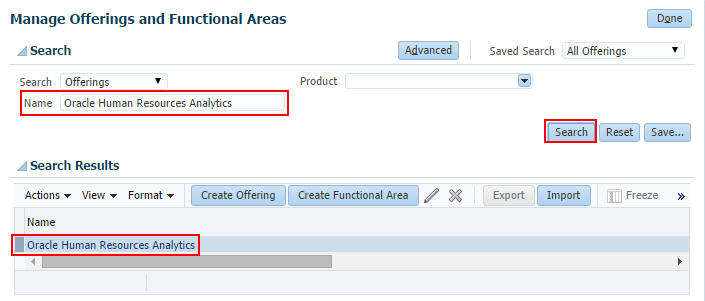
Search for the Oracle Human Resources Analytics offering.
-
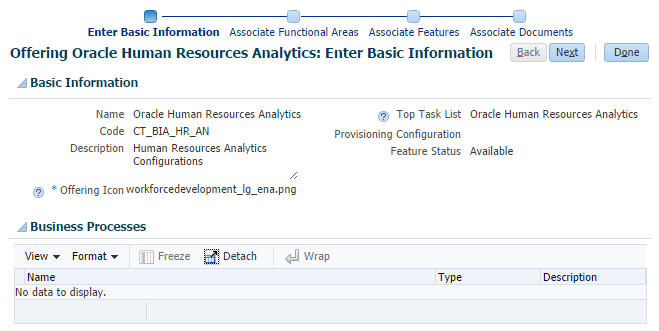
Click the Oracle Human Resources Analytics offering to drill into the object.
-
The first page displays basic information about the offering, such as its name, code, and description.
-
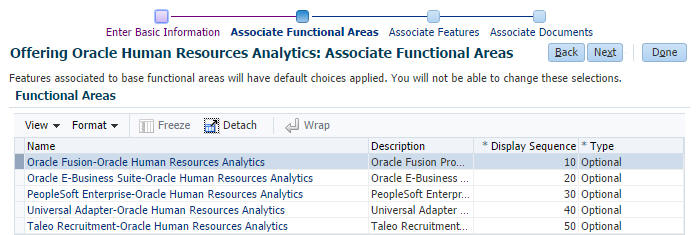
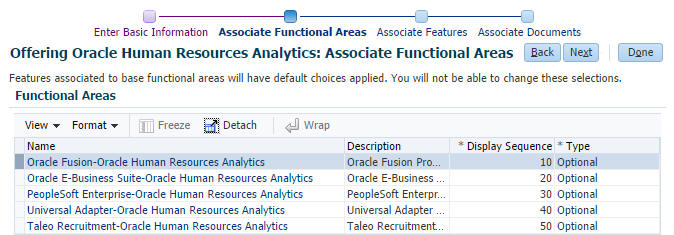
Click Next or click Associate Functional Areas on the process flow chart to navigate to the Functional Areas page. This page displays the functional areas associated with the Oracle Human Resources Analytics offering.
-
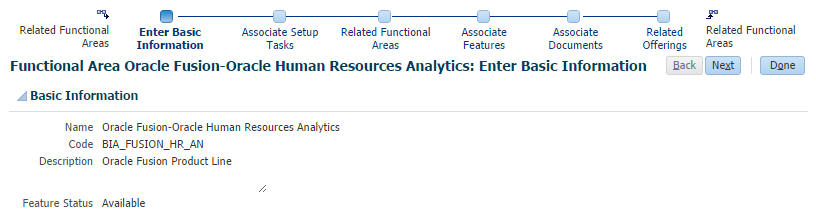
Drill on the Oracle Fusion-Oracle Human Resources Analytics functional area to see information about this functional area.
-
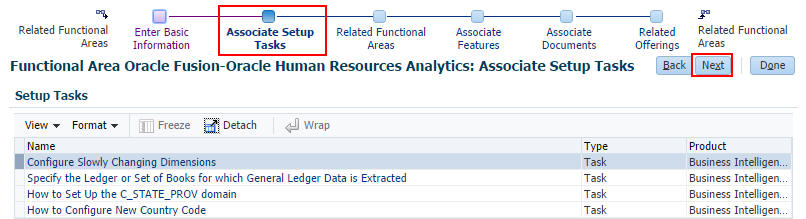
Click the Next button or use the process flow links to explore the tasks, functional areas, features, documents and offerings associated with this functional area..
-
Click Done to return to the Oracle Human Resources Analytics offering page.
-
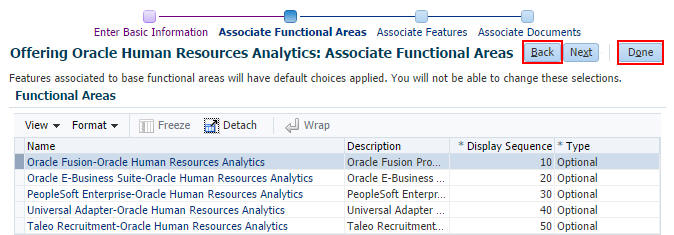
Use the Back and Done buttons to navigate to other setup and maintenance pages.
Summary
In this tutorial, you learned how to perform functional setup of OTBI Enterprise for HCM Cloud Service. You learned how to:
- Explore getting started options in Functional Setup Manager
- Enable an offering and functional areas for deployment
- Create an implementation project
- Set up functional configuration tasks
- Manage offerings and functional areas
Resources
To learn more about OTBI Enterprise for HCM Cloud Service, refer to additional documentation in the OTBI Enterprise Cloud Library.
Credits
Lead Curriculum Developer: Jim Sarokin
To navigate this Oracle by Example tutorial, note the following:
- Topic List:
- Click a topic to navigate to that section.
- Expand All Topics:
- Click the button to show or hide the details for the sections. By default, all topics are collapsed.
- Hide All Images:
- Click the button to show or hide the screenshots. By default, all images are displayed.
- Print:
- Click the button to print the content. The content that is currently displayed or hidden is printed.
To navigate to a particular section in this tutorial, select the topic from the list.