Configuring Active Directory Federation Services 2.0 as an Identity
Provider with Oracle Cloud as Service Provider
Overview
Purpose
This tutorial describes how to configure Active Directory
Federation Services (ADFS) 2.0 as an Identity Provider( (IdP) to
be used with Oracle Cloud as the Service Provider (SP).
Time to Complete
Approximately 1 hour
Introduction
The Oracle Cloud documentation at
describes the tasks for configuring Oracle Cloud as a SP, using
the SSO Configuration tab of the My Services UI. SP configuration,
however, is only half of the configuration process. To enable SSO,
you need to configure the IdP as well as the SP.
The My Services configuration page for SSO requires you to
configure the SP first. To do that, you must have metadata from
the IdP to upload into the SP. Therefore, you need to move back
and forth between the IdP and the SP to perform the complete
configuration. Specifically, you will:
Obtain the IdP metadata for SP configuration
Configure the SP
Obtain the SP metadata for IdP configuration
Configure the IdP
Test and enable SSO from the SP
Software Requirements
The following is a list of software requirements for the IdP:
Active Directory and IIS web server are installed and
configured on-premise. In this tutorial we shall assume AD
domain is adfs20.fed.oracle.com
The on-premise Active Directory Federation Services 2.0 must
be:
Installed. In our tutorial we assume that there is
pre-installed ADFS 2.0 on Windows Server 2008 R2 Enterprise
SP1 machine. You can review the basic steps on how we setup
ADFS 2.0 in our environment here.
Configured for local user authentication by using either
of the following authentication methods:
Windows Integrated Authentication (for example,
Kerberos and HTTP Basic Authentication)
FORM Based Authentication
Enabled for SSL. To enable the server for SSL, its public
endpoints are configured for SSL. For example, the reverse
proxy fronting OIF configured for SSL Note: Well known
Certificate Authorities issue the SSL certificates.
Prerequisites
Before starting this tutorial, you should:
Decide whether to use the email address or the userID as the
Federation attribute for identifying the user in the Federation
message.
Ensure that the each user in the LDAP directory at the IdP
contains the attribute you will use to identify the user in the
Federation message:
If you want to use the email address, then each user must
have a specific attribute containing a unique email address.
For example, if the LDAP directory is OID, mail
would be such an attribute.
If you want to use the user identifier, then each user
must have a specific attribute containing a unique userID.
For example, if the LDAP directory is OID, uid
would be such an attribute.
Ensure that the user population has been synchronized between
the IdP LDAP directory and the SP directory, with the attribute
used to identify the user being the same in both directories for
each user. Note: The user footprint must exist on Oracle Cloud
without the password. For password validation local AD store for
ADFS 2.0 IdP would be used. Importing a Batch of User Accounts in Getting Started with Oracle Cloud
describes a method for synchronizing users between the two
directories.
Obtaining IdP Metadata for SP Configuration
To obtain the Active Directory Federation Services 2.0 IdP
metadata for configuring the Oracle Cloud SP, perform the
following steps:
On the ADFS 2.0 machine, launch a browser.
Access the Active Directory Federation Services 2.0 IdP
metadata. The URL is of the form: https://<host>/FederationMetadata/2007-06/FederationMetadata.xml
Save the file locally as IdP_metadata.xml.
Perform Oracle Cloud SP Configuration
You must configure the Oracle Cloud SP before you configure the
IdP.
Perform the following steps:
If necessary, copy the metadata file you obtained from Active
Directory Federation Services 2.0 IdP to the environment where
you will configure Oracle Cloud SSO
In a browser, navigate to the SSO Configuration page of My
Services in Oracle Cloud.
Click Configure SSO.
Select Import identity provider metadata.
Click Choose File and upload the identity
provider metadata file (such as IdP_metadata.xml in our
tutorial)
For SSO Protocol, HTTP POST is
recommended, and is the default.
Select User identifier. This is the Oracle
LDAP Directory attribute that is used to map the user
information contained in the incoming SSO SAML Assertion to
an Oracle Cloud User.
It is either User's email address or UserID.
Select User's email address for this tutorial.
Select Contained in. If the User
identifier is User's email address, Contained
in must be NameID.
If the User identifier is the User ID,
Contained in must be SAML Attribute
and you must specify the name of the SAML Attribute to use
for Contained in such as SamAccountName in case
of AD.
Click Save.
Click Save. The screen now displays all four tasks
to be performed on the SSO configuration page. You have
performed the first task, Configure SSO.
Obtaining SP Metadata for IdP Configuration
To obtain the Oracle Cloud SP metadata for configuring Active
Directory Federation Services 2.0 as an IdP, perform the following
steps:
Go to the Configure your Identity Provider Information
section of the SSO Configuration page and click Export
Metadata, then select Provider Metadata.
Save the metadata to a local file as SP_metadat.xml. You have
performed the second task on the page, Configure your
Identity Provider Information.
Now you must return to your Identity Provider to configure Oracle
Cloud as a Service Provider.
Adding Oracle Cloud SP as a Trusted Relying Party
To configure Active Directory Federation Services 2.0 as the IdP,
you must add Oracle Cloud SP as a Trusted Relying Party. Perform
the following steps on the Windows server:
If necessary, copy the metadata file (SP_metadata.xml) you
obtained from the Oracle Cloud SP in the previous section to
the Windows server.
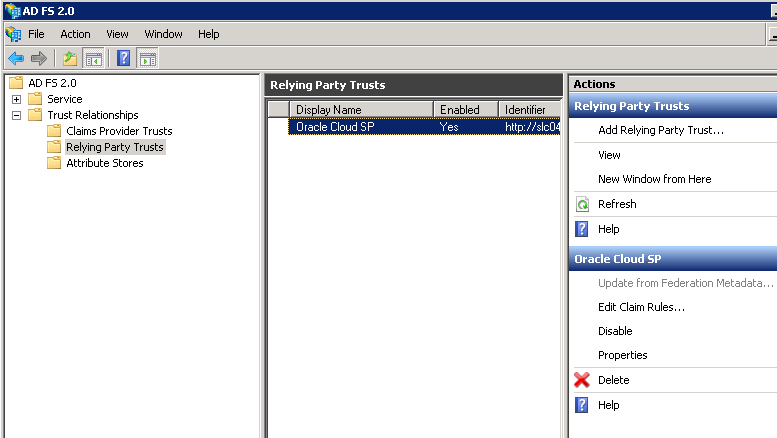
From Start > All Programs > Administrative Tools select
AD FS 2.0 Management
Expand AD FS 2.0 > Trust Relationships > Relying
Party Trusts
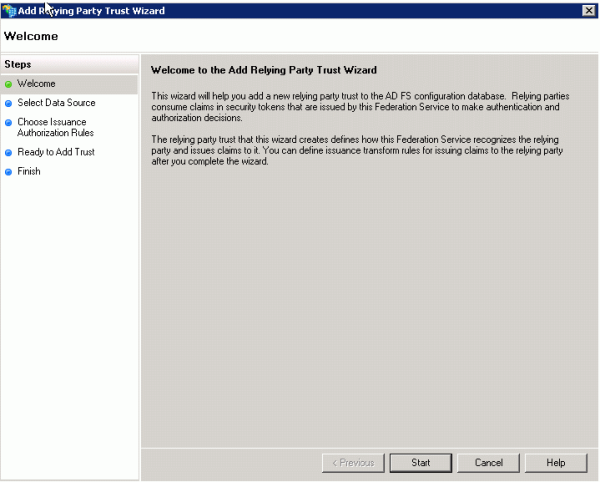
Right-click Relying Party Trusts, then click Add
Relying Party Trust. The Add Relying Part Trust Wizard
Welcome screen opens.
Click Start. The Select Data Source screen
appears.
In the Select Data Source screen, do the following:
Select Import data about the relying party from a
file.
Browse and select the Metadata file you saved from the
Oracle Cloud SP, and click Open.
Click Next.
If a message box like the following one is displayed, click OK.
The Specify Display Name screen appears. Enter a name for the
Oracle Cloud SP.
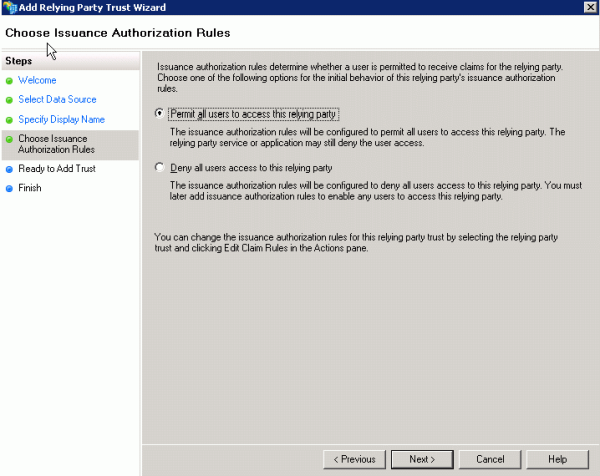
Click Next. The Choose Issuance Authorization
Rules screen appears.
Select Permit all users to access this relying party.
Click Next. The Ready to Add Trust screen appears.
Verify the settings on various tabs and click Next.
.
Click Next. The Finish screen appears.
In the Finish screen, deselect Open the Edit Claims
dialog for this relying party trust when the wizard closes.
Click Close.
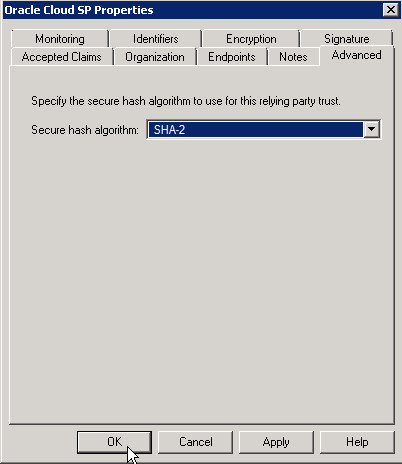
In the main screen, right-click on Oracle Cloud SP Relying
Party Trusts, Then click Properties.
Click the Advanced tab. Select SHA-2
in the Properties dialog.
Click OK.
Configuring Claim Rules Using Email Address
Perform the configuration in this section ONLY if you are using
the email address to identify the user in the Federation message.
Note: This will depend upon if email address was configured in
Step 3 d of Perform Oracle Cloud SP Configuration section.
This section describes how to configure the newly added relying
party entry to instruct ADFS 2.0 IdP to send the user’s email
address as the NameID with the Email Address NameID format.
Perform the following steps to configure ADFS 2.0 to send the
user’s email address to the Oracle Cloud SP:
In the Start menu, go to Programs.
Select Administrative Tools.
Start AD FS 2.0 Management.
Expand AD FS 2.0, expand the Trust
Relationships subtab, and select Oracle Cloud SP under Relying
Party Trusts.
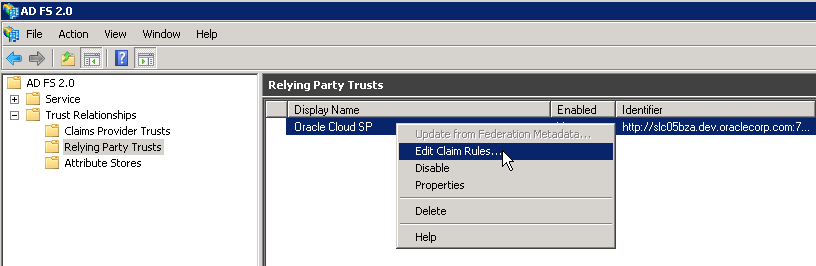
Right-click Oracle Cloud SP, and click Edit
Claim Rules. The Edit Rule window appears
Click Add Rule.
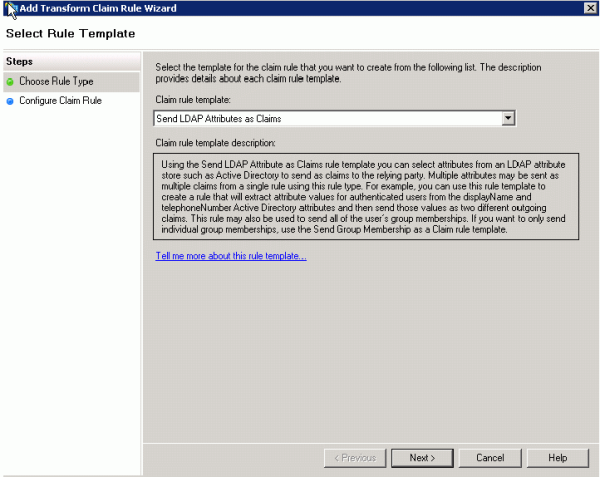
In the Select Rule Template screen, select Send LDAP
Attributes as Claims.
Click Next.
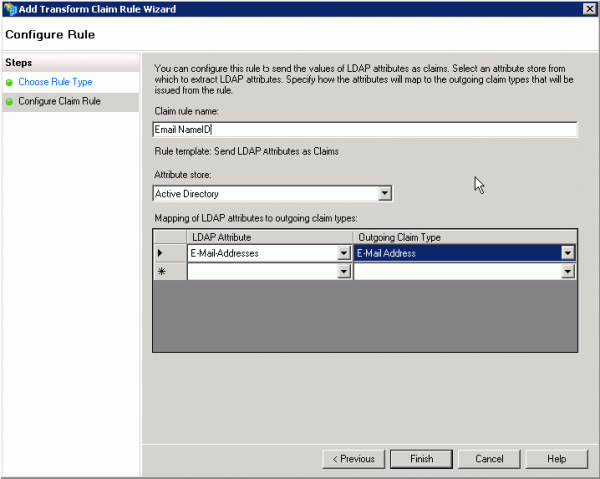
Enter a name for the claim rule name field in the Configure
Rule screen such as Email NameID.
Select Active Directory as the attribute store.
In the the Mapping of LDAP attributes to outgoing claim types
table, select E-Mail-Addresses as the LDAP
Attribute, and E-Mail Address as the Outgoing Claim
type.
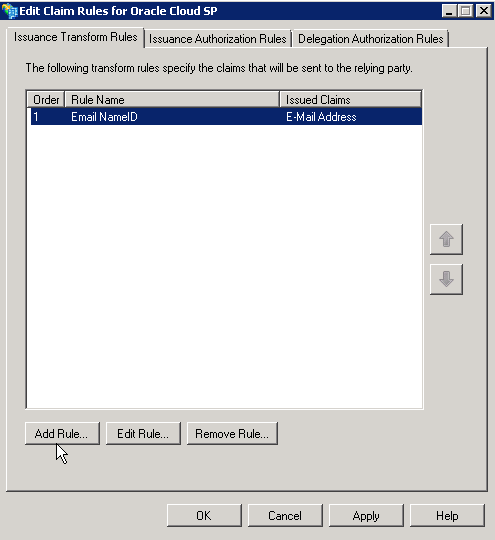
Click Finish. The list of rules is displayed.
Click Add Rule.
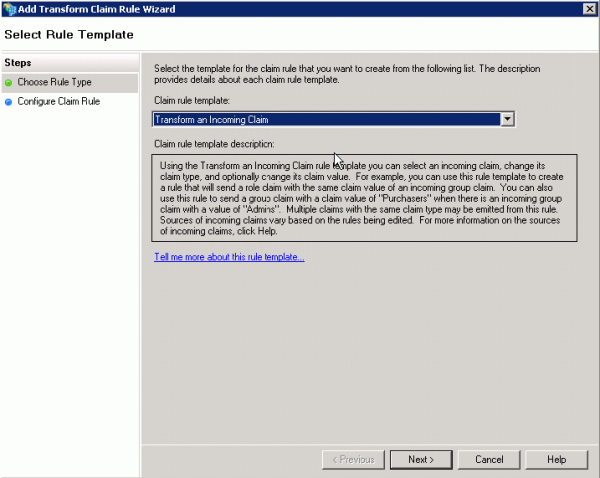
In the Select Rule Template screen, select Transform an
Incoming Claim from the menu.
Click Next.
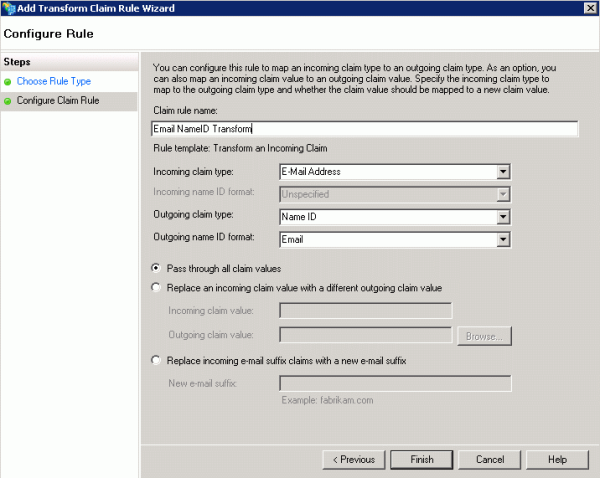
In the Configure Rule screen, do the following:
Enter a name in the Claim rule name field such as Email
NameID Transform.
In the Incoming claim type field, select E-Mail Address.
In the Outgoing claim type field, select Name ID.
In the Outgoing name ID format field, select Email.
Select Pass through all claim values.
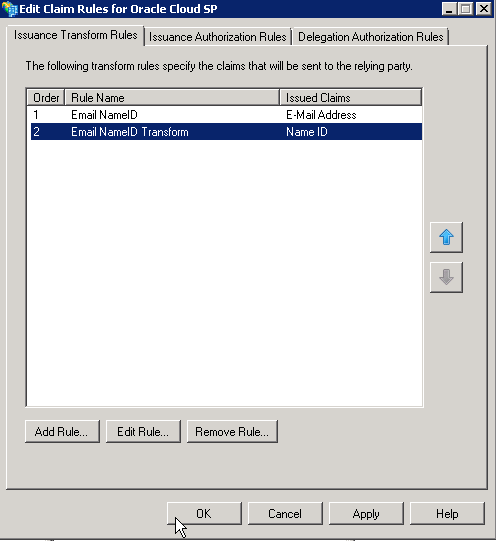
Click Finish. The list of claim rules is displayed
in the Edit Claim Rules screen.
Click OK.
Configuring Claim Rules Using UserID
Perform the configuration in this section ONLY if you are using
the UserID to identify the user in the Federation message. Note:
This will depend upon if User ID was configured in Step 3 d of
Perform Oracle Cloud SP Configuration section.
This section describes how to configure the newly added relying
party entry to instruct ADFS 2.0 IdP to send the user’s identifier
as the NameID with the Unspecified NameID format.
Perform the following steps to configure ADFS 2.0 to send the
user’s identifier address to Oracle Cloud SP:
In the Start menu, go to Programs.
Select Administrative Tools.
Start AD FS 2.0 Management.
Expand AD FS 2.0 node, expand the Service
sub-tab, and select Claim Descriptions.
Right-click Claim Descriptions, and click Add
Claim Description.
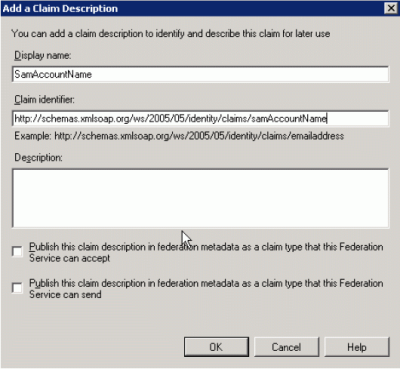
In the Add a Claim Description screen, provide the following
information:
In the Display name field, enter SamAccountName.
In the Claim identifier field, enter the
following URL: http://schemas.xmlsoap.org/ws/2005/05/identity/claims/samAccountName
Click OK.
Expand AD FS 2.0 node, expand the Trust
Relationships sub-tab, and select Relying Party
Trusts. The Relying Party Trusts screen appears.
Right-click Oracle Cloud SP under Relying Party Trusts,
and select Edit Claim Rules. The Edit Rule window
appears.
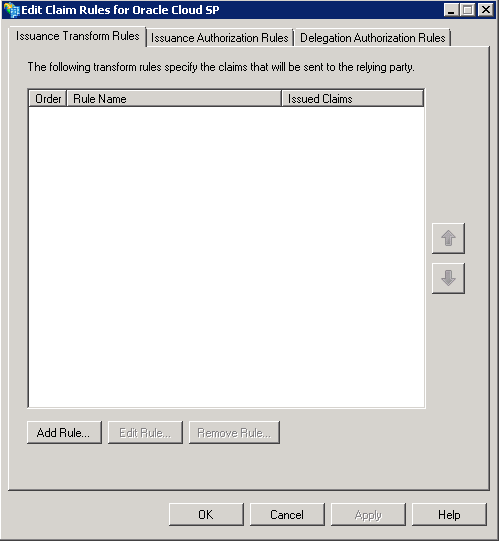
Click Add Rule.
In the Select Rule Template Screen, under Claim rule
template field, select Send LDAP Attributes as
Claims.
Click Next.
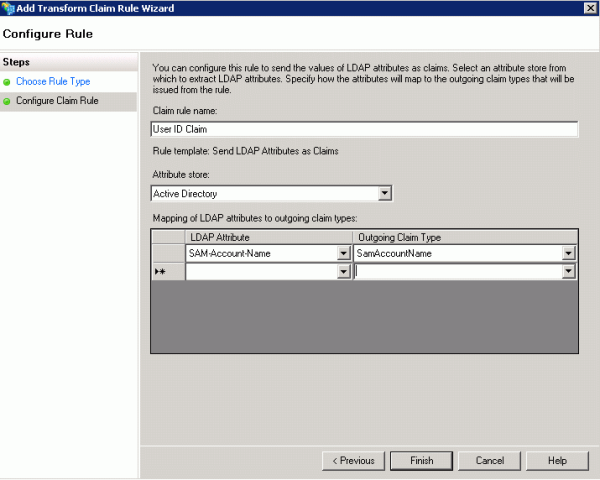
In the Configure Rule screen, do the following:
Enter a name in the Claim rule name field such
as User ID Claim.
In the Attribute Store field, select Active
Directory.
In the LDAP Attribute field, select Sam-Account-Name.
In the Outgoing claim type field, select SamAccountName.
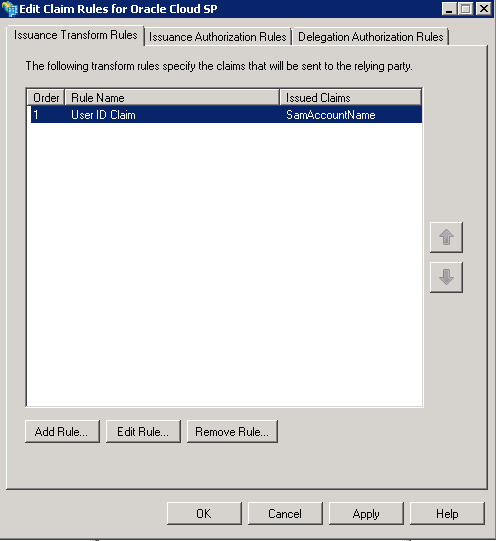
Click Finish. The list of rules appears in the Edit
Claim Rules screen.
Click Add Rule.
In the Select Rule Template screen, under Claim
rule template, select Transform an Incoming Claim.
Click Next.
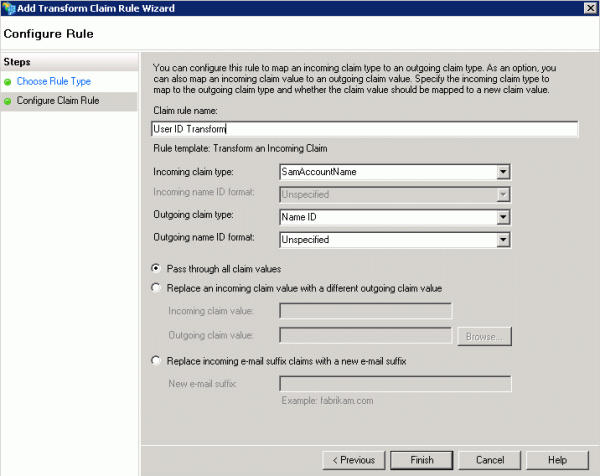
In the Configure Rule screen, do the following:
Enter a name in the Claim rule name field such
as User ID Transform.
In the Incoming claim type field, select SamAccountName.
In the Outgoing claim type field, select Name
ID.
In the Outgoing name ID format field, select Unspecified..
Select Pass through all claim values.
Click Finish. The list of claim rules appears in
the Edit Claim Rules screen.
Click OK.
Complete the Configuration on the Service Provider
To complete the configuration, proceed as follows:
Return to the browser window containing the SSO page of My
Services in Oracle Cloud.
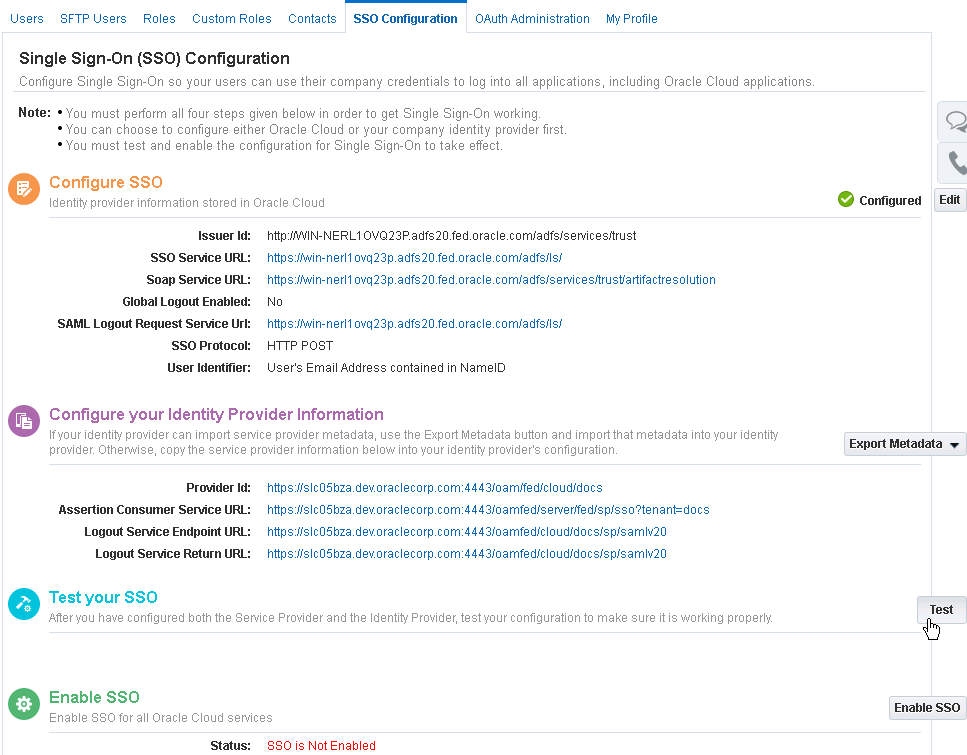
In the Test your SSO section of the page, click Test.
In the Initiate Federation SSO page, click Start
SSO to initiate testing.
This triggers a Federation SSO flow. You are redirected to
the IdP and challenged for authentication. Log in as an valid
existing user on AD (on-premise LDAP directory) using it's UPN
(UserPrincipalName).
Note: For the federation to work successfully, Vishal
Parashar user must exist both on AD (on-premise LDAP
directory) and Oracle Cloud. The user password is however only
stored in AD .
Once the Federation SSO is performed, the result is displayed
in the Test SSO page. If the test is successful, the
Authentication Result will be Authentication Successful.
Notice the Assertion attribute is set to email address
After the test has completed successfully, go to the Enable
SSO section of the page. Note that the Status
is SSO is Not Enabled.
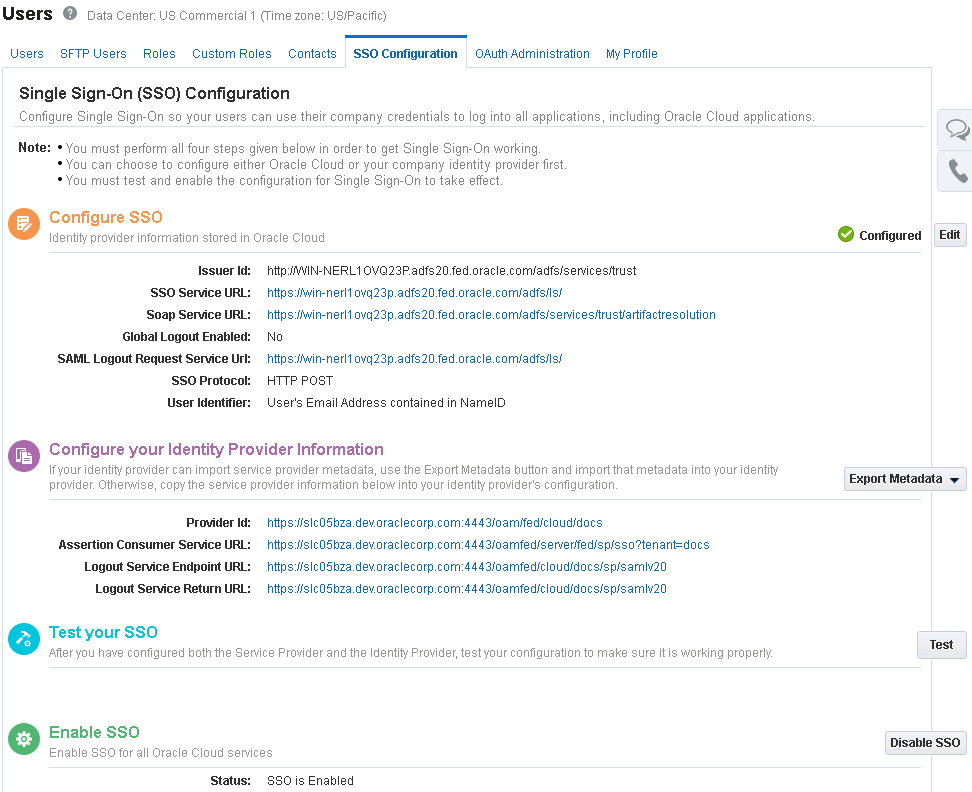
Click the Enable SSO button to enable SSO for all
Cloud services. Unit you do this, SSO is not enabled. You should
see Enable SSO pop up window, click OK to confirm
The Enable SSO section of the page now shows Status:
SSO is Enabled.
Once you have tested and validation that SSO configuration is
working correctly, navigate to My Services Sign In URL. You will
be prompted to enter your Identity Domain (you can save this for
subsequent logins). Enter your Identity Domain Name and click on
Go.
You should be able to authenticate through the IdP, after
entering your AD credentials (UPN - UserPrincipalName for Vishal
Parashar user) and selecting Sign In using Company option.
The first time you login, you can save your preference
for Language and Time Zone.
You should now see your MyServices home page. Notice the top
right corner, which shows you are logged in as
Vishal.Parashar@adfs20.fed.oracle.com user (UPN login username)
to the docs identity domain and SSO is enabled
Summary
In this tutorial, you learned to:
Obtain a file containing Active Directory Federation Services
2.0 metadata to use for SP configuration
Perform Oracle Cloud SP Configuration
Configure Active Directory Federation Services 2.0 as the IdP,
using metadata from Oracle Cloud SSO
Use the Oracle Cloud SSO documentation to test and enable SSO
at the SP