Before You Begin
Purpose
This tutorial shows you how to use the Cloudberry Explorer GUI tool to create storage containers in Oracle Storage Cloud Service. The storage containers provide cloud backup solutions for Oracle Database Cloud Service and Oracle SOA Cloud Service.
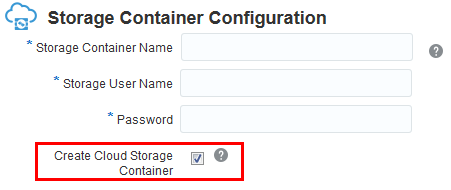
Note: You can also create an Oracle Storage Cloud Service Container by selecting the Create Cloud Storage Container checkbox on the Instance Details page of the SOA Cloud Service provisioning wizard.
Time to Complete
Approximately 25 minutes
Background
Oracle Storage Cloud Service enables businesses to store and manage files and data in the cloud. Stored content can be retrieved directly by external clients or by applications running within Oracle Cloud.
A container is a storage compartment that provides a way to organize the data stored in Oracle Storage Cloud Service.
Creating storage containers is one of the prerequisites for provisioning Oracle SOA Cloud Service.

What Do You Need?
-
A paid or trial subscription to Oracle SOA Cloud Service.
-
If you have a paid subscription to Oracle SOA Cloud Service, then a subscription to Oracle Storage Cloud Service is needed.
-
Your Oracle Cloud service user name, password, and identity domain (available in the New Account Information email that you received from Oracle Cloud when your user account was set up)
Finding the Replication Policy for Your Oracle Storage Cloud Service
The replication policy specifies the data center that hosts the service instance. You will need the data center information when you connect to Oracle Storage Cloud Service.
Identifying the Replication Policy If It Was Set
-
Sign in to the Oracle Cloud My Services application.
-
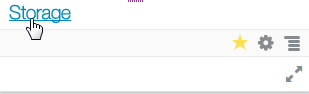
In the My Services dashboard, click the Storage link.
-
On the resulting page, expand Service Details.
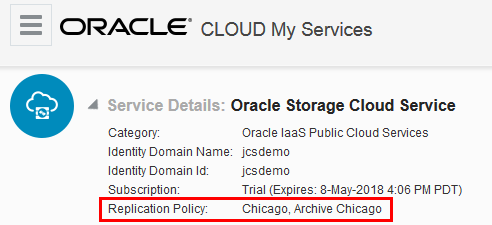
In the example image, the replication policy specifies Chicago as the primary data center (DC) that hosts the service instance. The DC location maps to a DC code. For example, us2 is the DC code for Chicago and us6 is the DC code for Ashburn. You will need your specific information when you connect to Oracle Storage Cloud Service.
Defining the Replication Policy If It Wasn't Set
-
Sign in to the Oracle Cloud My Services application.
-
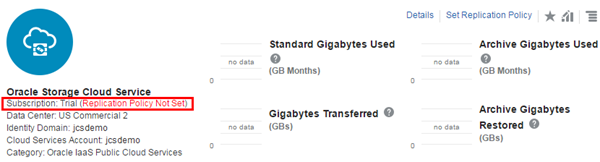
In the My Services dashboard, look for Oracle Storage Cloud Service. Notice that the subscription is listed as Trial (Replication Policy Not Set).
-
Click the Set Replication Policy link in the upper-right corner of the section.
-
In the Set Replication Policy dialog box, select the option that lists your Data Center/Region as primary, and Georeplication Data Center/Region: None. Click Set.
-
In the next screen, review your selection, and click Confirm.
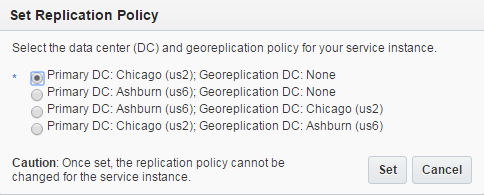
Note: Select your policy carefully. After you select it, you can’t change it.
After you set the policy, the Set Replication Policy link is dimmed.

Downloading and Installing CloudBerry Explorer
There are several options (command line or wizard interface) to create storage containers, all based on REST APIs.
- If you prefer an easy-to-use GUI tool, then download Cloudberry Explorer as freeware (shown in this tutorial).
- If you want to take a “developer-centric” way, use a command-line tool. See this tutorial: Oracle Storage Cloud Service: Creating Containers Using the REST API.
- If you're using a Macintosh, then try Cyberduck.
-
Open a browser window and enter the following URL:
http://www.cloudberrylab.com/free-openstack-storage-explorer.aspx -
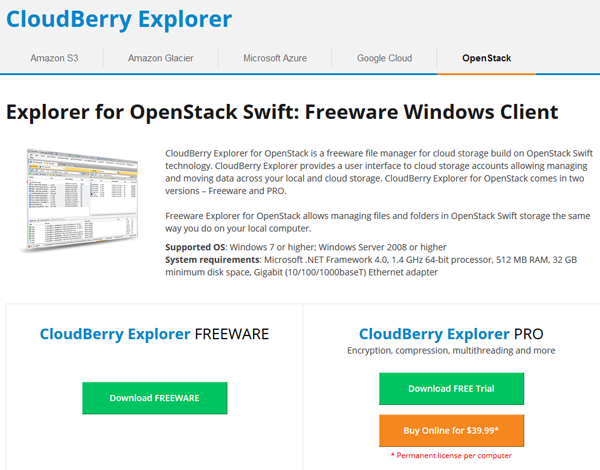
On the Explorer for OpenStack Swift: Freeware Windows Client page, click Download FREEWARE.
Description of this image -
On the Explorer for OpenStack Swift: Freeware Windows Client page, click Download to download the installer file of CloudBerry Explorer for OpenStack Storage.
- Save the
.exebinary file to your local machine. -
Launch the installer.
-
On the Welcome page of the Cloudberry Explorer for OpenStack Storage 1.6 Setup wizard, click Next.
-
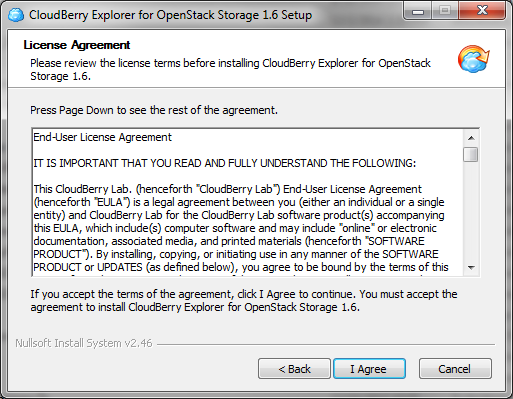
On the License Agreement page, click I Agree.
Description of this image -
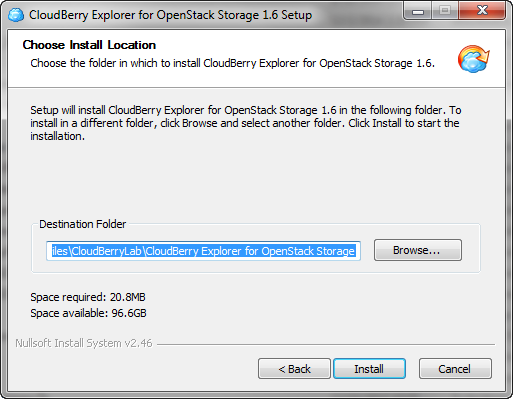
On the Choose Install Location page, select a destination folder and click Install.
Description of this image -
When the installation is complete, dismiss the setup wizard.
Creating the Containers by Using CloudBerry Explorer
In this section, you use CloudBerry Explorer to create the storage containers required for the built-in backup functionality of Oracle Database Cloud Service and SOA Cloud Service.
Connecting to Oracle Storage Cloud Service
-
Open the CloudBerry Explorer for OpenStack Storage application.
-
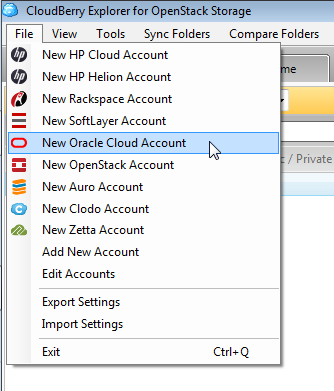
In the File menu, select New Oracle Cloud Account.
Description of this image -
In the Add New Oracle Cloud Account dialog box, enter or select the information for the following fields, and then click Test Connection:
- Display Name: Enter a name for the account. For example, use the name of the identity domain that includes your cloud service instances.
- User Name: Enter the
name of the account in this format:
Storage-Identity_Domain:Oracle_Cloud_user.Identity_Domain is the name of your identity domain, and Oracle_Cloud_user is the user name of your Oracle Cloud service.
For example, if your credentials are for user
john.smith@example.comin an identity domain namedjcsdemo,the user name isStorage-jcsdemo:john.smith@example.com. - Password: Enter your Oracle Cloud service password.
- Authentication Service:
Enter the URL in this format:
https://Identity_Domain.storage.oraclecloud.com/auth/version_number. - Account location: Select the value that corresponds to your DC_code.
- Keystone version: Use the default value, which is Do not use.
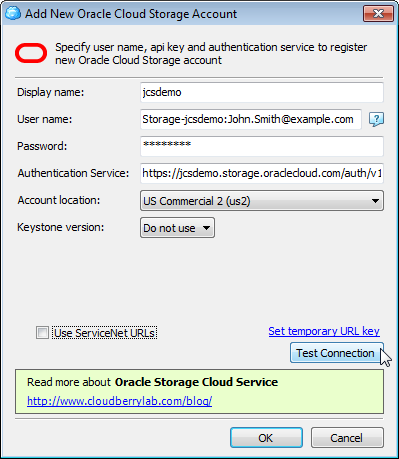
Description of this image Review your input and click Test Connection.
-
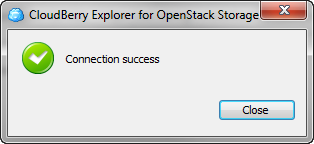
In the CloudBerry Explorer for OpenStack Storage dialog box, you should see the "Connection success" message. Click Close.
Description of this image -
In the Add New Oracle Cloud Account dialog box, click OK.
-
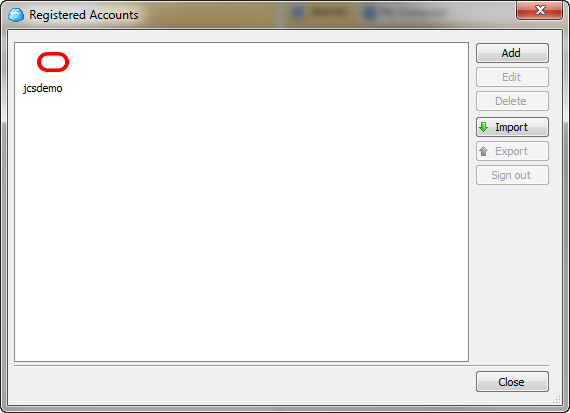
In the Registered Accounts dialog box, you should see the account that you just added. Click Close.
Description of this image
Creating the Containers
-
In the Source panel, select your new account.
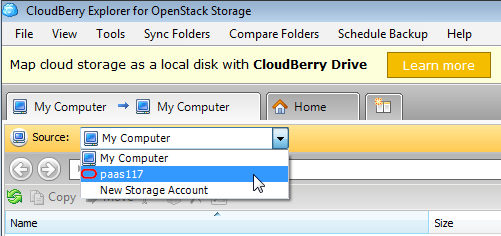
Description of this image -
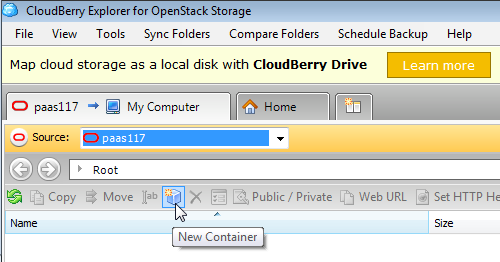
Click the New Container icon
 .
.
Description of this image -
In the New Container dialog box, for container name enter
dbBackup.For Container Type, accept the default option,Standard.Click OK.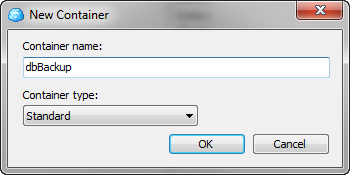
Description of this image The new container name for the database backups (dbBackup) appears in the source view.
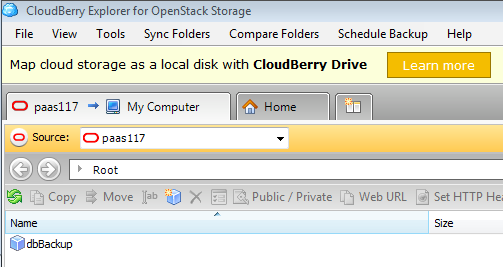
Description of this image Troubleshooting tip: If creation of the container fails, it may be due to one of the following reasons:- The replication policy isn't set.
- There's an incorrect data center code
in the authentication URL. Enter
us2orus6for United States orem1orem2for Europe.
-
Repeat the previous steps to create a new container for the SOA Backups. Name the new container
soaBackup.Click OK.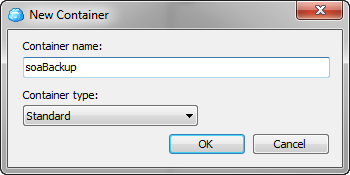
Description of this image The two new containers are displayed in the source view (
dbBackupandsoaBackup). They're ready to be used by your Oracle Database Cloud Service and SOA Cloud Service instances when you provision them.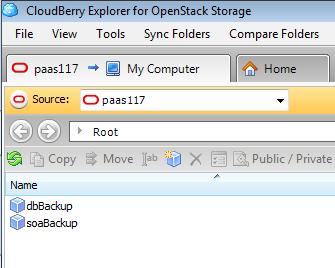
Description of this image - When both containers appear in the source view, close Cloudberry Explorer.
Want to Learn More?
-
Using the Provisioning Wizard in the Oracle Help Center
-
Using Oracle Storage Cloud Service in the Oracle Help Center
-
Creating SSH Keys for Use with Oracle Cloud Services in the Oracle Learning Library
-
Creating an Oracle Database Cloud Service Instance for Oracle SOA Cloud Service in the Oracle Learning Library