
 Oracle
Managed File Transfer Cloud Service Post-Provisioning Task - Configuring
Connections for MFT Embedded Servers
Oracle
Managed File Transfer Cloud Service Post-Provisioning Task - Configuring
Connections for MFT Embedded Servers Before You Begin
This 15-tutorial shows you how to configure connections for the MFT Embedded Servers to allow the sFTP traffic.
This is the first tutorial in the configurations for MFT Embedded Servers series. Read the tutorials sequentially.
- Configuring Connections for MFT Embedded Servers
- Configuring Oracle Traffic Director (OTD) for MFT Embedded Servers
Background
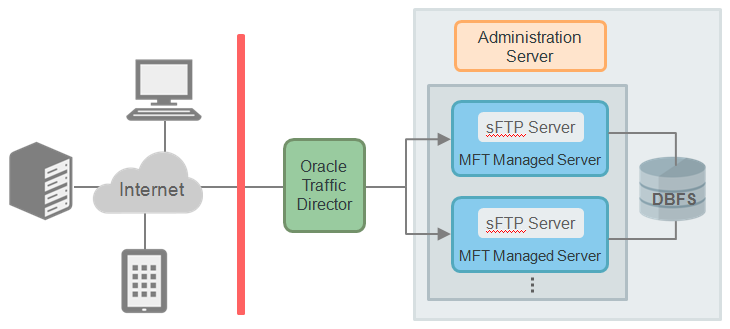
To allow sFTP traffic from the public internet to MFT embedded sFTP servers, you need to open the required port(s) in the PSM user interface and configure the TCP proxy and the origin-server pool in OTD.
Note that in the default configuration of MFT pods, only the following types of inbound connections are allowed:
- SSH to the administration server or OTD
- HTTP or HTTPS to OTD and the managed servers
All other inbound connections are blocked. If there is no OTD used, create only one rule from public internet to the managed server.
What Do You Need?
- A paid
or trial
subscription to Oracle SOA Cloud Service.
- Your Oracle Cloud service user name, password, and identity domain (available in the New Account Information email that you received from Oracle Cloud when your user account was set up).
- An SSH key pair on your local machine. This tutorial shows how to generate an SSH key pair.
- An Oracle MFT Cloud Service pod has been provisioned with
OTD (that is, the load balancer). Note down the pod
configuration information, such as MFT Cluster instance name,
administrator user name, and so on.
For this tutorial, the following information will be used throughout the post-provisioning tasks: - MFT Cluster instance name: MFTPOD12212
- WebLogic administrator user name and password
- Host of WebLogic admin server and managed server: mftpod12212-wls-1
- IP address of admin server and managed server:192.1.1.1
- IP address of load balancer: 192.2.2.2
- OTD version used for the tutorial: 12.2.1.2
- Before creating any access rules, ensure that the MFT server is configured and running on port 7522.
 Create
Access Rule for the Connection from Public Internet to OTD
Create
Access Rule for the Connection from Public Internet to OTD
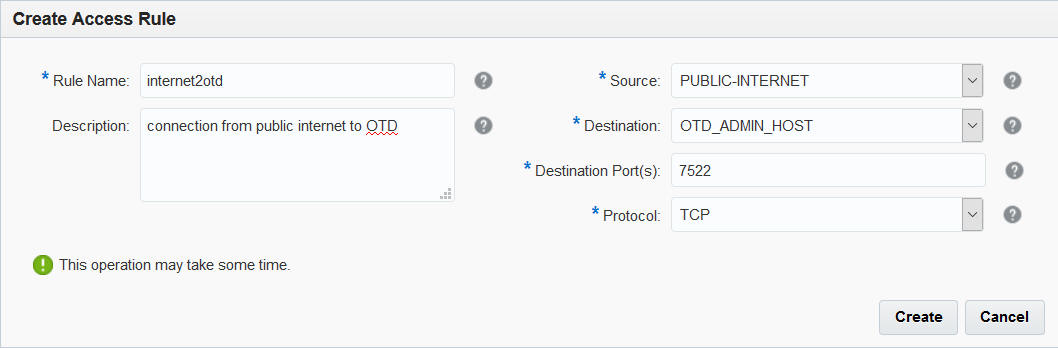
Create an access rule for your service instance to allow TCP traffic from the public internet to OTD through port 7522.
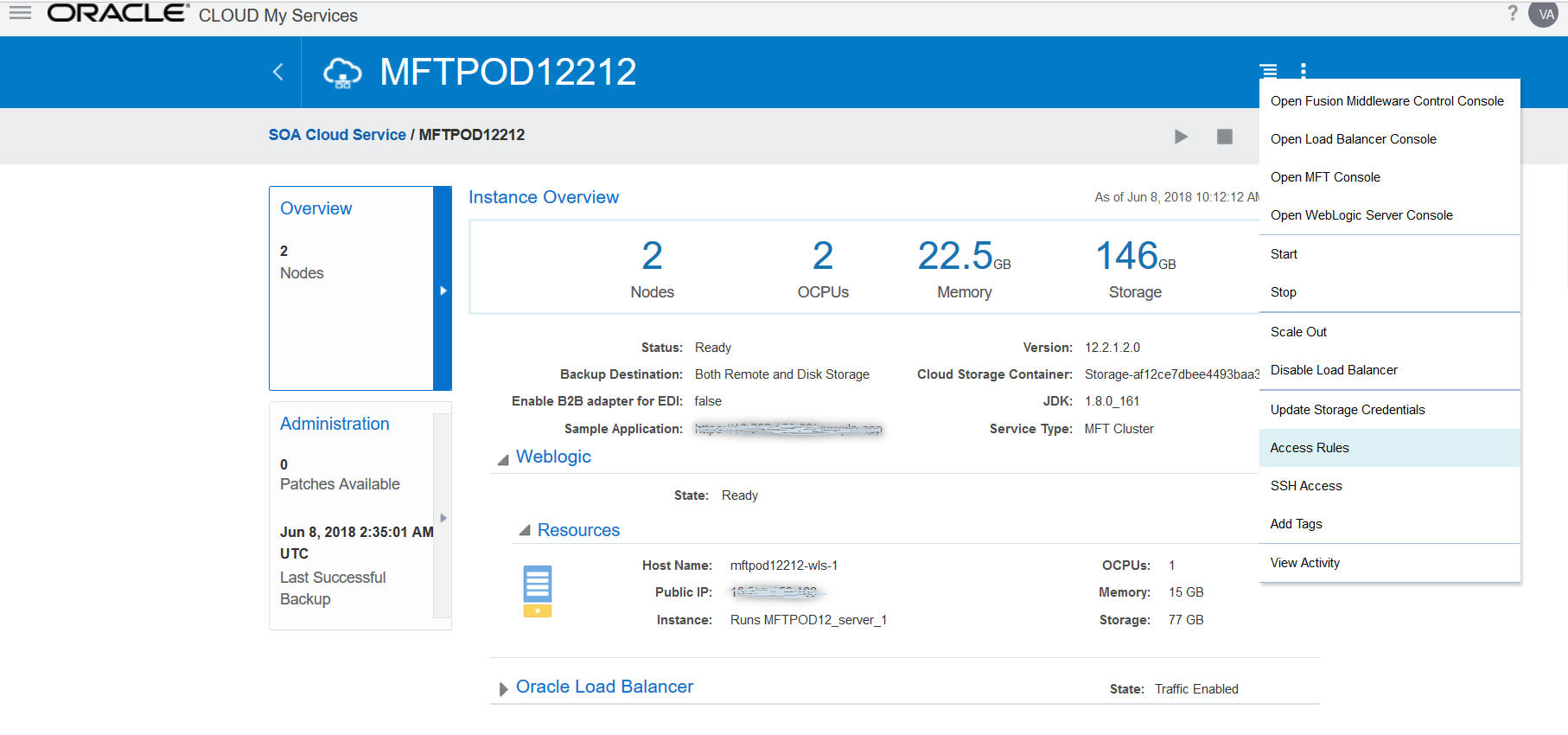
- Sign in to your service console.
- Search for the MFTCS instance, on the top right
corner, click Manage this service
 icon.
icon.
Alternatively, click the service instance to open it. On the top right corner, click Manage this service icon. - Click Access Rules, on the Access Rules page, click Create Rule.
- In the Rule Name
field, enter a name for the access rule. For example,
internet2otd.
- In the Description field, enter a description for the access rule. This is optional.
- In the Source
field, select PUBLIC-INTERNET for this rule.
The available source options depend on the topology of your service instance, and may include: - PUBLIC-INTERNET: Any host on the internet
- WLS_ADMIN: The WebLogic Administration Server node
- WLS_ADMIN_HOST: The WebLogic Administration Server node
- WLS_MS: All WebLogic Managed Server nodes
- OTD_ADMIN_HOST: The Oracle Traffic Director (OTD) Administration Server node
- OTD_OTD_SERVER: All Oracle Traffic Director (OTD) Managed Server nodes
- DBaaS:Name:DB: The database service name
- <custom> : A custom list of addresses from which traffic should be allowed. In the field that appears below this one, enter a comma-separated list of the subnets or IPv4 addresses for which you want to permit access.
- In the Destination
field, select the destination node as OTD_ADMIN_HOST.
The available source options depend on the topology of your service instance, and may include: - WLS_ADMIN: The WebLogic Administration Server node
- WLS_ADMIN_HOST: The WebLogic Administration Server node
- WLS_MS: All WebLogic Server nodes
- OTD_ADMIN_HOST: The Oracle Traffic Director (OTD) Administration Server node
- OTD_OTD_SERVER: All Oracle Traffic Director (OTD) Managed Server nodes
- In the Destination Port(s) field, enter the port 7522 through which the source will be granted access to the destination.
- In the Protocol field, select the TCP transport for this rule.
- Click Create. This may take a couple of minutes.
 Create
Access Rule for the Connection from OTD to the Managed Servers
Create
Access Rule for the Connection from OTD to the Managed Servers
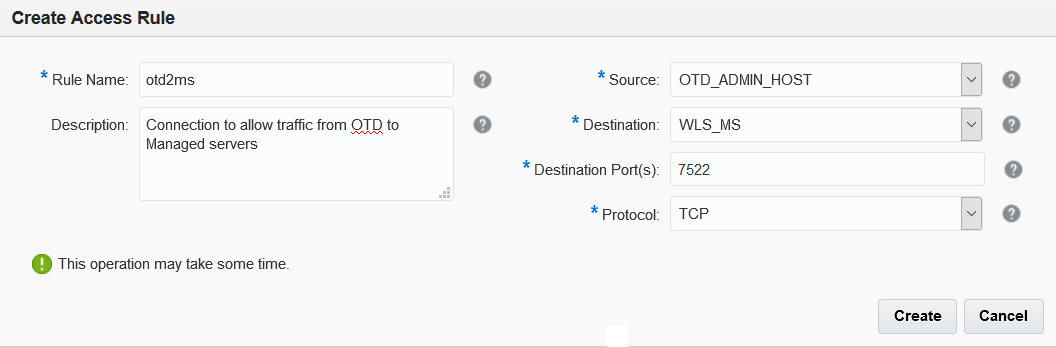
Next, create a second access rule to allow traffic from OTD to the managed server through port 7522.
- On the Access Rules page, click Create Rule.
- In the Rule Name field, enter a name for the access rule, for example, otd2ms.
- In the Description field, enter a description for the access rule. This is optional.
- In the Source
field, select OTD_ADMIN_HOST.
The available source options depend on the topology of your service instance. - In the Destination
field, select WLS_MS.
The available source options depend on the topology of your service instance. - In the Destination Port(s) field, enter the port 7522 through which the source will be granted access to the destination.
- In the Protocol field, select the TCP transport for this rule.
- Click Create. This may take a couple of minutes.
 Next
Tutorial
Next
Tutorial
Configuring Oracle Traffic Director (OTD) for MFT Embedded Servers