
 Configuring Connections for Oracle Managed File Transfer Cloud Service
Embedded Server for non-OTD Users
Configuring Connections for Oracle Managed File Transfer Cloud Service
Embedded Server for non-OTD Users  Before You Begin
This 15-minute tutorial explains how to configure connections for the Oracle Managed File Transfer (MFT) Cloud Service embedded server to allow the sFTP traffic to managed server if you are not using the load balancer, Oracle Traffic Director (OTD).
Background
You need to create an access rule to allow sFTP traffic from the public internet to the Oracle Managed File Transfer Cloud Service managed server and open the required port(s) using the PaaS Service Manager (PSM) user interface. Before creating any access rule, ensure that the MFT server is configured and running on port 7522.
Note that in the default configuration of MFT pods, only the following types of inbound connections are allowed:
- SSH to the administration server
- HTTP or HTTPS to the managed server
All other inbound connections are blocked.

What Do You Need?
- A paid or trial subscription to Oracle SOA Cloud Service.
- Your Oracle Cloud service user name, password, and identity domain (available in the New Account Information email that you received from Oracle Cloud when your user account was set up).
- An Oracle Managed File Transfer Cloud Service pod. Note down
the pod configuration information, such as MFT Cluster
instance name, administrator user name, and so on.
For this tutorial, the following information will be used throughout the post-provisioning tasks: - MFT Cluster instance name: MFTPOD12212
- WebLogic administrator user name and password
- Host of WebLogic admin server and managed server: mftpod12212-wls-1
- IP address of admin server and managed server:192.1.1.1
 Create
Access Rule for the Connection from Public Internet to MFT
Managed Server
Create
Access Rule for the Connection from Public Internet to MFT
Managed Server
Create an access rule for your service instance to allow traffic from the public internet to Oracle Managed File Transfer Cloud Service managed server through port 7522.
- Sign in to your service console.
- Search for the Managed File Transfer Cloud Service instance.
- On
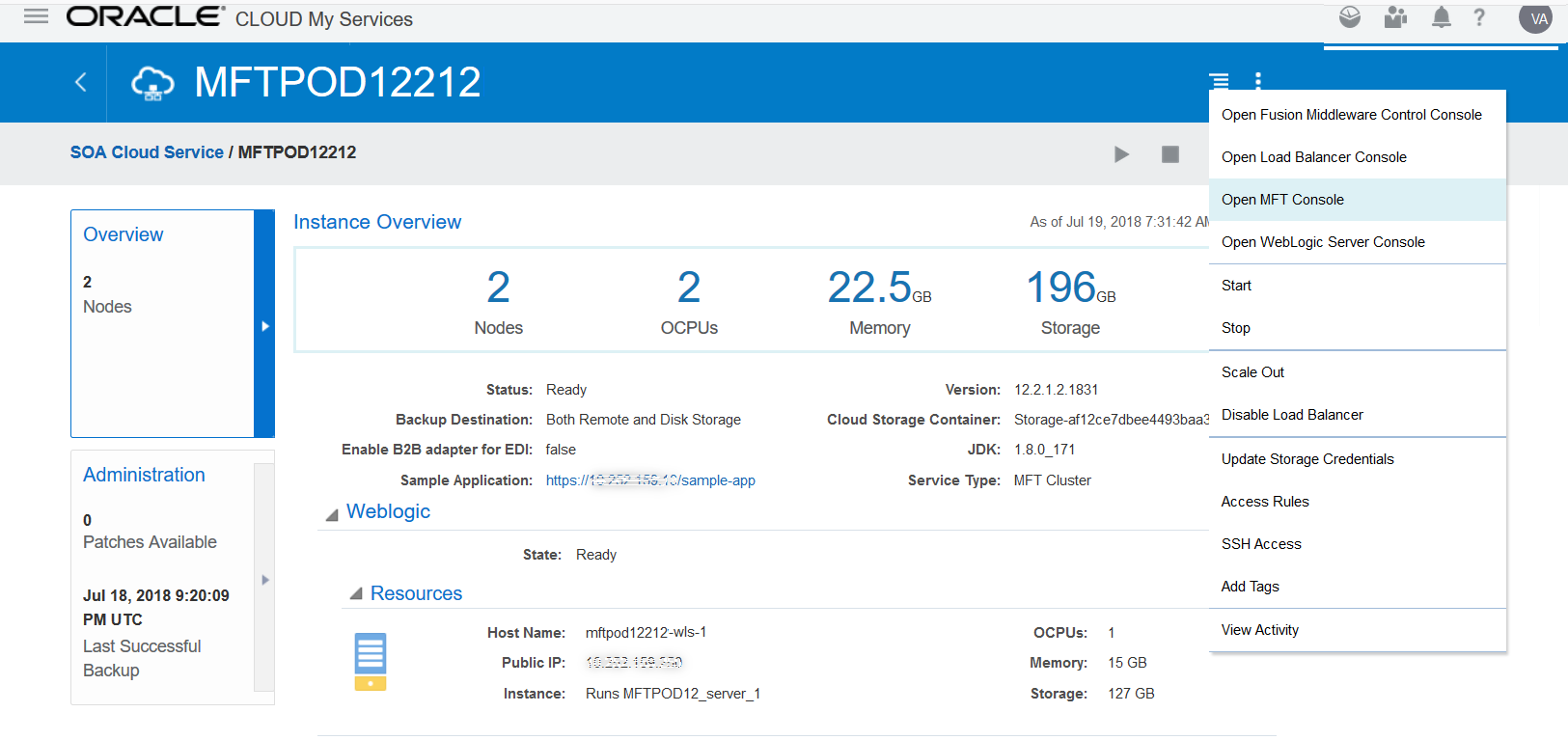
the MFTPOD12212 instance page, in the right corner,
click Manage this Instance
 icon.
icon.
- Click Access Rules.
- On the Access Rules page, click Create Rule.
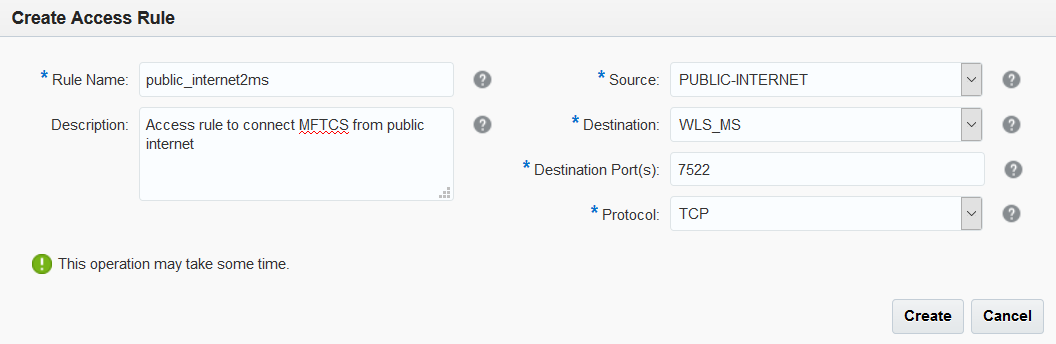
- Enter the following details:
- Rule Name: enter a name for the access rule. For example, public_internet2ms.
- Description: enter a description for the access rule. This is optional.
- Source: select PUBLIC-INTERNET for this rule. The available source options depend on the topology of your service instance.
- Destination: select the destination node as WLS_MS. The available source options depend on the topology of your service instance.
- Destination Port(s): enter the port 7522 through which the source will be granted access to the destination.
- Protocol: select the TCP transport for this rule.
- Click Create. This may take a couple of
minutes.
The new access rule is created and displayed on the Access Rules list.

The Create Access Rule window appears.

 Test
the Configuration
Test
the Configuration
Once the rule is created, you need to test the configurations. Ensure that the Oracle MFT sFTP server port is configured and the server is in running status.
- From the Oracle Managed File Transfer Cloud Service instance home page, click Open MFT Console.
- Login with your credentials.
- On the Administration tab, expand Embedded Servers
and click Ports.
You should see the Server Instance in running status and the port configured. If the sFTP server is not enabled, refer the tutorial mentioned in the Want to Learn More section.
- To test the configuration, use an sFTP client or a command
line tool on your local machine to sFTP to Managed
Server.
For this tutorial, the
mftadminis the name of the WebLogic admin user.
$sftp -oPort=7522 mftadmin@192.1.1.1 - Enter the password when prompted.
- At the sFTP prompt, do the following:
sftp> ls
payloads
sftp> pwd
Remote working directory: /
sftp> exit

 Want
to Learn More?
Want
to Learn More?
- Creating SSH Keys for Use with Oracle Cloud Services in the Oracle Learning Library
- Oracle Managed File Transfer Cloud Service Post-Provisioning Task - Setting Up the MFT Embedded sFTP Server
- Using Oracle Managed File Transfer Cloud Service in the Oracle Help Center