Develop and Diagnose JDBC Programs and Java Classes in the Database
Time to Complete
Approximately 2 hour 30 mins
Running Java In Database
Stored procedures allow the exploitation of capabilities of relational database management systems (RDBMS) to their fullest extent. Stored procedures simplify database programming, improvise performance, provides central management of data logic, and optimizes network traffic.
Java for Stored Procedures
The Java language is by design an object-oriented programming language that has a built-in security mechanism and an efficient garbage collection system. Java also has a rich and very large set of standard libraries which results in quicker and lower-cost applications development. With Java stored procedures, developers have the ability to harness all above stated powers of Java when building database applications.The following OBE is based on the book Oracle Database Programming using Java and Web Services written by Kuassi Mensah. The description of the book is available at http://db360.blogspot.com/2006/08/oracle-database-programming-using-java_01.html and the code samples available on OTN at http://download.oracle.com/technology/tech/java/jsp/pdf/Code_depot.zip
Loading and Running a Java Application in the Database
Using the following steps, load the TrimLoad.java routine into the database using the default server-side connection (conn = DriverManager.getConnection("jdbc:default:connection:");) and then execute it by calling it from the PL/SQL TrimLobProc procedure:
. |
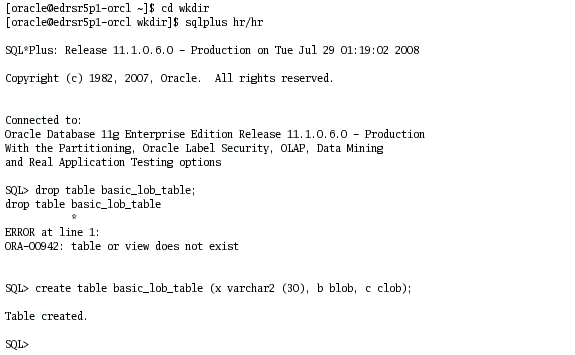
Open a terminal window and change to the directory wkdir. Execute the following command to load the TrimLob java routine into the database cd wkdir
|
|---|---|
. |
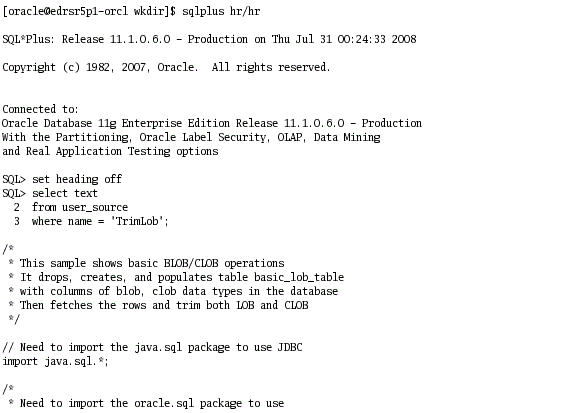
Start SQL*Plus and connect as hr/hr. To verify that the TrimLob java routine is loaded into the database, execute the following statements: set heading off
|
. |
Execute the following commands to create a table (and remove the table if it existed previously). This table is used by the stored TrimLob java routine to manipulate LOB data: drop table basic_lob_table;
|
. |
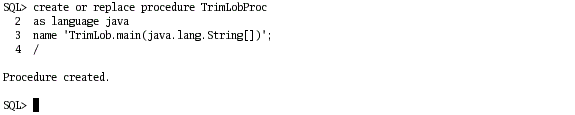
Publish the Java class method by creating the TrimLobProc PL/SQL Call specification that references the Java class methods. Within the TrimLobProc PL/SQL specification, you identify the name of the Java class method and its parameters. This is called "Publishing" the Java class method. create or replace procedure TrimLobProcas language java name 'TrimLob.main(java.lang.String[])'; /
|
. |
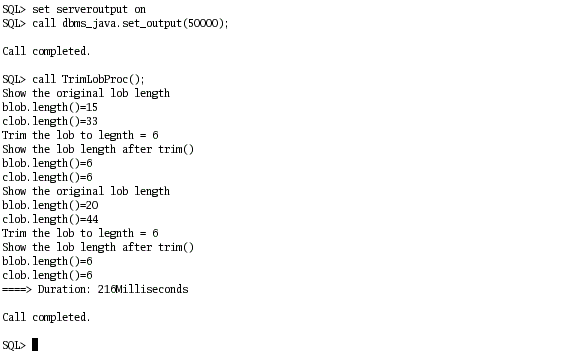
Execute the procedure TrimLobProc using the following commands: set serveroutput on
|



Mapping SQL Type to Java Type
Because data types in SQL and data types in the Java programming language are not identical, mapping the data types enables you to transfer data between an application using Java types and a database using SQL types. You can use the following steps to map various SQL types to/from corresponding Java types:
. |
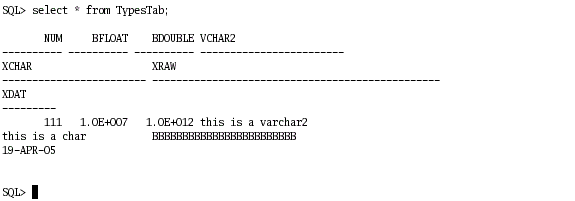
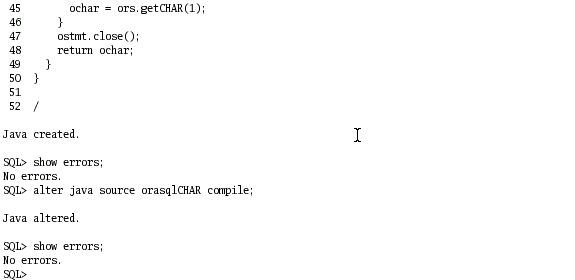
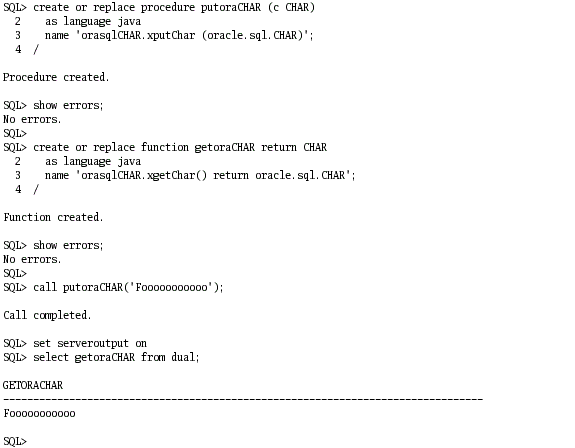
Execute the TypesTab.sql and orasqlCHAR.sql scripts. The TypesTab.sql script creates a table that holds several different Oracle data types. The orasqlCHAR.sql script creates the mapping between the oracle.sql.CHAR data type to the SQL CHAR data type. set echo on
|
|---|---|
. |
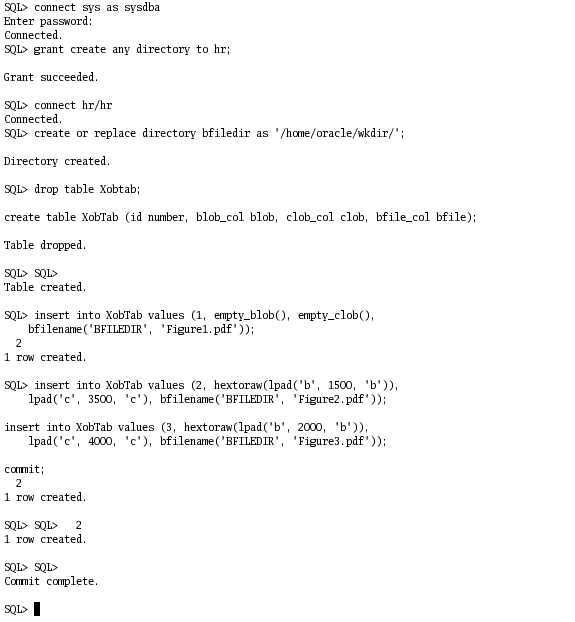
Examine the XobTypesTab.sql script. You need the CREATE DIRECTORY privilege to complete this step. Follow the directions in the script. Copy and paste the statements in the script into your SQL*Plus session. Ensure that your directory structure is valid for your setup.
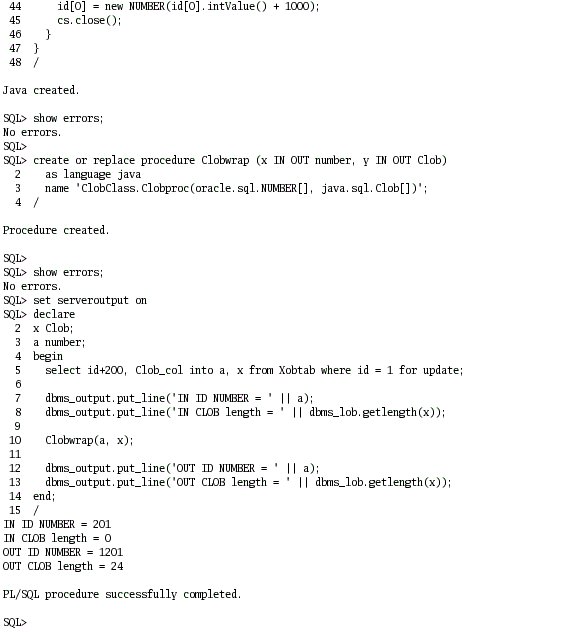
Map the CLOB locator to/from java.sql.Clob by executing the ClobMap.sql script: @ClobMap
|
. |
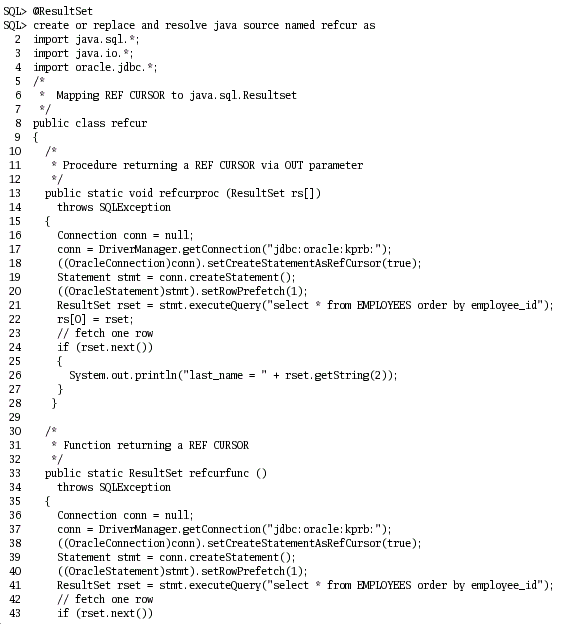
Examine the ResultSet.sql script. Run the ResultSet.sql script to map REF Cursor to java.sql.ResultSet. @ResultSet
|
. |
Execute the XVARRAY.sql script to create and populate a table with VARRAY column types. @XVARRAY
|
. |
Execute the NumVarray.sql script to map VARRAY to Scalar SQL Type, Number. @NumVarray
|





Invoking Java in Database
Perform the following steps to invoke a Java application using ojmjava or PL/SQL wrapper:
. |
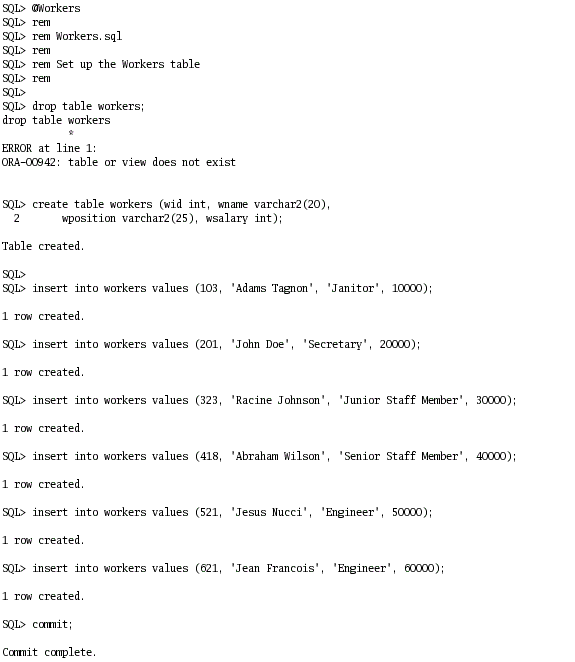
Execute the Workers.sql script to create and populate a WORKERS table. @Workers
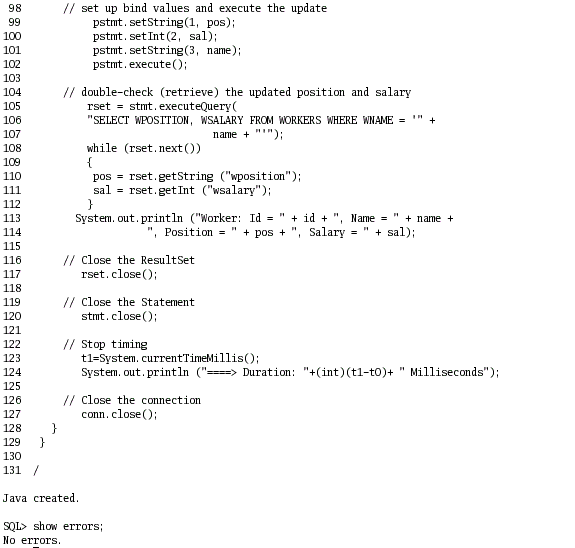
Execute the Workers.java script to create and store a Workers java class method in the database. @Workers.java
|
|---|---|
. |
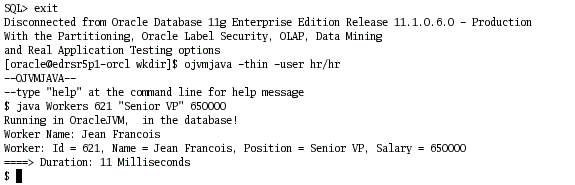
Invoke Java in the Database using ojmjava, which is an interactive command-line utility that can run Java classes in the database from the client machine. The ojmjava uses the JDBC connection to create a database session to pass a byte array from ojmjava client to ojmjava server where the main method of the user class is executed. The ojmjava server then passes the output back to the client. Exit SQL*Plus and from your terminal window, execute the following commands: exit
Exit the OJVMJAVA utility by typing exit at the command prompt. exit
|
. |
You can also invoke Java in Database through your SQL*Plus session using a PL/SQL wrapper that identifies the Java class and its parameters. From your terminal window, start SQL*Plus, then create the PL/SQL wrapper using the code shown below: sqlplus hr/hr
|


Illustrating an Object Type Call Spec
An object type call specification can publish public static member methods of an object type using the STATIC keyword. However, unlike any other PL/SQL packaged call specification, using the MEMBER keyword, the object type call specification can also publish non-static instance methods.Use following steps to create and test an object type call specification:
. |
Invoke Java in database through using the PL/SQL wrapper. In SQL*plus, execute the BasicObjTyp.sql script: set echo on
|
|---|


Compiling Java with JIT
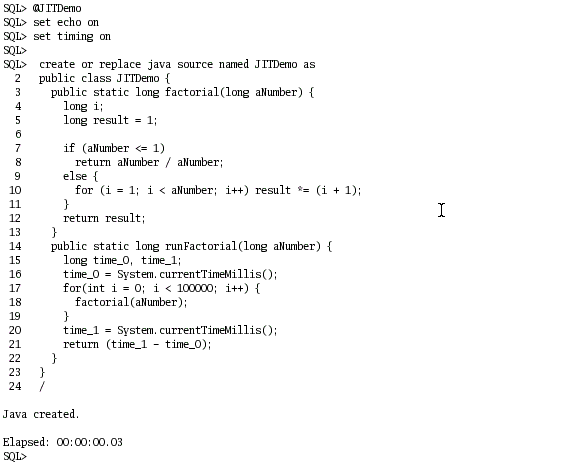
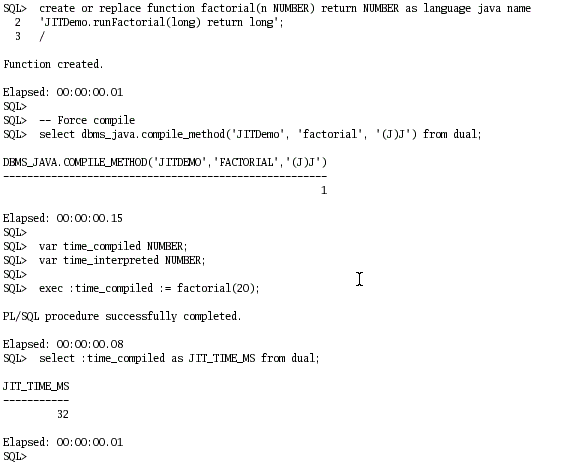
You can achieve the best execution performance for Java by using binary executables, which are obtained by compiling Java source code using JIT compilers and/or static compilers. Starting with Oracle Database 11g OJVM uses a JIT compiler which allows dynamic selection, native-compilation, and execution of most frequently used Java methods hence leading to better performance and manageability compared to NCOMP used in Oracle Database 10g. You can display the benefits of JIT compilation compared to interpretation of Java application using the following steps:
. |
From your SQL*Plus session, execute the JITDemo.sql script: @JITDemo Notice the timing ratio between interpreted and compiled code
|
|---|

Displaying Java Memory Areas
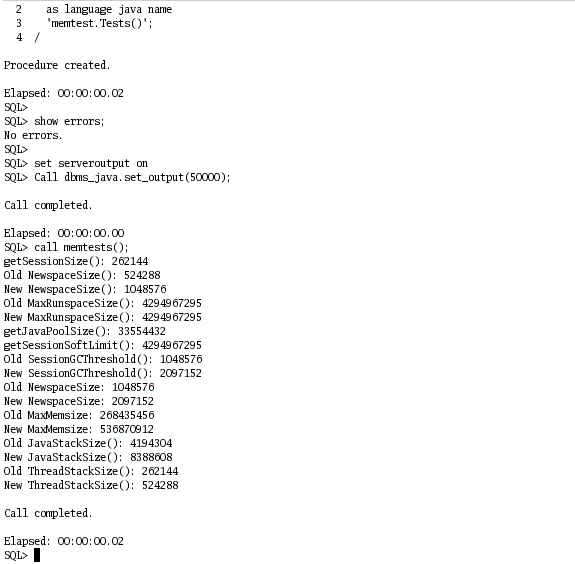
In OracleJVM the states of Java objects, used for specific needs, are preserved in various specific memory ares (such as Newspace, Oldspace, Runspace, Stackspace, Sessionspace) called "object memories".Perform the following step to display various Java memory areas
. |
From your SQL*Plus session, execute the memtest.sql script: @memtest
|
|---|
Monitoring Oracle JVM Using JMX
Overview
JMX (Java Management Extensions) is a Java technology that supplies tools for managing and monitoring applications, system objects, devices, service-oriented networks, and the JVM (Java Virtual Machine).
Configuring The Database
You need to configuring the Database before using JMX. Perform the following steps:
. |
Open a terminal window and change your directory to $ORACLE_HOME/javavm/demo/jmx cd $ORACLE_HOME
|
|---|---|
. |
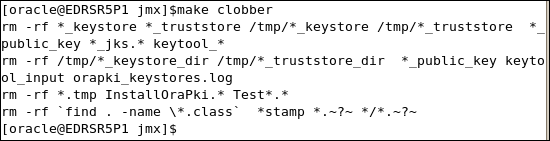
Enter the following command: make clobber
|
. |
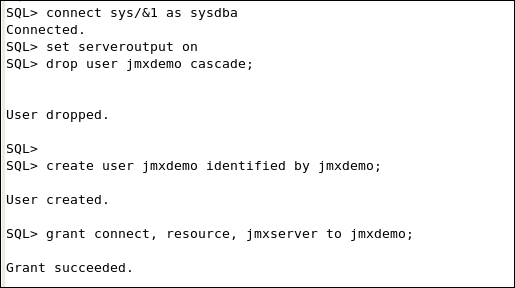
Enter the following command: make This script creates a demo user jmxdemo and grants connect, resource, jmxserver to jmxdemo.
Next, the script compiles and loads relevant Java code and creates PLSQL wrappers corresponding to the demo java code
|
. |
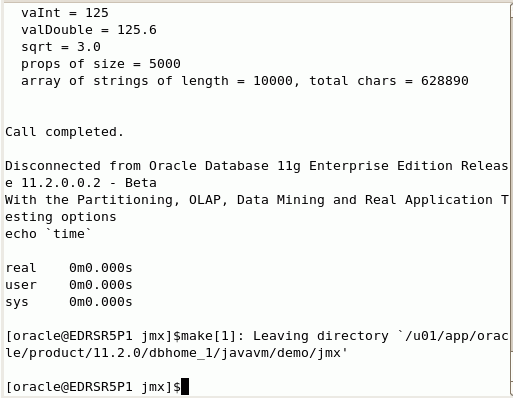
This command takes some time to complete. Once the script terminates press the Enter key to return to the prompt.
|
. |
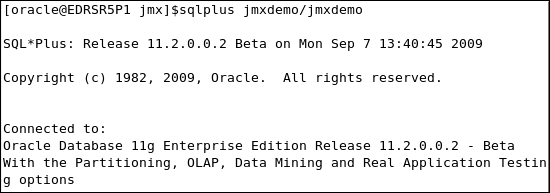
Connect to the jmxdemo user
|
. |
To start the JMX, enter the following command: @jmxload 9999
|




Using JConsole to Monitor and Control Oracle JVM
You can use JConsole, a Sun JMX client tool, for monitoring and controlling Oracle JVM. To monitor Oracle JVM with JConsole perform the following steps:
. |
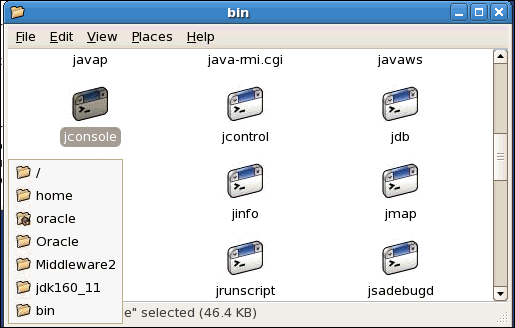
On your machine, go to the folder jdk*/bin and open jconsole.
|
|---|---|
. |
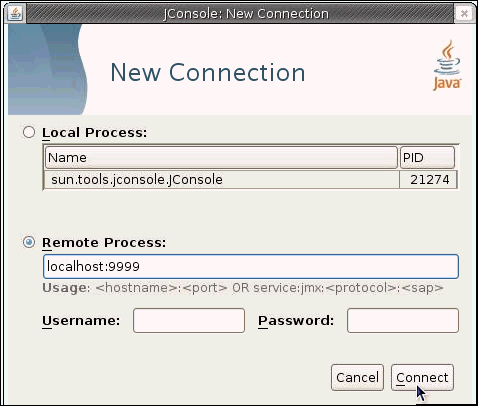
Enter the hostname or IP of your server. For this demo localhost has been entered as the machine to be monitored. Enter 9999 as port. Click Connect.
|
. |
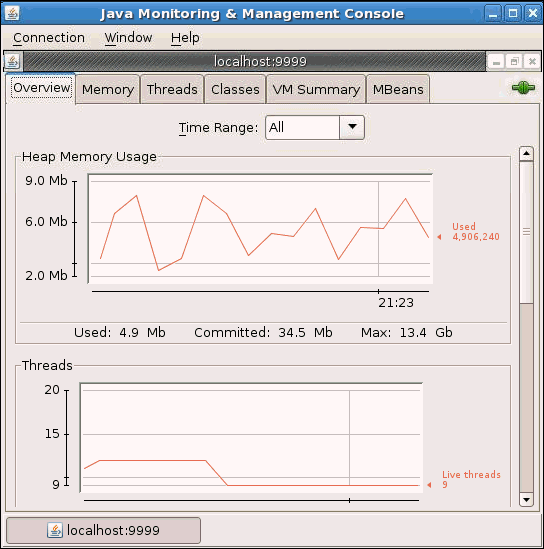
Click on the Overview tab. It displays summary information on Oracle JVM and the values monitored by JMX.
|
. |
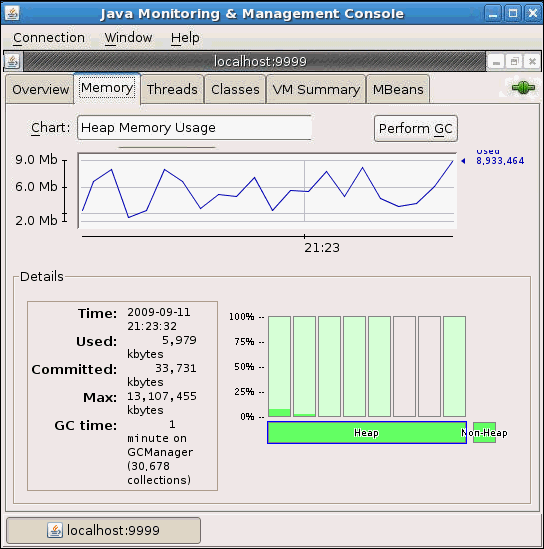
You can use the Memory tab of the JConsole interface to monitor memory consumption. This tab provides information on memory consumption and memory pools.
|
. |
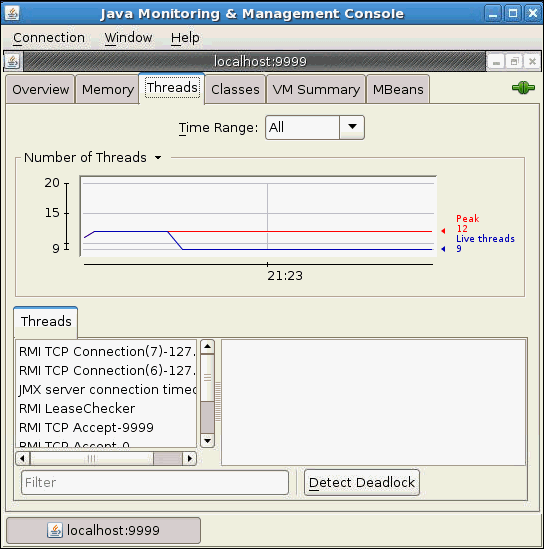
You can use the Threads tab of the JConsole interface to monitor thread usage.
|
. |
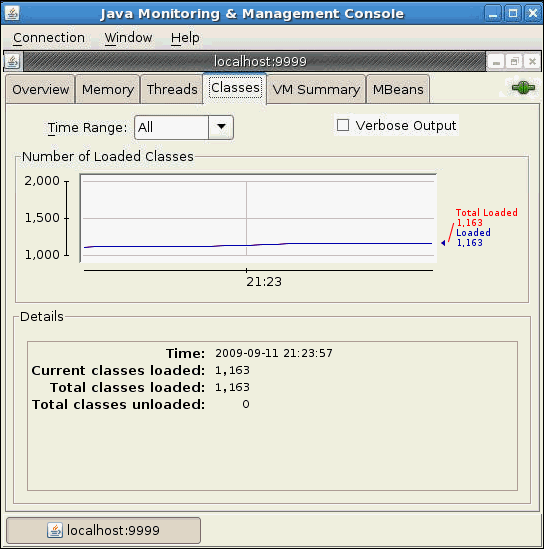
You can use the Classes tab of the JConsole interface to monitor class loading.
|
. |
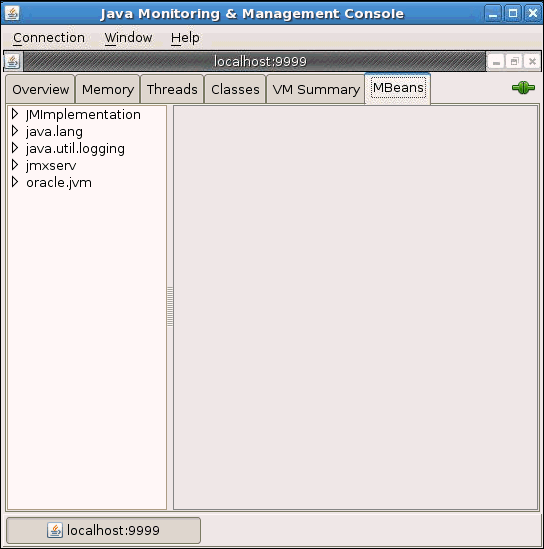
You can use the MBeans tab to monitor and manage MBeans. This tab displays information on all the MBeans registered with the platform MBean server.
|
. |
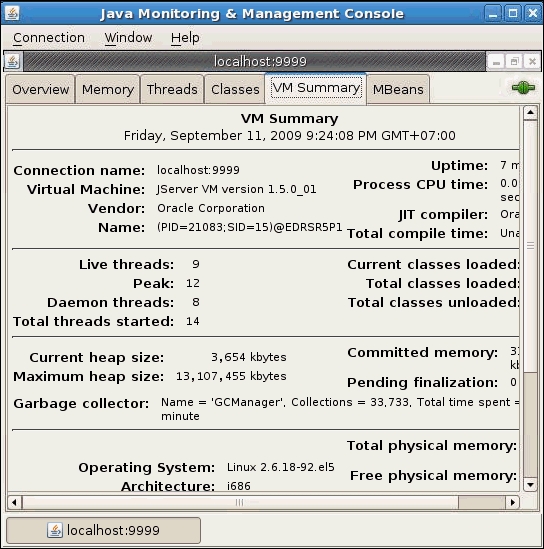
You can use the VM Summary tab of the JConsole interface to view VM information.
|
Using Data Change Notification
What Is DCN?
The Database Change Notification (DCN) is a system where the client registers its interest to the result of certain queries with the database. When the objects associated with these queries change, the database server notifies the client. Using JDBC driver’s DCN feature, multi-tier systems can maintain a data cache as updated as possible by receiving invalidation events from the JDBC drivers.To perform DCN you need to perform following steps:
Creating a Registration
In order to use DCN, you first need to create a registration. You can use the registerDatabaseChangeNotification() method of the oracle.jdbc.OracleConnection interface to create a JDBC-style of registration. To activate query change notification instead of object change notification you can set the option, OracleConnection.DCN_QUERY_CHANGE_NOTIFICATION to "true". Using this option means that when you register a SELECT statement query, you are registering the actual result of the query and not the database object that the query is based on. Query registration provides finer granularity than when you register the tables.DatabaseChangeRegistration dcr = null;
Properties prop = new Properties();
prop.setProperty(OracleConnection.DCN_QUERY_CHANGE_NOTIFICATION,"true");
try
{
dcr = conn.registerDatabaseChangeNotification(prop);
...Associating a Query With a Registration
After you have created a registration, you can associate a query with it. You can associate a query with registration using the Statement class method setDatabaseChangeRegistration(). This method takes an object of DatabaseChangeRegistration as a parameter. In this demo you associate the query select salary from employees where employee_id=108 to the registration.Statement stmt = conn.createStatement();
String query = "select salary from employees where employee_id=108";
((OracleStatement)stmt).setDatabaseChangeRegistration(dcr);Notifying Database Change Events
You need to attach a listener to the registration, using its addListener() method, to receive database change notifications.DCNListener list = new DCNListener();
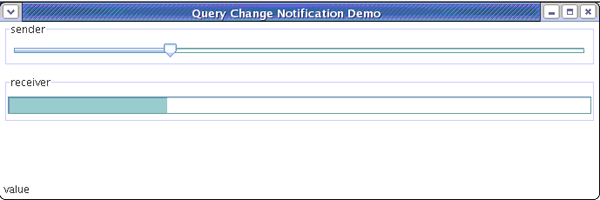
dcr.addListener(list);The program QCNSlider.java creates a GUI with a pair of sliders. When the upper slider is moved, a DML operation, update employees set salary=? where employee_id =108, is performed. On occurrence of the database change event, the database server notifies the JDBC driver. The driver then constructs a new Java event, identifies the registration to be notified, and notifies the listeners attached to the registration. QCNSlider handles the change event by moving the bottom progress bar in accordance to the salary of employee_id=108.
Setting Up the Environment
To execute the QCNSlider.java you need to perform the following steps to set up the environment:
. |
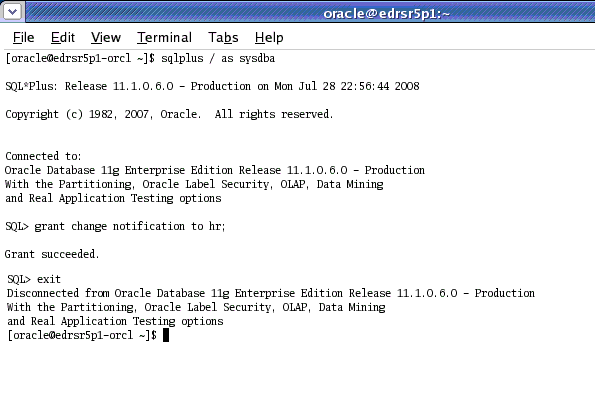
You need to grant the user hr the change notification privilege. Open a terminal window and execute the following commands:Note: You may also need to unlock the HR account. sqlplus / as sysdba
|
|---|
Setting JDeveloper Project Properties
You need to set the project properties in JDeveloper. Perform the following steps:
. |
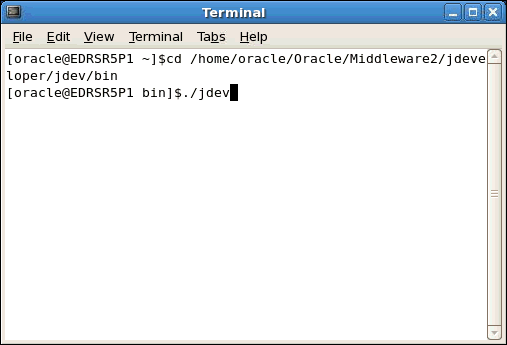
Open a terminal window and execute the following commands: cd <jdevhome>/jdev/bin
|
|---|---|
. |
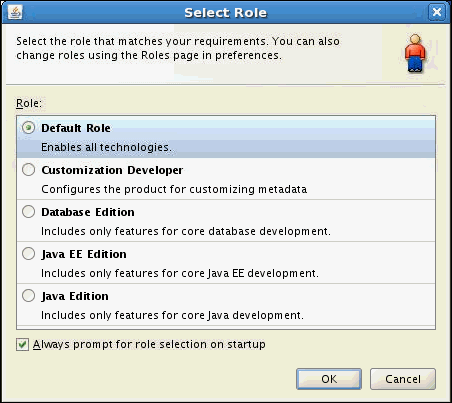
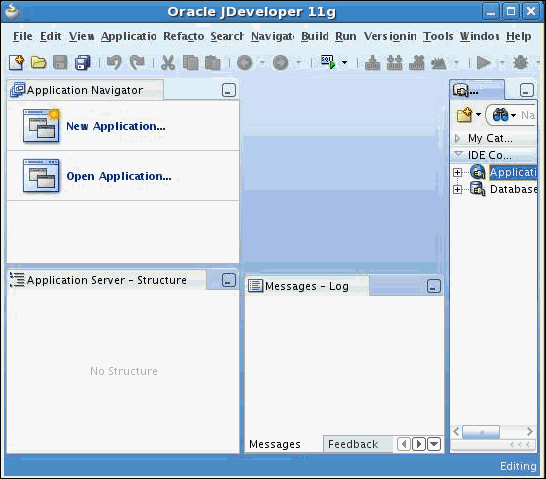
When the Select Role window appears, click OK.
|
. |
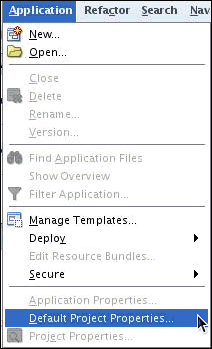
Select Application> Default Project Properties.
|
. |
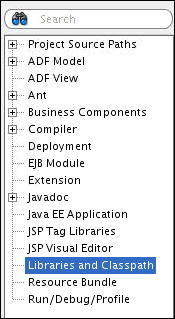
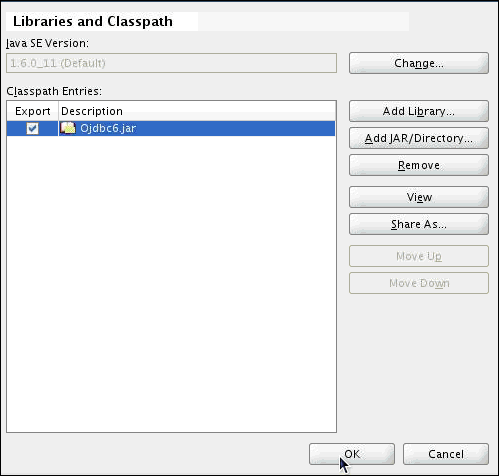
Click Libraries and Classpath
|
. |
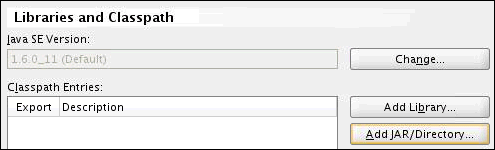
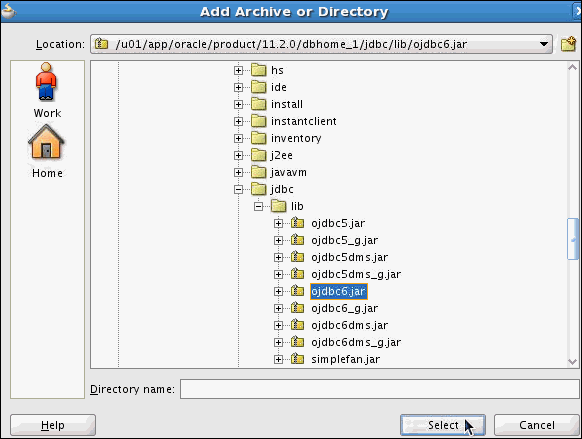
Click Add JAR/ Directory
|
. |
Select ojdbc6.jar from the $ORACLE_HOME/jdbc/lib folder and click Select.
|
. |
Click OK.
|
Creating a JDeveloper project containing QCNSlider.java
Before executing the QCNSlider.java you need to add it to a JDeveloper project using the following steps:
. |
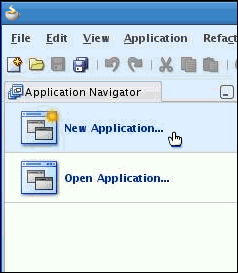
In the Application Navigator, click New Application.
|
|---|---|
. |
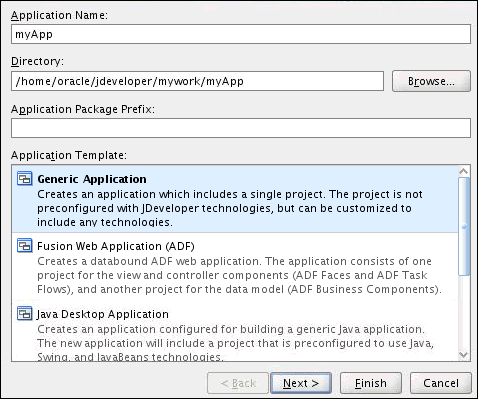
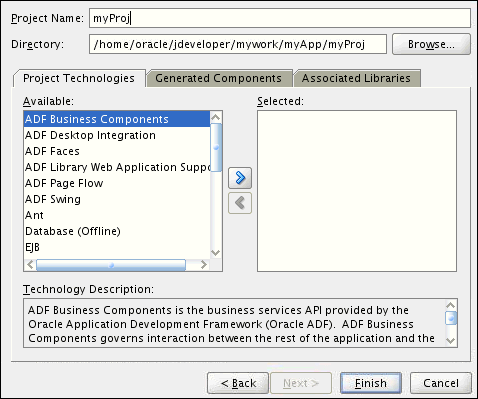
Enter the Application Name myApp and click Next.
|
. |
Enter the Project Name myProj and click Finish.
|
. |
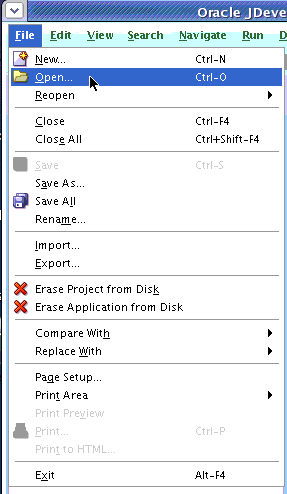
Select File > Open.
|
. |
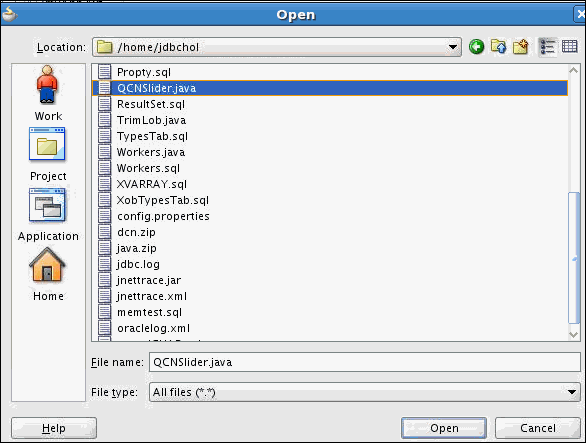
Select the QCNSlider.java file from the /home/jdbchol directory and click Open.
|
. |
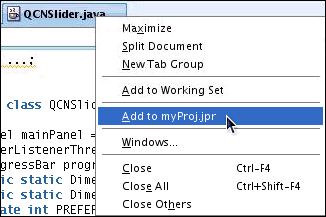
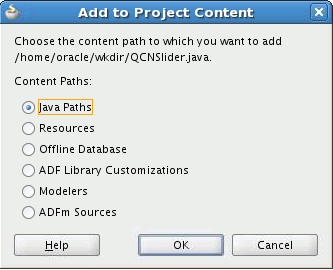
Right-click the QCNSlider.java tab and select Add to myProj.jpr.
|
. |
Accept the default and click OK.
|
Reviewing the Connection String
. |
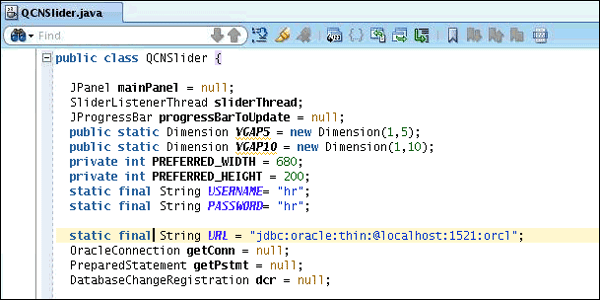
Scroll down a little in the QCNSlider.java file and review the connection information.
|
|---|
Executing QCNSlider.java
Execute QCNSlider.java using the following setup steps:
. |
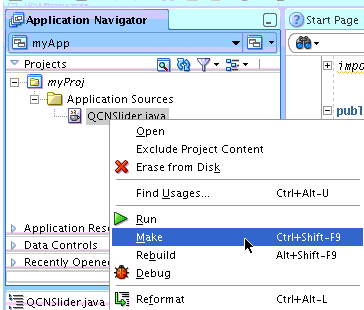
Expand myProj > Application Sources. Right-click QCNSlider.java and click Make.
|
|---|---|
. |
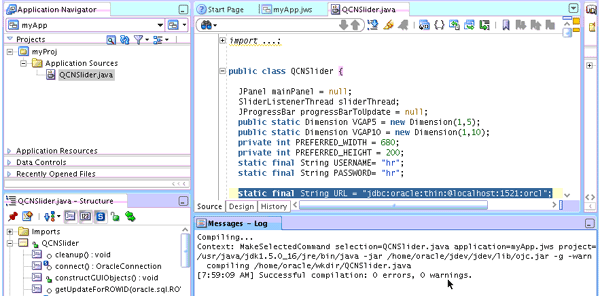
The QCNSlider.java file compiled successfully.
|
. |
Open a terminal window and execute the following commands: sqlplus hr/hr
|
. |
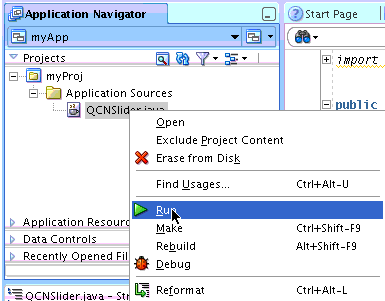
Right-click QCNSlider.java and click Run.
|
. |
You will see the following output
|
. |
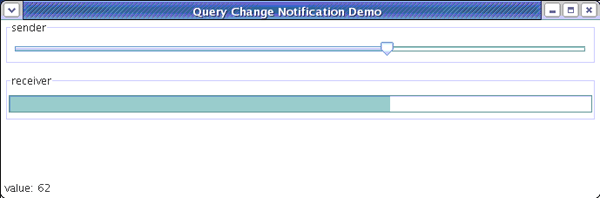
Move the slider so that the value being displayed at the bottom left changes to 62.
|
. |
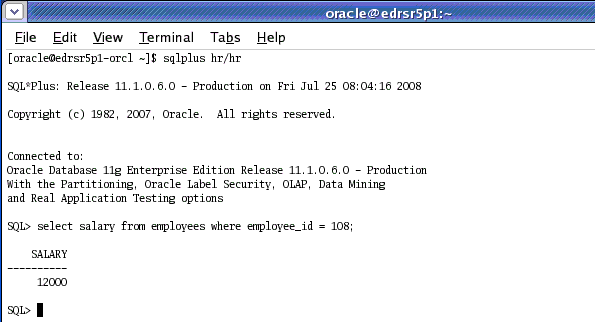
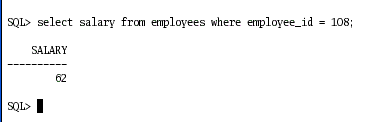
Re-execute the following query: select salary from employees where employee_id=108; Notice the change in the salary is now 62.
|
. |
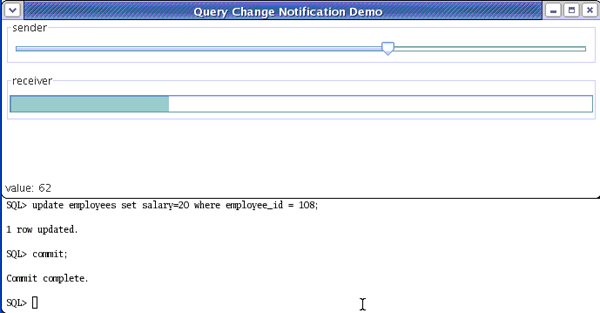
Update the salary of employee_id=108 to 20 by executing the following commands: update employees set salary=20 where employee_id=108;commit; You notice the change in Progress Bar labeled receiver.
|
. |
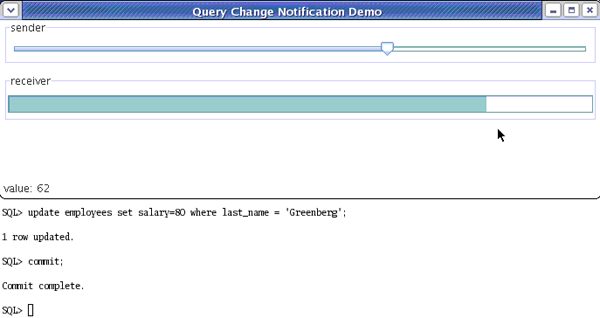
The query notification is not only bound to the where clause employee_id=108, but also to any update that logically effects the same row. Execute the following command: update employees set salary=80 where last_name='Greenberg';commit; Making an update to last_name='Greenberg' (which is employee_id=108) sends the notification and the Progress Bar on the window slides.
|
. |
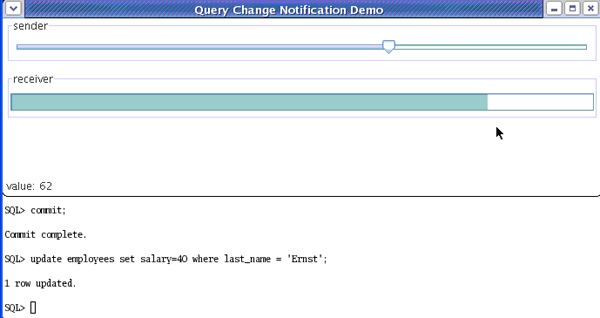
However making an update to last_name='Ernst' does not effect employee_id=108, hence no notification is sent and the Progress Bar remains as is. Execute the following command: update employees set salary=40 where last_name='Ernst';
|
. |
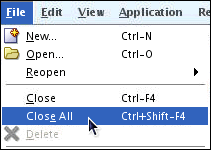
Close the project. Click File > Close All.
|
. |
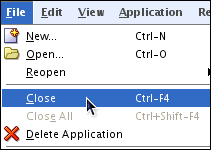
Click File > Close.
|
. |
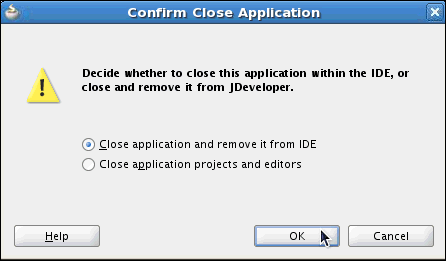
Click OK.
|
Using Universal Connection Pool (UCP)
Overview
The Oracle Universal Connection Pool (UCP) for JDBC is a full-featured connection pool for managing database connections. Java applications that are database-intensive use the connection pool to improve performance and better utilize system resources. Oracle Universal Connection Pool (UCP) for JDBC has following features:- Can support:
- Any type of connection: JDBC, JCA, LDAP
- Any Database (Oracle, non-Oracle)
- Any App Server (Oracle, non-Oracle)
- Has stand-alone deployment (BPEL, Toplink)
- Can be integrated seamlessly with the Oracle Database - RAC and Non-RAC
- Addresses Apps/Fusion requirements to replace AOL connection pools and DataSource layer
Setting JDeveloper Project Properties
You need to set the project properties in JDeveloper. Perform the following steps:
. |
Select Application> Default Project Properties.
|
|---|---|
. |
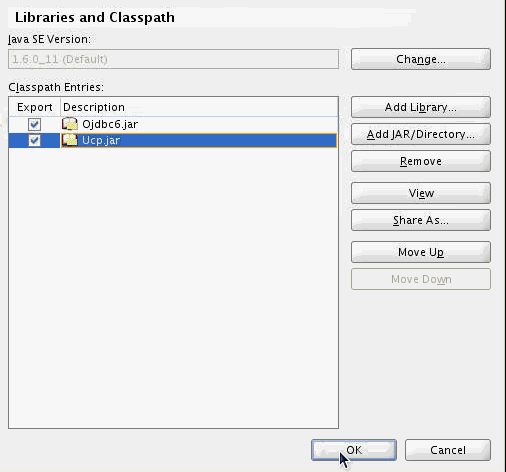
Click Libraries and Classpath
|
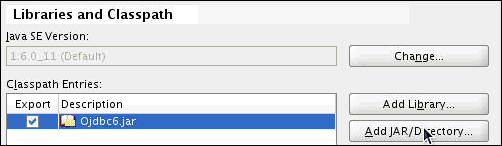
. |
Click Add JAR/ Directory
|
. |
Select ucp.jar file in the $ORACLE_HOME/ucp/lib folder and click Select.
|
. |
Click OK.
|

Executing Stock Ticker Demo
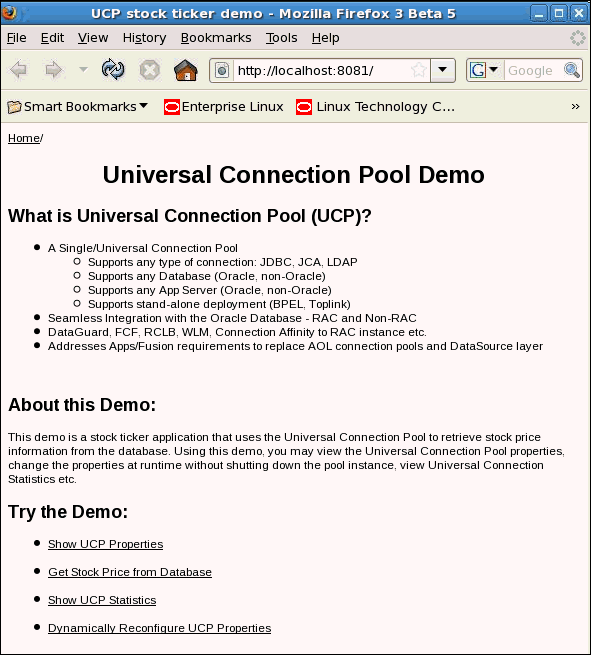
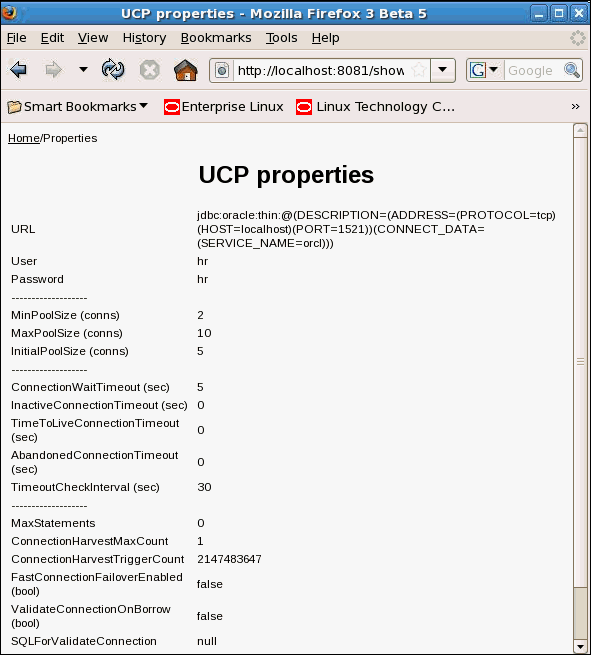
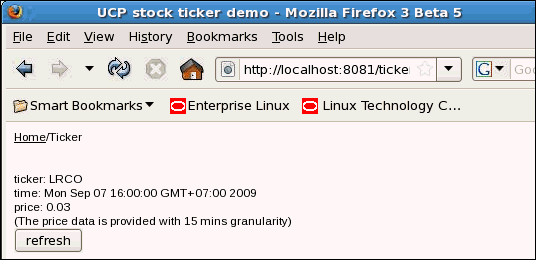
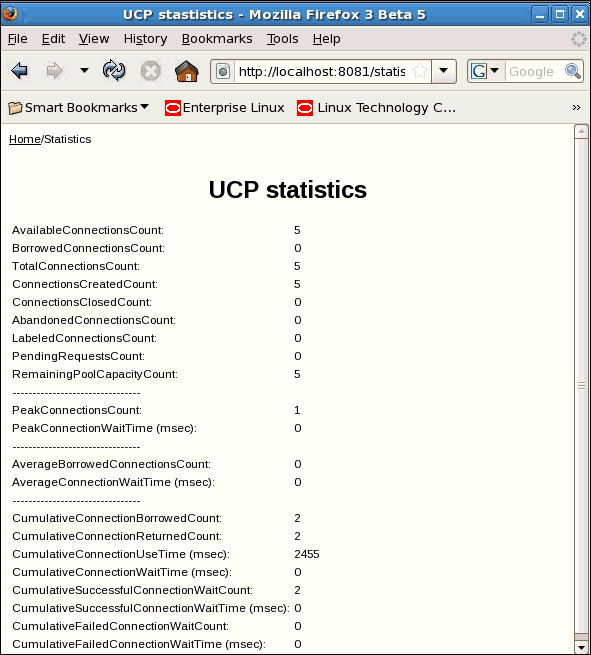
This demo is a stock ticker application that uses the Universal Connection Pool to retrieve stock price information from the database. Using this demo, you may view the Universal Connection Pool properties, change the properties at runtime without shutting down the pool instance, view Universal Connection Statistics etc. To perform this demo execute the following steps:
. |
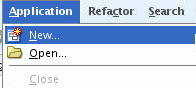
Click Application > New.
|
|---|---|
. |
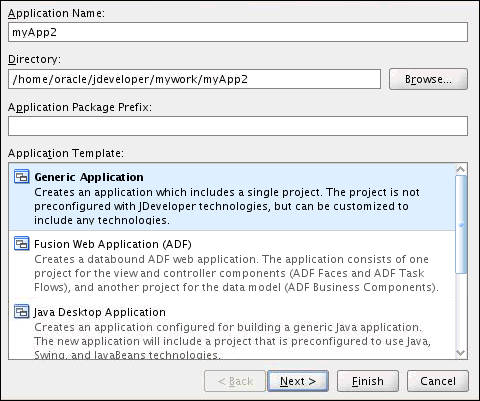
Enter the Application Name myApp2 and click Next.
|
. |
Enter the Project Name Project2 and click Finish.
|
. |
Select File > Open.
|
. |
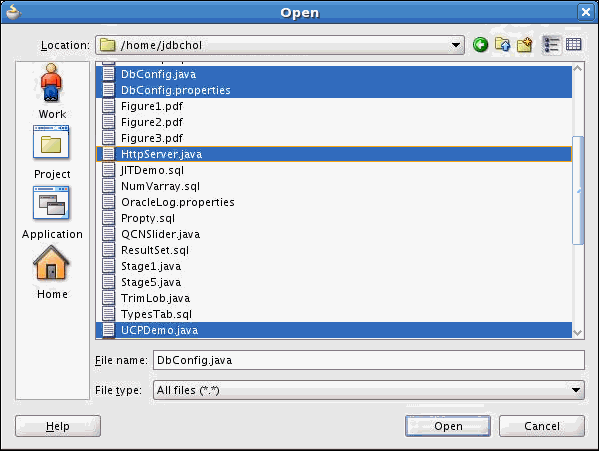
Select the UCPDemo.java, DBConfig.java, HttpServer.java and DbConfig.properties from the /home/jdbchol directory and click Open.
|
. |
In the file DbConfig.properties, verify the URL, username and password information about your Oracle database DB_USER =hr
Note: The DB_URL string should be in a single line.
|
. |
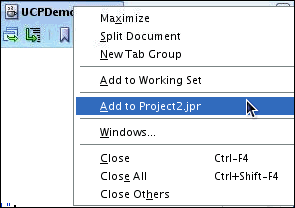
Right-click the UCPDemo.java tab and select Add to Project2..jpr.
|
. |
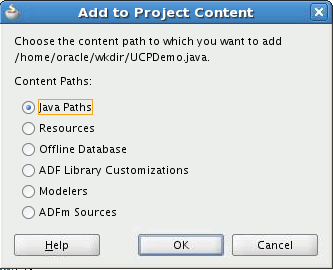
Accept the default and click OK.
Repeat the steps 7 and 8 for DbConfig.properties, UCPDemo.Java, and HTTPServer.java
|
. |
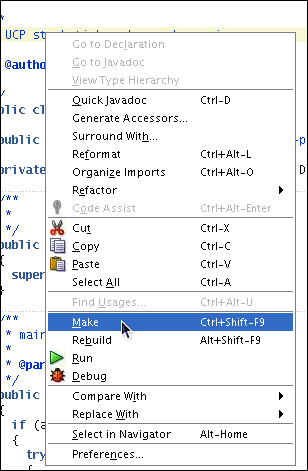
Right-click the content of UCPDemo.java and select Make
|
. |
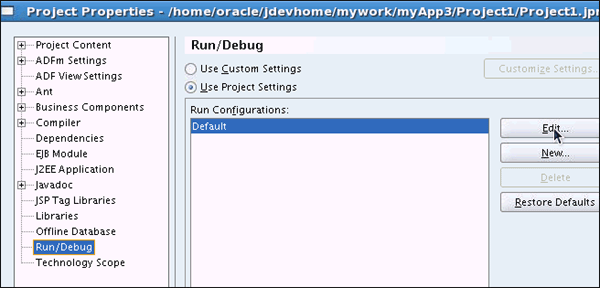
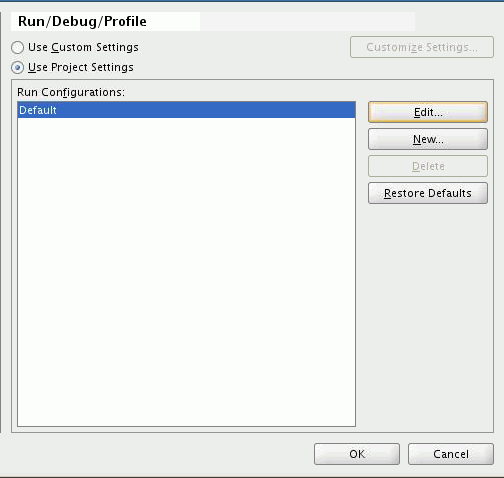
Click Run > Choose Active Run Configuration > Manage Run Configurations
|
. |
Click Edit
|
. |
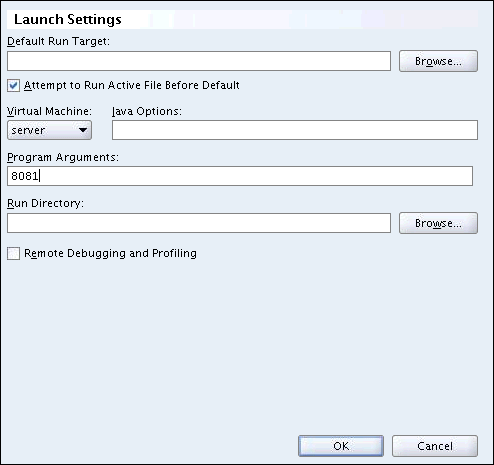
Enter 8081 ( Any free port on the machine ) in the Program Arguments text box and click OK
|
. |
Click OK
|
. |
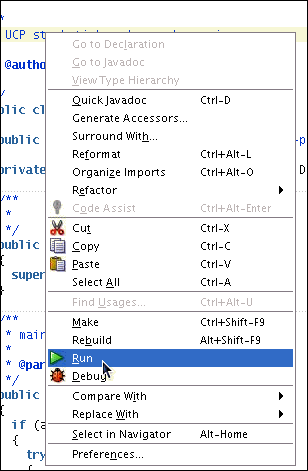
Right-click the content of UCPDemo.java and select Run.
|
. |
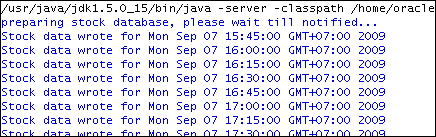
Observe the output.
|
. |
Upon startup the UCPDemo will spend a few seconds to store the stock price data onto the database, so wait until the message "...ready to go!" is printed out on the screen.
Now, the UCP demo server is up and running and you can use it.
|
. |
Enter the following URL into the Internet Explorer or Firefox: http://localhost:8081( http://<machine-address>:<port>)
|
. |
Observe the result in the browser.
|
. |
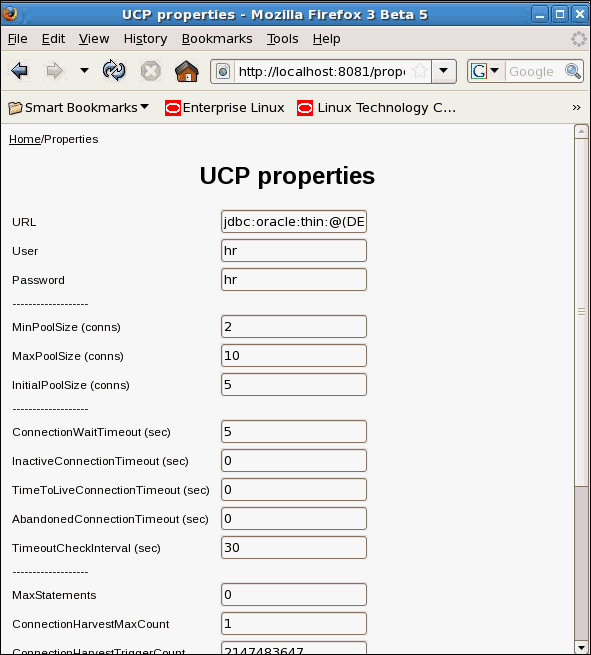
Click on Show UCP Properties.
|
. |
Click on Get Stock Price from the Database.
|
. |
Click on Show UCP Statistics.
|
. |
Click on Dynamically Reconfigure UCP Properties.
|
. |
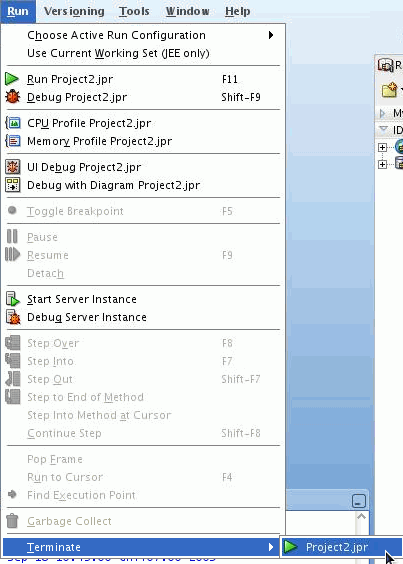
To stop the service click Run > Terminate > Project2.jpr
|
. |
Close the project. Click File > Close All.
|
. |
Click File > Close.
|
. |
Click OK.
|





Using UCP To Implement Client Result Caching
Client result cache feature enables client-side caching of SQL query result sets in client memory. In this way, OCI applications can use client memory to take advantage of the client result cache to improve response times of repetitive queries.
. |
Click Application > New.
|
|---|---|
. |
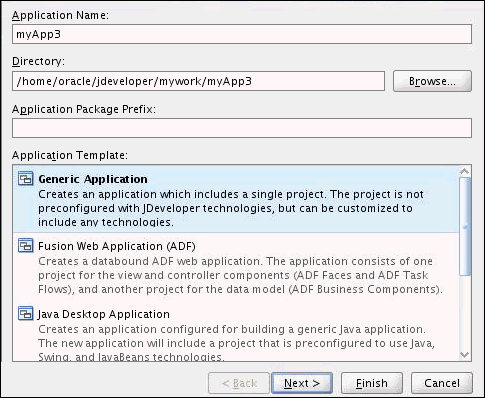
Enter the Application Name myApp3 and click Next.
|
. |
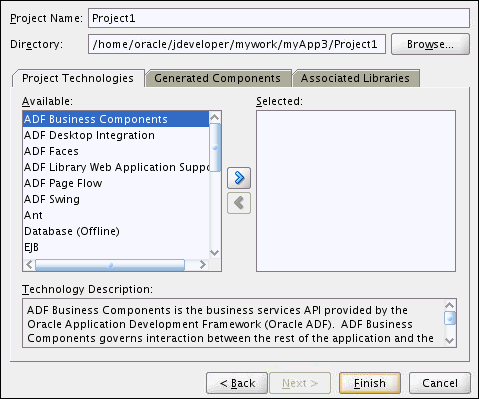
Enter the Project Name Project1 and click Finish.
|
. |
Select File > Open.
|
. |
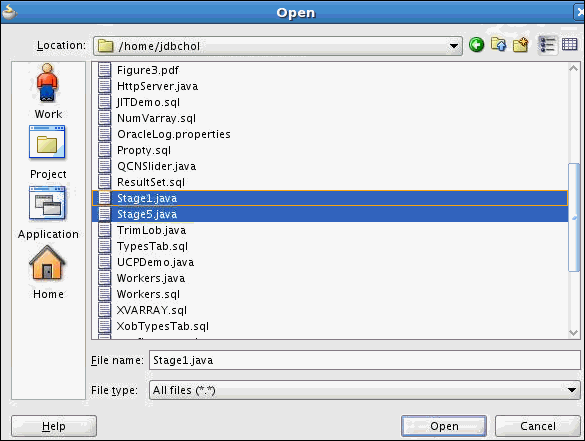
Select the Stage1.java and Stage5.java from the /home/jdbchol directory and click Open.
|
. |
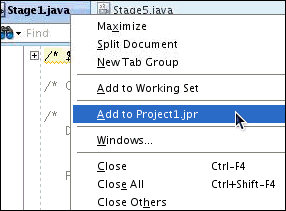
Right-click the Stage1.java tab and select Add to Project1.jpr.
|
. |
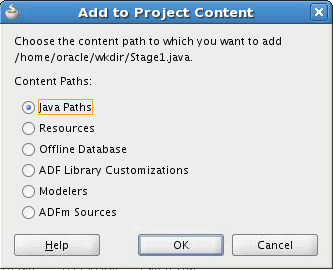
Accept the default and click OK.
|
. |
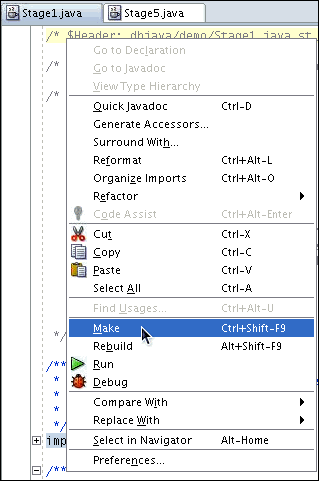
Right-click the content of Stage1.java and select Make
|
. |
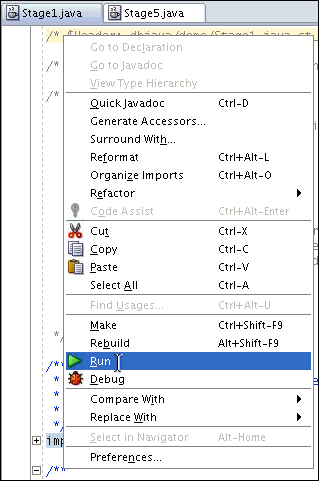
Right-click the content of Stage1.java and select Run.
|
. |
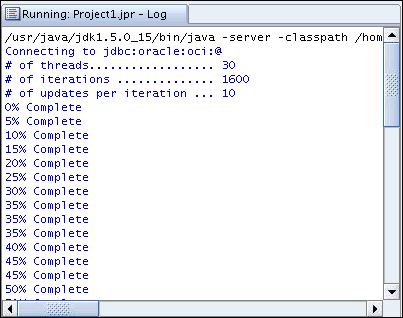
Observe the output. In absence of caching. This database intensive application, takes a long time to execute.
|
. |
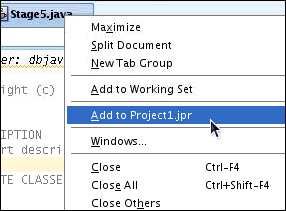
Right-click the Stage5.java tab and select Add to Project1.jpr.
|
. |
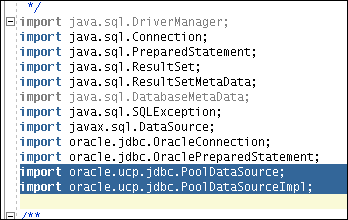
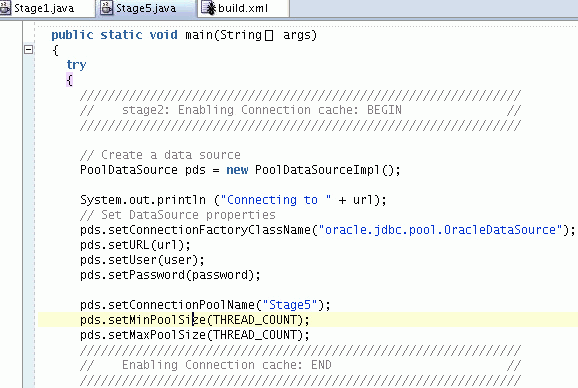
Review the following codes that has been added to Stage5.java to implement client result caching. Importing UCP:
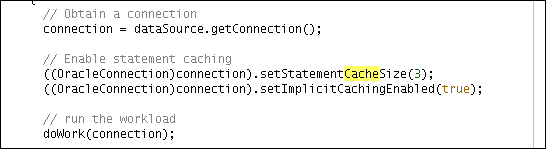
Enable Statement Caching:
Use SQL hints to specify the queries to be cached by annotating the queries
with a
|
. |
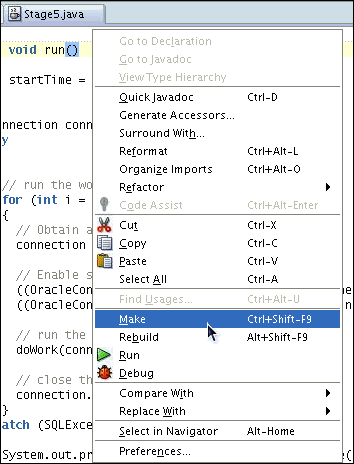
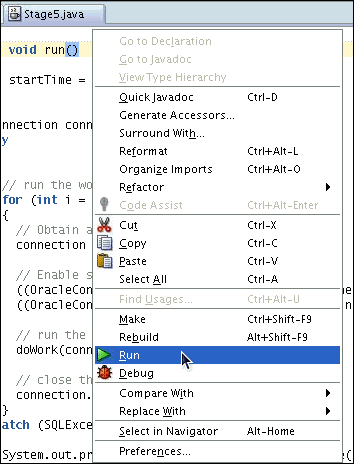
Right-click on the code and select make and then to compile and run Stage5.java.
|
. |
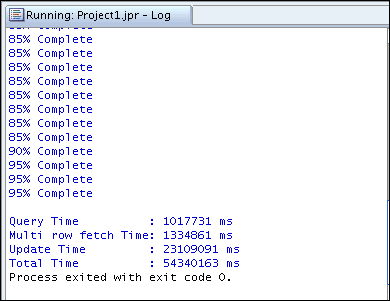
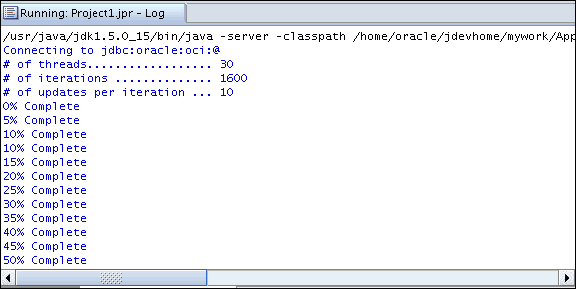
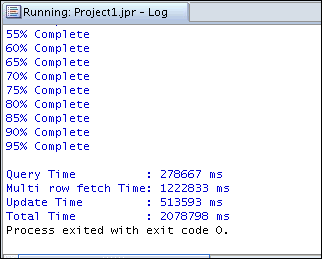
Observe the following output. Note the improvement in performance resulted by caching.
|

Summary
In this tutorial, you have learned how to:
- Load and Run a Java Application in the Database
- Map a SQL Type to a Java Type
- Invoke Java in the Database
- Illustrate an Object Type Call Spec
- Compile Java with JIT
- Use Database Change Notification.
- Use UCP to enable client result caching
- Monitor Oracle JVM with JMX
Resources
- Java Developer Center
- The book Oracle Database Programming using Java and Web Services written by Kuassi Mensah
- The Blog: 360 Degree DB Programming
Credits
- Lead Curriculum Developer: Tulika Srivastava
- Other Contributors: Nancy Greenberg, Kuassi Mensah, Marcie Young


|
About
Oracle |Oracle and Sun |  | Careers | Contact
Us | Site Maps | Legal
Notices | Terms of Use | Your Privacy Rights | Careers | Contact
Us | Site Maps | Legal
Notices | Terms of Use | Your Privacy Rights
|