Develop C and C++ Applications with Oracle Database 11g Using ODBC
Purpose
In this tutorial, you analyze and execute C programs in several stages to learn about the features and functionality of the Oracle OBDC drivers.
You learn how to create and use reports (ADDM reports - Automatic Database Diagnostic Monitor and AWR reports - Automatic Workload Repository) to analyze the performance and bottleneck of a sample application. As the reports are run, you analyze and refine the sample in several stages. The end result is an efficient application.
Time to Complete
Approximately 60 minutes.
Prerequisites
Before you perform this tutorial, you should:
| 1. | Install Oracle Database 11g Release 2 (if not already present) |
|
| 2. | Install the ODBC driver. |
|
| 3. | Download and unzip the odbclab.zip file into your working directory (i.e./home/oci/odbclab ) |
|
Overview
In this tutorial you use a step by step approach to run and tune the application in several stages. Starting with non-optimized code, each stage adds up to this non-optimized stage showing the performance improvement by using features like statement caching, client side result set caching, etc. A few stages show specific features like LOB handling, and fetching through a ref-cursor.
The AWR and ADDM Reports
Automatic Workload Repository (AWR) is a built-in repository in every Oracle Database. At regular intervals, the Oracle Database makes a snapshot of all its important statistics and workload information and stores in AWR.
The Automatic Database Diagnostic Monitor (ADDM) enables the Oracle Database to diagnose its own performance and determine how identified problems could be resolved. It runs automatically after each AWR statistics capture, making the performance diagnostic data readily available.
To run the reports, you can use the reports.sql script provided with this tutorial. For each of the stages that you want to examine, the executable generated from corresponding C file is provided to the script (reports.sql) with a few additional parameters.
Developing C Application with the ODBC Drivers
ODBC Overview
The C source code files used with the ODBC drivers are named as stage1.c stage2.c stage3.c stage4.c stage5.c and stage6.c, with a common library file named helper.c that is used for all of the stages shown. These files are stored in the /home/oci/odbclab location.The Sample ODBC Application
The sample application uses the odbchol/welcome schema. It generates random numbers to simulate web inputs to update and query the MYEMP table.
The following objects are defined within the odbchol schema.
The MYEMP table is defined as:
CREATE TABLE myemp (
  empno number(4) primary key,
  ename varchar2(10),
  job varchar2(9),
  mgr number(4),
  hiredate date,
  sal number(7,2),
  comm number(7,2),
  deptno number(2))
;
To demonstrate the LOB features, the following table is defined:
CREATE TABLE lob_table(
  article_no number(5),
  article_nm varchar2(50),
  article_text clob,
  comments clob)
  LOB(article_text) STORE AS SECUREFILE (TABLESPACE SYSAUX
                COMPRESS low CACHE),
  LOB(comments) STORE AS SECUREFILE (TABLESPACE SYSAUX
                COMPRESS low CACHE)
;
Three procedures are used in the ODBC application:
- update_salary() is used to perform DML
- query_salary() is used for single row queries
- multirow_fetch() is used for multiple row fetches
The main C functions are:
- For multithreaded demos: main()=>thread_function()=>do_workload()
- Random Input to simulate input: random_input()
To compile and link all of the stages of the source code, you can use the make utility.
ODBC Installation and Use
Use these steps to build and install the Unix ODBC driver manager.
- Create the directory where you want to install the Driver Manager
Example:
$ cd $(ORACLE_HOME)/odbc/demo/
$ mkdir DriverManager - Set the environment variable ODBCDM_HOME to the location where you want to install the Driver Manager
$ setenv ODBCDM_HOME $(ORACLE_HOME)/odbc/demo/DriverManager - Run the Driver Manager setup target using dm_setup.mk
$ gmake -f dm_setup.mk setup_dm
Note, Driver Manager will be installed in $( ODBCDM_HOME). Add $(ODBCDM_HOME)/lib to LD_LIBRARY_PATH before running any ODBC applications.
Stage 1: Setting Up
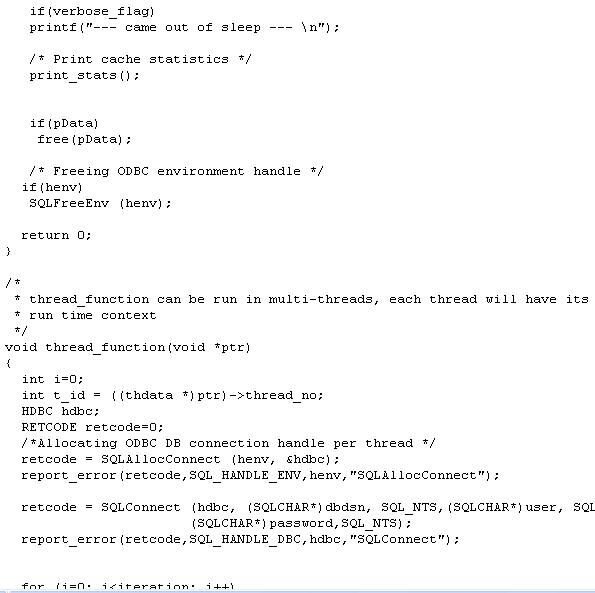
In this section, no optimizations are performed. The main thread spawns the requested number of threads with a thread function (thread_function()) as an initial routine that each thread should be started with. The ‘ main' thread, spawns new threads.
Each thread does the following:
- Allocates database connection handle using global ODBC environment handle
- Connects to database using database connection handle created in the above step with login/password as ocihol/welcome and OOW_ODBC as DSN name
- Calls the workload routine (do_workload()) for a desired number of times (defined by iterations), each workload does the following:
- query_salary(): fetches a single row
- multirow_fetch(): fetches multiple rows in a loop
- update_salary(): updates the salary field in loop
- for each of the above database operations, total time taken is calculated by noting the time before and after each function call.
then joins the threads and calculates and prints the performance statistics for each query.
|
. |
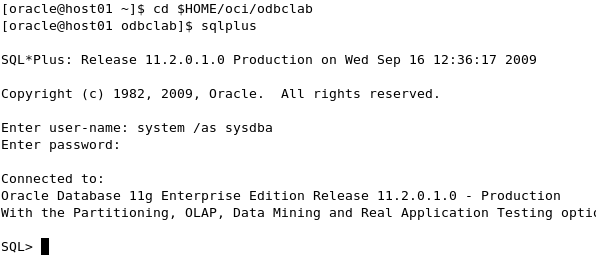
Open a terminal window. Change to your /home/oci/odbclab directory and start SQL*Plus. Logon as system. Use the password "manager".
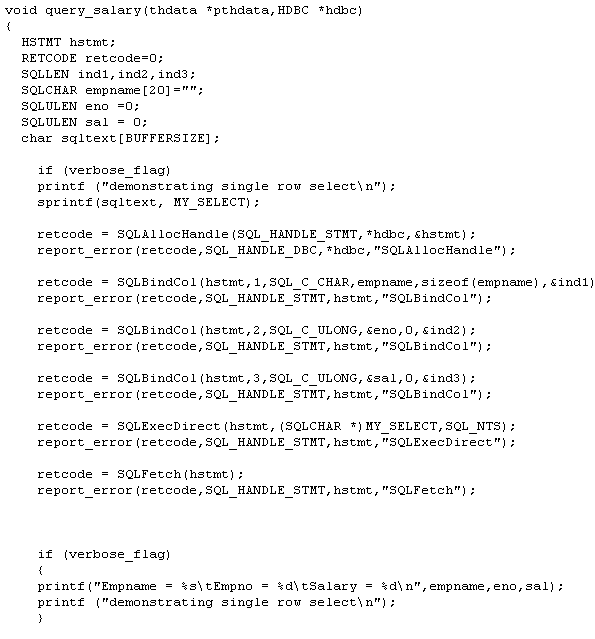
Examine the contents for the stage1.c file. You can use a text editor to view the contents.
Note: If you are working in a Linux environment, you may need to change the permission to execute the stagen files. To do so, execute the following at the command prompt: chmod 777 stage* exit
|
|---|---|
|
. |
Use the gmake utility to build the executable C programs and library for the source code for stage1. Start a terminal window, navigate (by using the 'cd' command) to the location where the stage files are ( /home/oci/odbclab ) and execute the gmake utility cd $HOME/oci/odbclab gmake stage1
|
|
. |
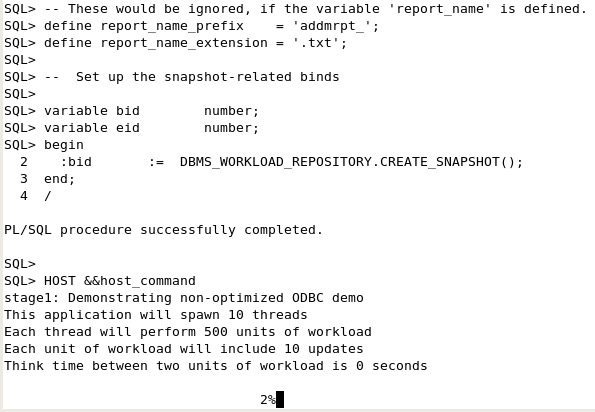
The reports.sql script is stored in the $HOME/oci/odbclab/sql directory. In a new terminal session, change to the $HOME/oci/odbclab/sql directory. cd $HOME/oci/odbclab/sql Start SQL*Plus. In your SQL*Plus session, run the reports.sql script. Pass to it the stage1 file. Add the parameter to iterate 10 times to increase the workload and generate findings, set the number of threads to 10. (Note: we have purposefully set the number of iterations to a low value of 10 to save time in this exercise. For the pre-canned reports generated for this stage, the number of iterations was set to 1000.) @reports.sql "../stage1 -i 10 -t 10"
As the report runs, you are shown the percentage completed.
|
|
. |
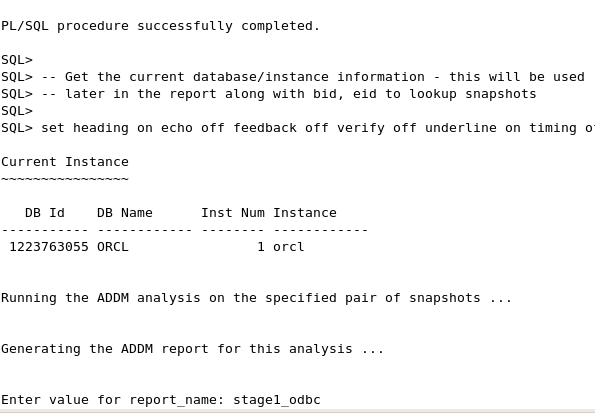
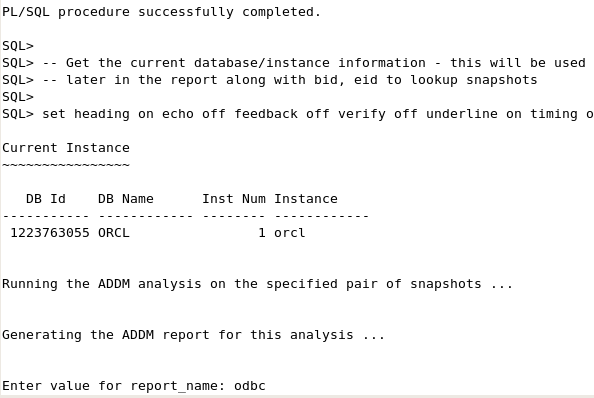
When prompted for the report name, enter: stage1_odbc
This generates two reports which are saved in the current directory:
Generated sample results are provided to you for each stage. These files are located in the /home/oci/odbclab/doc sub-folder. The names of the sample results files are:
Note: Your results may differ from the sample results provided due to environment differences. For consistency in this tutorial, the generated sample results are examined.
|
|
. |
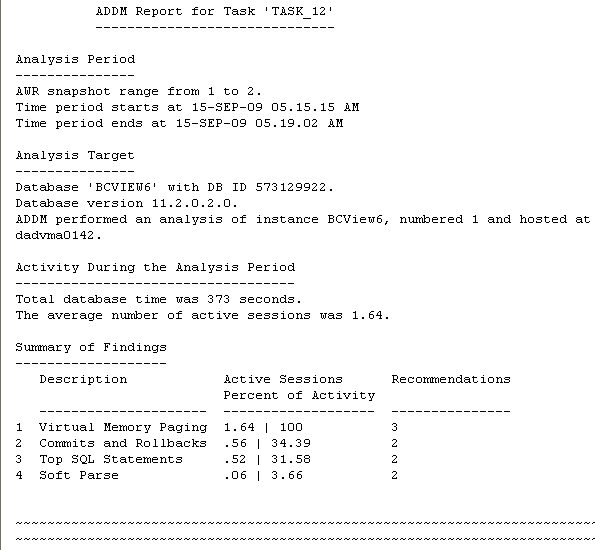
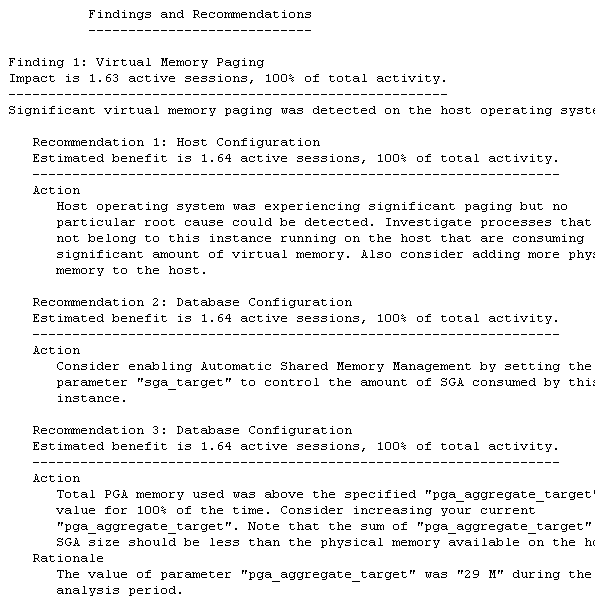
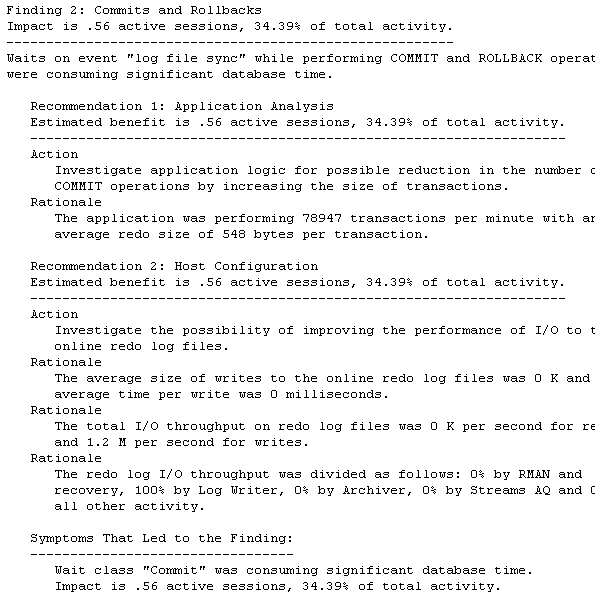
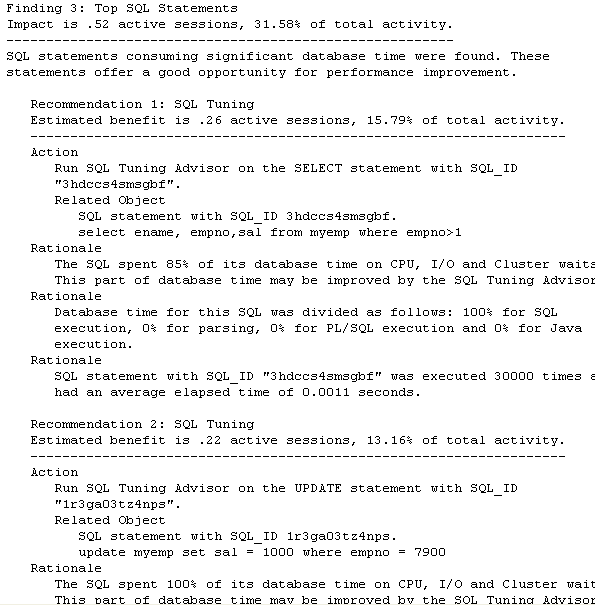
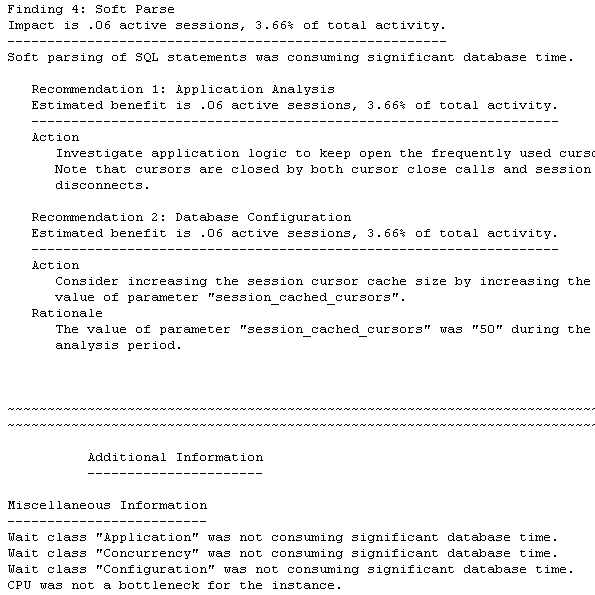
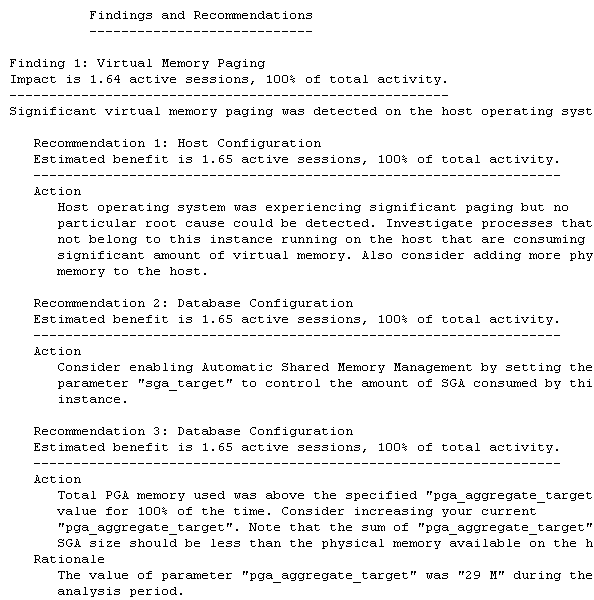
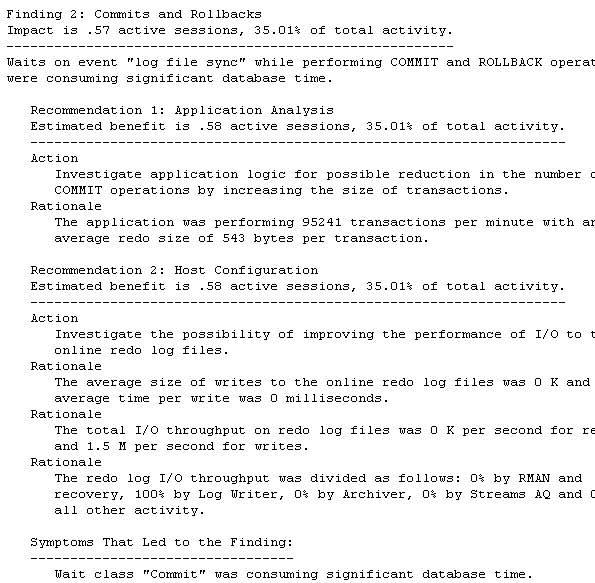
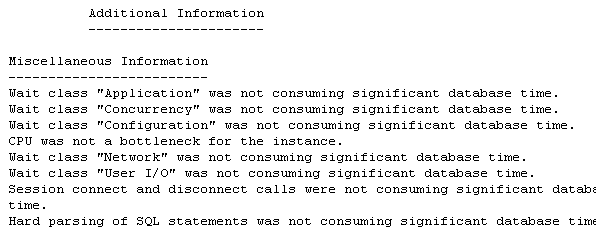
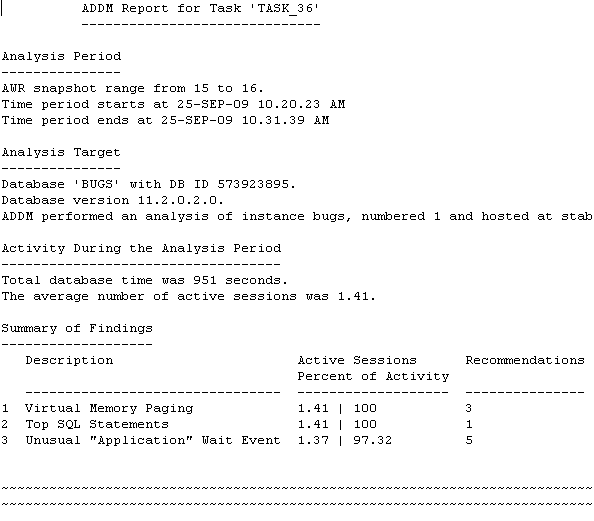
Examine the contents in the stage1_results_addm.txt report. (You can either open the file in a text editor, or you can scroll up in your SQL*Plus session.) Note the summary of findings.
|
|
. |
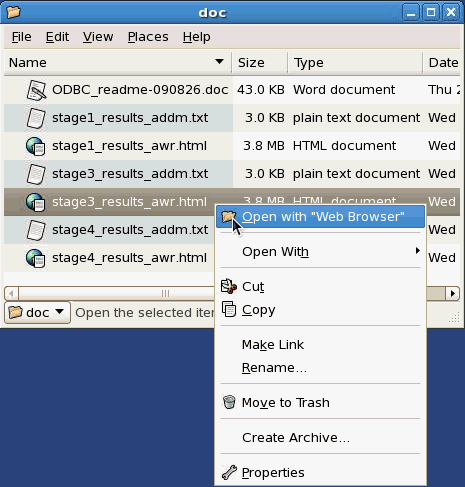
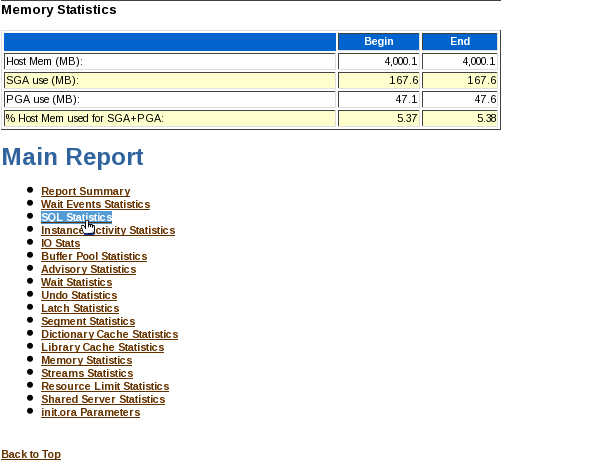
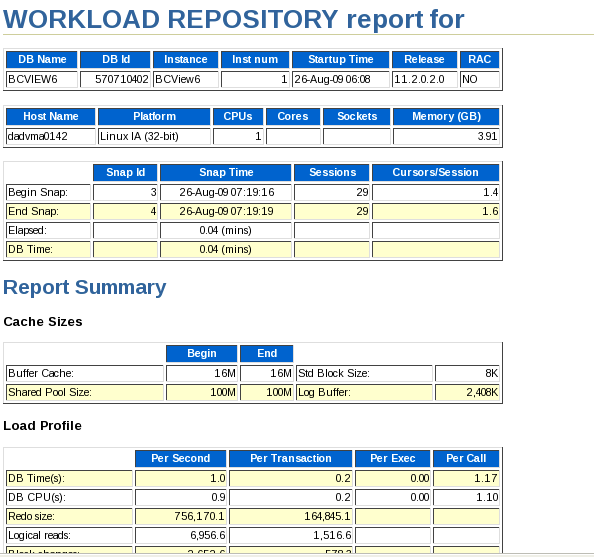
Examine the contents in the stage1_results_awr.htm report. Find the file stage1_results_awr.htm located in the /home/oci/odbclab/doc sub-folder. Double-click the file name to open the file in a browser (or right-click and select the Open with "Web-Browser" option).
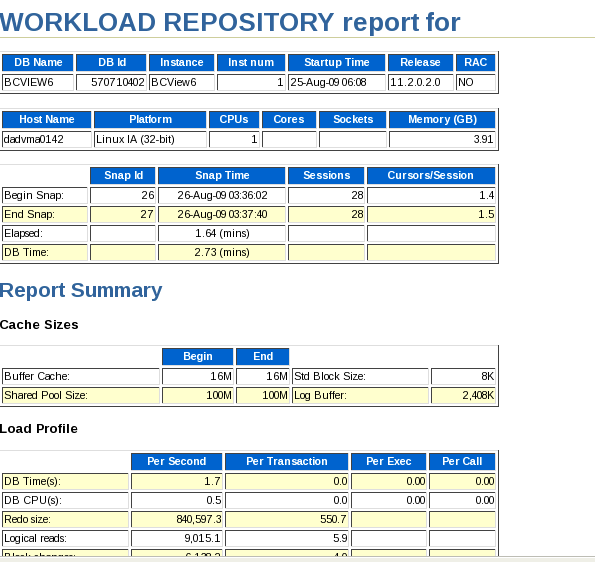
Review the report .
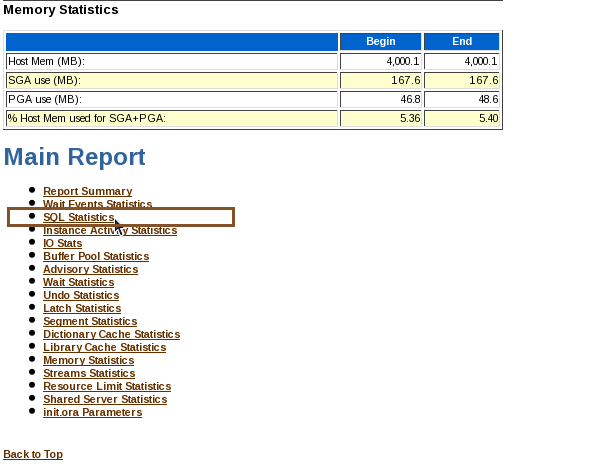
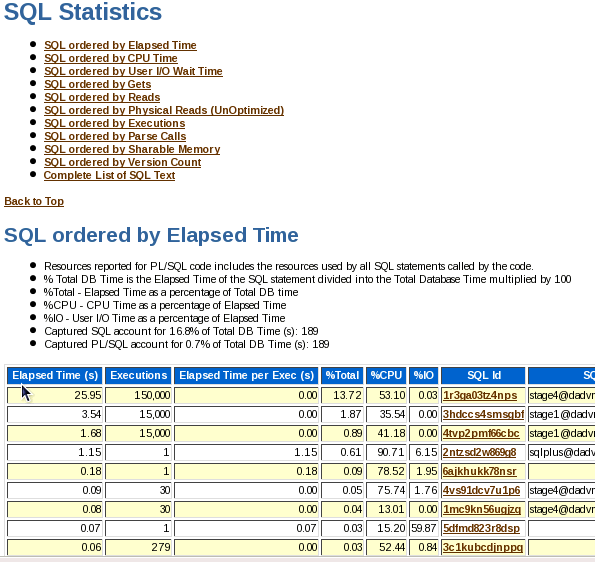
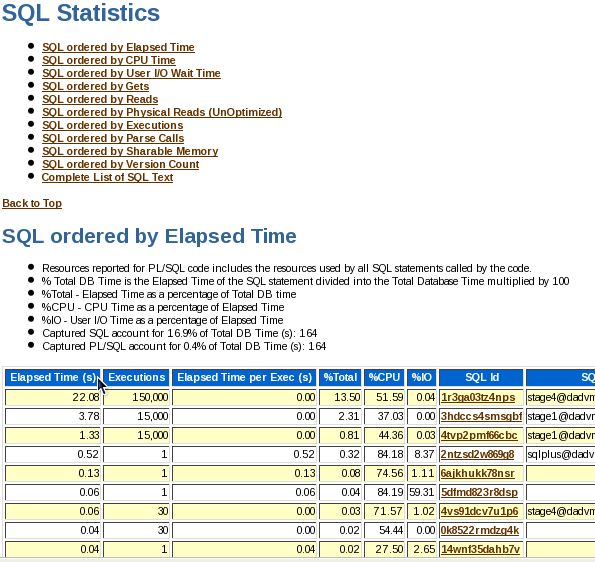
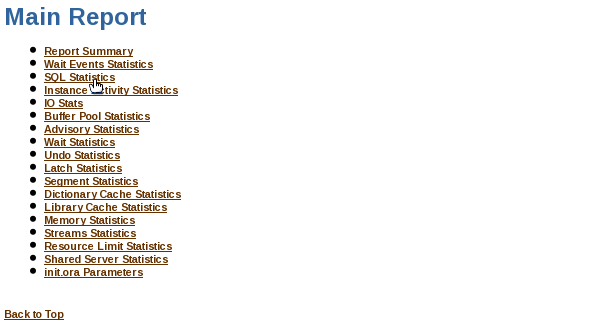
Scroll down to the Main Report. Click the SQL Statistics link.
Note the Elapsed time statistics. As you go through each of the stages and apply different tuning methods, these numbers will change (and improve).
|





Stage 2: Using Array Fetch
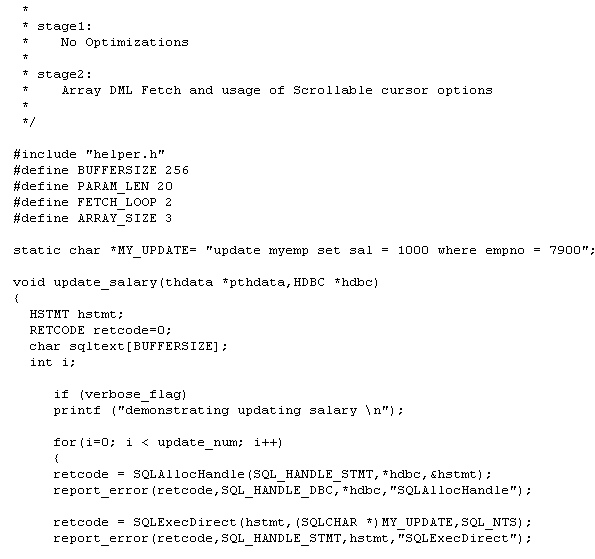
In this section, the C code is optimized for array fetch and usage of scrollable cursor options. In this stage the multi-row fetch is performed using an array, which can hold ARRAY_SIZE number of rows for each fetch. Except for the multirow_fetch() function, the rest of the code is the same as stage1 code.
The multirow_fetch() function fetches chunks of ARRAY_SIZE (defined in this function itself) number of rows in a loop of FETCH_LOOP count. In the program the ARRAY_SIZE is set to 3, meaning that program fetches 3 rows at a time. For the first loop it would fetch first 3 rows, for the second loop next 3 rows are fetched, and so on until the FETCH_LOOP count is hit.
This stage includes new function called scrollable_cursor to show usage of scrollable cursor options in ODBC and how to fetch data using those options. Options shown in this function are SQL_FETCH_NEXT, SQL_FETCH_PRIOR, SQL_FETCH_FIRST, SQL_FETCH_LAST, SQL_FETCH_ABSOLUTE and SQL_FETCH_RELATIVE.
|
. |
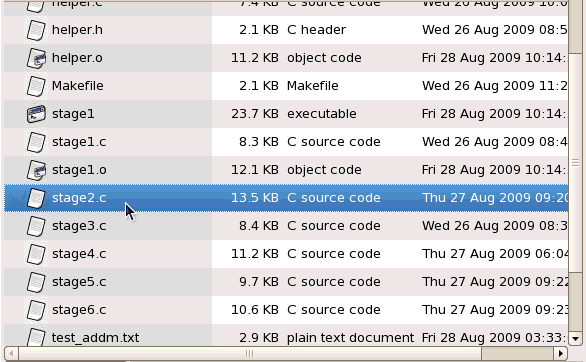
Examine the contents for the stage2.c file. Locate the stage2.c file in the /home/oci/odbclab directory.
Right click on the stage2.c file and select the Open with "Text Editor" option.
In stage2.c array fetch and scrollable cursor options are used.
|
|---|---|
|
. |
Use the gmake utility to build the executable C programs and library for the source code for stage2. Start a terminal window, navigate (by using the 'cd' command) to the location where the stage files are (/home/oci/odbclab) and execute the gmake utility. cd $HOME/oci/odbclab
gmake stage2
|
|
. |
In a terminal window, execute the stage2 file. Include the switches of iterate for 500, threads 30 and specify verbose to print the detailed information. ./stage2 -i 500 -t 30 -v
Note: No AWR, ADDM reports are generated for this stage, as scrollable cursor is used. |







Stage 3: Statement Caching Enabled
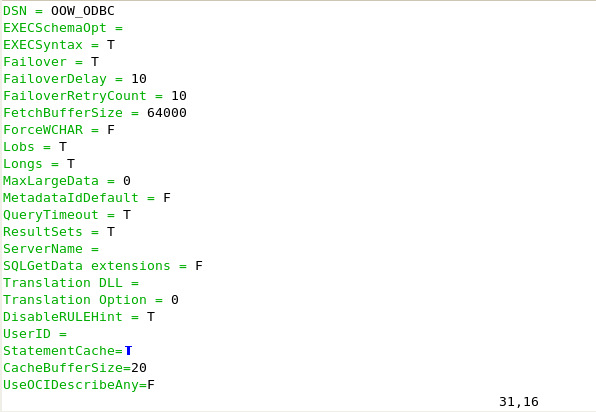
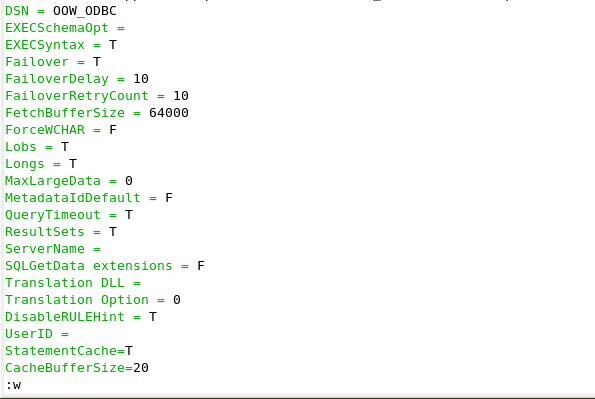
In this section, you enable statement caching. This stage is same as stage1, but with statement caching enabled. This is achieved by setting ‘StatementCache=' to T in .odbc.ini file.
|
. |
Edit the .odbc.ini file and set the StatementCache option to True. The .odbc.ini file is located in your Oracle Home directory. $ cd $HOME $vi .odbc.ini
Find the StatementCache option and change the value from "F" to "T".
Save the file. (Use the :w command to save.)
Exit the editor, type ZZ.
|
|---|---|
|
. |
Use the gmake utility to build the executable C programs and library for the source code for stage3. Start a terminal window, navigate (by using the 'cd' command) to the location where the stage files are (/home/oci/odbclab) and execute the gmake utility. cd $HOME/oci/odbclab
gmake stage3
|
|
. |
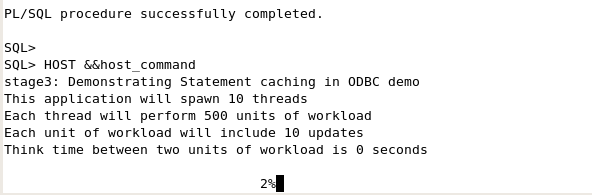
In your SQL*Plus session, run the reports.sql
script. Pass to it the stage3
file. Add the parameters to iterate 1000 times to increase the workload
and generate findings, set the number of threads to 10. @reports.sql "../stage3 -i 1000 -t 10"
As the report runs, you are shown the percentage completed.
|
|
. |
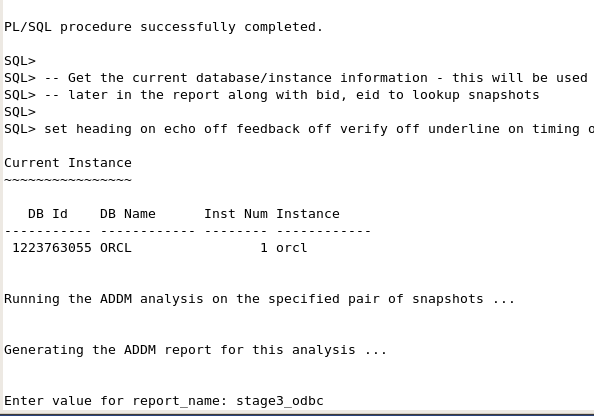
When prompted for the report name, enter: stage3_odbc
This generates two reports which are saved in the current directory:
Generated sample results are provided to you for each stage. These files are located in the /home/oci/odbclab/doc sub-folder. The names of the sample results files are:
Note: Your results may differ from the sample results provided due to environment differences. For consistency in this tutorial, the generated sample results are examined.
|
|
. |
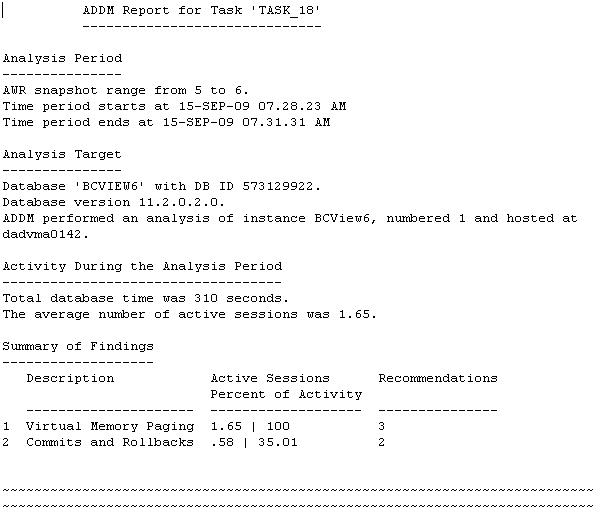
Examine the contents in the stage3_results_addm.txt report. (You can either open the file in a text editor, or you can scroll up in your SQL*Plus session.) Note the summary of findings.
|
|
. |
Examine the contents in the stage3_results_awr.htm report. Find the file stage3_results_awr.htm located in the /home/oci/odbclab/doc sub-folder. Double-click the file name to open the file in a browser (or right-click and select the Open with "Web-Browser" option).
Review the report.
Scroll down to the Main Report. Click the SQL Statistics link.
Note that the Elapsed Time(s) has decreased significantly when compared with stage1.
|
|
. |
Disable statement caching. Edit the .odbc.ini file and set the StatementCache option to False. The .odbc.ini file is located in your Oracle Home directory. $cd $HOME vi .odbc.ini
Find the StatementCache option and change the value from "T" to "F".
Save the file. (Use the :w command to save.)
Exit the editor, type ZZ.
|






Stage 4: Using Client Result-Set Caching
In this section, you examine client result-set caching. By using client result-set caching, you can increase performance.
|
. |
You will need to enable client results set caching. In your init.ora file, ensure that the following parameters are set as shown below . client_result_cache_size=65536 client_result_cache_lag=1000000 compatible=11.0.00.0 If it is not present, you need to:
|
|---|---|
|
. |
Examine the contents for the stage4.c file. You can use a text editor to view the contents.
|
|
. |
Use the gmake utility to build the executable C programs and library for the source code for stage4. Start a terminal window, navigate (by using the 'cd' command) to the location where the stage files are (/home/oci/odbclab) and execute the gmake utility. cd /home/oci/odbclab gmake stage4
|
|
. |
In your SQL*Plus session, run the reports.sql script. Pass to it the stage4 file.
Add the parameter to iterate 1000 times to increase the workload and generate findings, set the number of threads to 10. @reports.sql "../stage4 -i 1000 -t 10"
As the report runs, you are shown the percentage completed.
|
|
. |
When prompted for the report name, enter: stage4_odbc
This generates two reports which are saved in the current directory:
Generated sample results are provided to you for each stage. These files are located in the /home/oci/odbclab/doc sub-folder. The names of the sample results files are:
Note: Your results may differ from the sample results provided due to environment differences. For consistency in this tutorial, the generated sample results are examined.
|
|
. |
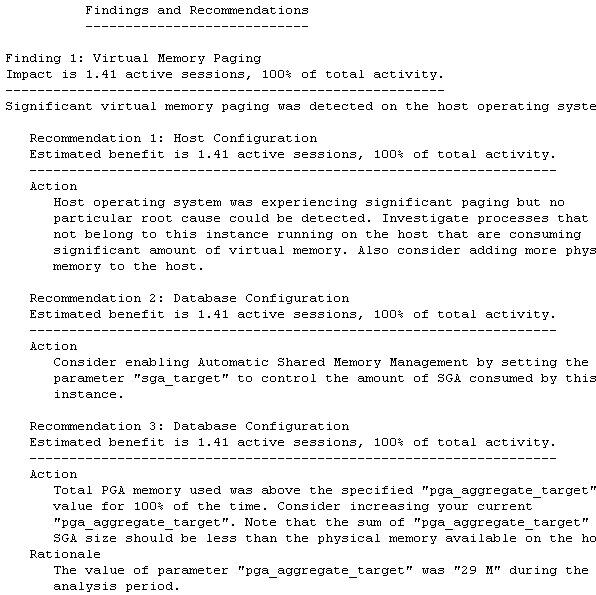
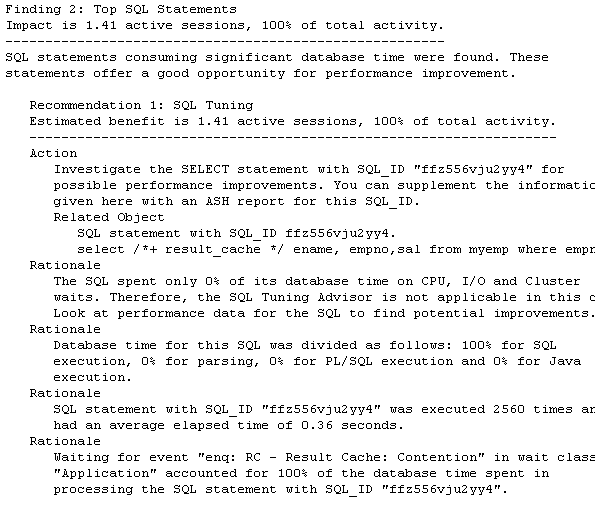
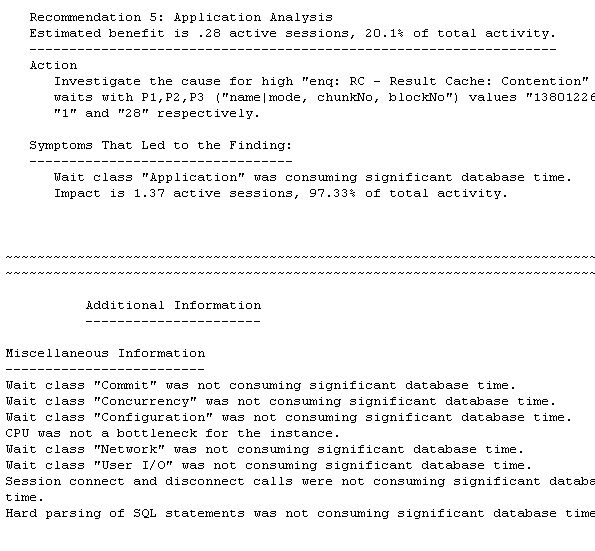
Examine the contents in the stage4_results_addm.txt report. (You can either open the file in a text editor, or you can scroll up in your SQL*Plus session.) Note the summary of findings.
|
|
. |
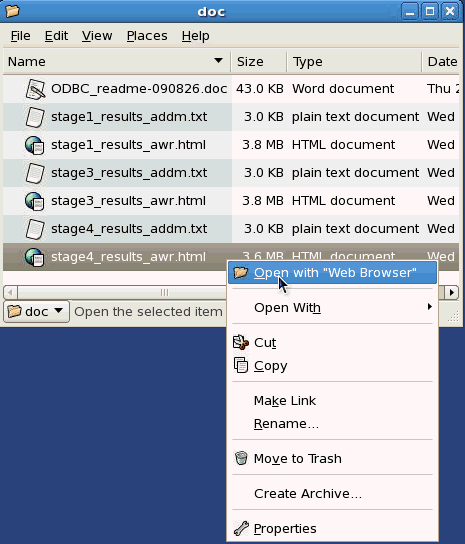
Examine the contents in the stage4_results_awr.htm report. Find the file stage4_results_awr.htm located in the /home/oci/odbclab/doc sub-folder. Double-click the file name to open the file in a browser (or right-click and select the Open with "Web-Browser" option).
Review the report.
Scroll down to the Main Report. Click the SQL Statistics link.
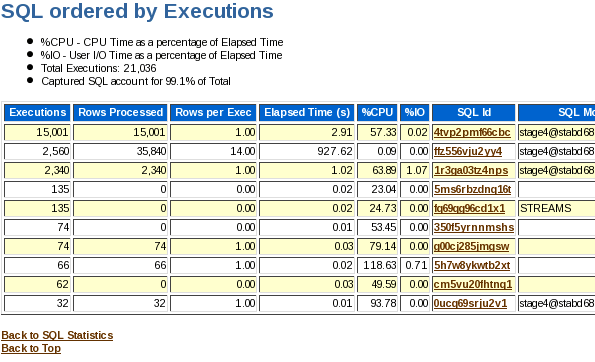
Review the report. Note that the Elapsed Time(s) has decreased significantly when compared with stage1. Click the SQL ordered by Executions link located below SQL Statistics.
|








Stage 5: Using a REF Cursor
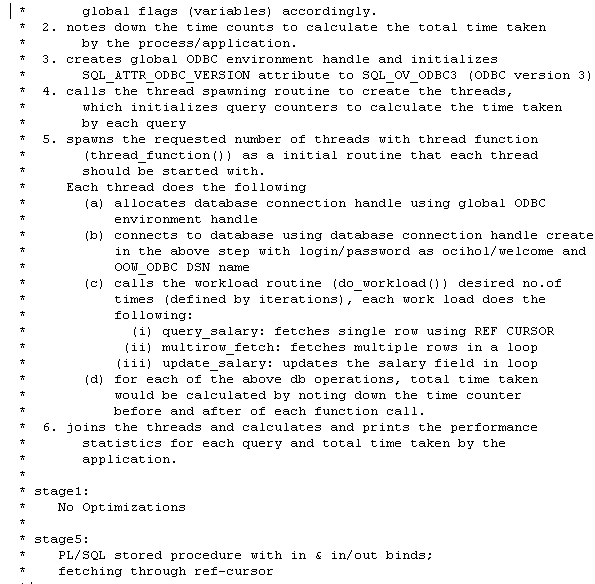
In this section, the query_salary() function used to invoke a PL/SQL procedure is modified to use a REF cursor. Except for the changes in the query_salary() function, everything else stands same as stage1.
|
. |
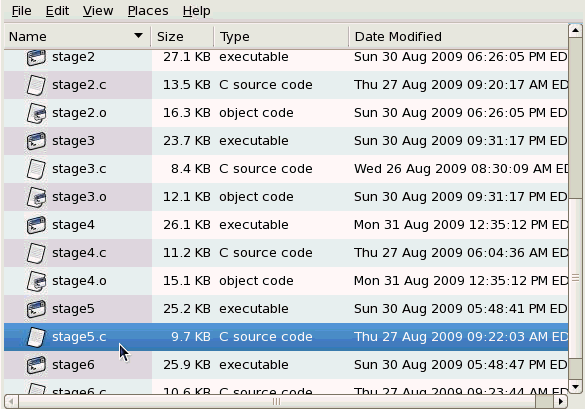
Examine the contents for the stage5.c file. Locate the stage5.c file in the /home/oci/odbclab directory.
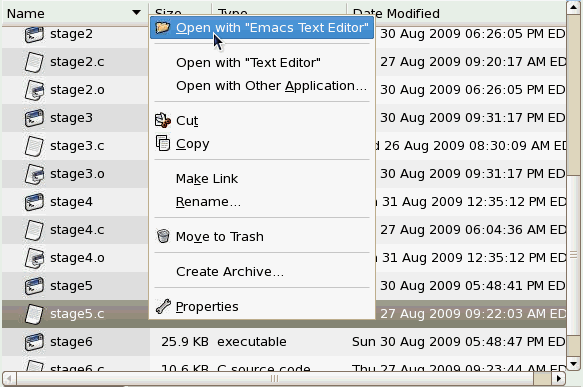
Right click on the stage5.c file and select the Open with "Text Editor" option.
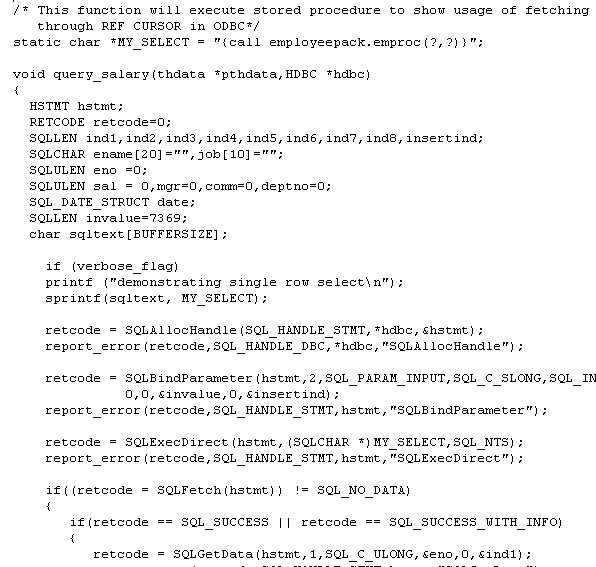
In stage5.c, the query_salary functionality is modified to use a REF cursor. The PL/SQL procedure (employeespack.emproc) opens a cursor for the SQL statement, which selects all the employees in the department with the passed empno. The program fetches all the rows in the returned REF cursor. In the declaration, ref-curosr is an IN/OUT parameter and empno is an IN parameter.
|
|---|---|
|
. |
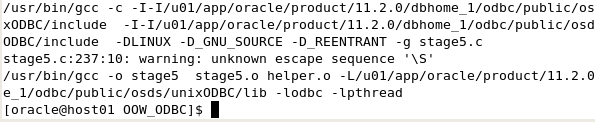
Use the gmake utility to build the executable C programs and library for the source code for stage5. Use the gmake utility to build the executable C programs and library for the source code for stage5. Start a terminal window, navigate (by using the 'cd' command) to the location where the stage files are (/home/oci/odbclab) and execute the gmake utility. cd $HOME/oci/odbclab gmake stage5
|
|
. |
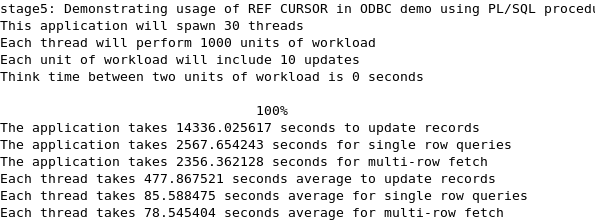
In a terminal window, execute the stage5 file. ./stage5
Note: No AWR and ADDM reports are required for the stage5 example. Stage5 shows how to use ref-cursor in an ODBC application. |


Stage 6: LOB Handling
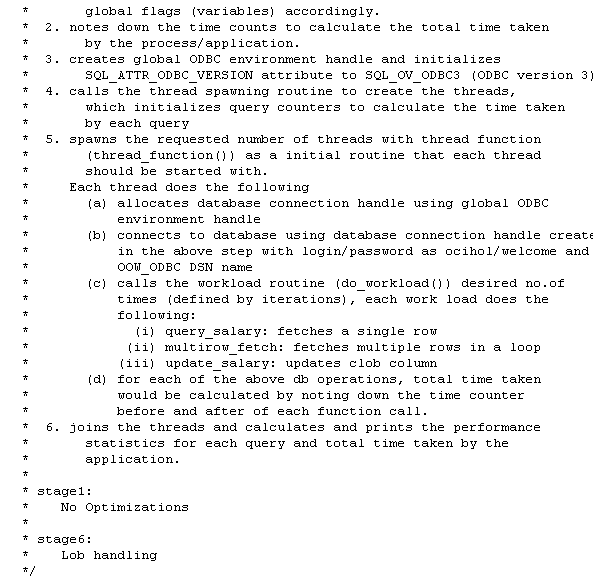
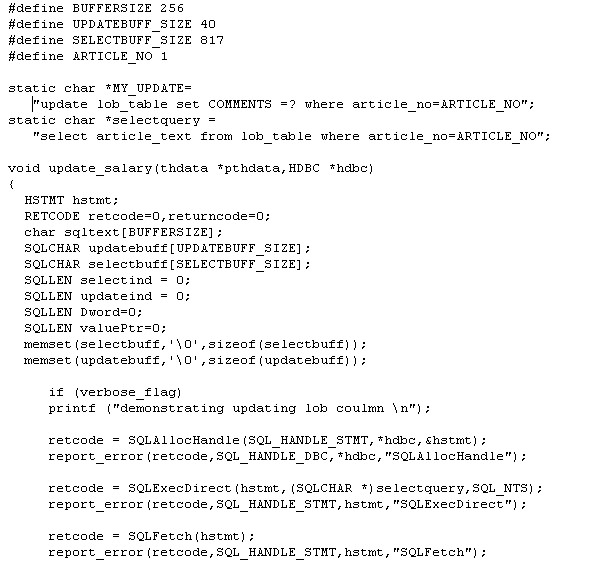
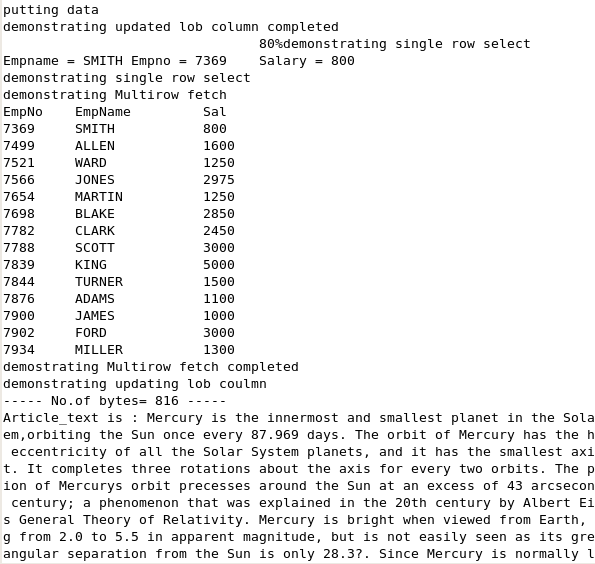
In this stage LOB handling in ODBC is demonstrated. The update_salary() function is modified It update the lob columns in ‘ lob_table ' defined for this OBE. The query_salary() and multirow_fetch() functions remain same as stage1.
Note: Since SecureFile LOB is used, please make sure that following parameter is set in the init.ora file:
compatible=11.2.0.0.0
For this section, a LOB table is defined. This table stores a set of articles and several comments from the readers. The table has these columns:
- article_no: a unique id for an article.
- article_nm: title of the article
- article_text: the body of the article
- comments: comments received on this article.
The update_salary() function is modified to:
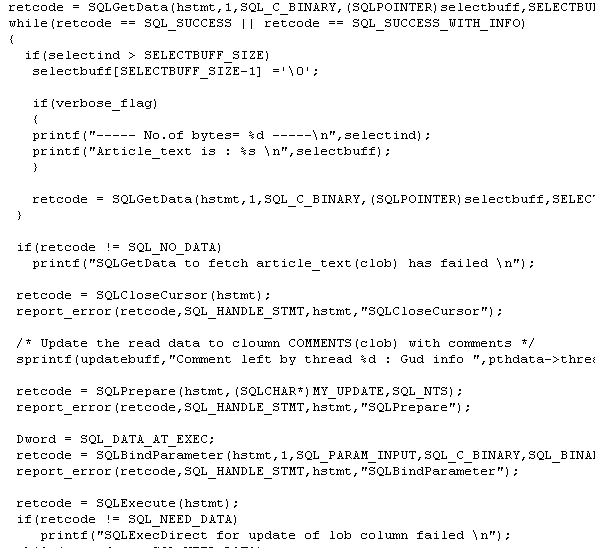
- Select the article_text (clob column) from lob_table for particular article_no (defined in that file itself)
- Read the clob column article_text (which demonstrates the usage of read operation of lob data in ODBC)
- Each thread updates comments into the clob column comments in lob_table (which demonstrates the usage of write operation of lob data in ODBC)
|
. |
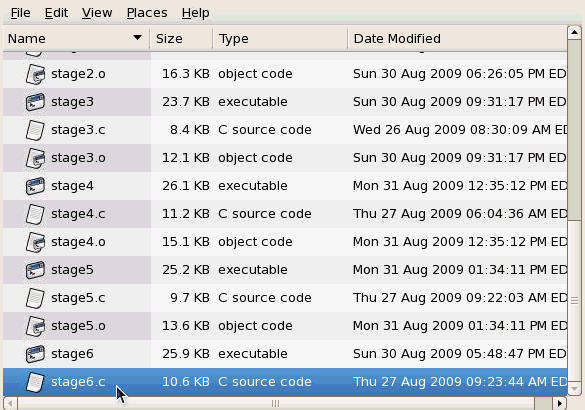
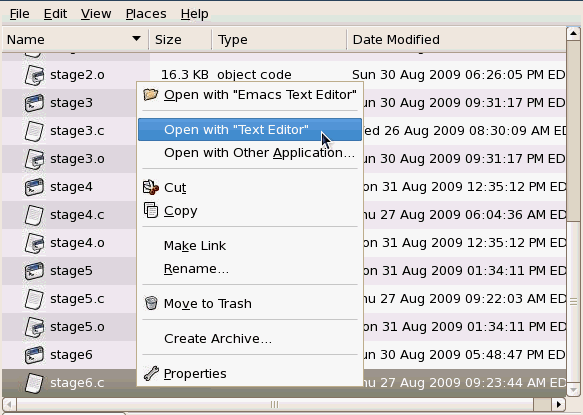
Examine the contents for the stage6.c file. Locate the stage6.c file in the /home/oci/odbclab directory.
Right click on the stage6.c file and select the Open with "Text Editor" option.
The update_salary() function is modified. It updates the lob columns in ‘ lob_table ' defined for this OBE. The query_salary() and multirow_fetch() functions remain same as stage1.
|
|---|---|
|
. |
Use the gmake utility to build the executable C programs and library for the source code for stage6. Use the gmake utility to build the executable C programs and library for the source code for stage6. Start a terminal window, navigate (by using the 'cd' command) to the location where the stage files are (/home/oci/odbclab) and execute the gmake utility. cd $HOME/oci/odbclab gmake stage6
|
|
. |
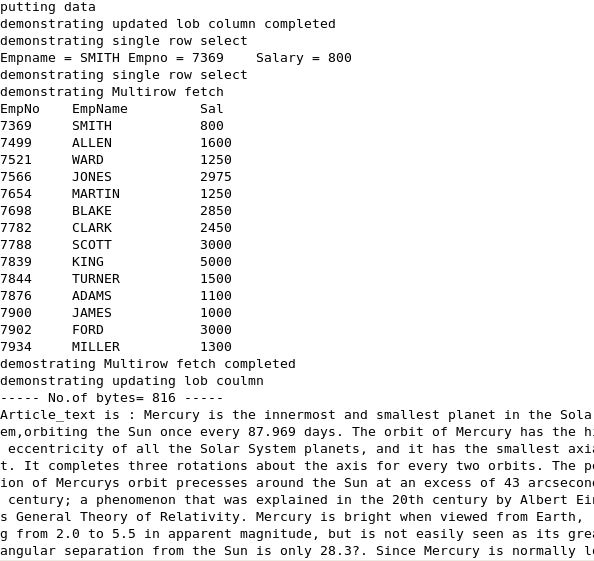
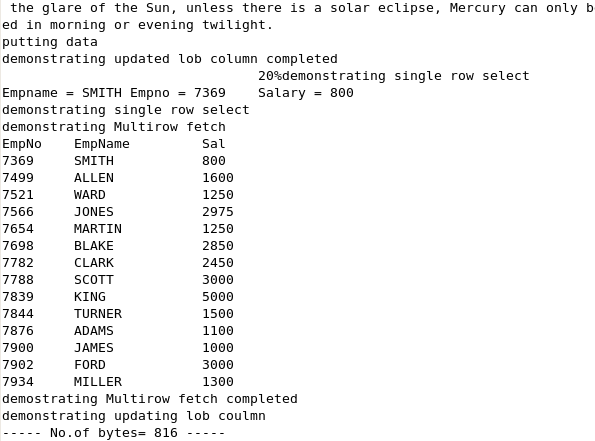
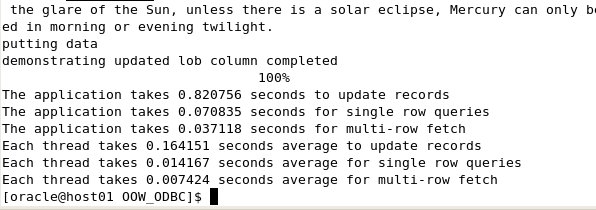
In a terminal window, execute the stage6 file. Include the switches of iterate for 5, threads 5 and specify verbose to print the detailed information. ./stage6 -i 5 -t 5 -v
Note: No AWR, ADDM report is required for this stage as this stage demonstrates how to do LOB read/ write/ update from an ODBC application. |



Summary
In this tutorial, you learned how to:
- Setup and Review the results for no optimization to obtain a baseline measure.
- Optimize by using array DML, and how to use scrollable cursor
- Optimize by enabling statement caching
- Optimize by enabling client result-set caching
- See how to use ref-cursor
- See the technique of LOB handling in ODBC


|
About
Oracle |Oracle and Sun |  | Careers | Contact
Us | Site Maps | Legal
Notices | Terms of Use | Your Privacy Rights | Careers | Contact
Us | Site Maps | Legal
Notices | Terms of Use | Your Privacy Rights
|