Creating Oracle Text User and Building a Simple Text Query
Overview
Purpose
This tutorial covers the following topics:
- How to create a user with the CTXAPP role.
- How to build simple text query.
- It also provides information about basic SQL statements for each type of application to load, index, and query tables.
Time to Complete
Approximately 20 minutes.
Introduction
Oracle Text is well-known as the text searching engine within
Oracle Database 12c. Oracle Text provides indexing, word and theme
searching, and viewing capabilities for text in query applications
and document classification applications. It is easy to use in any
application which understands SQL and it is based on the
extensibility framework within the Oracle kernel. Oracle Text is
multilingual, and capable of managing many types of document.
Oracle Text is used for the following categories of applications:
- Document Collection Applications
- Catalog Information Applications
- Document Classification Applications
- XML Search Applications
Prerequisites
Before starting this tutorial, you should:
- Have access to Oracle Database 12c.
- Have installed SQL Developer 4.0.
Creating the MYUSER with the CTXAPP role
To create Oracle Text indexes and use Oracle Text PL/SQL
packages, you need to create a user with the CTXAPP role. This
role enables you to create and delete Oracle Text indexing
preferences and use the Oracle Text PL/SQL packages.
To create a new Oracle Text application developer user, perform
the following steps:
-
If you installed the SQL Developer icon on your desktop, click the icon to start your SQL Developer session. If you do not have the icon located on your desktop, find the executable file (either named "sqldeveloper.exe" on Windows or "sqldeveloper.sh" on Linux), and run it.
-
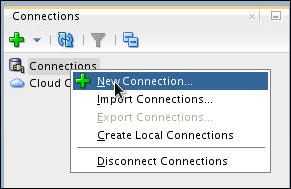
In the Connections tab, right-click Connections and select New Connection. A New / Select Database Connection window will appear.
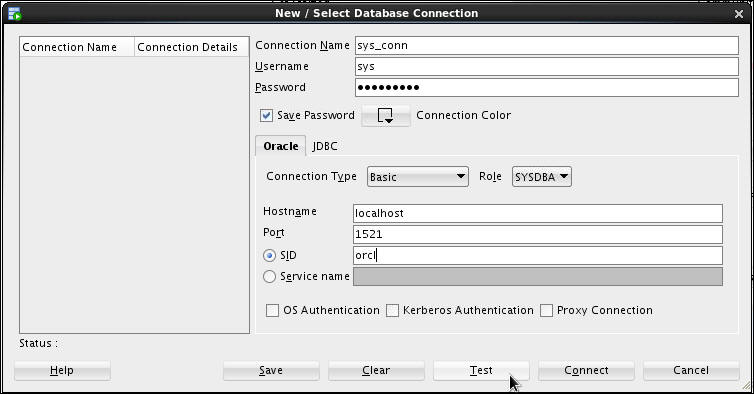
The New / Select Database Connection dialog opens. Enter the connection details as follows and click Test.
Connection Name: sys_conn
User Name: sys
Password: Your SYS password (Select Save Password)
Role: SYSDBA
Hostname: localhost
SID: Your database SID. Default is usually "orcl"
NOTE: The SYS password and the database SID are chosen during the installation of Oracle Database.
-
Check for the status of the connection on the left-bottom side (above the Help button). It should read Success. To save the connection, click Save. Then click Connect. Close the window.

-
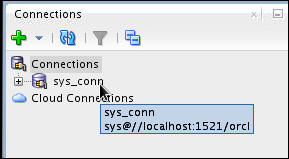
The connection is saved and you can see it listed under Connections in the Connections navigator.
-
Expand sys_conn.
Note: When a connection is opened, a SQL Worksheet is opened automatically. The SQL Worksheet allows you to execute SQL against the connection you just created. -
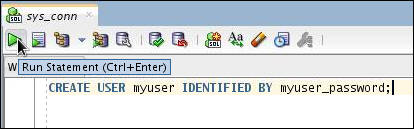
Enter the following code in the SQL Worksheet to create a a user called MYUSER with a password of myuser_password. Click the Run Statement icon to run the query.
CREATE USER myuser IDENTIFIED BY myuser_password;

-
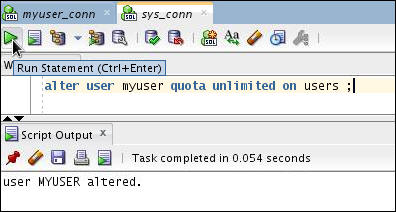
Grant unlimited quota to USERS tablespaces to MYUSER using the following command:
ALTER USER myuser QUOTA UNLIMITED ON USERS;
Click the Run Statement icon to run the query.
-
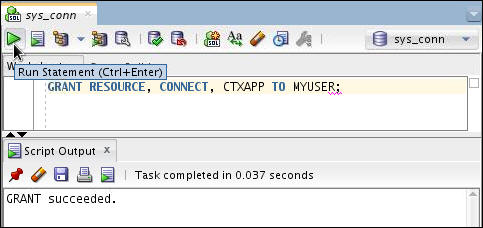
Enter the following code to grant the required roles of RESOURCE, CONNECT, and CTXAPP to MYUSER. Click the Run Statement icon to run the query.
GRANT RESOURCE, CONNECT, CTXAPP TO MYUSER;
Creating the CONTEXT Index
In a basic text query application, you enter query words or
phrases and expect the application to return a list of documents
that best match the query. Such an application involves creating a
CONTEXT index and querying it with
CONTAINS.
This section steps you through the basic SQL statements to load
the text table, index the documents, and query the index.
-
Before you create the table, you need to create a connection to the MYUSER. In the Connections tab, right-click Connections and select New Connection. A New / Select Database Connection window will appear.
Note:If this tab is not visible, select View > Connections.
-
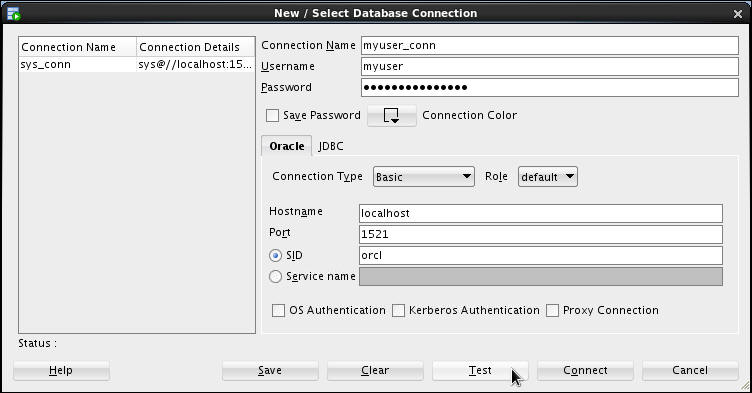
The New / Select Database Connection dialog opens. Enter the connection details as follows and click Test.
Connection Name: myuser_conn
User Name: myuser
Password: myuser_password(Select Save Password) Your database SID. Default is usually "orcl"
Hostname: localhost
SID: -
-
Check for the status of the connection on the left-bottom side (above the Help button). It should read Success.
To save the connection, click Save. Then click Connect. Close the window.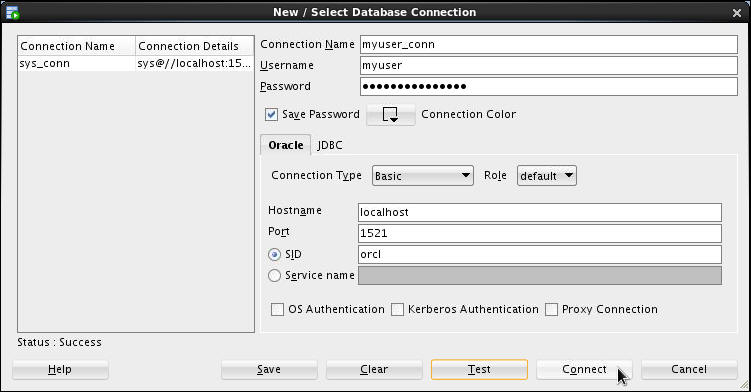
-
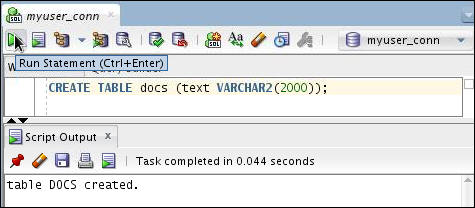
Open a SQL Worksheet and enter the following code to create a table called DOCS with one column called TEXT which is VARCHAR2. Click the Run Statement icon to run the query.
CREATE TABLE docs (text VARCHAR2(2000));
-
Enter the SQL INSERT statement to load text to the DOCS table.
INSERT INTO docs VALUES('<HTML>California is a state in the US.</HTML>');
INSERT INTO docs VALUES('<HTML>Paris is a city in France.</HTML>');
INSERT INTO docs VALUES('<HTML>France is in Europe.</HTML>');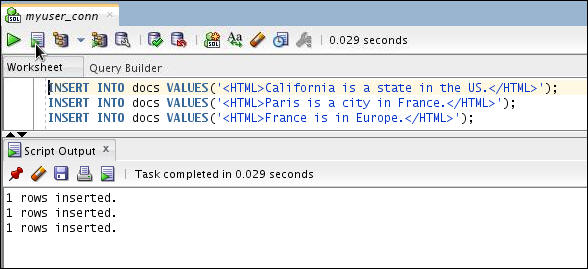
-
Run the SELECT statement with CONTAINS.This retrieves the text that satisfy the query. The following query looks for all documents that contain the word France.
SELECT SCORE(1), text FROM docs WHERE CONTAINS(text, 'France', 1) > 0;
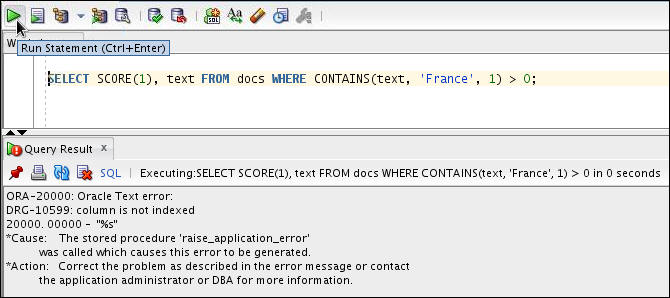
Note: We got an error message "column is not indexed". This is expected. A CONTAINS query only works when there is an index present. Most other Oracle queries will work whether or not an index is present - the index just improves performance.
But Oracle Text queries are impossible without an index. -
Enter the following SQL code to create a CONTEXT index on the text column to index the HTML files. Because you are indexing HTML, this example uses the NULL_FILTER preference type for no filtering and the HTML_SECTION_GROUP type.
CREATE INDEX idx_docs ON docs(text)
INDEXTYPE IS CTXSYS.CONTEXT PARAMETERS
('FILTER CTXSYS.NULL_FILTER SECTION GROUP CTXSYS.HTML_SECTION_GROUP');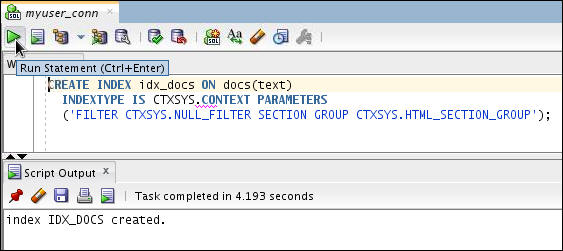
Note: In this code, NULL_FILTER is used because you do not need to filter HTML documents during indexing. However, if you index PDF, Microsoft Word, or other formatted documents, then use the CTXSYS.AUTO_FILTER (the default for all binary datatypes and external files) as your FILTER preference.
This example also uses the HTML_SECTION_GROUP section group, which is recommended for indexing HTML documents. Using HTML_SECTION_GROUP enables you to search within specific HTML tags and eliminates from the index unwanted markup such as font information. -
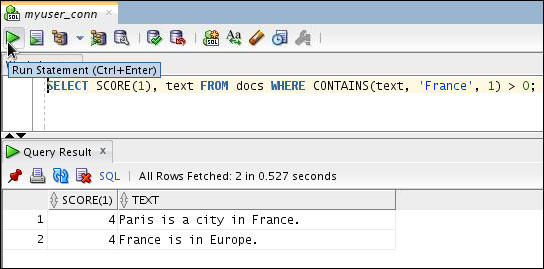
Run the SELECT statement with CONTAINS.This retrieves the text that satisfy the query. The following query looks for all documents that contain the word France.
SELECT SCORE(1), text FROM docs WHERE CONTAINS(text, 'France', 1) > 0;
Summary
In this tutorial, you learned to:
- Create a user with the CTXAPP role.
- Build simple text query.
- Learned to load basic SQL statements for each type of application, index, and query tables.
Resources
To learn more about Oracle Text refer to:
- Oracle Text Homepage on OTN
- Oracle Text Discussion Forums on OTN
- Oracle Text Application Developers' Guide
Credits
Put credits here
- Lead Curriculum Developer: Dimpi Sarmah
- Other Contributors: Roger Ford
To navigate this Oracle by Example tutorial, note the following:
- Topic List:
- Click a topic to navigate to that section.
- Expand All Topics:
- Click the button to show or hide the details for the sections. By default, all topics are collapsed.
- Hide All Images:
- Click the button to show or hide the screenshots. By default, all images are displayed.
- Print:
- Click the button to print the content. The content that is currently displayed or hidden is printed.
To navigate to a particular section in this tutorial, select the topic from the list.