Text Mining with an EM Clustering Model
Overview
- Combines text, demographic, and customer profile data
- Uses a Clustering model against the source data
- Specifies the EM algorithm, and enables text mining options within the clustering model
- Generates predictive results from the text data
- Have access to or have installed:
- Oracle Database 12c Enterprise Edition, Release 12.1 with Advanced Analytics Option.
- The Oracle Database sample data, including the unlocked SH schema.
- SQL Developer 4.0
- Set up Oracle Data Miner for use within Oracle SQL Developer 4.0. If you have not already set up Oracle Data Miner, complete the lesson: Setting Up Oracle Data Miner 4.0
- Completed the lesson: Using Oracle Data Miner 4.0
This tutorial covers the use of Oracle Data Miner 4.0 to leverage new text mining enhancements while applying a clustering model.
With the release of Oracle Database 12c, Oracle Data Mining includes a new clustering model algorithm named Expectation Maximization (EM). In this lesson, you learn how to use the EM algorithm in a clustering model. In addition, you will leverage text mining enhancements that are new with the release of Oracle Data Miner 4.0.
Time to Complete
Approximately 30 mins.
Introduction
In addition to the existing k-Means and O-Cluster algorithms, Oracle Data Mining now supports Expectation Maximization, a clustering algorithm that creates a density model of the data. The density model allows for an improved approach to combining data originating in different domains. For example, EM enables combination of structured data (such as sales transactions and customer demographics) with unstructured data, such as text data.
In this lesson, you will create a new workflow that performs text mining activities with the EM algorithm, in order to illustrate these enhancements.
Scenario
This lesson focuses on a text mining problem that can be solved by applying a Clustering model using the EM algorithm. In our scenario, ABC Company wants to use the data from customer feedback to predict the kind of group (or cluster) to which a customer tends to belong.
To accomplish this goal, you build a workflow that:
Software Requirements
The following is a list of software requirements:
Prerequisites
Before starting this tutorial, you should have:
Build the Data Miner Workflow
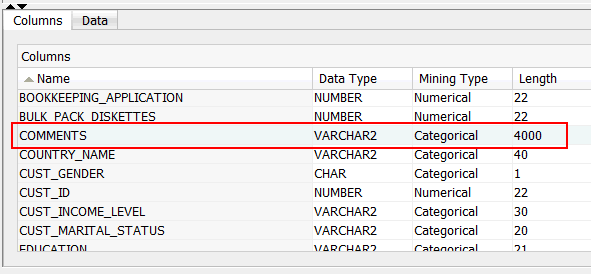
- At the bottom pane of the wizard, the Columns tab shows information about the attributes in the selected table or view, and the Data tab shows values for each attribute.
- In the Columns tab, take note of the COMMENTS attribute. It has a Data Type of VARCHAR2 and a Mining Type of Categorical, and a Length of 4000. By default, input attributes with a data type of VARCHAR2 or CHAR are assigned a mining type of Categorical.
- The node name is automatically generated.
- As stated in previous lessons, a yellow exclamation mark on the border indicates that more information needs to be specified before the node is complete.
- The COMMENTS column may now be used for text mining purposes.
- The PRINTER_SUPPLIES columns will not be used as an input attribute for the clustering model.
- Categorical cutoff value. This value, set to 200 by default, indicates the maximum length of a column before it is automatically changed from a Categorical mining type to a Text mining type.
- Default Transform Type. Values include Token and Theme.
- In addition, you can specify default settings for both Tokens and Themes in the Default Settings area, including language, stoplist, and maximum number of tokens or themes across documents. Note that tokens include a Stemming option for language, whereas Themes do not.
- You can also use the Stoplist button to create custom stoplists.
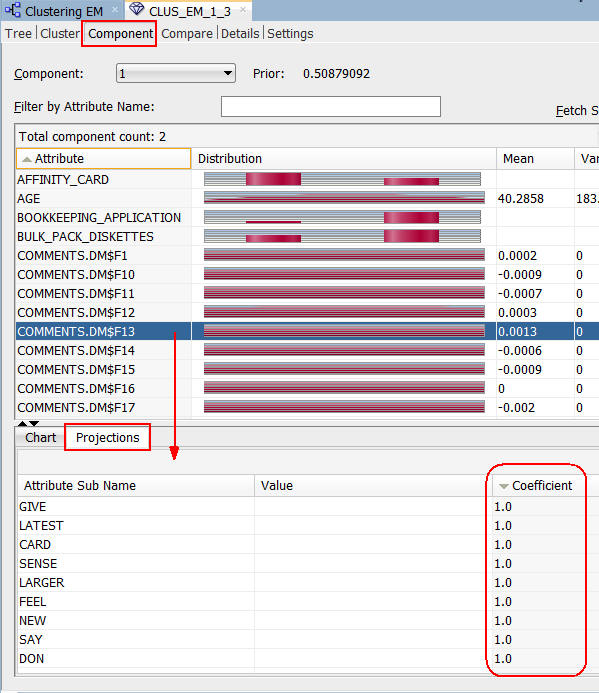
- The Component tab includes distribution plots of the ranked text mining results.
- In this tab, the bottom pane provides two tabs:
- The Chart tab provides a larger view of the selected attribute’s distribution chart.
- The Projections tab (shown in the example) provides a list of the Attribute Sub Name values that best describe the selected attribute. Here, we sorted the list in descending order by Coefficient value.
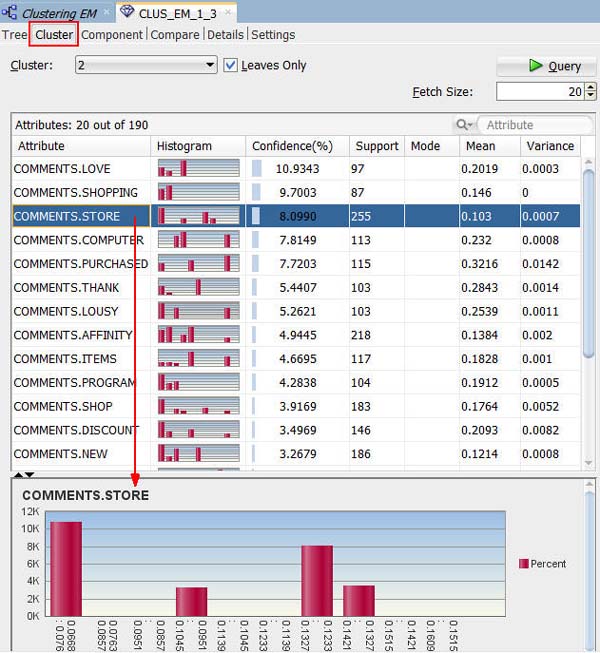
- In this example, Cluster 2 is selected. This is the same cluster that we selected in the Tree viewer.
- The Cluster tab shows a list of contributing attributes, ranked by Confidence %.
- A histogram of the selected attribute is shown in the bottom pane.
- The Compare tab shows a list of contributing attributes for the selected clusters, sorted by rank of importance.
- In this example, Clusters 2 and 3 are compared.
- A distribution histogram of the selected attribute is shown in the bottom pane.
- Add a new Data Source node to the workflow. (This node will serve as the "Apply" data.)
- Add an Apply node to the workflow.
- Connect both the clustering build node and the new data source node to the Apply node.
- Run the Apply node to create predictive results from the model.
- The Cluster ID
- The Cluster Probability
- Select CUST_ID in the Available Attributes list.
- Move it to the Selected Attributes list by using the shuttle control.
- Then, click OK.
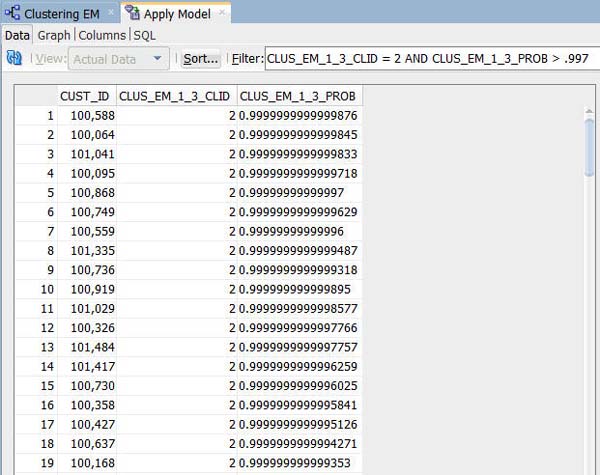
- The results should show records for those customers who are predicted to be in Cluster 2, with a probability greater than 99.7%.
- Each time you run an Apply node, Oracle Data Miner takes a different sample of the data to display. With each Apply, both the data and the order in which it is displayed may change. Therefore, the sample in your table may be different from the sample shown here. This is particularly evident when only a small pool of data is available, which is the case in the schema for this lesson.
- You can optionally add a Table node to the workflow to persist the results. The table contents can then be displayed using any Oracle application or tools, such as Oracle Application Express, Oracle BI Answers, Oracle BI Dashboards, and so on.
A Data Miner Workflow is a collection of connected nodes that describe a data mining processes. Here, you create a new workflow in the existing project that you created in the "Using Oracle Data Miner 4.0" tutorial.
To create the workflow for this process, perform the following steps.
Create a Workflow and Add a Data Source
Right-click your project (ABC Insurance) and select New Workflow from the menu.

Result: The Create Workflow window appears.
In the Create Workflow window, enter Clustering EM as the name and click OK.
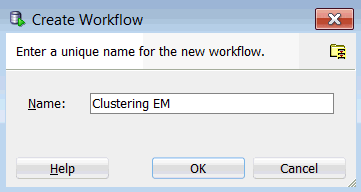
Result: In the middle of the SQL Developer window, an empty workflow canvas opens with the workflow name that you specified, and the Components tab of the Workflow Editor appears, as you have seen before.
As always, the first element of any workflow is the source data. In this case, the data source is a view that includes attributes which can be used for text mining.
A. In the Components tab, drill on the Data category. A group of six data nodes appear, as shown here:
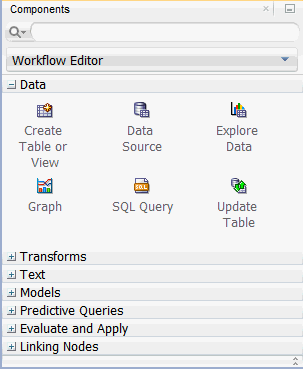
B. Drag and drop the Data Source node onto the Workflow pane.
Result: As shown here, a Data Source node appears in the Workflow pane and the Define Data Source wizard opens automatically.
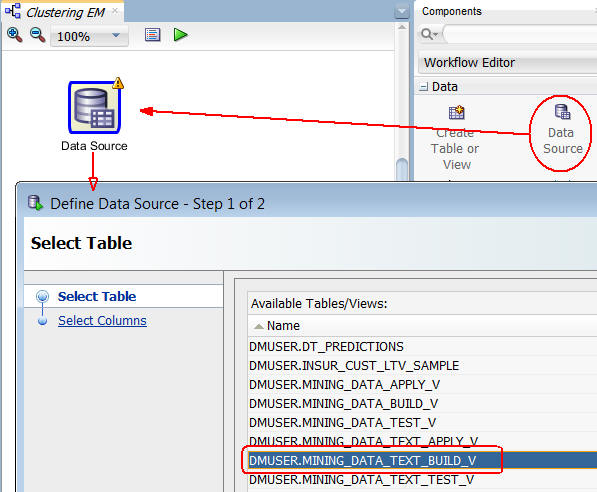
In Step 1 of the wizard as shown above, select MINING_DATA_TEXT_BUILD_V from the Available Tables/Views list.
Notes:
At the bottom of the wizard, click Finish.
Result: As shown below, the data source node name is updated with the selected view name.
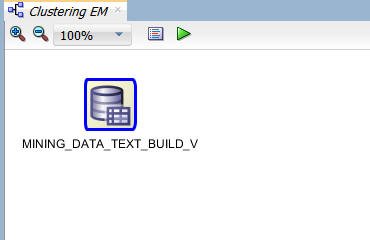
Right-click the data source node and select View Data from the menu. A tabbed window for the data source appears.
You can use the Data tab to view the contents of any column.
A. For example, select the first record in the COMMENTS column.
B. Then, click the View Details tool (sunglasses icon) to display the entire comment, as shown here:
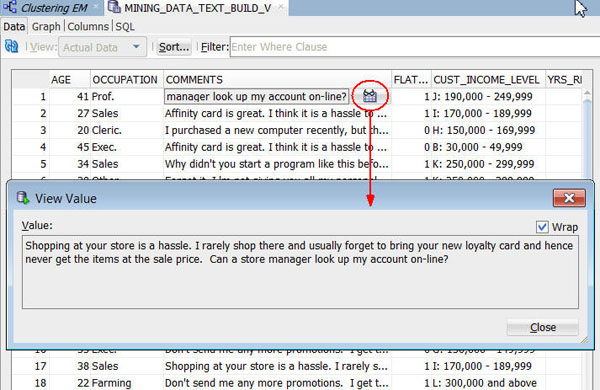
As shown above, this column contains the customer feedback that we want to use. In the next topic, you will see how to specify the appropriate mining type for this column, so it may be used for text mining purposes.
C. Close the View Value window.
Dismiss the MINING_DATA_TEXT_BUILD_V window.
Create the EM Clustering Model
As stated earlier in this tutorial, Clustering models may be used to predict the groups (clusters) that categorize specified input attributes. In this scenario, you want to predict the cluster that a customer is most likely to belong to based on customer feedback.
By default, Oracle Data Miner selects all of the supported algorithms for a selected model. Here, you modify a Clustering node to use only the Expectation Maximization algorithm for the model. Then, you will enable text mining within the model.
To create the Clustering model, follow these steps.
First, add a Clustering node to the workflow:
A. Expand the Models category in the Components tab.
B. Then, drag and drop the Clustering node from the Components tab to the Workflow pane, like this:
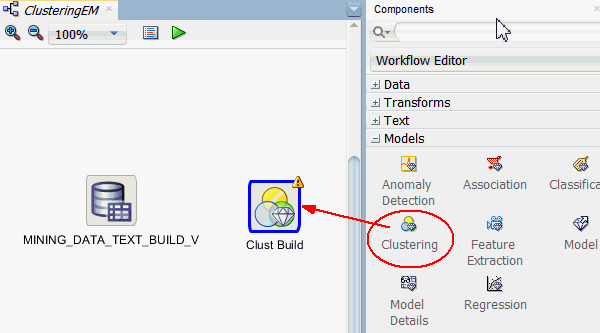
Result: A clustering build node appears in the workflow.
Notes:
Connect the data source node to the clustering build node.
A. Right-click the data source node and select Connect from the menu.
B. Then, click the clustering build node, as shown here.

Result: the yellow exclamation mark on the border disappears.
Double-click the clustering build node to display the Edit Clustering Build Node window.
The Build tab is displayed by default, showing all three of the clustering algorithms in the Model Settings list.
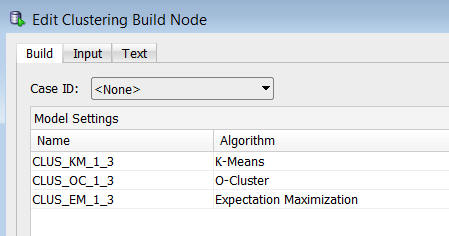
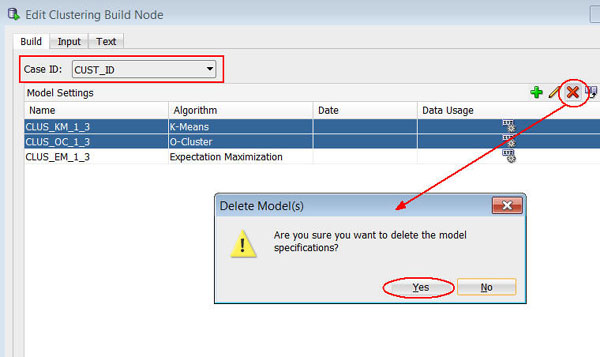
In this tab, you choose a Case ID value and remove the K-Means and O-Cluster algorithms.
A. Select CUST_ID as the Case ID value.
B. Select both the K-Means and O-Cluster algorithms as shown below.
C. Click the Delete tool (red "x"), and then click Yes in the warning dialog to remove the two algorithms from the Model Settings list.
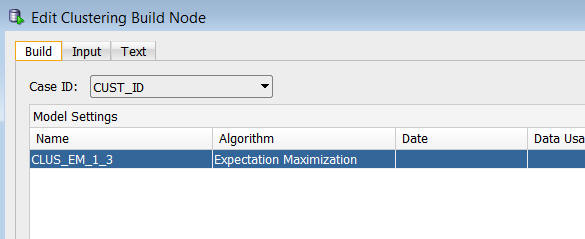
Result: the Build tab should look like this:
Next, select the Input tab.
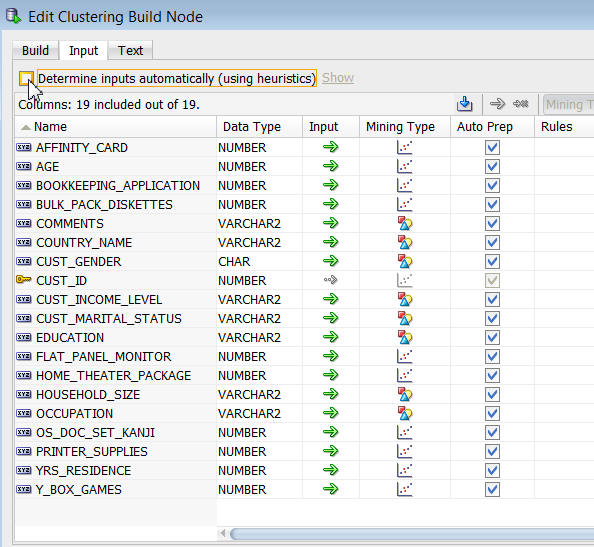
This tab shows all of source data input attributes for the clustering model. By default, the Determine inputs automatically option is enabled.

Deselect the Determine inputs automatically option.
Now, the window should look like this:
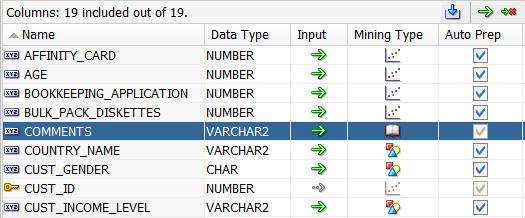
Next, you will modify settings for two of the input attributes: COMMENTS and PRINTER_SUPPLIES.
A. For the COMMENTS attribute, click the Categorical icon in the Mining Type column. Then use the pop-up menu to change the Mining Type from Categorical to Text, like this:
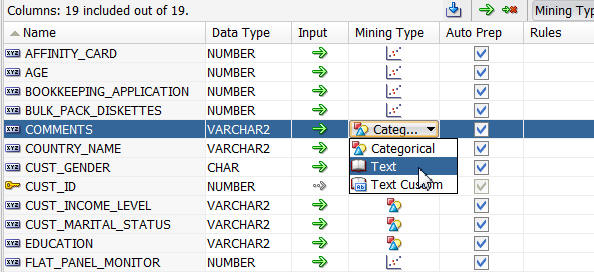
Result: The COMMENTS column is assigned a Mining Type of Text. Consequently, the Auto Prep option may not be disabled for this attribute.
B. Next, select the PRINTER_SUPPLIES attribute and click the Input icon (green arrow). Use the pop-up menu to select Ignore, like this:
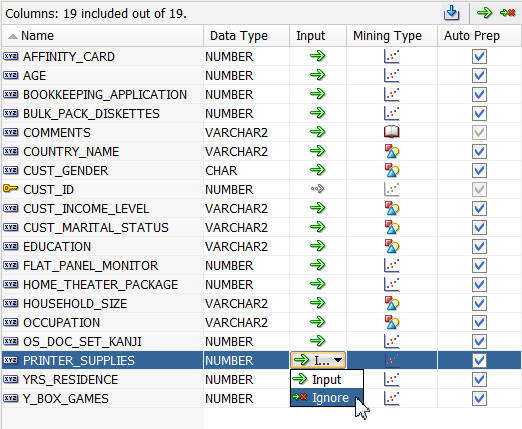
Notes:
Click the Text tab.
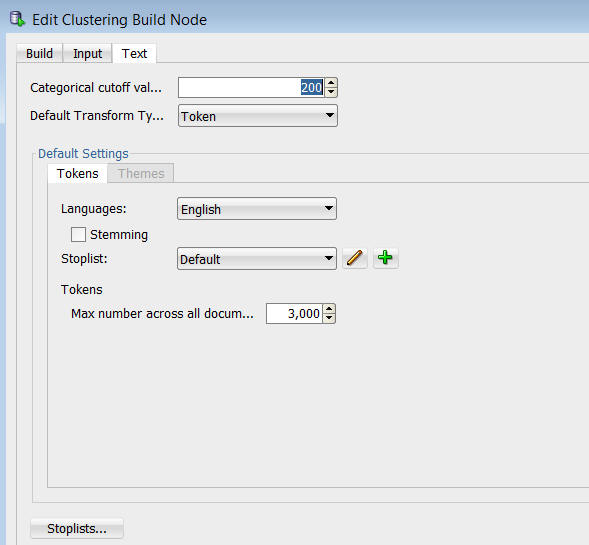
Here, you can modify a number of options that govern how text data is handled, including the following:
Finally, click OK in the Edit Clustering Build Node window to save your changes
Result: The classification build node is ready to run.

Build the Model and View Results
In this topic, you build the EM clustering model against the source data. Once the model is built, you view and evaluate the results.
Follow these steps.
Right-click the clustering build node and select Run from the pop-up menu.

Results: A green gear icon appears on the node borders to indicate a server process is running, and the status is shown at the top of the workflow window.
When the build is complete, all nodes contain a green check mark in the node border, like this:
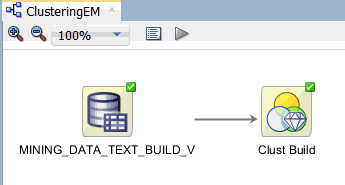
Next, right-click the clustering build node again, and select View Models > CLUS_EM_#_# (Note: The automatically generated name of your Clustering model may be different than shown here.)
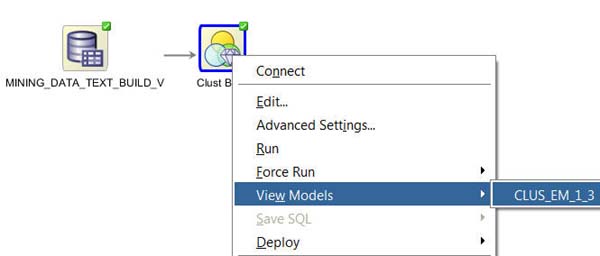
Result: A window opens that displays a graphical presentation of the model results.
The Expectation Maximization algorithm has several model viewers, organized into tabs. We will examine the first four viewers.
By default, the Tree viewer opens. It contains a graphical display of the hierarchical tree model. You can easily navigate the cluster nodes of the tree. When you select a cluster node in the tree, details of that node are displayed in the bottom pane.
In the example, we select Cluster 2, which represents the slightly larger cluster after the split.
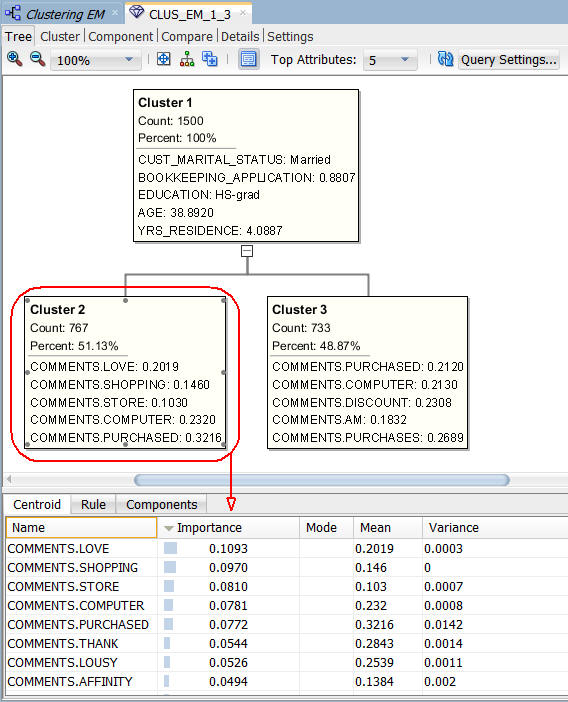
The bottom pane contains three tabs: Centroid, Rule, and Components. The Centroid tab displays a list of the attribute values that best define the selected cluster, ranked by importance.
Next, select the Component tab.
Notes:
Next, select the Cluster tab.
Notes:
Next, select the Compare tab.
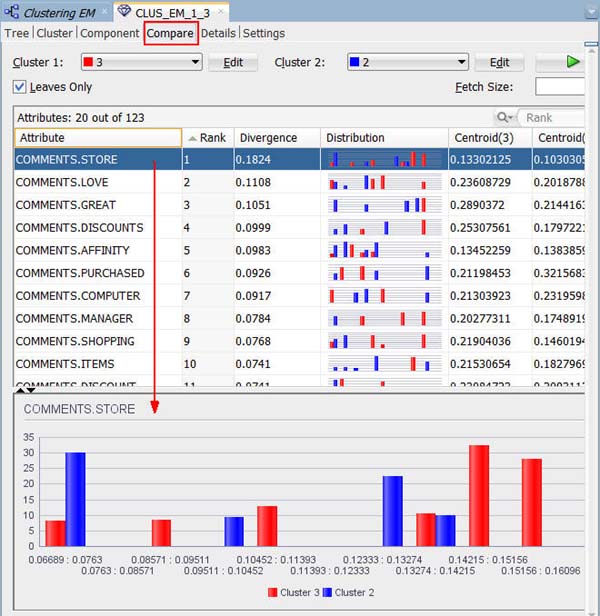
Notes:
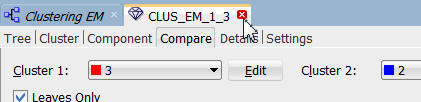
Dismiss the model viewer window as shown here:
Apply the Model
In this topic, you apply the EM clustering model in order to make predictions. To apply the model, you perform the following steps:
Follow these steps to apply the model and display the results:
First, add a new Data Source node in the workflow.
A. From the Data category in the Components tab, drag and drop a Data Source node to the workflow canvas, as shown below. The Define Data Source wizard opens automatically.

B. In the Define Data Source wizard, select the MINING_DATA_TEST_APPLY_V view, and then click FINISH.
Result: A new data souce node appears on the workflow canvas.
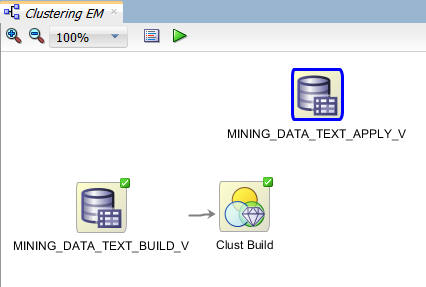
Next, expand the Evaluate and Apply category in the Components tab and drag an Apply node to the workflow canvas, like this:
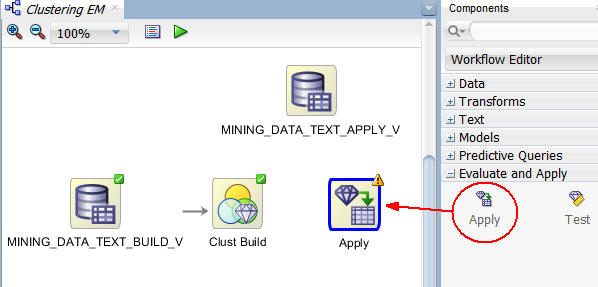
Result: An Apply node is added to the workflow with a yellow exclamation mark in its border. This, of course, indicates that more information is required before this node may be run.
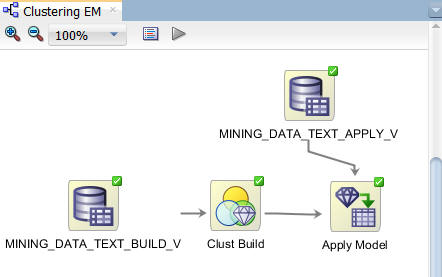
Using the techniques described previously, connect the Clust Build node to the Apply node, and then connect the MINING_DATA_TEXT_APPLY_V node to the Apply node.
Finally, rename the Apply node to Apply Model. The workflow should now look like this:
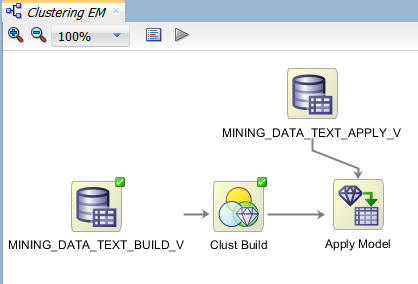
Note: The yellow exclamation mark disappears from the apply node border once both connections are complete, indicating that the node is ready to be run.
Before you run the apply model node, consider the resulting output. By default, an apply node creates two columns of information for each customer:
However, you really want to associate the predictive information with a given customer. To get this information, you need to add an additional column to the apply output: CUST_ID. Follow these instructions to add the customer id to the output:
A. Right-click the Apply Model node and select Edit.
Result: The Edit Apply Node window appears, with the two Predictions automatically defined.
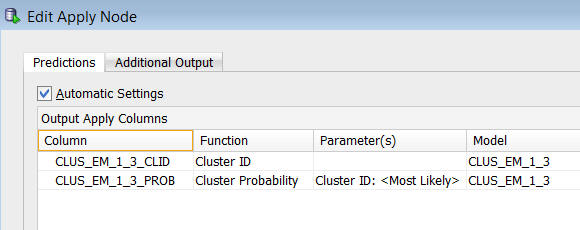
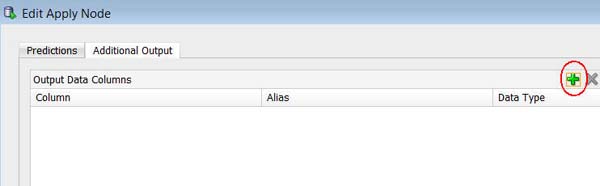
B. Select the Additional Output tab, and then click the green "+" icon, like this:
C. In the Edit Output Data Column Dialog:
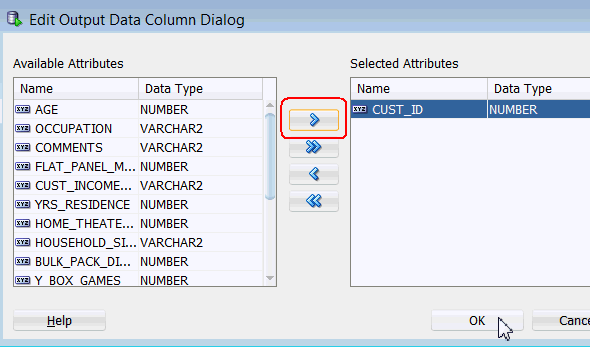
Result: the CUST_ID column is added to the Additional Output tab.

Also, notice that the default column order for output is to place the data columns first, and the prediction columns after. You can switch this order if desired.
D. Finally, click OK in the Edit Apply Node window to save your changes.
Now, you are ready to apply the model. Right-click the Apply Model node and select Run from the menu.
As before, the workflow document is automatically saved, and small green gear icons appear in each of the nodes that are being processed. In addition, the execution status is shown at the top of the workflow pane.
When the process is complete, green check mark icons are displayed in the border of all workflow nodes to indicate that the server process completed successfully.
To view the results:
A. Right-click the Apply Model node and select View Data from the Menu.
Results: A new tab opens with the output. The results include three columns: the customer ID, the cluster ID, and the cluster prediction probablility.
B. Click the Sort button, and specify a sort using the prediction probability, in descending order, as shown here:
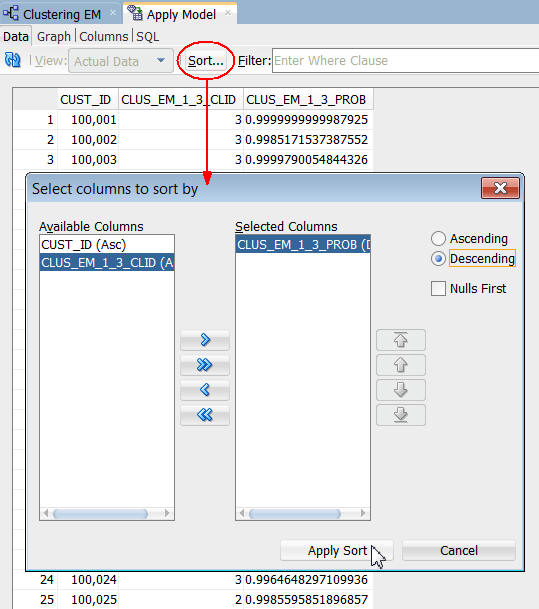
C. Click Apply Sort to view the results.
D. In addition, you can enter a Where Clause in the Filter box to narrow the output results. Enter the following Where clause:
CLUS_EM_1_3_CLID = 2 and CLUS_EM_1_3_PROB > .997
Note: Your column names may be different from those in this example. Make sure to enter the correct column names.
E. Then, press Enter.
Notes:
F. When you are done viewing the results, dismiss the Apply Model window, and click Save All.
Summary
- Combine text, demographic, and customer profile data
- Use a Clustering model against the source data
- Specify the EM algorithm that enables text mining options within the clustering model
- Generate predictive results from the model
- See the Oracle Data Mining and Oracle Advanced Analytics pages on OTN.
- Refer to additional OBEs in the Oracle Learning Library
- See the Data Mining Concepts manuals:
In this tutorial, you performed a text mining exercise using a Clustering model with the Expectation Maximization algorithm. You have learned how to:
Resources
To learn more about Oracle Data Mining:
Credits
Lead Curriculum Developer: Brian Pottle
Other Contributors: Charlie Berger, Mark Kelly, Margaret Taft, Kathy Talyor
To help navigate this Oracle by Example, note the following:
- Hiding Header Buttons:
- Click the Title to hide the buttons in the header. To show the buttons again, simply click the Title again.
- Topic List Button:
- A list of all the topics. Click one of the topics to navigate to that section.
- Expand/Collapse All Topics:
- To show/hide all the detail for all the sections. By default, all topics are collapsed
- Show/Hide All Images:
- To show/hide all the screenshots. By default, all images are displayed.
- Print:
- To print the content. The content currently displayed or hidden will be printed.
To navigate to a particular section in this tutorial, select the topic from the list.