This tutorial describes to use SQL Tuning Advisor to tune ad-hoc SQL statements in Visual Studio. It also describes to use Oracle Performance Analyzer to tune applications using Oracle Database.
Note:Oracle Performance Analyzer is best used with an Oracle Database that has very little activity from other users. Depending on the configuration of your database as well as other activity from other users you may obtain additional findings or different findings from what is shown here.
Time to Complete
Approximately 90 minutes
Note:60 of these minutes are simply waiting for performance analysis to complete. During that wait you can work on another lesson.
Background
SQL Tuning Advisor and Oracle Performance Analyzer are features of Oracle Developer Tools for Visual Studio. SQL Tuning Advisor provides recommendations to improve performance of SQL statements typed into the Oracle Query Window. Oracle Performance Analyzer examines the use of the database over time by a running .NET application and gives recommendations based on the actual workload on the database.
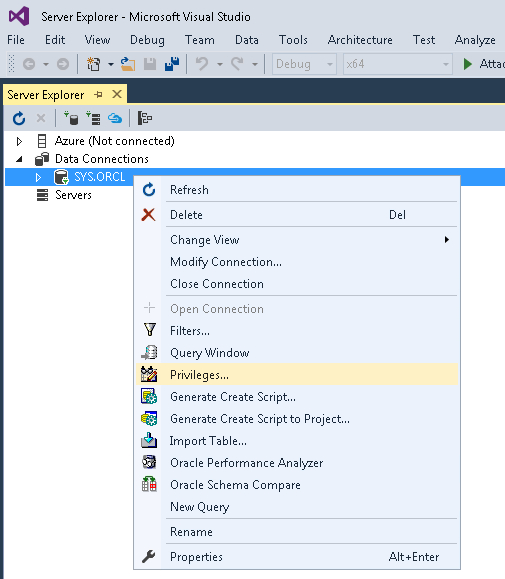
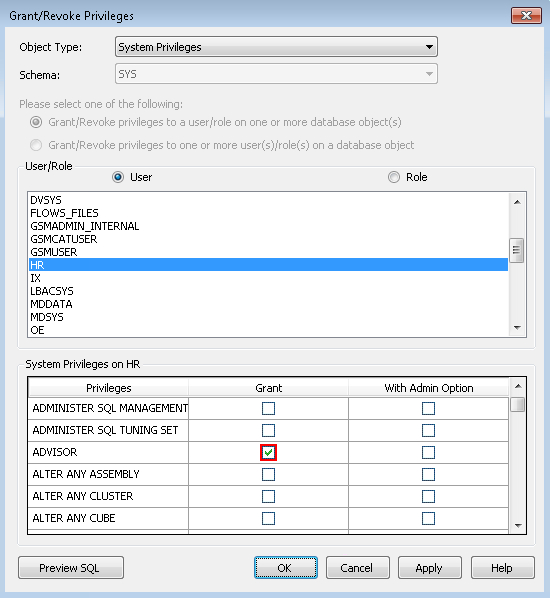
SQL Tuning Advisor requires that the user have the ADVISOR privilege as well as an Oracle Database license for the Oracle Tuning Pack and Oracle Diagnostic Pack.
Oracle Performance Analyzer requires that the user have SYSDBA privileges as well as an Oracle Database license for the Oracle Diagnostic Pack.
What Do You Need?
Microsoft Visual Studio 2015 or later with .NET Framework 4.5 or later.
Oracle Database 11g Release 2 or later.
Oracle 12c Oracle Data Access Components (ODAC) with Oracle Developer Tools for Visual Studio version 12.1.0.2.4 or later.
Setting up environment
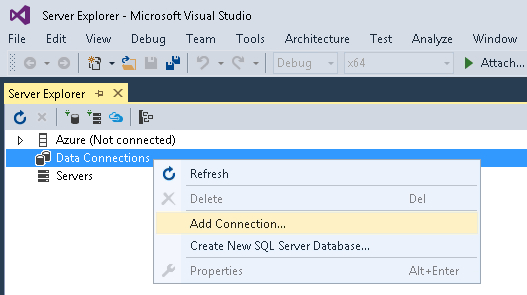
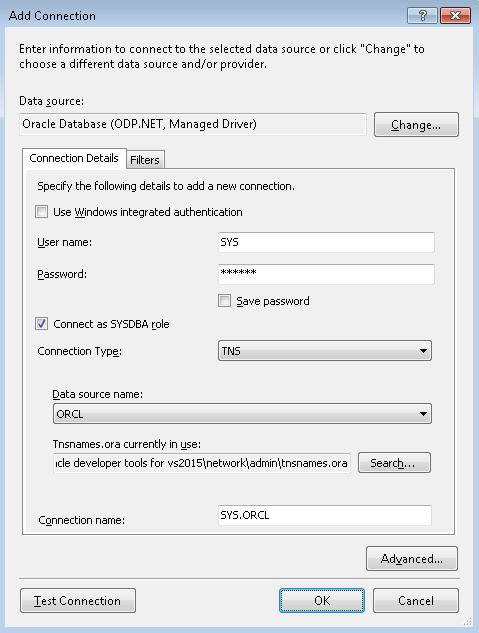
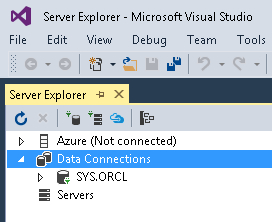
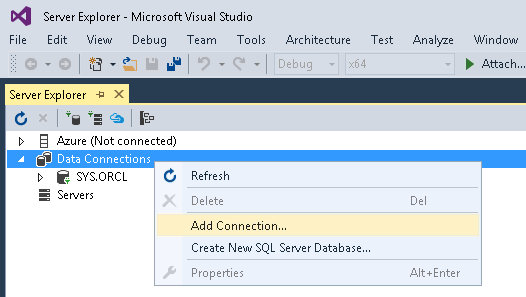
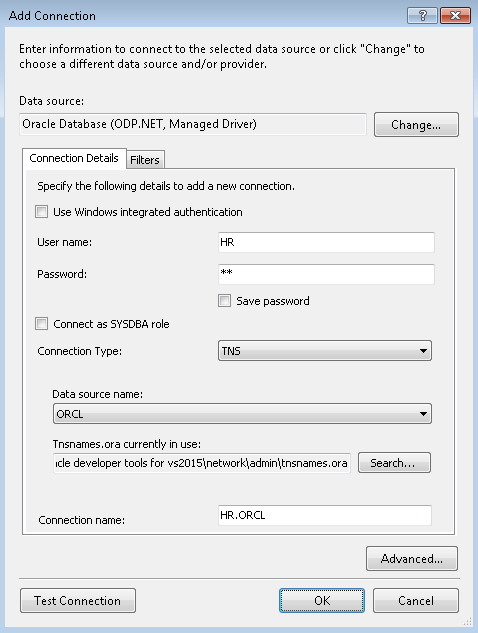
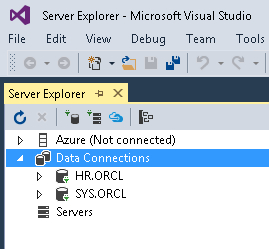
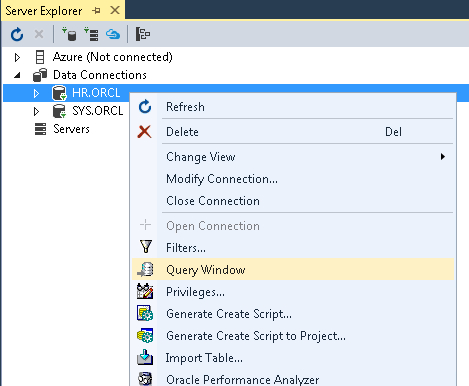
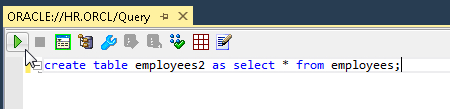
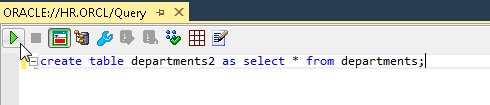
Perform the following steps to create Oracle database connections.
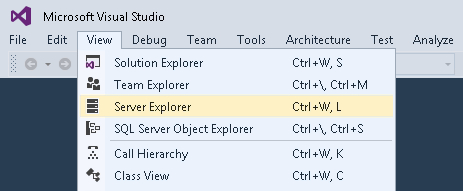
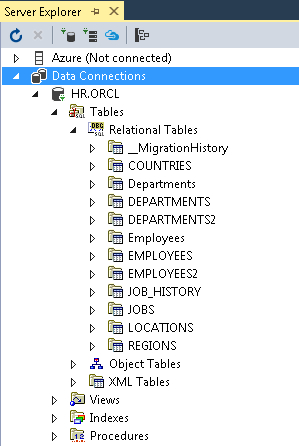
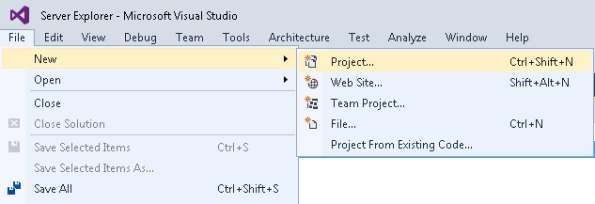
Open the Visual Studio. From the View menu, select Server Explorer.
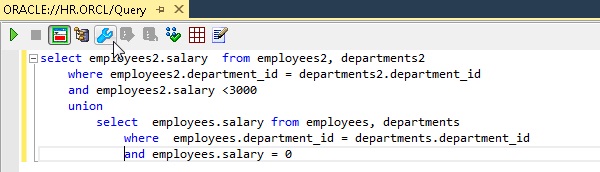
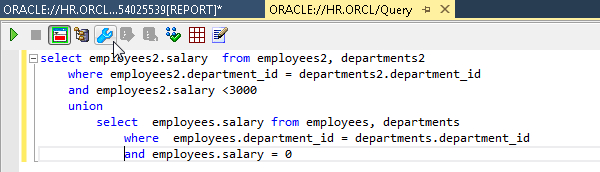
Write the following query in the Query Window and click Tune. This will tune some SQL against the EMPLOYEES2 and DEPARTMENTS2 tables.
select employees2.salary  from employees2, departments2
    where employees2.department_id = departments2.department_id
    and employees2.salary <3000
    union
        select  employees.salary from employees, departments
            where  employees.department_id = departments.department_id
            and employees.salary = 0
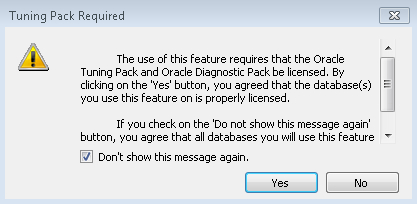
You will receive a dialog box asking if you have a license for the Tuning and Diagnostic Pack. Select the 'Don't show this message' again check box and click Yes.
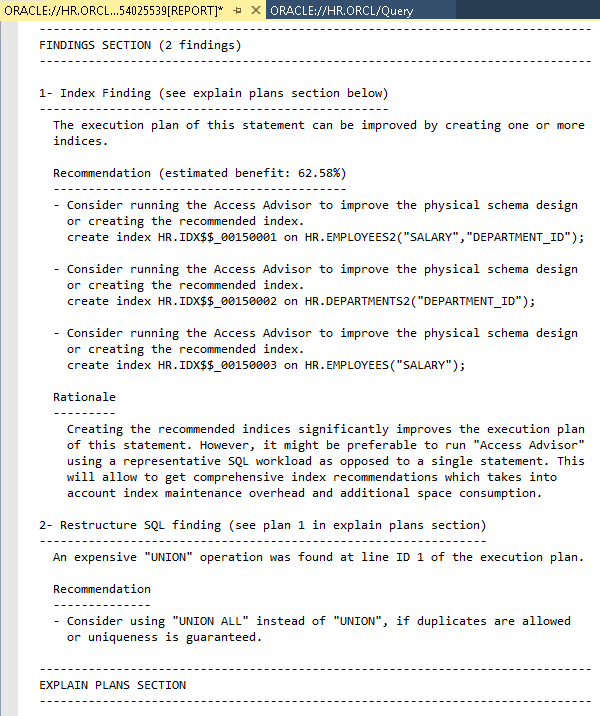
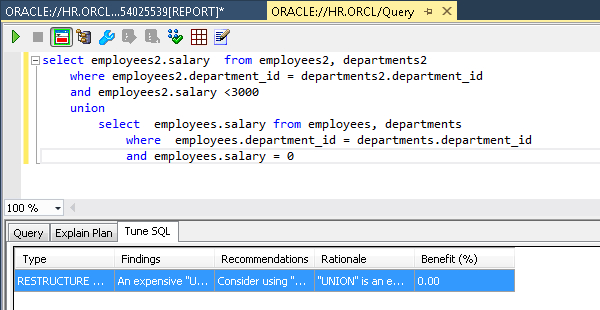
Write the same query that you wrote in step 5 again in the Query Window and click Tune.
select employees2.salary  from employees2, departments2
    where employees2.department_id = departments2.department_id
    and employees2.salary <3000
    union
        select  employees.salary from employees, departments
            where  employees.department_id = departments.department_id
            and employees.salary = 0
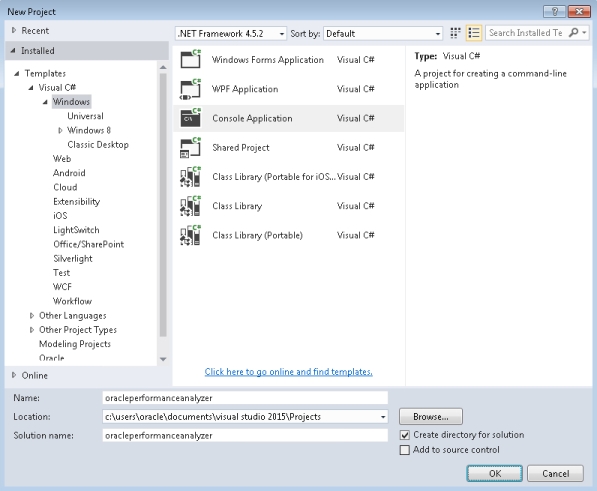
The New Project window opens up. In the left side pane, expand Installed, and then expand Templates, and then expand Visual C#, and then expand Windows. In the center pane, select Console Application. Enter oracleperformanceanalyzer as the name of the project, and then click OK.
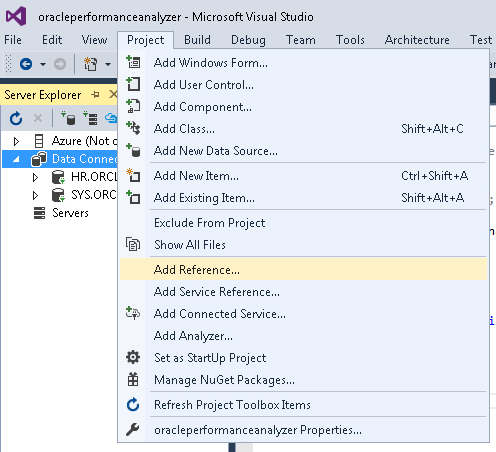
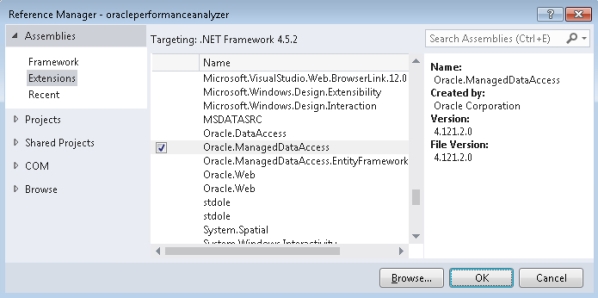
The Reference Manager window opens up. In the left side pane, expand Assemblies, and then expand Extensions. In the center pane, scroll down the list of assemblies and select Oracle.ManagedDataAccess and then click OK.
Description of this imageNote: Depending on your configuration, it may be necessary to click Browse and navigate to where Oracle.ManagedDataAccess.dll is located.
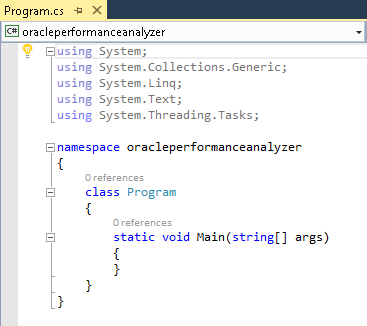
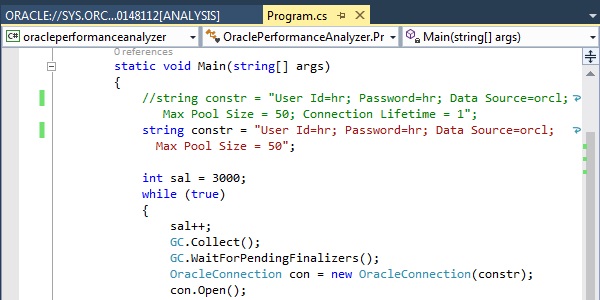
Open the Program.cs file. Enter the following code in Program.cs file and Save.
using System;
using System.Collections.Generic;
using System.Linq;
using System.Text;
using Oracle.ManagedDataAccess.Client;
using Oracle.ManagedDataAccess.Types;

namespace OraclePerformanceAnalyzer
{
    class Program
    {
        static void Main(string[] args)
        {
            string constr = "User Id=hr; Password=hr; Data Source=orcl; Max Pool Size = 50; Connection Lifetime = 1";
            //string constr = "User Id=hr; Password=hr; Data Source=orcl; Max Pool Size = 50";

            int sal = 3000;
            while (true)
            {
                sal++;
                GC.Collect();
                GC.WaitForPendingFinalizers();
                OracleConnection con = new OracleConnection(constr);
                con.Open();

                StringBuilder sbSQL = new StringBuilder();
                sbSQL.Append("select employees2.salary  from employees2, departments2 where employees2.department_id =  departments2.department_id and employees2.salary <3000 union select  employees.salary from employees, departments where  employees.department_id = departments.department_id  and employees.salary = ");
                sbSQL.Append(sal);
                //sbSQL.Append(":salary");

                OracleCommand cmd = new OracleCommand();
                cmd.Connection = con;
                cmd.CommandText = sbSQL.ToString();
               // OracleParameter p_salary = new OracleParameter();
                //p_salary.OracleDbType = OracleDbType.Decimal;
                //p_salary.Value = sal;

                //cmd.Parameters.Add(p_salary);

                OracleDataReader dr = cmd.ExecuteReader();

                dr.FetchSize = 10;
                while (dr.Read())
                {
                }
                dr.Close();
            }
        }
    }
}
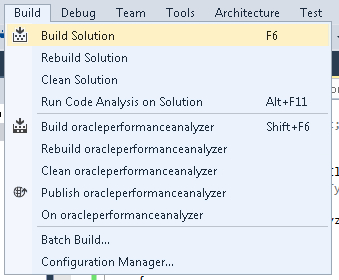
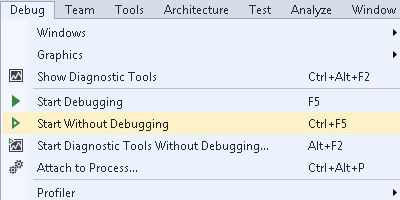
From the Debug menu, select Start Without Debugging.
Description of this imageNote: This runs the application in a tight loop to make it easier to obtain the minimum required 'database time' for a successful analysis ('Database time' is the time that the database spends servicing the application).
An empty command window appears (the application does not output to the window). If you receive an error, fix the error and run the application again. Leave this window open and switch back to Visual Studio.
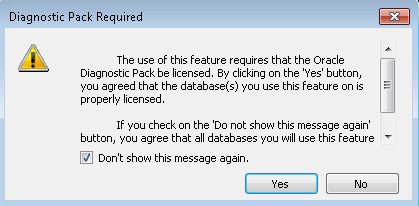
In the Diagnostic Pack Required dialog box opens. Click Yes.
Description of this imageNote: If you are using a multitenant container database, you must run Oracle Performance Analyzer only on the container database. If you run it on a pluggable database connection, it will throw an error similar to ORA-65040: operation not allowed from within a pluggable database.
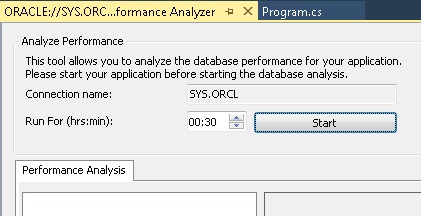
In order to get some recommendations, you need to run the Performance Analyzer for a significant period of time. Change the minutes to 30 and click Start. The timer starts. (While waiting for the timer to count down, you can work on another lesson).
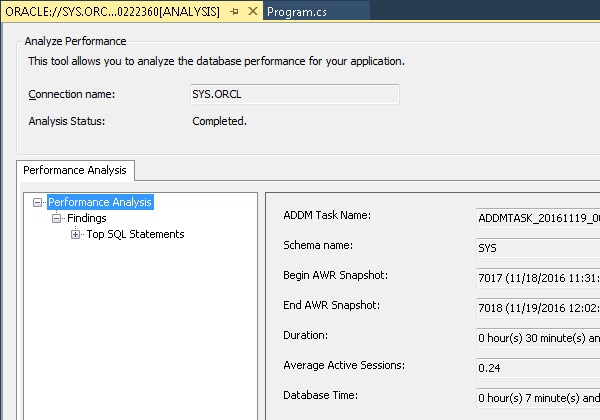
When the time is up the results are displayed. Expand Performance Analysis to view the findings. You may receive these three findings (you may see additional findings depending on your database configuration and workload):
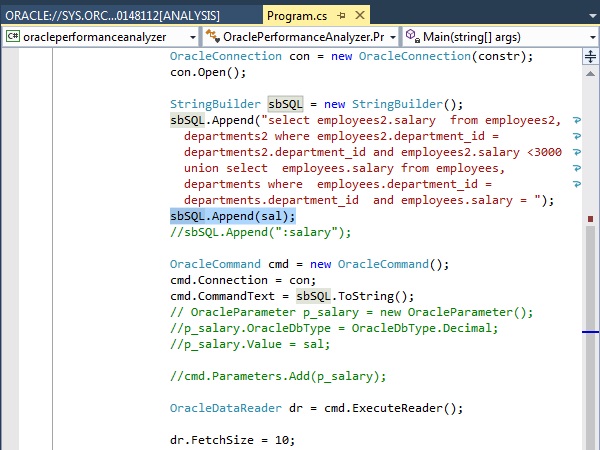
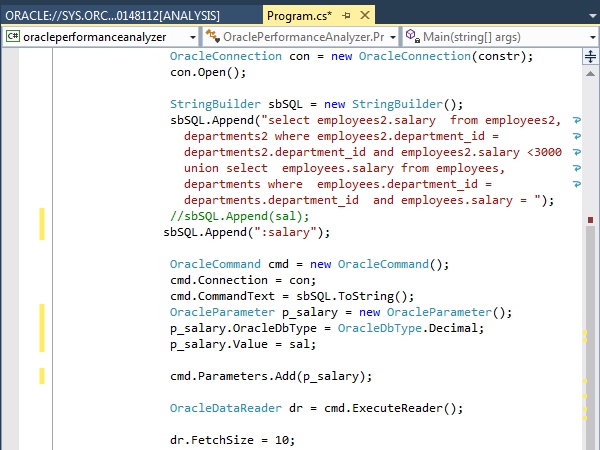
Finding #1 Hard Parse Due to Literal Usage: Investigate application logic for possible use of bind variables instead of literals. The code highlighted in the screen shot is appending a literal value to the end of the WHERE clause causing Oracle Database to have to do a hard parse for every statement. The best practice is to use a bind variable.
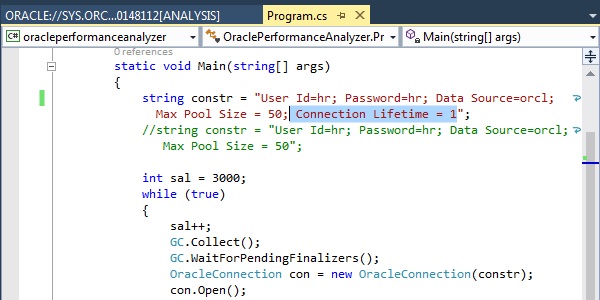
Finding #2 Session Connect and Disconnect: Investigate application logic for possible reduction of connect and disconnect calls. For example, you might use a connection pool scheme in the middle tier. The code highlighted in the screen shot forces the connection pool to destroy and recreate connections every second, effectively eliminating the benefit of a connection pool.
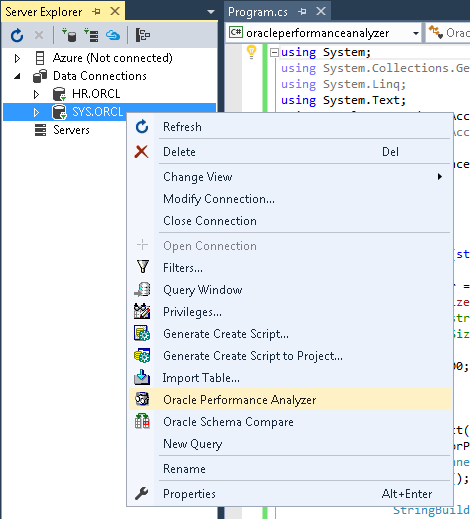
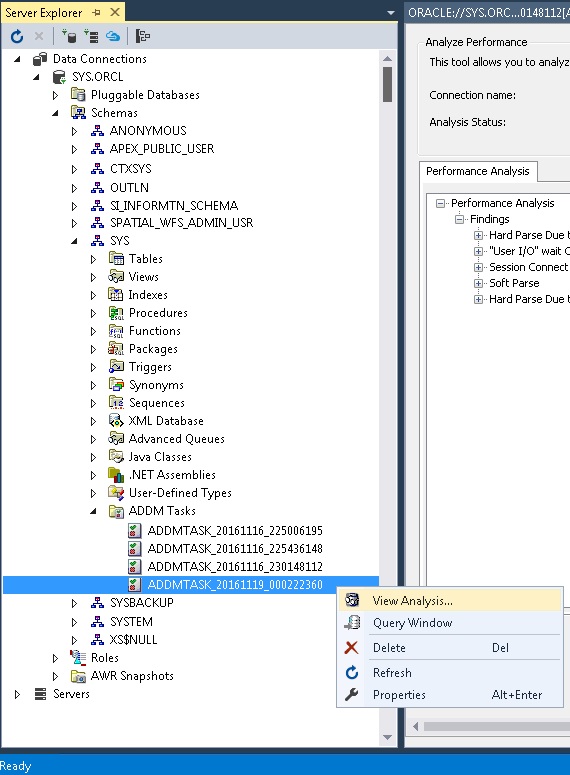
The Performance Analyzer results are stored in the database as ADDM Tasks. From the Server Explorer window, expand SYS.ORCL, and then expand Schemas,and then expand SYS, and then expand ADDM Tasks. Select the ADDM task that was most recently created (at the bottom of the list). You can view the analysis you were just viewing by right-clicking the ADDM Task and select View Analysis.