Building .NET Applications Using Oracle Developer Tools for Visual Studio
Purpose
This tutorial describes how to build .NET applications using Oracle Developer Tools for Visual Studio.
Time to Complete
Approximately 30 minutes
Overview
The new Oracle Developer Tools for Visual Studio is a tightly integrated "Add-in" for Visual Studio that brings the power of the Oracle Database to .NET developers! Designed to be completely intuitive for database developers, your productivity will increase starting on day one. And if you are new to Oracle development, this is an easy way to learn!
Use the Server Explorer to browse your Oracle schema, launch one of the many powerful designers and wizards to create and alter schema objects, and drag and drop schema objects onto your form to automatically generate code.
There's also a PL/SQL editor, Adhoc SQL Query Window, and integrated context sensitive online help, including the Oracle SQL and PL/SQL Users Guides. And with the Oracle Data Window you won't have to leave the Visual Studio environment for routine database tasks like inserting and updating Oracle data or testing stored procedures!
This and many other features greatly improve developer productivity and make developing for Oracle on Windows easy to learn!
Prerequisites
Before starting this tutorial, you should:
|
. |
Install Microsoft Visual Studio 2010 |
|---|---|
|
. |
Install Oracle Database 9.2 or later or Oracle Database XE |
|
. |
Install Oracle 11g Oracle Data Access Components (ODAC) with Oracle Developer Tools for Visual Studio version 11.2.0.1.2 or later from OTN |
Creating an Oracle Connection
Before you begin creating your application, you open Visual Studio and examine the interface. Perform the following steps:
|
. |
From your Windows Program menu, start Visual Studio.
|
|---|---|
|
. |
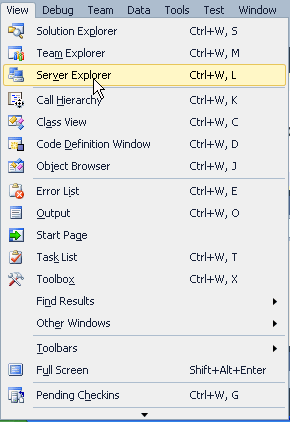
Select View > Server Explorer.
|
|
. |
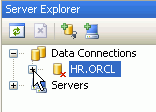
The Server Explorer panel opens. If you already have an HR.ORCL connection, you can expand it to connect to the database.
Then enter HR for the password and click OK.
Otherwise, right-click Data Connections and select Add Connection...
|
|
. |
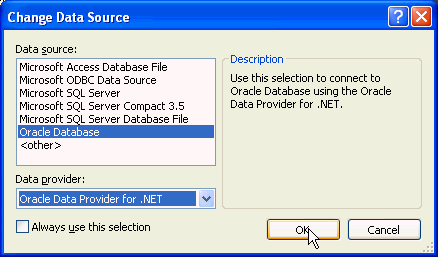
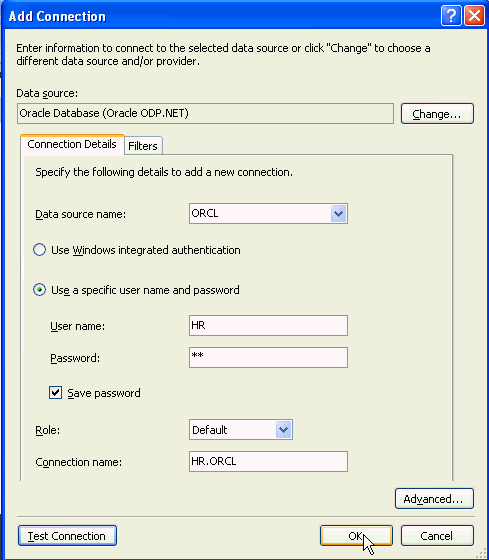
The Add Connection dialog box opens. If Data Source is not already set to Oracle Database Server (Oracle ODP.NET), click Change.
In the Change Data Source dialog box, select Oracle Database as the Data Source and Oracle Data Provider for .NET as the Data Provider. Click OK.
|
| . |
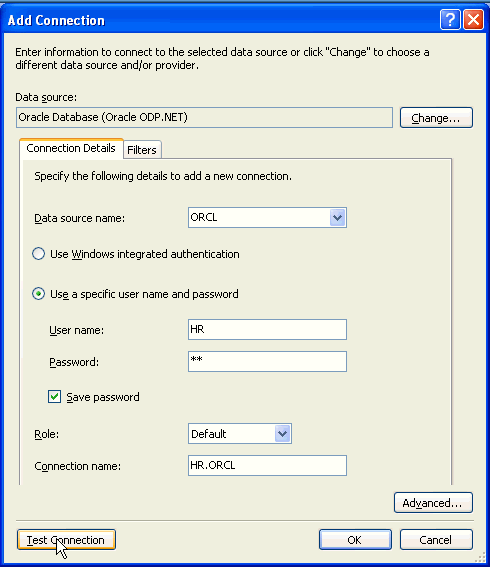
Enter your Data source name. This is the SID of the Oracle instance you want to use. Enter hr for the User name and Password, and click Test connection.
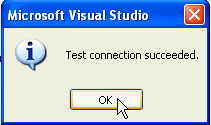
Test connection was successful. Click OK.
|
| . |
Click OK
|
|
. |
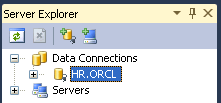
The HR.ORCL connection has been created and added under Data Connections in the Server Explorer panel.
|


Creating a Table
Now you create a new table called DEPENDENTS which has a foreign key with the EMPLOYEES table.
Create the Columns
To create the columns in the table, perform the following:
|
. |
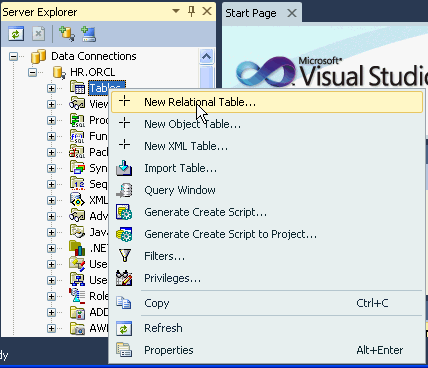
Expand HR.ORCL. Right-click Tables and select New Relational Table...
|
|---|---|
|
. |
Enter DEPENDENTS for Table name. By default, the Column Properties are already available.
|
|
. |
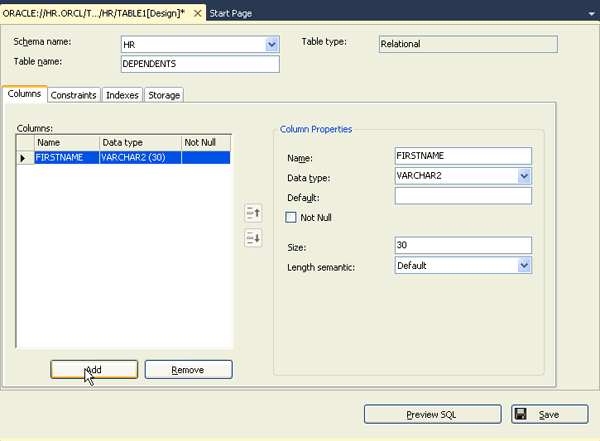
Change the Column Properties by entering FIRSTNAME for the Name, select VARCHAR2 for the Data type and enter 30 for the Size. Uncheck the Not Null check box. Then click Add.
|
|
. |
Enter LASTNAME for the Name, select VARCHAR2 for the Data type and enter 30 for the Size. Uncheck the Not Null check box. Then click Add.
|
| . |
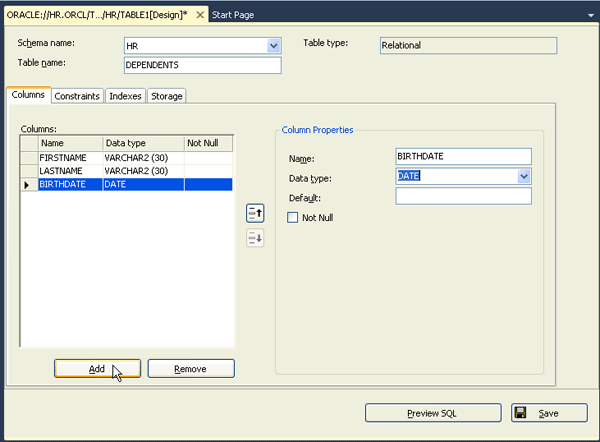
Enter BIRTHDATE for the Name, select DATE for the Data type. Uncheck the Not Null check box. Then click Add.
|
| . |
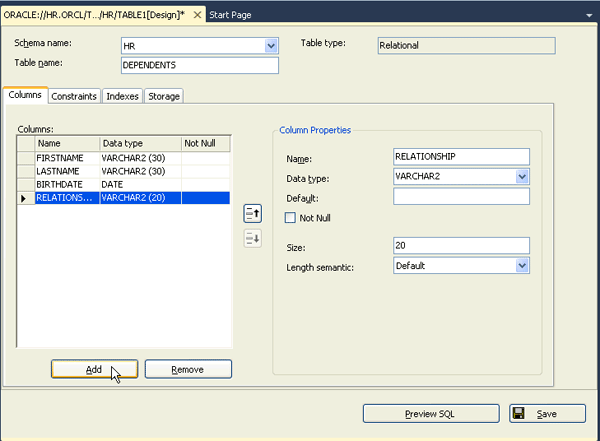
Enter RELATIONSHIP for the Name, select VARCHAR2 for the Data type and enter 20 for the Size. Uncheck the Not Null check box. Then click Add.
|
| . |
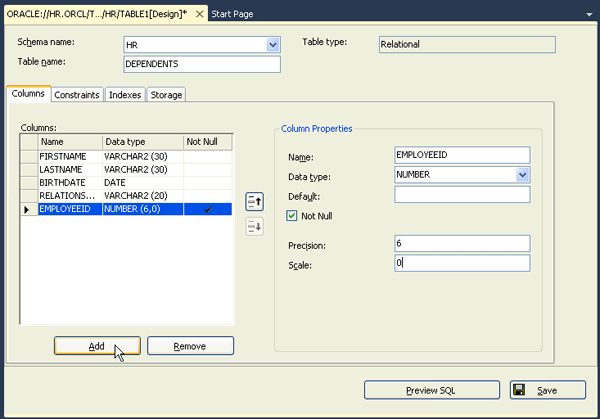
Enter EMPLOYEEID for the Name, select NUMBER for the Data type, select Not Null and enter 6 for the Precision and 0 for the Scale. Then click Add..
|
| . |
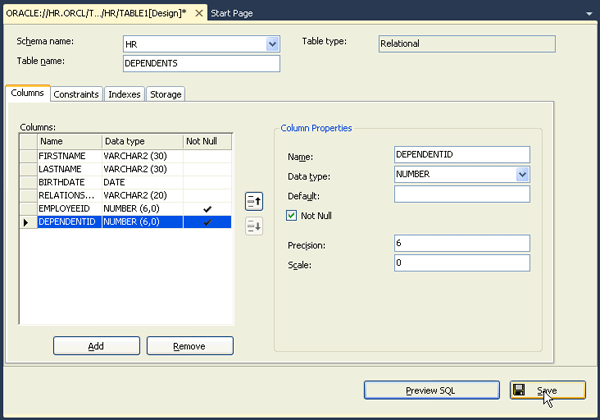
Enter DEPENDENTID for the Name, select NUMBER for the Data type, select Not Null and enter 6 for the Precision and 0 for the Scale. Then click Preview SQL.
|
| . |
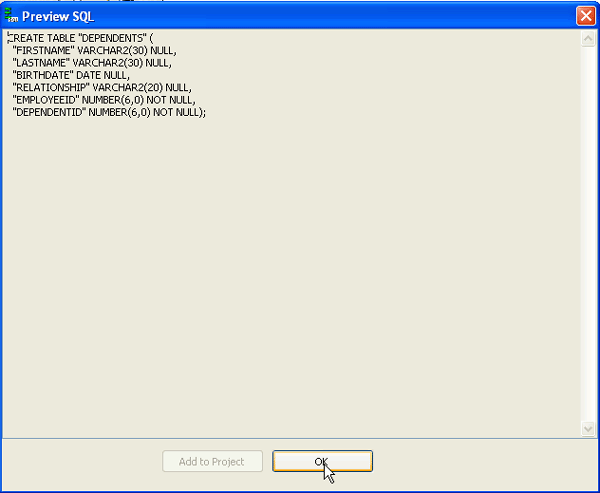
Here is the SQL that will execute when the table is created. Click OK.
|
| . |
Click Save.
|
| . |
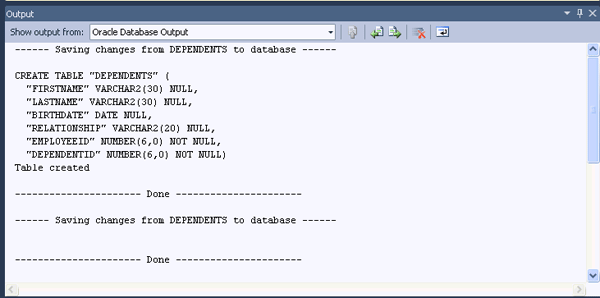
The Output window shows execution messages. The DEPENDENTS table has been created. Close the Output window.
|
| . |
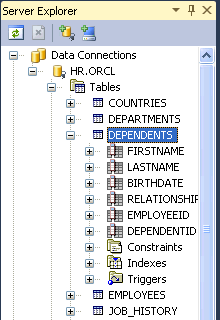
Click the + in front of DEPENDENTS table in the Server Explorer panel. You can view the columns that have been created in this topic. Now you are ready to create the index.
|



Create the Index
To create the index for the table, perform the following:
|
. |
Click the Indexes tab.
|
|---|---|
|
. |
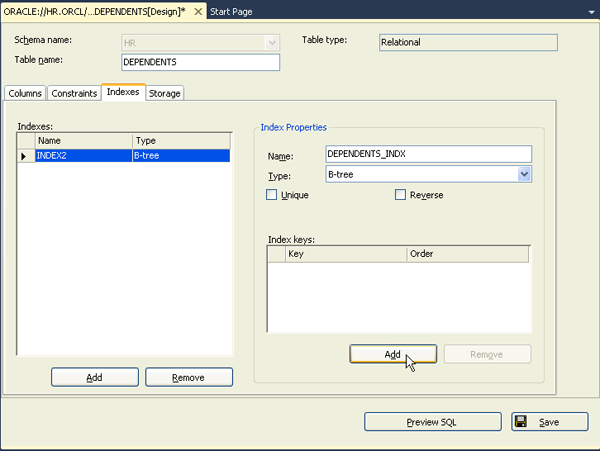
Click Add.
|
|
. |
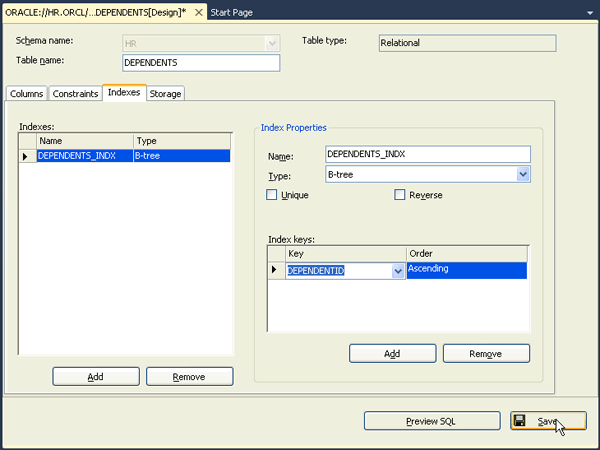
Enter DEPENDENTS_INDX for the Name and click Add in the Index Keys area.
|
|
. |
Select DEPENDENTID for the Key and then click Save.
|
|
. |
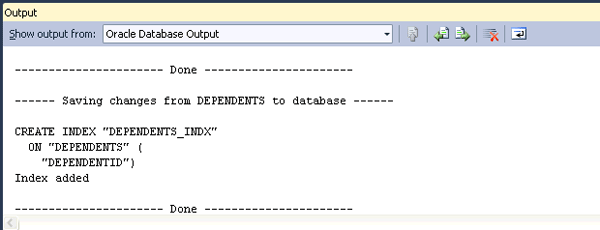
The Output window shows execution messages. The DEPENDENTS_INDX index has been created. Close the Output window.
|


Creating the Foreign Key
To create the foreign key for the table, perform the following:
|
. |
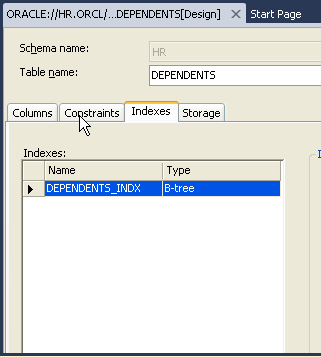
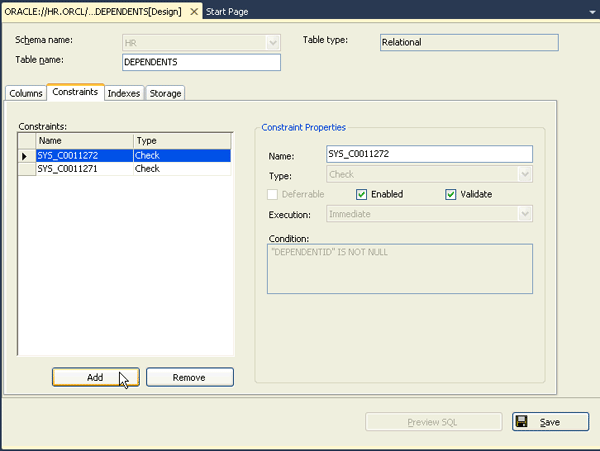
Click the Constraints tab.
|
|---|---|
|
. |
Click Add.
|
|
. |
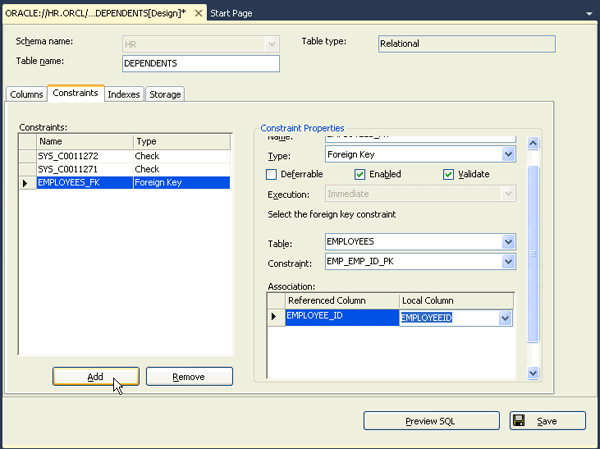
Enter EMPLOYEES_FK for the Name, select Foreign Key for the type, select EMPLOYEES for the table, and select the constraint EMP_EMP_ID_PK. Select EMPLOYEE_ID as the Referenced Column and EMPLOYEEID as the local column. Then click Add.
|
|
. |
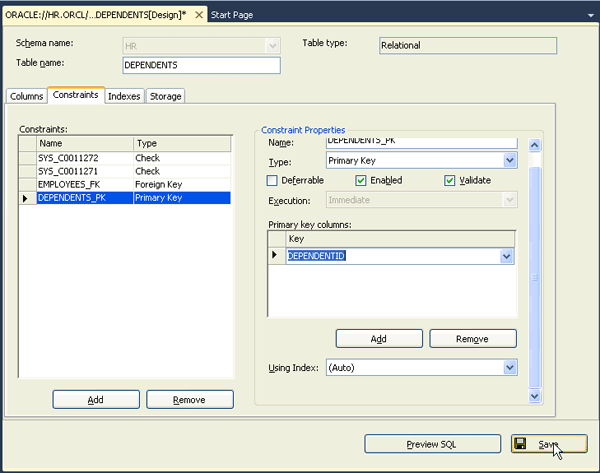
Enter DEPENDENTS_PK for the Name, select Primary Key for the type, and click Add in the Primary key columns area.
|
|
. |
Select DEPENDENTID for the primary key column. Then click Save.
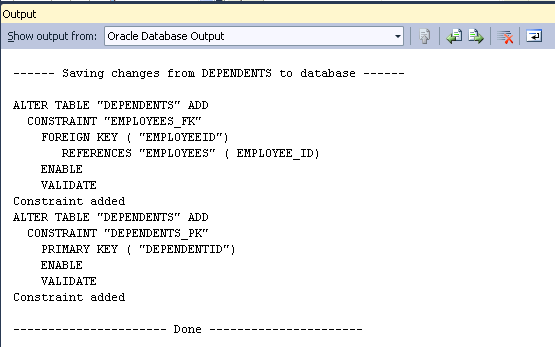
The output window shows the execution messages. Close the Output window.
|
|
. |
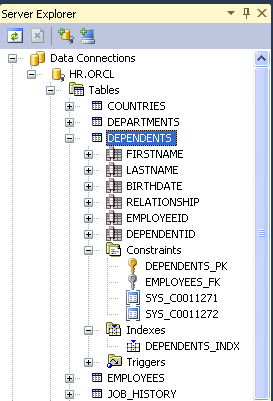
Click the + in front of Indexes and Constraints in the Server Explorer panel. You can see the table, its indexes and constraints.
|

Viewing Data in a Table
You can access the data in a table by performing the following
|
. |
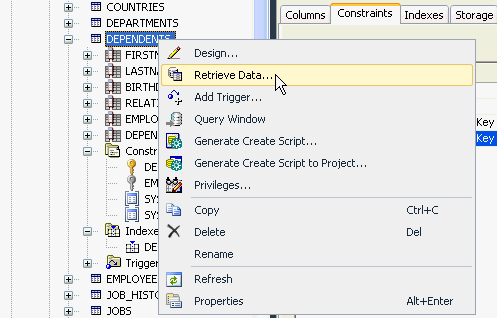
Right-click DEPENDENTS table and select Retrieve Data...
|
|---|---|
|
. |
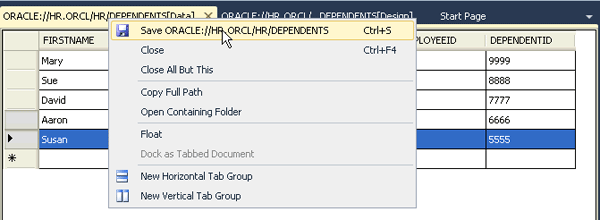
Enter at least 4 lines of data as shown in the table below. Make sure you enter a valid Employee ID. When done, right-click the current tab and click Save.
|
Generating Code Automatically
In this topic, you will create a Visual C# Windows Application; create a new Data Source; designing the Form; and run the Application.
Create a Visual C# Windows Application
To create a Visual C# Windows application, perform the following:
|
. |
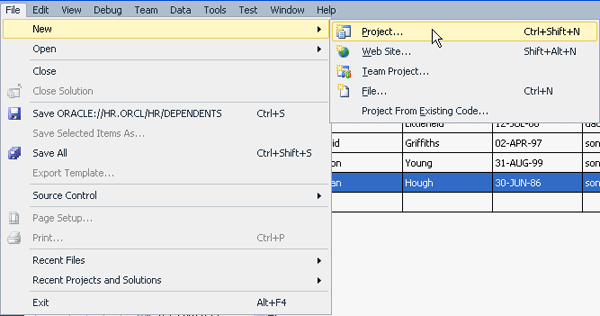
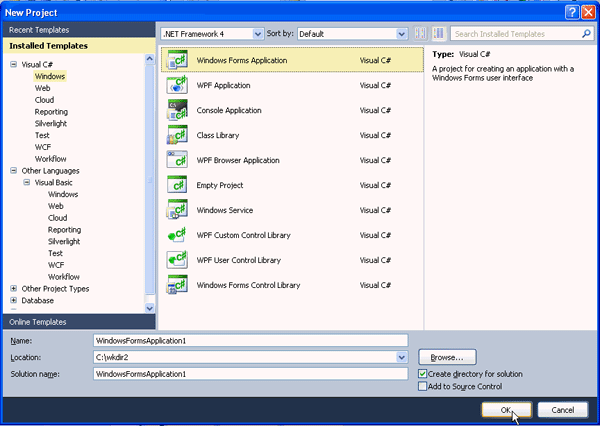
Assuming you did not exit Visual Studio, from File menu, select New > Project.
|
|---|---|
|
. |
From the Project types list, select Visual C#: Windows. Select the Template Windows Forms Application. You can enter an appropriate name for the application in the Name field. Optionally, in the Location field, enter the directory where you want to save the files. (Note: if the directory does not exist, it is created). For now, accept the default name and click OK.
|
|
. |
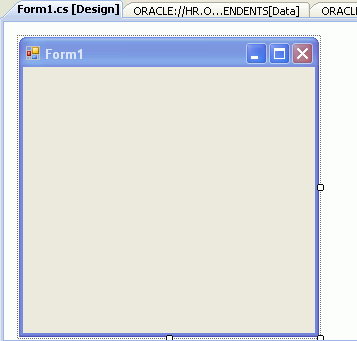
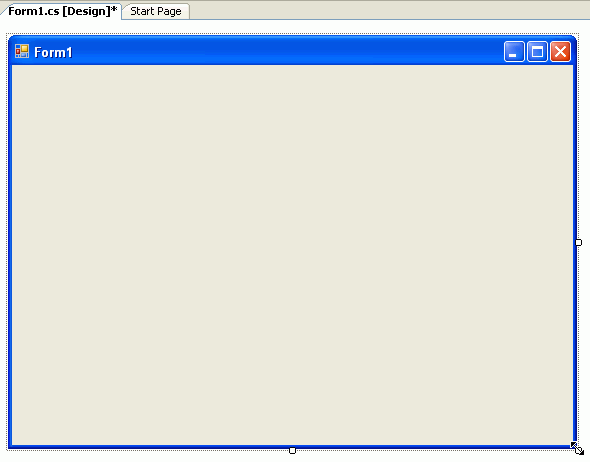
A Form1.cs [Design] tab is added.
|
Create a new Data Source
You use the DEPENDENTS table you created in the HR schema, for this application. To create a new data source, perform the following steps:
|
. |
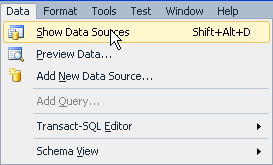
From Data menu, select Show Data Sources.
|
|---|---|
|
. |
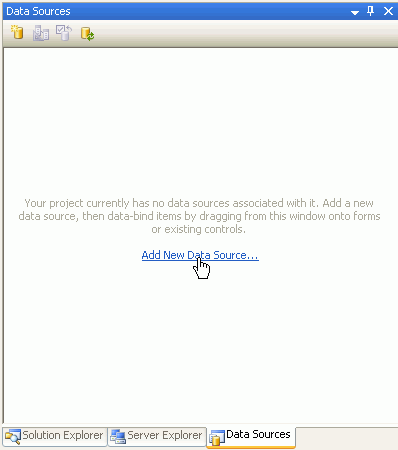
In the Data Sources panel, click Add New Data Source...
Data Source Configuration wizard opens.
|
|
. |
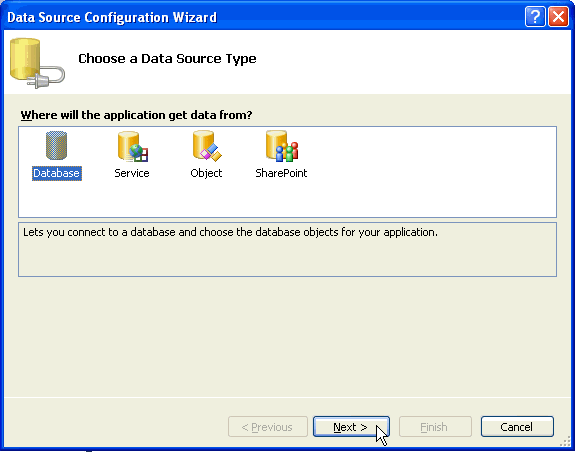
Select Database as the Data Source type. Click Next.
|
|
. |
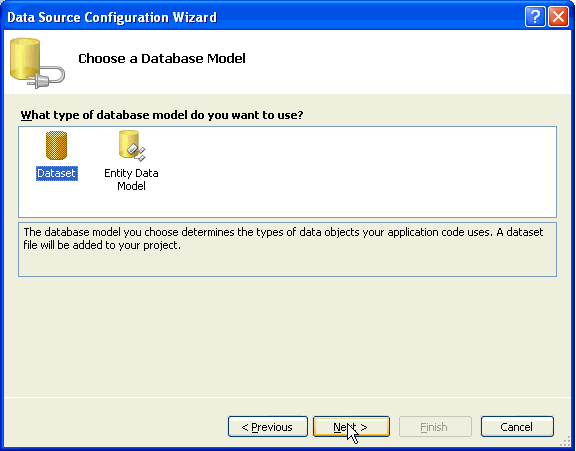
Select the Database Model as Dataset. Click Next.
|
|
. |
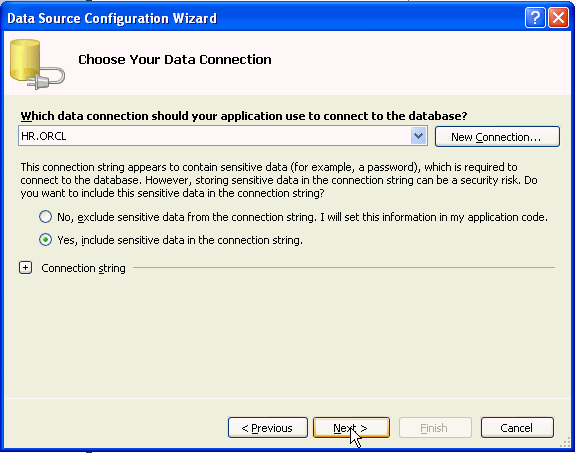
In the previous topic, you already created a data connection, HR.ORCL.Select HR.ORCL.Select Yes, include sensitive data in the Connection string option. Click Next.
|
|
. |
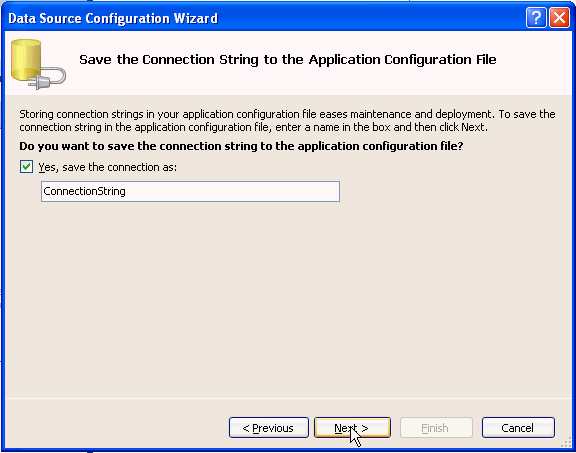
Accept the default selection for saving the connection string to the application configuration file. Click Next.
|
|
. |
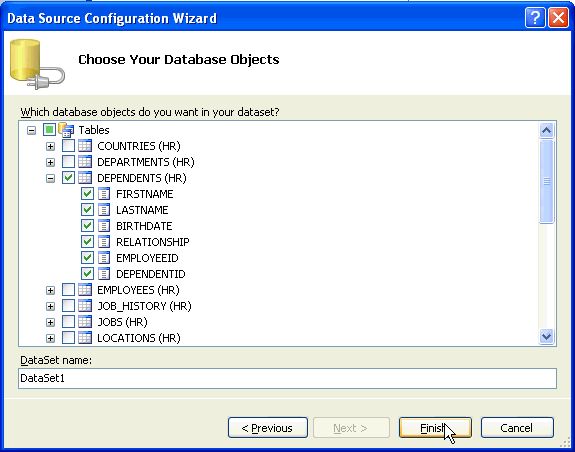
Now, you select the database object you want in your data set. Expand Tables. Expand DEPENDENTS. Click the checkbox beside DEPENDENTS. A check mark appears beside the table name as well as its attributes. Also note the name of the data set. Click Finish. The Dependents table gets added in the Data Sources panel.
|
Designing the Form
To design a form, perform the following steps:
|
. |
Now, you work in the Form1.cs[Design] tab. Resize the form as required.
|
|---|---|
|
. |
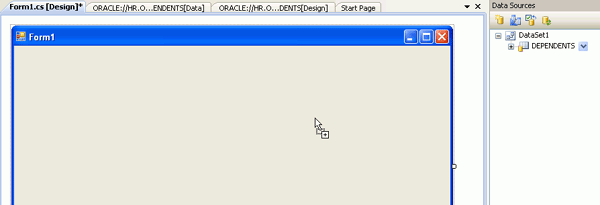
In the Data Sources panel, expand DEPENDENTS. Drag DEPENDENTS to the Form1 canvas.
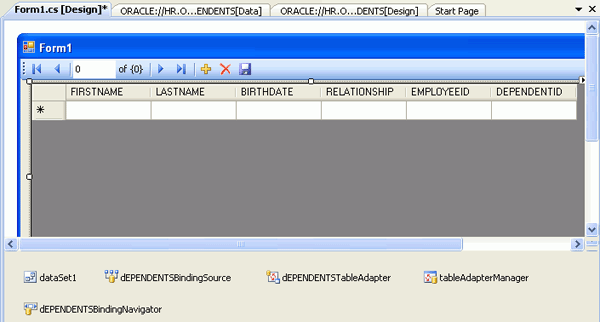
A grid of column names of the DEPENDENTS table gets added. You can resize the grid as required.
|
|
. |
Double click the Save icon (
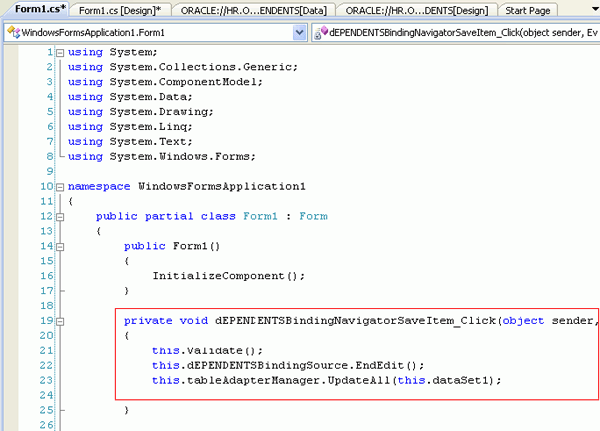
Form1.cs code window opens. In the Form1.cs code window, examine the private void dEPENDENTSBindingNavigatorSaveItem_Click(object sender, EventArgs e)procedure.
|
|
. |
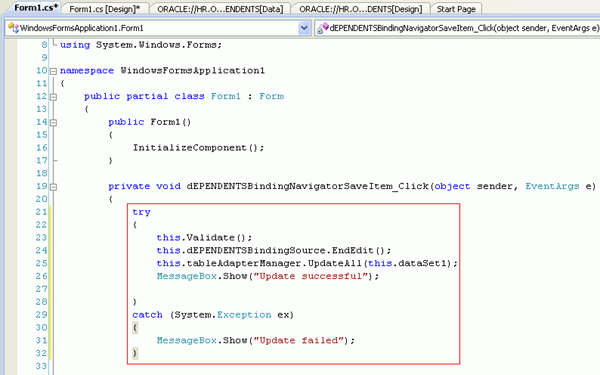
Add a try { } and a catch { } block for the three lines of code. Also, add a MessageBox statement as shown below: (the statements in bold are the ones you need to add) try }
|
 ).
Note: If the icon is not enabled, right-click the icon and select
Enabled.
).
Note: If the icon is not enabled, right-click the icon and select
Enabled.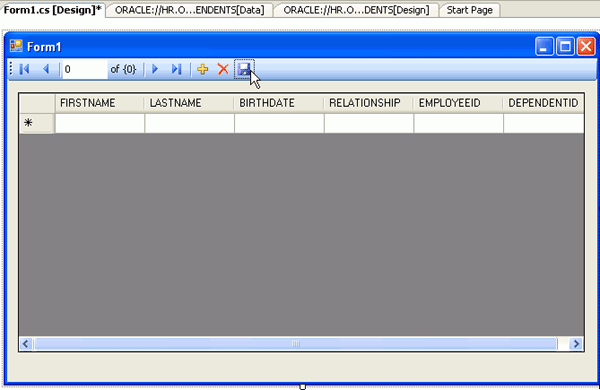
Running the Application
To run the application, perform the following steps:
|
. |
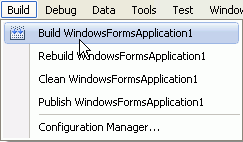
From Build menu, select Build WindowsFormApplication1.
Ensure there are no errors reported in the output window.
|
|---|---|
|
. |
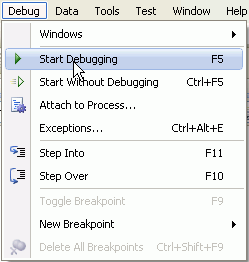
From Debug menu, select Start Debugging.
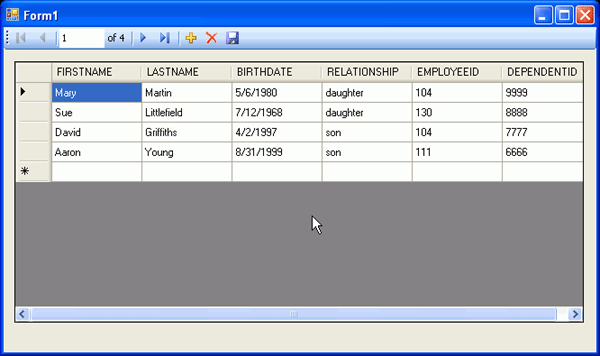
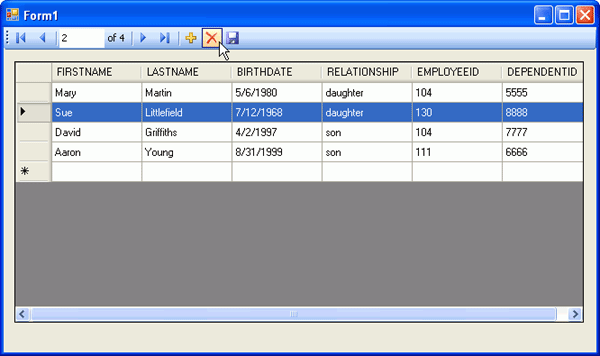
Form1 shows the Dependents tables data.
|
|
. |
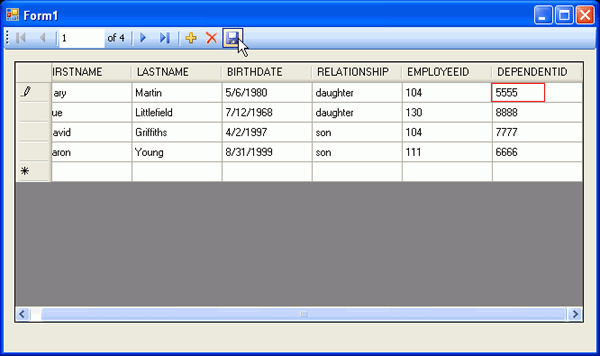
Modify the DEPENDENTID of the record where FIRSTNAME is 'Mary' to 5555. Click the Save icon.
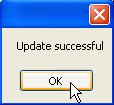
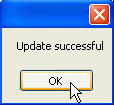
A Message box displays with an "Update successful" message. Click OK.
|
|
. |
Delete the employee record with FIRSTNAME as 'Sue'. Click the Delete icon.
Click the Save icon. A Message box displays with an "Update successful" message. Click OK.
|
Using Stored Procedure
Now you create a stored procedure and run it.
Create a Stored Procedure
|
. |
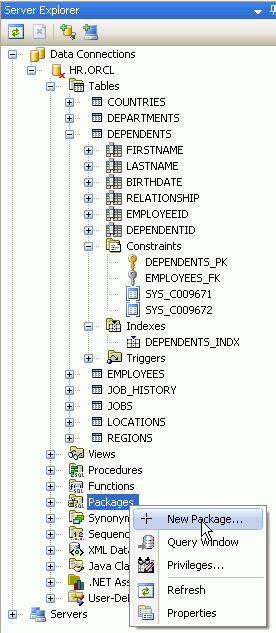
From the Server Explorer panel, right-click Packages and select New Package...
|
|---|---|
|
. |
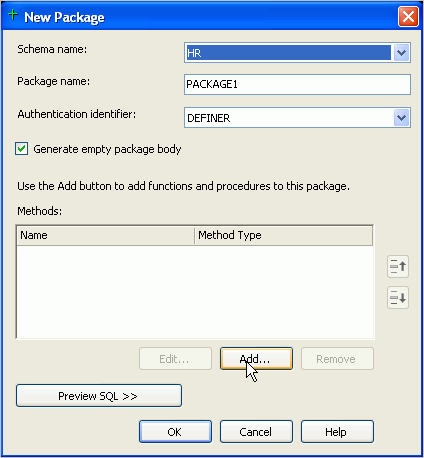
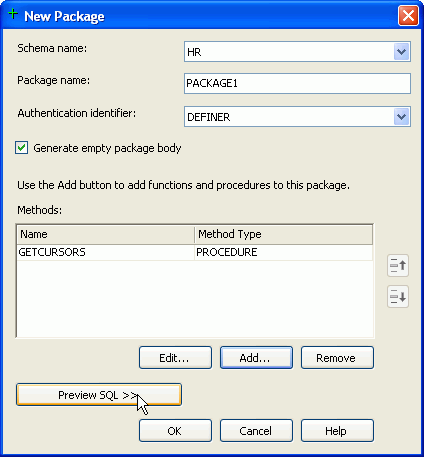
Accept the default Package name and click Add under Methods.
|
|
. |
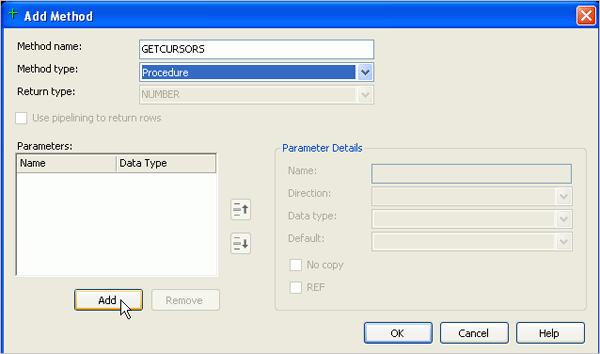
Enter GETCURSORS for the method name, select Procedure for the method type and click Add under Parameters.
|
|
. |
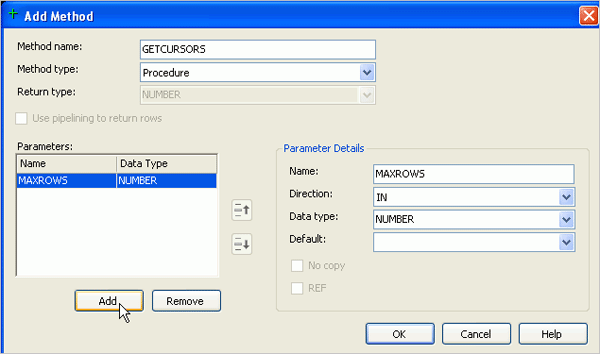
Enter MAXROWS for the Name and click Add.
|
|
. |
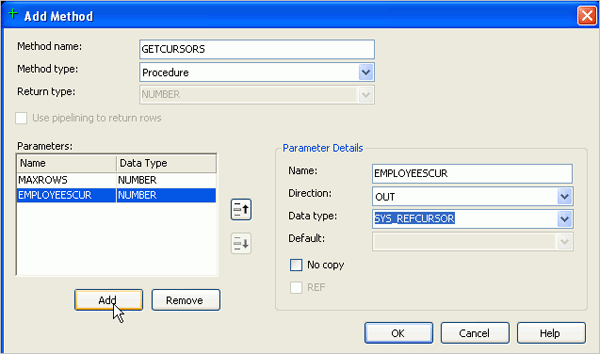
Enter EMPLOYEESCUR for the Name, select OUT for Direction, and select SYS_REFCURSOR for Data type. Then click Add.
|
|
. |
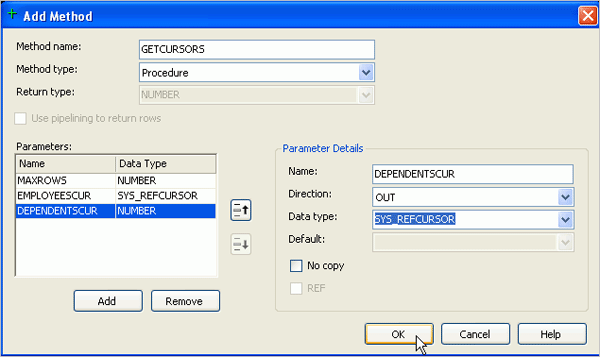
Enter DEPENDENTSCUR for the Name, select OUT for the Direction and select SYS_REFCURSOR for the Data type. Click OK.
|
|
. |
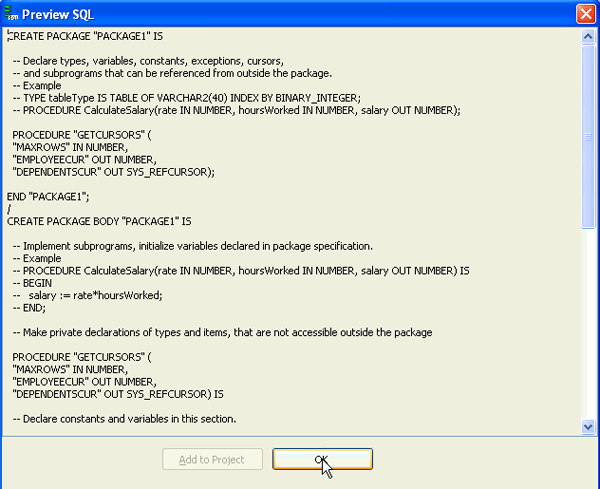
Click Preview SQL >> to see the SQL that will be executed.
|
|
. |
Review the SQL and click OK.
|
|
. |
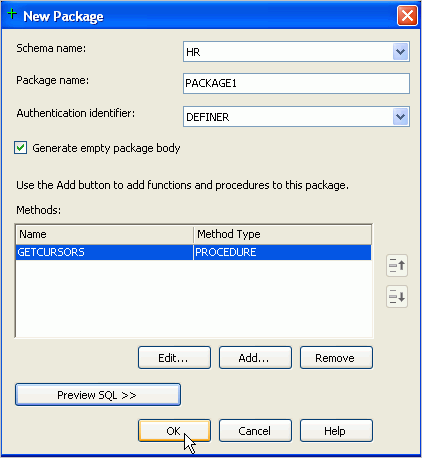
Click OK to create the Package.
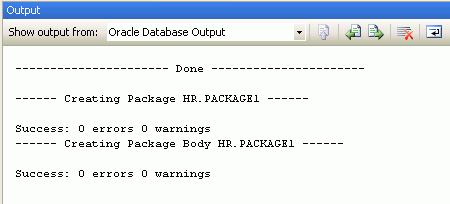
The output window shows the execution messages. Close the Output window.
|
Edit the Package Body
|
. |
The Package is created and the Package Body is opened. If you do not see the code that is generated for the Package Body, right-click PACKAGE1 Package in the Server Explorer and select Edit Package Body. Scroll down to find the line NULL;
|
|---|---|
|
. |
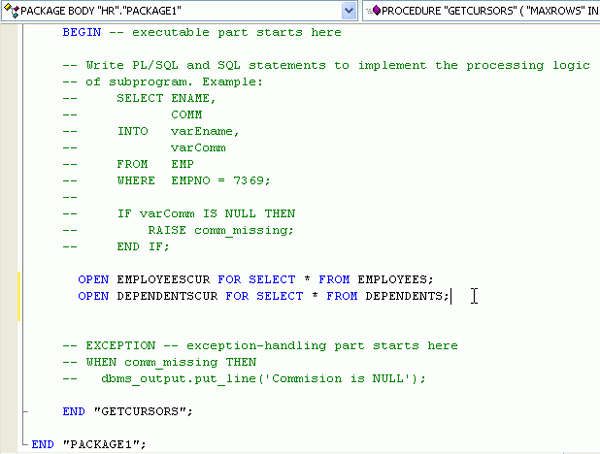
Replace the line NULL; with the following: OPEN EMPLOYEESCUR FOR SELECT
* FROM EMPLOYEES;
|
|
. |
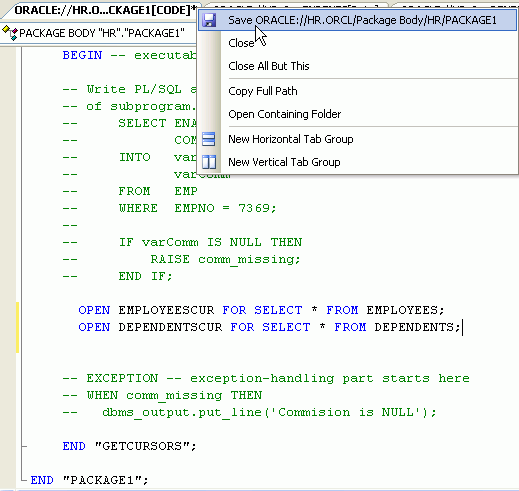
Right-click the window tab and select Save.
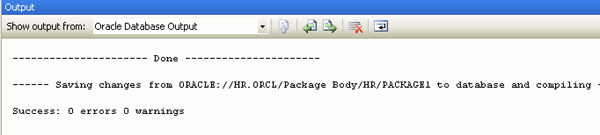
The output window shows execution messages. Close the Output window.
|

Run the Stored Procedure
|
. |
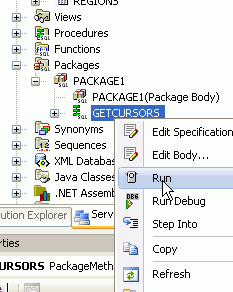
Expand the Package PACKAGE1 in the Server Explorer panel. Right-click GETCURSORS and select Run.
|
|---|---|
|
. |
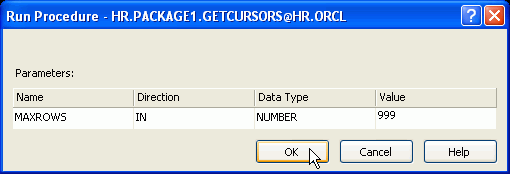
Enter 999 for the MAXROWS parameter value and click OK.
|
|
. |
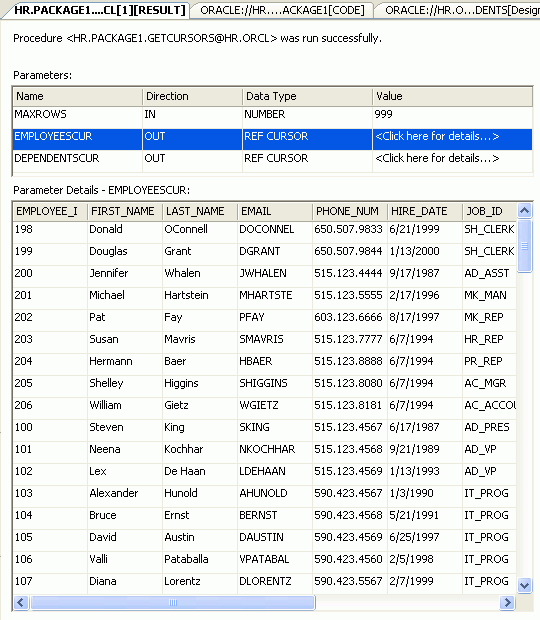
The details for the EMPLOYEESCUR are shown. Select the value for the DEPENDENTSCUR.
|
|
. |
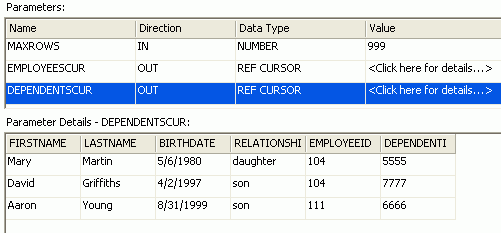
The DEPENDENTSCUR details are shown. Close the Output window.
|
Using the Query Window
The query window allows you to run one or more queries against data in your database. Perform the following steps:
|
. |
Right-click your database connection HR.ORCL and select Query Window.
|
|---|---|
|
. |
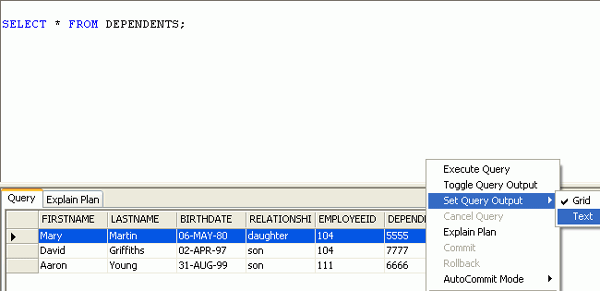
Enter the SQL command SELECT * FROM DEPENDENTS; and click Execute.
|
|
. |
Your results are shown. To format the results, right-click in the query area, select Set Query Output > Text and click Execute again.
|
|
. |
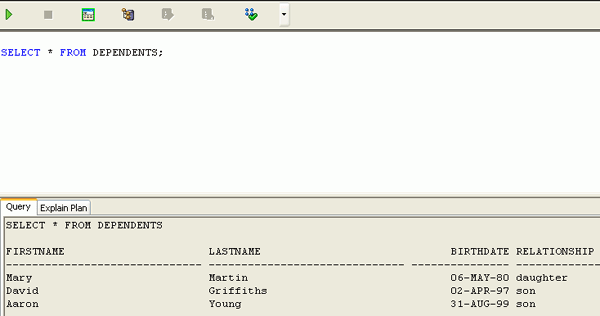
The results are shown in text format.
|
|
. |
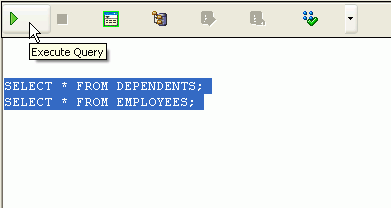
You can execute more than one SQL statement at a time. Add the SQL command SELECT * FROM EMPLOYEES; In order for both statements to be executed at the same time, you need to select both statements, then click Execute. Note: if both statements are not selected, only the last SQL statement in the list will run.
|
|
. |
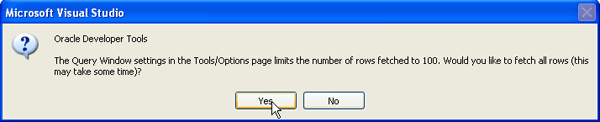
Click Yes to run the query.
|
|
. |
Scroll up to the top of your output. You see the data from both queries.
|


Summary
In this tutorial, you have learned how to:
- Create a table, an index and constraints.
- View a tables data
- Automatically generate code
- Create and run a stored procedure
- Use a Query Window
- Lead Curriculum Developer: Anupama Mandya, Pallavi Rajan
- Other Contributors: Marcie Young, Christian Shay


|
About
Oracle |Oracle and Sun |  | Careers | Contact
Us | Site Maps | Legal
Notices | Terms of Use | Your Privacy Rights | Careers | Contact
Us | Site Maps | Legal
Notices | Terms of Use | Your Privacy Rights
|