
 Installing
Oracle Database Instant Client, Oracle R Distribution, and Oracle R
Enterprise Client Components on a Microsoft Windows Platform
Installing
Oracle Database Instant Client, Oracle R Distribution, and Oracle R
Enterprise Client Components on a Microsoft Windows Platform Before You Begin
This 15-minute tutorial shows you how to download and install Oracle Database Instant Client, Oracle R Distribution, and the Oracle R Enterprise client components for a Microsoft Windows 64-bit operating system platform, and how to verify the installations by connecting to the Oracle R Enterprise server in a remote Oracle Database instance.
Background
The Oracle R Enterprise client components enable you to connect an R engine on your Windows PC to the Oracle R Enterprise server in an Oracle Database instance.
In this tutorial, you create a folder on your Windows PC, download the Oracle Database Instant Client, Oracle R Distribution, and the Oracle R Enterprise client component installer files, extract the contents, and configure your system to use them. You also install the Oracle R Enterprise client and supporting packages. Finally, you test the installation by connecting your local R engine to the Oracle R Enterprise server in a remote Oracle Database instance.

Notes: This tutorial uses Oracle Database 12c, Release 2 (12.2.0.1) and Oracle R Enterprise, Release 1.5.1. The procedures also apply to earlier versions of Oracle Database and Oracle R Enterprise. For earlier versions, substitute the versions of Oracle Database Instant Client, Oracle R Distribution, and the Oracle R Enterprise client component installer files with those that are compatible with the Oracle R Enterprise server in your remote database.
What Do You Need?
- 64-bit Microsoft Windows and the Administrator privilege.
- Access to the internet.
- A remote instance of Oracle Database 12c, Release 2 (12.2.0.1) that has Oracle R Enterprise server 1.5.1 installed, configured, and validated in the database.
- The RQSYS schema created in your remote Oracle Database instance. RQSYS is the system account for Oracle R Enterprise in Oracle Database.
- A user schema and
password in the remote database instance. Be sure
that the user has the following privileges:
CREATESESSION,CREATETABLE,CREATEVIEW,CREATEPROCEDURE, andCREATEMININGMODEL. - The Oracle SID and host name of the remote database instance, and the TCP port number that the database uses.
 Download
and Install Oracle Database Instant Client
Download
and Install Oracle Database Instant Client
Download and install the Oracle Database Instant Client for your database.
- On your Windows PC, create an installation folder for the
Oracle R Enterprise client components. This tutorial uses the
folder
c:\oreclient_install_dir. - Go to the Oracle Database Instant Client page on the Oracle Technology Network at Oracle Database Instant Client and click Downloads.
- On the Instant Client Downloads page, click Instant Client for Microsoft Windows (x64).
- On the Instant Client Downloads for Microsoft Windows (x64) page, accept the license agreement, and then locate the Version 12.2.0.1.0 section.
- In the Base section, click instantclient-basic-windows.x64-12.2.0.1.0.zip
and save the file to the
oreclient_install_dirfolder.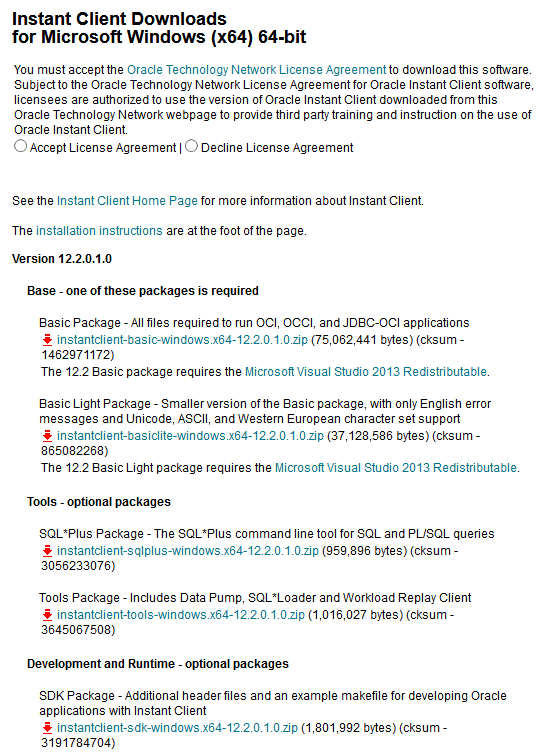
Description of the illustration instant-client-downloads.png - Return to the Instant Client Downloads for Microsoft Windows (x64) page and in the same Base section, select Microsoft Visual Studio 2013 Redistributable.
- On the Microsoft Support page, in the Visual Studio 2013 (VC++ 12.0) section, click Microsoft Visual C++ Redistributable Packages for Visual Studio 2013.
- In the Update for Visual
C++ 2013 and Visual C++ Redistributable Package section, in the x64.exe File Path section, in
the English row in the File Paths column, click http://download.microsoft.com/download/0/5/6/056dcda9-d667-4e27-8001-8a0c6971d6b1/vcredist_x64.exe,
and then save the
vcredist_x64.exefile in theoreclient_install_dirfolder. - Return to the Instant Client Downloads for Microsoft Windows (x64) page, accept the license agreement again, and in the Development and Runtime - optional packages section, click instantclient-sdk-windows.x64-12.2.0.1.0.zip and save the file to the same folder.
- In your compressed file utility, such as WinZip or 7-Zip,
open the
instantclient-basic-windows.x64-12.2.0.1.0.zipfile and click Extract Here, or similar option. The Instant Client basic files are extracted to a subfolder namedinstantclient_12_2. The sdk files are extracted to a subfolder namedsdkin theinstantclient_12_2folder, as shown in the following illustration.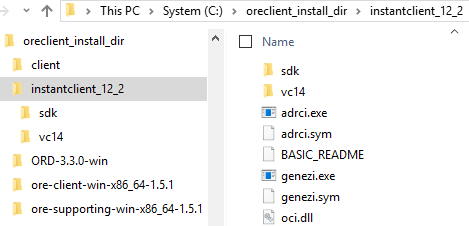
Description of the illustration oreclient-install.png - Double-click the Microsoft Visual Studio Redistributable
executable file and follow the instructions to install it.
Note: This installation requires a reboot.
- In the Windows Control Panel, click System,
and then click Advanced system settings. Add
the full path of the Instant Client to the environment
variables
OCI_LIB64andPATH. - On the Advanced tab, click Environment Variables.
- Under System variables, edit
PATHto include the path to the folder that contains Oracle Database Instant Client. For this tutorial, the path isC:\oreclient_install_dir\instantclient_12_2. - Also under System variables, either edit or create the
OCI_LIB64environment variable and give it the path to the same folder. Again, for this tutorial, the path isC:\oreclient_install_dir\instantclient_12_2.
 Download
and Install Oracle R Distribution
Download
and Install Oracle R Distribution
Download and install Oracle R Distribution on your Windows PC.
- Go to the Oracle Open Source Software Download page for
Oracle R Distribution at Oracle R Distribution. In the Windows
row, in the ORD 3.3.0 column, click R Distribution
and save the
ORD-3.3.0-win.zipfile to thec:\oreclient_install_dirfolder. - Extract the contents of the
.zipfile. - Double-click the
R-3.3.0-win.exefile to start the installation of Oracle R Distribution. - Accept the default choices in the installer instructions to complete the installation.
 Download
and Install the Oracle R Enterprise Supporting Packages
Download
and Install the Oracle R Enterprise Supporting Packages
Download the Oracle R Enterprise supporting packages and install them.
- From the Oracle R Enterprise Downloads page on
the Oracle Technology Network, accept the license agreement,
and then in the ORE 1.5.1 column of the Windows row, click Supporting
to download the
ore-supporting-win-x86_64-1.5.1.zipfile. Save the file to thec:\oreclient_install_dir.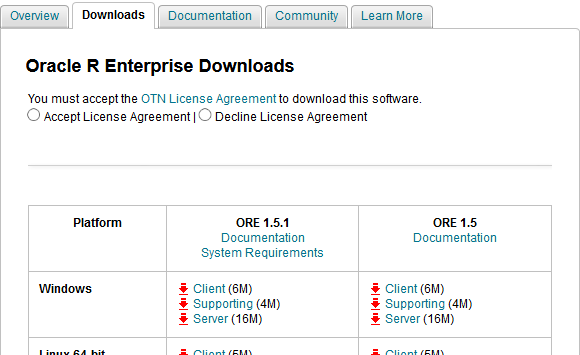
Description of the illustration ore-downloads.png - Extract the contents of the
.zipfile. - From the Windows Start menu, run R x64 as administrator.
- From the Packages menu in the RGui
console, select Install package(s) from local files.
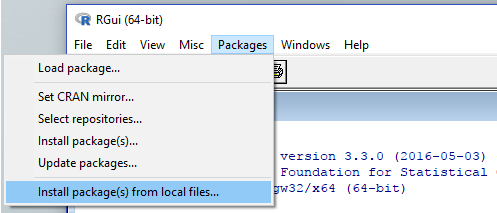
Description of the illustration packages-menu.png - Go to the folder that contains the supporting files, select
all of the
.zipfiles, and click Open.Each package installation produces this message in the R console:
package 'package_name' successfully unpacked and MD5 sums checkedNote: You may need to stop your anti-virus software for the installations to complete without errors. Be sure to restart the anti-virus software after the installations succeed. If you cannot disable your anti-virus software, then use the R
debugfunction, as described in the following steps. - If you are unable to successfully install the Oracle R
Enterprise packages, and cannot disable your anti-virus
software, then in the RGui console, enter
debug(utils:::unpackPkgZip). - From the Packages menu, select Install package(s) from local files.
- Select the file or files to install and then click Open.
- For each package, at the
Browse[2]>prompt, press Ctrl+Enter repeatedly to step through each line of thedebugfunction until you see the following output for the package:package 'package_name' successfully unpacked and MD5 sums checked debug: flush.console() - After all of the packages have installed successfully, press Q to exit the debug mode.
 Download
and Install the Oracle R Enterprise Client Packages
Download
and Install the Oracle R Enterprise Client Packages
Download the Oracle R Enterprise client packages and install them from the RGui console.
- From the Oracle R Enterprise Downloads page,
accept the license agreement, and then in the ORE 1.5.1 column
of the Windows row, click Client to download
the
ore-client-win-x86_64-1.5.1.zipfile. Save the file to thec:\oreclient_install_dirfolder. - Extract the contents of the
.zipfile. - From the Windows Start menu, run R x64 as administrator.
- From the Packages menu in the RGui console, select Install package(s) from local files.
- Go to the folder that contains the client files, select all
of the
.zipfiles, and click Open.Each package installation produces this message in the R console:
package 'package_name' successfully unpacked and MD5 sums checked
 Connect
to Oracle R Enterprise Server from the Oracle R Enterprise
Client R Engine
Connect
to Oracle R Enterprise Server from the Oracle R Enterprise
Client R Engine
To verify the installations, load the Oracle R Enterprise client packages in your Oracle R Distribution R engine and connect your local R session to the Oracle R Enterprise server in your remote database.
- From the Windows Start menu, run R x64.
- Load the Oracle R Enterprise client libraries.
> library(ORE)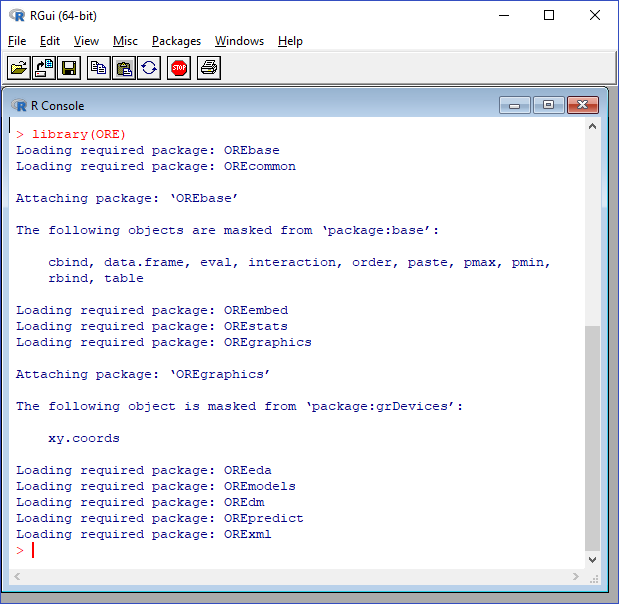
Description of the illustration load-libraries.png - Connect to the Oracle R Enterprise server in your remote
database. Replace the argument values in the following
expression with the
values for your database, user schema, and password.
> ore.connect(user="RQUSER", sid="orcl", host="myhost", password="RQUSERpsw", port=1521, all=TRUE) - Verify that the client is connected to the Oracle R
Enterprise server in the database. If the client is connected,
then the
ore.is.connected()function returnsTRUE.> ore.is.connected() [1] TRUE - List the sample scripts.
> demo(package="ORE") - Run a sample script.
> demo("aggregate", package="ORE")
 Want
to Learn More?
Want
to Learn More?
- Overview of Oracle R Enterprise Installation in Oracle R Enterprise Installation and Administration Guide
- Creating a Database User for Oracle R Enterprise in Oracle R Enterprise Installation and Administration Guide