 |
||
Oracle SQL Developer 2.1 New Features
Purpose
In this tutorial, you are introduced to some new features in Oracle SQL Developer 2.1.
Time to Complete
Approximately 45 minutes.
Overview
Oracle SQL Developer is a free graphical tool that you can use for database development. Using SQL Developer, you can browse database objects, run SQL statements and SQL scripts, and edit and debug PL/SQL statements. You can also run any number of provided reports, as well as create and save your own reports. SQL Developer is a great tool to enhance productivity and simplify your database development tasks. It is available for download and evaluation from OTN.
Oracle SQL Developer 2.1 introduces Unit Testing and the Data Modeler Viewer as two of the most significant new features in the release. In addition, a vast number of smaller new features have been added, including support for migration from IBM DB2 and Teradata, which extends the migration tools offering. Together these features provide greater flexibility while working with the Oracle database and other supported non-Oracle databases. For a complete list of the new features, click here. To view a comprehensive list of all the SQL Developer features, click here.
This tutorial highlights some of the key new features added to Oracle SQL Developer 2.1. PL/SQL Unit Testing is not addressed here. To view the PL/SQL Unit Test tutorial, click here.
Software and Hardware Requirements
The following is a list of software requirements:
Prerequisites
Before starting this tutorial, you should:
|
. |
Install Oracle Database 11g with Sample Schema. Note: You can also use earlier databases or XE. |
|---|---|
|
. |
Unlock the HR user.
Login to SQL*Plus as the SYS
user and execute the following command: |
|
. |
Unzip the Oracle SQL Developer software. Note: This tutorial is developed using Oracle SQL Developer 2.1.1. However, you can also use Oracle SQL Developer 2.1.0. |
|
. |
Download and unzip files.zip to your system. |
Setting the Environment
To work in SQL Developer, you need a database connection. In this topic, you create a connection to the HR schema. You will use this connection to try out the various new features listed in this tutorial.
|
. |
Open Oracle SQL Developer.
|
|---|---|
|
. |
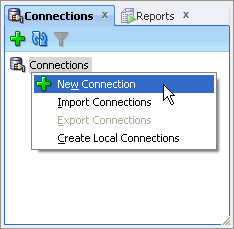
To create the connection, right-click Connections in the Connections navigator and select New Connection.
|
|
. |
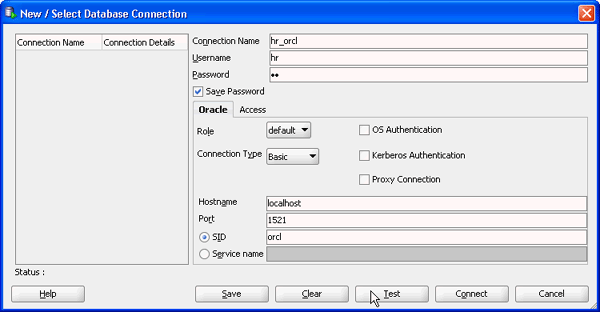
The New / Select Database Connection dialog opens. Enter the connection details as follows and click Test. Connection Name: hr_orcl
|
|
. |
If the Status is Success, click Connect.
|
|
. |
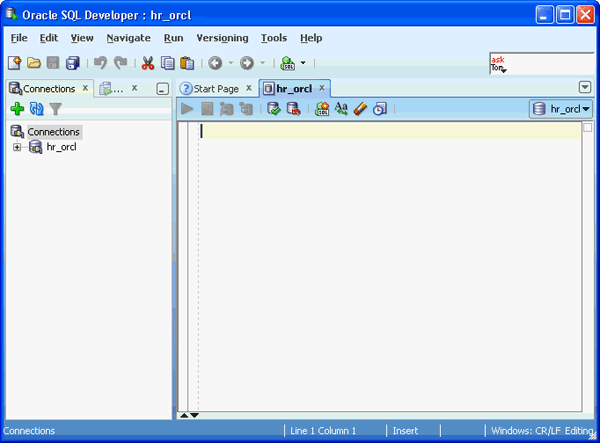
A connection to the HR schema is created.
|

Working With the Connections Navigator
Oracle SQL Developer 2.1 offers greater control in displaying objects using the filter option. It also provides schema level filtering. These features are extremely useful when working with large sets of objects within a schema or across multiple schemas. In this topic, you learn how to use this feature by applying filters to the HR schema and the Tables node.
Applying Schema Filter
|
. |
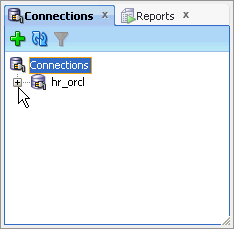
Expand the hr_orcl connection you just created.
|
|---|---|
|
. |
To apply a schema level filter, select hr_orcl and click the
Apply Filter... ( Note: The Tables node is already filtered because an 'Exclude Recycle Bin' filter is applied to it by default.
|
|
. |
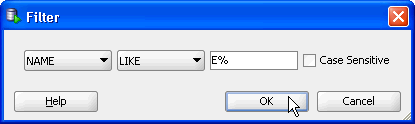
To list all objects starting with the letter E, enter the E% in the textbox and click OK.
|
|
. |
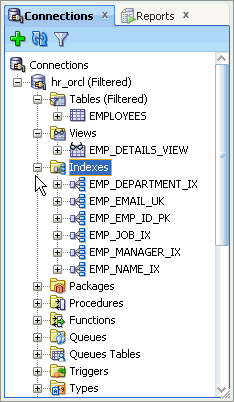
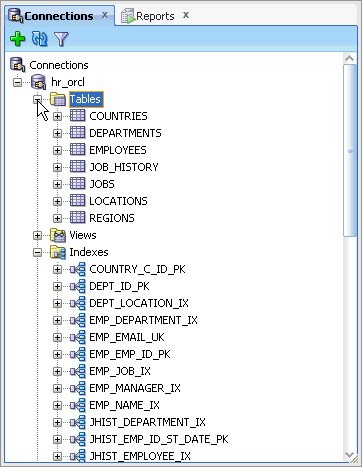
Expand the Tables, Views, and Indexes nodes to see the filter effect. Only object names starting with an 'E' are listed.
|
 ) icon. Alternatively, right-click hr_orcl
and select Apply Filter....
) icon. Alternatively, right-click hr_orcl
and select Apply Filter.... 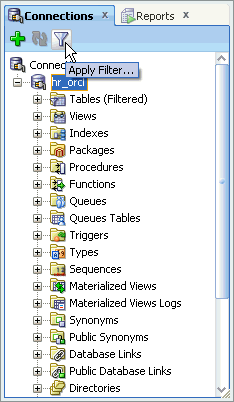
Applying Object Filter
|
. |
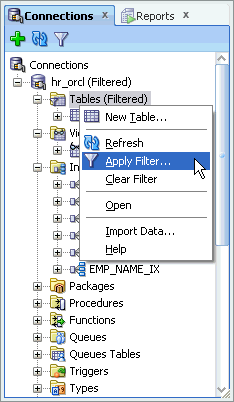
To apply a filter to the Tables node, right-click Tables and select Apply Filter.... Alternatively, select the Tables node and click the Apply Filter... icon.
|
|---|---|
|
. |
A Filter dialog opens. To add a new filter, click the Add Criteria ( Note: The choice of filter options varies depending on the object selected.
|
|
. |
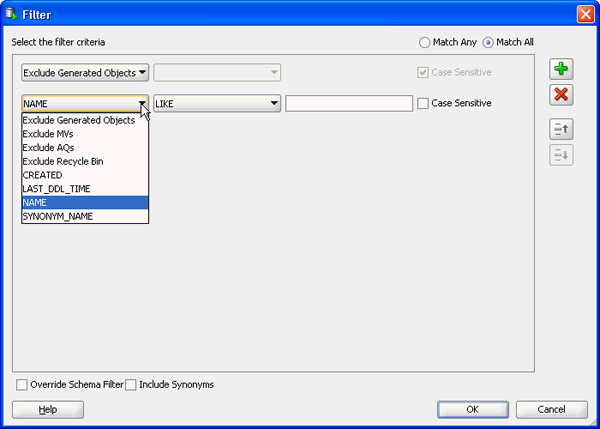
Click the first drop-down list to view the choices available. Note: Prior to SQL Developer 2.1, only four options where available in this list.
|
|
. |
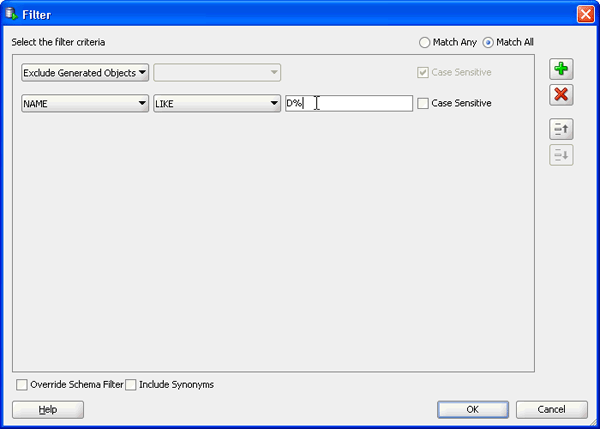
To display tables starting with the letter D, enter D% in the textbox.
|
|
. |
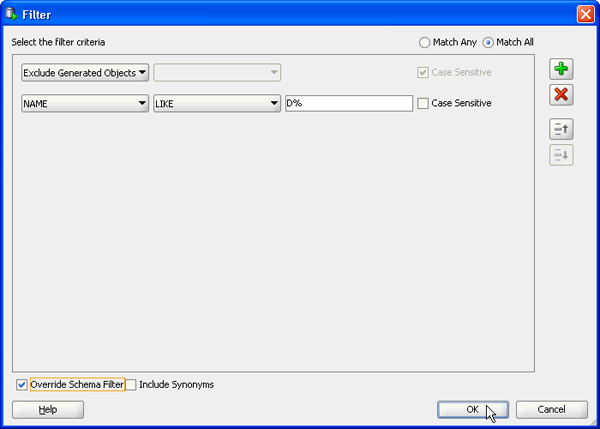
You have an option to override the schema filter applied previously. Select the Override Schema Filter checkbox and click OK.
|
|
. |
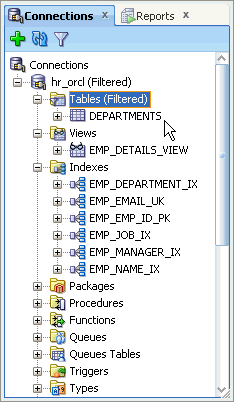
Only the DEPARTMENTS table is displayed under the Tables node.
|
 )
icon.
)
icon.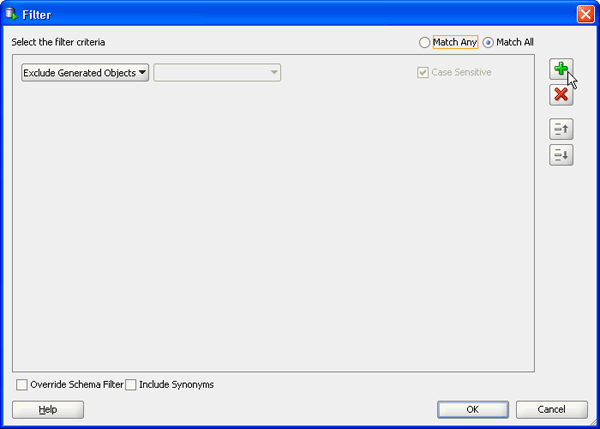
Removing Filters
|
. |
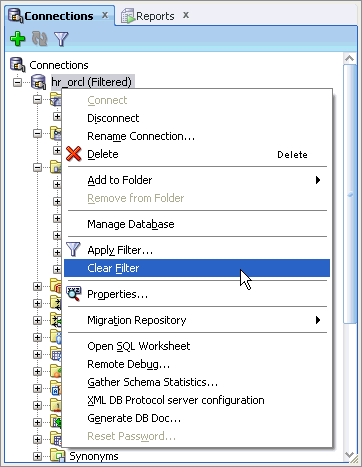
To remove the schema filter, right-click hr_orcl and select Clear Filter.
|
|---|---|
|
. |
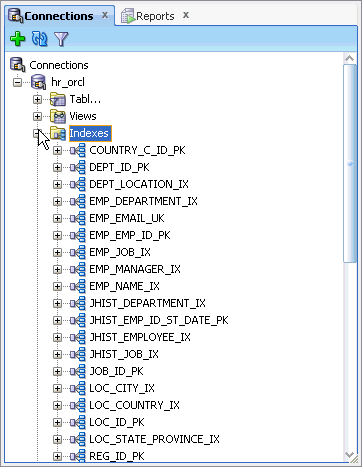
Expand the Indexes node. The schema filter is removed.
|
|
. |
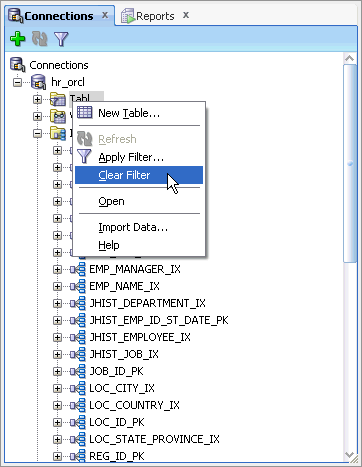
To remove the filter applied to the Tables node, right-click Tables and select Clear Filter.
|
|
. |
Expand the Tables node. The object filter is removed.
|
Working With Data Grids
New options have been added to the data grid context menu. In this topic, you use these options in the data grid (or, display editor) of the EMPLOYEES table.
Controlling Column Display
|
. |
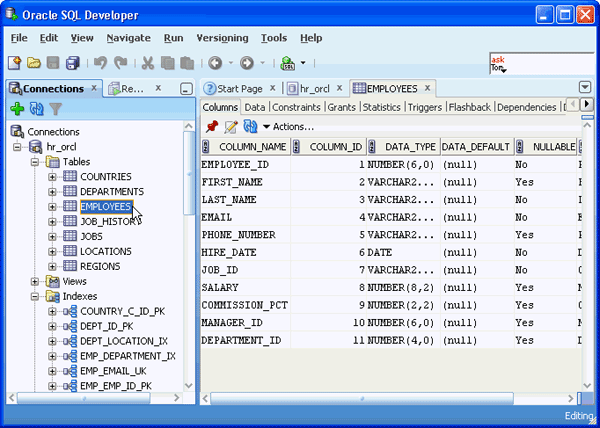
Select the EMPLOYEES table from the Connections Navigator. The EMPLOYEES data grid opens in a new tab.
|
|---|---|
|
. |
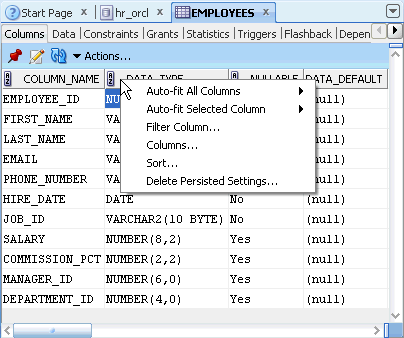
To invoke the context menu, right-click any of the column headers.
|
|
. |
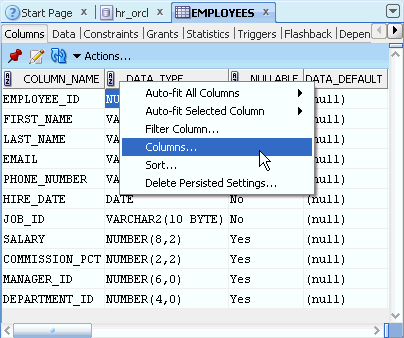
Select Columns....
|
|
. |
A Manage Columns dialog opens, which allows you to reorder and hide
or show the columns. To place the COLUMN_ID
column after the COLUMN_NAME
column, select COLUMN_ID
and click the Up button (
|
|
. |
To hide the NULLABLE
column, select NULLABLE
and click the Remove (
|
|
. |
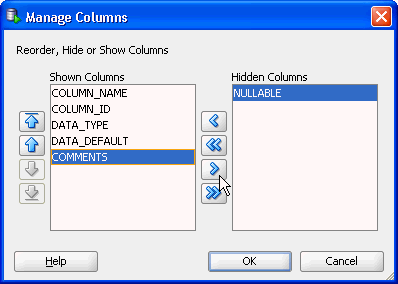
Similarly, to hide the COMMENTS column, select COMMENTS and click the Remove button.
|
|
. |
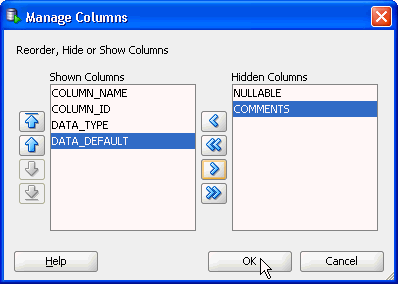
Click OK to apply the changes.
|
|
. |
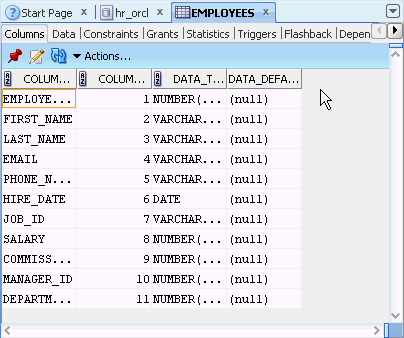
The changes you made are reflected on the data grid.
|
 ) three
times.
) three
times.
 ) button.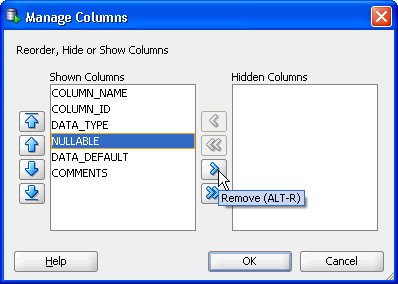
Sorting Columns
|
. |
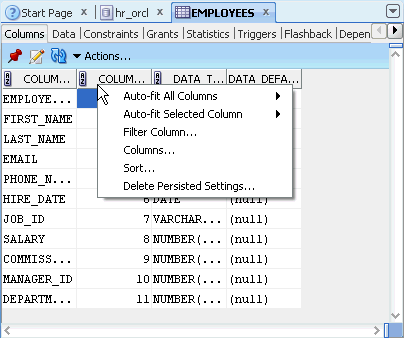
Invoke the context menu again by right-clicking any of the column headers.
|
|---|---|
|
. |
Select Sort.... Note: As available in releases prior to SQL Developer 2.1, columns
can also be sorted by double-clicking the sortable column headers. (Column
header with this
|
|
. |
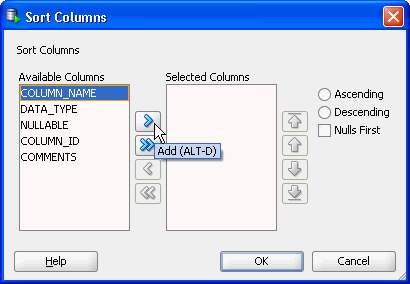
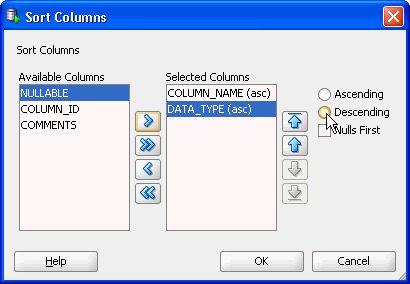
In the Sort Columns dialog, you can perform single or multiple column sort. Confirm that the COLUMN_NAME column is selected and click the Add button.
|
|
. |
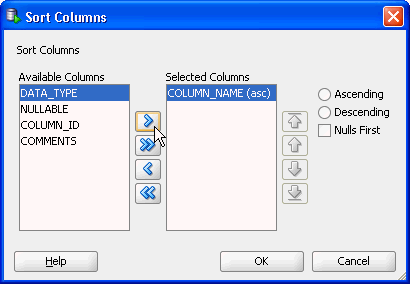
To also sort by the DATA_TYPE column, confirm that DATA_TYPE is selected and click the Add button.
|
|
. |
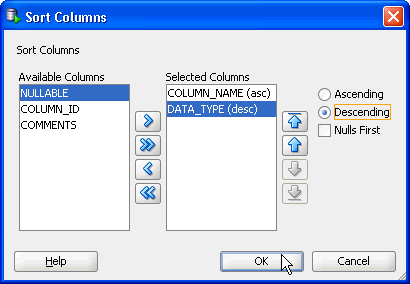
To change the default Ascending order sort, select the Descending radio button.
|
|
. |
Click OK to sort by the two selected columns.
|
|
. |
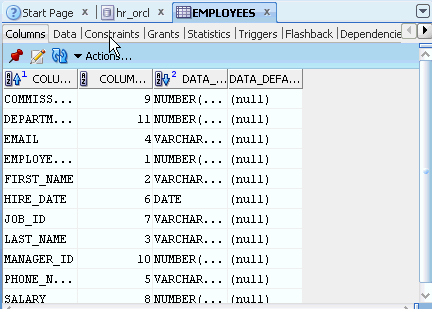
The columns are displayed according to the sorted columns. The blue up and down arrows on the sorted columns represent the ascending and descending sorts. The numbers 1 and 2 signify the order of the sort.
|
 icon
are sortable). However, with this method, you can perform only single
column sort.
icon
are sortable). However, with this method, you can perform only single
column sort.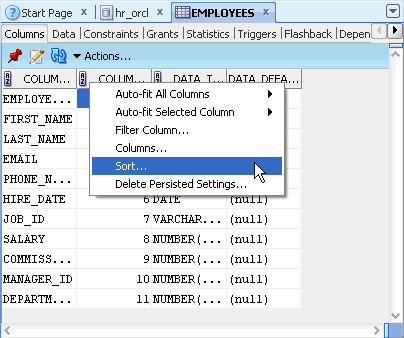

Filtering Columns
|
. |
Click the Constraints tab.
|
|---|---|
|
. |
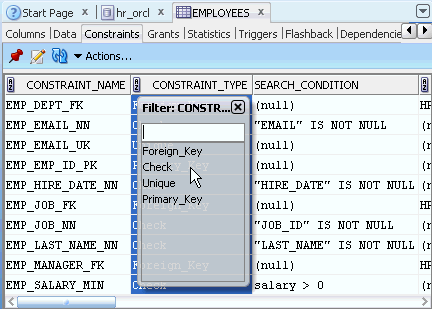
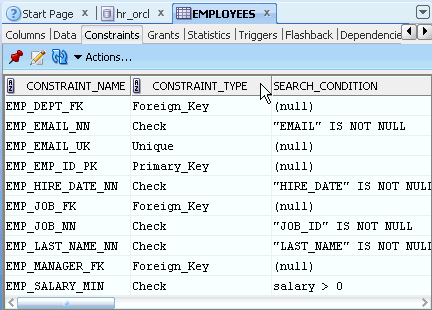
To apply a filter on the CONSTRAINT_TYPE column, click the CONSTRAINT_TYPE column header.
|
|
. |
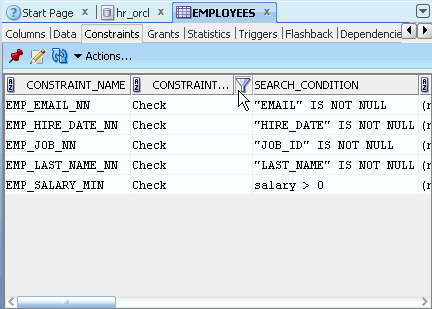
A filter popup opens. To display only Check constraints, select Check and press the Enter key, or double-click Check.
|
|
. |
The CONSTRAINT_TYPE column is filtered to display only the Check constraints. A filter icon is displayed on the column header of the filtered column.
|
|
. |
To remove the filter, right-click any of the column headers and select Remove All Filters.
|
|
. |
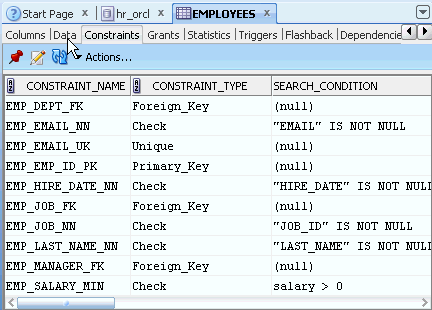
You have cleared the applied Check filter.
|


Using the Find/Highlight Option
|
. |
Click the Data tab.
|
|---|---|
|
. |
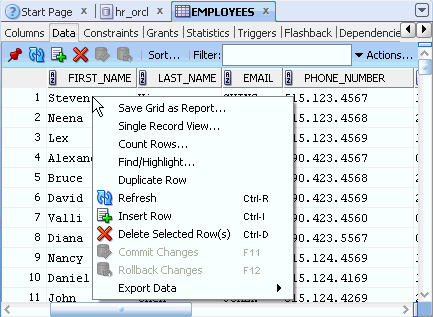
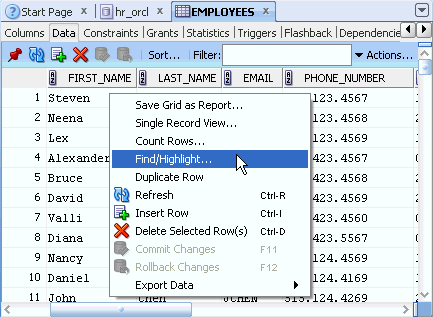
Right-click any of the data cells to invoke a context menu.
|
|
. |
Select Find/Highlight....
|
|
. |
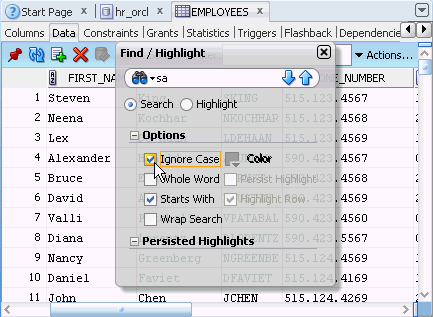
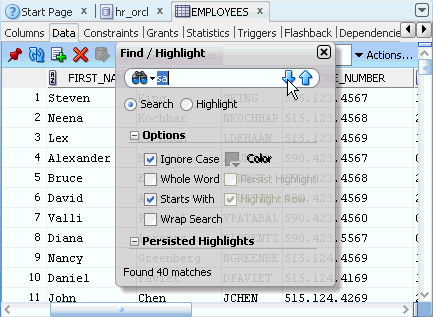
A Find / Highlight popup opens. You can search for a string in any cell of the grid or in a particular column. To search for names starting with 'sa', enter sa in the textbox and select the Starts With checkbox. To ignore the casing, select the Ignore Case checkbox.
|
|
. |
Click the Find next arrow (
|
|
. |
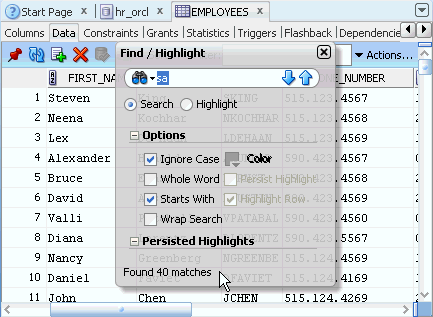
The search returns 40 results. This includes the SA_MAN and SA_REP values in the JOB_ID column as the search option is for all columns by default. Note: You may get other search results (like 5). This may have to do with the cell/column you click to open the Find / Highlight window. You can repeat the search again by clicking elsewhere. If you do not get 40 results, its ok. You can proceed to the next step where you will refine the search.
|
|
. |
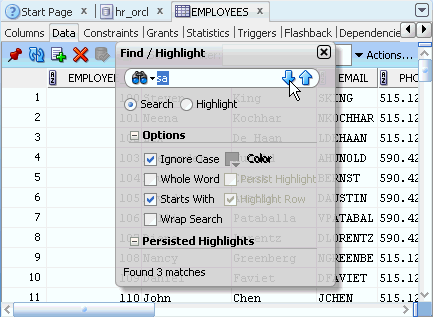
To search in the FIRST_NAME
column only, click the Find icon (
|
|
. |
Click the Find next arrow to start the search again.
|
|
. |
The search now returns 3 results. Click the Find next arrow to see all the values.
|
|
. |
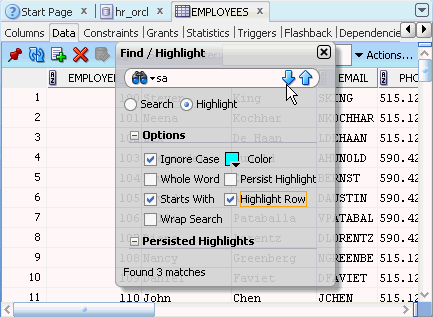
You can highlight the rows that contain these values. Select the Highlight radio button, the Highlight Row checkbox and click the Find next arrow.
|
|
. |
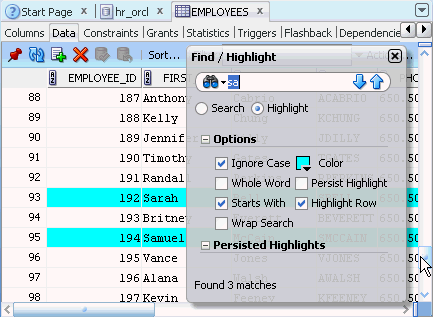
Scroll to see the highlighted rows.
|
|
. |
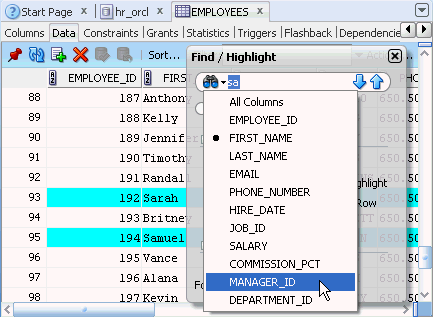
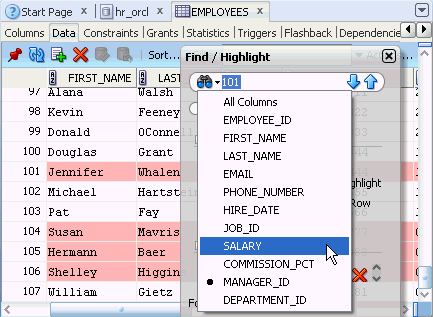
You can search for different values and highlight rows with different colors. To search and highlight rows with manager ID 101, click the Find icon to the left of the textbox and select MANAGER_ID from the drop-down list.
|
|
. |
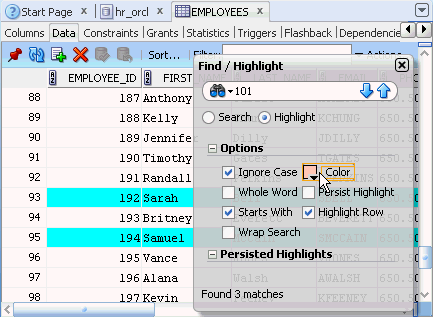
Enter 101 in the textbox and select a pink color.
|
|
. |
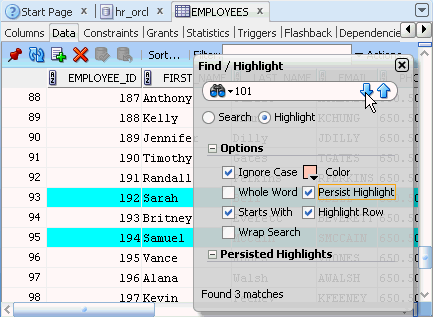
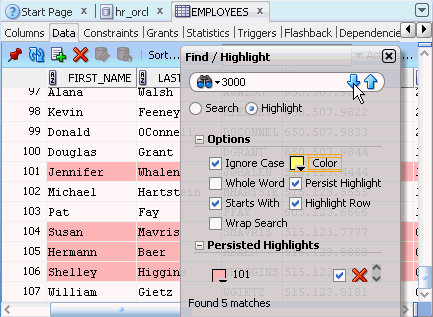
Select the Persist Highlight checkbox and click the Find next arrow.
|
|
. |
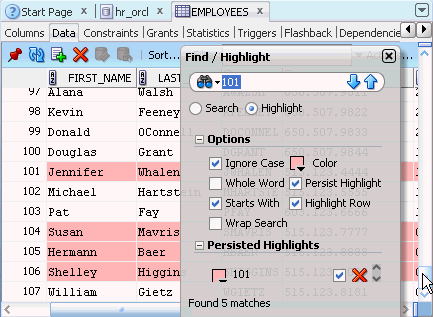
Scroll to see the highlighted rows. Note: The search criteria is now listed under Persisted Highlights.
|
|
. |
To highlight rows with salary as 3000, click the Find icon to the left of the textbox and select SALARY from the drop-down list.
|
|
. |
Enter 3000 in the textbox, select a yellow color, and click the Find next arrow.
|
|
. |
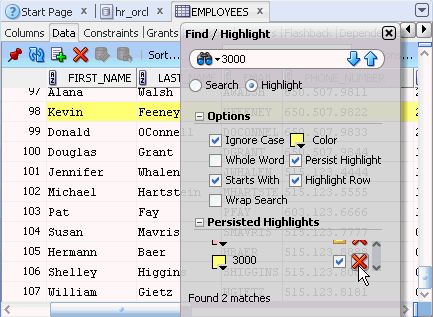
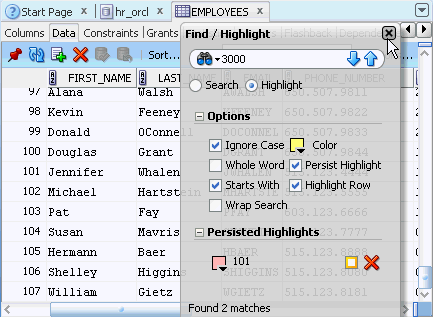
The rows are highlighted in yellow. To disable the manager_id= 101 (pink) highlight, deselect the checkbox next to 101 under Persisted Highlights.
|
|
. |
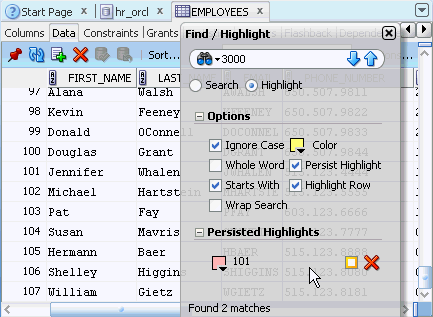
The pink highlight is removed. To delete the salary = 3000 (yellow) highlight, click the red cross next to 3000 under Persisted Highlights (use the scroll in the popup to see the yellow highlight). Note: You can resize the Find / Highlight window to view all the persisted highlights.
|
|
. |
The yellow highlight is removed and deleted from the Persisted Highlights section.
|
|
. |
To close the Find / Highlight popup, click the close button (
|
 ) to the right of the textbox to start the
search.
) to the right of the textbox to start the
search.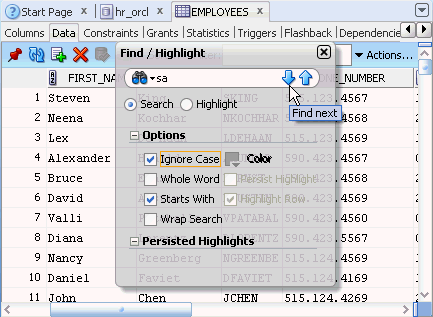
 ) to the left of the textbox and select
FIRST_NAME.
) to the left of the textbox and select
FIRST_NAME.

 ).
).
Saving the Grid Query as a Report
|
. |
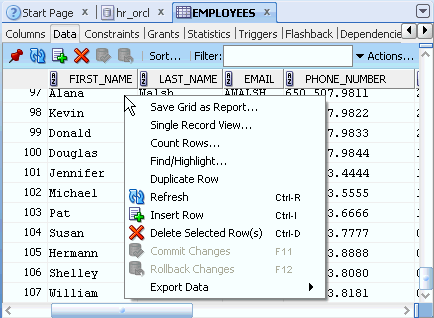
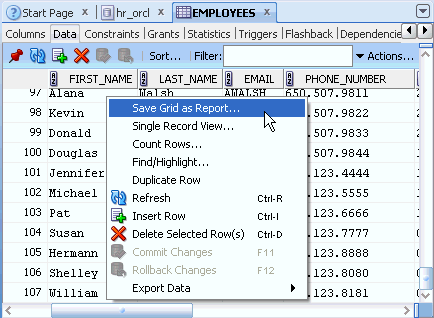
You can save the SQL query, which produced the grid, as a User Defined Report. Right-click any of the data grid cells to invoke the context menu.
|
|---|---|
|
. |
Select Save Grid as Report....
|
|
. |
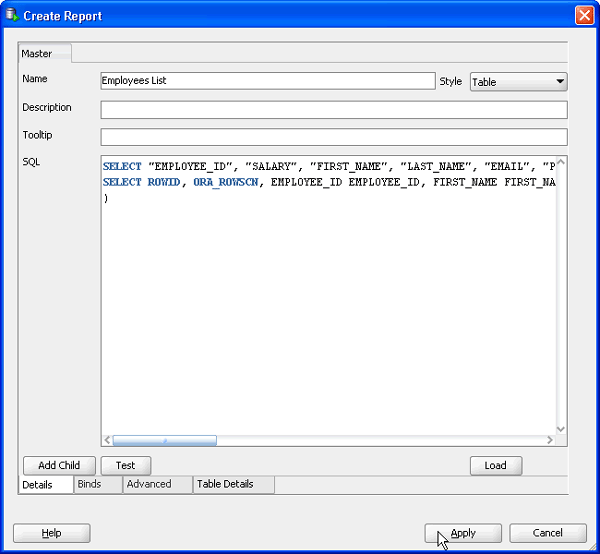
A Create Report dialog opens. Enter Employees List for name and click Apply.
|
|
. |
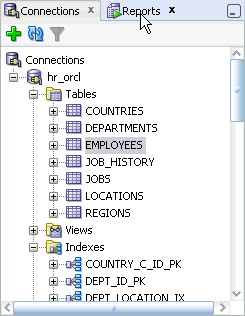
To view the report, click the Reports navigator.
|
|
. |
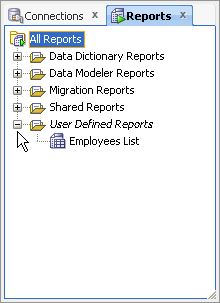
Expand the User Defined Reports node.
|
|
. |
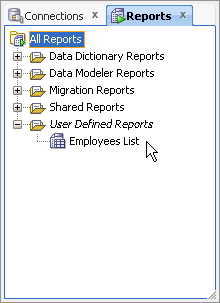
The created report is listed. To run the report, select Employees List.
|
|
. |
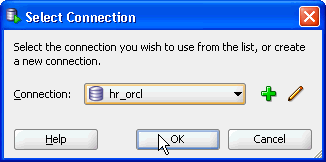
Confirm that the connection is hr_orcl and click OK.
|
|
. |
The report data is displayed.
|

Refactoring Code
Redesigning or restructuring code to improve its performance without changing the resulting behavior is called Refactoring.
When your code increases and possibly becomes less manageable, it is advisable to rework or refactor it. SQL Developer 2.1 gives you refactoring options to extract a procedure, surround code with FOR, WHILE, or PL/SQL block constructs, and rename a local variable. Options like Surround with can also be used while you write your code.
In this topic, you will learn to use the Extract Procedure option by reworking a small piece of code. You will then use the Surround with option to write a new piece of code to use the extracted procedure.
Using the Extract Procedure Option
|
. |
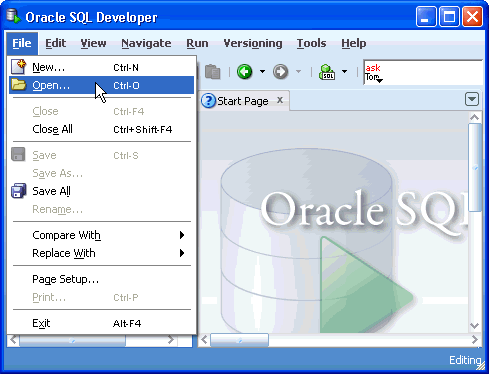
Close the open tabs and select the Connections navigator. To open the script file, select File > Open.
|
|---|---|
|
. |
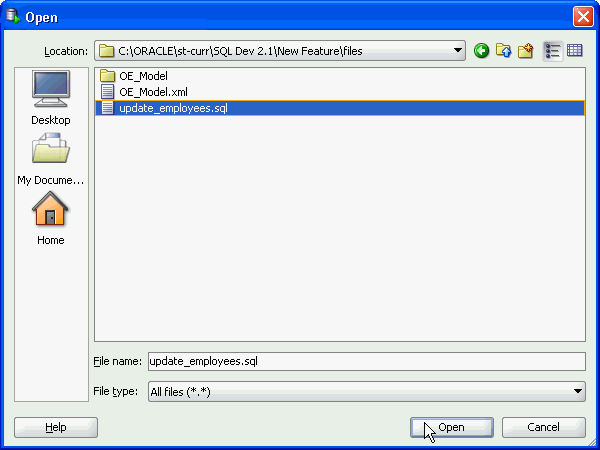
Browse to the location where you unzipped files.zip and open the update_employees.sql file.
|
|
. |
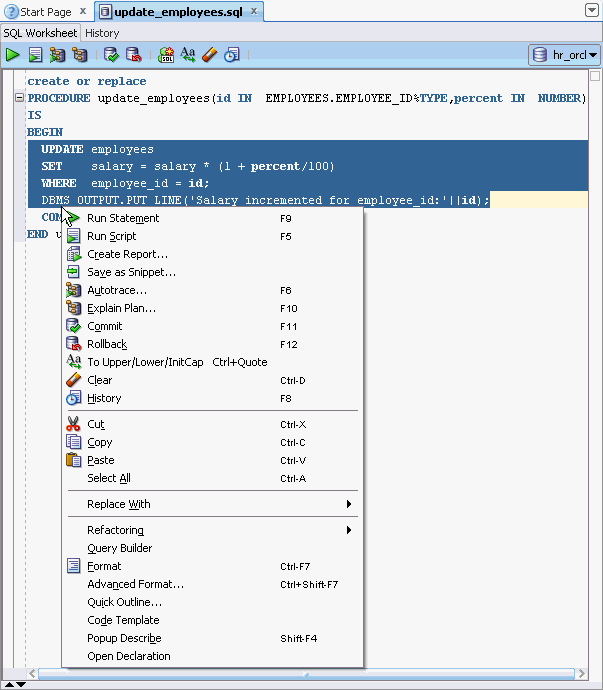
Review the code. The input to the update_employees procedure is employee_id and percent. The procedure increments the employee's salary by the input percent value.
|
|
. |
Select hr_orcl connection for the worksheet.
|
|
. |
To extract a new procedure, select the UPDATE and DBMS_OUTPUT statements and right-click to invoke a context menu. Note: If you select an incomplete piece of code, and error message is displayed.
|
|
. |
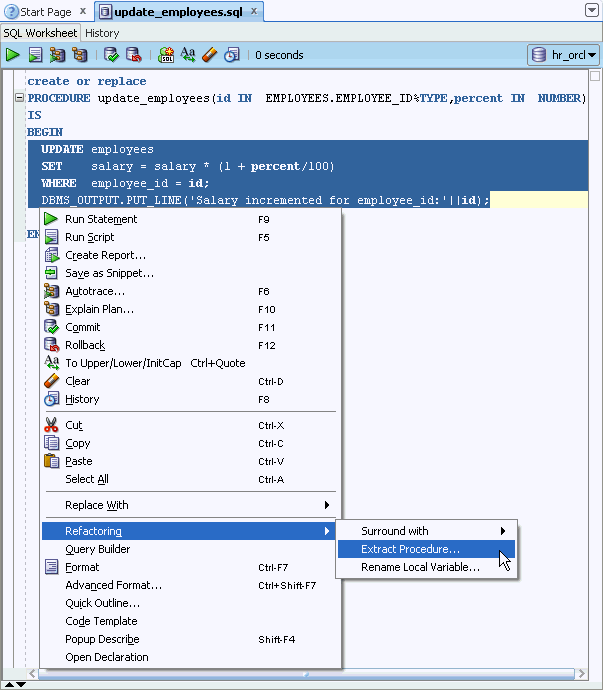
Select Refactoring > Extract Procedure....
|
|
. |
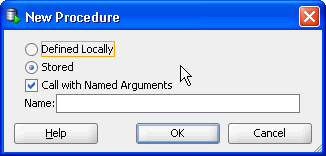
A New Procedure dialog opens. Ensure that the Stored radio button and the Call with Named Arguments checkbox are selected. Note: If you do not see the Stored and Call with Named Arguments options, ensure that you performed step 4.
|
|
. |
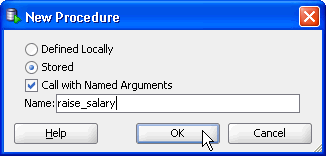
Enter raise_salary for Name and click OK.
|
|
. |
A Confirm Running SQL dialog opens. Review the code and click Yes.
|
|
. |
The procedure is created successfully and inserted in place of the existing code.
|
|
. |
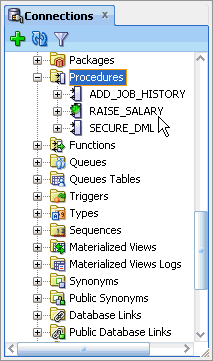
To view the procedure, expand the Procedures node. Note: If you do not see the new procedure, click the Refresh icon.
|
|
. |
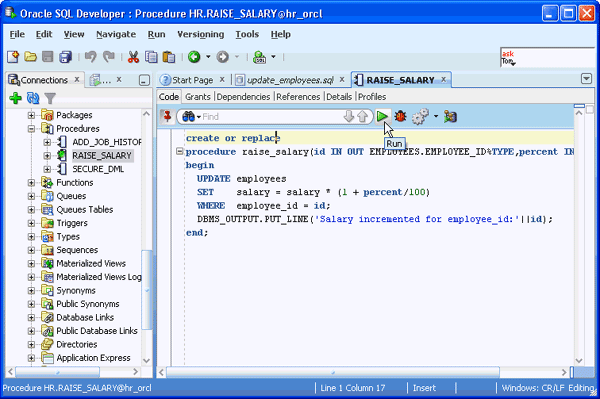
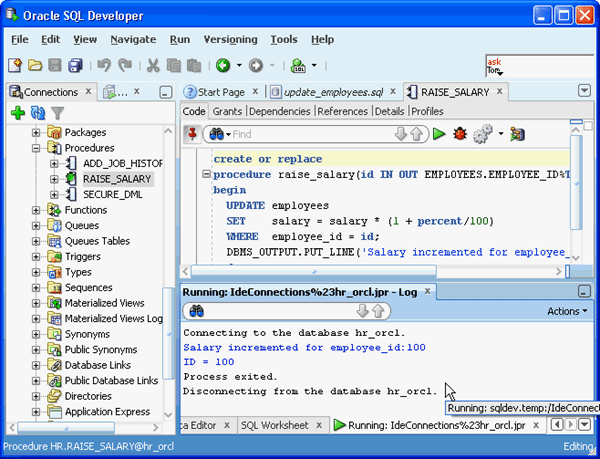
The RAISE_SALARY procedure is created. The green color on the procedure icon specifies a refactored code. Select RAISE_SALARY.
|
|
. |
To execute the procedure, click the Run icon.
|
|
. |
A Run PL/SQL dialog opens. Change the NULL values to 100 and 10 and click OK.
|
|
. |
The procedure is executed successfully.
|





Using the Surround with Option
|
. |
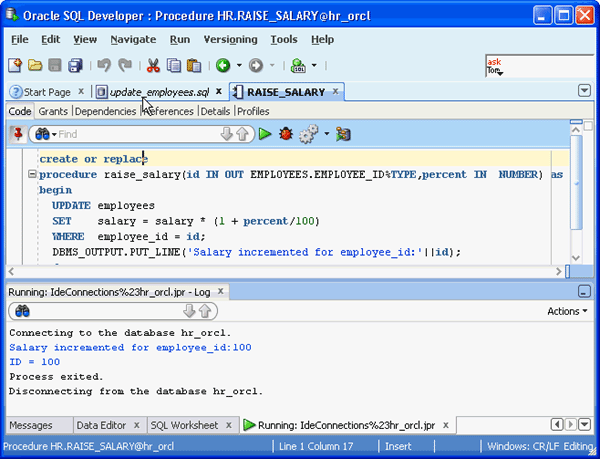
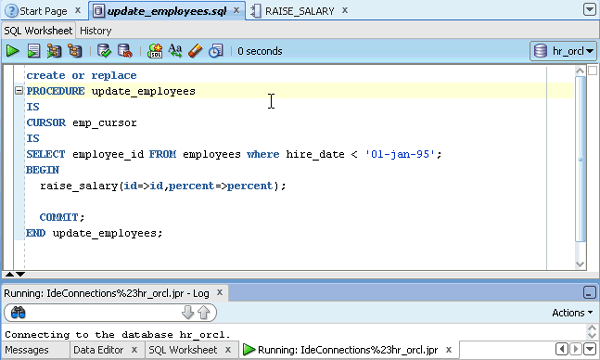
You need to rewrite the update_employees procedure to increment the salary of all employees who were hired before Jan '95. Click the update_employees.sql tab.
|
|---|---|
|
. |
Copy and paste the following code before the BEGIN keyword. The code uses a cursor to store the EMPLOYEE_ID of the employees hired before Jan '95. CURSOR emp_cursor
|
|
. |
Delete the parameters of the procedure.
|
|
. |
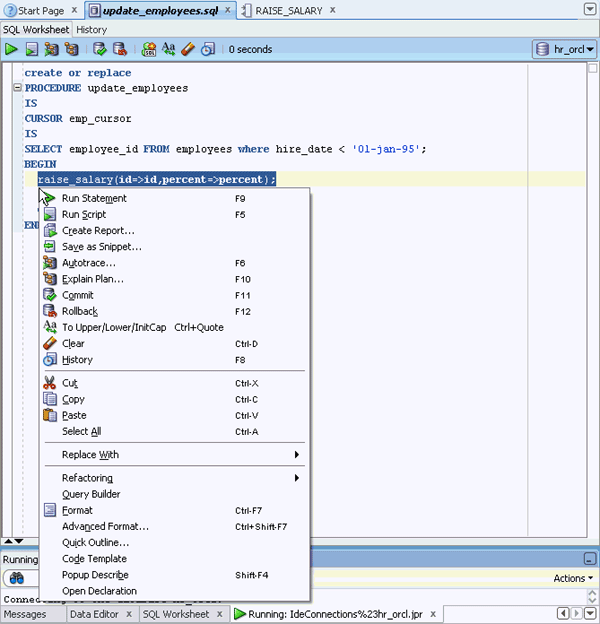
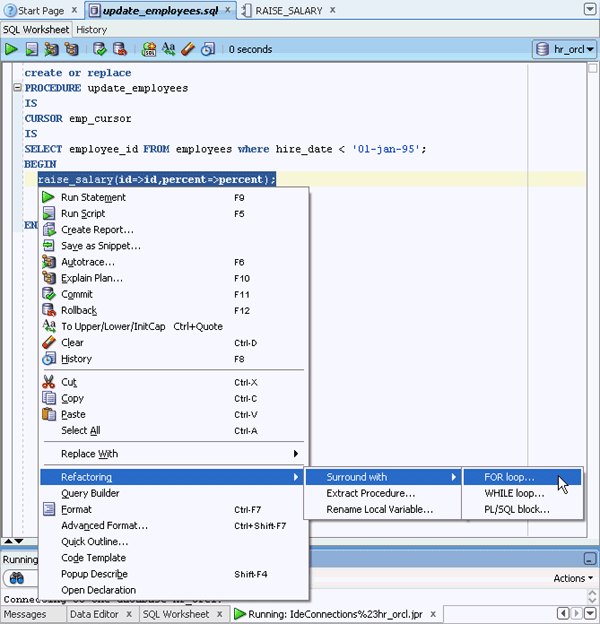
To call the raise_salary procedure for each EMPLOYEE_ID retrieved, you need to enclose the statement in a loop. Select the statement and right-click to invoke the context menu.
|
|
. |
Select Refactoring > Surround with > FOR Loop....
|
|
. |
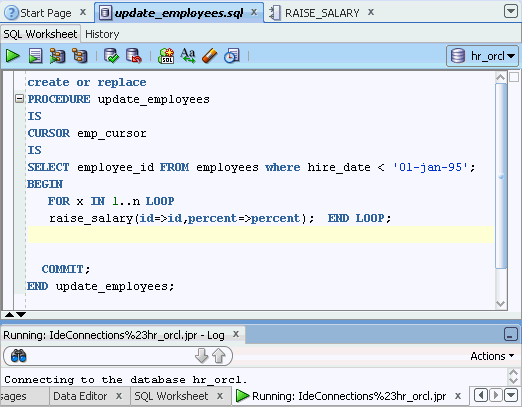
The statement is inserted inside a FOR loop.
|
|
. |
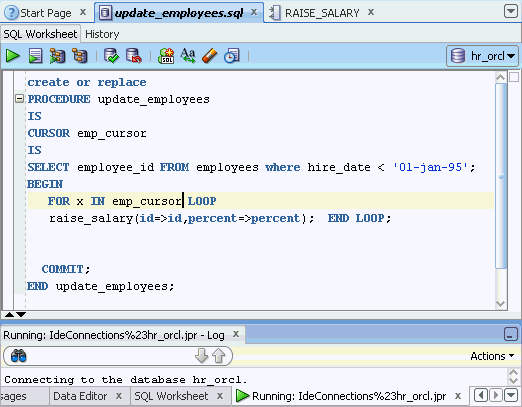
Type emp_cursor in place of 1..n.
|
|
. |
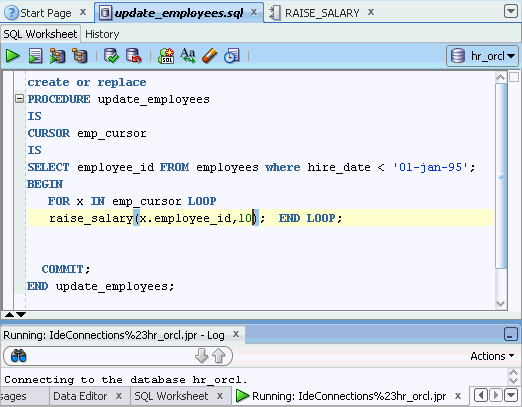
Delete the existing parameters of the raise_salary procedure and insert the following: x.employee_id,10
|
|
. |
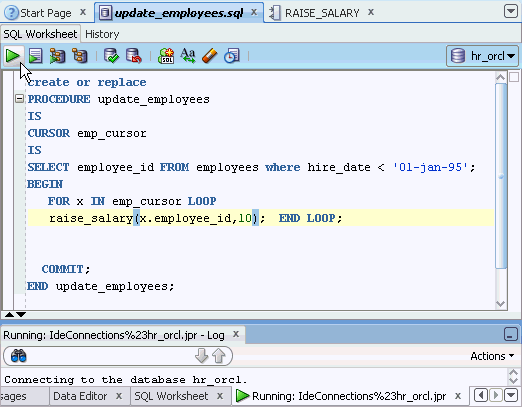
To execute the code, click the Run icon.
|
|
. |
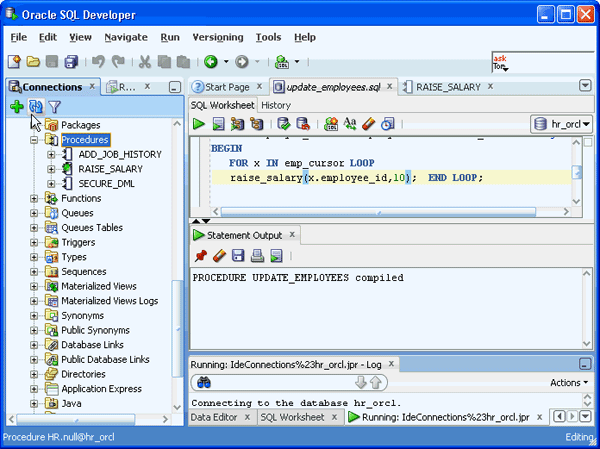
The procedure is compiled successfully. To view the procedure, select the Procedures node and click the Refresh icon.
|
|
. |
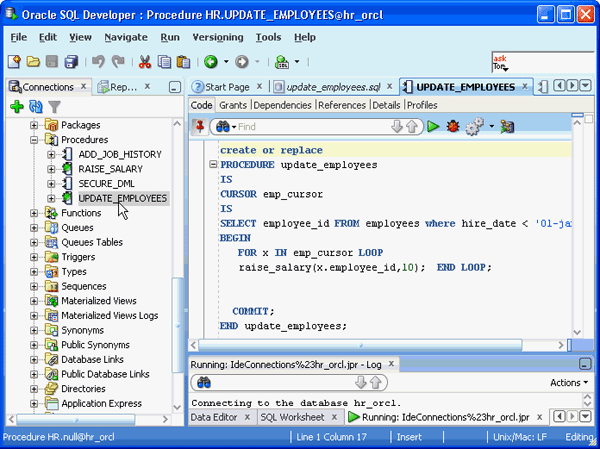
Select UPDATE_EMPLOYEES.
|
|
. |
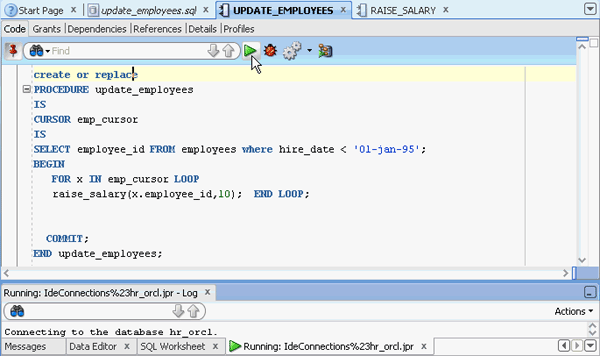
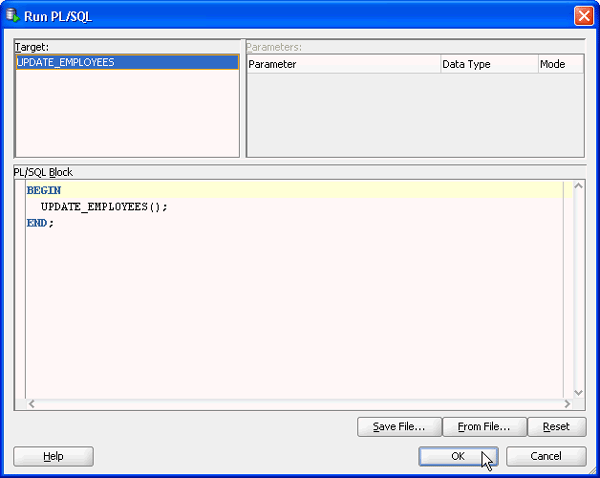
To execute the procedure, click the Run icon.
|
|
. |
Click OK.
|
|
. |
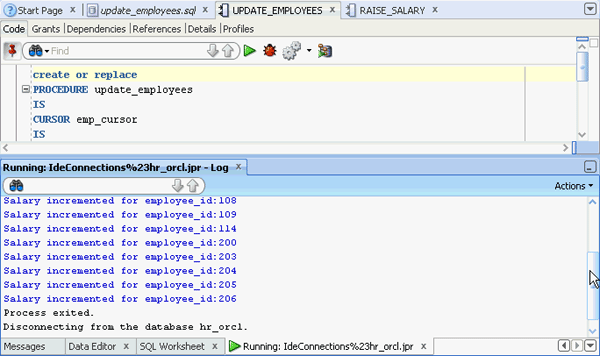
The procedure is executed successfully.
|

Setting Preferences Using SQL Formatter
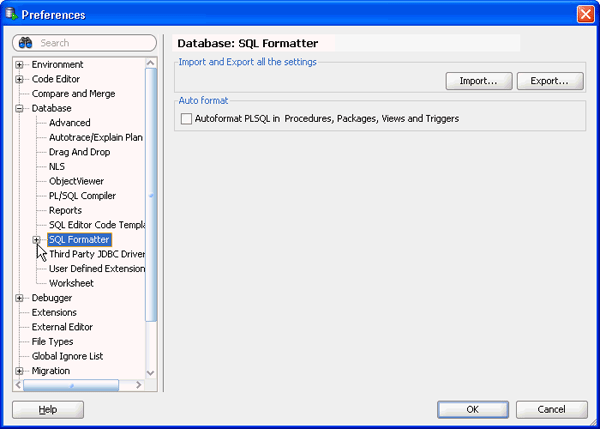
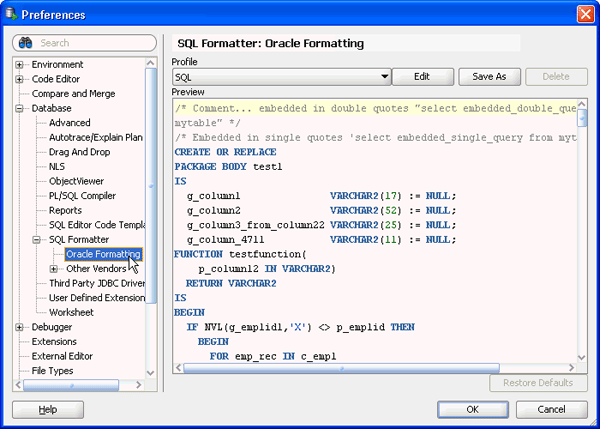
In SQL Developer 2.1, the Formatter has been enhanced to provide greater control on the formatting options. It offers two categories of formatting: Oracle Formatting and Other Vendors. In this topic, you review and modify the Oracle Formatting options.
|
. |
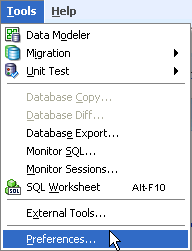
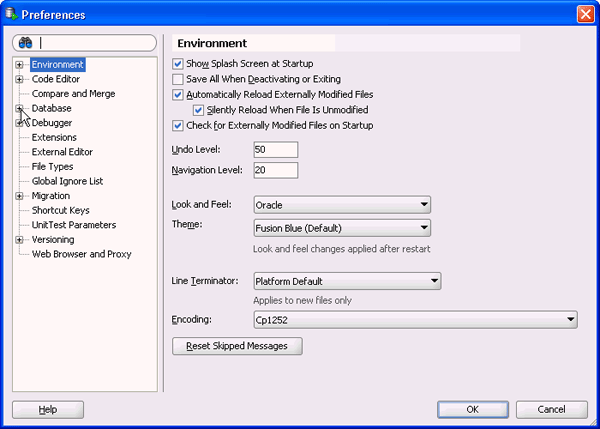
Select Tools > Preferences.
|
|---|---|
|
. |
A Preferences dialog opens. Expand Database.
|
|
. |
Select SQL Formatter and expand it.
|
|
. |
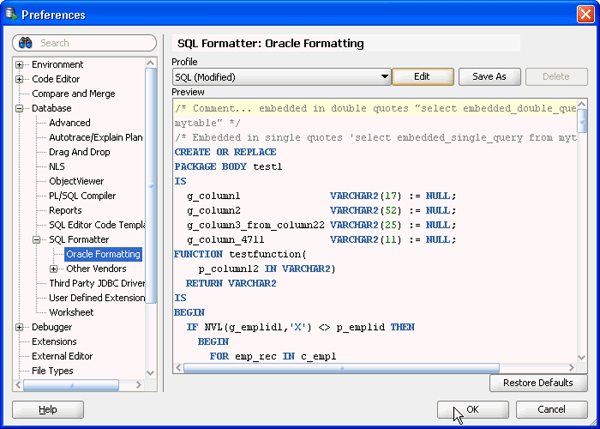
Select Oracle Formatting.
|
|
. |
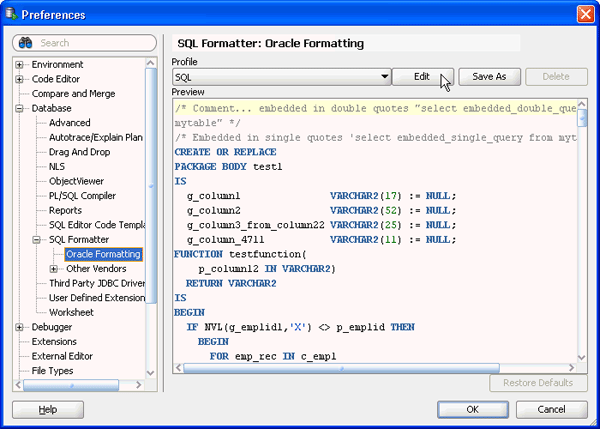
To update preferences, click Edit. Note: Ensure that SQL is selected for Profile.
|
|
. |
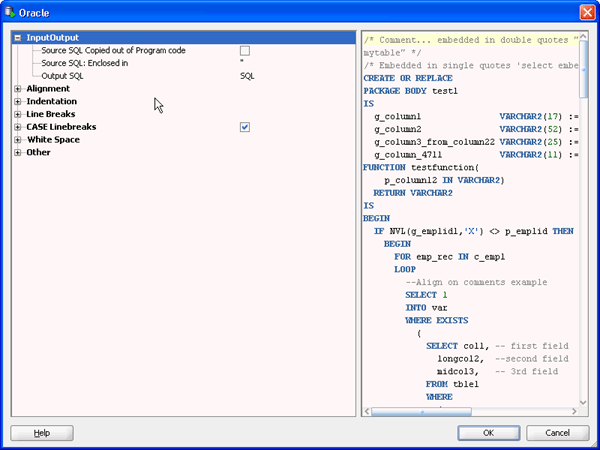
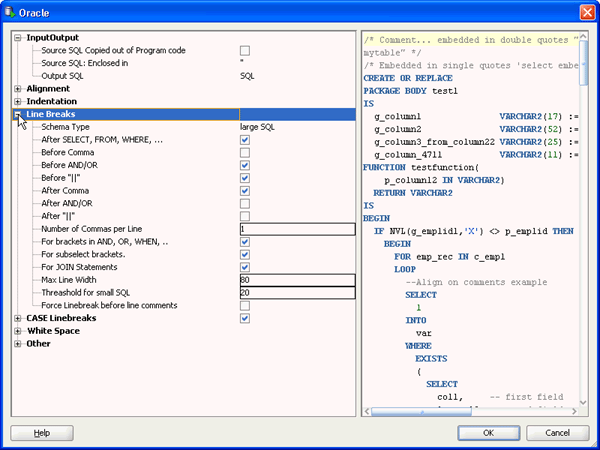
A Oracle formatter dialog opens. Expand each node and review the settings. Check/uncheck some options and view its effect in the sample code shown on the right.
|
|
. |
Expand Line Breaks.
|
|
. |
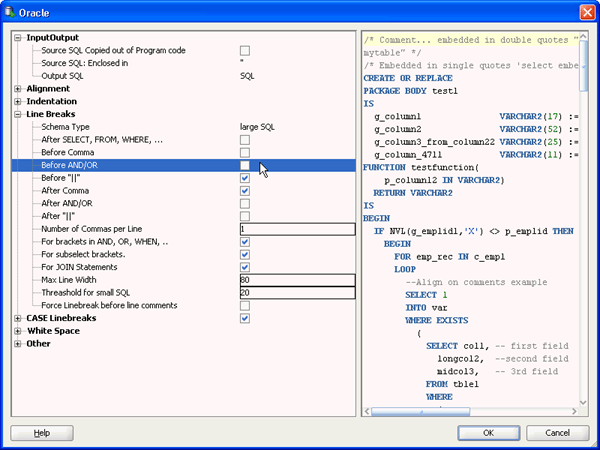
Deselect the checkbox for After SELECT, FROM, WHERE and Before AND/OR.
|
|
. |
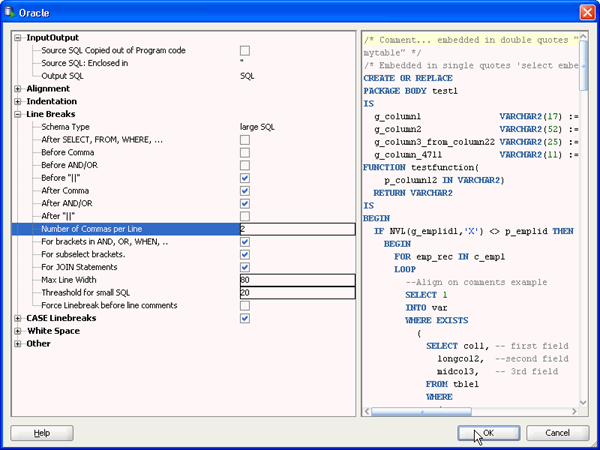
Select checkbox for After AND/OR, enter 2 for Number of Commas per Line, and click OK.
|
|
. |
Click OK in the Preferences dialog.
|
|
. |
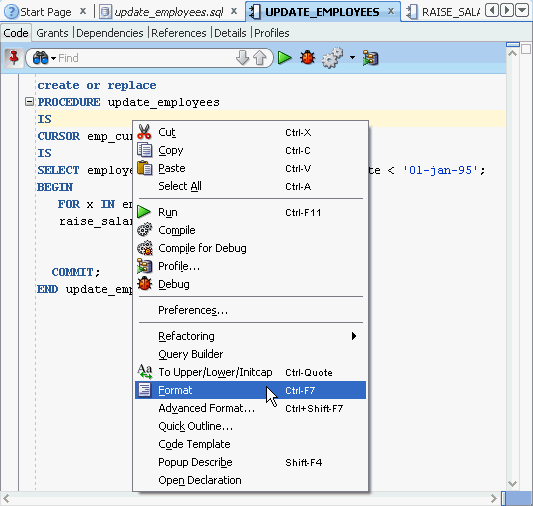
Right-click in the SQL Worksheet and select Format.
|
|
. |
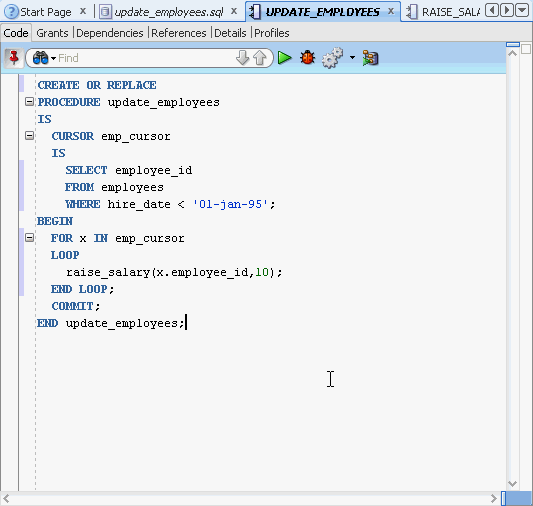
The code is formatted successfully.
|
Using the Data Modeler Viewer
SQL Developer 2.1 includes the Data Modeler Viewer. You can open existing SQL Developer Data Modeler diagrams as well as create new models based on the connection. In this topic, you visualize the EMPLOYEES, DEPARTMENTS, and JOB_HISTORY tables and the EMP_DETAILS_VIEW view. Then, you open a SQL Developer Data Model and view its properties.
Creating New Models
|
. |
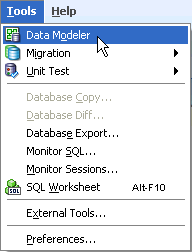
To open the Data Modeler in SQL Developer, select Tools > Data Modeler.
|
|---|---|
|
. |
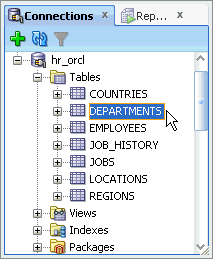
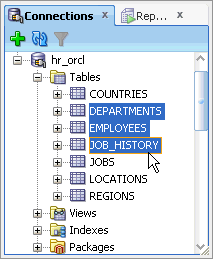
From the Tables node in the Connections Navigator, select the DEPARTMENTS table.
|
|
. |
Press and hold the Shift key and select the EMPLOYEES and JOB_HISTORY tables.
|
|
. |
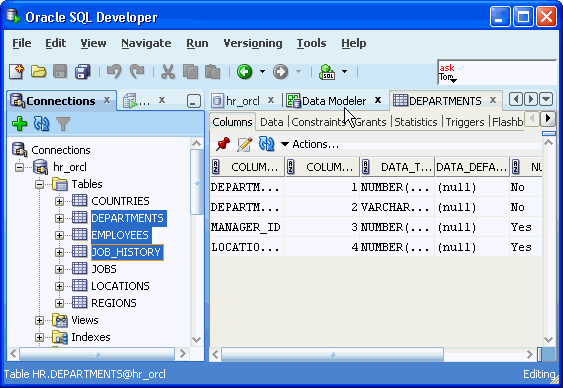
Select the Data Modeler tab.
|
|
. |
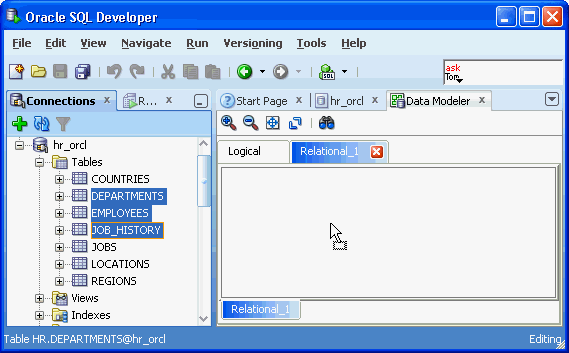
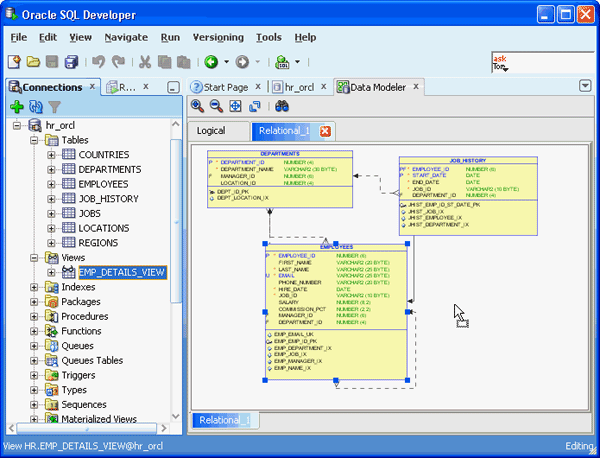
Drag and drop the selected tables onto the Data Modeler Relational_1 tab.
|
|
. |
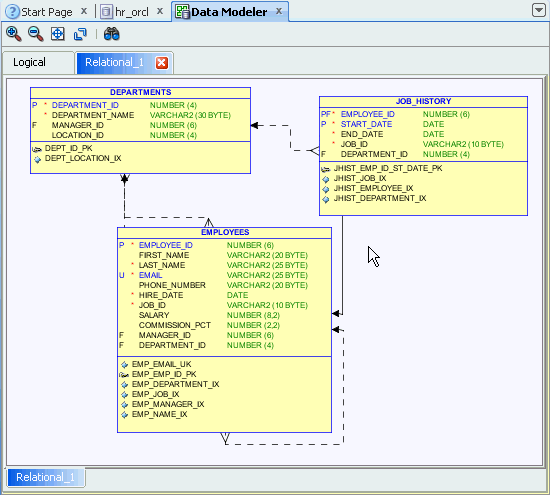
You can view the structure of the tables. You can not save the model, but you can move the objects on the diagram to change the default layout.
|
|
. |
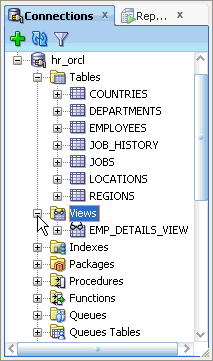
To view the structure of the EMP_DETAILS_VIEW view, expand the Views node.
|
|
. |
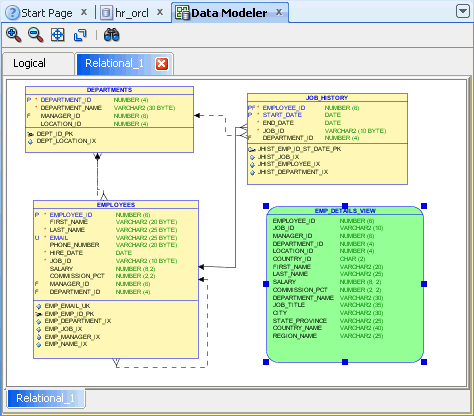
Drag and drop EMP_DETAILS_VIEW to the diagram.
|
| . |
The structure of the EMP_DETAILS_VIEW view is displayed.
|
|
. |
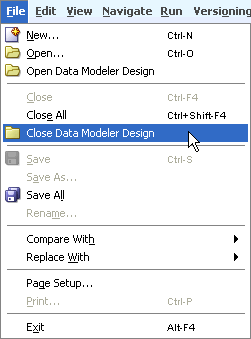
To close the model, select File > Close Data Modeler Design.
|
Opening Existing Models
|
. |
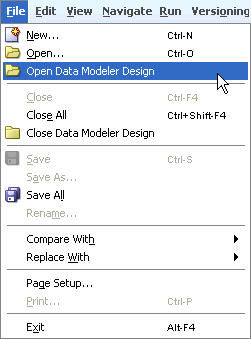
To open a SQL Developer Data Model, select File > Open Data Modeler Design.
|
|---|---|
|
. |
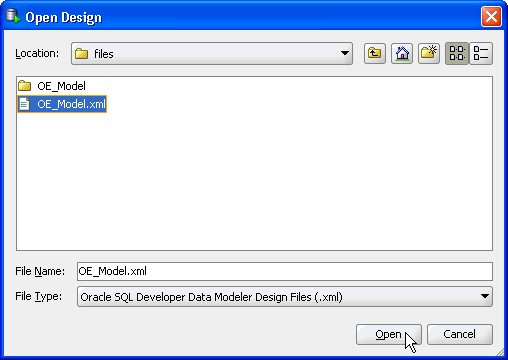
Browse to the location where you unzipped files.zip and open the OE_Model.xml file.
|
|
. |
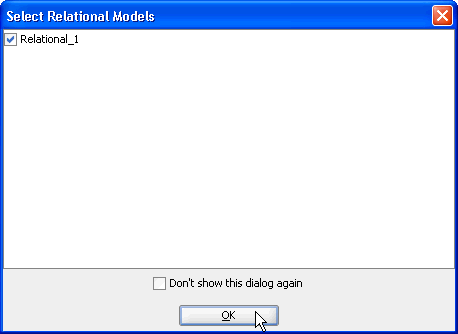
Click OK.
|
|
. |
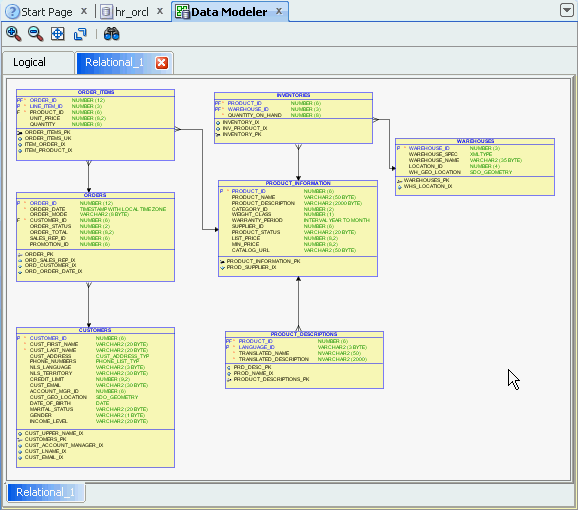
You have successfully opened the OE schema model.
|
|
. |
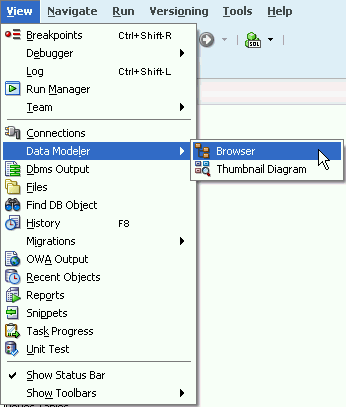
To review the details of the model in a navigator, select View > Data Modeler > Browser.
|
|
. |
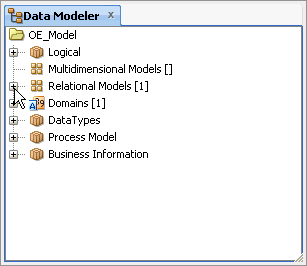
After the model and the Data Modeler browser is opened, you can browse and review all of the model properties. From the Data Modeler browser, expand Relational Models [1]. Note: The model and properties are read only.
|
|
. |
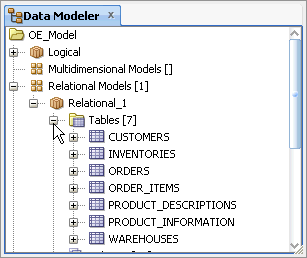
Expand Relational_1 and Tables[7].
|
|
. |
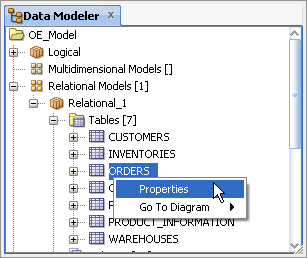
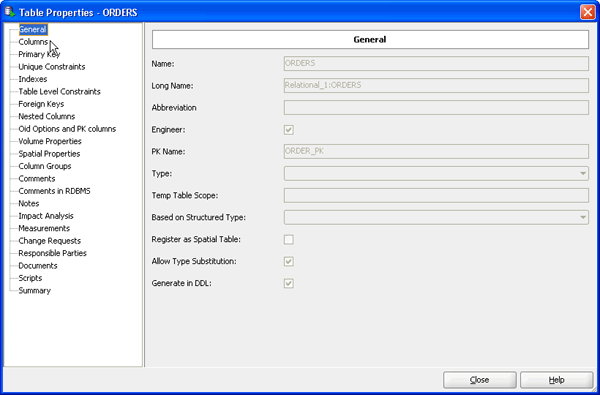
Right-click the ORDERS table and select Properties.
|
|
. |
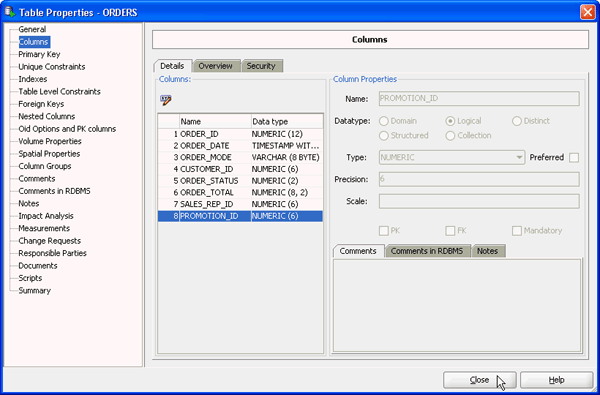
Click Columns on the left navigator.
|
|
. |
Review the column details and click Close.
|
|
. |
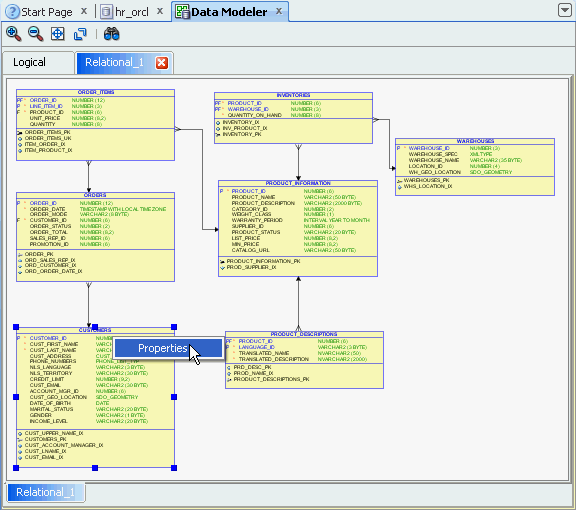
You can also select a table from the diagram to view its properties. Right-click the CUSTOMERS table and select Properties.
|
|
. |
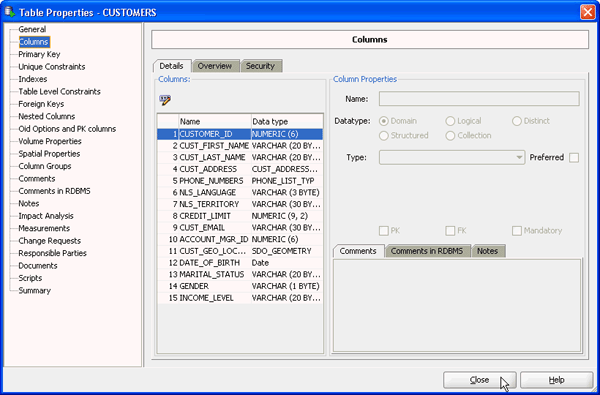
Select Columns from the left navigator and review the column properties. When done, click Close.
|
|
. |
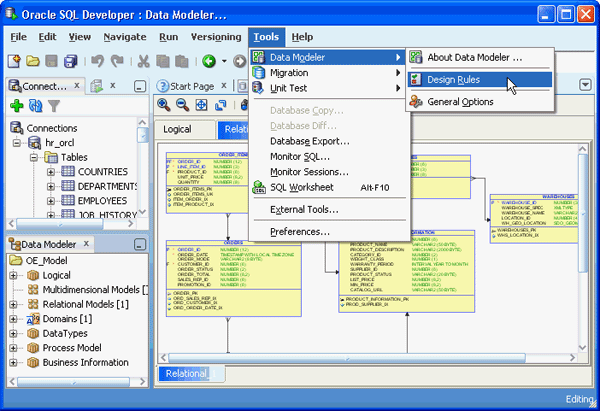
You can check the design of the relational model. Select Tools > Data Modeler > Design Rules.
|
|
. |
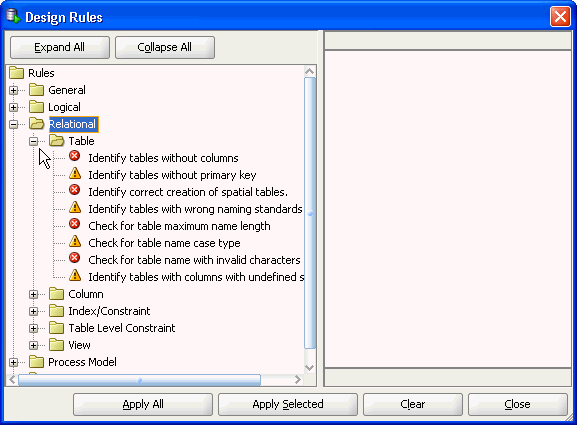
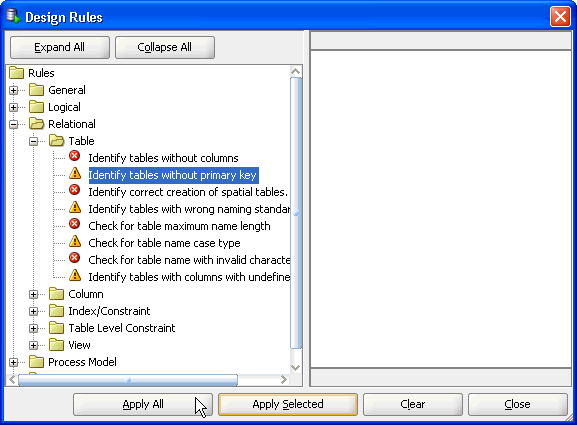
A Design Rules dialog opens. You have the option to apply all rules to the model or select a particular rule to apply. To identify tables without the Primary Key, expand Relational > Table.
|
|
. |
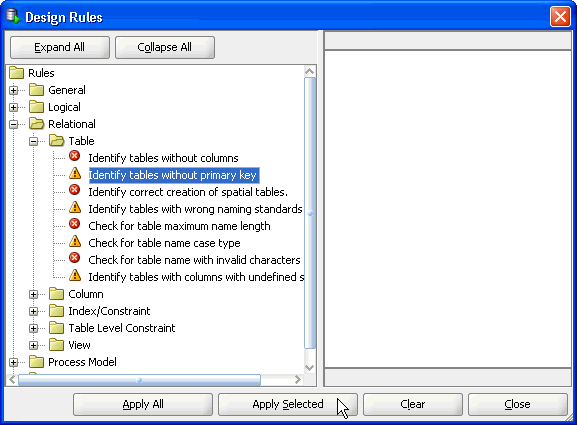
Select Identify tables without primary key and click Apply Selected.
|
|
. |
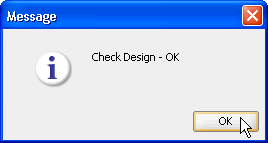
You get a Check Design - OK message. Click OK.
|
|
. |
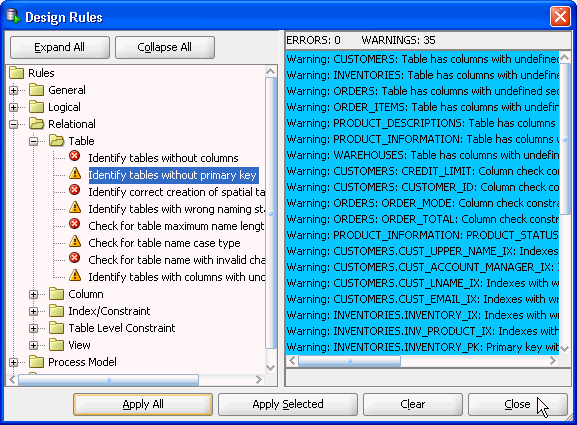
To apply all the design rules, click Apply All.
|
|
. |
Any errors or warnings are displayed. View the warnings and click Close.
|
Summary
In this tutorial, you have learned how to:
- Apply and remove schema and object filters
- Control, sort, and filter columns in a data grid
- Use the Find / Highlight option in a data grid
- Save the grid query as a report
- Refactor your code using Extract Procedure
- Use the Surround with FOR loop option.
- Edit Oracle Formatting preferences in SQL Formatter
- Open existing SQL Developer data models
- Create new models
- View model properties
- Check model against design rules
Resources
- Oracle SQL Developer Documentation
- Oracle SQL Developer tutorial
- Oracle SQL Developer homepage on OTN
- PL/SQL Unit Testing tutorial
- Oracle SQL Developer Data Modeler homepage on OTN
Credits (Optional)
- Lead Curriculum Developer: Salome Clement
- Other Contributors: Marcie Young, Sue Harper

 |
About
Oracle |  | Careers | Contact
Us | Site Maps | Legal
Notices | Terms of Use | Your Privacy Rights | Careers | Contact
Us | Site Maps | Legal
Notices | Terms of Use | Your Privacy Rights |