Generating a Multi-Dimensional Model
Overview
Purpose
This tutorial shows you how to generate a multi-dimensional model with Oracle SQL Developer Data Modeler.
Time to Complete
Approximately 15 minutes
Introduction
Oracle SQL Developer Data Modeler offers a full spectrum of data and database modeling tools and utilities, including Entity Relationship modeling, Relational (Schema), Data Types or Object Types modeling, and Multidimensional modeling and DDL generation. It includes importing from and exporting to a variety of sources and targets, provides a variety of formatting options and validates the models through a predefined set of Design Rules.
Oracle SQL Developer Data Modeler will be released as an extension to SQL Developer and as a standalone product, for those developers who only want to work with visual data modeling.
In this tutorial, you import the DDL for the SH schema, examine the relational and physical model, reverse engineer to create a logical model, create a new multidimensional model, engineer from the physical model to create the multidimensional diagram and examine the results.
Prerequisites
Before starting this tutorial, you should:
- Install Oracle SQL Developer Data Modeler from OTN here.
- Install the Oracle Database 10g and later.
- Download and unzip the datamodel3genmulti.zip file that contains all the files you need to perform this tutorial.
Note: This tutorial was created in a Linux environment. If you are using a Windows environment, the screenshots may be slightly different.
Importing the DDL for the SH (Sales History) Sample Schema
In this section, you import the DDL from the SH schema to create a relational model. Perform the following steps:
-
Open Oracle SQL Developer Data Modeler. If you performed the previous tutorial, and did not exit Oracle SQL Developer Data Modeling, select File > Close to close the model you previously worked on.
-
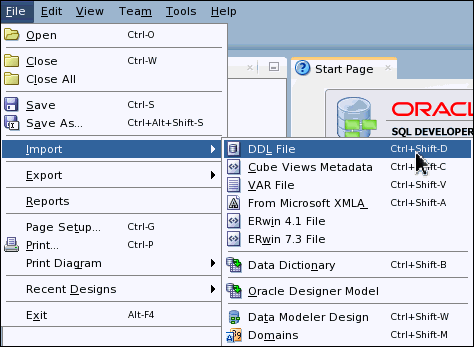
Select File > Import > DDL File.
-
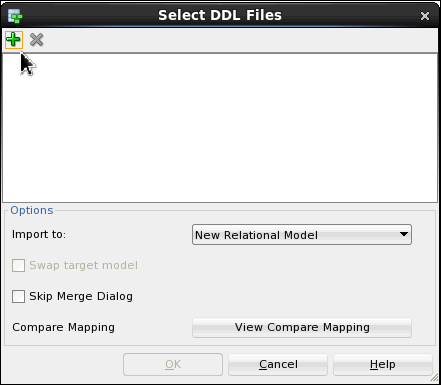
You can add multiple DDL files to be imported at the same time. Click the '+' icon to add a DDL file.
-
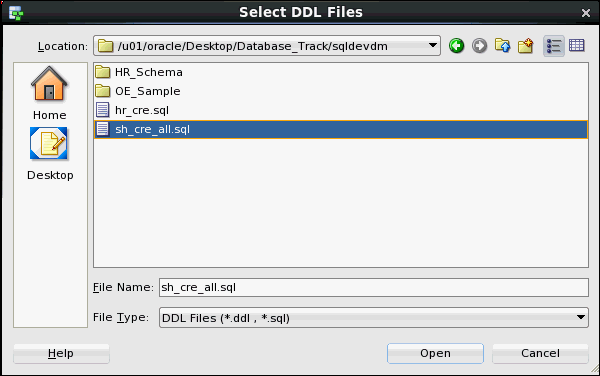
Select sh_cre_all.sql from the directory where you unzipped the files from the Prerequisites and click Open.
-
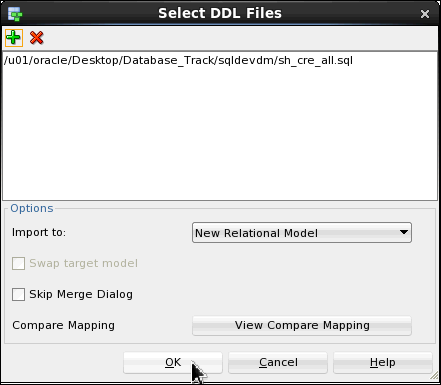
Click OK.
-
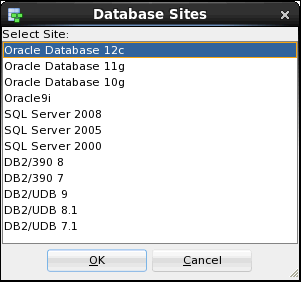
Select Oracle Database 12c and click OK.
-
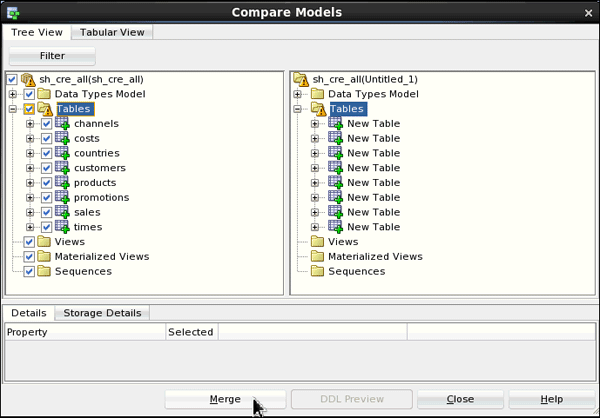
The Compare Model window appears. You can view the changes that will occur when the DDL file is imported. Expand Tables under sh_cre_all. You see that the list of tables that will be created. Click Merge.
-
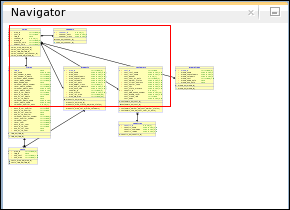
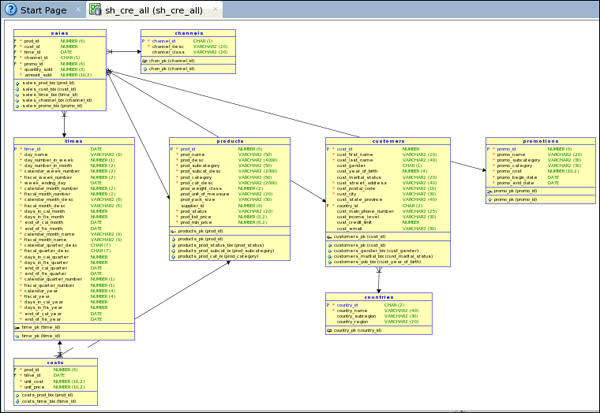
The relational diagram is displayed. Navigate to view menu and select Navigator. In the Navigator window, you can move the red box around to adjust the view of your model.
-
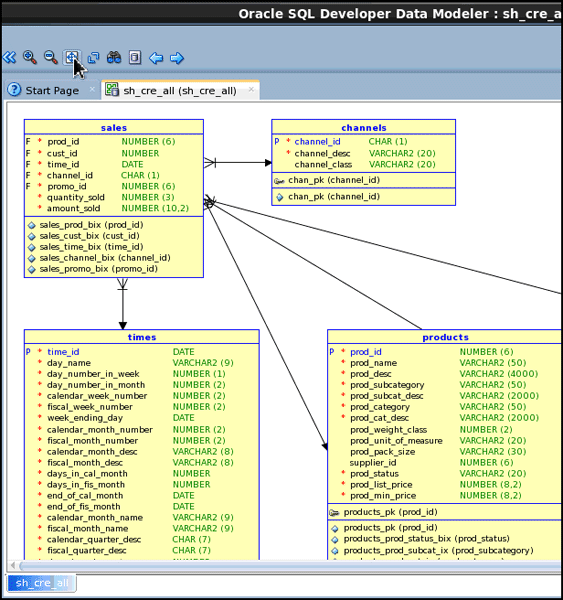
To view the entire diagram, click the Fit Screen icon.
-
You can now see more of the diagram. In the next section, you review the relational and physical model objects in the navigator.
Reviewing the Relational and Physical Model
In this section, you review the relational and physical model in the navigator. Perform the following steps:
-
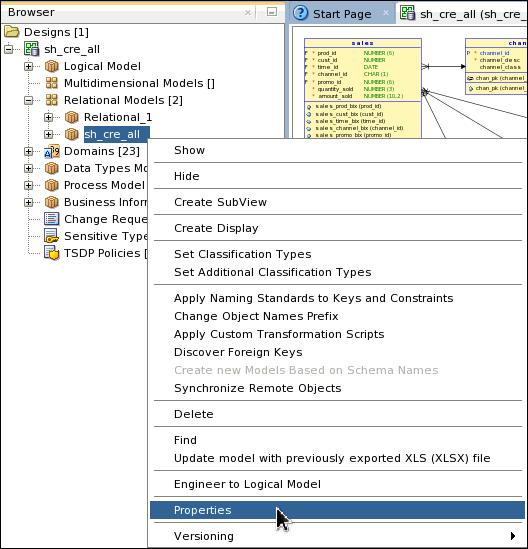
In the left navigator, expand Relational Model. Right-click she_cre_all and select Properties.
-
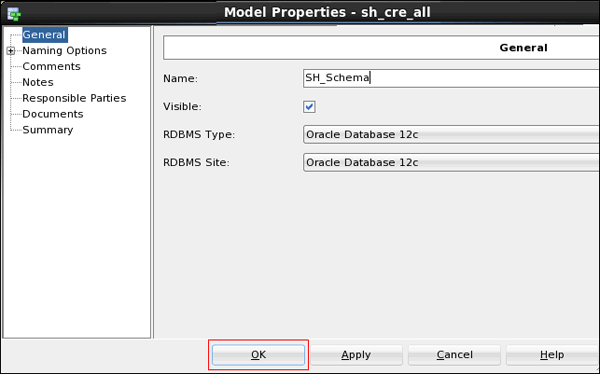
Change the Name to SH_Schema and click OK.
-
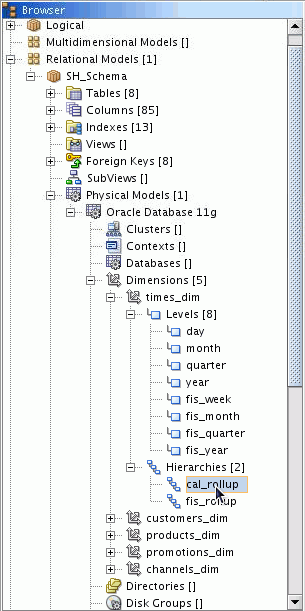
Expand SH_Schema > Physical Models > Oracle Database 12c > Dimensions > times_dim > Levels.
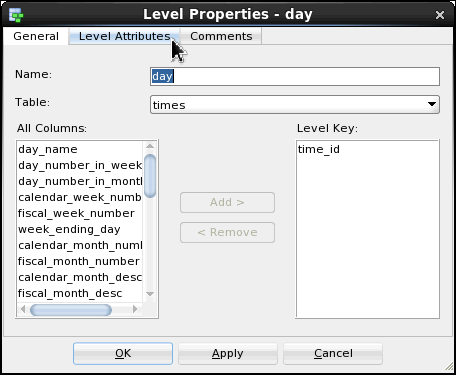
Notice that there are 5 Dimensions in this model. Each dimension contains various levels and hierarchies. Double-click the day level for the times dimension.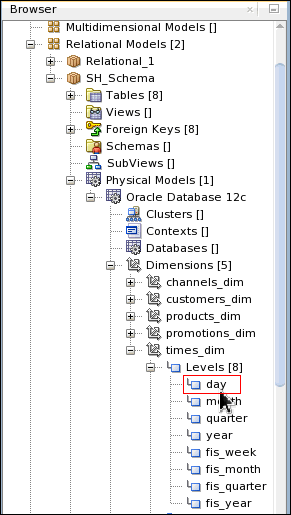
-
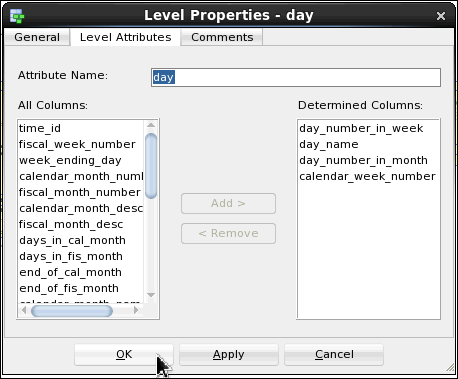
Click the Level Attributes tab to view the columns defined for this level.
-
The columns are displayed. Click OK.
-
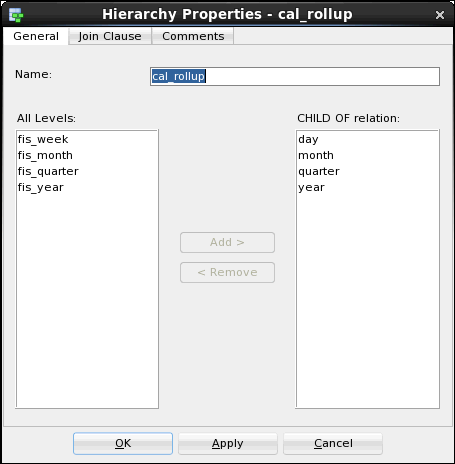
Expand Hierarchies. Double-click cal_rollup.
-
Review the list of levels included in this hierarchy. Click OK. In the next section, you engineer the relational model to a logical model so that you can then create the multidimensional model.
Generating a Multidimensional Model
In this section, you engineer the relational model to a logical model and then generate the multidimensional model. Perform the following steps:
-
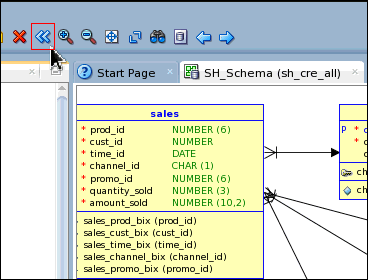
Click the Engineer to Logical Model icon.
-
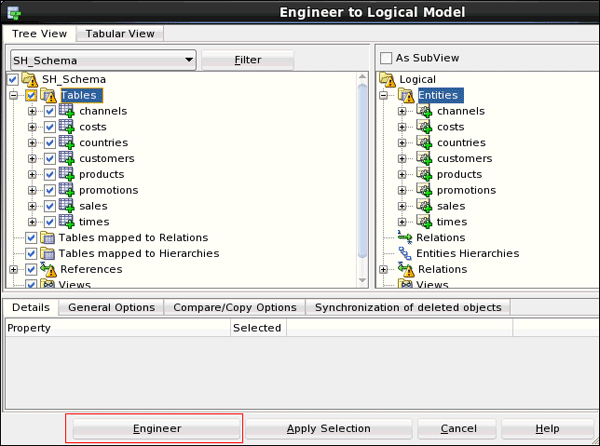
Expand Tables to see the objects that will be added to the Logical Model. Click Engineer.
-
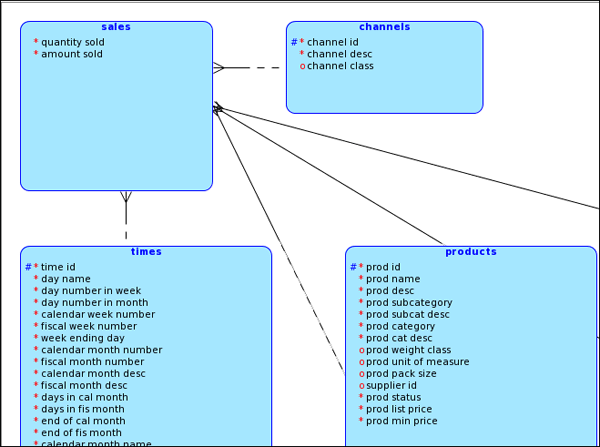
The Logical Model is displayed.
-
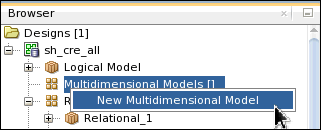
Now you can create a multidimensional model. In the left navigator, right-click Multidimensional Models and select New Multidimensional Model.
-
Once your multidimensional model is created, you can change the name.
Expand Multidimensional Models and right-click Multidimensional_1, then select Properties.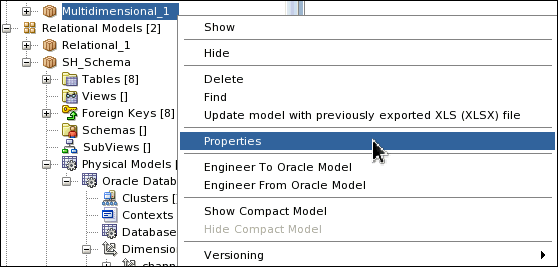
-
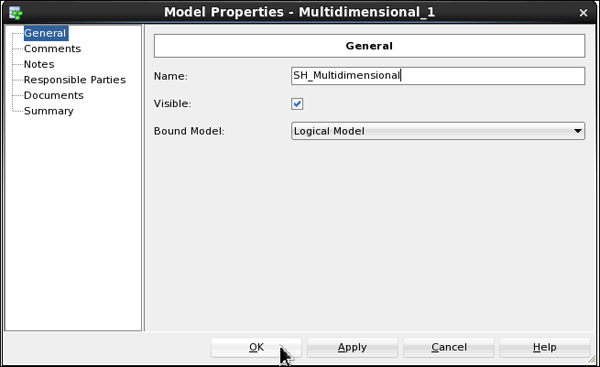
Change the Name from Multidimensional_1 to SH_Multidimensional and click OK.
-
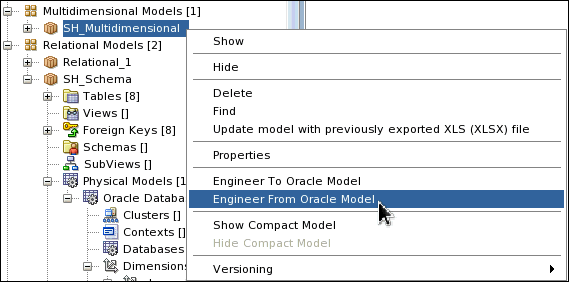
Now you can create the multidimensional model. Right-click SH_Multidimensional and select Engineer From Oracle Model.
-
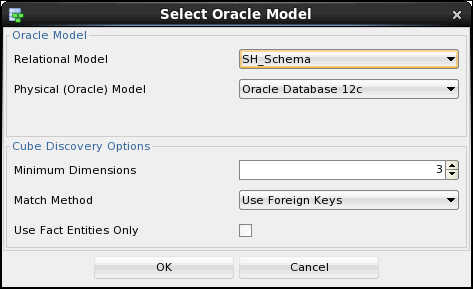
Click OK.
-
The multidimensional model was created successfully. Right click on the model, select Autoroute. In the next section, you review the times_dim object in the multidimensional model.
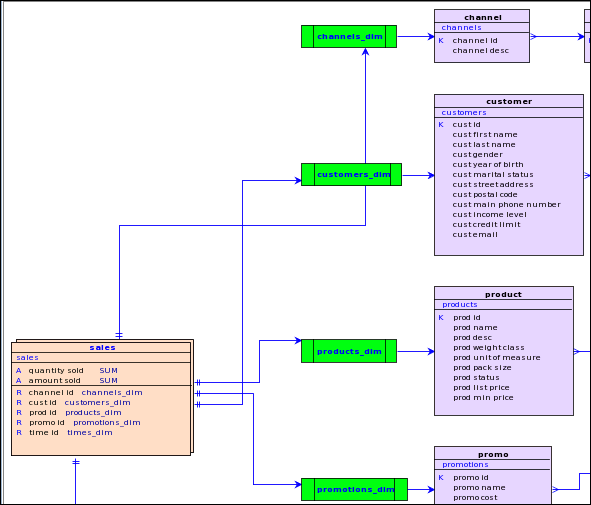
Reviewing the Multidimensional Model
In this section, you review the times_dim object in the multidimensional model. Perform the following steps:
-
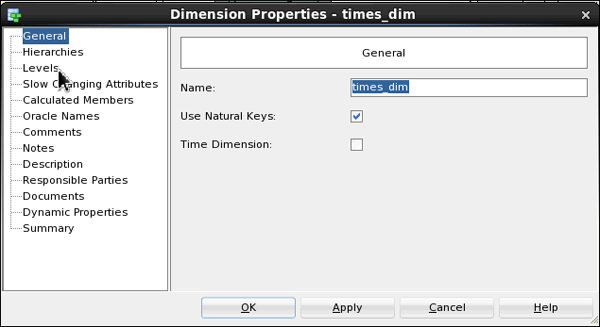
Double-click the times_dim object in the diagram.

-
In the left navigator, click Levels.
-
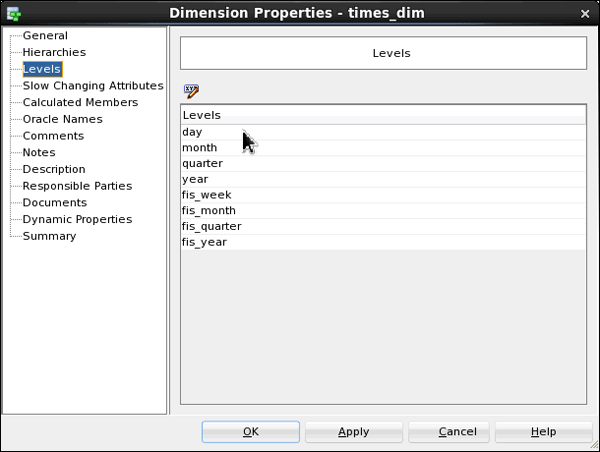
The levels are displayed. You can drill down into the levels. Double-click the day level.
-
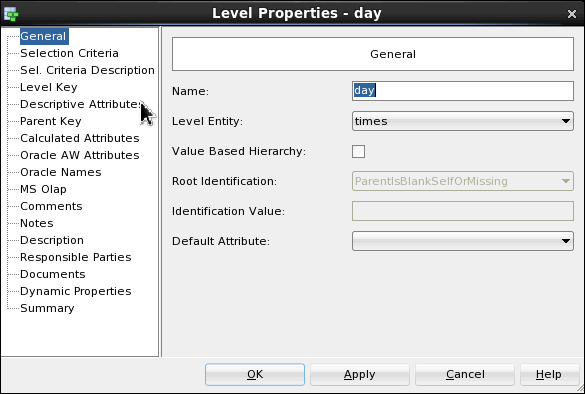
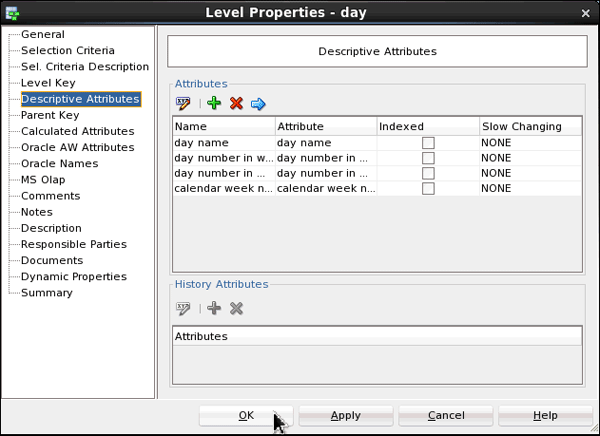
In the left navigator, click Descriptive Attributes.
-
Review the attributes shown. Click OK twice to return to the diagram.
Using the Dimensions Custom Report Template
In Oracle SQL Developer Data Modeler 4.0, a custom report
template that shows dimensions with details for hierarchies and
levels is available. This custom report is integrated in the
Search functionality.
Perform the following steps:
-
Click on the Search icon on the toolbar and enter customer. Since the SH_Multidimensional model is active, the search will be for this model.

-
In the Results window, select the following:
- Model: SH_Multidimensional
- Object: Dimensions SH_Multidimensional
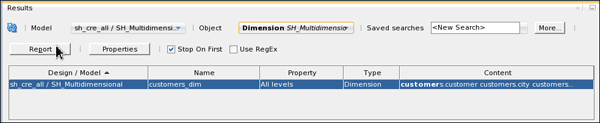
Click Report.
-
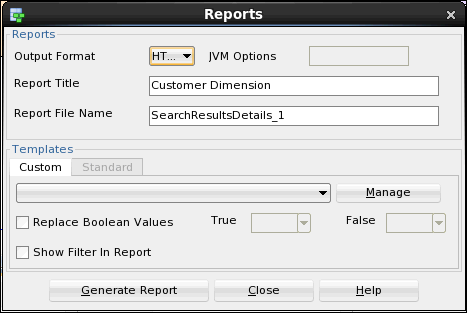
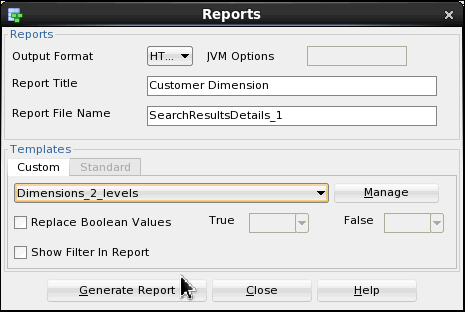
In the Reports Dialog, enter Customer Dimension for the title.
-
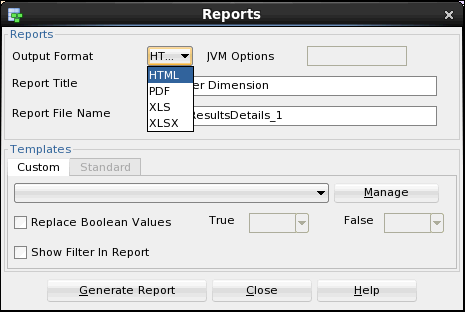
Click the Output Format drop down and select HTML. The various output formats available are HTML, PDF, XLS and XLSX.
-
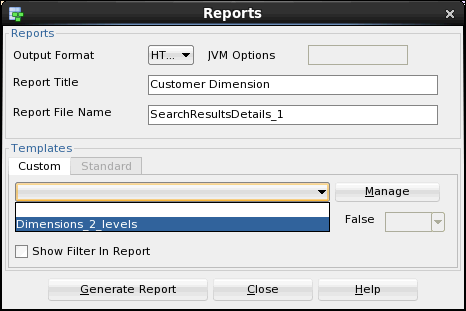
In Templates section, click the drop down and select Dimensions_2_levels.
-
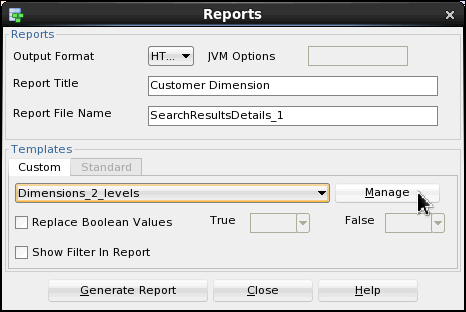
Click Manage.
-
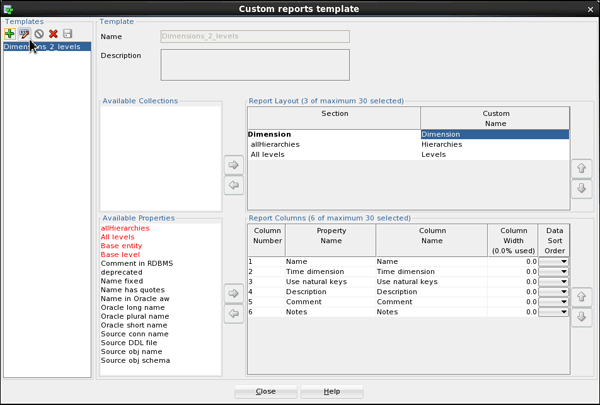
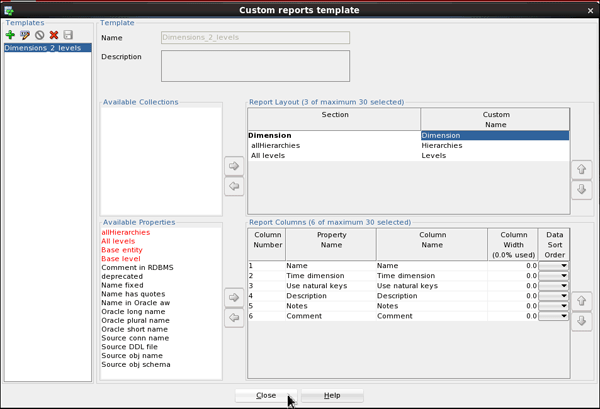
You can view the Report Layout and properties. The template can be edited by clicking on the edit icon.
-
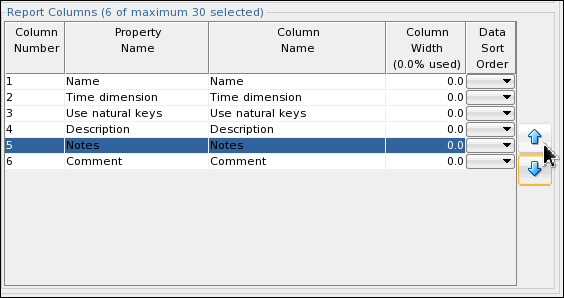
Click on Notes column and click on the up arrow to change the column order.
-
Click Save and then Close.
-
Select Dimensions template(Dimensions_2_levels) in the drop down again and click Generate Report to generate the report.
-
Click OK to open the report.
-
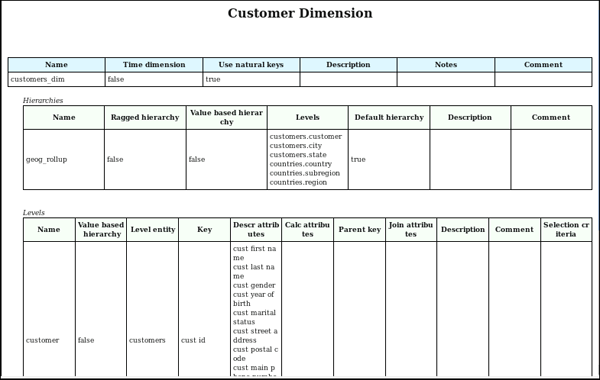
The report is displayed.
Summary
In this tutorial, you learned how to:
- Import DDL for the SH Schema to create a relational diagram
- Re-engineer to the logical diagram
- Create and generate a multidimensional model from existing dimensions and levels
- Use the Dimensions Custom Report Template
Resources
- To learn more about Oracle SQL Developer Data Modeler, refer to additional OBEs in the Oracle Learning Library .
Credits
- Lead Curriculum Developer: Swarnapriya Shridhar
- Other Contributors: Ashley Chen
To navigate this Oracle by Example tutorial, note the following:
- Topic List:
- Click a topic to navigate to that section.
- Expand All Topics:
- Click the button to show or hide the details for the sections. By default, all topics are collapsed.
- Hide All Images:
- Click the button to show or hide the screenshots. By default, all images are displayed.
- Print:
- Click the button to print the content. The content that is currently displayed or hidden is printed.
To navigate to a particular section in this tutorial, select the topic from the list.