Oracle Enterprise Manager 12c Enterprise Ready Framework: Setup Administration Groups and Template Collections
Purpose
In this tutorial, you learn how to create the sample administration group hierarchy that we discussed in the Administration Groups and Template Collections presentation. You also learn how to create template collections and associate them with administration groups, and how to set target properties so that targets are automatically added to the relevant administration groups.
Time to Complete
Approximately 1 hour.
Overview
Administration Groups are a special type of group used to fully automate application of monitoring settings to targets upon joining the group. When a target is added to the group, monitoring settings are automatically applied using a template collection consisting of monitoring templates, compliance standards, and cloud policies.
Scenario
In this tutorial, you will:
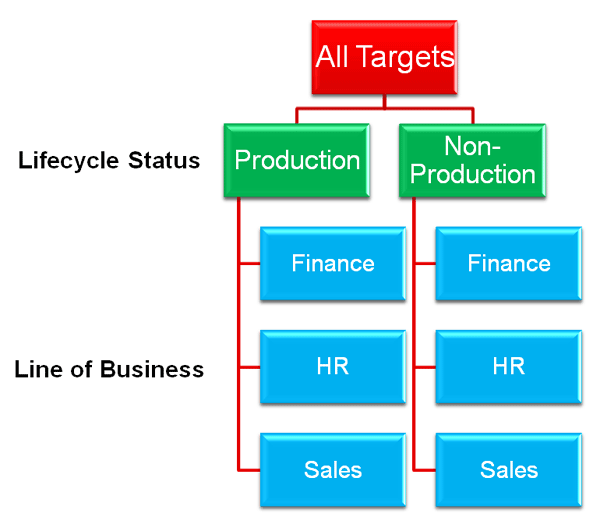
- Create the sample administration group hierarchy. In this hierarchy, there are two criteria that we use to create the hierarchy. The first level is defined based on the target property value "Lifecycle Status", which separates our Production targets from our non-Production targets. The second level is defined based on the target property value "Line of Business", which separates the Finance, HR and Sales lines of business.
- Define a template collection which contains monitoring templates and compliance standards that are relevant for the administration group you have just created.
- Associate the template collection with the administration group hierarchy.
- Set the target properties for your targets so they are automatically added to the administration group hierarchy.
Software Requirements
The following is a list of software requirements:
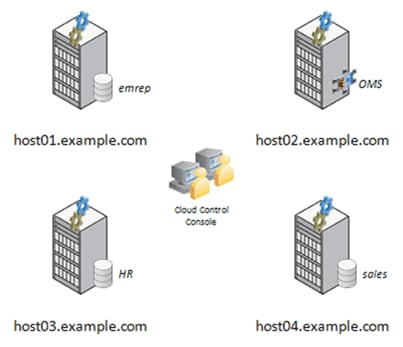
- Download and install the Oracle Enterprise Manager Cloud Control 12c software, available from OTN at this link. You can either install the Oracle Management Repository (OMR) and Oracle Management Server (OMS) on a single host, or on two separate hosts. The examples used in this series of hands-on exercises have the OMR installed in a database called emrep on a host named host01.example.com, with the OMS running on the host host02.example.com.
- Add two hosts as targets, each of which also has an Oracle database installed. Our example architecture has the HR database running on host03.example.com, and the Sales database running on host04.example.com.
This example architecture is shown diagrammatically below:
Prerequisites
Before starting this tutorial, you should:
- Have the software installed as listed under Software Requirements
- Have created your own super administrator account in Enterprise Manager Cloud Control 12.1 as described here.
Note: Screen captures for this tutorial were taken in a Linux environment; if you are using a different operating system the browser look and feel will vary slightly.
Creating The Sample Administration Group Hierarchy
|
. |
The sample administration group hierarchy that we will be creating has a first level division based on lifecycle status (whether the target is a Production / Mission Critical target or whether it is a Development / Test / Stage target), and a second level division based on line of business (Finance, HR or Sales):
|
|---|---|
|
. |
To create this hierarchy, first login to Enterprise Manager Cloud Control using the super administrator account you created earlier. From the home page, choose the Setup menu on the top right of the screen, then select Add Target followed by Administration Groups ...:
|
|
. |
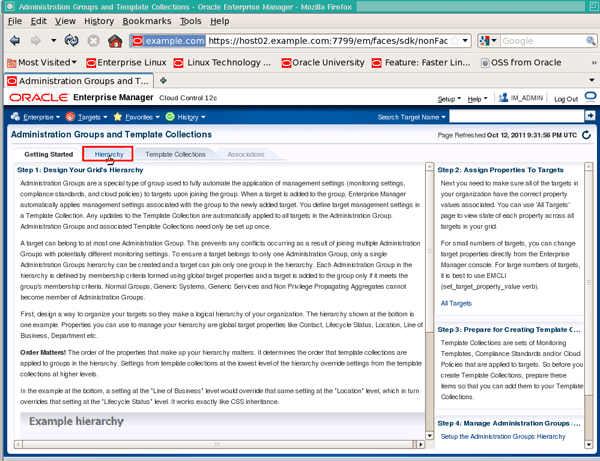
From the Administration Groups and Template Collections screen, select the Hierarchy Definition tab:
|
|
. |
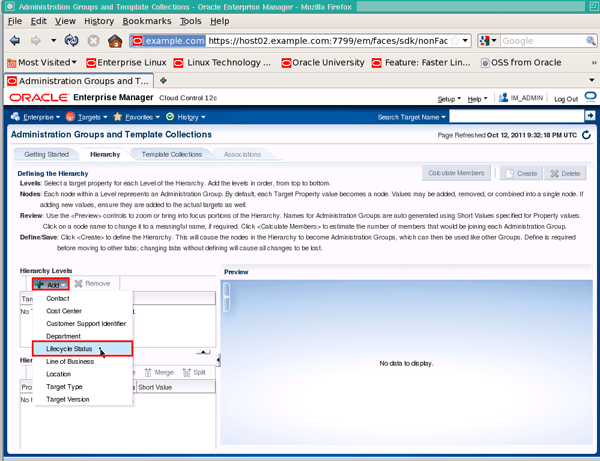
Under Hierarchy Levels, click Add and select Lifecycle Status:
|
|
. |
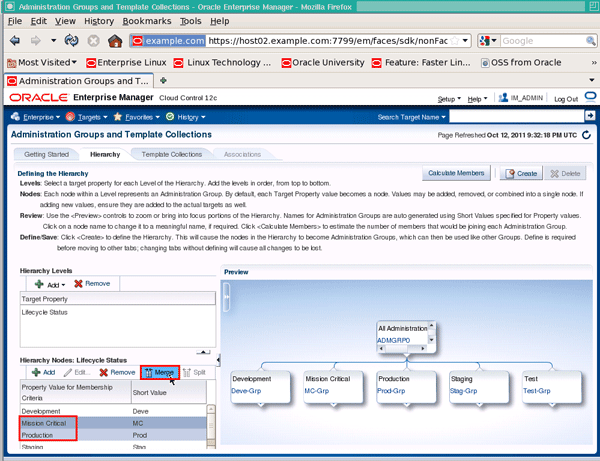
Click Mission Critical, then hold down the Control key and also select Production, and then select the Merge button:
|
|
. |
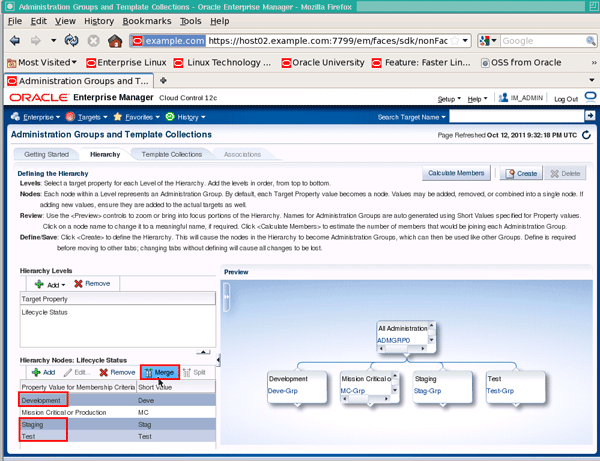
Likewise, select Development, Staging and Test and click Merge:
|
|
. |
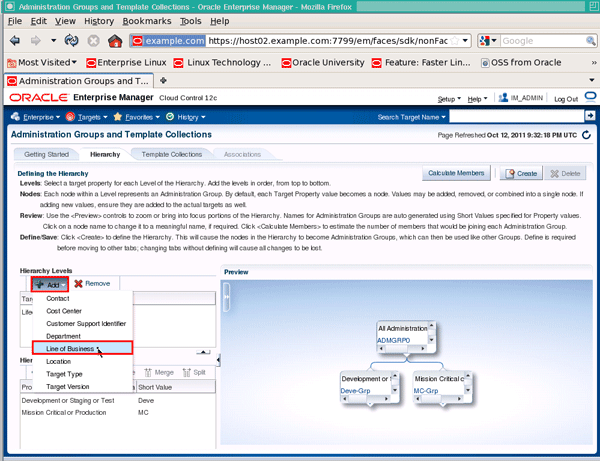
Next, select the Add button under Hierarchy Levels again, but this time select Line of Business:
|
|
. |
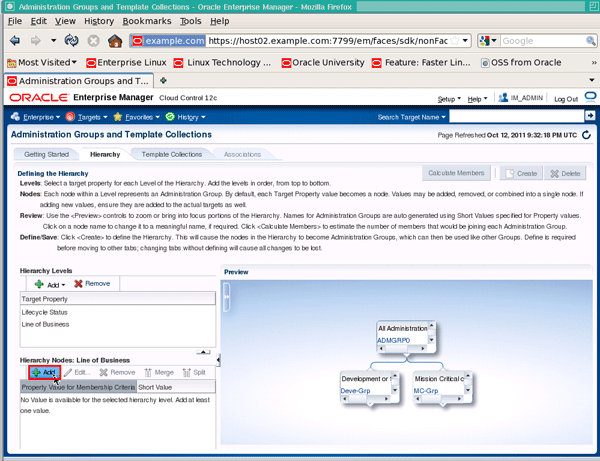
Under Line of Business: Property Values for Membership Criteria select Add:
|
|
. |
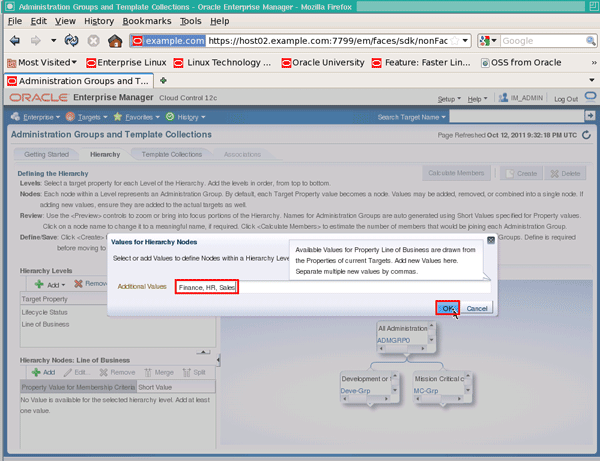
Enter Finance, HR, Sales into the Additional Values field and click OK:
|
|
. |
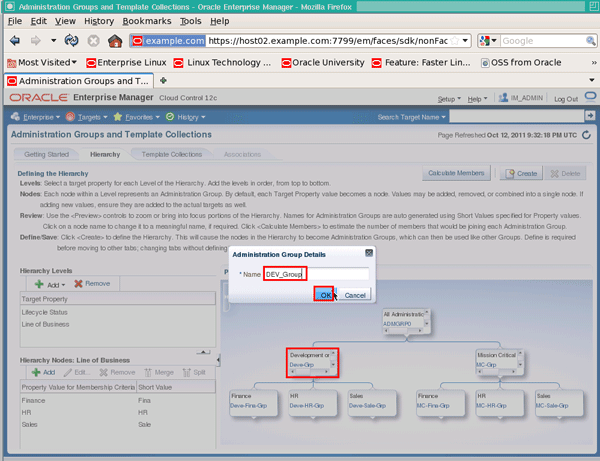
Notice that the system has allocated default names for the administration groups in the hierarchy. You can change this by selecting the group name in the preview window, entering a new name and clicking OK, as you can see here:
|
|
. |
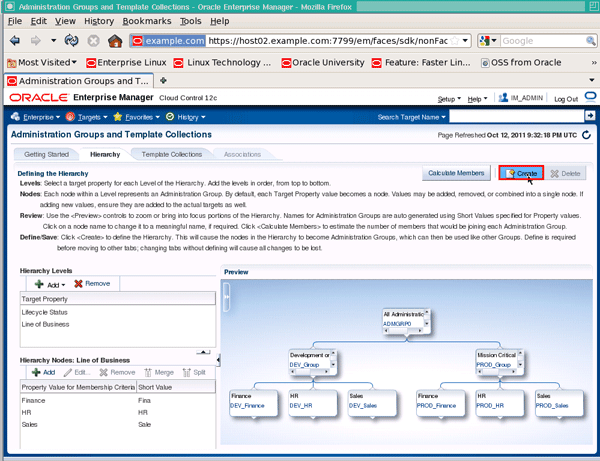
Change the names of each member of the hierarchy to a meaningful name (e.g. DEV_Group, PROD_Group, DEV_Finance, DEV_HR, DEV_Sales, PROD_Finance, PROD_HR, PROD_Sales). When you are satisfied with the hierarchy, click the Create button:
|
|
. |
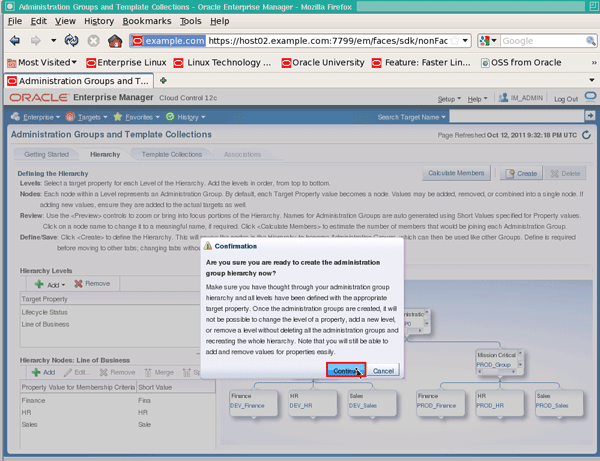
When prompted, click Continue:
|
|
. |
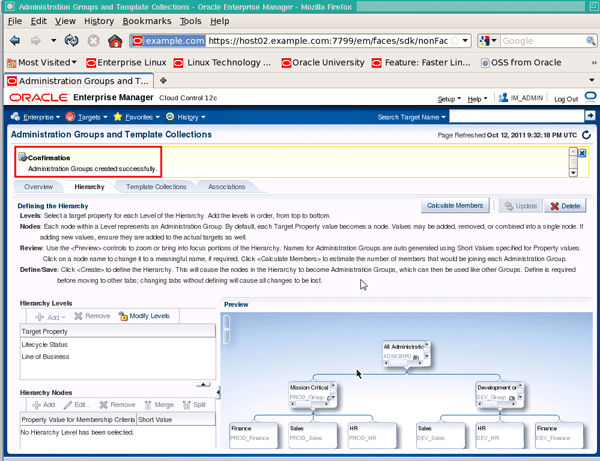
You will receive a message back saying the administration groups were created successfully:
|

Defining The Template Collection
|
. |
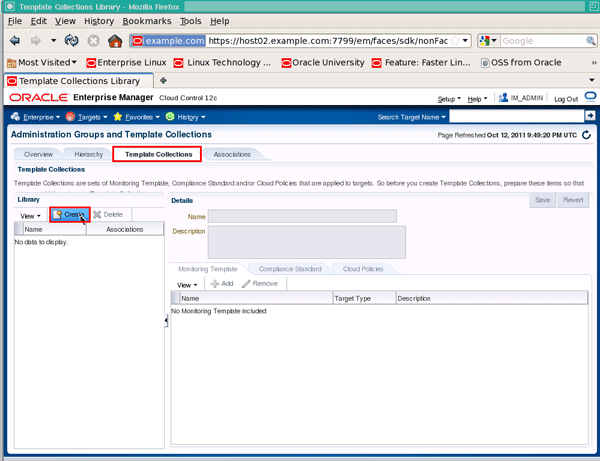
The next part of the process is to create a template collection to associate with the administration group hierarchy. If you already had a template collection defined, you could of course use that, but we will walk through the process of creating a template collection from scratch. The first step in this is to click on the Template Collections tab on the Administration Groups and Template Collections page, and then click the Create button:
|
||||||||||||||||||
|---|---|---|---|---|---|---|---|---|---|---|---|---|---|---|---|---|---|---|---|
|
. |
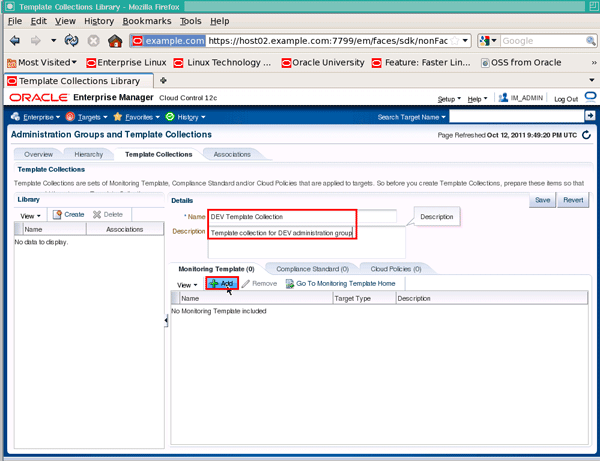
Enter a name of DEV Template Collection, and a description of Template collection for DEV administration group, then click the Add button in the Monitoring Template region:
|
||||||||||||||||||
|
. |
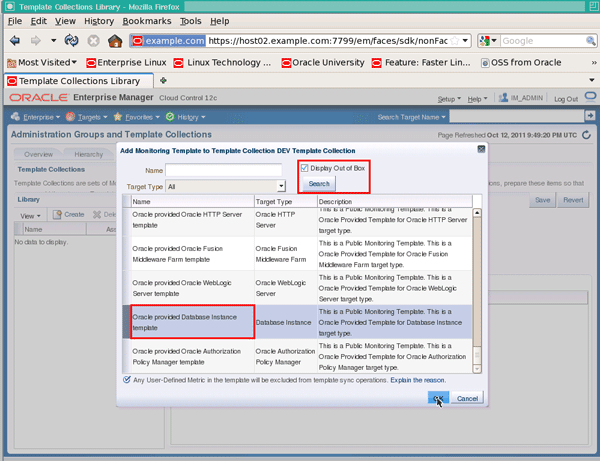
On the Add Monitoring Template to Template Collection screen, if it not already selected click Display Out of Box, then click Search. Scroll through and select the Oracle provided Database Instance template, then hold down the Control key, select the Oracle Certified Template for Host targets and click OK:
|
||||||||||||||||||
|
. |
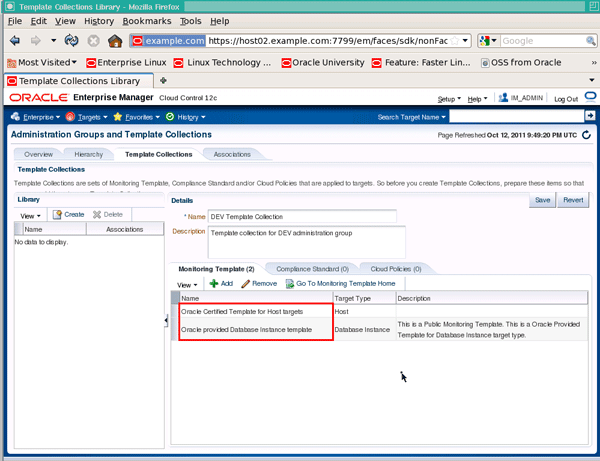
You should now see the two monitoring templates added:
|
||||||||||||||||||
|
. |
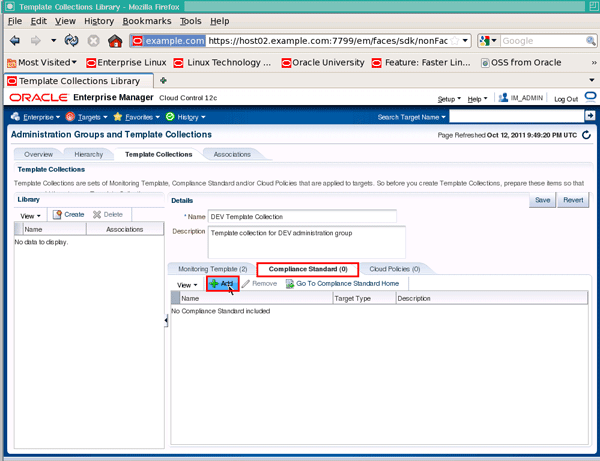
Now, click on the Compliance Standard tab and click the Add button:
|
||||||||||||||||||
|
. |
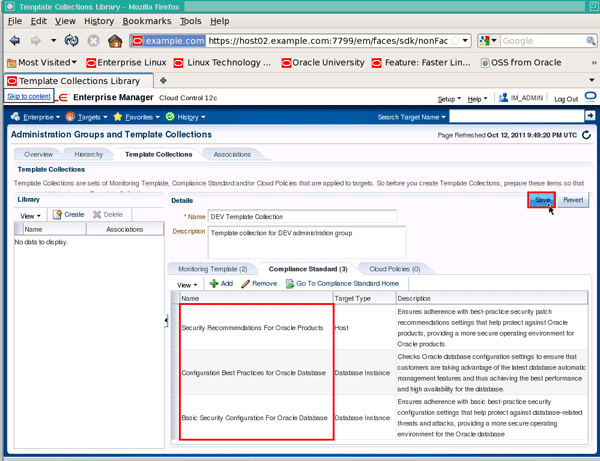
From here, select the Basic Security Configuration For Oracle Database, Configuration Best Practices for Oracle Database, and Security Recommendations For Oracle Products compliance standards and click OK. When you are returned to the Template Collections screen, you should now see the three compliance standards have been added and you may click the Save button:
|
||||||||||||||||||
|
. |
In the same way, create two more templates:
|
Associating The Template Collection With The Administration Group
|
. |
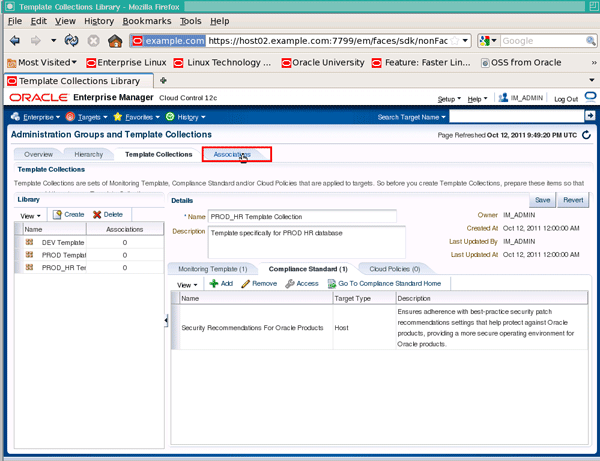
The next part of the process is to associate the template collection with the administration group hierarchy. The first step in this is to click on the Associations tab on the Administration Groups and Template Collections page:
|
|---|---|
|
. |
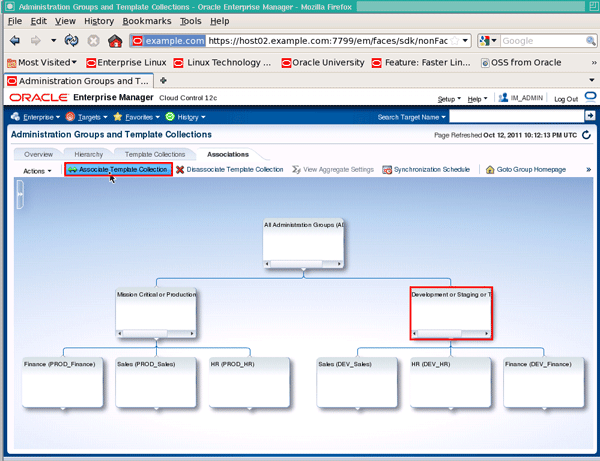
Select the Development or Staging or Test administration group, then click the Associate Template Collection button:
|
|
. |
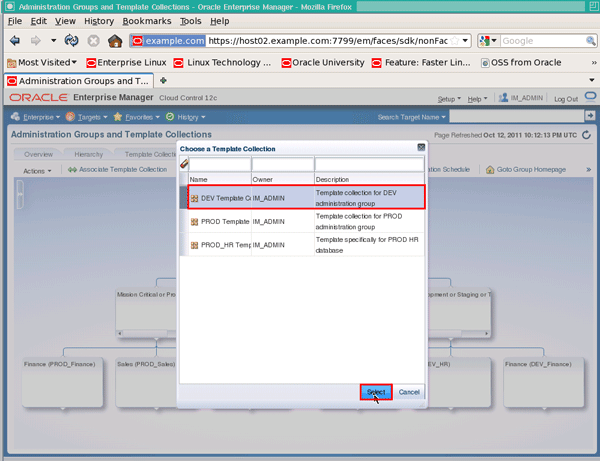
On the Choose a Template Collection screen, select the DEV Template Collection, then click Select:
|
|
. |
In the same way associate the PROD template collection with the PROD administration group, and associate the PROD_HR template collection with the PROD_HR administration group. Next, we want to examine the combination of settings that the PROD_HR group will gain, since it will inherit settings from both the PROD and PROD_HR template collections. To do this, select the PROD_HR Template Collection, then click the View Aggregate Settings button:
|
|
. |
On the Aggregate settings for PROD_HR screen, you can see that any database instance target that is in this group will inherit settings from both the Mission Critical or Production lifecycle status setting and the HR line of business setting. Click on the Database Instance row, followed by the View Aggregate Settings button to see how these settings combine:
|
|
. |
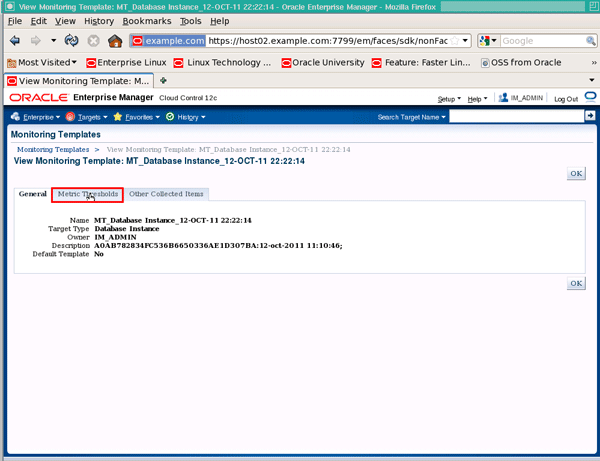
On the View Monitoring Template screen, click on the Metric Thresholds tab:
|
|
. |
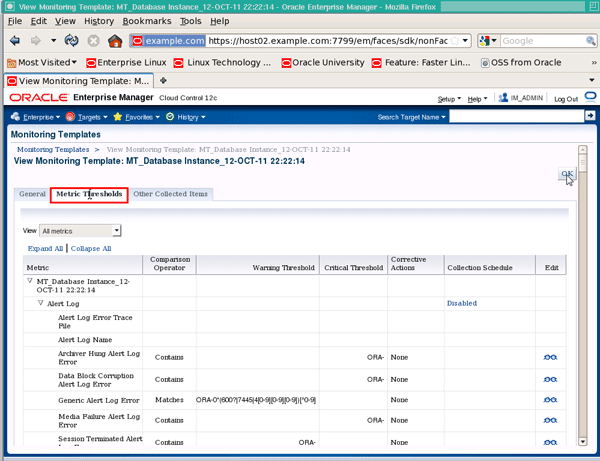
From the Metric Threshold tab, you can view the metric settings, or by clicking on the Edit icon edit them as required:
|


Setting Target Properties
|
. |
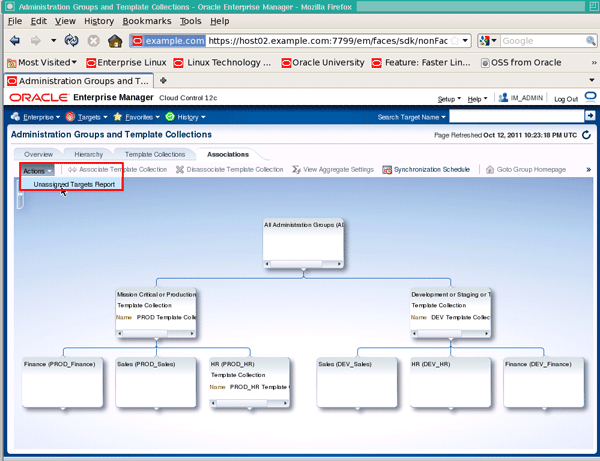
The last part of the process is to set the target properties appropriately so the targets are added automatically to the relevant administration groups. This is also done from the Template/Group Associations tab. From here, click the Actions button and select Unassigned Targets Report:
|
|---|---|
|
. |
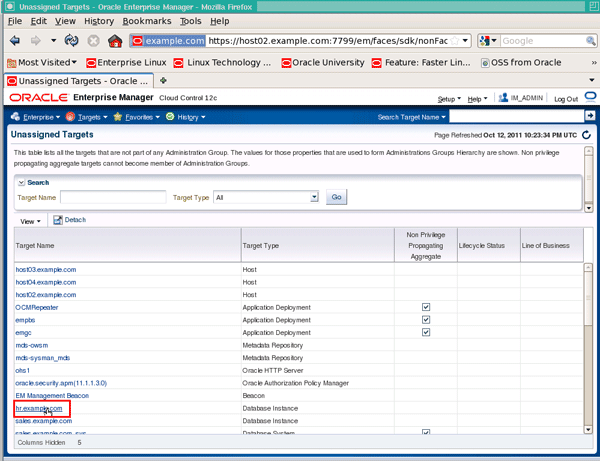
Click the hr.example.com target from the list of unassigned targets:
|
|
. |
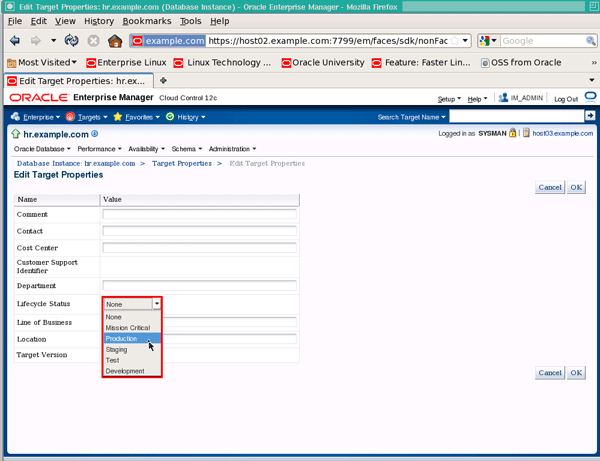
On the Edit Target Properties screen, select the arrow on the Lifecycle Status dropdown, then click Production from the dropdown list:
|
|
. |
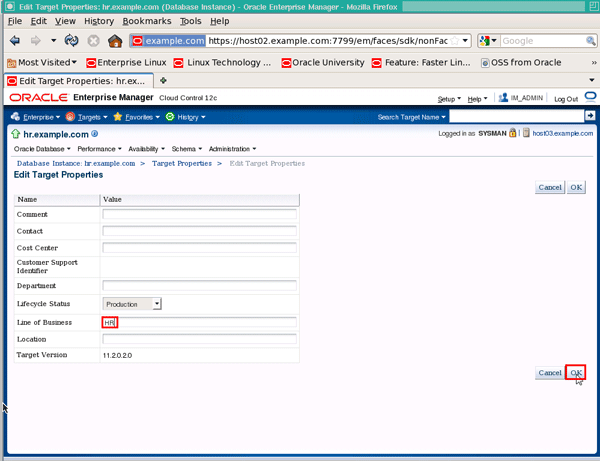
Next, select the Line of Business property and type in the value HR, then click OK:
|
|
. |
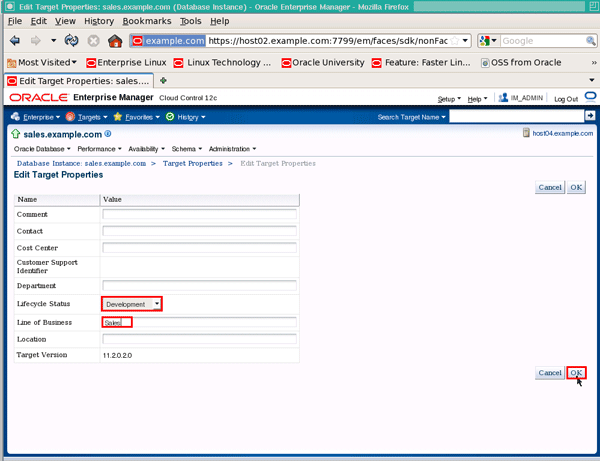
Using the same process, add the sales.example.com database instance to the DEV_Sales administration group by selecting a Lifecycle Status of Development, entering a Line of Business of Sales and clicking OK:
|
|
. |
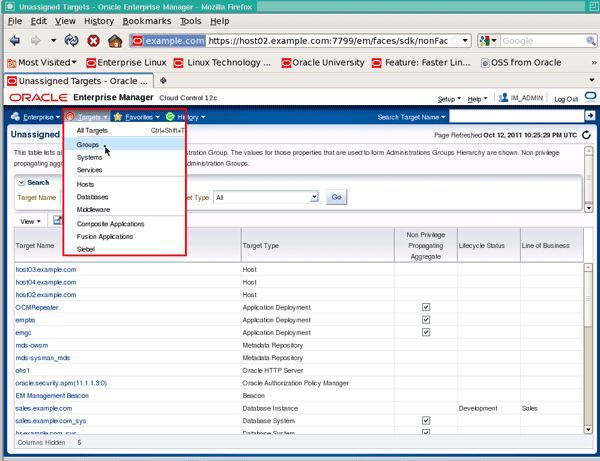
Now to validate the associations are working, select the Groups menu item from the Targets menu:
|
|
. |
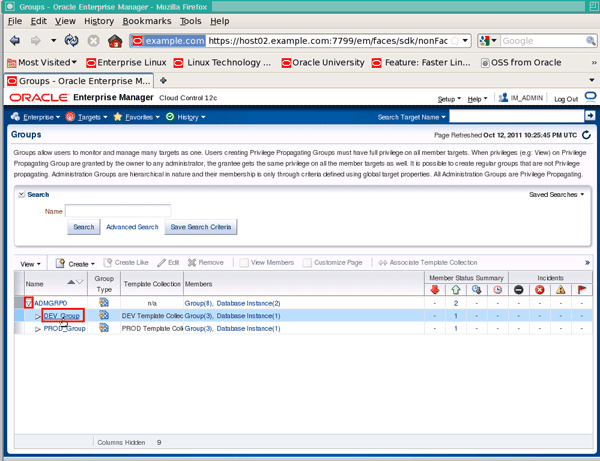
Expand the group ADMGRP0 by clicking the arrow to the left of the group name, then click on the DEV_Group group:
|
|
. |
Here you should see the sales.example.com database instance is a member of the DEV_Group administration group:
|
|
. |
Likewise, if you clicked the PROD_Group group, you should see the hr.example.com database instance as a member of the PROD_Group administration group:
|
|
. |
Finally, select the Enterprise menu, then Monitoring, then select the Template Collections menu item:
|
|
. |
Now, select the Template/Group Associations button, select the PROD_HR template collection and select the Goto Group Homepage button:
|
|
. |
You should see the hr.example.com database instance is also a member of the PROD_HR administration group:
|
|
. |
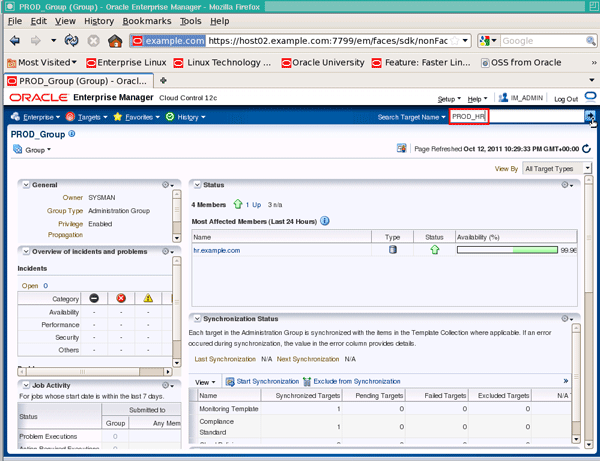
An alternative method to using these last three steps would be to enter a value of PROD_HR in the Search Target Name field, then clicking the Search button:
|
|
. |
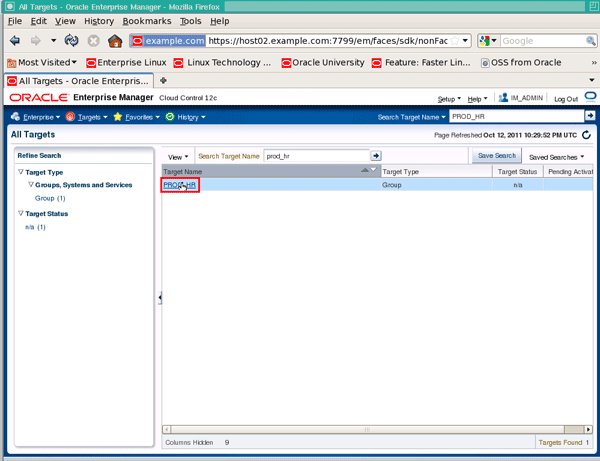
Click on PROD_HR:
|
|
. |
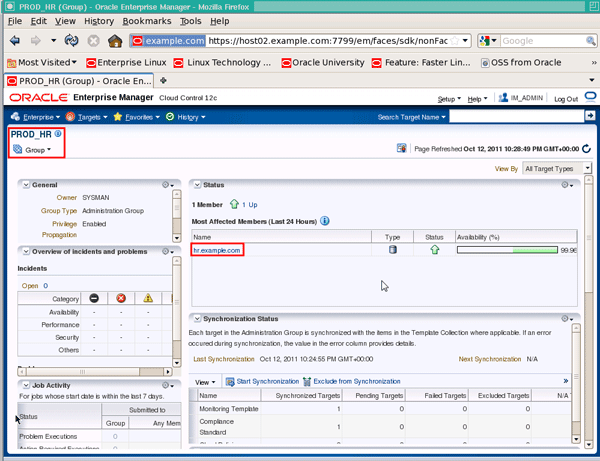
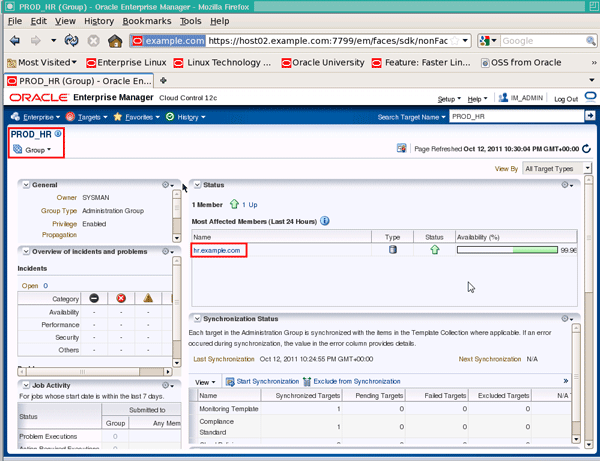
Again, this will take you to the PROD_HR group homepage, and you should see the hr.example.com database instance is a member of the PROD_HR administration group:
|


Summary
Administration groups and template collections allow you to automatically apply monitoring templates, compliance standards, and cloud policies to targets as they are added to the administration group, making the application of these monitoring settings easy and fully automated.
In this tutorial, you should have learned how to:
- Create an administration group and a template collection
- Associate the template collection with the administration group
- Set the properties for a target so it automatically joins the administration group and has the monitoring settings applied to it
Resources
- Oracle Enterprise Manager documentation set
- To learn more about Oracle Enterprise Manager, refer to additional OBEs in the Oracle Learning Library

| Copyright © 2011, Oracle and/or its affiliates. All rights reserved | |